

A sudden power outage on your computer may not only damage your data, but may also result in complete data loss. How can you recover data after power outage? This article will provide a full guide with useful tips and useful data recovery software.
About Power Outage
Why Does Power Outage Occur
Before starting to recover data after power outage, you need to know why a power outage happened. Here are two common causes that may lead to power outages.
- Unstable power supply connection: If you are using a laptop, an unstable power supply can cause a power failure. For laptops and desktops, power outages may be caused by damaged cables, incompatible cables, or loose plugs.
- Power supply issues: Using an old or damaged power supply may cause random power outages. You can connect your power supply to another device to check the power supply’s health. By the way, if you are not using an uninterruptible power supply (UPS), your computer can easily shut down when a power outage occurs.
How Does Power Outage Cause Data Loss
Wondering why power outages can cause data loss? How does it happen?
Sudden power outages on computers can damage the file system structure on storage devices, leading to multiple serious consequences, such as unsaved files, corrupted files, and complete file loss. In addition, sudden power outages can disrupt the normal operation of file storage devices and file systems. Partition loss will cause the data stored in it to be inaccessible or even cause disk failure. That’s why your data gets lost after power outage.
So, how to recover data after power outage? Is it possible to recover unsaved files after a sudden power failure? Here are detailed instructions.
See Also: Fix Hard Drive Not Working After a Power Outage in 6 Ways
How to Recover Data After Power Outage
Recover Unsaved Files After Power Failure
After a sudden power outage on your computer, unsaved files are usually difficult to recover. Fortunately, many software such as Microsoft Word provides AutoSave and AutoRecover features, which automatically save the document being edited regularly to prevent the software from closing unexpectedly. If you have enabled similar features, you can retrieve the lost unsaved file version from the corresponding software. For Microsoft Word, you can refer to this article for recovery steps: How to Recover Unsaved Word Documents.
In addition, some unsaved data will be temporarily stored in the computer’s temporary folder. Here are the locations of the temporary files:
- System drive temporary folder: C:\Windows\Temp
- User’s temporary folder: C:\Users\username\AppData\Local\Temp
You can find and recover unsaved files from the temporary folder.
Restore Data From Backups
You can recover data after power outage with Windows Backup and Restore. This is a common and quick method that is suitable for you if you are in the habit of backing up your files regularly. Here is how to do this.
Step 1: Type Control Panel in the search box and open it.
Step 2: Choose Backup and Restore (Windows 7) under System and Security.

Step 3: After that, click Restore my files in the Restore area. Then the Restore Files window will pop up, and you can choose which files you want to recover with three buttons: Search, Browse for files, and Browse for folders. You can’t find files that weren’t backed up. Subsequently, follow the on-screen instructions to complete the recovery steps.

If you are a cloud service user, you can recover data after a power outage from the cloud service you are using. Most cloud service providers support automatic or manual backup. If you have a cloud backup, you can use the corresponding cloud service to export data from the cloud to your local device.
Use MiniTool Power Data Recovery
How to recover data after shutdown if you haven’t backed up your data? You can use data recovery software – MiniTool Power Data Recovery to perform data recovery easily. Among the numerous Windows data recovery tools available in the market, it is undoubtedly the most worthwhile to use due to its constant updates, seamless file recovery, and clean interface.
MiniTool Power Data Recovery has a simple interface with powerful functions, and you can use it to restore your data from internal disks, external hard drives, USB flash drives, DVDs/CDs, SD cards, or other storage devices. This file restore software allows you to recover files in various situations, such as data loss after power outage, as well as fille loss caused by operating system crash, disk corruption, storage device formatting, mistaken deletion, and so on.
Download this free data recovery software now and recover up to 1 GB of files for free.
MiniTool Power Data Recovery FreeClick to Download100%Clean & Safe
Step 1: Launch MiniTool Power Data Recovery to go to its home page.
On the interface, you can see all the partitions listed on the Logical Drives tab, including existing partitions, lost partitions, and unidentified partitions. Choose a target partition to scan. If you know the exact folder where your data is lost, you can choose Select Folder under Recover From Specific Location to perform the accurate scanning, which will save much of your time.
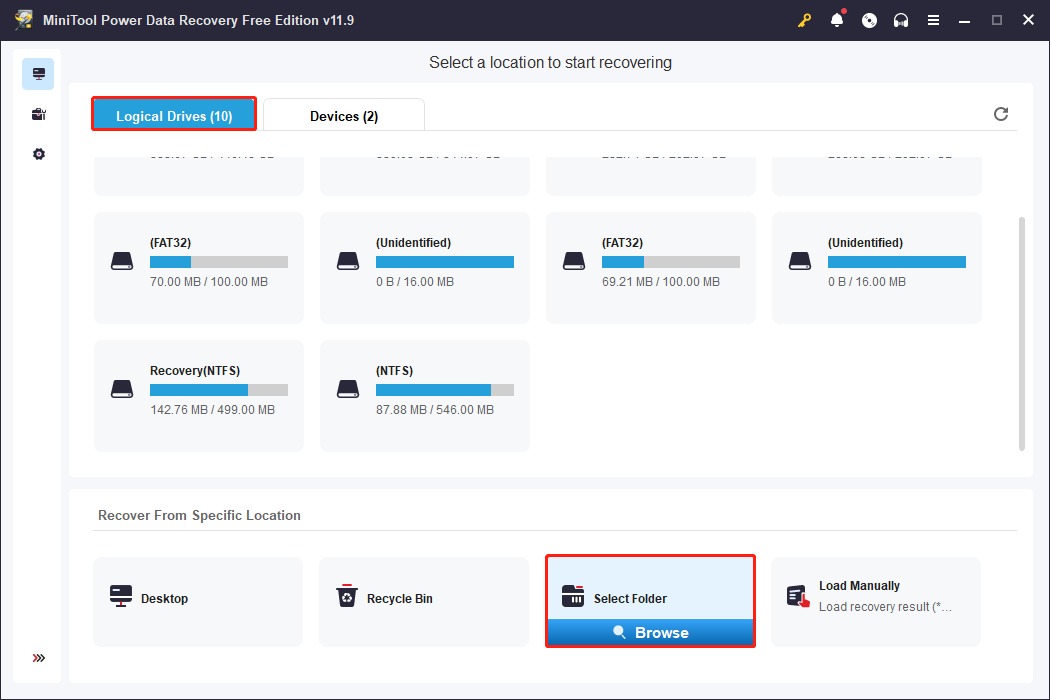
After you select the partition or folder, the tool will begin to scan all the files and collate them by file path. This will take some time depending on the number of files scanned and the size of the partition, disk, or folder.
Step 2: When the scanning process is complete, you can start looking for your files. To find your files more quickly, you can use some features of this tool.
- Path: Under Path, the scan results are usually listed in three folders: Existing Files, Lost Files, and Deleted Files. You can expand each folder to find the files you need.
- Type: It classifies the scan result according to different file types, including documents, pictures, audio & videos, emails, and so on.
- Filter: This feature allows you to add more filter rules to filter out unnecessary files. You can add filtering criteria such as file type, file modification date, file size, and file category. If you remember these details about the deleted/lost files, you can save time and filter accurately.
- Search: It is suitable for you if you remember the names of the files. You can type the name of the deleted/lost file in the search box and press Enter to search for your file. This feature is especially useful when looking for a small number of files, but the opposite is true when the number of files is large.
- Preview: Due to the recovery limitation of the free edition, the preview feature will be greatly effective in confirming the files you need. You can double-click the files to preview them one by one.


Step 3: Select the files you want to recover, then click Save and choose a location to save these files. Don’t save these files to their original location or where you frequently lose your data.
Rename the Drive letter
Each disk partition is assigned a unique drive letter to identify the different partitions. If the drive letter is lost, the disk will not show up in File Explorer, and it will appear that the disk and the data on it are lost. In this case, you can get your drive and files back as long as you assign a new drive letter.
Step 1: Press Win + R to open Run, then input diskmgmt.msc and hit Enter to open Disk Management. Or you can right-click on Start and choose Disk Management.
Step 2: You can see all the partitions on your computer, both with and without drive letters. Right-click the partition without a drive letter, which should be the partition you want to recover data from, then choose Change Drive Letter and Paths and select Add… in the pop-up window.
Step 3: In the Assign the following drive letter: section, choose a drive letter from the drop-down list, then hit OK to confirm.

Now your partition should be back to accessible, and you can check if your data has been recovered.
Recover Data by Recovering Lost Partition
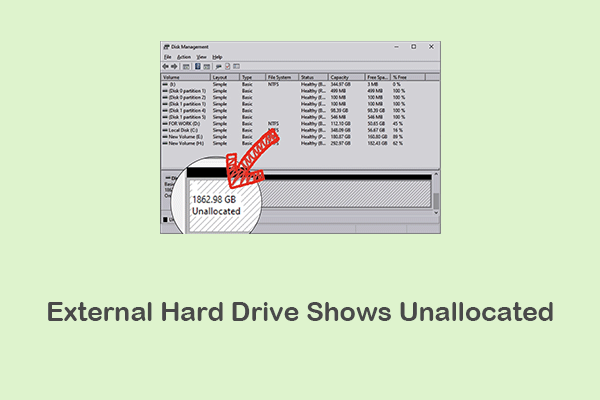
In some cases, disk partitions may become unallocated after a power outage, resulting in data loss. Under this situation, you can use professional partition management software to recover the lost partitions as well as the files in the partitions. MiniTool Partition Wizard is a good choice.
It is a comprehensive partition manager that helps maximize disk performance. It provides you with a powerful partition recovery feature, enabling you to recover lost partitions and rebuild the partition table.
Here this post shows you how to recover lost partitions: How to Recover Unallocated Partition With Data on It.
MiniTool Power Data Recovery FreeClick to Download100%Clean & Safe
Check the Hardware
If your internal or external storage device has a hard drive failure that makes the data inaccessible after a power outage, the storage device or your computer itself may be damaged. Start your computer and check if there are any signs of damage. If your computer does not recognize the external storage device you are using, you can remove it from the current computer and connect it to another device to check if the external storage device is available.
If you do have a problem with your computer, you’ll need to contact a repair service for repairs.
How to Avoid Power Outage
If you are worried about another sudden power outage or power surge on your computer, you can follow the following suggestions:
- Use uninterruptible power supply (UPS): An uninterruptible power supply is a type of continual power system that provides automated backup electric power to a load when the main power fails. Using it allows you to have enough power to continue using your computer and shut it down normally when facing a power outage.
- Ensure stable cable connection: A computer power outage is sometimes due to poor physical connection of the power port. You need to make sure the cable connection goes well to avoid such an issue.
- Prepare a backup power supply: A backup generator or battery storage can keep your devices powered during extended outages.
How Can I Prevent Data From Getting Lost
After recovering your lost data, consider the following suggestions to avoid losing data in case of power outage or surge.
- When power outages or surges appear, you need to disconnect all storage devices from your computer immediately to prevent data loss caused by unexpected accidents.
- When your computer is temporarily powered off, do not rush to restart it. Wait 20 to 30 minutes before rebooting it.
- If the files are lost on a storage device, you need to stop writing new data to it. Then, you need to check whether the storage device is faulty. If so, repair or replace it in time.
- Back up your files regularly through File History, Windows Backup and Restore, cloud storage services, or professional data backup software to avoid file loss.
- Organize your computer files and clean up unnecessary files on a regular basis.
Final Words
Although a sudden power outage may cause your files to be unsaved or deleted, we have provided you with data recovery methods and some tips to avoid data loss. Try them, and they will help you get rid of data loss issues.
User Comments :