

Samsung 980 Pro SSD Not Detected: What Does It Mean?
The Samsung 980 Pro is a widely used PCIe 4.0 NVMe SSD, but like all M.2 drives, it can sometimes become unrecognized by your motherboard or OS.
Before panicking, it’s best to identify where the detection issue occurs — whether the drive is not showing up in BIOS/UEFI, only missing in Windows, or not detected during a clean install, as the solutions differ.
Quick Diagnosis Table
| Where It Fails | What Causes It | How to Fix It |
| Not visible in BIOS/UEFI at all | Loose M.2 seating, wrong slot, outdated BIOS, power issue, disabled PCIe settings, or a dead drive | Reseat the SSD, try another M.2 slot, check BIOS settings, update BIOS, check power/PCIe lane conflicts, test the SSD on another PC |
| Missing from File Explorer or Disk Management on Windows 11/10 | Drive not initialized, no drive letter, outdated/corrupt NVMe driver, disk offline, or partition corruption | Initialize the disk, assign a drive letter, update drivers, bring the disk online |
| Not listed during a fresh Windows installation | Missing NVMe driver in the installer, Secure Boot/CSM conflict, wrong boot mode, installation-media issues, or BIOS not recognizing the drive | Load the required driver, check BIOS storage settings, recreate Windows installation media, confirm BIOS sees the drive first |
Important: If the Samsung 980 Pro contains important files, do not initialize, format, or delete its partitions before checking the data.
Recover Data First if the Samsung 980 Pro Contains Important Files
If the Samsung 980 Pro contains important documents, photos, videos, or other files, recover the data before performing potentially destructive fixes.
MiniTool Power Data Recovery can scan an inaccessible Samsung 980 Pro for recoverable files when Windows can detect the drive or its partitions. It can help recover files from deleted, lost, or inaccessible partitions. The Free Edition can recover up to 1GB of data.
The basic recovery process is:
Step 1. Download and install MiniTool Power Data Recovery on another working drive.
MiniTool Power Data Recovery FreeClick to Download100%Clean & Safe
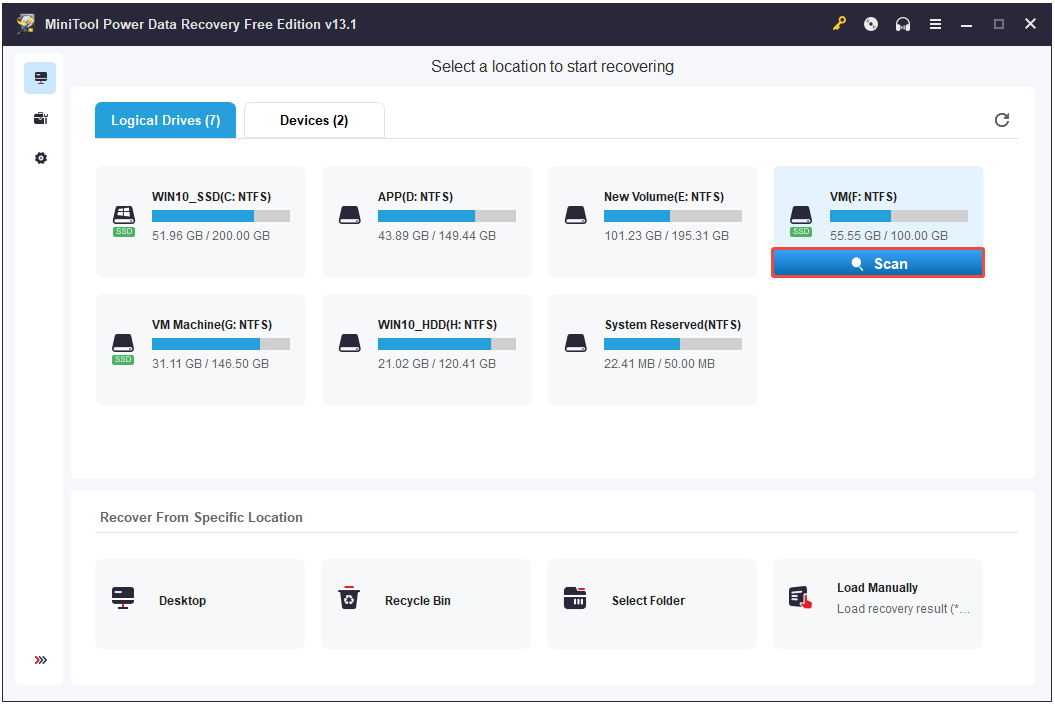
Step 2. Launch the program and locate the Samsung 980 Pro under Logical Drives. If the partition is missing, switch to Devices to view and select the entire SSD. Then, click Scan to search for recoverable files.
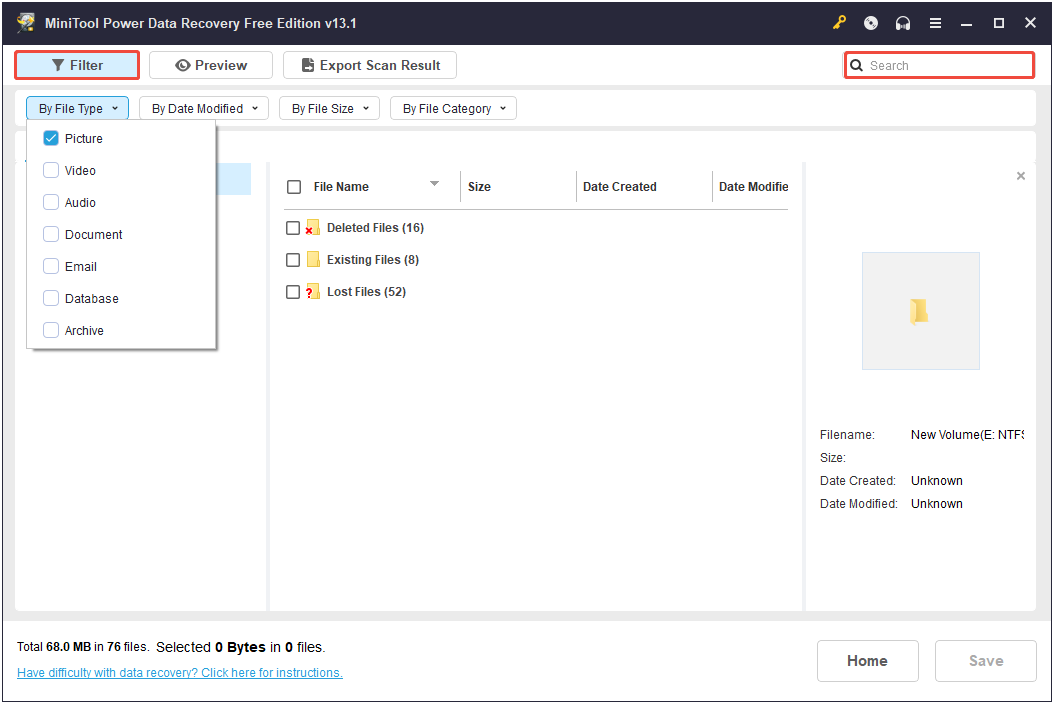
Step 3. Wait for the scan to complete. Use Filter or Search to locate the required files.
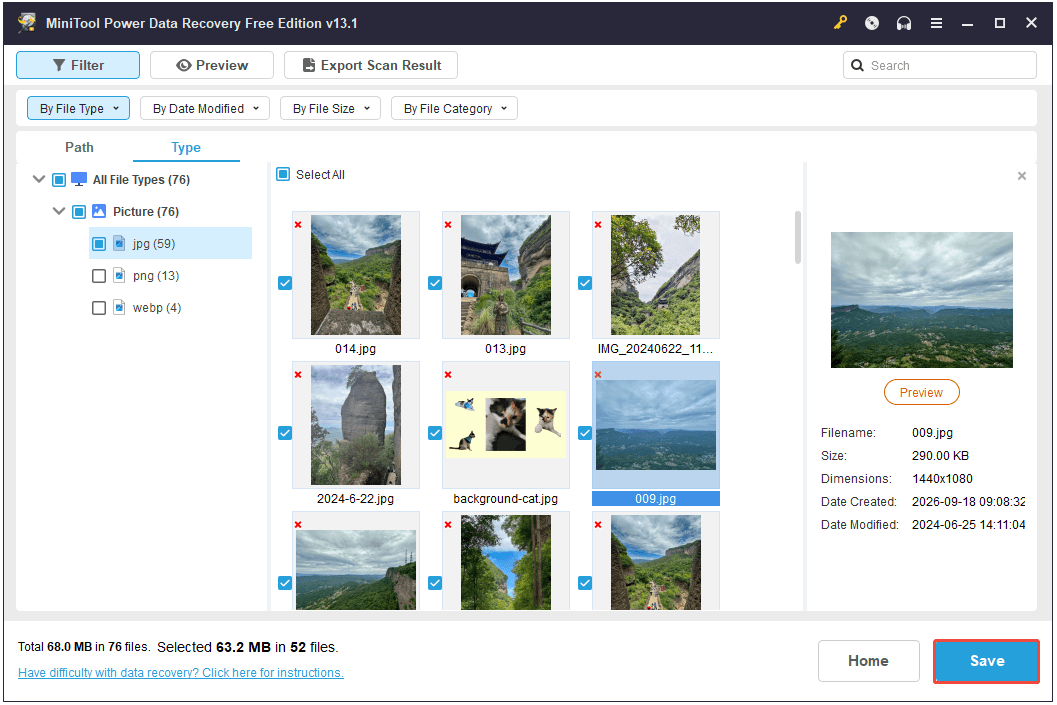
Step 4. Preview the scan results and select the required files. Then, click Save and choose another healthy drive as the destination.
Case 1: Samsung 980 Pro Not Showing Up in BIOS
If Samsung 980 Pro is not showing up in BIOS/UEFI, the issue resides at the hardware connection or motherboard firmware level.
Fix 1. Check the SSD and M.2 Slot
Shut down the computer and disconnect the power. Remove the Samsung 980 Pro and check the connector and M.2 slot for visible dust or damage. Reinstall the SSD firmly and secure it with the M.2 screw. Then enter BIOS/UEFI and check whether the drive appears.
If it is still missing, try another compatible M.2 slot. Some slots may have different PCIe support or share lanes with other devices, so check the motherboard manual.
If possible, test the Samsung 980 Pro on another compatible computer. If it works there, the original motherboard, M.2 slot, or BIOS configuration may be responsible.
Fix 2. Check and Update BIOS Settings
Enter BIOS/UEFI and check the storage configuration. Depending on the motherboard, relevant settings may include NVMe, M.2, PCIe, RAID, Intel VMD, CSM, and UEFI/Legacy settings. For example:
- Confirm the M.2 slot is enabled.
- Ensure the SATA/NVMe mode setting is set to NVMe or AHCI as appropriate.
- Try toggling the CSM option.
Incorrect storage settings can prevent an NVMe SSD from being detected. If necessary, restore BIOS settings to their default or optimized values.
Also check the motherboard manufacturer’s support page for a BIOS update. An outdated BIOS can sometimes cause NVMe compatibility or detection problems.
Case 2: Samsung 980 Pro Is Not Showing Up in Windows
If BIOS sees the Samsung 980 Pro but Windows 11/10 does not show it in File Explorer, the issue is usually within Windows Disk Management, drivers, or storage features.
Fix 1. Check Disk Management
Disk Management can show if Windows detects the physical SSD, even if it doesn’t appear in File Explorer.
Press Win + X and select Disk Management. Then, locate the Samsung 980 Pro and check its status.
Common situations include:
- Unallocated: The SSD has no usable partition. If it is a new SSD, create a new volume. If it contains important files, recover them first.
- No drive letter: Right-click the partition, select Change Drive Letter and Paths, and assign a drive letter.
- Offline: Right-click the disk and select Online.
- RAW: The file system may be damaged or unsupported. Do not format the drive if it contains important data.
- Uninitialized: Initialize the disk only if it is new or contains no data that needs to be preserved.
Fix 2. Check Drivers
Outdated chipset or storage-controller drivers can affect NVMe SSD detection. Therefore, try checking drivers to fix the Samsung 980 Pro SSD not detected in Windows 11/10.
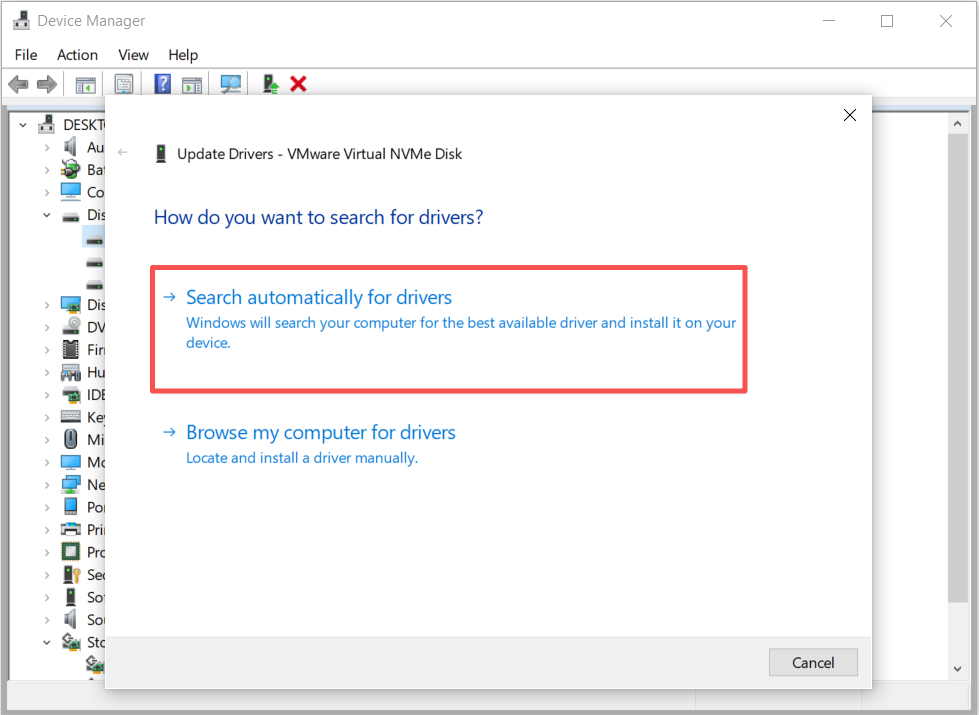
- Press Win + X and select Device Manager.
- Expand Disk drives and Storage controllers and check for the Samsung SSD or a device with a warning icon.
- Right-click the relevant device and select Update driver.
- Choose Search automatically for drivers.
- Follow the on-screen guide to complete the process.
- Then restart Windows and check Disk Management again.
If the SSD still does not appear, check the motherboard or computer manufacturer’s support page for the appropriate chipset and storage-controller drivers.
Fix 3. Check for Drive Letter Conflicts and Disk Errors
Sometimes the drive works fine at the hardware level, but a conflict or formatting issue keeps it from appearing in File Explorer.
Step 1. Right-click Start and select Disk Management to review all volumes.
Step 2. Check the drive letters.
- If another device is already using the letter meant for the 980 Pro, right-click that device’s volume, choose “Change Drive Letter and Paths,” and assign it a different letter instead.
- If the 980 Pro itself has no letter, right-click its volume, choose “Change Drive Letter and Paths” > “Add,” and assign one.
Step 3. Run CHKDSK to check for corruption. Open Command Prompt as Administrator and run:
chkdsk E: /f (replace E: with your drive’s letter).
Step 4. Confirm Windows detects the physical disk. Run:
wmic diskdrive list brief
If the SSD appears, the issue is partition/formatting — redo Steps 1–3.
If not, it points to a driver issue (Method 2) or hardware/BIOS problem (Case 1).
Fix 4. Check Samsung 980 Pro Firmware
If the SSD can be detected by another computer, use Samsung Magician to check its firmware version.
Samsung provides firmware updates for the 980 PRO series. Update the firmware if Samsung recommends a newer version, and back up important data before performing the update.
If the SSD remains undetected in multiple compatible computers after these checks, the SSD itself may have a hardware or firmware problem.
Case 3: Samsung 980 Pro Not Showing up in Windows install
If the Samsung 980 Pro appears in BIOS but is missing from the Windows Setup disk-selection screen, the issue may be related to storage-controller configuration or missing drivers.
Fix 1. Check BIOS Storage Configuration
First, confirm that the Samsung 980 Pro is detected in BIOS/UEFI.
Then check settings related to Intel VMD, RAID, and storage controllers. On some Intel systems, Windows Setup cannot access NVMe drives behind VMD or RAID without the appropriate driver.
Fix 2. Load the Required Storage Driver
If BIOS detects the Samsung 980 Pro but Windows Setup does not, download the appropriate storage-controller driver from the computer or motherboard manufacturer’s support page.
Copy the extracted driver to the Windows installation USB.
On the Windows Setup disk-selection screen, select:
Load driver > Browse > Select the driver folder > Next
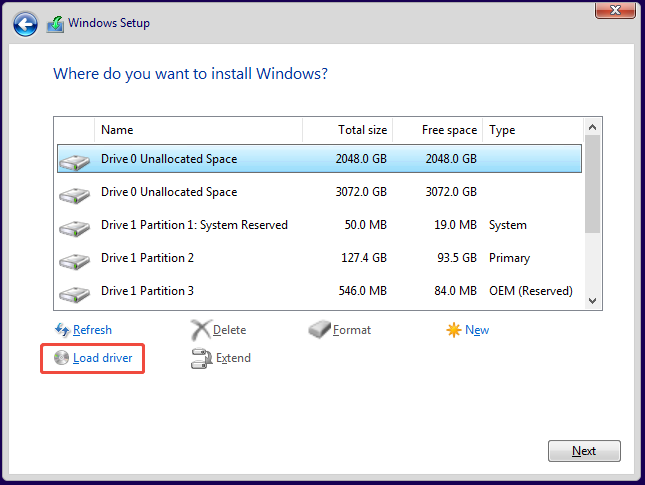
After the driver loads, check whether the Samsung 980 Pro appears.
The required driver depends on the computer’s motherboard, CPU platform, and storage configuration. Use the manufacturer’s support page rather than a random third-party driver.
Fix 3. Convert Samsung 980 Pro from MBR to GPT
If your Samsung 980 Pro uses the MBR partition style but your system is booted in UEFI mode, Windows Setup may not recognize the SSD as an available installation disk. In this case, converting the SSD from MBR to GPT can resolve the compatibility issue.
Method 1. Convert MBR to GPT Using CMD
Step 1. Boot your computer from the Windows installation USB drive.
Step 2. When the Windows Setup screen appears, press Shift + F10 to open Command Prompt.
Step 3. Enter the following commands one by one, pressing Enter after each:
- diskpart
- list disk
- select disk x
- clean
- convert gpt
Step 4. Type exit and press Enter to close DiskPart.
Return to Windows Setup and check whether the Samsung 980 Pro appears as an installation destination.
Method 2. Convert MBR to GPT Using MiniTool Partition Wizard
If you prefer a graphical partition manager, MiniTool Partition Wizard can also convert an MBR disk to GPT and provides other disk management features, such as disk cloning, formatting, and file system conversion.
MiniTool Partition Wizard FreeClick to Download100%Clean & Safe
Step 1. Launch MiniTool Partition Wizard and select the Samsung 980 Pro with the MBR partition style.
Step 2. Click Convert MBR Disk to GPT Disk from the left action panel.
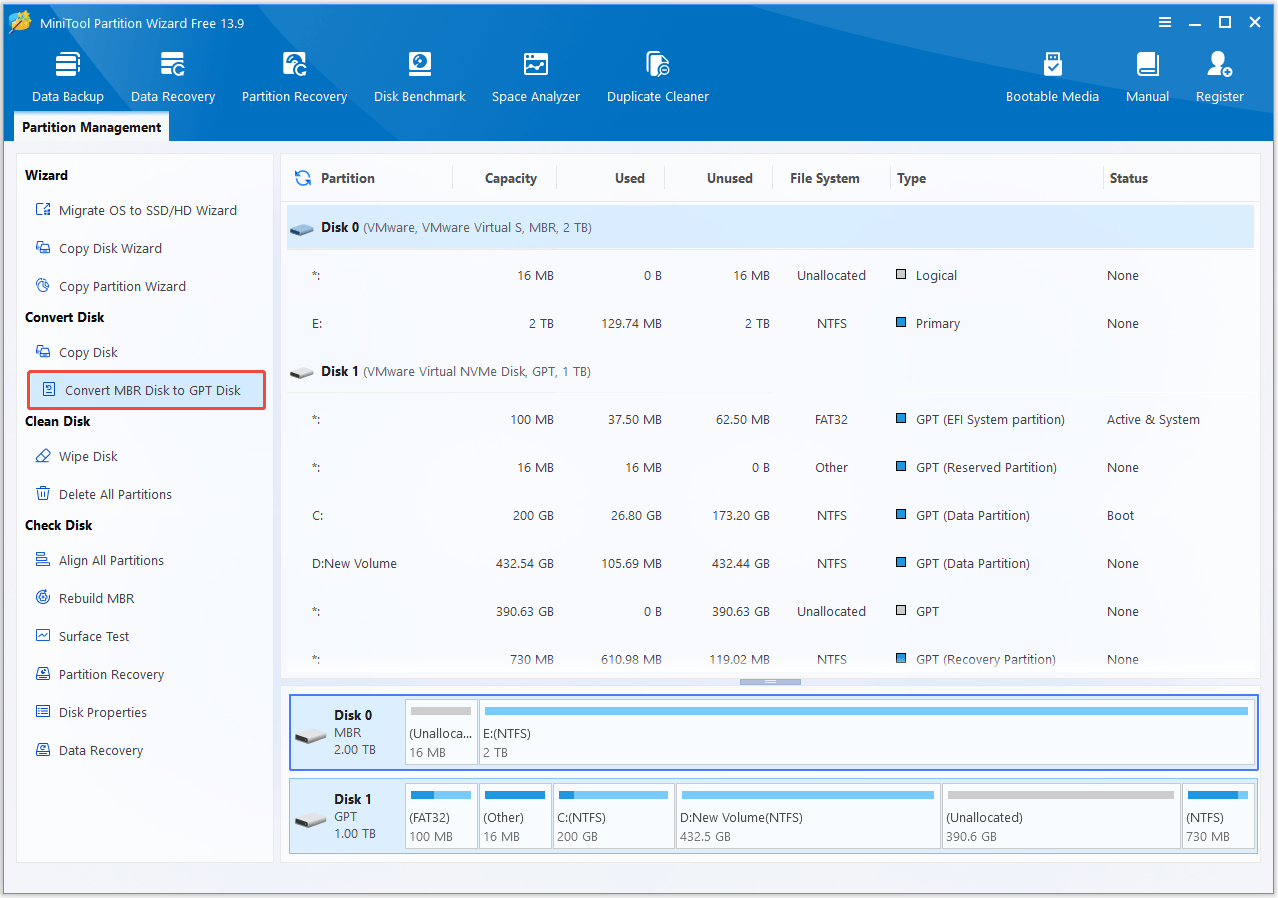
Step 3. Click Apply to execute the operation.
What if Windows and BIOS Still Cannot Detect the SSD?
If you’ve worked through every step above and the Samsung 980 Pro is still invisible everywhere, hardware failure becomes the most likely explanation. Before concluding that, try these last checks:
- Test with a different M.2-to-USB enclosure to rule out a motherboard-side problem entirely.
- Check for physical damage on the connector pins or the drive’s PCB.
- Listen and feel for unusual heat — a drive that gets unusually hot and unresponsive under light use may be failing.
- Check the Samsung Magician software (on a system where it is detected) for SMART health data and firmware status.
- Contact Samsung support with the drive’s serial number to check warranty status; the 980 Pro typically carries a 5-year limited warranty.
If none of this restores detection, the SSD controller or NAND may have failed, and the drive should be replaced under warranty instead of repaired. Additionally, consult a professional data recovery service if the data is critical.
Samsung 980 Pro SSD Not Detected FAQ
If the cloned Windows installation cannot see the 980 Pro, check the storage controller, drivers, partition configuration, and BIOS settings.
Conclusion
A Samsung 980 Pro SSD not detected issue is almost never a sign of a dead drive — in most cases it comes down to a loose connection, an outdated BIOS, an uninitialized disk, or a missing NVMe driver during Windows Setup.
Work through the diagnosis table and the matching case above, and back up any important data before you make partition-level changes. If the drive still refuses to appear after exhausting every fix, it’s time to check its warranty status and reach out to Samsung support.
For issues related to MiniTool software, contact us via [email protected].
User Comments :