

Looking for free file undelete software? This guide introduces four reliable data recovery tools that can help recover permanently deleted files, emptied Recycle Bin files, and lost files from external hard drives, USB drives, and other storage devices.
Is It Possible to Undelete Lost Files
Yes, permanently deleted files can often be recovered with file undelete software if the lost data has not been overwritten by new files.
When you permanently delete files on your device, you just remove the file entries from the root directory. Despite the hard disk identifies the space that is used to store the removed files as usable, the actual data of those files stays intact on the disk. As long as the data is not overwritten, those removed files can be recovered with data recovery utilities.
However, the success rate of file recovery depends on several factors, including how long the files have been deleted, whether new data has been written to the drive, and the condition of the storage device.
Tips to Enhance Data Recovery Success Chances
Before using free file recovery software, follow these tips to increase the chances of successful recovery:
- Do not save any new files to the disk where the lost files are stored. New files might overwrite the old data, making it become irrecoverable.
- If you lost files due to mistakenly deleting or formatting a partition, do not recreate or reformat the partition before retrieving files. The process of creating a new file system is likely to destroy the intact old data stored on the partition.
- Recover the lost data as soon as possible. When you need to recover lost files with file recovery programs, remember to choose one that is trustworthy and qualified. Ensure the software is downloaded officially to prevent secondary damage to your data and disk due to viruses or other reasons.
5 Best Free File Undelete Software for Windows
With numerous free data recovery software options available, choosing the right tool can be difficult. A good file undelete program should not only recover deleted files effectively but also provide an easy recovery process and support different storage devices.
Selection Criteria for Free Data Recovery Software
It is necessary to estimate undelete freeware from different aspects to ensure a successful data recovery. Here are 5 basic dimensions for you to select a free file undelete software:
- Recovery performance: The software should provide reliable scanning technology and a high chance of finding deleted files.
- File and device compatibility: A useful recovery tool should support common file systems, including NTFS, FAT, and exFAT, and work with different storage devices such as hard drives, SSDs, USB drives, and memory cards.
- Ease of use: A clear interface and simple recovery steps allow users with different technical backgrounds to restore files more efficiently.
- Free recovery limitations: Many free data recovery tools provide limited recovery capacity or restricted features. Understanding these limitations helps you select the right solution.
- Security and reliability: Recovery software should provide safe recovery operations without unnecessary risks.
Based on the above selection criteria, here are five free file undelete software choices for you.
| Software | Free Recovery Limit | Best For | Difficulty Level |
| MiniTool Power Data Recovery | 1 GB | Recovering files from various data loss situations | Easy |
| EaseUS Data Recovery Wizard | 500 MB (up to 2 GB after sharing) | Beginners who want an easy recovery process | Easy |
| Disk Drill | 100 MB | Experiencing modern user interface | Easy |
| Recuva | Unlimited | Lightweight recovery of recently deleted files | Medium |
| Windows File Recovery | Unlimited | Advanced users who prefer a command-line tool | Difficult |
>> MiniTool Power Data Recovery
Best for: Users who need to recover deleted files from different data loss situations, including accidental deletion, formatted drives, and lost partitions.
MiniTool Power Data Recovery, a robust and secure free data recovery software, enables you to restore documents, pictures, videos, audio, compressed folders, and other types of files that are lost due to mistaken deletion, partition loss, virus infection, etc.
Key Features:
- Compatible with diverse file systems, including FAT, exFAT, NTFS, ext2, ext3, ext4, etc.
- Support for most types of files and data storage medium detected by Windows
- Multiple features for file screening and verifying
- Concise interface and ease of use
- 1GB of free file recovery capacity for the free edition
Cons:
- Slow scan speed with numerous large files and disk
- Limited file preview
Here is the detailed guide to recovering files from a hard drive with this free file undelete software.
MiniTool Power Data Recovery FreeClick to Download100%Clean & Safe
Step 1. Launch the software and select the partition where the lost files were stored and click Scan under the Logical Drives. Optionally, change to the Devices tab to scan the entire disk at one time.

You can also scan a specific file location, such as Desktop, Recycle Bin, or one selected folder. This may shorten the scan duration to a certain extent.
Step 2. Wait for the scan process to complete. On the result page, you can check files under the Path or Type tab. In case of numerous files, you can use other features to swiftly pinpoint target files:
Filter: Click the Filter button at the top toolbar and then set the screening conditions, including file size, file type, file category, and file last modified date. After setting, the unnecessary files will be filtered out.

Search: Input the complete or partial name of the target file into the search box at the right corner and hit Enter to do a quick filter. All matched items will be displayed on the result page.

Step 3. Once confirmed the wanted files, add check marks in front of them and click the Save button. You need to choose a new destination for those restored files as saving them to the original file path might cause data to overwrite, leading to data recovery failure.

As explained before, the free edition has a file recovery capacity limit of 1 GB. Files exceeding this limit cannot be restored unless you get an optimal edition.
>> EaseUS Data Recovery Wizard
Best for: Beginners who want a straightforward file recovery process with a clean interface.
EaseUS Data Recovery Wizard is another well-known file undelete freeware that contains different versions for Windows and macOS respectively. Moreover, the file recovery utility is compatible with a range of file types, offering comprehensive support for data recovery, and is able to scan USB drives, SD cards, memory sticks, and other devices. Furthermore, there are some other built-in features on EaseUS Data Recovery to help you locate files.
However, there is also a data recovery capacity limit. Running the free edition can only restore 512MB files but 2GB free file recovery capacity is available after sharing this tool to your social media.
Pros:
- Available for Windows and Mac
- Widely compatible with types of files and data storage devices
- Intuitive user interface
Cons:
- Only 512MB of file recovery capacity for the free edition without sharing it
- A little more expensive for premium editions than other software

>> Disk Drill
Best for: Users who want a modern interface for recovering files from various storage devices.
Disk Drill is also an outstanding free file undelete software with its robust features and simple data recovery processes. This utility is compatible with both Windows and macOS and is capable of recovering files from a range of storage devices, including internal and external hard drives, memory sticks, SD cards, USB drives, and more.
It is worth mentioning that Disk Drill classifies files according to their types by default on the result page, which enables you to locate wanted files more quickly. Moreover, this software is embedded with some other features to preview and filter files.
Pros:
- Quick scan speed
- Available for both quick scan and deep scan
Cons:
- Only 100MB of files for free data recovery
- Not concise interface

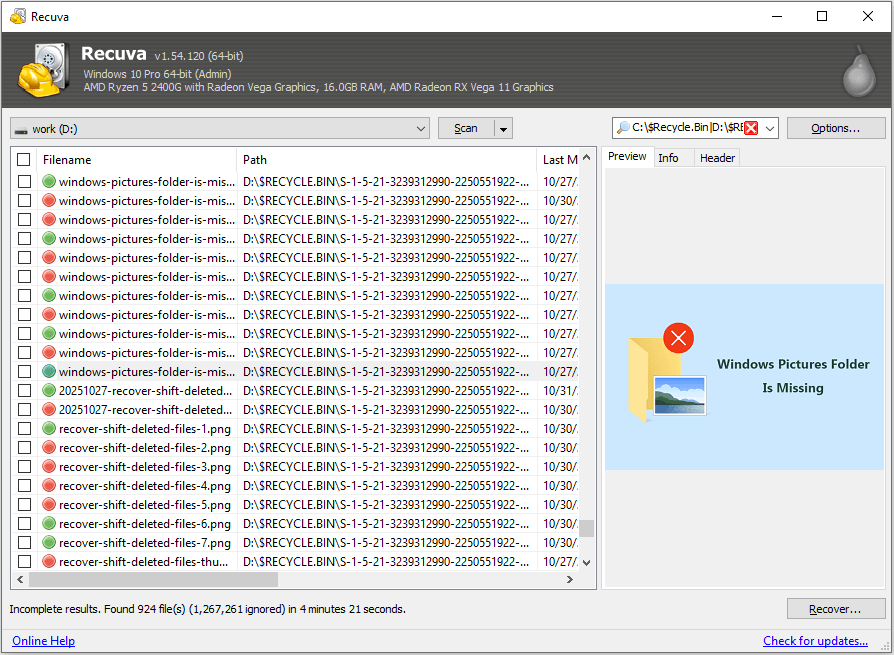
>> Recuva
Best for: Users who need a lightweight and simple tool to recover accidentally deleted files from Windows computers.
Recuva is a free file recovery software developed by Piriform that helps recover deleted files from hard drives, USB drives, memory cards, and other storage devices. It supports various file types, including documents, images, videos, music files, and compressed files.
Key Features:
- Support for recovering files from hard drives, USB drives, memory cards, and other storage devices
- Quick Scan and Deep Scan modes for locating deleted files
- File preview feature to check recoverable files before restoration
Pros:
- Free recovery without file size limitations
- Lightweight installation package and portable version available
Cons:
- The interface is not very intuitive
- Limited support for advanced data recovery scenarios
- Outdated interface compared with some modern recovery tools
>> Windows File Recovery
Best for: Advanced Windows users who prefer a completely free command-line tool developed by Microsoft for recovering deleted files.
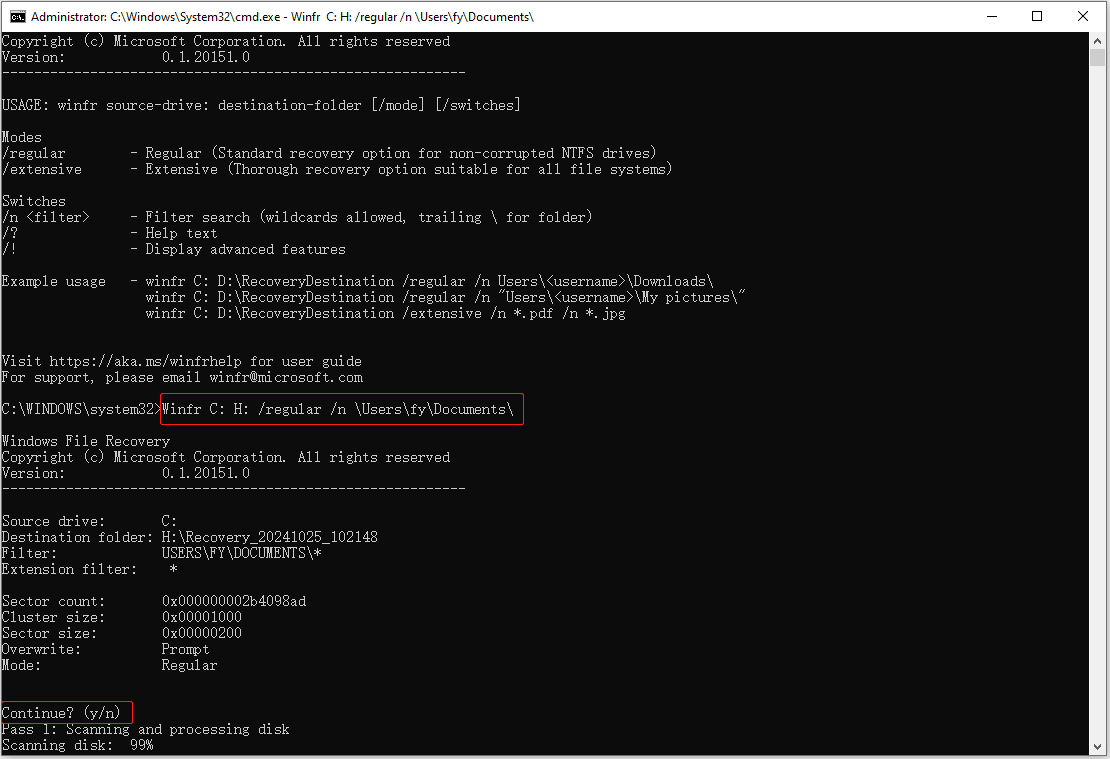
Windows File Recovery is a free file recovery utility developed by Microsoft that helps recover deleted files from local storage devices, including internal drives, external drives, and USB devices.
Unlike traditional recovery software with a graphical interface, this tool works through Command Prompt and provides different recovery modes for various data loss situations.
Key Features:
- Supports recovery from internal drives, external drives, and USB devices
- Provides two recovery modes for different data loss situations
- Supports common file systems, including NTFS, FAT32, and exFAT
Pros:
- Completely free without recovery size limitations
- Developed and maintained by Microsoft
Cons:
- Requires command-line knowledge and is not beginner-friendly
- No graphical interface or file preview feature
- Recovery results depend heavily on the selected recovery mode and data loss condition
How to Protect Files on Your Devices
It is lucky for you to successfully recover lost files with free file undelete software download for Windows introduced above. However, the more vital thing is to manipulate operations to avoid data loss cases in advance. Here are some suggestions for you to safeguard data on your device:
- Safe use of all your devices: You should not connect any of your external devices to untrusted or virus-infected devices as viruses can affect the connected device, then your personal computer. Additionally, when removing an external device, you should use the Safe Eject function on your computer to prevent forceful removal, which might cause data loss and, much worse, data corruption. Do not put your device in extreme environments like sunlight-straight, moisture, or dust places.
- Regular back up files: Back up crucial files to different devices to avoid putting all your eggs in one basket. File backups not only create redundant files but also provide easy access to data recovery. To back up files, you can connect important folders to Cloud storage, like OneDrive, Google Drive, etc., or use backup utilities to duplicate files to other locations, such as File History, MiniTool ShadowMaker, or other tools.
- Check device health periodically: It is highly suggested to run a virus scan with antivirus software and detect disk status in time to avoid unexpected data loss due to device failure.
- Etc.
Final Words
It is an urgent task to complete a data recovery task. This post gives you some suggestions about data recovery and protection as well as four extraordinary free file undelete software. Those tools are easy to use with a high successful rate of data recovery. If needed, you can choose one and recover deleted files quickly.
If you encounter any problems in using MiniTool software, please feel free to let us know via [email protected]. We are always ready to help you.
About The Author

Position: Columnist
Shirley holds a bachelor’s degree in English and has been an editor at the MiniTool Team for many years. She specializes in IT-related content, with a focus on data recovery, file backup, disk management, and other technical topics. She is committed to delivering clear, accurate, and practical solutions to help users resolve common computer issues.
User Comments :