

Quick Answer
The “Invalid system disk. Replace the disk, and press any key” error appears when a computer can’t find or load a valid bootable system disk.
Common causes include an incorrect boot order, an undetected system drive, a boot mode and partition style mismatch, corrupted boot files or boot configuration, and disk or file system errors.
To fix it, remove external storage, check the boot order, and confirm the system drive is detected in BIOS/UEFI. If it is detected, run Startup Repair and repair the boot records. If it is not detected or is failing, recover your data and replace the drive.
What Does “Invalid System Disk” Mean?
“Invalid system disk. Replace the disk, and press any key” means the computer cannot find a valid disk from which to start Windows.
During startup, the firmware checks the configured boot devices for a bootable operating system. If it cannot find the required boot information, it stops and displays this message.

This message is most typical of older systems using Legacy BIOS with an MBR-partitioned disk. Newer UEFI/GPT computers more often show messages such as “No bootable device found,” but a wrong boot setup can still trigger similar errors, so the fixes below cover both.
This error does not necessarily mean the hard drive or SSD is permanently damaged. It can also be caused by a wrong boot order, a connected USB device, corrupted boot files, or disk errors.
Quick diagnosis: If the system drive is missing from BIOS/UEFI, check the drive connection and hardware. If the drive is detected, focus on the boot mode, Windows boot files, disk errors, and boot configuration.
What Causes the Invalid System Disk Error?
The invalid system disk error can have several causes:
| Cause | Typical Situation | What to Check |
| Incorrect boot order / external device | PC boots from an external device instead of the Windows system drive | BIOS/UEFI boot order; remove unnecessary devices |
| System drive not detected | The SSD/HDD containing Windows does not appear in BIOS/UEFI | Drive connections and SSD/HDD detection |
| Boot mode / partition style mismatch | BIOS/UEFI mode does not match the disk’s MBR/GPT partition style | BIOS/UEFI mode and MBR/GPT configuration |
| Corrupted boot files or boot configuration | Windows boot configuration or MBR/boot code is damaged | Startup Repair, Bootrec, or BCDBoot |
| Disk or file system errors | File system, bad-sector issues, or drive repeatedly reports errors | CHKDSK, drive health, and signs of drive failure |
How to Recover Data from a PC with the Invalid System Disk Error
If the system drive is detected but Windows still can’t start, recover your important files before running CHKDSK, boot repairs, or reinstalling Windows.
Some of these operations modify the drive, and reinstalling Windows or replacing a failing drive can result in data loss. Microsoft also recommends backing up important files before using recovery options, because some recovery operations can affect data.
Option A: Use a second computer (free and often the simplest)
Remove the drive and connect it to another working computer through a USB enclosure or adapter. If Windows can read the drive, copy your files to a healthy storage device.
Option B: Use a bootable data recovery environment
When Windows can’t start, the drive can be scanned inside a bootable recovery environment. MiniTool Power Data Recovery can create bootable media and scan an inaccessible Windows computer for recoverable files.
Note that the bootable media feature is available only in certain paid editions, so check the Edition comparison before you buy.
MiniTool Power Data Recovery FreeClick to Download100%Clean & Safe
The basic process is:
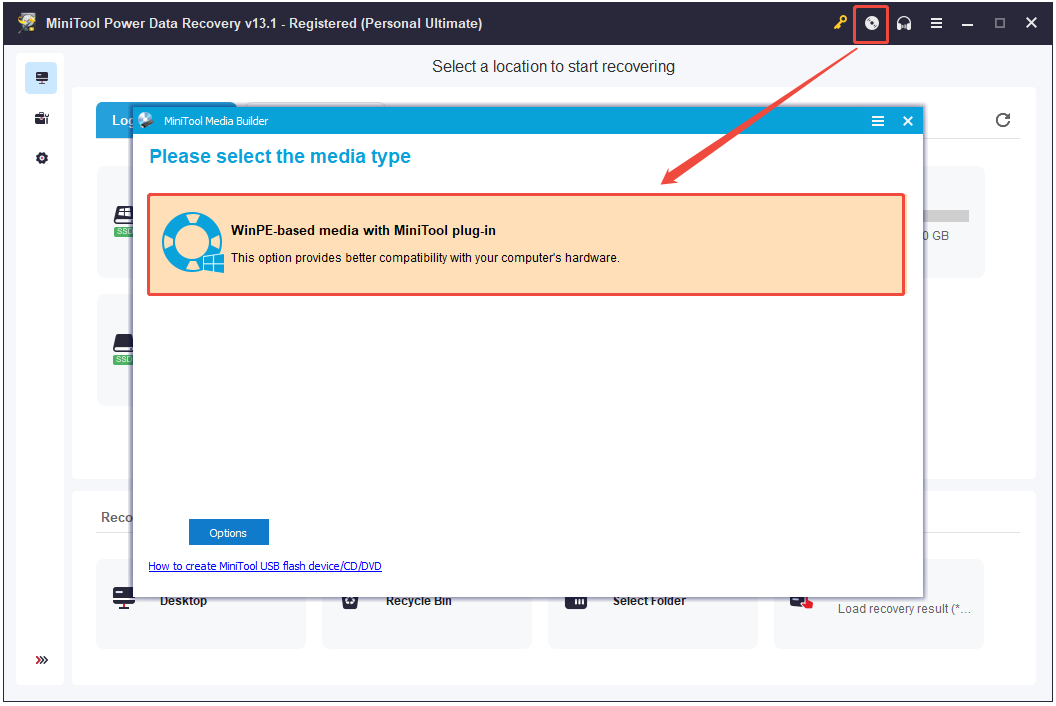
Step 1. Create bootable media with MiniTool Power Data Recovery on another working computer.
- Install MiniTool Power Data Recovery on a computer that starts normally.
- Prepare a USB flash drive (4 GB–64 GB recommended) — note that creating the bootable media will format this drive, so back up anything on it first.
- Open the program’s Bootable Media Builder feature and choose WinPE-based media with MiniTool plug-in.
- Select USB Flash Drive as the destination, confirm the correct drive if more than one is connected, and click to start burning.
- Wait for the process to finish, then click Finish and safely eject the USB drive.
Step 2. Connect the bootable media to the affected PC.
Step 3. Enter BIOS/UEFI and boot from the recovery media.
- Restart the computer and enter BIOS/UEFI by pressing the appropriate key, such as F2, Delete, F10, or Esc.
- In the Boot menu, select the USB drive as the boot device, then save and exit.
- The PC should now boot into the WinPE-based recovery environment instead of Windows.
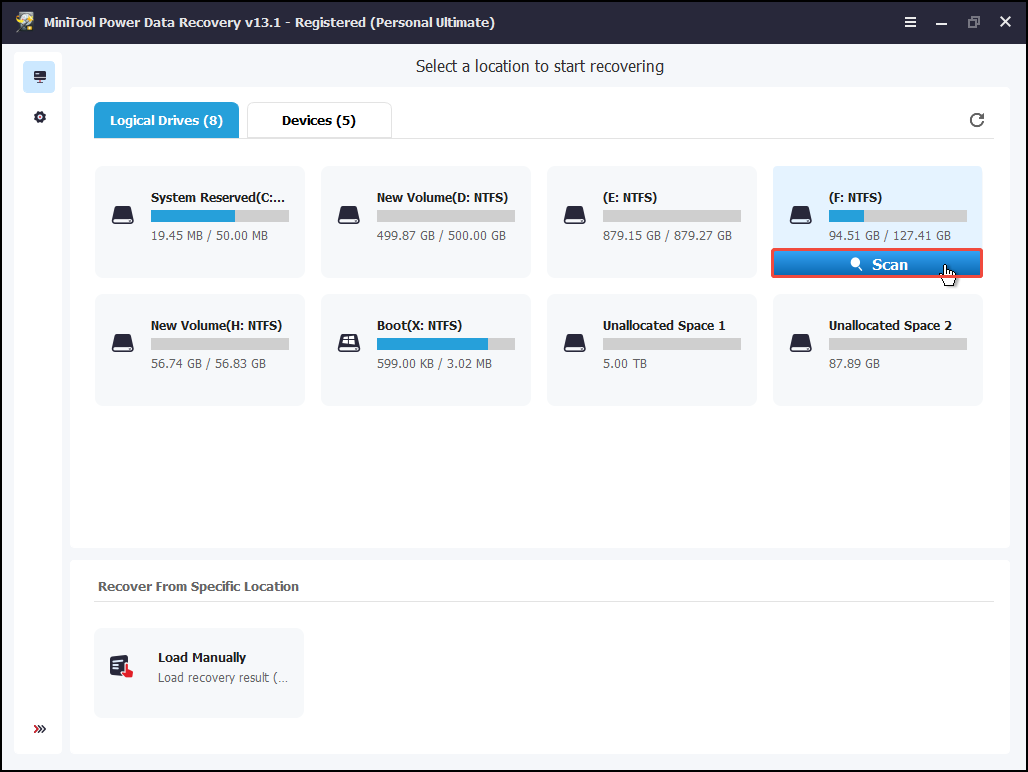
Step 4. Scan the system drive for recoverable files.
Choose the target partition and click Scan to start the scanning.
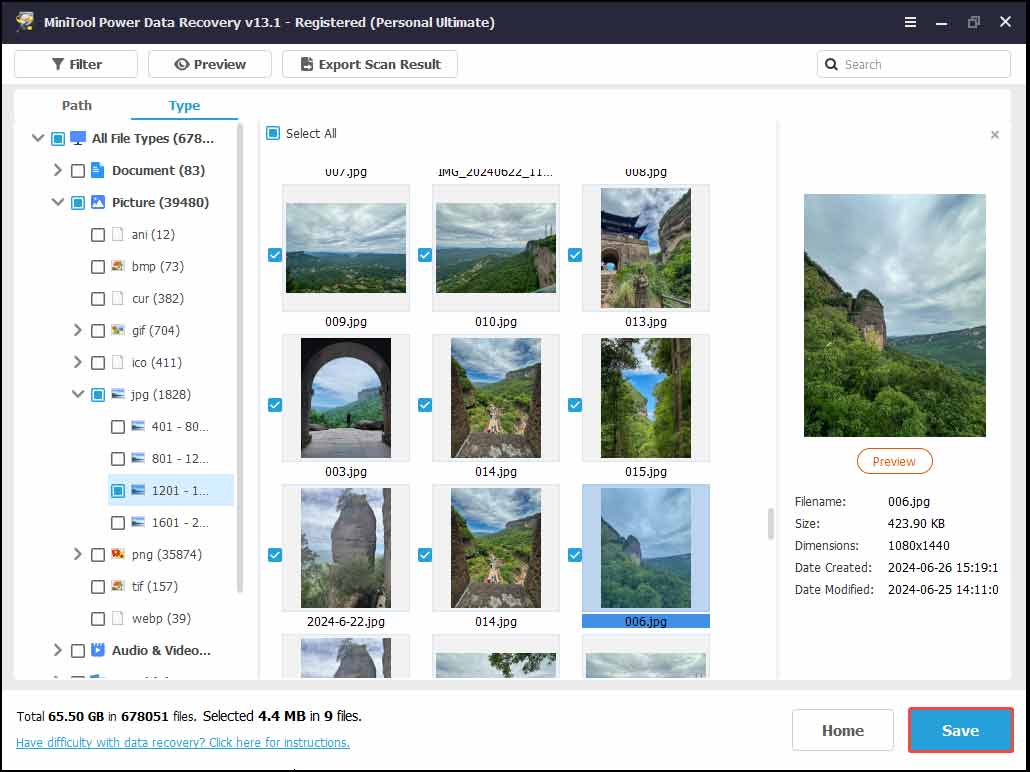
Step 5. Select the needed files and click Save to recover them to another healthy drive.
If the drive makes unusual noises, repeatedly disconnects, or shows serious hardware errors, avoid repeated scans and consider professional data recovery for critical files. If the drive isn’t detected in BIOS/UEFI at all, no recovery software can read it.
If BitLocker is enabled, Windows may ask for your BitLocker recovery key before recovery, CHKDSK, or boot repair operations can continue. Locate the key before you begin.
How to Fix the Invalid System Disk Error in Windows 10/11
Try the following fixes in order. The first two checks help determine whether the problem is caused by the boot configuration or the storage device. The remaining fixes address Windows startup and disk problems.
Fix 1. Remove External Devices and Check the Boot Order
A USB flash drive, external hard drive, memory card, or DVD can sometimes be selected as the first boot device. If that device does not contain a valid operating system, Windows may display the invalid system disk error.
First, shut down the computer and disconnect unnecessary external storage devices.
Then check the BIOS/UEFI boot order:
- Restart the computer and enter BIOS/UEFI.
- Open the Boot, Boot Order, or similar section.
- Find Windows Boot Manager or the internal drive containing Windows.
- Move it to the top of the boot list.
- Save the changes and restart the computer.
If Windows starts normally, the invalid system disk error was likely caused by an incorrect boot device.
Fix 2. Check Whether the System Drive Is Detected in BIOS
If changing the boot order does not work, check whether the SSD or HDD containing Windows is detected by BIOS/UEFI.
Depending on the computer, storage information may appear under Storage, SATA Information, NVMe Configuration, or System Information.
If the system drive is detected
The drive is visible to the firmware, so the problem may be related to Windows boot files, the file system, or the boot configuration. Continue with the next fixes.
If the system drive is not detected
Shut down the computer and check the physical connection if the device allows it.
For a desktop:
- Check the SATA data cable.
- Check the SATA power cable.
- Try another SATA port if available.
For an M.2 SSD:
- Make sure the SSD is properly seated.
- Check whether the slot supports the installed SSD type.
If the drive still does not appear in BIOS/UEFI, the problem may be related to the drive itself or the storage interface. Do not continue with Windows boot repairs if the drive is not detected at the hardware level.
Fix 3. Run Startup Repair
If the system drive is detected, Windows Startup Repair can automatically diagnose and fix startup issues. It can address missing or damaged system files, corrupted Boot Configuration Data (BCD), damaged MBR, incompatible drivers, and some registry errors.
To run Startup Repair:
- Boot into Windows Recovery Environment (WinRE).
- Select Troubleshoot > Advanced options > Startup Repair.
- Select the Windows installation if prompted.
- Follow the on-screen instructions.
- Restart the computer after the repair finishes.
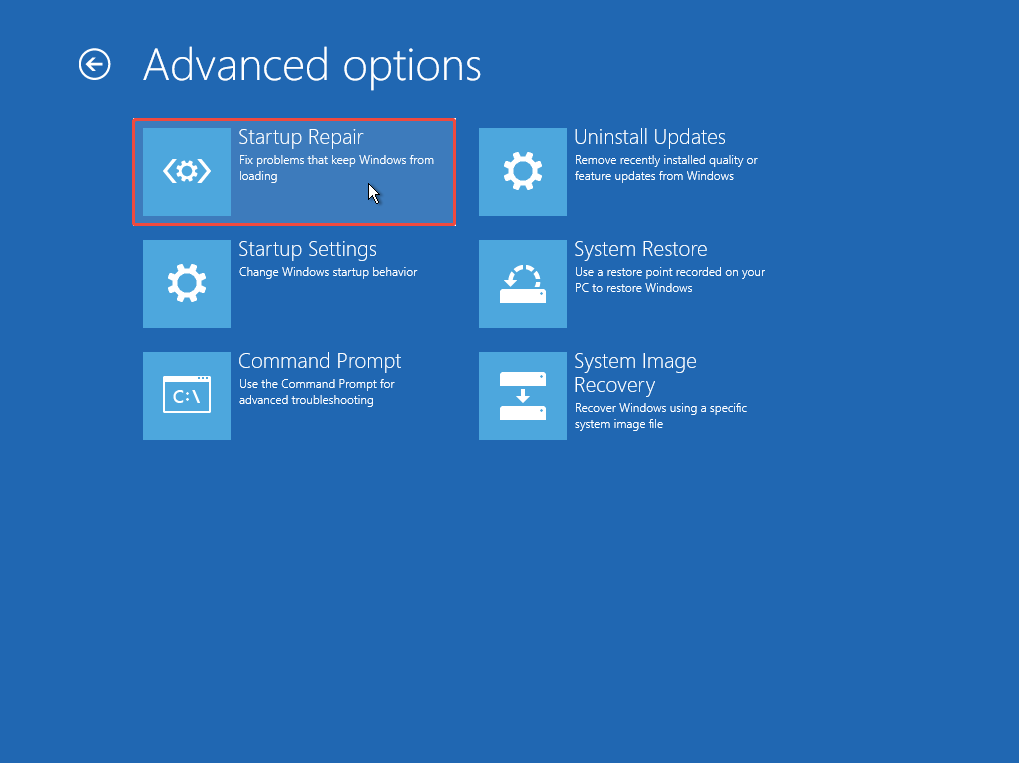
If Windows cannot automatically enter WinRE, use Windows installation media and select Repair your computer to access the recovery tools. Microsoft documents WinRE as the built-in environment for troubleshooting systems that cannot start normally.
Fix 4. Check and Repair Disk Errors
If Startup Repair does not resolve the problem, disk or file system errors may be preventing Windows from starting. The CHKDSK command can scan a partition and repair certain file system errors.
Step 1. Boot into Windows Recovery Environment.
Step 2. Go to Troubleshoot > Advanced options > Command Prompt.
Step 3. Type chkdsk C: /f /r and press Enter to execute this command. (replace C: with the Windows partition’s actual drive letter, found via diskpart’s list volume command).
If either method reports extensive bad sectors or other serious disk problems, prioritize data recovery — repeated repairs may not resolve a physically failing drive.
Fix 5. Repair the MBR
A damaged boot record or boot configuration can prevent Windows from starting, particularly on systems using legacy BIOS/MBR booting.
Open Command Prompt from Windows Recovery Environment and run:
- bootrec /fixmbr
- bootrec /scanos
- bootrec /rebuildbcd
If necessary, you can also try:
bootrec /fixboot
For modern UEFI/GPT computers, however, an MBR repair is not always the appropriate solution. If the problem involves the EFI System Partition or UEFI boot files, rebuilding the boot files with bcdboot may be more appropriate.
For example:
bcdboot C:\Windows /s S: /f UEFI
The drive letters in WinRE may differ from those shown when Windows is running. Make sure the Windows partition and EFI System Partition are correctly identified before running the command.
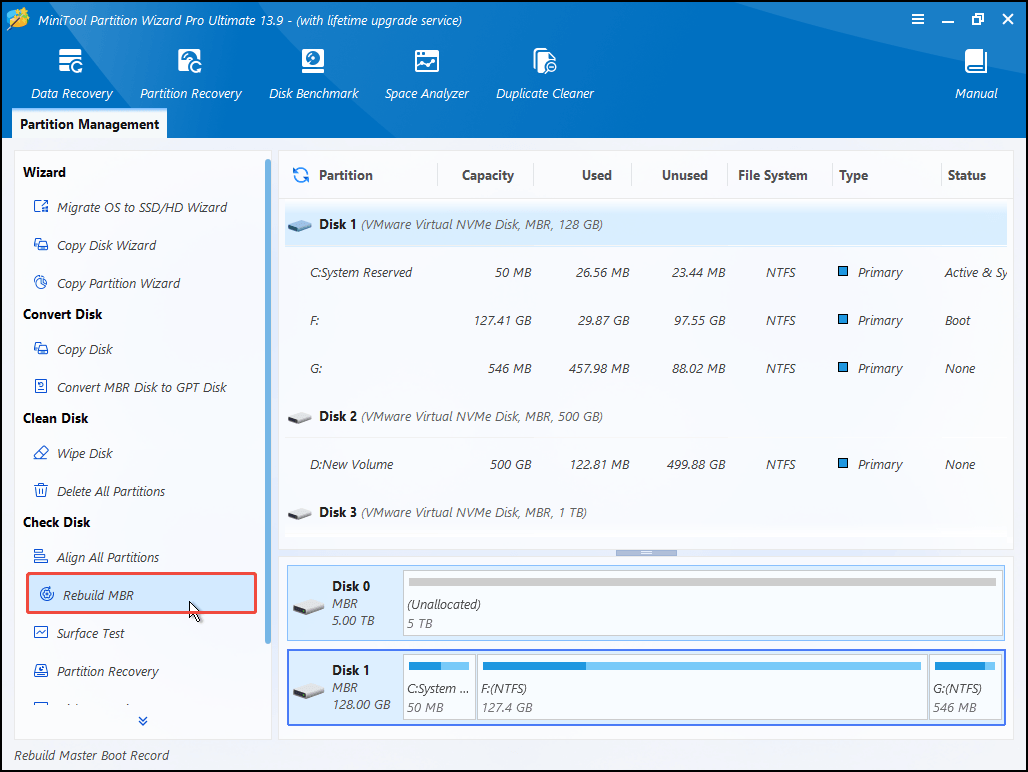
If you prefer a graphical interface, you can use MiniTool Partition Wizard’s Rebuild MBR feature to exclude this factor.
MiniTool Partition Wizard FreeClick to Download100%Clean & Safe
- On a working computer, install MiniTool Partition Wizard (a paid edition, needed for bootable media) and use its Bootable Media feature to create a bootable USB drive or CD/DVD.
- Boot the affected PC from that media and launch MiniTool Partition Wizard.
- Select the system disk (not just a partition).
- Choose Rebuild MBR.
- Click Apply and Yes.
- Restart the PC.
Fix 6. Reinstall Windows
If the system drive is healthy but Windows remains unable to start after repairing the boot and disk problems, reinstalling Windows may be necessary.
Before doing so, recover important files first.
To reinstall Windows:
- Create Windows installation media on another computer.
- Connect the installation USB to the affected PC.
- Boot from the USB drive.
- Select Install Windows.
- Follow the installation instructions.
A clean installation can remove the existing Windows installation and delete files on the system partition. Do not choose an option that removes existing data until important files have been backed up or recovered.
Fix 7. Replace the System Drive
If the system drive is not detected in BIOS/UEFI, repeatedly develops serious errors, or shows signs of physical failure, it may be damaged and need to be replaced. Replace the failing drive with a healthy SSD or HDD, then install Windows on the new drive.
How to Prevent the Invalid System Disk Error
The following practices can help reduce the risk of future boot problems and data loss:
- Back up important files regularly. Keep at least one backup on a separate storage device.
- Create a Windows recovery drive or installation USB. This gives access to WinRE, Startup Repair, and Command Prompt when Windows can’t boot.
- Check drive health regularly. Watch for repeated disk errors, disappearing drives, or other warning signs.
- Avoid unnecessary BIOS/UEFI changes. Incorrect boot settings can prevent Windows from starting.
- Disconnect unnecessary bootable devices. USB drives and external disks can sometimes interfere with the boot process.
Invalid System Disk FAQ
Conclusion
The “Invalid system disk” error can be alarming, but it’s often fixable without needing professional repair. Start by ruling out simple causes like a leftover USB drive or an incorrect boot order, then work through BIOS checks, Startup Repair, disk checks, and MBR repair if needed.
Just remember: before attempting any fix that risks data loss, take the time to recover data from the PC with the invalid system disk error first. If all else fails, replacing the drive and doing a clean Windows install won’t cause any data loss.
If you encounter issues related to MiniTool software, contact us via [email protected].
User Comments :