

Quick Answer: How to Recover Deleted Google Drive Files
It is often possible to restore files deleted from Google Drive in some cases:
- Recently deleted files can usually be restored from Google Drive Trash.
- If you use Google Workspace accounts, administrators may restore deleted files within 25 days after a user empties the Trash.
- If files were ever synced to a Windows PC, use data recovery software such as MiniTool Power Data Recovery to perform a local recovery.
Can Deleted Google Drive Files Be Recovered
Yes, deleted Google Drive files can still be recoverable. The available recovery method depends on the different causes.
| Situation | Recovery Possible | Recovery Method |
| Files deleted recently | Yes | From Trash |
| Trash not emptied | Yes | From Trash |
| Trash emptied | Sometimes | Via Google Admin Console |
| Synced local files deleted | Yes | Use data recovery software |
Why Did Google Drive Files Disappear
Google Drive files may disappear suddenly due to various reasons, including:
- Accidental deletion
- Sync conflicts
- Shared ownership issues
- Sync glitches
- Trash auto-cleanup after 30 days
How to Recover Deleted Files from Google Drive
There are several ways to recover deleted Google Drive files. Start by checking Google Drive Trash, where recently deleted files are typically stored. If files are not there, move on to advanced options.
| Method | Best for | Difficulty |
| Recover from Trash | Recently deleted files | Easy |
| Use Admin Console | Google Workspace admins | Medium |
| Recover from local backups | Synced local files | Easy |
| Use data recovery software | Deleted local synced files | Medium |
| Contact Google Support | Permanently deleted files | Medium |
Method 1: Check the Google Drive Trash
Best for: Files deleted recently
When you delete a file from Google Drive, it is not erased immediately; it goes to Trash and stays there for 30 days before being removed.
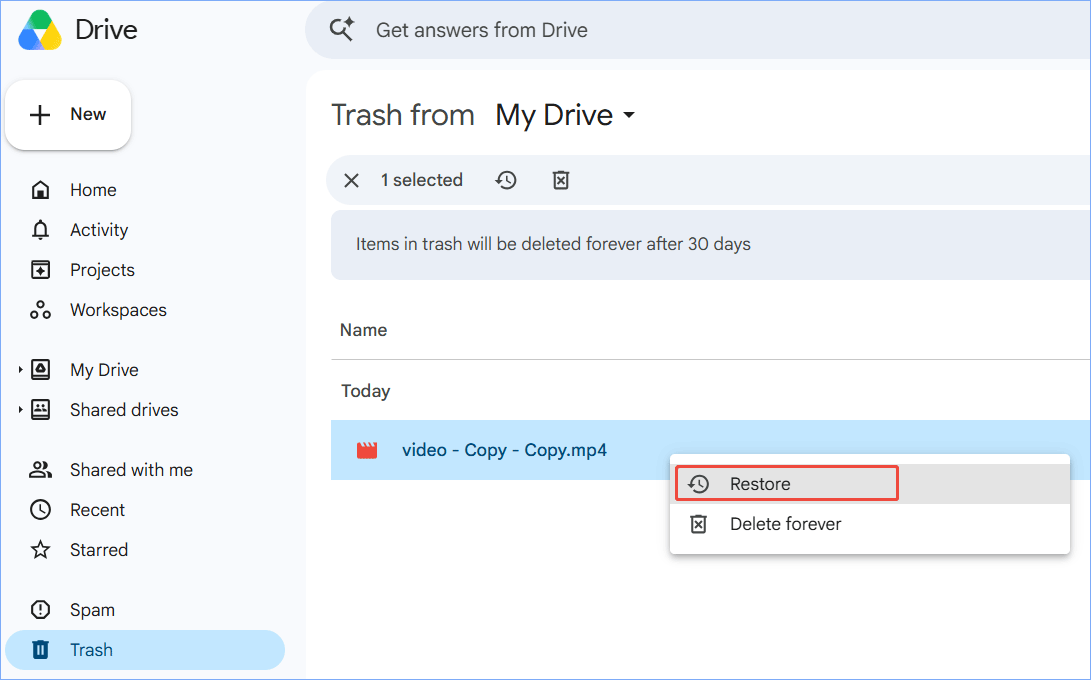
The simplest way is to perform Google Trash recovery.
Step 1: Visit the Google Drive website.
Step 2: Navigate to the Trash tab from the left panel.
Step 3: Find the deleted file, right-click on it, and choose Restore.
However, the Trash folder may have been emptied, or the files may have been permanently removed after exceeding Google Drive’s 30-day retention period.
To recover deleted Google Drive files after 30 days, try the other 5 solutions.
Method 2: Use Google Admin Console
Best for:
- Google Workspace administrators
- Business and school accounts
If you use a Google Workspace account, you can contact administrators to recover deleted Google Drive files.
Google Workspace offers a limited recovery period of up to 25 days after emptying Trash. This is to cope with accidental deletions and malicious intent.
Step 1: Sign in to Admin Console.
Step 2: Navigate to Directory > Users, locate and choose the user whose files need to be restored.
Step 3: Click More options and select Restore data.
Method 3: Recover Deleted Files from Local Backups
Best for: Locally synced files
If you install Google Drive for Desktop, files may exist locally on the Windows computer. When the cloud copy is deleted, the local copy can be used to restore the lost file.
Step 1: Open File Explorer and go to the Google Drive folder.
Step 2: Search for the deleted files. Once found, move them to a safe location.
Method 4: Use MiniTool Data Recovery Software
Best for: Recovering deleted synced local files
Files synced to your computer through Google Drive for Desktop can sometimes be accidentally deleted. As long as the deleted data has not been overwritten, recovery is possible.
Data recovery software, such as MiniTool Power Data Recovery, is recommended. Designed for Windows, it can help you recover deleted/lost files in various scenarios, including:
- Accidental deletion
- Drive formatting
- Partition loss
- RAW drives
- System crashes
- Hard drive failure
It supports scanning the USB flash drive, external storage device, SSDs, and HDDs, then recovering deleted documents, photos, videos, and other files that were synced to Google Drive.
MiniTool Power Data Recovery FreeClick to Download100%Clean & Safe
To verify if synced Google Drive files can be restored, we perform a recovery test below.
Test Environment
| Operating system | Windows 10 22H2 |
| Client | Google Drive for Desktop |
| Storage device | 1TB HDD |
| Test files | PNG pictures |
Test Process
- Enable Google Drive for Desktop.
- Delete files from the web version and the computer.
- Empty the Windows Recycle Bin.
- Run the software to scan the drive.
Recovery Steps
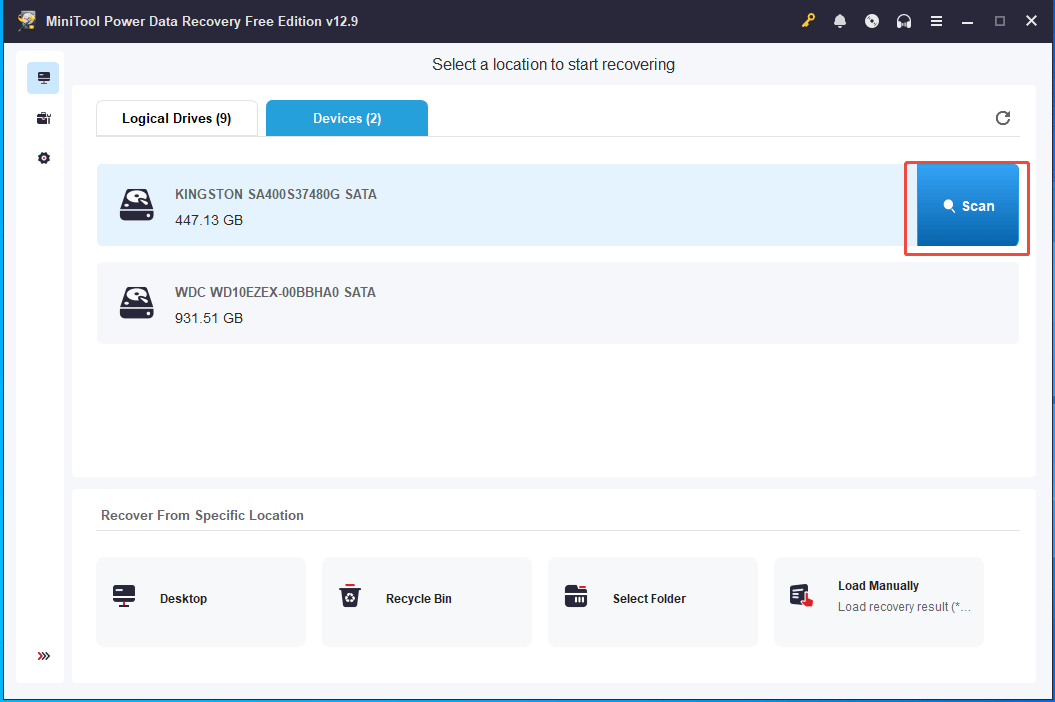
Step 1: Launch MiniTool Power Data Recovery on the PC.
Step 2: Select the drive where the synced Google Drive files were stored and click Scan.
In our test, I chose the entire disk under the Devices tab.
Step 3: Wait for the scan to finish. Then, choose the found files and click Save to store them in a secure location.
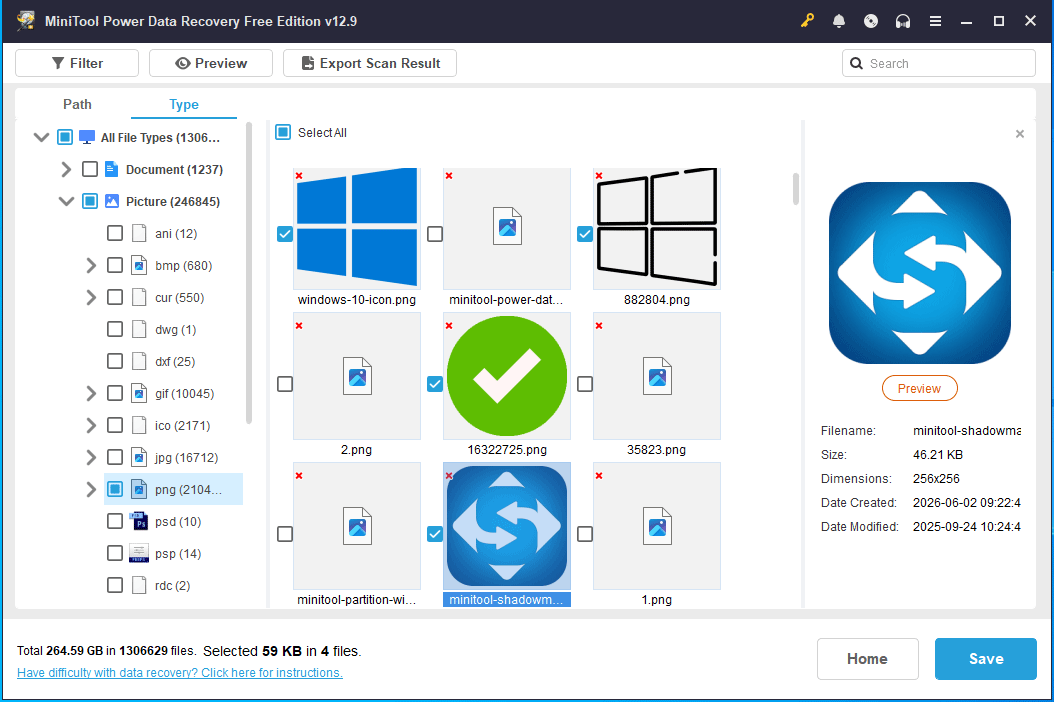
During testing, I go to the Type list and choose png to look for the deleted pictures for recovery. You can also use this feature to quickly find the necessary files.
MiniTool Power Data Recovery successfully detects multiple files and recovers deleted Google Drive files.

Method 5: Contact Google Drive Help
Best for: Files deleted from Trash, but not removed from servers
If you use a personal Google account, contacting Google Drive Help may help restore files that have been deleted from the Trash.
Important notes
- You must be the original owner of the missing file or folder.
- After emptying the Trash, you typically have up to 25 days to contact Google Drive Help and request the recovery. Take action quickly.
- Recovery is not guaranteed.
Follow the steps:
Step 1: Visit the Google Drive Help page.
Step 2: Follow the on-screen instructions to describe your issue.

Step 3: Submit the file recovery request.
Step 4: Wait for the reply.
Tips to Prevent Google Drive Data Loss
While deleted Google Drive files can often be restored, prevention is always better than recovery. Here are some preventive measures to reduce the risk of data loss.
- Enable Google Drive for Desktop to keep local copies of important files.
- Avoid emptying the Trash immediately.
- Check shared file permissions to prevent accidental deletion by collaborators.
- Take action as soon as possible after files are deleted to increase the recovery rate.
- Regularly back up important files to your computer.
Conclusion
Deleted Google Drive files can often be recovered through Google Drive Trash, Admin Console, and Google Drive Help.
If files were synced to a computer, you can restore them via local backups and data recovery software, such as MiniTool Power Data Recovery. To maximize the success rate, start the recovery as soon as possible. Also, avoid overwriting the affected drive.
If you encounter some issues when using MiniTool Power Data Recovery, feel free to contact us at [email protected].
Recover Deleted Google Drive Files FAQ
After emptying the Trash, personal users can contact Google Drive Help within 25 days to recover deleted files. And Google Workspace administrators can also restore them within 25 days.
1. Sync errors: There is a temporary glitch in the connection between your local computer and the cloud.
2. Hidden filter settings: The file is hidden, or you use search filters to prevent it from showing up.
3. Orphaned files: You create a file in another user’s shared folder, but the folder is deleted. The file isn’t deleted, but becomes orphaned.
User Comments :