

If your Surface Pro won’t turn on, the problem is usually related to power issues, charging problems, system issues, or hardware failure. This guide explains how to identify the cause and fix the issue by charging your device, performing a force restart, fixing display problems, and repairing system failures.
Why Won’t My Surface Pro Turn On
Microsoft Surface won’t turn on due to:
# 1. Power and Charging Issues
- Drained battery: The battery is completely drained.
- Faulty charger/cable: The charger is not providing power.
- Dirty charging port: Dirt in the charging port can stop it from working.
- Unstable connection: The charger may be improperly connected.
# 2. Frozen/Stuck State (System Glitch)
Frozen or corrupted firmware: The Surface is stuck in a low-power hibernation state or has crashed.
# 3. Peripheral/Hardware Conflicts
- Connected accessories: Attached USB drives, SD cards, or monitors can block system startup.
- Faulty type cover: Rarely, a broken keyboard can stop your PC from starting.
# 4. Severe Hardware Failure
Internal component failure: The system has experienced a motherboard or battery failure, requiring professional intervention.
Understanding the causes helps you avoid unnecessary fixes and solve the issue faster.
Quick Diagnosis – Identify the Problem Fast
Follow this quick guide to identify the Surface laptop not turning on issue:
| Symptoms | Issues |
| No light, no response | battery or charge |
| Keyboard lights on but screen is black | display or system |
| Plugged in but still dead | charging port or cable |
| Turns on then shuts off quickly | overheating or battery failure |
Recover Data Before Repairing Surface Pro
If your Surface Pro won’t turn on, you may still be able to recover important files as long as the internal SSD is working and detectable.
Method 1. Remove the SSD (if your model supports it), connect it to another working computer, and recover your files.
Method 2. Create a bootable USB drive with MiniTool Power Data Recovery, boot your Surface Pro from it, and recover files without starting Windows.
MiniTool Power Data Recovery can help recover documents, photos, videos, and other files from an inaccessible Surface SSD or HDD when the drive is detected successfully.
The following content covers how to recover files by using a bootable USB drive.
Part 1. Create MiniTool Bootable USB Media
Step 1. Install MiniTool Power Data Recovery Bootable on a working computer and launch it. Then connect a blank USB drive to your computer.
Step 2. On the main interface of the recovery tool, click the WinPE Bootable Builder icon from the top right corner, and then choose WinPE-based media with MiniTool plug-in.
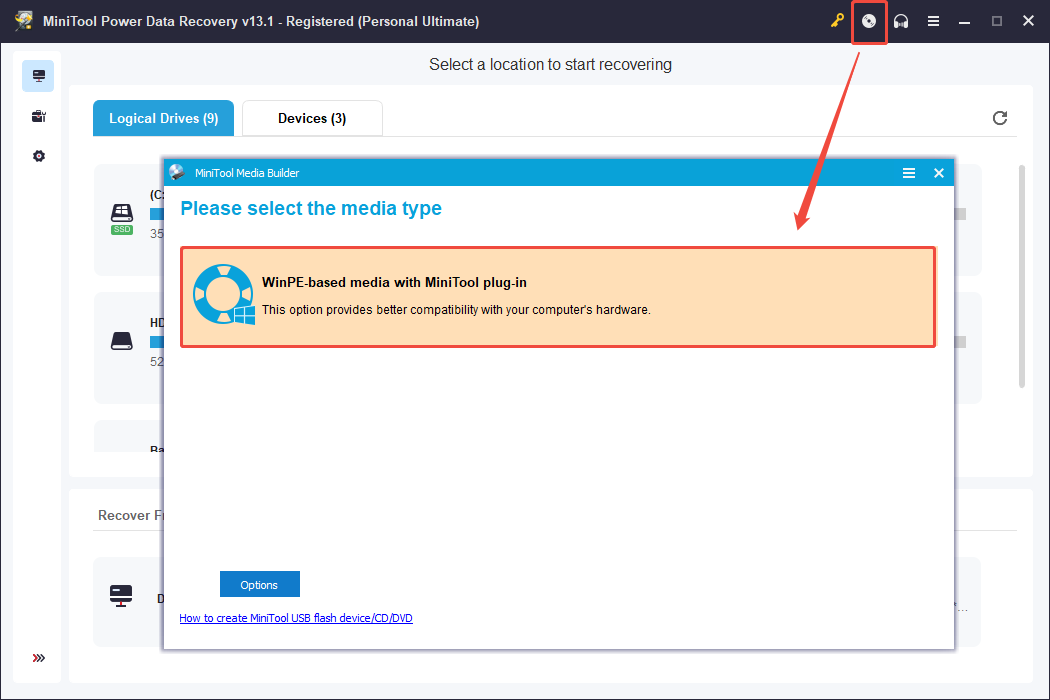
Step 3. Select your USB flash disk from the Choose media destination window and follow the on-screen instructions to create the bootable drive.
Part 2. Recover Data via MiniTool Power Data Recovery
Step 1. Connect the bootable USB drive to your Surface Pro, get into the BIOS/UEFI menu, and then set the PC to boot from this USB drive.
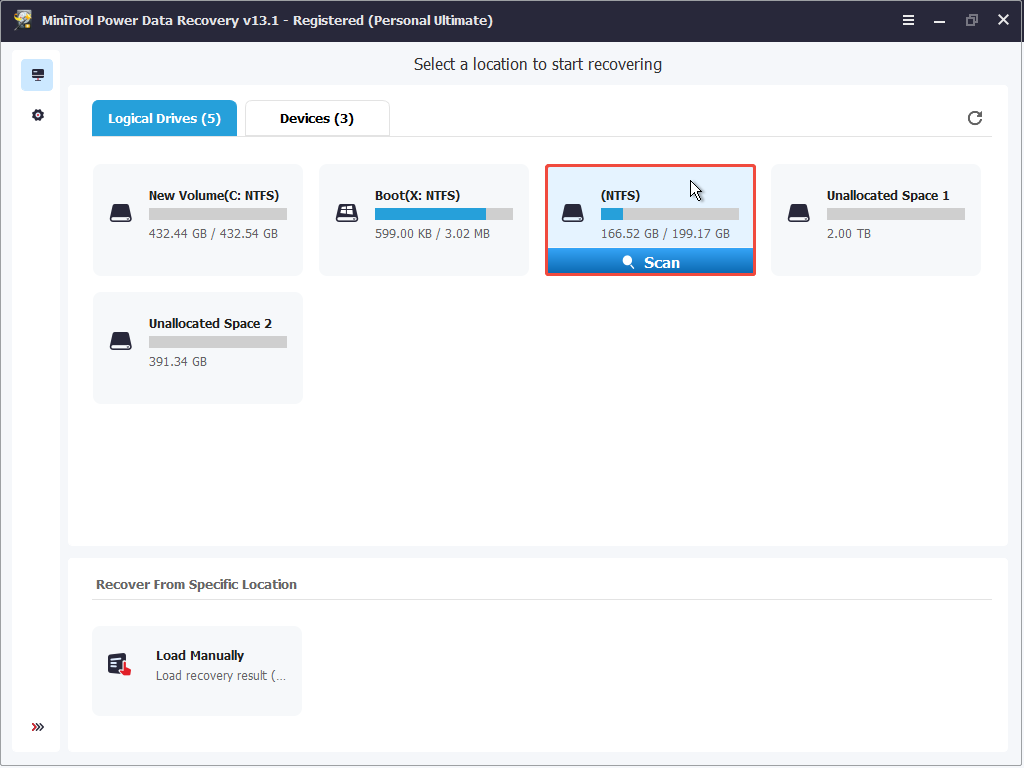
Step 2. Follow the instructions to enter MiniTool Power Data Recovery main interface. Select the system drive and click Scan to start scanning for existing and lost files. In WinPE, the Windows system drive may not always be assigned the letter C:.
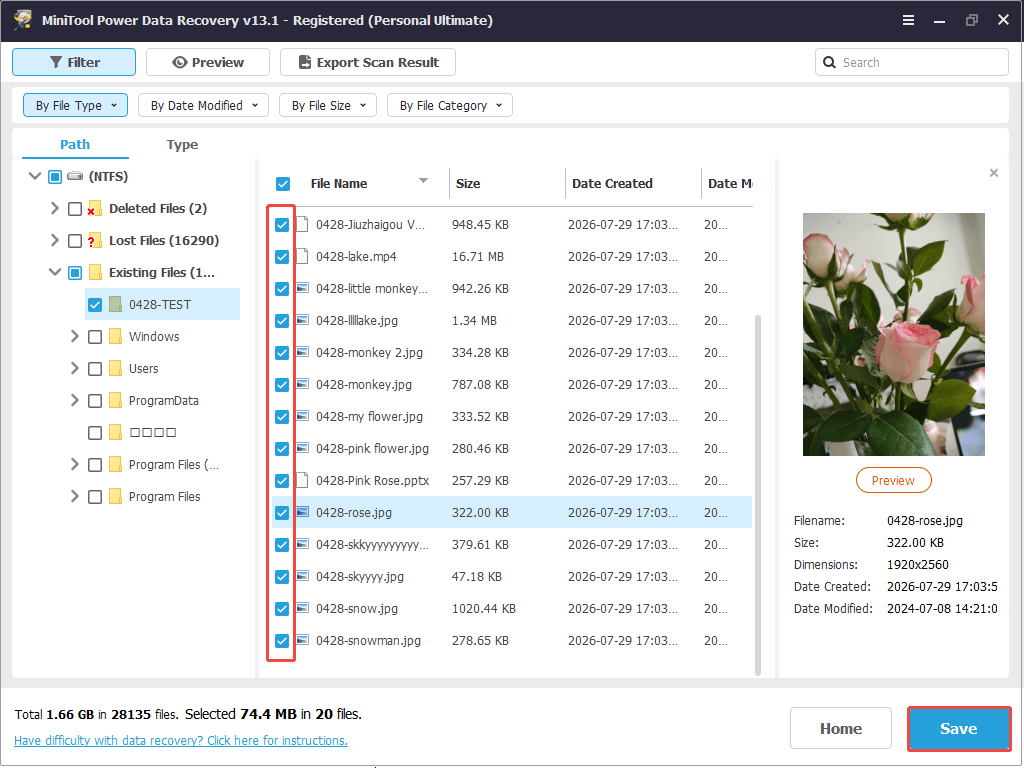
Step 3. Once the scanning process is complete, check the boxes next to the files or folders you want to salvage, then click Save.
Choose a removable drive as the saving path and click OK.
How to Fix Surface Pro Won’t Turn on
To fix the Surface laptop not turning on issue, begin with initial troubleshooting fixes such as forcing a shutdown of the Surface Pro and disconnecting all external devices.
Next, perform advanced restart methods, including using the two-button shutdown method, letting the battery cool down completely, and trying a Surface recovery drive.
Here’s the detailed breakdown:
Initial Troubleshooting
Here are some immediate fixes that can help you solve the Surface laptop not turning on issue in Windows 10/11, including forcing a shutdown/restart, disconnecting accessories, charging the Surface Pro properly, and checking whether the screen is actually black.
# 1. Force Shut Down the Surface Pro
Best for: system freeze or crash
If the Surface Pro won’t start because of a system crash or freeze, a forced shutdown can clear the temporary startup problem.
Here are the steps:
- Press and hold the Power button for 20–30 seconds.
- Release the button after the screen turns completely black.
- Wait for several seconds.
- Press the Power button in a normal way to restart.
# 2. Disconnect All External Devices
Best for: external device conflicts
USB devices and accessories can occasionally interfere with the Surface Pro’s boot process, preventing it from starting properly. Therefore, try disconnecting all external devices. Here are the devices that you can disconnect:
- USB drives
- SD cards
- Docking stations
- External monitors
- Bluetooth receivers
- Keyboards and mice
After disconnecting everything, do the following steps to check if the issue has been resolved:
- Hold the Power button for 20 seconds.
- Wait for 10 seconds.
- Press the Power button again.
# 3. Charge the Surface Pro Properly
Best for: Surface not charging
Sometimes the battery is fully depleted, and the device may take additional time to become responsive.
Therefore, charge the Surface Pro with its official charger for a longer time to resolve the issue.
- Connect the original Surface charger to the device.
- Plug the charger directly into a wall socket.
- Allow it to charge for at least 30 minutes.
- Check if the charging indicator light turns on.
- After charging, press the Power button once to turn on the device.
If the charging light does not turn on after completing the steps above, it may indicate a faulty charger or an issue with the charging port. A blinking light may suggest unstable power delivery.
In this case, try using another compatible charger to help identify the problem.
# 4. Check Whether the Screen Is Actually Black
Best for: black screen, but the device is running
In some cases, the Surface Pro is running normally, but the display is not working. To verify this, check whether your device shows the following signs:
- Keyboard backlight turns on.
- The fan is running.
- Windows notification sounds are audible.
- Caps Lock key responds.
If your Surface exhibits these signs, the issue is likely related to the display. To further confirm this, try the following:
- Increase screen brightness using the keyboard.
- Connect the Surface Pro to an external monitor.
- Press Win + Ctrl + Shift + B to wake the display.
Advanced Restart Methods
If basic troubleshooting does not work for the Surface Pro won’t wake up issue, try these deeper restart and firmware-related solutions.
# 1. Use the Two-Button Shutdown Method
Best for: firmware or boot issues
The Two-Button Shutdown method is a built-in recovery process that forces a deeper reset of the Surface Pro. It can help restart the firmware and resolve underlying power or startup issues that a standard restart cannot fix.
- Press and hold the Power button for about 30 seconds, then release the button.
- Press and hold the Power button + Volume Up button for 15 seconds.
- Ignore any logo flashes during the process.
- Release both buttons.
- Wait for 10 seconds.
- Press the Power button again.
# 2. Let the Battery Cool Down
Best for: sudden shutdowns
Overheating can trigger an automatic protection shutdown, preventing the device from turning on. If your Surface Pro shows any of the following signs, the issue may be caused by excessive heat:
- The device feels unusually hot to the touch.
- The fan was running loudly before shutdown.
- The Surface turned off during intensive tasks.
To resolve this, allow the device to cool down by following these steps:
- Disconnect the charger and any connected accessories.
- Leave the device powered off for 30–60 minutes.
- Place it in a cool, well-ventilated area, away from direct sunlight or heat sources.
- After it has cooled down, press the Power button to turn it on again.
# 3. Try a Surface Recovery Drive
Best for: OS corruption
A Surface Recovery Drive is a bootable USB tool provided by Microsoft that allows you to reinstall Windows and repair critical system files. It is particularly useful when the operating system is corrupted, and the device cannot start normally.
What You Need:
- Another working Windows PC to create the recovery drive
- A USB flash drive with at least 16 GB of storage (all data will be erased)
After preparing the above things, perform these steps:
- On a working PC, download the official recovery image from the Microsoft Surface Recovery Image page.
- Use the downloaded image to create a bootable recovery USB drive.
- Insert the recovery USB drive into your Surface Pro.
- Press and hold the Volume Down button, then press and release the Power button.
- Continue holding Volume Down until the Surface logo appears, then release it.
- The device should boot from the USB drive and load the recovery environment.
- Follow the on-screen instructions to repair or reinstall Windows.
Repair Windows Startup Problems in WinRE
If your Surface Pro cannot boot into Windows, the problem may be caused by corrupted system files or damaged boot configuration data. Windows Recovery Environment (WinRE) provides several built-in tools to diagnose startup problems.
# 1. Run Startup Repair
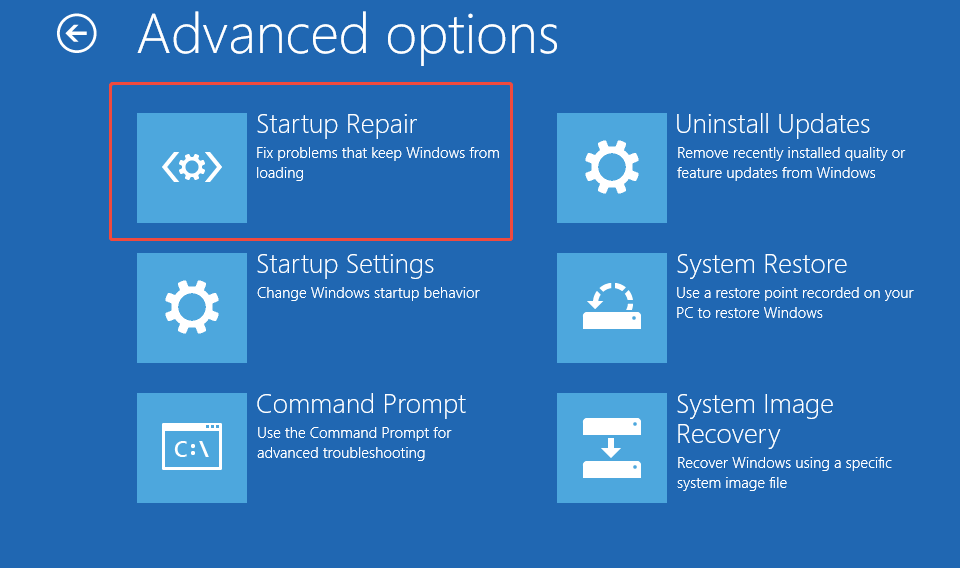
Startup Repair is a built-in Windows recovery tool that can automatically fix common startup issues, including corrupted boot files and configuration problems.
To run Startup Repair:
- Boot the computer into WinRE.
- Go to Troubleshoot > Advanced options > Startup Repair.
- Wait for Windows to diagnose and repair startup problems.
If Startup Repair successfully fixes the issue, restart your Surface Pro and check whether Windows can boot normally.
# 2. Repair Corrupted Windows System Files
Corrupted Windows system files may prevent your Surface Pro from starting properly. You can run System File Checker (SFC) to repair damaged system files.
- Access WinRE.
- Select Troubleshoot > Advanced options > Command Prompt.
- In Command Prompt, run sfc /scannow and wait for the process to complete.
What if Surface Pro Still Won’t Turn On
If none of the methods above resolve the issue, the problem may be more serious and likely related to hardware failure. In such cases, further troubleshooting is limited, and professional repair may be required.
# 1. Check for Hardware Failure
Possible failed components include the battery, SSD, motherboard, RAM, charging circuit, or display. The common symptoms are:
- No charging light.
- No fan or sound.
- Completely unresponsive device.
- Overheating or burning smell.
- Surface logo appears briefly and disappears.
# 2. Recover Important Data Before Repair
Before repair, try to back up your data:
- Transfer files if the device can still boot.
- Use a recovery USB to access files.
- Remove the SSD (if possible) and connect it to another PC.
# 3. Contact Microsoft or a Repair Service
The issue may involve a major hardware failure, such as a damaged motherboard or battery.
- Check warranty options before repair.
- Contact Microsoft Support.
- Visit an authorized repair center.
How to Prevent Surface Pro from Not Turning on Again
To reduce the risk of the Microsoft Surface not turning on issue, follow these simple practices:
- Avoid letting the battery drain completely.
- Keep the port clean and use the official charger.
- Shut down properly.
- Keep Windows and firmware updated.
- Prevent overheating by ensuring proper ventilation.
- Back up data regularly to avoid data loss. (Recommended MiniTool ShadowMaker.)
Surface Pro Won’t Turn on FAQ
- Modern Surface Pro devices (Pro 5 and later): They generally require a 20-second hold of the power button.
- Older models (Pro 4 and earlier): They may require a two-button, volume-up-and-power method to force a full, deep hardware restart.
The device automatically shuts down to safeguard its internal parts from damage caused by high temperatures or low power consumption.
If it still does not start, force restart it by holding the Power button for about 20 seconds.
Conclusion
Troubleshooting a Surface Pro that won’t turn on can be stressful, but most power and boot issues can be resolved through systematic charging, forced restarts, or advanced recovery methods.
Before performing advanced repairs such as Windows recovery or system reset, make sure important files are recovered whenever possible.
If you run into any roadblocks or need technical assistance along the way, our dedicated support team is always available to help at [email protected].
About The Author

Position: Columnist
Shirley holds a bachelor’s degree in English and has been an editor at the MiniTool Team for many years. She specializes in IT-related content, with a focus on data recovery, file backup, disk management, and other technical topics. She is committed to delivering clear, accurate, and practical solutions to help users resolve common computer issues.
User Comments :