

Problem: USB Drive Does Not Appear or Becomes Unallocated
When browsing forums, I noticed that many users reported their USB partitions were missing because the drive did not appear in File Explorer.
In fact, this can happen for two different reasons:
- The partition still exists, but has no drive letter assigned. In this case, the USB partition is still there, but without a drive letter, it won’t appear in File Explorer.
- The partition is actually lost or deleted. Under this circumstance, the USB drive will appear as Unallocated in Disk Management.
Why does this happen? Continue reading.
Causes of Deleted or Lost USB Partitions
In addition to a missing drive letter, a USB partition may disappear for several other reasons. The most common causes are listed below.
- Accidental deletion. A partition may be deleted by mistake when managing disks in Disk Management or with third-party tools, causing unallocated space.
- Formatting errors. An interruption or error during the formatting process can damage the partition structure, making the drive appear as unallocated.
- Virus infection. Some viruses or malware can damage partition tables, leading to partition loss.
- Improper removal. Removing the USB drive abruptly can cause file system damage or even partition loss.
- Other causes include power failures, sudden shutdowns, driver issues, or OS issues.
After understanding the causes behind the USB drive lost partitions, now let’s see how to restore these partitions or files stored on them.
How to Restore Partitions on a USB Drive
To restore a USB drive partition, start by assigning a drive letter to see if the partition becomes visible.
If that does not work, try using free data recovery software to recover your files and then repartition the drive. Alternatively, you can recover the deleted partition directly.
The following sections will guide you through each of these solutions step by step.
Solution 1. Assign a Drive Letter
If the USB partition has no drive letter, assigning one can make it visible in File Explorer. Follow these steps to do that.
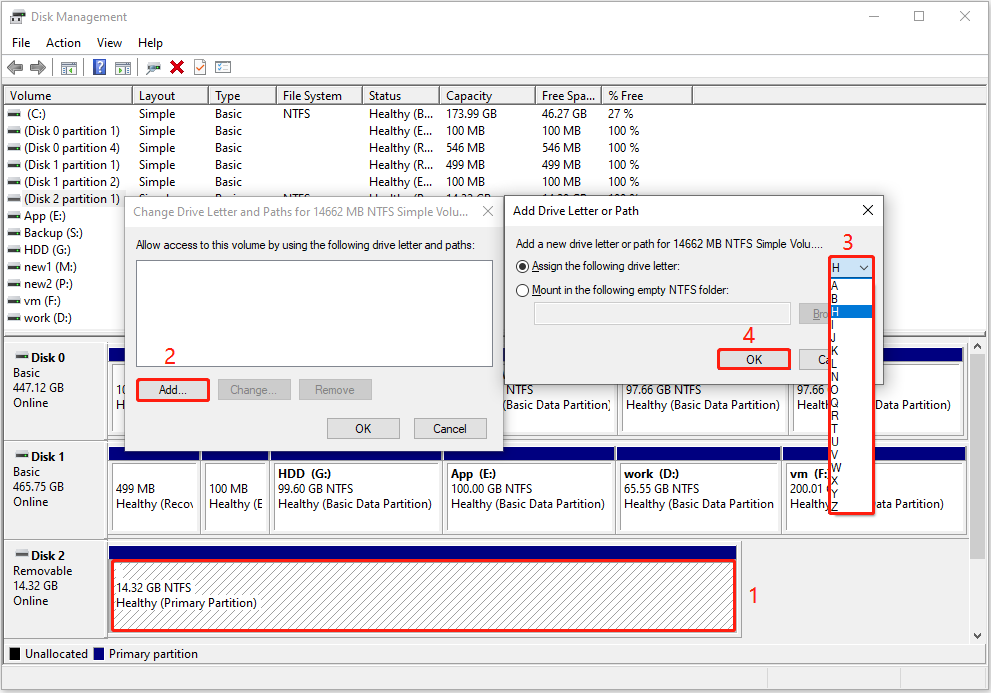
Step 1. Right-click Start and choose Disk Management.
Step 2. Right-click the USB partition and choose Change Drive Letter and Paths.
Step 3. Click Add.
Step 4. Choose an available drive letter from the drop-down menu and click OK. Then the USB drive should appear and become usable.
Alternatively, you can use Command Prompt to assign a drive letter to the USB drive.
Step 1. Input cmd in Windows search. Then click Run as administrator under Command Prompt.
Step 2. Select Yes in the User Account Control window.
Step 3. Input the following command lines in order. Press Enter after each command.
- diskpart
- list disk
- select disk # (replace # with the number of your USB drive)
- list partition
- select partition # (replace # with the USB partition number)
- assign letter=* (replace * with the actual drive letter you want to assign)
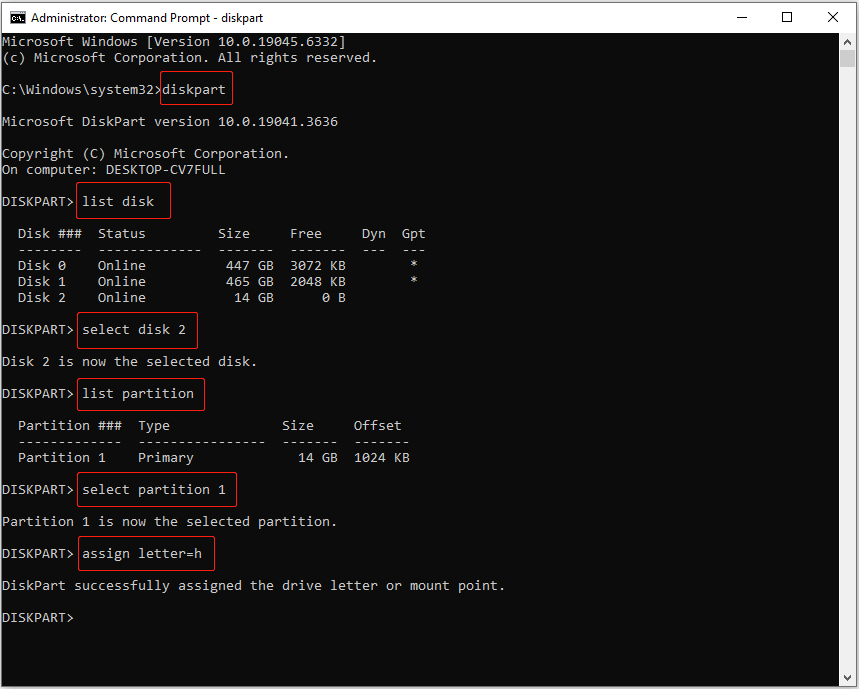
Once done, go to File Explorer, and the USB drive should now appear normal.
If the USB drive partition is truly deleted or lost rather than just hidden, use the following methods to recover it.
Solution 2. Recover USB Files and Repartition the USB Drive
In this section, I will show you how to recover files from a lost USB partition and how to repartition the USB drive.
Action 1. Recover Files From the Lost Partition.
To recover files from a lost or deleted partition, MiniTool Power Data Recovery is recommended.
It is a professional and reliable file restore tool that supports recovering files from lost partitions on USB drives, SD cards, internal hard drives, and external hard drives.
Supported file types include documents, videos, photos, and other types.
This MiniTool recovery tool allows you to recover 1 GB of files for free. Download, install, and launch it to start file recovery.
MiniTool Power Data Recovery FreeClick to Download100%Clean & Safe
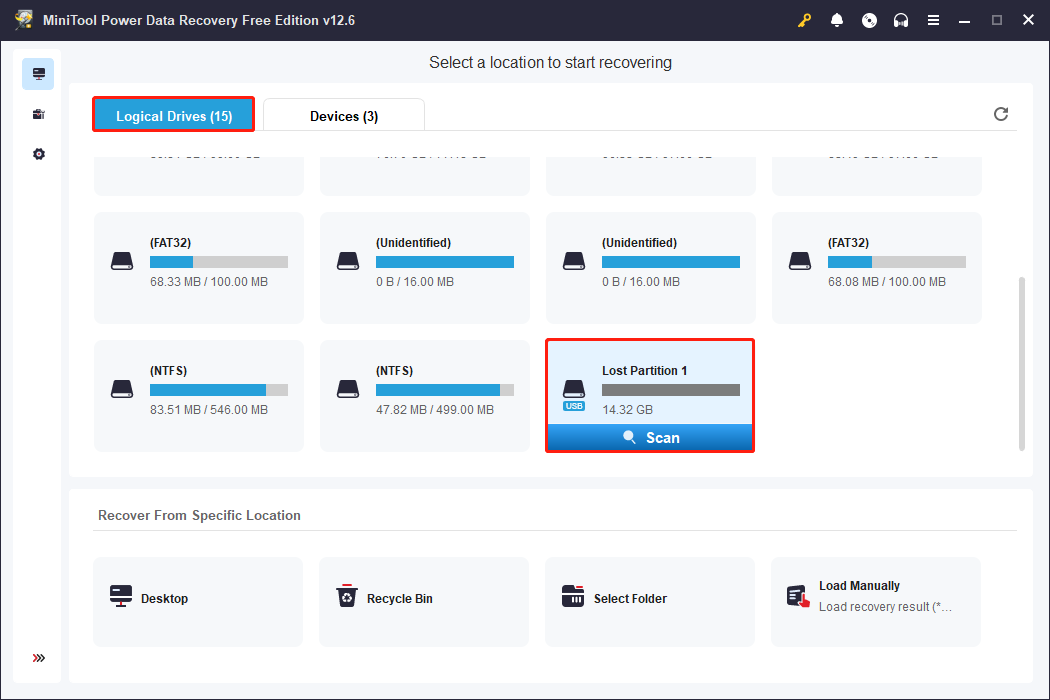
Step 1. On the main interface of this recovery tool, find the deleted or lost USB partition under Logical Drives. Then hover over it and click Scan to start scanning for files.
Step 2. After scanning, expand listed folders and subfolders under Path to find the files you want to recover. Or, switch to Type to view and locate wanted files by file type.
In addition, this tool offers two more features to help you find desired files faster: Filter and Search.
- Filter: Click the Filter button, and you will be able to filter files by file type, modification date, file size, and file category.
- Search: Enter a partial or complete file name in the search box and hit Enter to display only the matching files. Note that some files may have lost their original names.
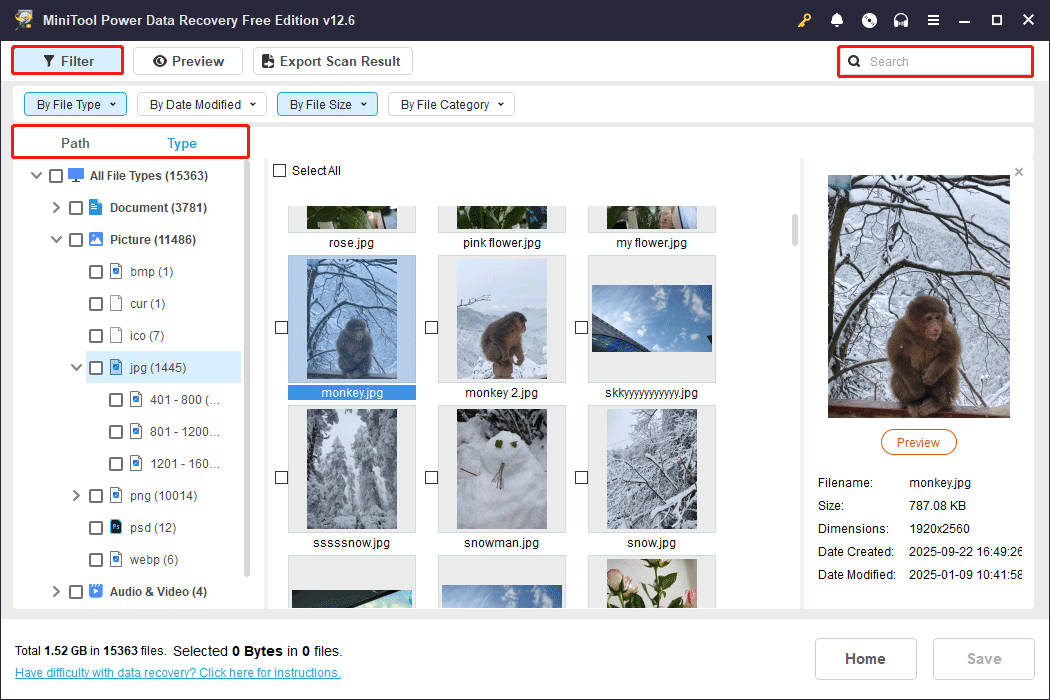
Step 3. To avoid wasting the 1 GB of free recovery capacity, double-click each target file to preview.
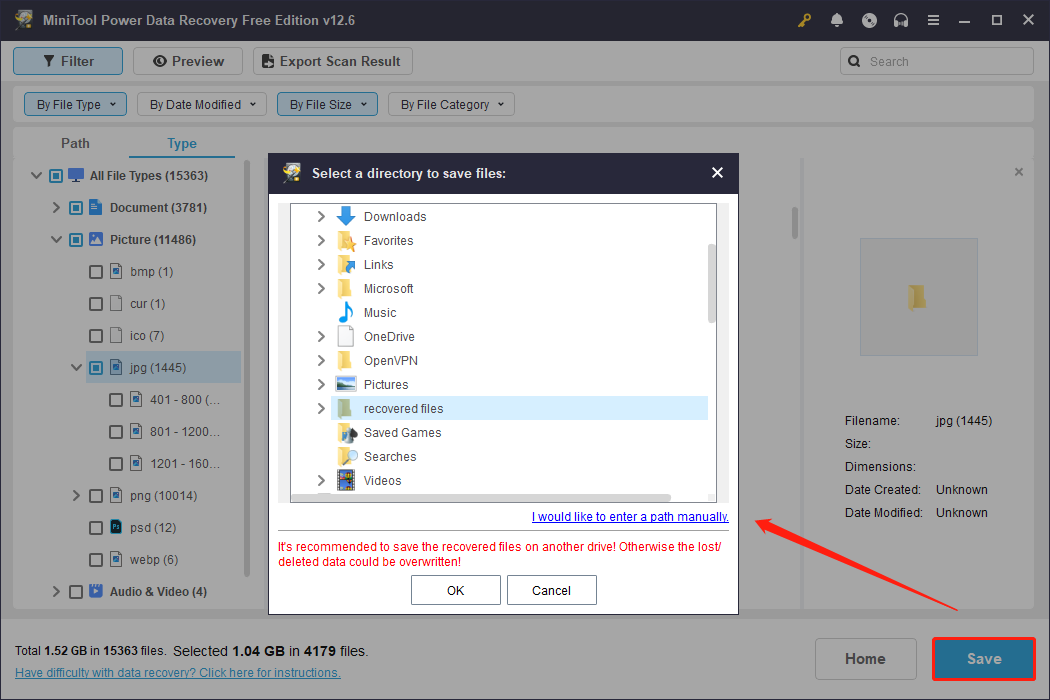
Once you have confirmed and ticked all the files you want to recover, click Save. In the new window, choose a location to store the recovered files.
After recovering your files, now you can recreate a partition on the USB unallocated space so as to reuse it.
Action 2. Recreate a Partition.
Here is how to repartition a USB drive using Disk Management.
Step 1. In Disk Management, right-click the unallocated space on the USB drive and hit New Simple Volume.
Step 2. Click Next to continue.
Step 3. Set up the volume size and hit Next.
Step 4. Assign an available drive letter and click Next.
Step 5. Choose a proper file system, type a preferred volume label, and then click Next.
Step 6. Click Finish. Then the USB drive should be usable again.
Solution 3. Recover Deleted USB Drive Partitions Directly
In addition to recovering individual files and recreating USB drive partitions, you can directly restore lost partitions along with all the files they contained. If you prefer this solution, MiniTool Partition Wizard is a reliable choice.
Its Partition Recovery feature scans your drive for lost or deleted partitions and allows you to recover them together with the original files.
This partition recovery tool is suitable for most USB drives, external hard drives, memory cards, and internal disks.
MiniTool Partition Wizard FreeClick to Download100%Clean & Safe
Follow the steps below to recover a deleted USB partition.
Step 1. Open the MiniTool partition manager to enter its main interface. Then, click the Partition Recovery option and hit Next.
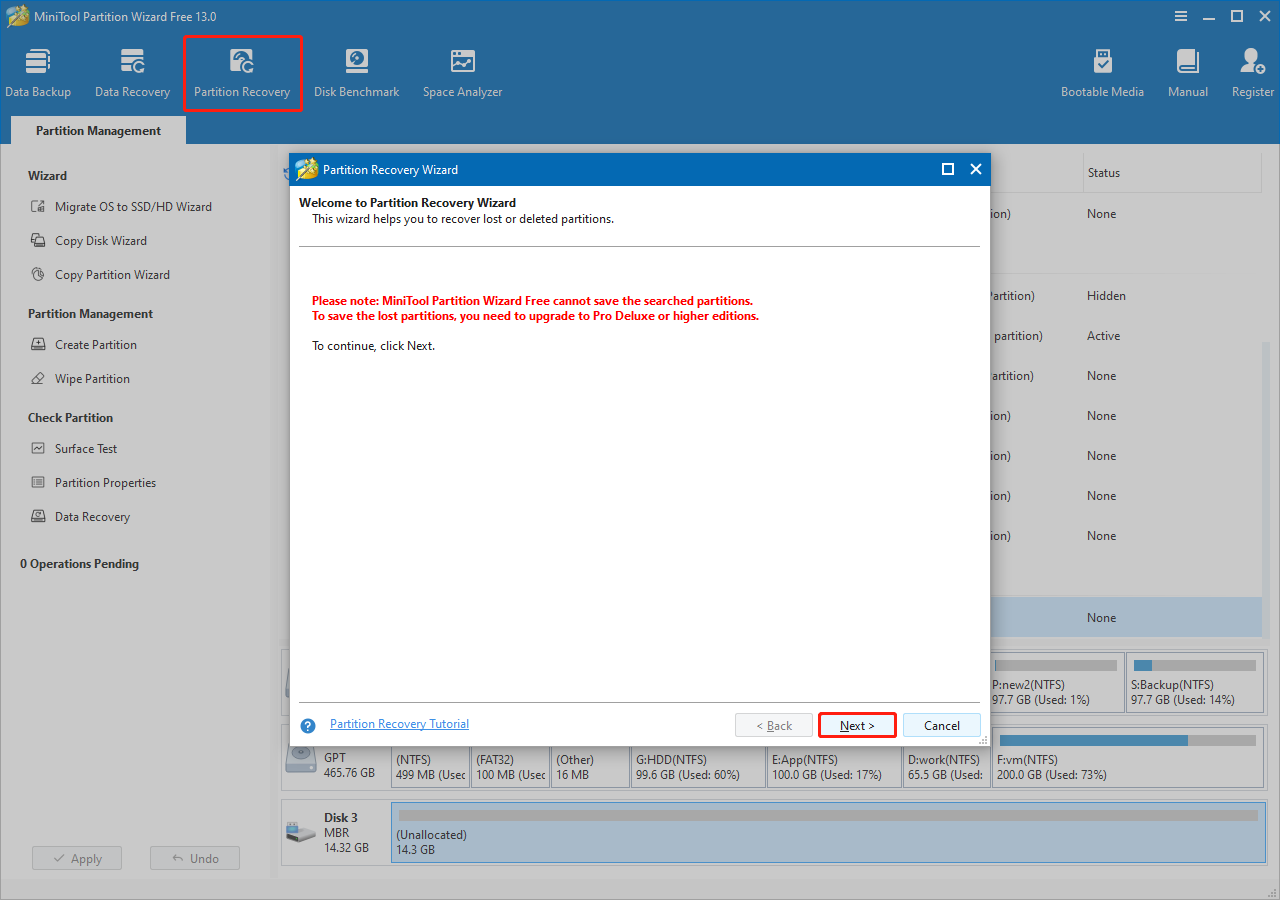
Step 2. Select the USB drive from which you need to restore lost partitions and hit Next.
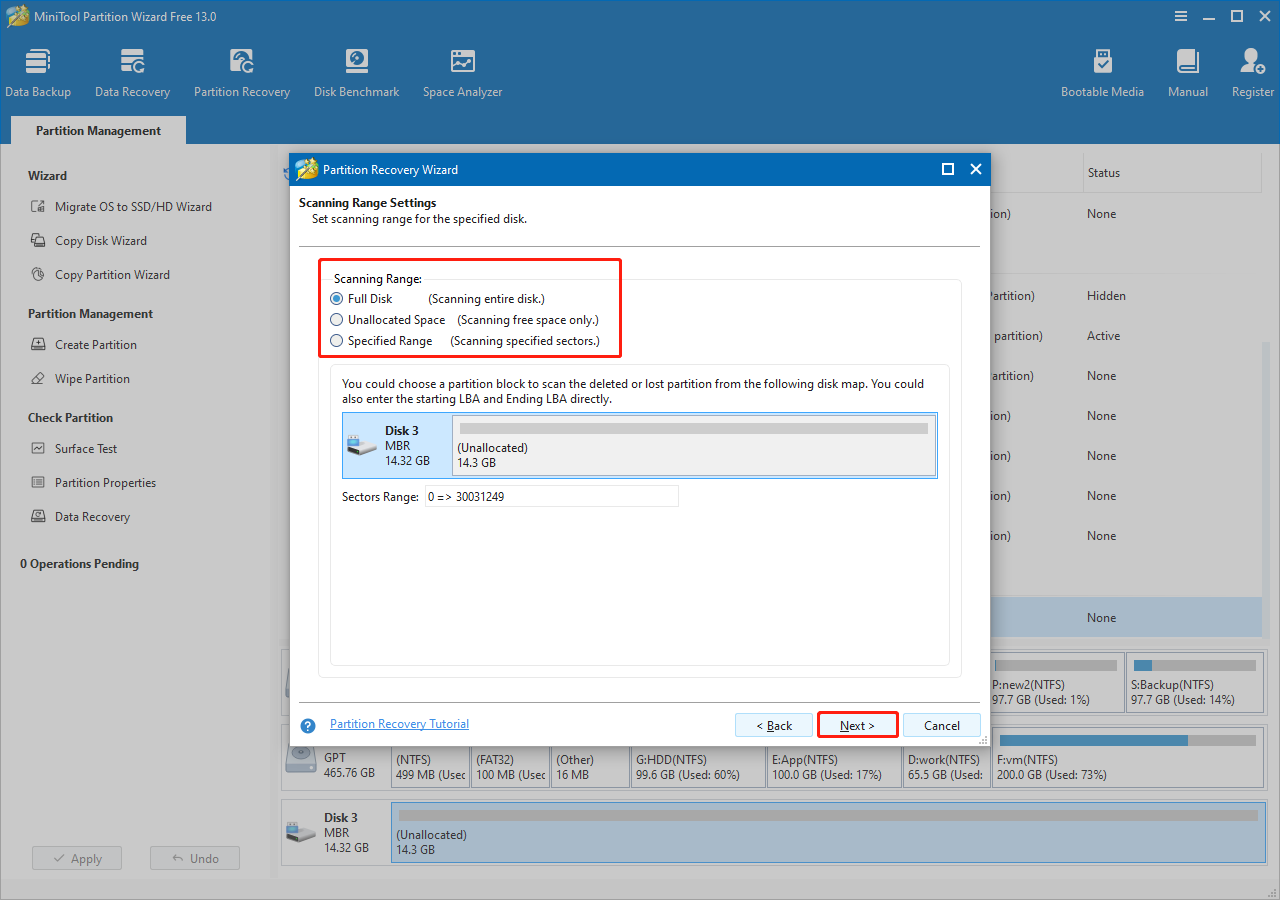
Step 3. Select a scanning range and click Next.
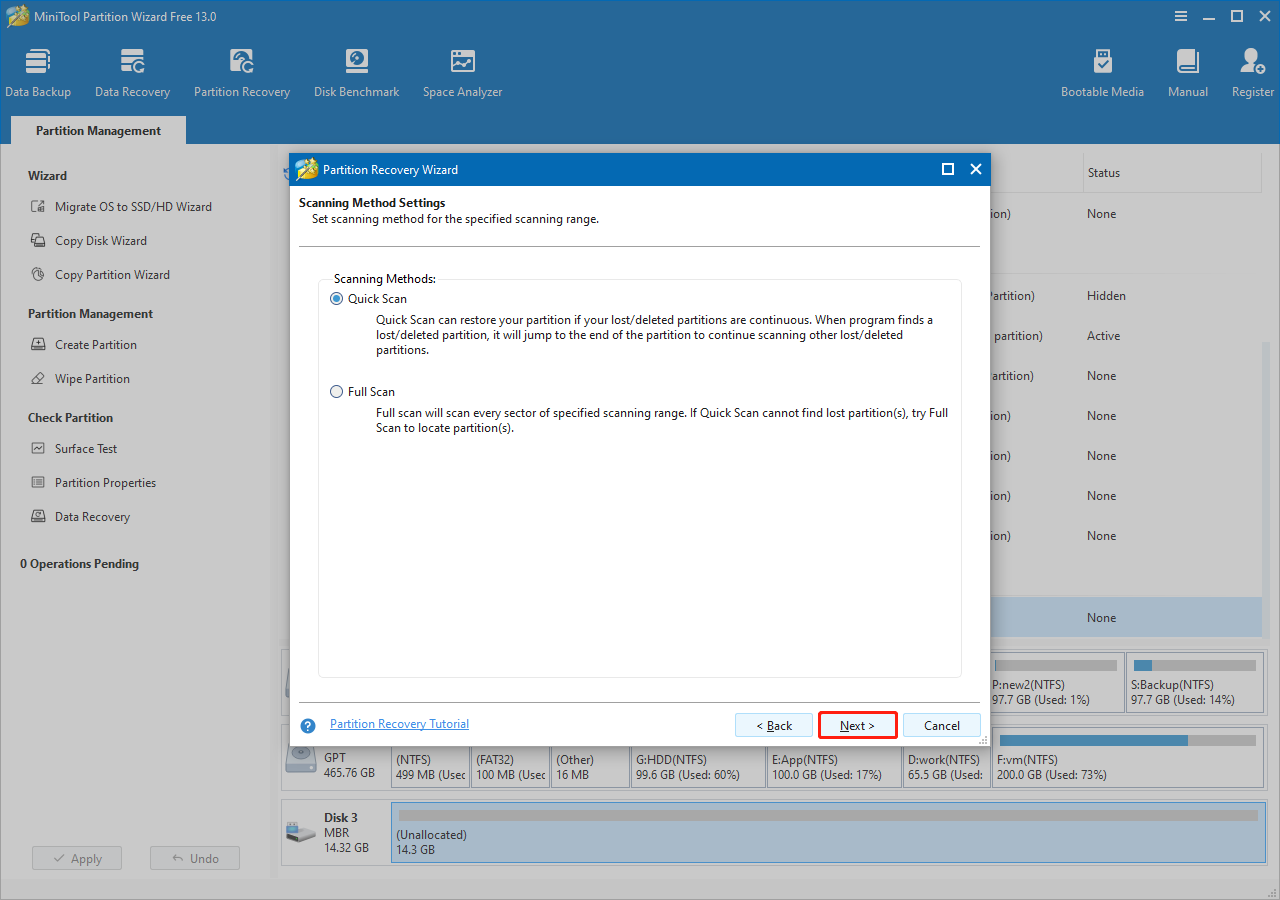
Step 4. Choose a scanning method, and then click Next.
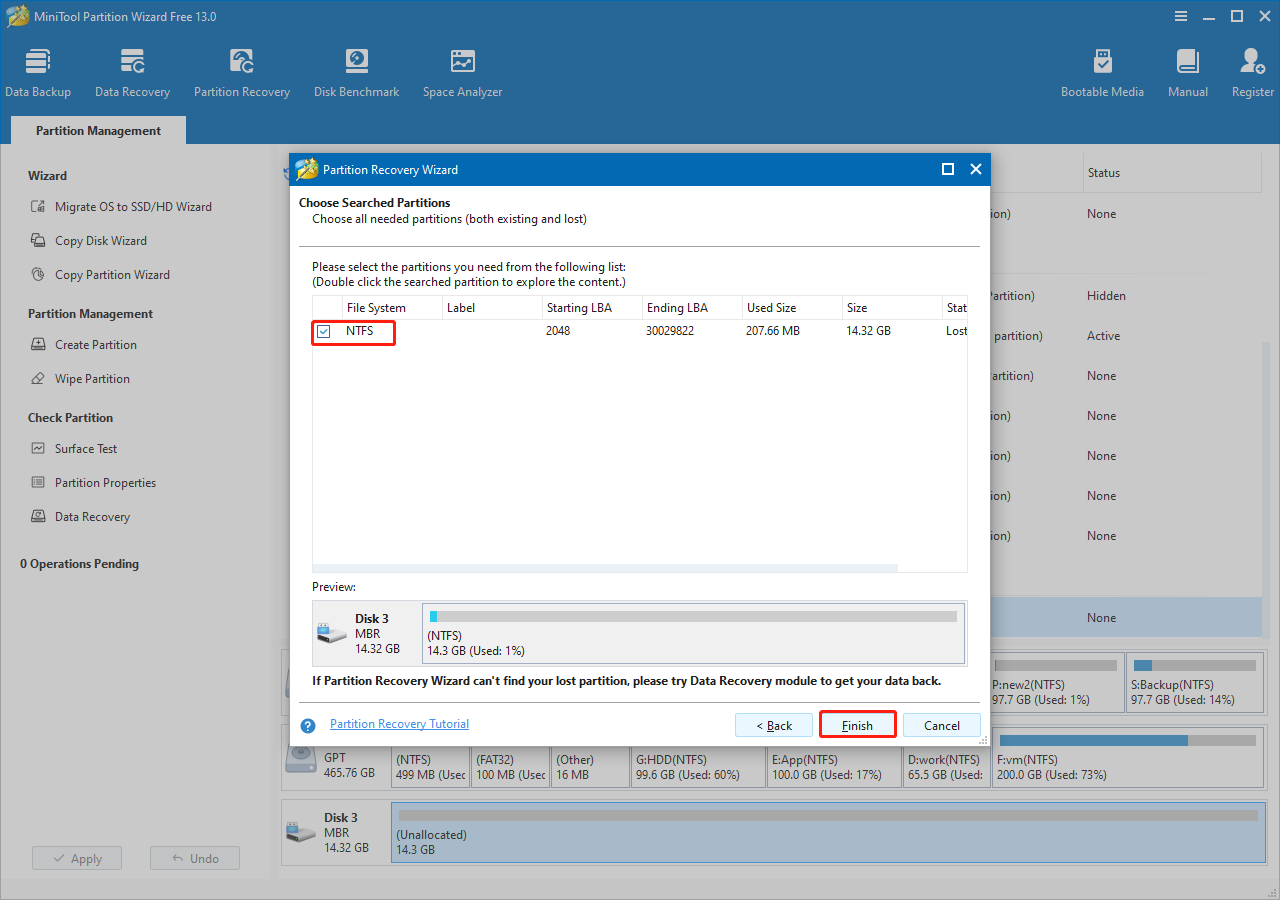
Step 5. Once the scan is completed, tick all required partitions, including the existing one(s), and then hit Finish.
Step 6. Select the recovered partition, then scroll down the left menu and click Change Drive Letter.
Step 7. Choose a drive letter from the drop-down list and hit OK.
Step 8. Click Apply in the lower left corner to make all operations take effect.
Now, you can open File Explorer to view and use the recovered USB partition.

How to Prevent Partition Loss on a USB Drive
After completing the recovery of lost files or partitions on your USB disk, the next step is to look at practical ways to protect your USB drive. This prevents the USB partitions from being lost again and keeps the data safe.
Here are some useful tips you can follow to protect your USB drive and data.
>> Safely remove the drive.
Always use the Safely Remove Hardware or Eject option before unplugging your USB drive from the computer. This helps prevent file system corruption caused by sudden removal.
>> Protect against malware and viruses.
Avoid connecting your USB drive to untrusted devices. In addition, you can regularly scan the drive with Windows Defender or other antivirus software to keep it safe.
>> Limit frequent partition changes.
Avoid formatting or repartitioning the USB drive too often, as this may corrupt the partition table.
>> Monitor disk health.
Use tools like CHKDSK or the built-in error-checking tool to check your USB drive for file system issues or bad sectors. If any problems are detected, you can address them promptly.
>> Back up files and partitions.
Keep a backup of important files or entire partitions in another location. If partition or file loss occurs, you can quickly restore them from the backup.
Windows backup software, MiniTool ShadowMaker, can help you back up files, partitions, or even entire disks for free for 30 days.
MiniTool ShadowMaker TrialClick to Download100%Clean & Safe
Final Thoughts
This guide explains how to recover files from a deleted USB partition with MiniTool Power Data Recovery and how to restore the lost partition using MiniTool Partition Wizard.
However, recovering partitions or files does not mean the risk is gone. You also need to follow the tips above to prevent the problem from happening again.
If you have any questions or need help when using MiniTool software, please feel free to contact the support team at [email protected]. We are always ready for help.
About The Author

Position: Columnist
Shirley holds a bachelor’s degree in English and has been an editor at the MiniTool Team for many years. She specializes in IT-related content, with a focus on data recovery, file backup, disk management, and other technical topics. She is committed to delivering clear, accurate, and practical solutions to help users resolve common computer issues.
User Comments :