

Insta360 cameras make capturing panoramic videos simple and efficient, with footage typically stored in the proprietary INSV file format.
This guide explains what INSV files are and covers the causes of INSV file loss, methods to recover deleted INSV videos, and a feasible solution to repair corrupted INSV files.
Keep reading to get more details.
Overview of INSV Videos
INSV stands for the Insta360 Panoramic Video file format, which is specifically designed for storing 360-degree videos captured by Insta360 cameras.
The Insta360 camera series, which includes models like the ONE, ONE X, EVO, Titan, and others, typically records 360-degree and Virtual Reality HD videos in the INSV file format.
Unlike standard MP4 or MOV formats, INSV files store synchronized information from multiple lenses and sensors, enabling smooth panoramic viewing, editing, and post-production.
INSV videos use H.264 or H.265 (HEVC) video codecs, which help decrease the file size while preserving its quality.
If a file is in the INSV format, it must be accessed and used properly through Insta360 applications on computers or phones.
However, INSV files can be vulnerable to loss and corruption, transforming valuable memories into unreachable data in an instant.
When you connect your Insta360 to view the moments after a long shoot, it is terrible to find that the INSV videos you were looking forward to are missing.
Before proceeding to the specific INSV video recovery workarounds, it is critical to understand the underlying causes of INSV file loss.
Common Reasons for INSV File Loss
The most prevalent causes are outlined below:
- Accidental Deletion: You may have unintentionally deleted your INSV videos.
- Sudden Power Loss: The camera may have unexpectedly powered off during the process of saving or transferring files.
- SD Card Formatting: The memory card may have been formatted, whether by accident or on purpose.
- File System Error: The file system on the SD card may have experienced corruption due to software malfunctions, hardware issues, or improper removal of the device.
- Bad Sectors: Certain portions of the SD card are damaged and have read/write failures.
- Virus or Malware Attack: A virus or malicious software may infect storage devices, compromising or deleting the INSV videos.
- Physical Damage: The SD card may have been physically damaged due to impacts, moisture exposure, or other physical factors.
Kind Reminder:
Consider these suggestions to enhance your chances of successfully restoring INSV videos:
- Stop Using the Storage Device Immediately: If INSV files are missing, stop using the Insta360 camera’s SD card immediately to prevent overwriting the lost data.
- Avoid Formatting the SD Card: Don’t format the memory card, even if you receive a prompt to do so.
- Use Reliable Data Recovery Software: As soon as you notice a missing INSV video, use reliable recovery techniques and software promptly.
How to Recover Deleted INSV Videos
Losing INSV videos doesn’t mean they are lost permanently. Below are three trustworthy solutions to recover deleted Insta360 videos.
Read on to try these methods one by one to rescue your videos.
Method 1. Restore From Insta360
One of the simplest methods to recover deleted videos from Insta360 without software is through the app’s Recycle Bin. Files deleted from the app local album can be found in the Recycle Bin.
To recover deleted Insta360 videos from the Recycle Bin, follow these steps:
Step 1. Launch the Insta360 app on your mobile phone.
Step 2. Tap on Settings located at the bottom right corner.
Step 3. Scroll down to locate and access the Recycle Bin option.
Step 4. Identify the wanted videos, tap the icon in the upper-right corner to select them, and then click the RECOVER option at the bottom right corner to restore them.
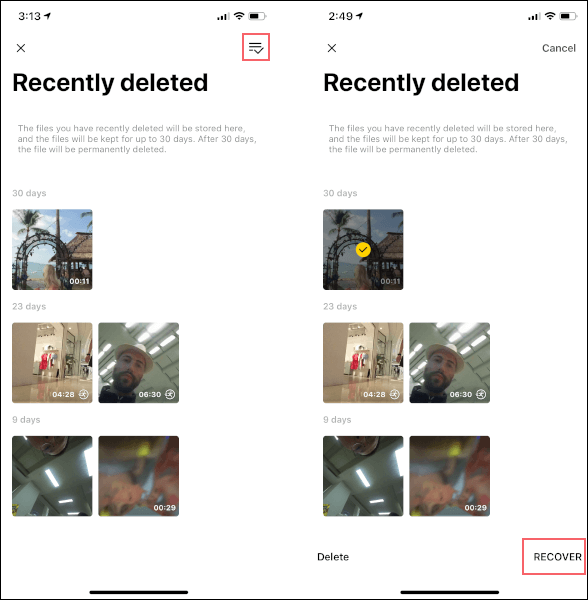
Image from www.insta360.com
The chosen deleted videos will be returned to the albums.
Method 2. Restore From Previous Backups
The most reliable solution to recover INSV files is to restore them from a previous backup, as this avoids the risk of overwriting data or incomplete recovery.
If you have created backups of the Insta360 videos, directly retrieve the deleted INSV videos from the backup.
Here’s how to recover INSV videos from backups:
- Identify Your Backup Location: Check where your INSV files are backed up. Common places include external hard drives or cloud services (like Google Drive or Dropbox).
- Locate the INSV Files: Go to your backup location and search for the deleted INSV files.
- Restore the INSV Files: Select the INSV files to recover, copy them to your computer, and ensure that they open in Insta360 Studio before deleting backups.
However, if you lack a backup, it is advisable to use professional INSV video recovery software.
Method 3. Use MiniTool Power Data Recovery
If you’ve accidentally deleted your INSV videos or lost them after formatting your SD card or USB, you’ll need trustworthy software for recovering Insta360 videos.
MiniTool Power Data Recovery is a user-friendly and robust application that supports over 2000+ file formats, including INSV.
Regardless of whether your INSV files were deleted or lost from formatting, this professional data recovery software can recover them safely.
Here are some key features that can help you know better about MiniTool Power Data Recovery:
- Supports recovering various file types, including videos, photos, audio, documents, and more.
- Beyond Insta360 cameras’ SD cards, this free data recovery tool is compatible with various storage devices, including internal and external hard drives, SSDs, and more.
- Provides an intuitive and user-friendly interface, simplifying the file recovery process.
- Allows you to preview recoverable video files in common formats before recovery, so you can verify and confirm the content to be restored.
- Supports recovering 1GB of files for free.
Now, download and install MiniTool Power Data Recovery by clicking the button below.
MiniTool Power Data Recovery FreeClick to Download100%Clean & Safe
Check the following steps to find out how to recover files from Insta360 with the MiniTool data restoration tool:
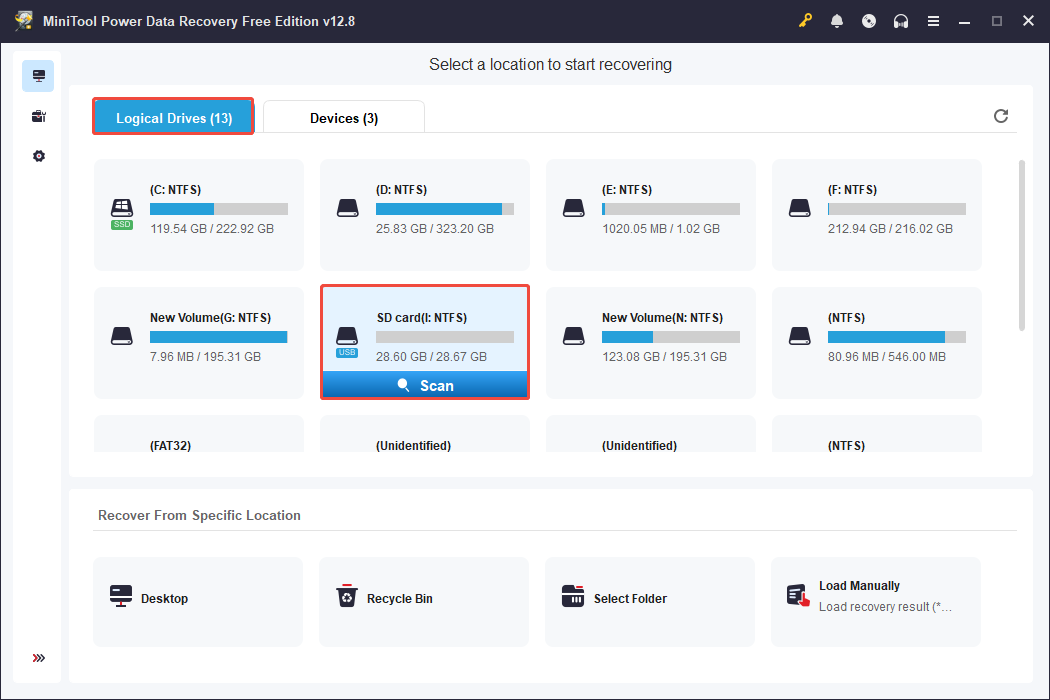
Step 1. Scan the Target Drive
Connect your SD card to your computer using a card reader, or insert the USB into the PC. Open MiniTool Power Data Recovery on your computer.
The main interface will display all connected storage devices’ partitions, including internal hard drives, external USB drives, and SD cards.
In the Logical Drives tab, locate and select the USB drive or SD card (both have a USB icon) that stores your deleted INSV files, and then click the Scan button.
Step 2. Locate Desired INSV Files
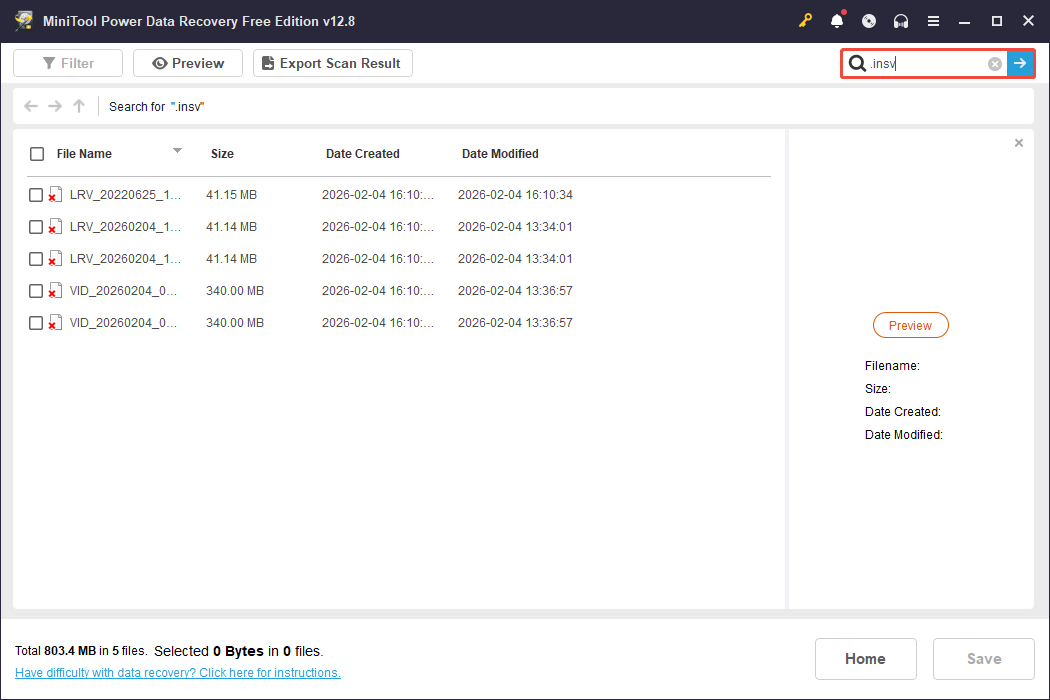
Once the scan is complete, the detected files will be listed under the Path tab. Expand each folder to locate your INSV files.
To save your time and effort, use the Search feature by typing .insv and pressing Enter to locate files directly.
Step 3. Save the Needed INSV Files to a Different Drive
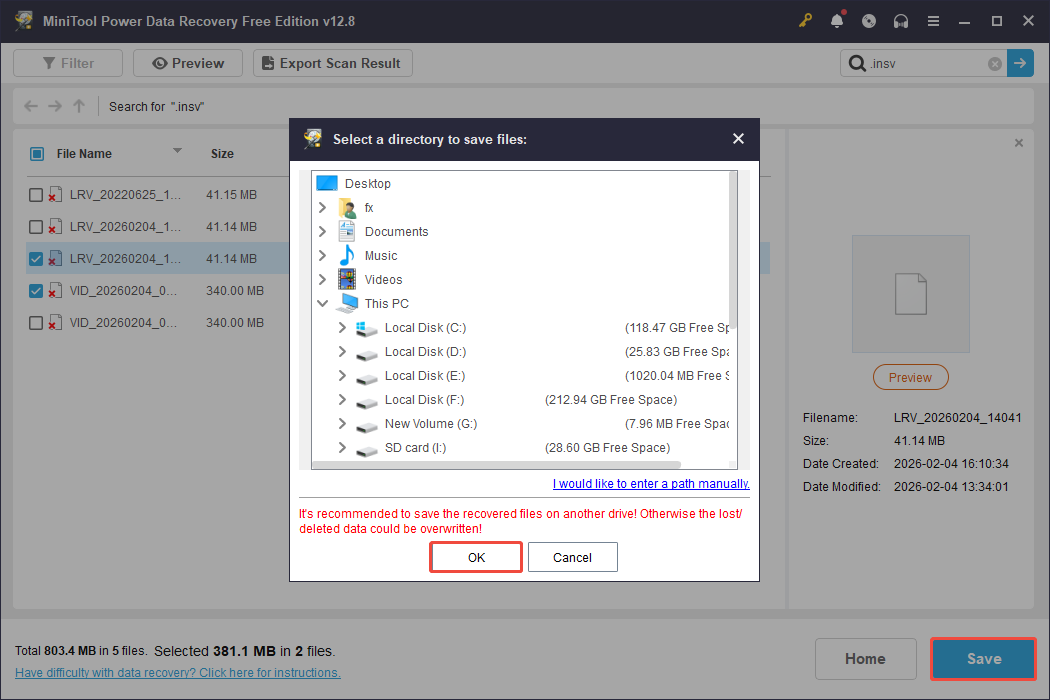
Select the wanted INSV files and click the Save button. In the new window, choose a different storage device to save the recovered INSV files.
Click OK to complete the recovery process and verify that the files are saved correctly before closing the tool.
How to Repair Corrupted INSV Files Using Insta360 File Repair
After recovering INSV files, you may face issues with corrupted INSV footage that either won’t play, shows choppy playback, displays error messages, or lacks audio tracks.
Insta360 provides a specialized Insta360 File Repair tool that is designed to repair corrupted INSV files captured with Insta360 cameras.
This tool can be downloaded and used at no cost, making it a great choice if you are looking for a solution directly from the brand.
System Requirements for Windows OS
- Operating System: Windows 7 sp1 or higher
- Processor: Any AMD or Intel mainstream CPU released in the past two years
- RAM: 16GB or higher
- Main Hard Disk: SSD 128GB or higher
- Graphics Card: Nvidia GeForce GTX 1060(6GB) or higher
Here’s how to repair an INSV file:
Step 1. Open Insta360 File Repair.
Step 2. Click on Add file or drag the corrupted video file into the application. Once you import the file, it will show up in the To be fixed list.
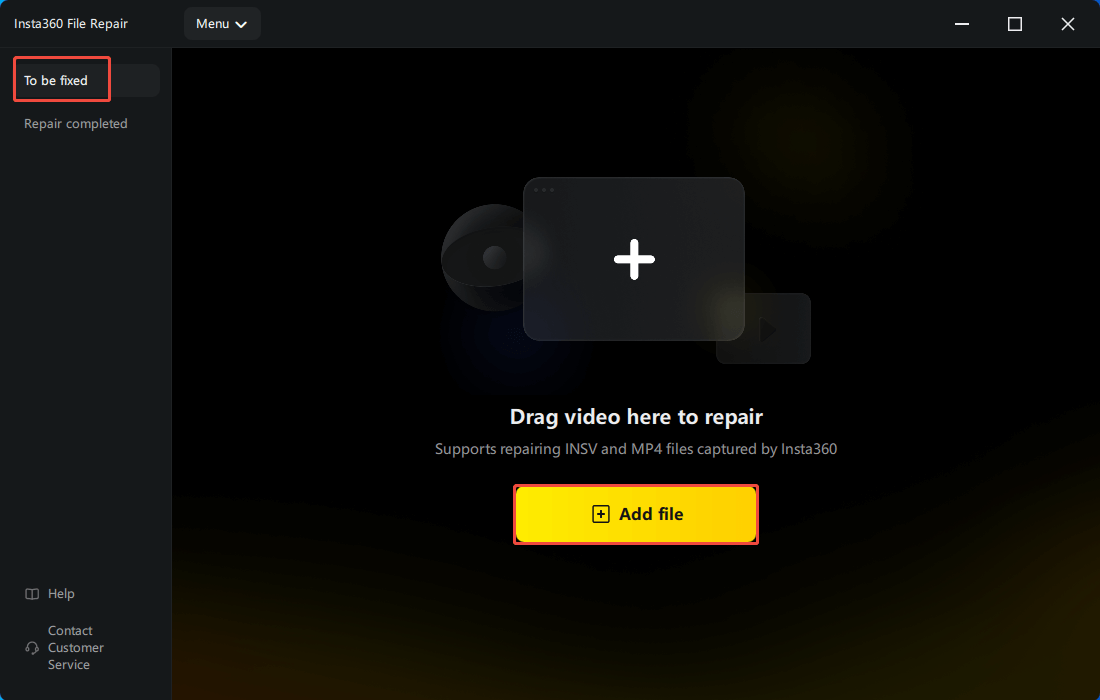
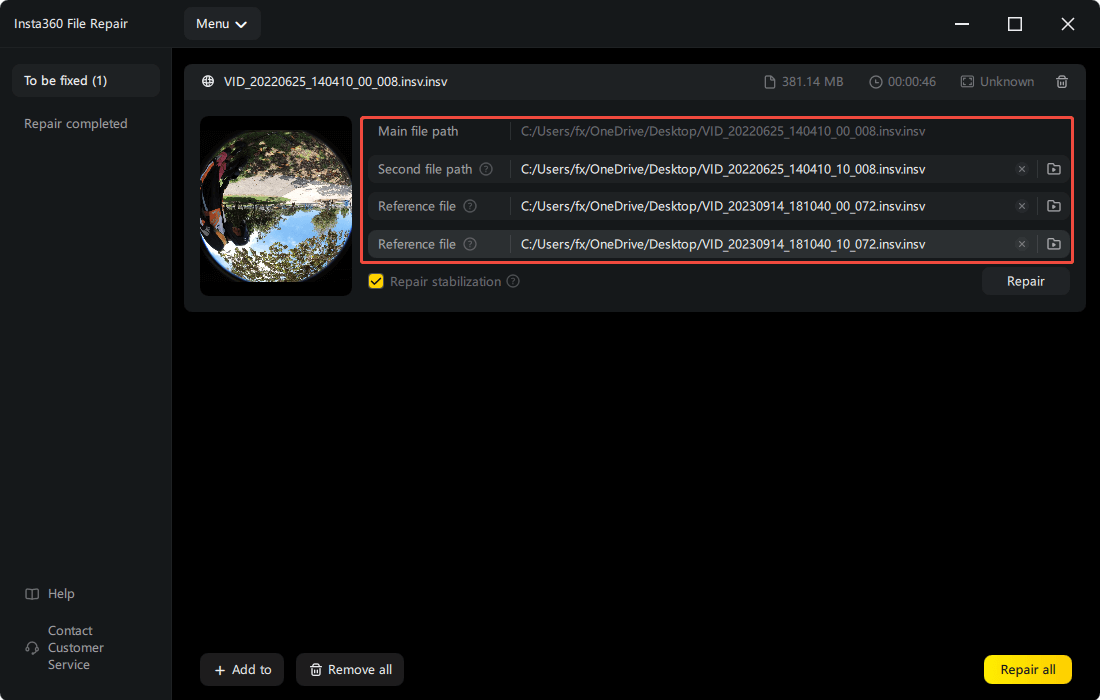
#1. If you are repairing a 360-degree video (INSV file), make sure to upload the two .insv files with the same name.
In the Main file path, add the file with 00 in the file name. In the Second file path, add the file with 10 in the file name.
#2. Next, upload two .insv 00 and 10 files from any non-broken 360-degree Insta360 footage to the Reference file section.
- Main file: This refers to an INSV file that contains 00 in its name.
- Second file: This is a file that shares the same name as the main file, but includes 10 in the name.
- Reference file: Any normal, non-broken files that act as a reference for the File Repair Tool.
For instance:
- Main file: VID_20220625_140410_00_008.insv
- Second file: VID_20220625_140410_10_008.insv
- Reference file: VID_20230914_181040_00_072.insv
- Reference file: VID_20230914_181040_10_072.insv
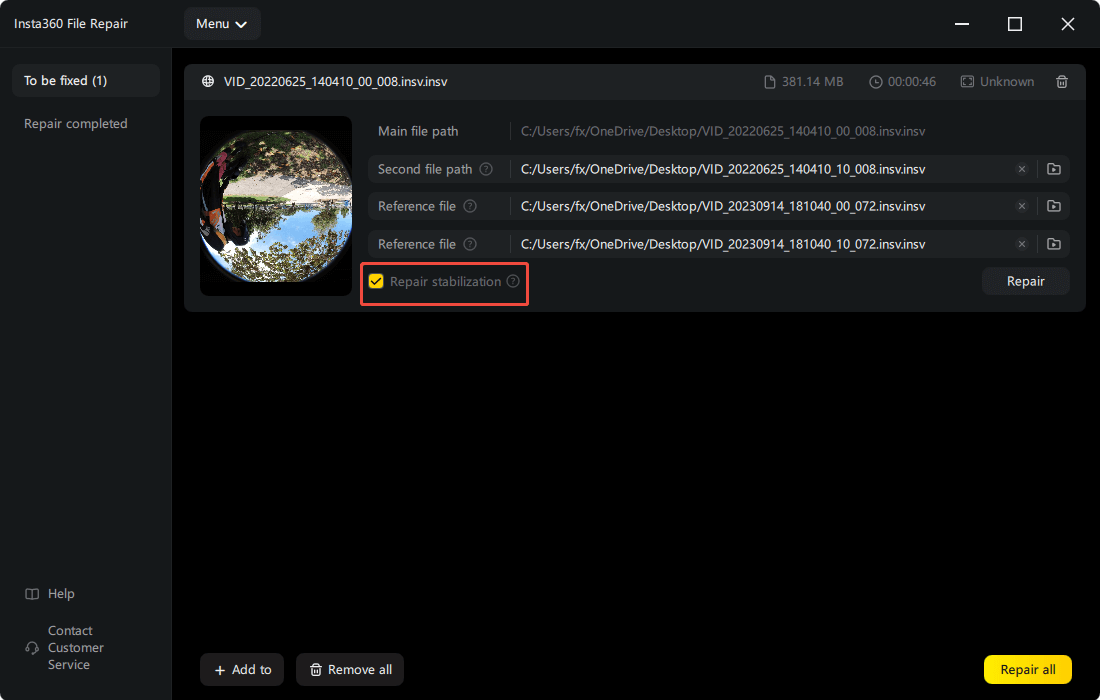
For Repair stabilization:
Corrupted files often lose the effects of FlowState Stabilization that were applied during recording. The Insta360 File Repair tool can restore this effect for 360-degree videos.
To enable this feature, click the Repair stabilization checkbox.
If you choose to uncheck Repair stabilization, the repaired files will be separate and in the same format as the corrupted file (e.g., .insv) instead of a single 360-degree file.
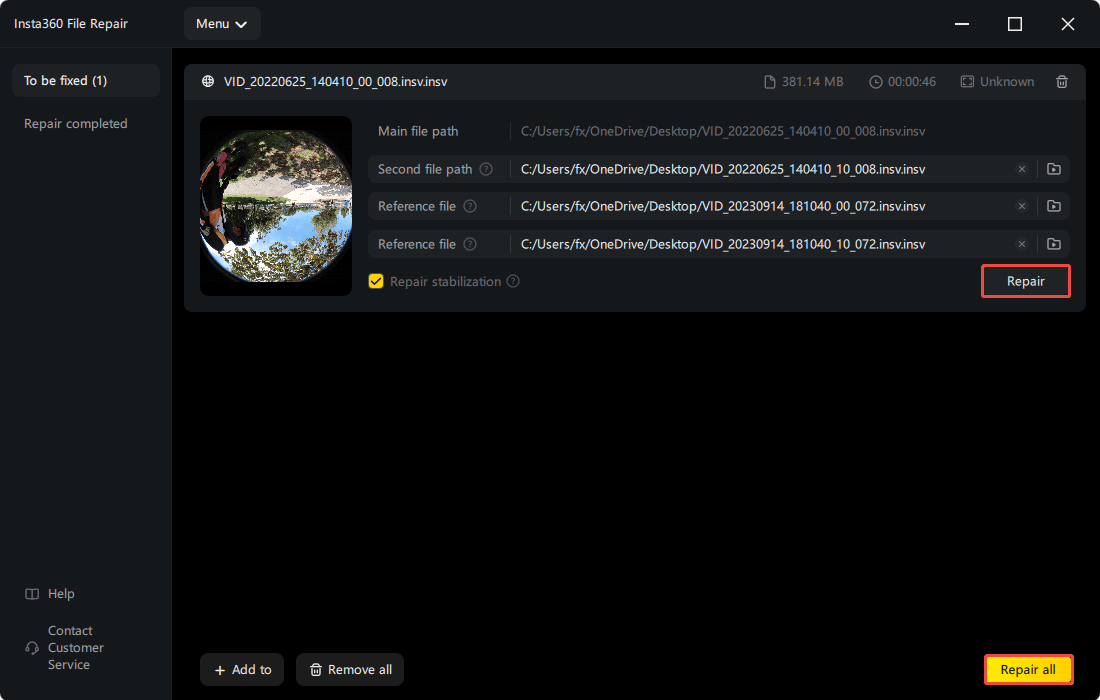
Step 3. Select Repair to begin fixing the video file or select Repair all to repair all items in the To be fixed list.
Step 4. Find all repaired files in the Repair completed list. Click Save to store the repaired file on your computer.
How to Transfer Your Insta360 Videos to Phones/Windows
For data security, it is highly recommended to back up your INSV videos by transferring them to your phone or PC during daily use of the Insta360 camera.
Here are two parts about transferring the INSV videos to a phone or computer.
Transfer Insta360 Videos to a PC
Step 1. Specify Install360 camera settings.
- Open your camera, swipe down the menu, and click the gear icon to open Settings.
- Go to the USB Mode and set it to U-Disk Mode.
Step 2. Transfer the videos to your computer.
- Connect the camera to your computer using the official USB-C cable.
- Open the camera drive on your computer, navigate to DCIM > Camera01.
- Drag and drop the .insv (360) or .mp4 (single-lens) files to your computer.
Transfer Insta360 Videos to Android/iPhone
First, check the following requirements:
- Ensure that the Insta360 app and camera are updated to the latest version.
- Visit your phone’s system settings to make sure Wi-Fi is connected.
- Confirm that your phone has enabled GPS and Bluetooth permissions for the Insta360 app.
Here’s how to perform a camera file transfer to the Insta360 app on phones:
Step 1. Link your camera to your smartphone via the Insta360 app.
Step 2. Navigate to the Album section.
Step 3. Press the multi-select icon located in the upper right corner of the Insta360 page and choose the files you wish to download or export.
- For flat videos, tap the export icon to save them.
- For 360º videos, click the download icon to transfer the footage to the app’s album.
Bottom Line
Now, you should possess a comprehensive understanding of what the INSV file format is, how to recover deleted INSV videos, and how to repair corrupted INSV files.
If you have created backups of your INSV files, locate those backups to restore any deleted or lost INSV videos.
If not, MiniTool Power Data Recovery and the Insta360 Recycle Bin serve as reliable options for video recovery.
For damaged INSV video files, use Insta360 File Repair to rectify them.
For any assistance with MiniTool Power Data Recovery, do not hesitate to contact the support team at [email protected].
User Comments :