

Quick Answer:
#1. Is it possible to unformat a memory card?
Yes. In many cases, data can still be recovered from a formatted memory card, especially after a quick format.
#2. How to unformat an SD card?
Use MiniTool Power Data Recovery or Windows File Recovery to scan the card for recoverable files.
Many users try to unformat an SD card after forgetting to back up important data or accidentally clicking the Format button during disk management.
The following sections explain the possibility of recovery and how the recovery process works.
Is It Really Possible to Unformat an SD Card
Yes, it is often possible to unformat an SD card and recover lost files after formatting.
What Does “Unformat” Really Mean
“Unformat” does not mean reversing the formatting process itself, as formatting is irreversible. Instead, it refers to locating and recovering files from a formatted storage device.
More specifically, the process involves using data recovery software to:
- Scan the storage device for remaining file system fragments.
- Reconstruct file or folder structures.
- Recover accessible files to another storage location.
In short, unformatting an SD card is actually a data recovery process.
What to Do Before You Unformat an SD Card
Before attempting SD card recovery, avoid some actions that may permanently overwrite recoverable data.
- Stop using the SD card immediately. Do not save any new files or install software on the card. Remove the card from your device before data recovery.
- Do not reformat the SD card again. Repeated formatting makes the recovery process more difficult.
- Prepare another drive for recovered files. Storing recovered files back to the same formatted SD card may cause data overwriting.
These steps can significantly improve the chances of successful SD card recovery.
Best Software to Unformat SD Cards – MiniTool Power Data Recovery
MiniTool Power Data Recovery is a professional file recovery solution designed to recover data from formatted SD cards and other file storage devices.
Key features of MiniTool Power Data Recovery:
| Feature | Description |
| Support for SD, microSD, SDHC, and SDXC | Compatible with various memory card types used in cameras, drones, and phones. |
| Multiple file type support | Recover images, videos, documents, audio files, and other data. |
| RAW photo recovery | Support recovery of camera RAW formats, such as CR2, NEF, ARW, ORF, and more. |
| Wide file system compatibility | Support the recovery of all file types from FAT32, NTFS, and exFAT. |
| Preview before recovery | Preview photos, videos, audio, documents, and other files before recovery. |
| Read-only recovery process | Recover files without modifying or overwriting original data. |
| Wide OS compatibility | Fully compatible with Windows 11/10/8.1/8 |
| Free data recovery | Recover 1 GB of files for free |
MiniTool Power Data Recovery FreeClick to Download100%Clean & Safe
Next, I will show you how I recovered files from a formatted SD card using MiniTool Power Data Recovery on Windows 10 22H2.
How to Unformat SD Card Step by Step on Windows
Step 1. Connect the Formatted SD Card and Scan It
Insert the card:
Insert the formatted SD card into a card reader and connect it to your computer. Once connected, make sure Windows can properly detect the card.
Scan the card:
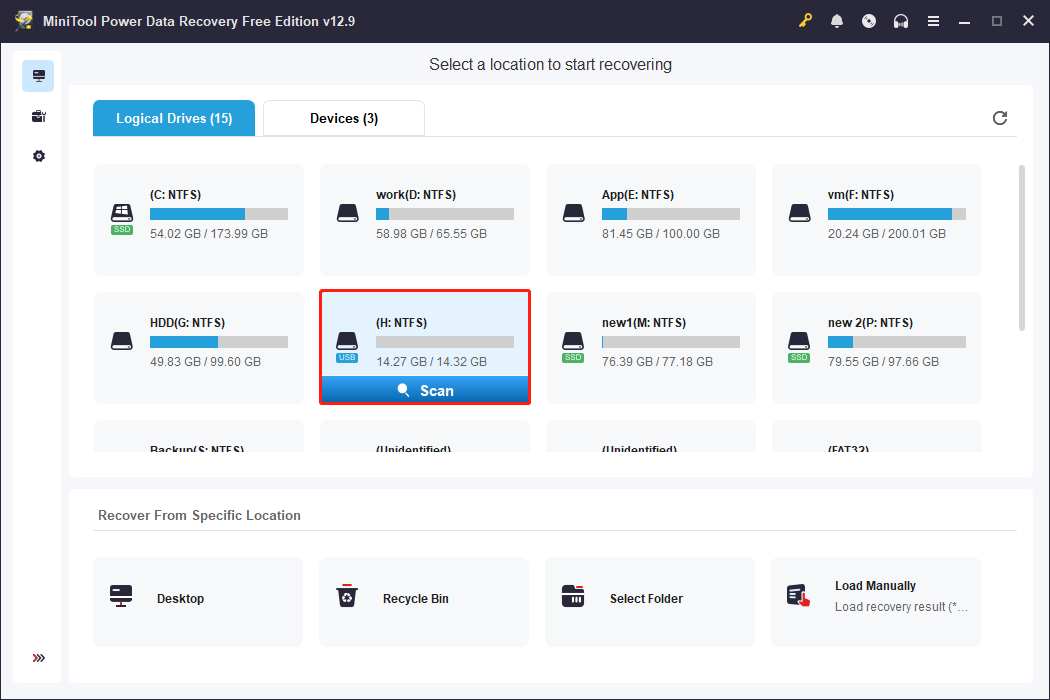
Launch MiniTool Power Data Recovery, and it will automatically load the card information.
The formatted SD card is marked with a USB icon and shows no occupied space. Select the card and click Scan to start a deep sector-by-sector scan for recoverable files.
In my case, the tool began finding deleted photos and videos within just a few seconds, and I can preview them during the scanning process.
Step 2. Find and Preview Recoverable Files
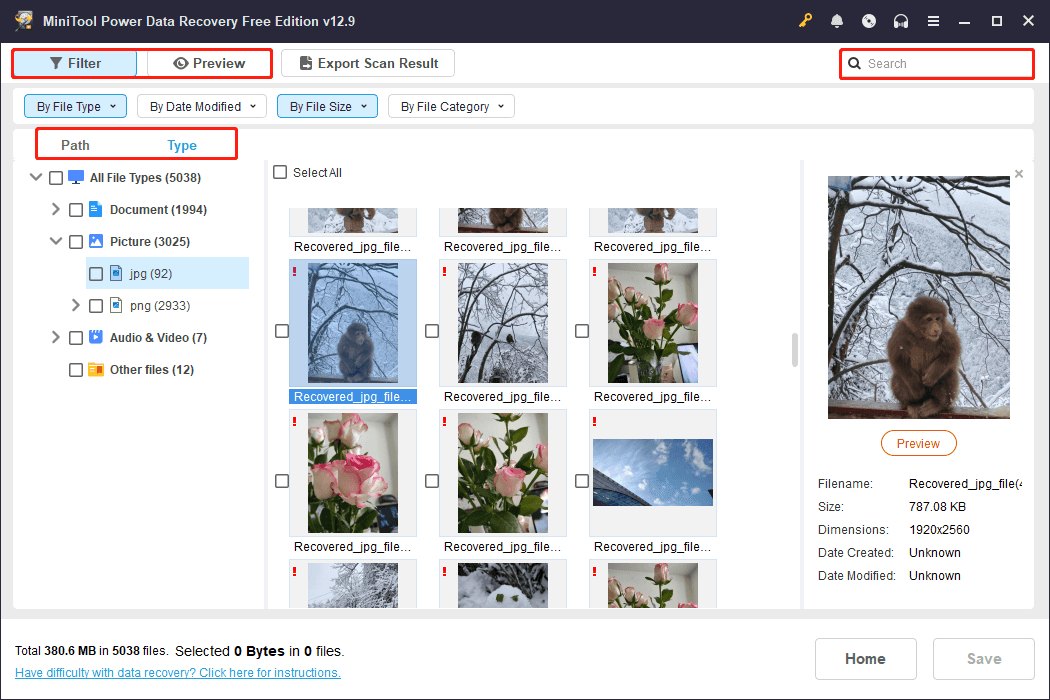
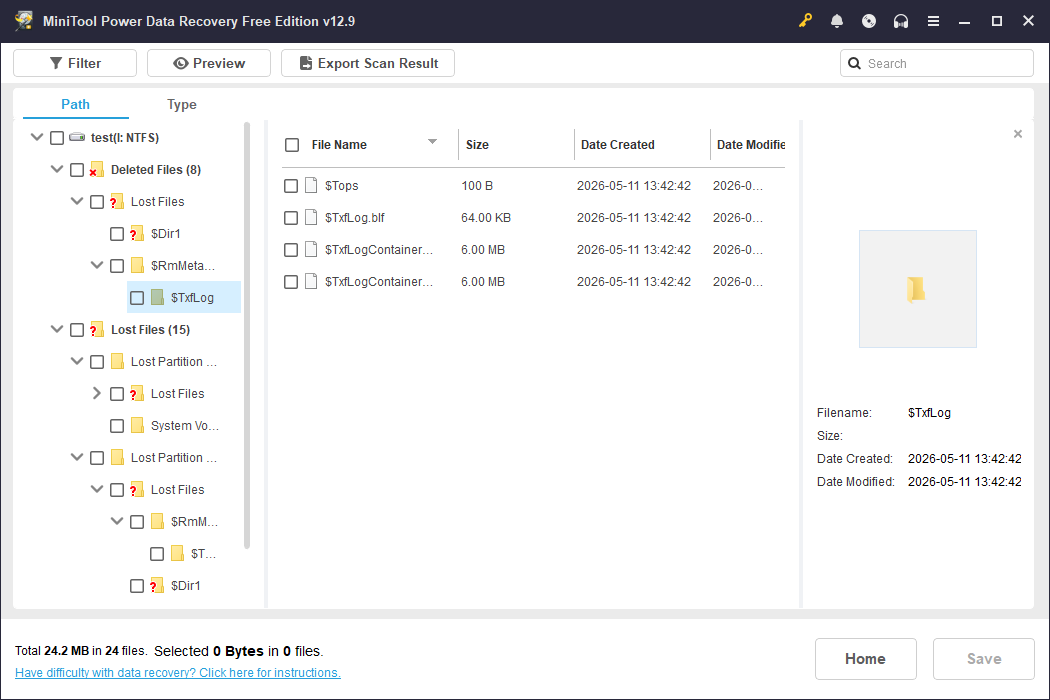
Once the scan is completed, MiniTool Power Data Recovery lists all found files on the scan results page. Use the following features to find the target files quickly:
- Use Path to view files and folders by original file structure
- Use Type to view specific file types, such as photos and videos
- Use Filter to filter files by file type, date modified, file size, and file category
- Use Search to search for a certain file by using the file name
- Use Preview to preview the listed files before recovering them
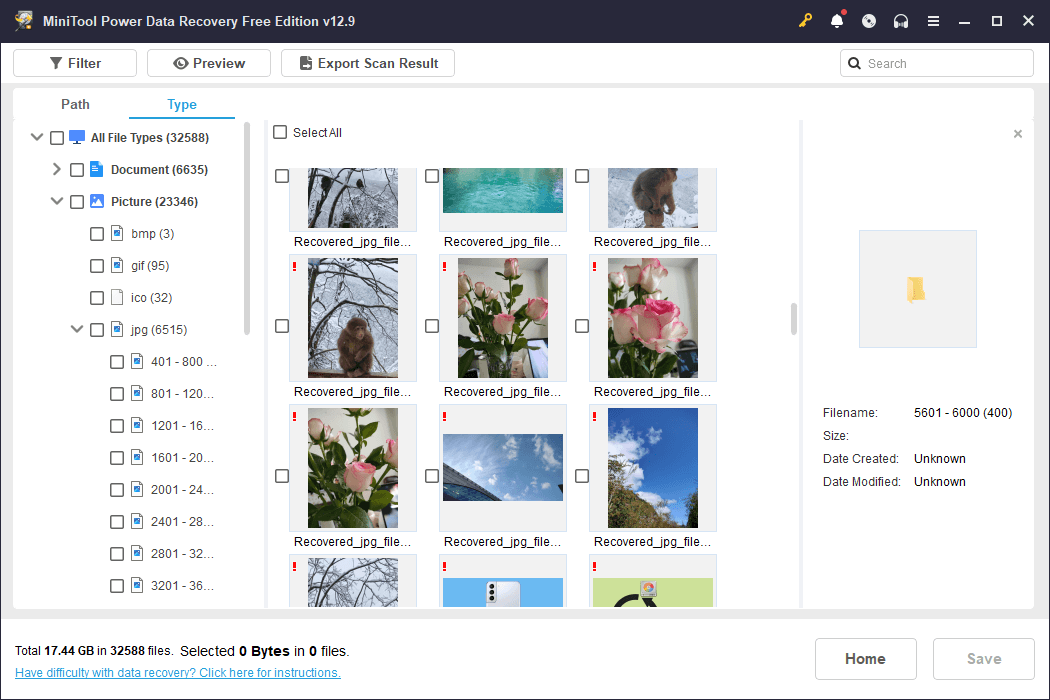
In my case, all the photos I deliberately stored before formatting were successfully recognized. Although most of them lost their original file names, the Preview feature made it easy to verify their contents.
Step 3. Recover Selected Files to Another Disk
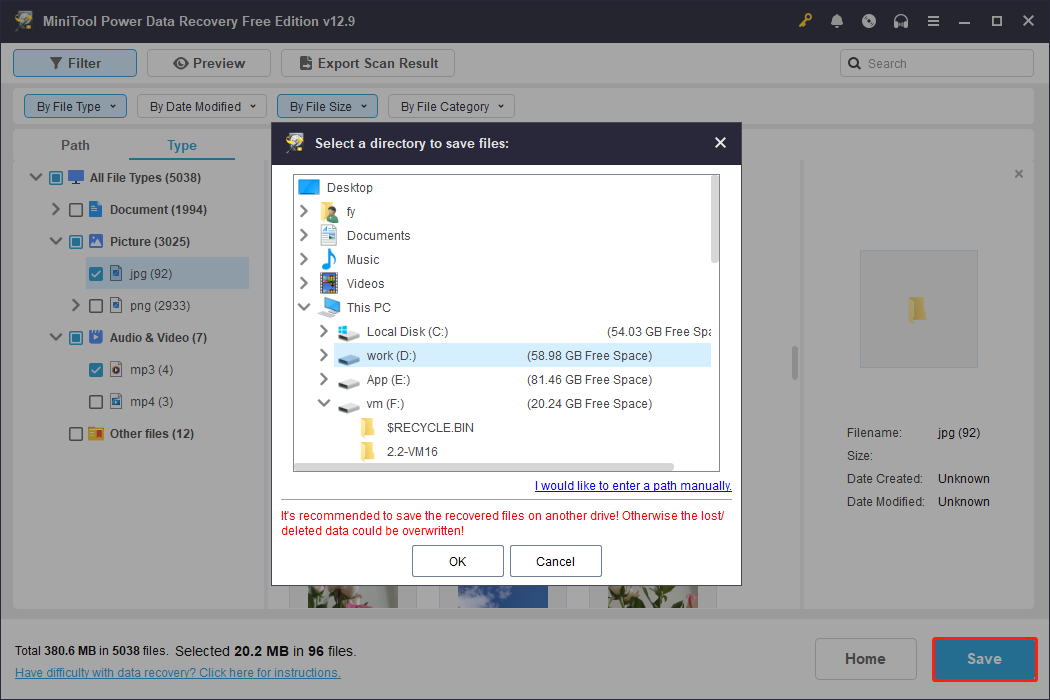
After selecting all the needed files, click Save and choose a different drive as the recovery destination.
This step is important because saving recovered files back to the same SD card may overwrite the remaining data and reduce the recovery success rate.
If you find this article or the software helpful, feel free to share this post with others who may need to do formatted SD card recovery.
Alternative Method to Recover Formatted SD Card – Windows File Recovery
If you do not want to use a third-party recovery tool, try Windows File Recovery, a command-line utility developed by Microsoft.
It can also recover formatted files from many types of local storage devices, including SD cards.
A basic recovery command is:
winfr source-drive: destination-drive: [/mode] [/switches]
This tool uses different recovery modes based on the file system and data loss scenario, mainly Regular mode and Extensive mode.
For a formatted SD card, it is recommended to use Extensive mode because formatting usually removes the original file system structure.
Since recovery requirements vary, different commands may be needed. Below are several examples for reference.
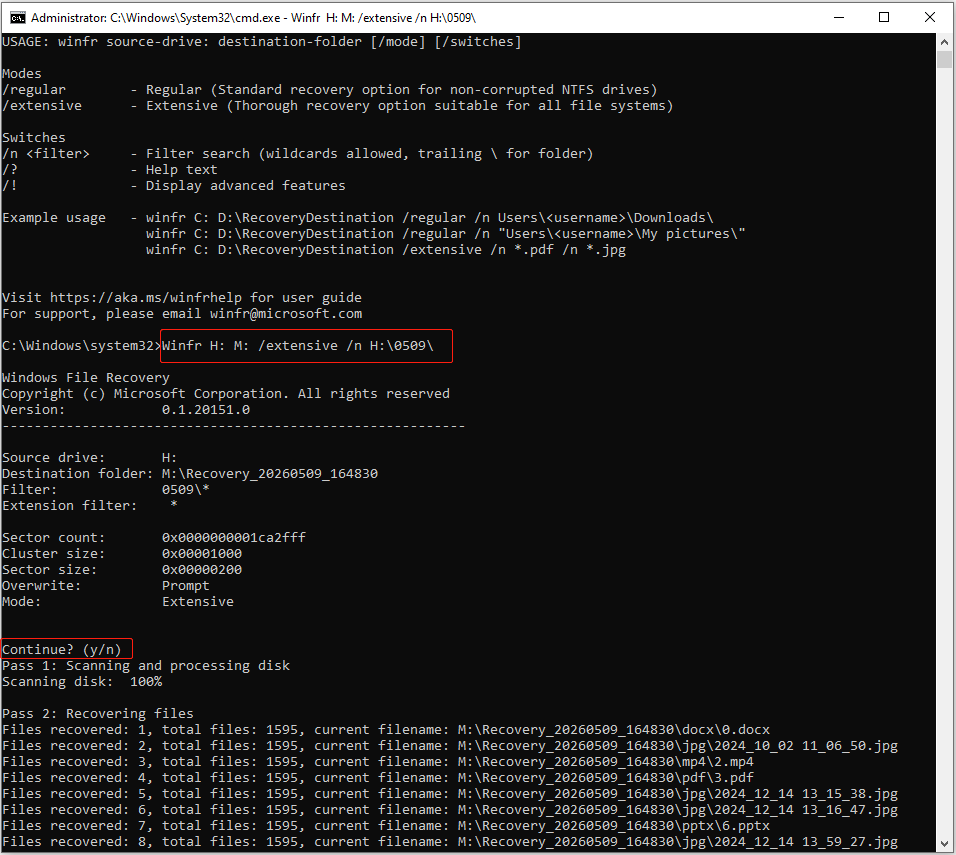
Example 1. Recover files from H:\0509\ to the M: drive
Winfr H: M: /extensive /n H:\0509\
When prompted to continue scanning and recovering files, press Y to proceed.
After the process is completed, the target files will be restored to the M: drive.
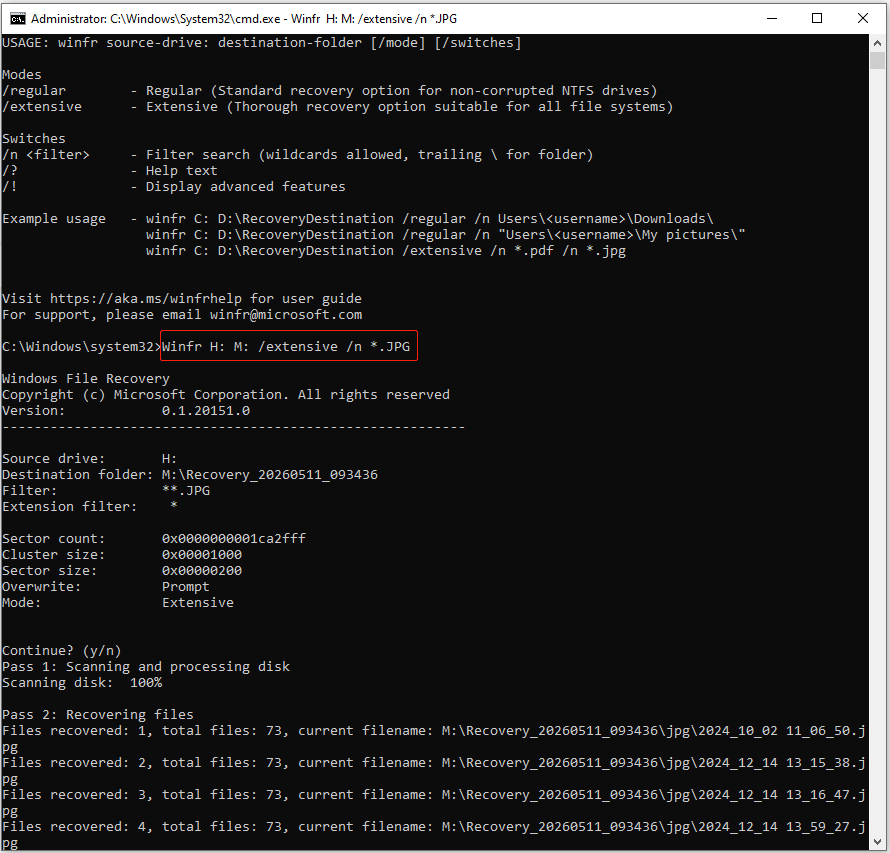
Example 2. Recover all JPG pictures from the H drive
Execute Winfr H: M: /extensive /n *.JPG
The wildcard * represents any file name.*.JPG limits the recovery target to JPG images.
This helps reduce unnecessary recovery results and narrows down the scan scope.
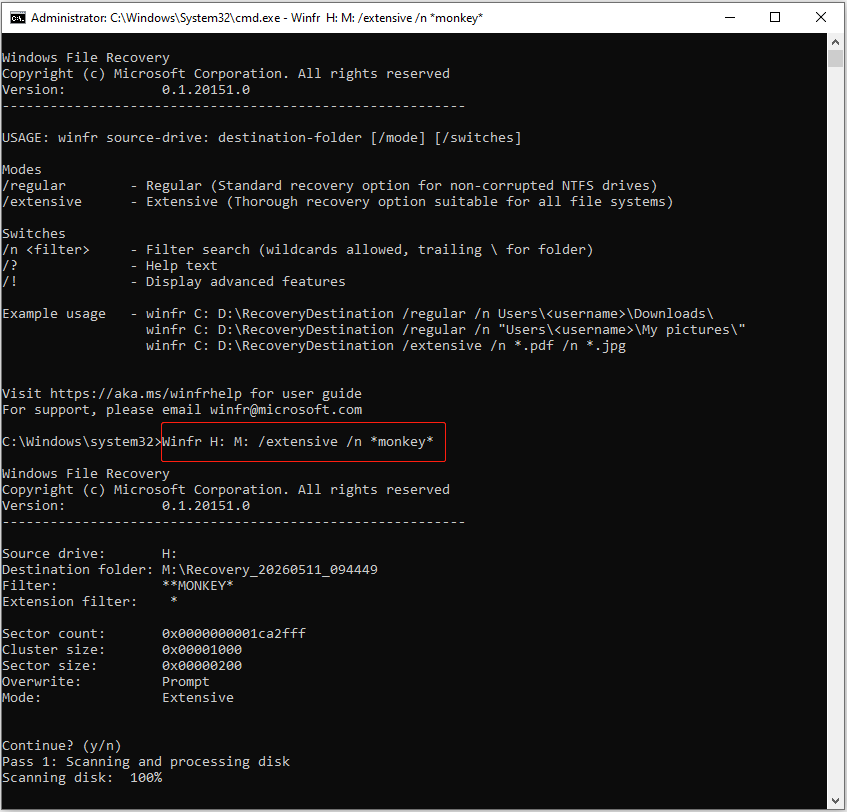
Example 3. Recover files with the string “monkey” in the file name
Execute Winfr H: M: /extensive /n *monkey*
The wildcard * here represents any characters before or after the word “monkey”. Therefore, *monkey* lets the tool search only for files whose file names contain the string “monkey”.
Personal Experience:
In my test, some files stored on the SD card before formatting were successfully recovered. However, all of them lost their original file names, making it difficult to identify the target files quickly.
In addition, the tool recovered a large number of unnecessary files that I did not intend to restore.
Limitations of Windows File Recovery:
Although Windows File Recovery is free, it also has several limitations:
- It only works through command lines and has no graphical interface.
- Commands can be difficult for beginners to use correctly.
- Incorrect commands may lead to unsuccessful recovery results.
- It does not allow you to preview recoverable files before recovery.
- An uncontrollable recovery process may restore a large number of unnecessary files.
If you prefer a simpler and more visual recovery process, using MiniTool Power Data Recovery is more convenient.
Here is a comparison between MiniTool Power Data Recovery and Windows File Recovery:
| Feature | MiniTool Power Data Recovery | Windows File Recovery |
| User interface | Graphical interface | Command-line only |
| Ease-of-use | Beginner-friendly | More suitable for advanced users |
| Preview before recovery | Supported | Not supported |
| Recovery control | Selectively recover files | May recover many unnecessary files |
| Supported operating system | Windows 11/10/8.1/8 | Windows 10 2004 and above |
| Cost | Free edition (1 GB of free recovery) and paid editions (unlimited recovery) | Completely free |

Why a Formatted SD Card Can Still Be Recovered
In most cases, the files are not immediately destroyed after the format process. Instead, the SD card is only marked as empty and ready to store new data.
This is why formatted SD cards are often recoverable, especially when no new files have been written to the card after formatting.
What Happens When an SD Card Is Formatted
The SD card formatting process usually does the following:
- Removes or resets the file allocation table
- Deletes file directory entries
- Marks the storage space as available for new files
- Creates a new file system structure
Therefore, the operating system mainly modifies the file system structure, while the actual file contents often remain on your card before being overwritten.
Therefore, the recovery success rate mainly depends on what happens after formatting. Nevertheless, the formatting method you choose also affects the possibility of data recovery.
Quick Format vs Full Format
Quick Format
A quick format removes the file system index and rebuilds the file structure metadata. It does not fully erase the stored data sectors.
The quick formatting process is very fast, and the original files remain intact.
In my actual recovery tests, almost all data from the quick-formatted SD card was recovered, although many files lost their original file names.
Full Format
A full format is more thorough. Besides rebuilding the file system, it also scans the storage device for errors and overwrites existing data.
As a result, a full format usually takes much longer to complete, and recovering files afterward becomes much more difficult.
In my practical testing, no valuable files can be recovered from the fully formatted SD card even after running advanced scans three times.
However, if the full format process is interrupted or canceled before completion, some files may still be recoverable. This is because parts of the original data have not yet been overwritten.
Bottom Line
To sum up, unformatting an SD card does not actually mean reversing the formatting process because formatting cannot be undone. Instead, unformatting refers to recovering lost data from a formatted SD card using data recovery software.
Both MiniTool Power Data Recovery and Windows File Recovery can help recover files from a formatted SD card.
If you encounter any issues or have any questions while using MiniTool Power Data Recovery, please contact the support team at [email protected].
Unformat SD Card FAQ
The recovery process does not depend on the original device that formatted the SD card or the original data stored. In most cases, photos and videos from digital cameras can still be recovered by most data recovery tools.
This can be caused by violent card removal, virus infection, interrupted write operations, or file system incompatibility.
In this situation, you need to recover files from the card and then format it.
Complete this operation using DiskPart:
1. Open Command Prompt as an administrator.
2. Run the following commands:
diskpart
list disk
select disk # (replace # with the number of the SD card)
clean
create partition primary
assign
format fs=fat32 quick (you can replace fat32 with ntfs or exfat)
This process typically restores the SD card to its full original capacity.
About The Author

Position: Columnist
Shirley holds a bachelor’s degree in English and has been an editor at the MiniTool Team for many years. She specializes in IT-related content, with a focus on data recovery, file backup, disk management, and other technical topics. She is committed to delivering clear, accurate, and practical solutions to help users resolve common computer issues.
User Comments :