

The “Your PC did not start correctly” error usually appears when Windows fails to boot because of corrupted system files, damaged boot configuration data, or driver conflicts. This guide explains how to fix the problem using Windows built-in recovery tools before considering advanced solutions.
Quick Answer:
The “Your PC did not start correctly” error means Windows failed to start due to corrupted system files, damaged BCD, failed updates, driver conflicts, or disk issues.
To fix it, try restarting your PC first, then run Startup Repair, SFC, repair BCD, perform System Restore, or reset Windows if necessary. If you cannot access important files, recover your data before performing advanced repairs.
| Cause | Recommended Fix |
| Corrupted system files | Run sfc /scannow or Startup Repair |
| Damaged boot files | Rebuild BCD or reset the computer |
| Failed update | Uninstall updates or perform a System Restore |
| Driver conflict | Remove recent drivers |
| Disk errors | Check drive health |
Facing the “Your PC did not start correctly” error can be a frustrating interruption to your workflow, but it is usually not a fatal problem for your computer.
Real User Situation:
“Need help on how to fix ‘Your PC did not start correctly’. Does anyone know how to fix? I was trying to play a game, and then it went to a black screen, so I turned off my PC and turned it back on, and now it’s on this screen, and I’ve tried things to fix it still won’t work properly. Please help me out.”www.reddit.com
Before proceeding to the specific solutions, check the possible causes for this problem first.
Reasons Why the “Your PC Did Not Start Correctly” Issue Appears
The common triggers of the Automatic Repair error are as follows:
- Temporary system issues: Sometimes, incomplete shutdowns or system glitches can interfere with the boot process.
- Corrupted files: Windows files may become corrupted due to sudden power failures, software clashes, or hard drive errors, leading to the Your PC did not start correctly BSOD error.
- Boot configuration problems: A corrupted Boot Configuration Data (BCD) or Master Boot Record (MBR) can stop the computer from finding the operating system partition.
- Driver or software problems: Recently installed drivers, antivirus apps, or Windows updates may cause compatibility issues, leading to a failure in the boot process.
- Failed Windows updates: An incomplete or failed update may cause Windows to enter Automatic Repair repeatedly.
- Storage device errors: Bad sectors or drive failures can prevent Windows from accessing necessary system files during startup.
Before proceeding with any repairs, perform a data recovery to prevent the permanent loss of important files.
Action 1. Recover Files From the PC that Won’t Start Correctly
If you have important files stored on the unbootable computer, it is recommended to recover your data before performing advanced repairs. Some repair methods may affect installed applications or personal files.
You can use a bootable data recovery tool, such as MiniTool Power Data Recovery, to access files even when Windows cannot boot normally.
This tool creates a bootable recovery environment that allows you to scan the hard drive and recover important files, including documents, photos, videos, and other common file types.
The free version of this software does not allow for the creation of bootable disks. To use this feature, download MiniTool Power Data Recovery Bootable on a functioning PC.
Here’s how to use it:
#1. Create a Bootable MiniTool Disk
Step 1. Plug a blank USB drive into the working computer.
Step 2. Open the recovery software and click the disc icon at the top to access MiniTool Bootable Media Builder. Then follow the on-screen instructions to create a bootable USB.
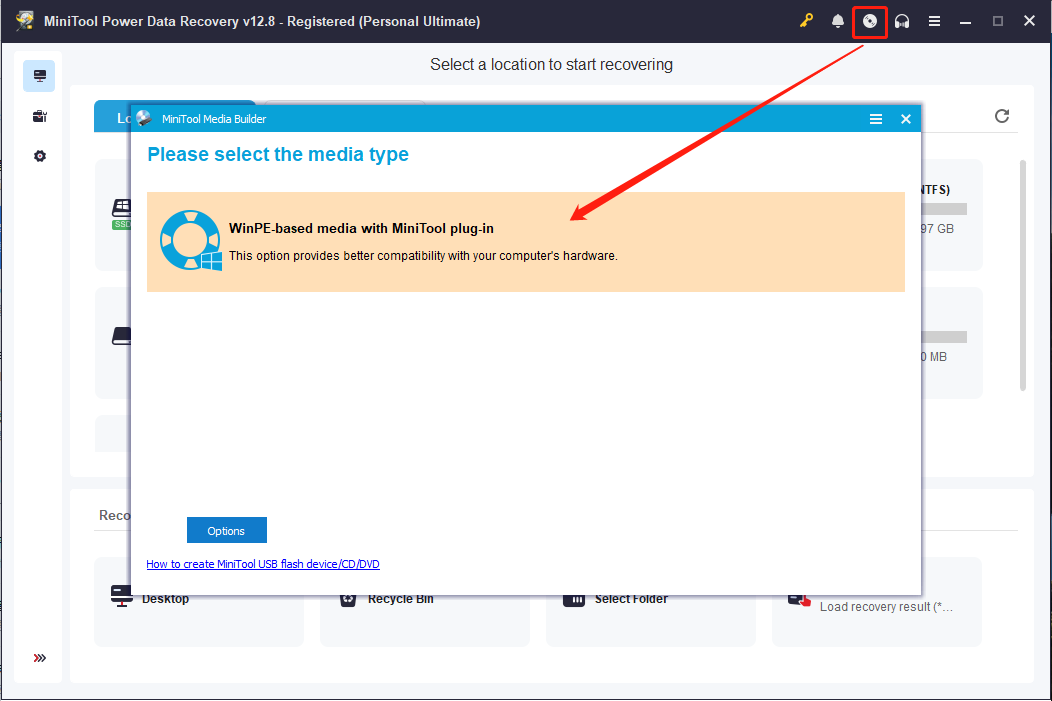
#2. Boot Your PC From the Bootable Disk
Step 1. Connect the bootable USB drive to the computer that is malfunctioning.
Step 2. Restart the computer and press F2, F12, Esc, or Delete during the startup process to enter the BIOS settings.
Step 3. Navigate to the Boot tab and modify the boot order to boot from the burned USB disk.
#3. Scan the PC and Recover Lost Files
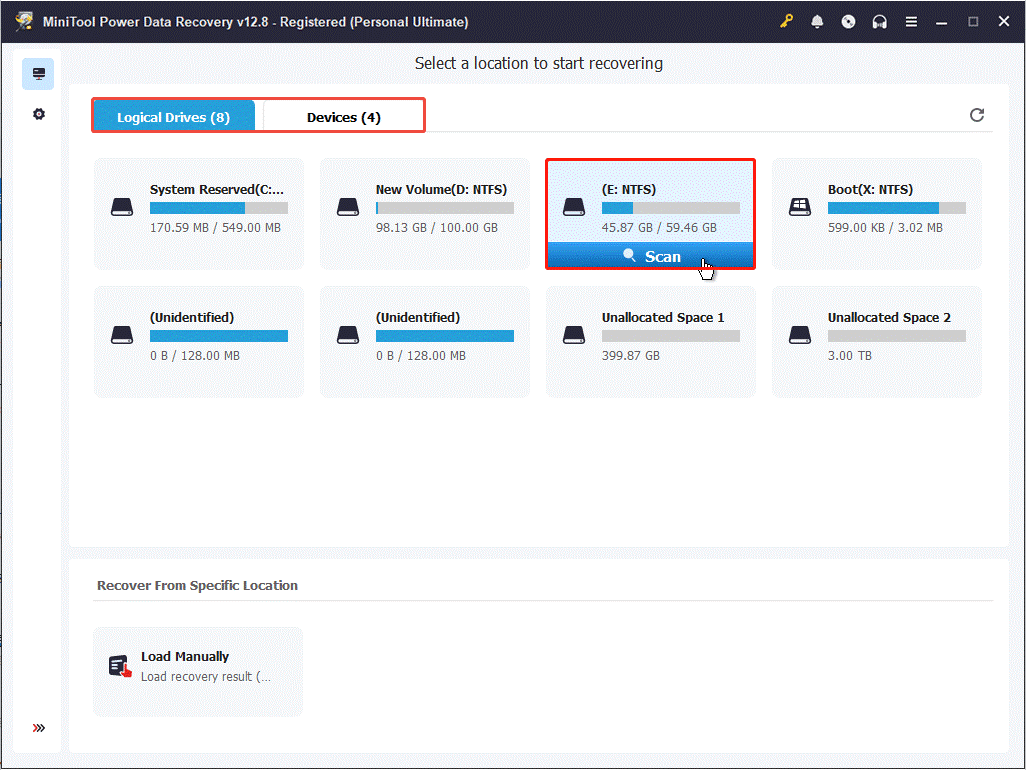
Step 1. Under the Logical Drives section, select the specific drive from which you wish to recover lost data and click on Scan.
Alternatively, navigate to the Devices section next to Logical Drives, choose the entire disk, and click Scan.
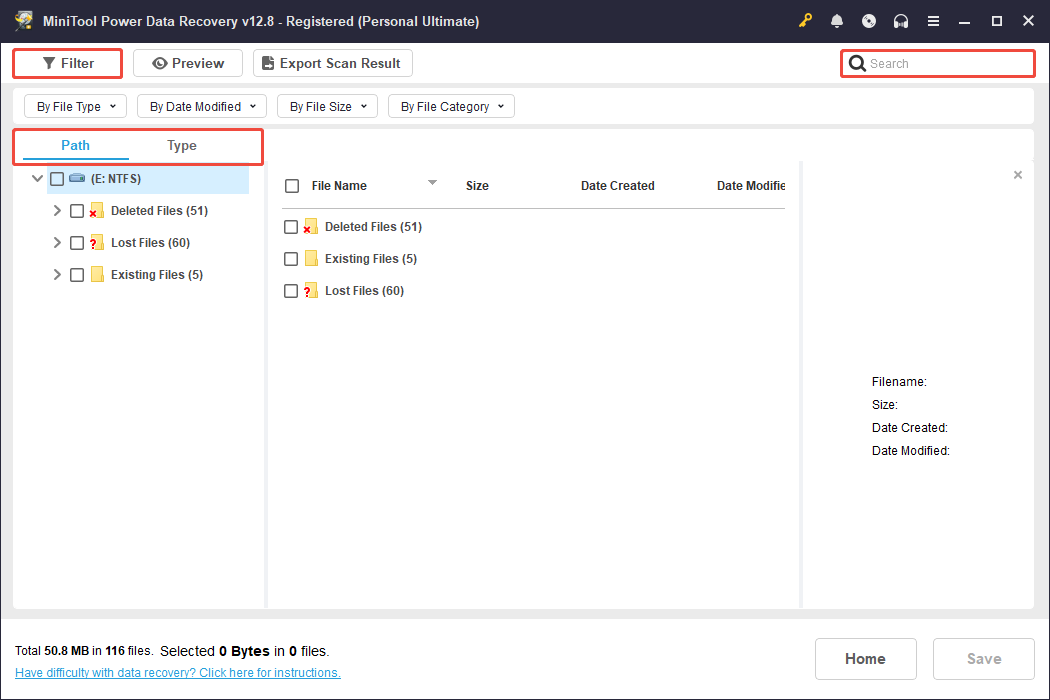
Step 2. Once the scanning process is completed, find the target files. Below are some features designed to help you locate them quickly:
- Path: Shows files by their original folder locations.
- Type: Groups files by categories, such as documents, pictures, videos, and audio.
- Filter: Helps narrow results by file type, size, category, and modification date.
- Search: Allows you to find files by entering filenames or keywords.
Step 3. After confirming the files you need, select them and click Save. Select an external hard drive to save the recovered files, and then click OK.
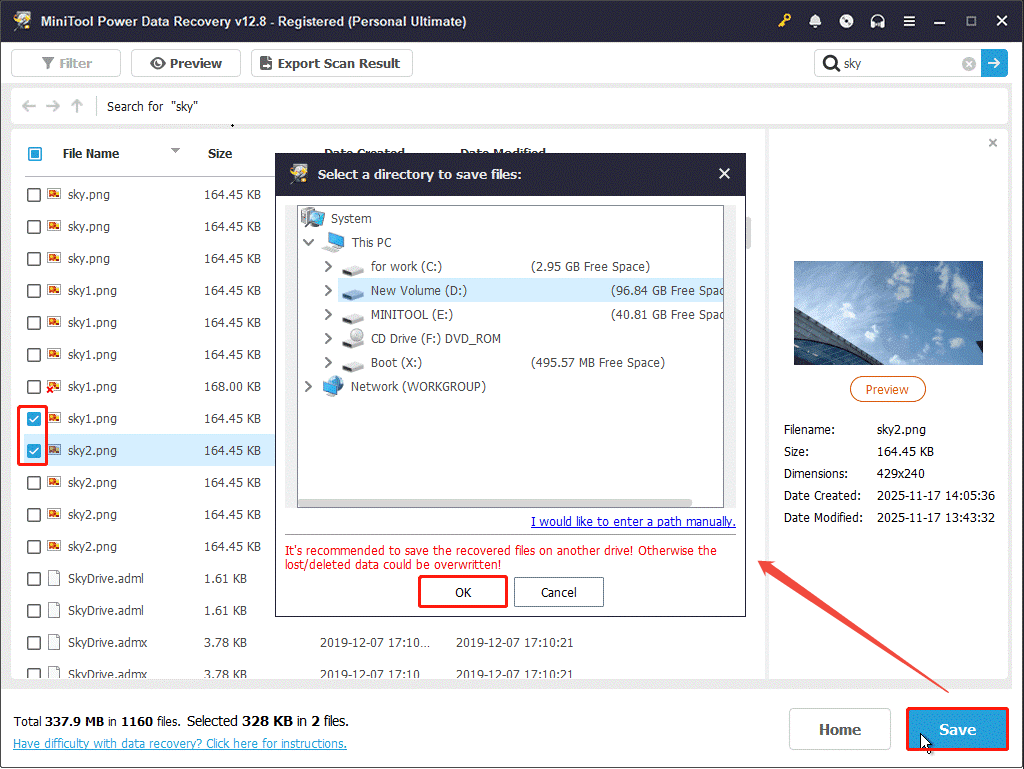
Once the file recovery is finished, connect the external drive to the working computer and verify the recovered files.
After recovering important data, read on to learn how to fix Your PC did not start correctly.
Action 2. Fix Your PC Did Not Start Correctly BSOD
Follow these sequential fixes to resolve the Automatic Repair error, starting with the simplest solutions.
Method 1. Restart Your Computer
When the “Your PC did not start correctly” issue happens, your PC will boot into a BSOD. The first method to resolve it is to click the Restart button as Windows advises.
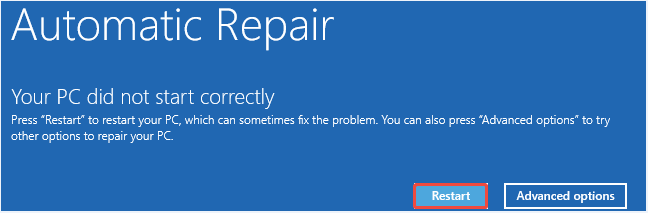
If the issue persists after rebooting, try the next solution.
Method 2. Run the Startup Repair Tool
Windows has a built-in automated repair tool that scans and fixes typical boot problems, such as corrupted BCD or missing boot files.
Follow these steps to run the Startup Repair tool:
Step 1. On the error screen, choose Advanced options, then go to Troubleshoot > Advanced options > Startup Repair.
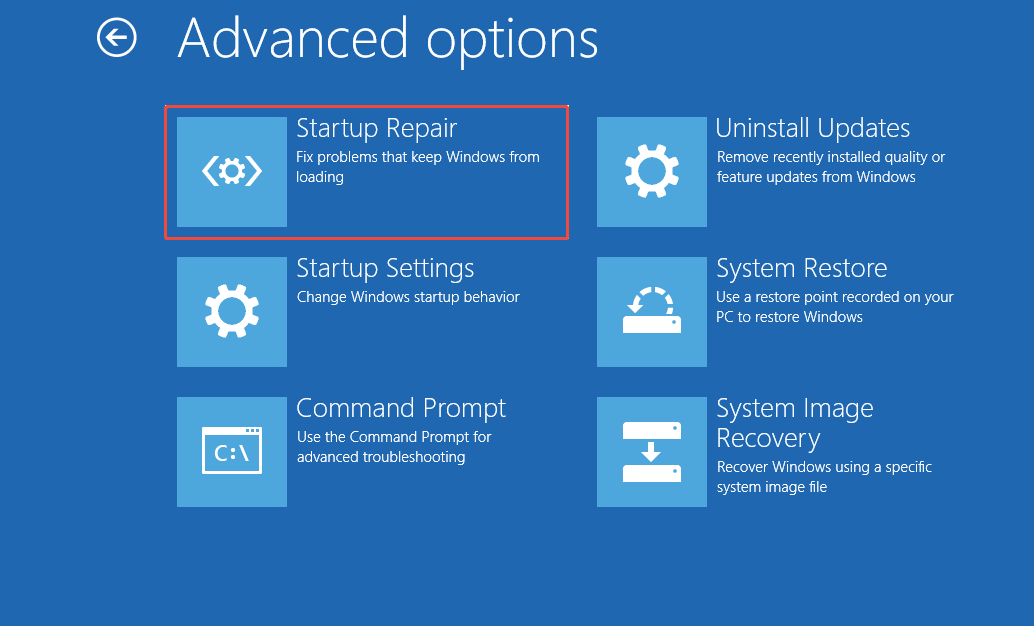
Step 2. Follow the prompts displayed on your screen. Windows will search for issues, try to make automatic repairs, and restart the computer.
Step 3. If necessary, log in to your user account to finish the repair process.
Once it is completed, restart the computer and verify if the problem is fixed.
Method 3. Run SFC
As mentioned above, corrupted system files may cause the “Your PC did not start correctly” issue.
SFC is a command-line tool that scans protected system files and repairs or replaces corrupted files.
Here’s how to run SFC:
Step 1. On the error screen, select Advanced options > Troubleshoot > Advanced options > Command Prompt.
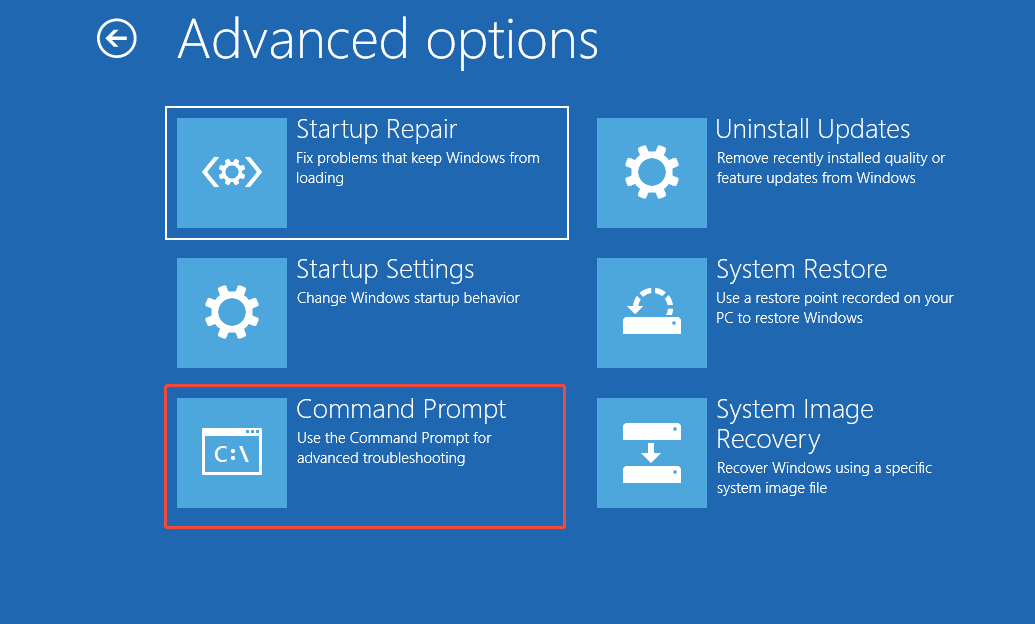
Step 2. Type sfc /scannow and press Enter to scan and repair system files
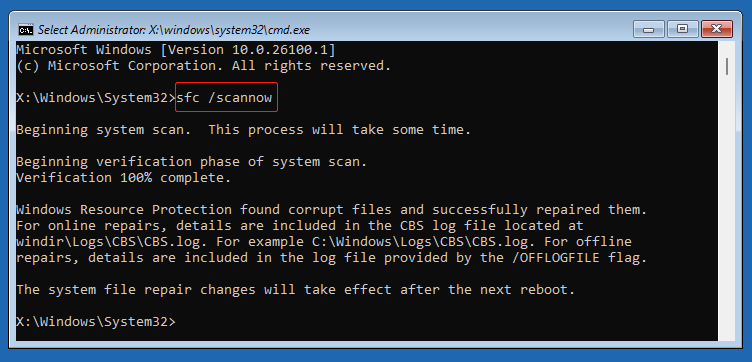
Step 3. Wait for the process to complete, then type exit and press Enter to close the Command Prompt. Finally, restart your PC and check if it boots normally.
Method 4. Boot into Safe Mode
Safe Mode loads Windows with only the necessary drivers and services, helping identify problems caused by third-party applications or malfunctioning drivers.
Here’s the breakdown to do it:
Step 1. While you are on the error screen, navigate to Advanced options > Troubleshoot > Advanced options > Startup Settings > Restart.
Step 2. Press F4 to enter Safe Mode.
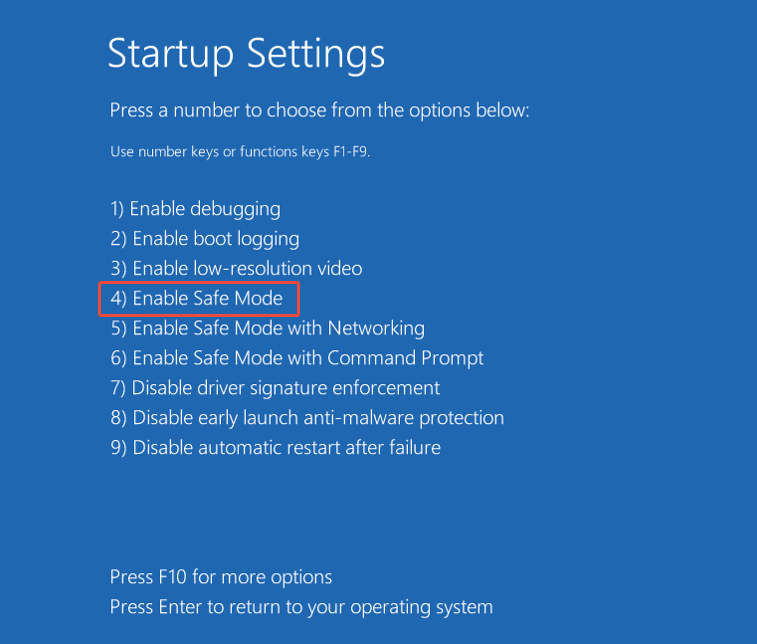
Step 3. If Windows starts normally in Safe Mode, the problem is more likely related to third-party drivers, applications, or startup services. In this case, proceed with the following steps:
- Uninstall any recently added drivers, applications, or Windows updates.
- Turn off non-essential startup applications by launching Task Manager > Startup tab, right-clicking on undesired apps, and choosing Disable.
Step 4. Restart the computer to exit Safe Mode and check if the problem is resolved.
Method 5. Uninstall Recent Updates
Recently installed system updates may cause startup conflicts. If the problem started after a recent change, remove the update from Windows Recovery Environment.
Access WinRE and choose Troubleshoot > Advanced options > Uninstall Updates.
Method 6. Rebuild BCD & MBR
The Master Boot Record (MBR) is a specific boot sector that stores the bootloader code and the partition table.
A corrupted MBR or BCD (Boot Configuration Data) is a common reason for the “Automatic Repair, your PC did not start correctly” error.
These steps will fix the boot records to restore the boot process:
Step 1. On the error screen, navigate to Advanced options > Troubleshoot > Advanced options > Command Prompt.
Step 2. To fix boot codes, type the bootrec command and press Enter: BOOTREC /FIXMBR.
Step 3. To fix the boot sector, execute this command: BOOTREC /FIXBOOT.
Step 4. To scan for all installed systems, type Bootrec /ScanOS and press Enter.
Step 5. After it is completed, reboot the computer to verify if the problem has been resolved. If not, type the following commands and press Enter after each:
- bcdedit /export c:\bcdbackup
- attrib c:\boot\bcd -r -s -h
- rename c:\boot\bcd bcd.old
- bootrec /rebuildbcd
Step 6. Restart the computer.
Method 7. Perform System Restore
If you have previously activated the System Restore feature on your computer, this method can be helpful.
System Restore rolls back your PC to a previous “restore point,” resolving problems caused by recent software installations, updates, or configuration changes.
This method is useful if the error appeared after installing software, drivers, or Windows updates.
Here’s how to do it:
Step 1. On the error screen, choose Advanced options > Troubleshoot > Advanced options > System Restore.
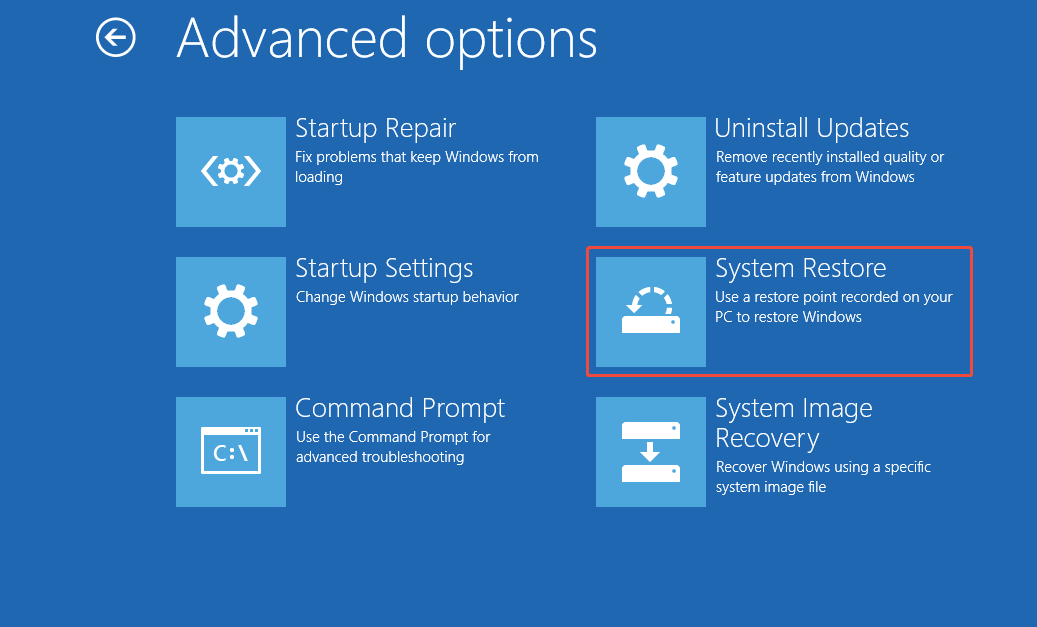
Step 2. Follow the wizard to select a restore point that was created before the error occurred.
Step 3. Confirm your selection of the restore point and wait for the process to finish.
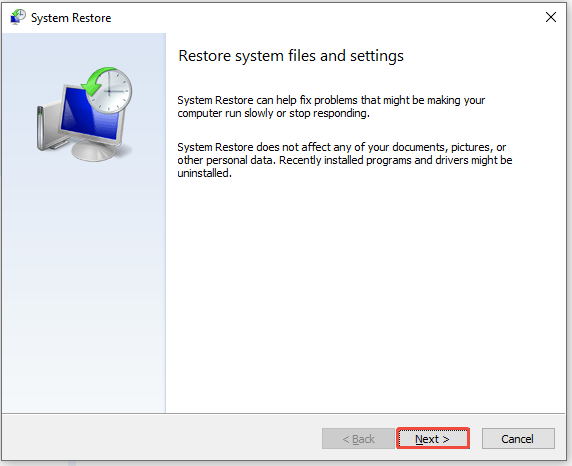
Restart your PC. If the restoration is successful, your system will return to the chosen state.
If this method doesn’t work, move to the next method to reset your PC.
Method 8. Reset the PC
When all the above methods can’t help you fix the “Your PC did not start correctly” error, try resetting the PC.
Carefully follow the steps mentioned here:
Step 1. From the error screen, select Advanced options > Troubleshoot > Reset this PC.
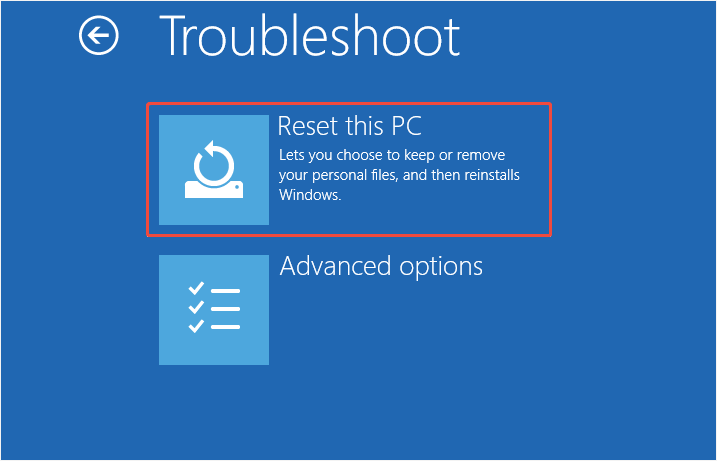
Step 2. In the pop-up window, opt for Keep my files to retain documents and photos.
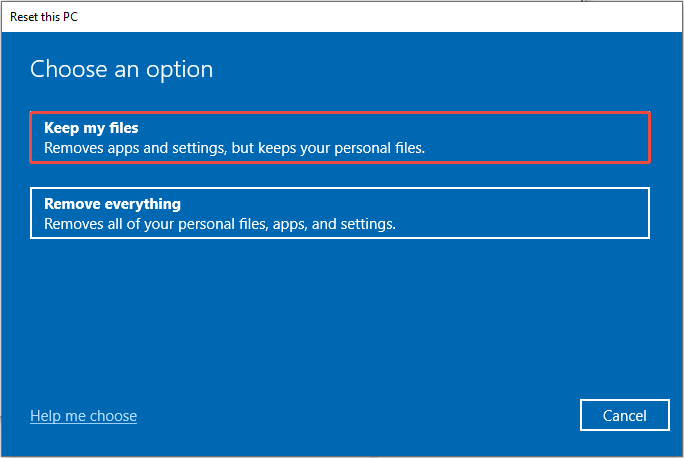
Step 3. Choose the installation method:
- Local reinstall: Uses current Windows files.
- Cloud reinstall: Downloads new files from Microsoft servers.
Step 4. Follow the instructions on your screen to finalize the reset.
After the reset, reinstall essential drivers and software.
Final Words
To fix the “Your PC did not start correctly” error, this post provides 8 effective and practical solutions. You can try them one by one until the problem is resolved.
If you have problems using MiniTool data recovery software to recover files, please contact [email protected].
Your PC Did Not Start Correctly FAQ
If it appears frequently, consider reinstalling Windows or replacing the system disk.
About The Author

Position: Columnist
Shirley holds a bachelor’s degree in English and has been an editor at the MiniTool Team for many years. She specializes in IT-related content, with a focus on data recovery, file backup, disk management, and other technical topics. She is committed to delivering clear, accurate, and practical solutions to help users resolve common computer issues.
User Comments :