

Quick Answer: Where Is the AppData Folder
The AppData folder is a hidden Windows folder storing app settings, user profiles, cache files, saved data, and other configuration info used by programs. Its default location is: C:\Users\[Username]\AppData
To open the folder quickly:
- Press Win + R to open Run.
- Type %appdata% and press Enter.
Windows will immediately open the Roaming folder inside AppData. Since AppData is hidden by default, many users cannot find it in File Explorer directly unless hidden items are enabled.
What Is the AppData Folder and Where Is It Located
The AppData folder serves as a storage location for application-related data in Windows, including temporary files, cache data, settings, and other information that helps programs run properly.
AppData stands for Application Data, and it helps applications save user preferences and data separately from personal files.
It contains three subfolders: Roaming, Local, and LocalLow. Roaming stores settings that can follow a user profile across devices, while Local and LocalLow mainly store device-specific data such as caches, logs, and temporary files.
By default, the AppData folder location is in:
C:\Users\[Username]\AppData
How to Find AppData Folder in Windows
The AppData folder is hidden by default in Windows to prevent accidental deletion. Here are several easy ways to access it.
Method 1. Open AppData Through the Run Dialog
This is the quickest method because it bypasses the need to unhide any files.
Step 1. Press Win + R to open Run, type %appdata% and press Enter.
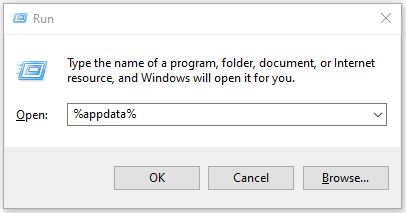
Step 2. Now, the Roaming folder will open. To go back to the AppData folder, click AppData in the File Explorer address bar.
Method 2. Open AppData via Command Prompt
It is also available to open the AppData via Command Prompt. Here are the steps:
Step 1. Open Command Prompt.
Step 2. Type command explorer %appdata%.
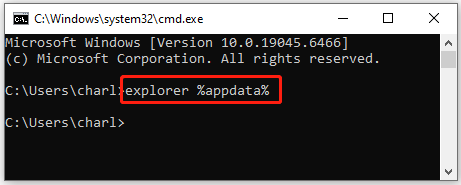
Step 3. Press the Enter command to execute the command. Then, the Roaming folder will open. Click AppData in the address bar to the main folder.
Method 3. Open AppData Using PowerShell
There is also a PowerShell command to open the AppData folder.
Step 1. Press Win + X to open the Quick Link menu and select Windows PowerShell from the menu.
Step 2. Enter the command explorer $env:APPDATA and press Enter.
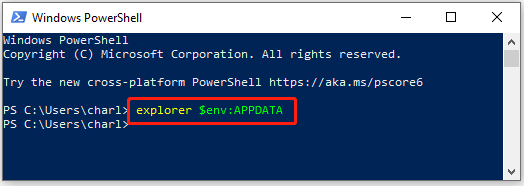
Now, the Roaming folder window pops up.
Method 4. Open AppData Folder from File Explorer
If you want to access the AppData folder directly in File Explorer, make it visible manually:
Step 1. Press Win + E to open File Explorer.
Step 2. Navigate to: C:\Users\[Username].
Step 3. Enable the hidden folder based on your Windows version:
- Windows 11: Click the View tab at the top menu > hover over Show > check Hidden items.
- Windows 10: Click the View tab at the top menu > check the box for Hidden items.
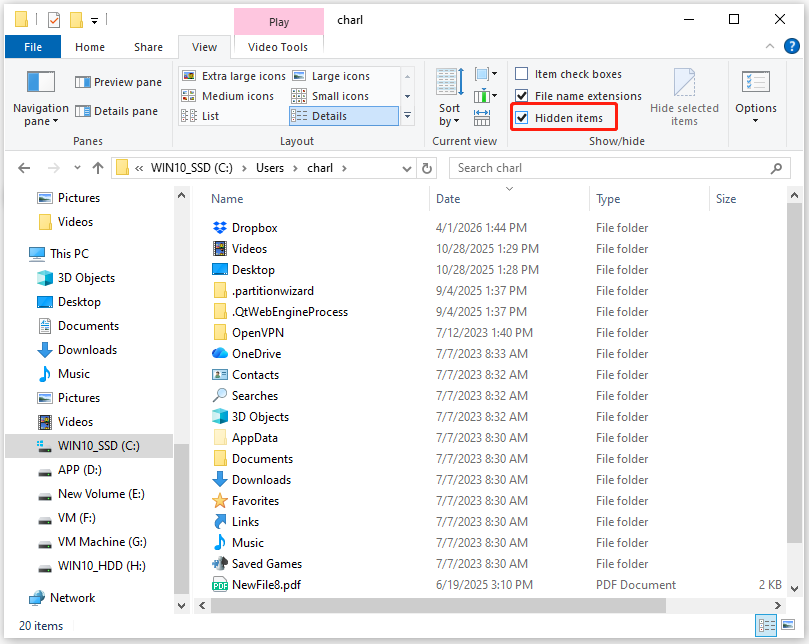
Now, the hidden AppData folder will appear in your user directory. Just open it directly from File Explorer.
Can’t Find the AppData Folder? Try These Fixes
If the AppData folder is missing on your PC, try the following fixes:
Fix 1. Show Hidden Files and Folders
When AppData folder is hidden, users cannot see it. Therefore, unhiding it can fix the issue. To do that, perform the steps in Method 4 to make it appear inside your user profile folder.
Fix 2. Check the Correct User Account
Each Windows account has its own AppData folder. If multiple users use the same computer, make sure you are checking the correct profile under:
C:\Users\[Username]
Fix 3. Repair a Corrupted User Profile
A corrupted Windows user profile can prevent access to the AppData folder and lead to missing files or lost application settings. Typical signs include missing desktop items, reset or lost app preferences, login issues, and unexpected profile errors.
In such cases, creating a new Windows account can help confirm whether the issue is caused by profile corruption.
Is It Safe to Delete Files in the AppData Folder
No, it is not safe to delete the entire AppData folder. Removing important AppData files may cause:
- Programs to lose settings and preferences
- Browsers to reset profiles
- Lost gaming progress
- Saved credentials to disappear
- Applications to malfunction
Therefore, deleting files from AppData folder should be done carefully. Here are the files that you can delete and should not delete:
Files You Should Not Delete
- Application configuration files
- Browser profile folders
- Software databases
- Game save data
- User account settings
Files You Can Usually Delete
- Temporary cache files
- Application logs
- Temporary installer data
How to Recover Deleted AppData Files
If important AppData files have been deleted, recovery may still be possible.
Method 1. From Recycle Bin
If you accidentally delete AppData files, you can start by checking the Recycle Bin.
- Open the Recycle Bin and locate deleted files.
- Right-click the desired items and select Restore.
Method 2. From File History
If File History was enabled previously, it is possible to restore AppData files from File History. Here’s the guide:
Step 1. Press Win + S to open Search.
Step 2. Type control panel and press Enter.
Step 3. Set View by to Large icons, and choose File History.
Step 4. Select Restore personal files.
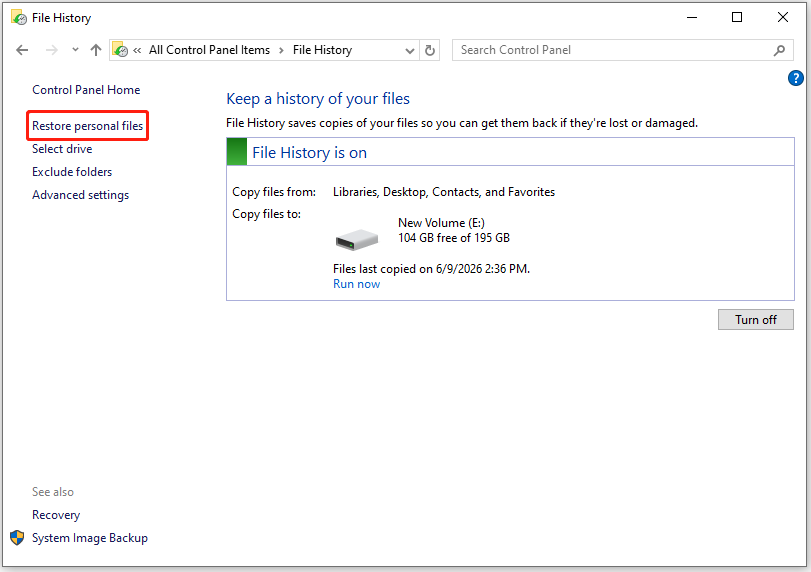
Step 5. Browse available backups and then restore the required files.
Method 3. MiniTool Power Data Recovery
If the files are gone from the Recycle Bin and no backup exists, data recovery software can help. MiniTool Power Data Recovery scans your storage drive to find and safely recover deleted files before they are permanently overwritten.
Test Environment:
- OS: Windows 10 22H2
- File System: NTFS
- Storage Device: KINGSTON SSD (TRIM disabled).
- DataType: AppData folder files.
- Data Loss Cause: Permanent deletion (Shift + Delete).
Data Loss Scenario
In this test, a folder containing application settings was deleted from:
C:\Users\TestUser\AppData\Roaming
The folder was removed using Shift + Delete, bypassing the Recycle Bin.
Because no backup was available, data recovery software was required.
Recovery Steps:
Step 1. Download and install MiniTool Power Data Recovery on your computer.
MiniTool Power Data Recovery FreeClick to Download100%Clean & Safe
Step 2. Launch this software, move your cursor to Select Folder, and click Browse.
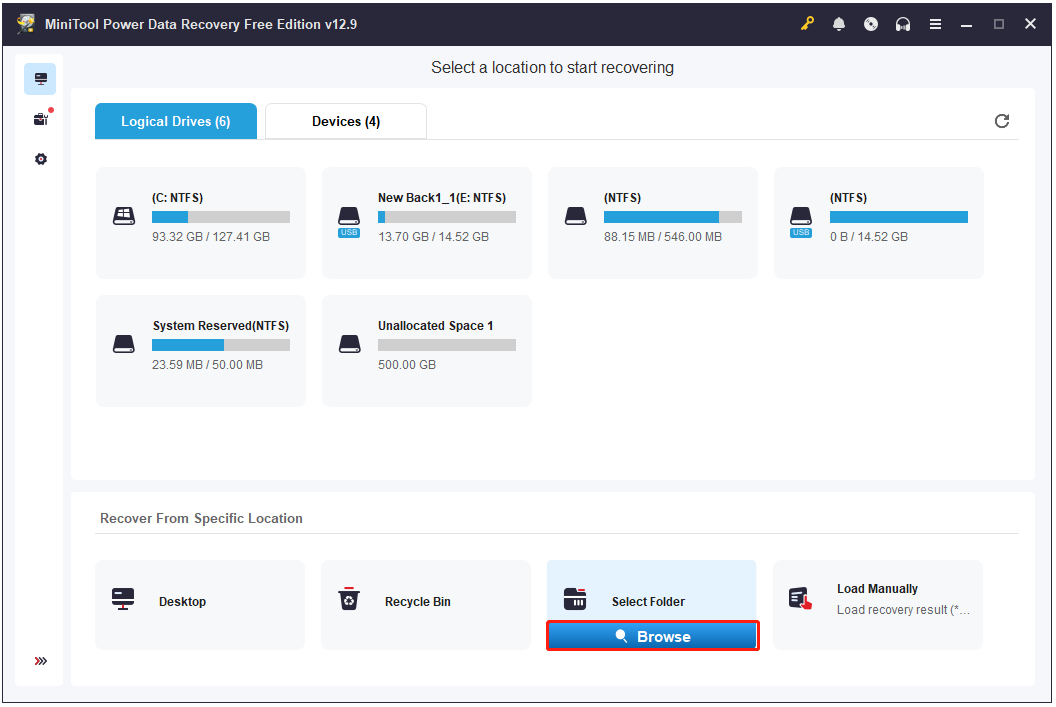
Step 3. Navigate to the folder you want to scan (Here, I go to the AppData/Roaming folder), select the folder, and click Select Folder to confirm.
Step 4. Once the scan process finishes, choose the required files and click Save. Then, select a save path that is different from the original one and click OK to confirm.
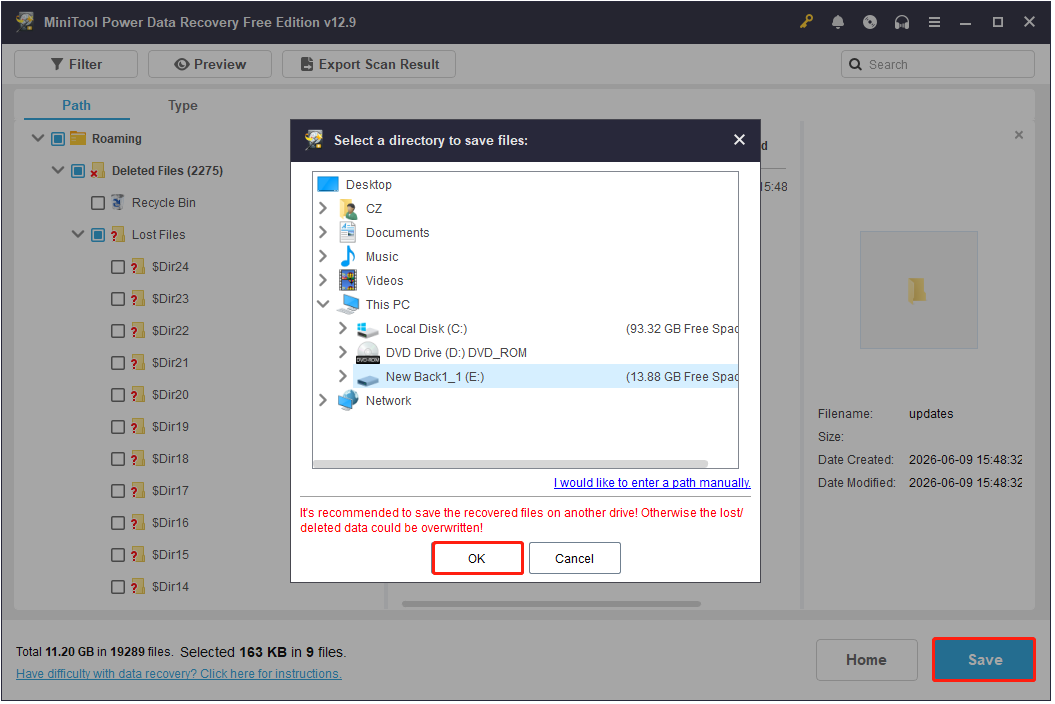
The free edition allows you to recover up to 1GB of data. To recover more files beyond this limit, you can upgrade your software. Please visit our License Comparison page to choose the edition that best fits your needs.
Recovery Result
During testing, MiniTool Power Data Recovery successfully located the deleted AppData folder and recovered the application configuration files stored within it.
The recovered files could then be copied back to the AppData directory.
Bonus Tip: How to Back Up the AppData Folder
Because AppData folder contains critical application data, regular backups are essential. Windows backup tools, such as File History or Backup and Restore, offer basic protection but are limited in folder coverage, scheduling, and versioning.
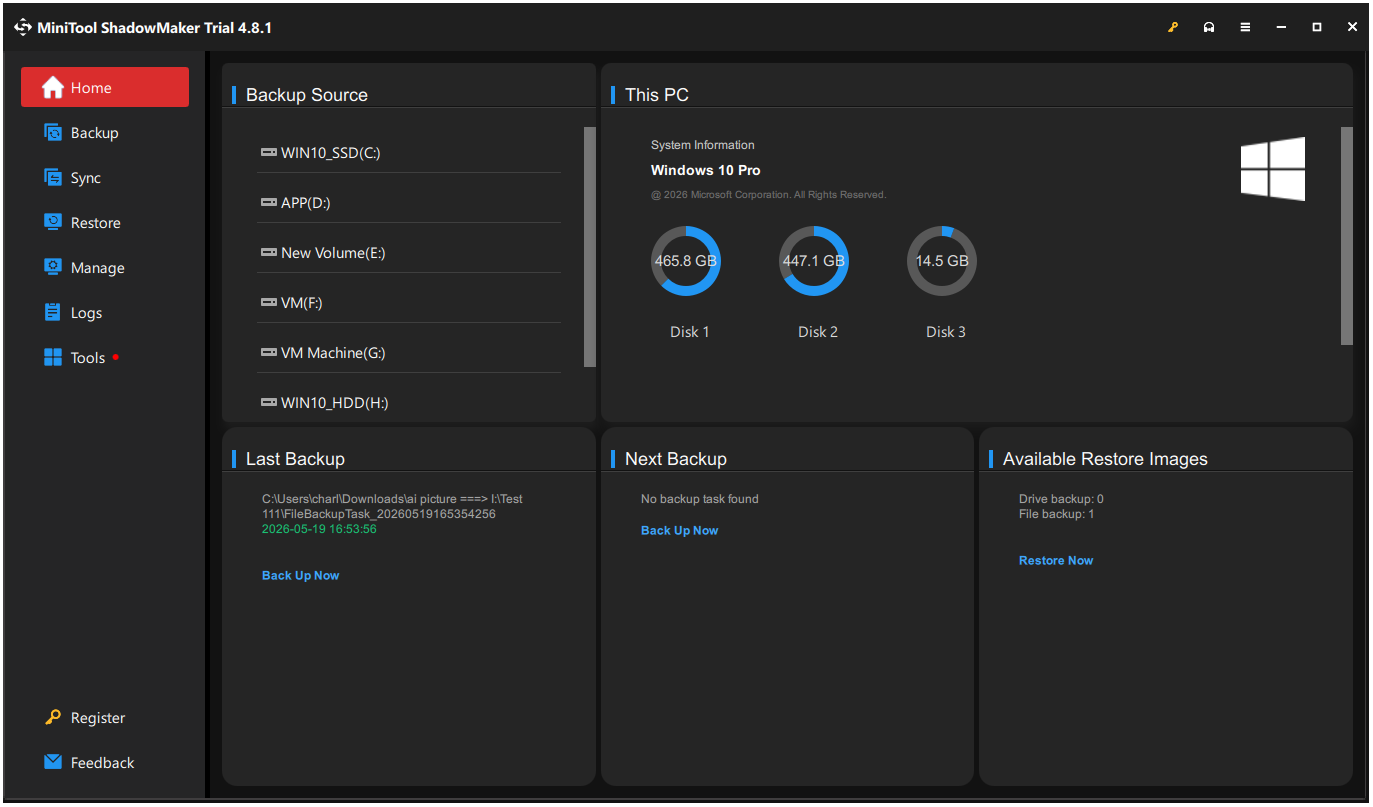
For more complete and flexible protection, MiniTool ShadowMaker can automatically back up the entire AppData folder or selected subfolders. It supports incremental and differential backups, multiple versions, and reliable recovery in case of accidental deletion or system failure.
For more detailed steps on using this software, refer to the file backup guide.
MiniTool ShadowMaker TrialClick to Download100%Clean & Safe
How to Find AppData Folder FAQ
However, never delete the Local or Roaming folders. They store critical software settings, chat logs, bookmarks, and game saves; removing them entirely will cause application crashes or permanent data loss.
Bottom Line
The AppData folder stores essential application settings, user profiles, cache files, and data in Windows. While hidden by default, it can be accessed quickly by running the %appdata% command or enabling hidden items in File Explorer.
If AppData files are accidentally deleted, check the Recycle Bin or your backups. If that fails, use MiniTool Power Data Recovery to restore the lost files. To prevent future data loss, consider backing up the AppData folder regularly via MiniTool ShadowMaker.
For questions or support while using MiniTool software, reach out to [email protected].
User Comments :