

Losing important files can be frustrating, especially when you don’t have a backup available.
Can You Recover Deleted Files Without a Backup?
Yes, you can often recover permanently deleted files without a backup if the deleted data has not been overwritten.
However, the recovery chance depends on several factors, including how long ago the file was deleted, whether new data has been written to the drive, and the type of storage device.
What to Do Immediately After Deleting Files
If you accidentally deleted important files, taking the right steps immediately can improve your chances of recovery.
- Stop using the affected drive: Avoid saving new files to the drive, as new data may overwrite the deleted files, making them unrecoverable.
- Avoid installing recovery software on the same drive: Use another drive to prevent overwriting recoverable data.
- Recover files as soon as possible: The sooner you start recovery, the higher the chance of getting your files back.
How to Recover Deleted Files Without Backup on Windows
The best data recovery method depends on how the files were deleted and where they are stored. The table below compares the most common methods to recover deleted files without a backup.
| Method | Best For | Advantages | Limitations | Difficulty |
| Undo File Deletion Using Ctrl + Z | Files deleted recently | Quick and easy | Only works immediately after deletion | Easy |
| Check the Recycle Bin | Files normally deleted from internal disks | No software required | Cannot recover files deleted with Shift + Delete | Easy |
| Recover Files Using Third-Party Data Recovery Software | Permanently deleted files or emptied Recycle Bin | Recover permanently deleted files | Cannot recover overwritten files | Medium |
| Use Windows File Recovery | Users who prefer Microsoft’s official recovery tool | Free and provided by Microsoft | Requires command lines, which may be difficult for beginners | Difficult |
| Recover Deleted Files from Cloud Storage | Files synced with OneDrive, Google Drive, or other cloud services | Easy restoration if files are still available in cloud | Only works if cloud sync or backup was enabled before deletion | Easy |
Method 1. Undo File Deletion Using Ctrl + Z
If you have just deleted a file in Windows File Explorer, you may be able to recover it using the Ctrl + Z shortcut. This method works by undoing the most recent file operation, similar to undoing an edit in a document.
To recover a deleted file using Ctrl + Z:
Step 1. Navigate to the folder or drive where the file was deleted.
Step 2. Press Ctrl + Z on your keyboard. Then check whether the deleted file appears again.
Method 2. Check the Recycle Bin for Deleted Files
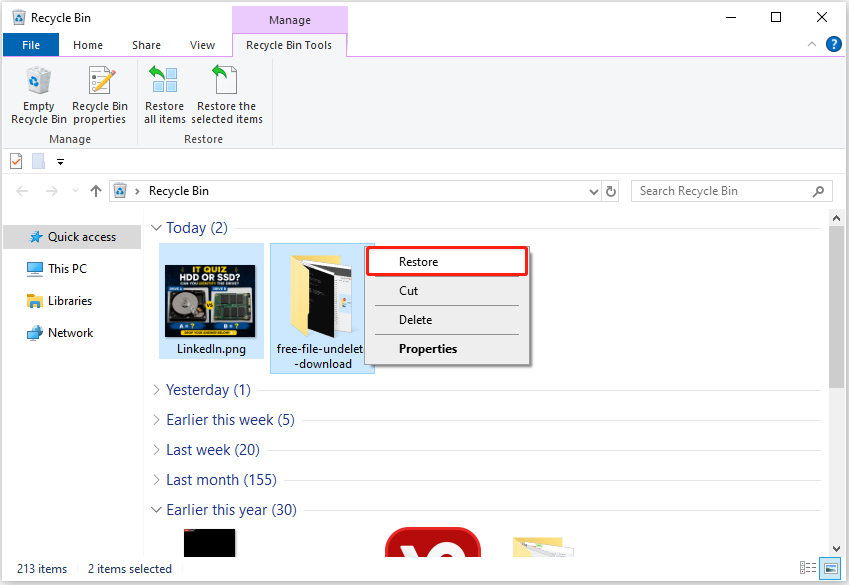
The Recycle Bin is the first place to check when you accidentally delete files on Windows. When files are normally deleted, Windows moves them to the Recycle Bin instead of removing them permanently.
To recover deleted files from the Recycle Bin:
Step 1. Open the Recycle Bin from the desktop.
Step 2. Find the deleted file or folder. Right-click the item and select Restore. The file will be returned to its original location.
Method 3. Recover Deleted Files Using Data Recovery Software
When deleted files are permanently removed, or the Recycle Bin was emptied, data recovery software can help recover files without a backup.
Since deleting a file usually removes access to the file instead of immediately destroying the actual data, recovery tools can find it before it is overwritten.
MiniTool Power Data Recovery supports recovery from various storage devices, including internal hard drives, external hard drives, USB drives, and memory cards. It can help recover different types of files, such as documents, photos, videos, audio files, and other commonly used data.
Use the free edition of MiniTool Power Data Recovery to recover 1 GB of files without a backup:
MiniTool Power Data Recovery FreeClick to Download100%Clean & Safe
Step 1. Scan the Location Where Files Were Deleted
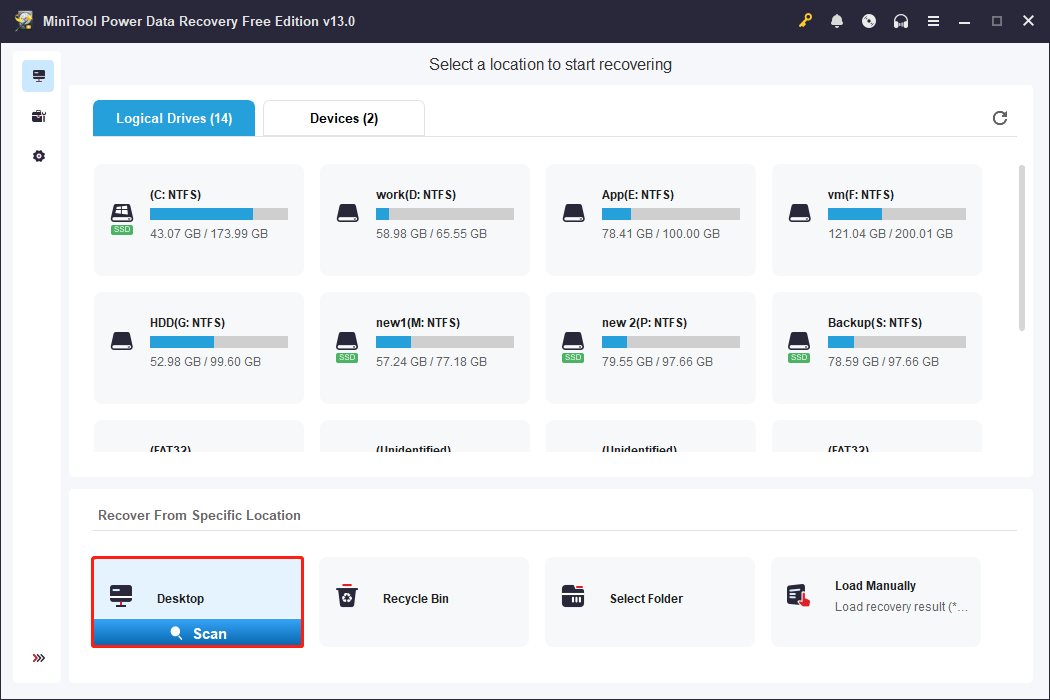
Launch the software to enter its main interface. Next, select the partition or location where the deleted files were stored and click Scan.
Scanning a specific location helps reduce the scanning time and improve scanning efficiency.
Step 2. Find and Select Recoverable Files
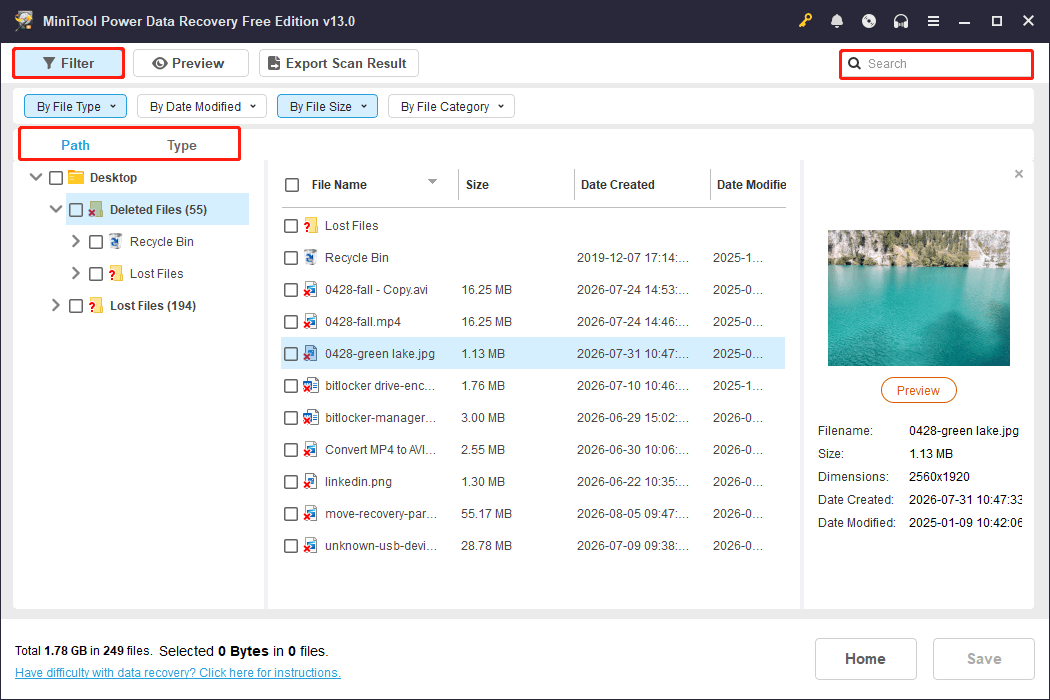
After the scan is complete, MiniTool Power Data Recovery provides multiple options to help you quickly find deleted files from the scan results:
- Path: Browse files based on their original folder structure and location.
- Type: Sort files by file type, such as documents, pictures, videos, audio files, and other file types.
- Filter: Narrow down scan results by file type, size, modification date, or category.
- Search: Enter a file name or keyword to quickly locate specific deleted files.
After finding the needed files, select them and continue to the recovery process.
Step 3. Save Recovered Files to Another Location
Finally, click Save and choose a different storage device as the destination to avoid overwriting other recoverable data.

Method 4. Use Windows File Recovery to Recover Deleted Files
Windows File Recovery is Microsoft’s official command-line tool designed to recover deleted files from local storage devices.
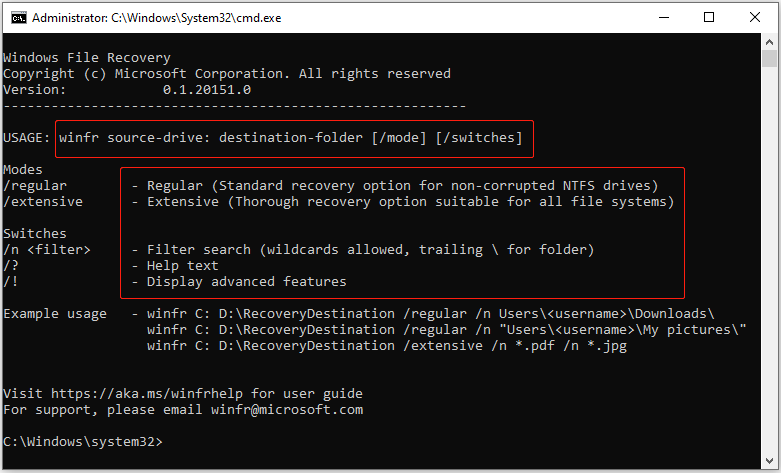
Unlike graphical recovery software, Windows File Recovery works through Command Prompt. You need to enter specific commands to tell the tool where to search for deleted files and where to save the recovered data.
The basic command format is:
winfr source-drive: destination-drive: [/mode] [/switches]
- winfr: The Windows File Recovery command.
- source-drive: The drive where the deleted files were originally stored.
- destination-drive: The location where recovered files will be saved.
- /mode: The recovery mode, such as /regular or /extensive.
- /switches: Additional options used to narrow the search, such as recovering specific file types.
The two recovery modes:
- Regular Mode: Designed for recently deleted files from healthy NTFS drives.
- Extensive Mode: Designed for more complex recovery situations, such as formatted drives, corrupted file systems, or files deleted a long time ago.
Here are some Windows File Recovery examples:
Example 1. Recover PDF and Word documents from the C drive to the H drive with the Regular mode:
Winfr C: H: /regular /n *.pdf /n *.docx
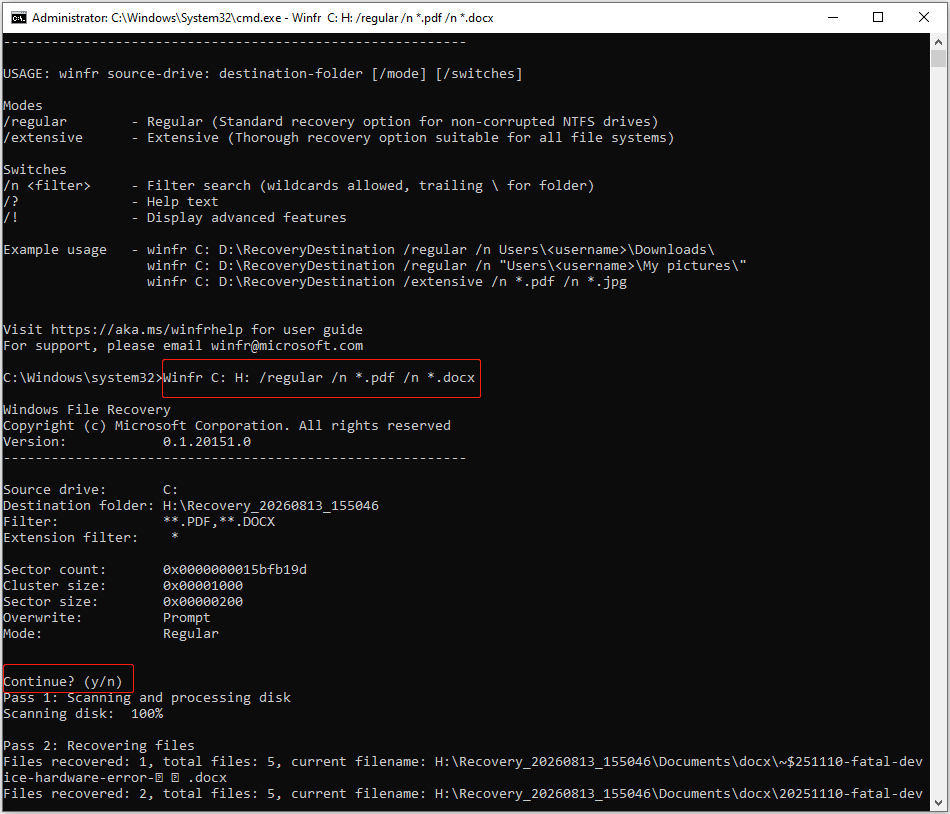
Example 2. Recover the Documents folder with the Regular mode:
Winfr C: H: /regular /n \Users\<username>\Documents\
Example 3. Recover files with the string “test” in the file name by using wildcard characters:
Winfr H: C: /extensive /n *test*
Method 5. Check Your Cloud Storage if the Files Were Previously Synced
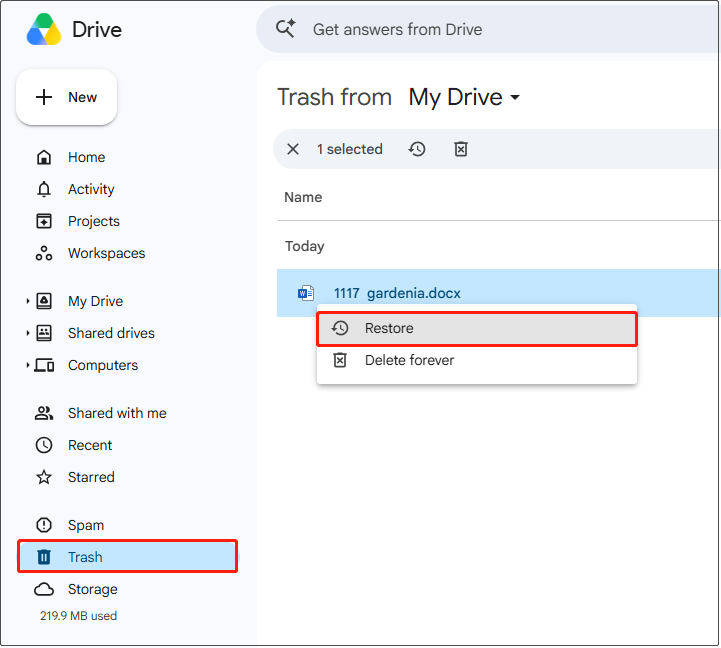
If your files were synced with a cloud storage service, you may be able to recover them from the cloud Recycle Bin or Trash folder.
Many cloud services temporarily keep deleted files before permanently removing them. For example, services such as OneDrive, Google Drive, and Dropbox provide options to restore deleted files within a specific retention period.
The recovery process may vary depending on the service you are using. Here are the general steps:
Step 1. Open your cloud storage service and log in to your account.
Step 2. Go to the Recycle Bin or Trash section.
Step 3. Find the deleted file, right-click it, and choose Restore.

Important:
Prevention is always better than recovery. Regularly backing up important files can help avoid permanent data loss caused by accidental deletion, hardware failure, or other unexpected issues.
You can back up files using File History or run data backup software such as MiniTool ShadowMaker to create regular backups of your data.
MiniTool ShadowMaker TrialClick to Download100%Clean & Safe
Conclusion
Losing files without a backup can be stressful, but deleted files are not always gone forever. The first step is to avoid writing new data to the affected drive and try simple recovery methods such as Ctrl + Z or the Recycle Bin.
If the files have been permanently deleted, data recovery software can help scan the drive and recover lost data.
If you have any questions when using MiniTool products, please contact the tech support team at [email protected].
Recover Permanently Deleted Files Without Backup FAQ
As long as the lost files have not been overwritten by new data, data recovery tools can scan the storage device for recoverable data.
However, SSDs with TRIM enabled may permanently clear deleted data, making recovery more difficult.
About The Author

Position: Columnist
Shirley holds a bachelor’s degree in English and has been an editor at the MiniTool Team for many years. She specializes in IT-related content, with a focus on data recovery, file backup, disk management, and other technical topics. She is committed to delivering clear, accurate, and practical solutions to help users resolve common computer issues.
User Comments :