

It is possible to recover files lost by Ctrl + Z in Windows 11/10, especially if you act quickly. In many cases, you can get files back using built-in features like Ctrl + Y, the Recycle Bin, or previous versions. If needed, run data recovery software such as MiniTool Power Data Recovery.
Quick Methods: Recover Files Lost by Ctrl + Z
If your files are lost after pressing Ctrl + Z, recover them fast:
- Press Ctrl + Y (Redo)
- Check the Recycle Bin on the desktop
- Search the original location
- Restore previous versions
- Use data recovery software
Why Do Files Disappear After Ctrl + Z
Ctrl + Z is the universal keyboard shortcut for undoing the last performed action in most applications, including File Explorer, Excel, and Word.
However, many users encounter an issue where files disappear after Ctrl + Z. This issue can be caused by:
- Undo of a move operation: When files are moved between folders in Windows, pressing Ctrl + Z may remove them from the destination folder and return them to the original location. These files can seem to have disappeared if you don’t remember the original.
- Accidental undo: Accidentally pressing Ctrl + Z in active File Explorer can cause a silent undo of the last action, causing files to disappear without any warning.
- Interrupted process: When transferring files from a phone or external drive, Ctrl + Z may lead to file loss or corruption if the system cannot accurately map the undo action back to the source device.
- Multiple undo actions: Using Ctrl + Z multiple times may undo several actions, which can cause files to go missing or make them difficult to locate.
How to Recover Ctrl + Z Deleted Files (Step by Step)
You can recover files lost after Ctrl + Z using 5 methods, from the simplest option to an advanced recovery tool.
Follow the instructions below to begin recovery.
Method 1: Press Ctrl + Y (Redo)
This is the fastest approach to recover files by reversing the Ctrl + Z action.
Press Ctrl + Y on your keyboard.
When to use:
- Immediately after pressing Ctrl + Z
- Before performing other actions
Method 2: Check the Recycle Bin
Sometimes, after pressing Ctrl + Z, Windows may treat the undo action as a deletion and move files to the Recycle Bin.
To get files back, check the Recycle Bin.
Step 1: Double-click on the icon of the Recycle Bin on the desktop.
Step 2: Check if the necessary files are here. If yes, right-click them one by one and choose Restore.
Ctrl + Z deleted files not in Recycle Bin: what to do?
If you fail to find files in the Recycle Bin, they may be moved elsewhere or deleted permanently.
To recover files, try the following steps:
- Search the system for the file.
- Check the original folder location.
- Look for previous versions.
- Run data recovery software.
Method 3: Use MiniTool Power Data Recovery (if Files Are Missing)
When files are not in the Recycle Bin, the most effective option is to use a data recovery tool to recover files lost by Ctrl + Z.
MiniTool Power Data Recovery, designed for Windows users, is a comprehensive, user-friendly data recovery software. It delivers a practical and efficient way to recover lost files from various storage devices and data loss situations.
Key features include:
- Scans multiple storage devices, including HDDs, SSDs, USB flash drives, memory cards, and digital cameras.
- Recovers lost data from scenarios like deletion, formatting, RAW drives, drive failure, OS crashes, etc.
- Supports a wide range of file types, including document, picture, video, audio, archive, and email.
- Allows you to preview images, Word/PDF documents, videos, and so on before restoring them.
- Includes Bootable Media Builder in paid editions to recover data when the system fails to boot.
To recover Ctrl + Z deleted files, you can try MiniTool Power Data Recovery Free Edition. It allows you to recover 1GB of data for free.
MiniTool Power Data Recovery FreeClick to Download100%Clean & Safe
Step 1: Install and launch the software on Windows 11/10.
Step 2: Choose a drive and click Scan to begin scanning. In my case, a file on the E: drive was lost after using Ctrl + Z.
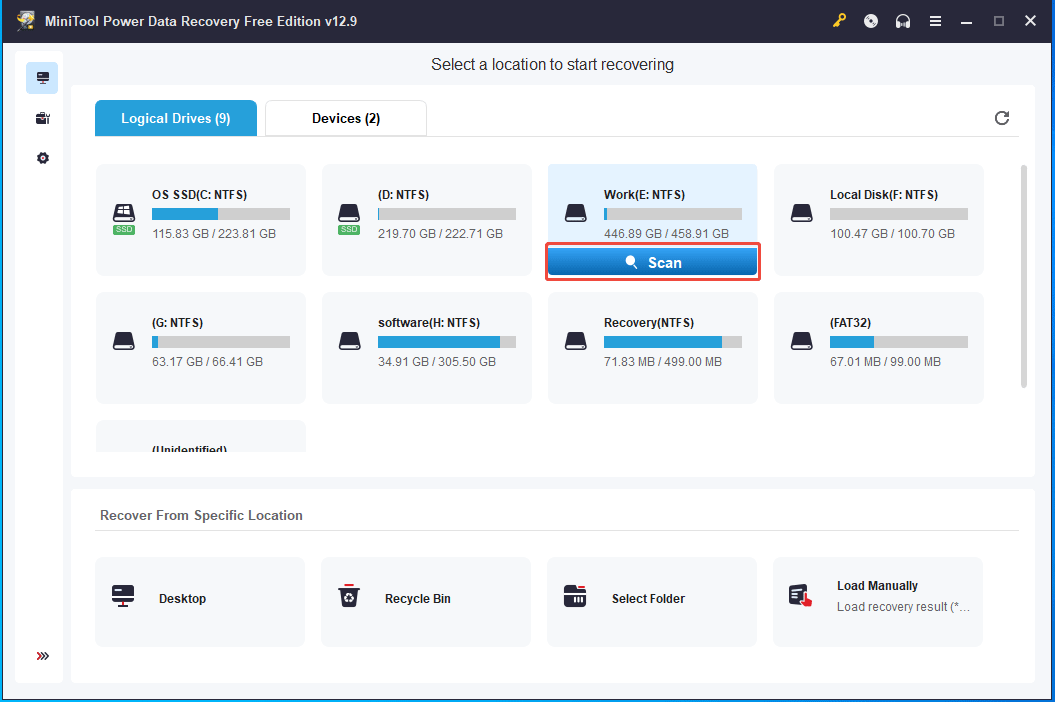
Step 3: After a scan, look for the deleted files by checking the Path or Type list. To quickly find necessary items, the Filter option is useful.
At this step, I locate the deleted Word document and preview it.
Step 4: Choose the target file, click Save, and choose a location to save that file.
Step 5: Click OK to confirm the recovery.
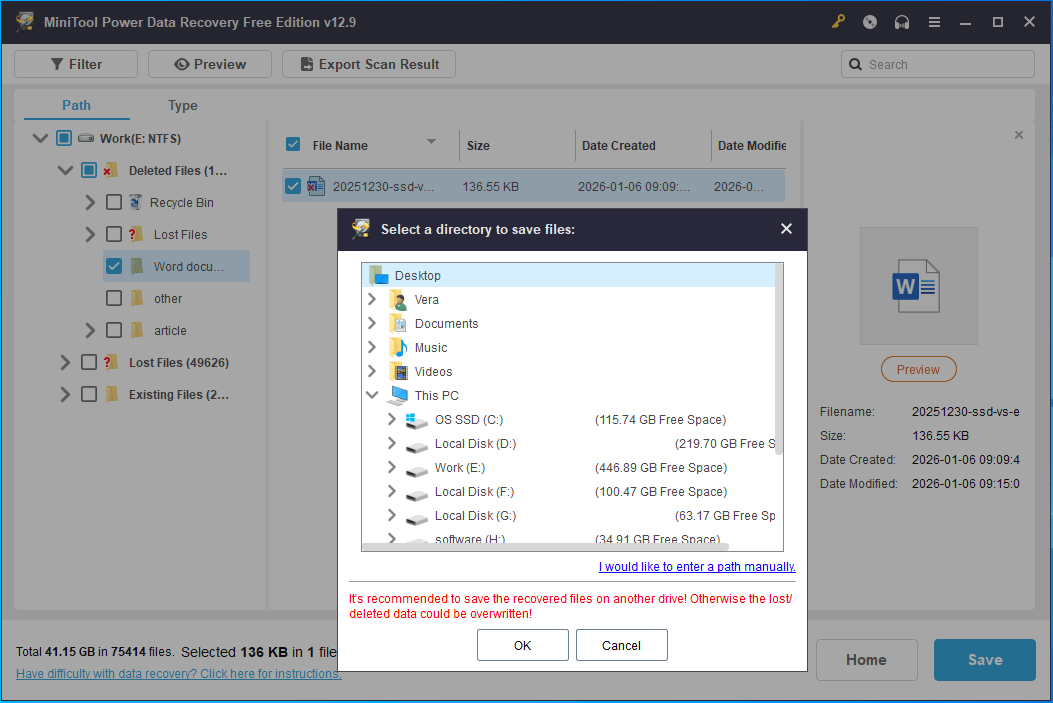
Now, my lost Word file has been recovered to the desktop successfully.
When to use:
- Ctrl + Y doesn’t work.
- Files are not found in the Recycle Bin.
- Files were deleted from USB drives, SD cards, and other external drives.
Method 4: Restore Previous Versions
Windows previous versions are saved copies of files and folders, which are created by File History or system restore points. When files are accidentally deleted, you can restore them.
If you ever enable the feature, it is possible to restore them after Ctrl + Z.
Step 1: Right-click on the file or folder and choose Restore previous versions.
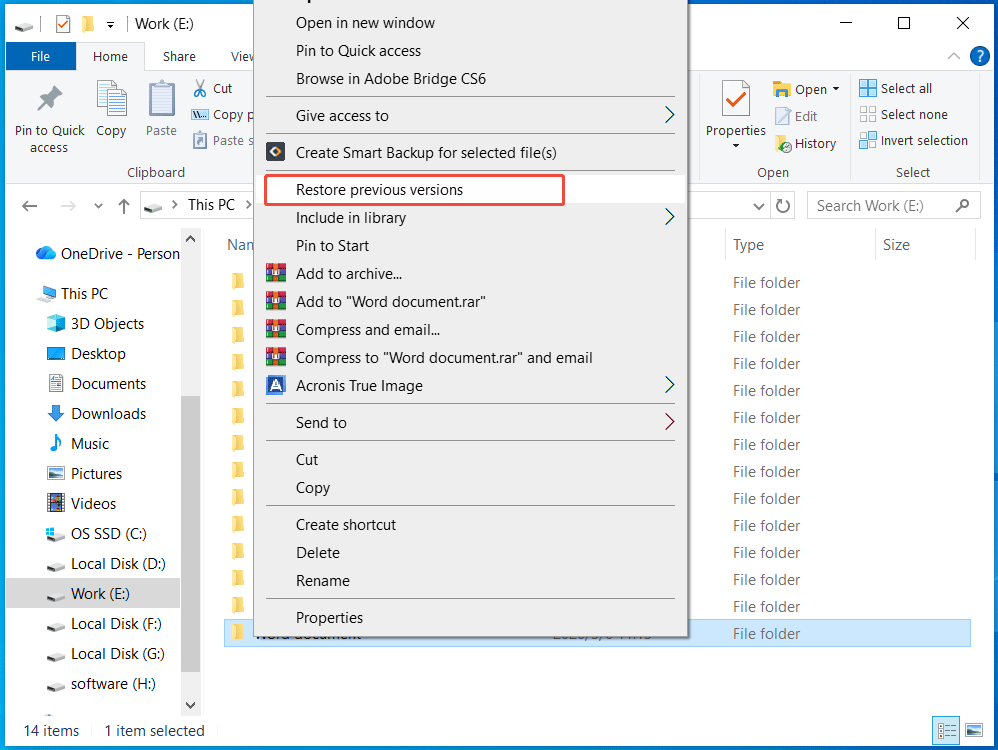
Step 2: In the Previous Versions tab, select a version, and click Restore.
When to use:
- Files disappeared after Ctrl + Z and could not be found in the Recycle Bin.
- Folder contents changed after undo.
- Previous versions are available.
Method 5: Search the Original Location
In some cases, files may be simply moved to a different folder rather than being deleted. If that’s your case, try a manual file search.
Step 1: Open File Explorer and open the drive that you need to restore.
Step 2: In the search field, type the file name and press Enter.
Step 3: Check the listed items and find the deleted file. Then, copy it to another location.
Why Does Ctrl + Z Recovery Fail
Recovery after pressing Ctrl + Z (undo) is not always successful. Sometimes, it fails for various reasons, including:
- Overwritten data: Windows marks the storage space as available when deleting a file. If new data is written to the space, recovery is impossible.
- Failed cut-and-paste: Windows may delete the files if you cut them from a USB flash drive or external hard drive, then press Ctrl + Z to undo the paste.
- Buffer limitation: The undo command is generally limited to a specific number of recent actions. If you perform too many actions, file recovery becomes more difficult since the undo history may be overwritten.
- System restart/shutdown: Restarting the system may clear the undo history, preventing you from using Ctrl + Y to reverse the last action.
Recover Ctrl + Z Files from External Drives
It may be more challenging to recover Ctrl + Z deleted files from external drives, as these files often do not go to the Recycle Bin.
To recover files from a USB drive, SD card, or external hard drive, consider using data recovery software. MiniTool Power Data Recovery is a suitable option, especially when basic methods fail to locate the files.
Follow these steps:
- Reconnect the external device to your computer.
- Stop using the device to avoid data overwriting.
- Run MiniTool Power Data Recovery to scan the device and locate recoverable files (see Method 3 for detailed steps).
Tips to Improve Recovery Success
Taking the right actions after data loss can increase the chance of file recovery. Follow the practical tips below:
- Stop using the drive right away.
- Act quickly to increase recovery success.
- Avoid repeated undo actions.
- Use data recovery software if needed.
Conclusion
Files may disappear after Ctrl + Z in Windows 11/10, but it is possible to recover those lost files by following the methods. The effetive option can be running data recovery software early to avoid data overwriting.
If you experience issues with MiniTool Power Data Recovery, contact us at [email protected].
Recover Files Lost by Ctrl + Z FAQ
1. Reversing cut/paste or move actions.
2. Files removed from USB drives, SD cards, or external hard drives.
3. Multiple undo actions.
4. Large files that are deleted directly rather than going to the Recycle Bin.
However, if the file is stored on an external drive or you perform multiple undo actions, files may be deleted.
User Comments :