

Discover why deleted files aren’t always lost forever and why they can potentially be recovered. This article explains how data is stored, what happens during deletion, the principles behind data recovery, and introduces MiniTool Power Data Recovery as a reliable tool for efficiently restoring lost files.
What Is Data Recovery
Data recovery is the process of restoring lost, accidentally deleted, or inaccessible data to a safe location. It can be performed either on-site using dedicated data recovery software or by trained personnel in a professional laboratory.
Data loss is common in computing. Important files may get deleted or lost due to hardware failures, accidental deletion, software errors, or mishandling during data transfer.
If data loss was unintended, you’ll likely need to consider how to recover it. This refers to data recovery.
The choice of data recovery method is influenced by a variety of factors, from how files are saved and deleted to the tools and methods used to restore data.
To help you better understand data recovery and its principles, in this article, we will explain:
- How data is stored on different storage devices
- The file deletion mechanism
- Basic principles of data recovery
- Data recovery tools and methods
- Tips to protect your data
How Data Is Stored on Different Storage Devices
Data can be stored on various types of devices, including HDDs, SSDs, USB flash drives, memory cards, and CDs/DVDs. Understanding their storage mechanisms helps explain why deleted files can sometimes be retrieved.
To see how this works in practice, let’s take a closer look at how common storage devices like hard drives, solid-state drives, USB flash drives, and CDs/DVDs store data.
Hard Disk Drives (HDDs)
How HDDs Store Data
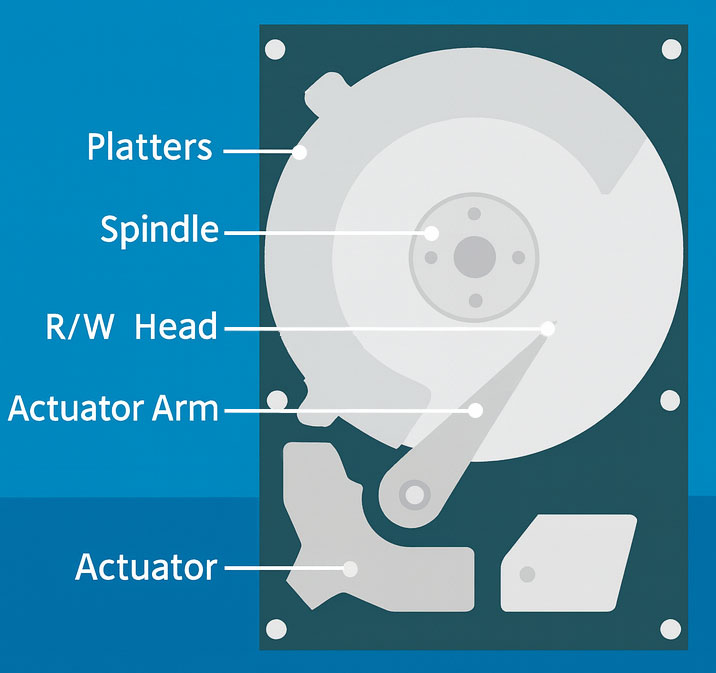
HDDs store data on spinning disks called platters using magnetic signals. The moving read/write head can process the data, allow reading and writing of files like documents, photos, videos, and software.
Data Recovery Possibility
Deleted files remain on the disk until overwritten, so recovery software can often restore them. However, physical damage, such as scratched platters or broken read/write heads, can make recovery much more difficult and may require professional services.
Solid State Drives (SSDs)
How SSDs Store Data
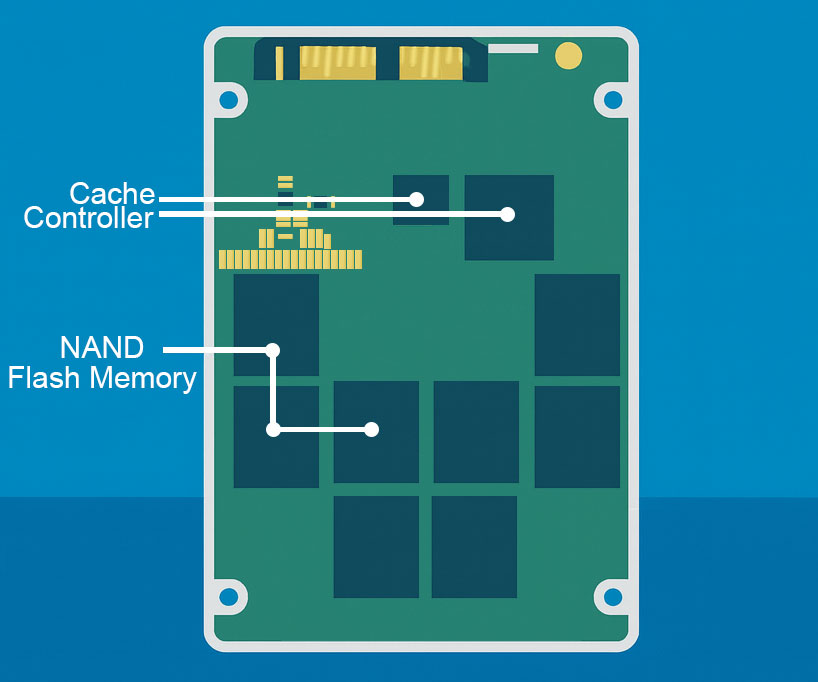
SSDs store data electronically in memory cells without moving parts. A controller manages reading and writing, distributing data to extend the drive’s lifespan. SSDs are faster, more reliable, and energy-efficient compared to traditional HDDs.
Data Recovery Possibility
SSDs often use the TRIM command, which erases deleted data blocks automatically. This means that SSD data recovery results can vary depending on whether TRIM is turned on or off.
These are the two cases:
- TRIM disabled: Recovery may become impossible once the SSD has processed the TRIM command.
- TRIM enabled: Deleted files recovery becomes much more difficult after TRIM has been executed. However, if the SSD is connected through a USB adapter or enclosure, the TRIM command may not always be passed to the drive. In such cases, deleted files are often still recoverable until the data is overwritten or garbage collection occurs.
TRIM mainly affects the recovery of deleted files. If an SSD becomes inaccessible because of file system corruption, partition loss, Windows boot failure, or other logical errors, the stored data is often still recoverable. In these situations, data recovery software can scan the SSD directly and reconstruct lost files, provided the memory chips remain intact.

USB Flash Drives & Memory Cards
How Flash Drives and Memory Cards Store Data
Both flash drives and memory cards use NAND flash memory. Data on them remains even without power, and files can be erased and rewritten multiple times. These devices are small, portable, and widely used in cameras, smartphones, tablets, digital audio players, gaming consoles, and computers.
Data Recovery Possibility
Since most flash drives and memory cards do not support TRIM, deleted files can often be recovered using professional data recovery software until they are overwritten.
CDs and DVDs
How CDs/DVDs Store Data
CDs and DVDs store data as tiny pits and flat areas, read by a laser. DVDs can store more data than CDs, and may require additional processing for large files or videos.
Data Recovery Possibility
Recovery is possible if the disc is physically intact. Scratches or cracks may require specialized optical disc recovery tools.
Having understood how data is stored on different devices, we can now delve into the mechanisms of data deletion and the fundamental principles of data recovery. This knowledge will help you understand why some deleted data can be recovered while other data cannot.
Data Deletion Mechanism
Deleting a file doesn’t always mean erasing it from the device immediately. How the deleted files are handled depends on the file deletion method used and the types of storage devices.
File Relocation to Recycle Bin
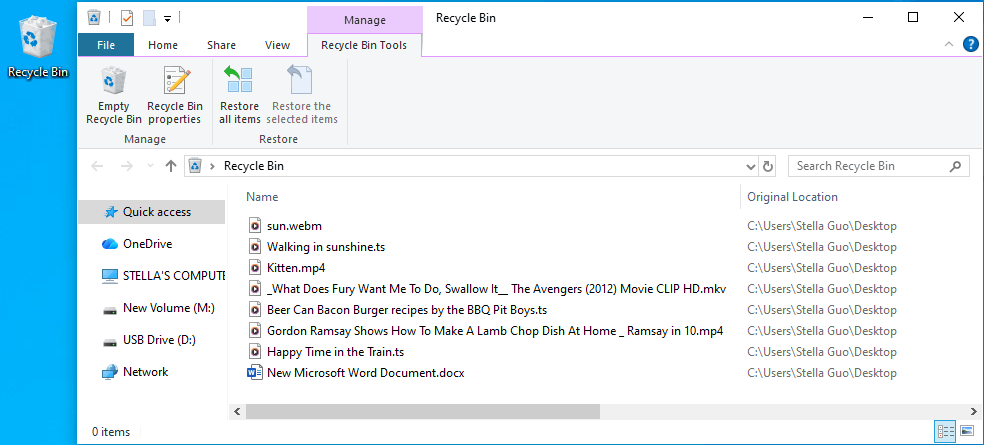
When you delete a file by pressing the Delete button or choosing Delete from the right-click context menu, the file will be removed to the Recycle Bin.
It is simply moved to a special system folder. So, the file itself will not be marked as free space. Its disk space is still considered used, and the file can be easily restored.
Logical Deletion
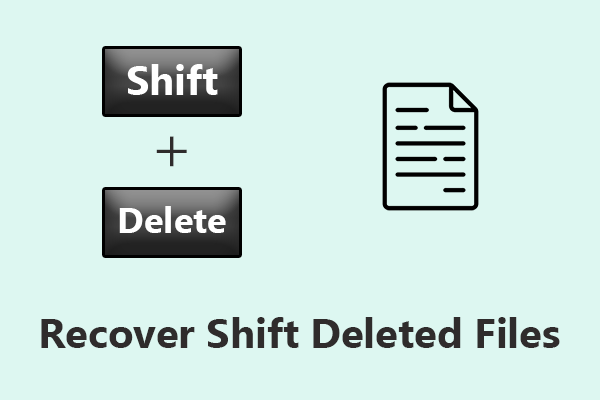
Logical Deletion is also known as “soft delete”. When you permanently delete (Shift + Delete) data or empty the Recycle Bin, the data will be logically deleted. By doing this, the operating system removes the directory entry and marks the space as available for new data.
However, the original data still exists on the drive until it is overwritten. That’s why data recovery software can often retrieve it.
Physical Deletion
Physical deletion permanently removes data from a storage device. Data is overwritten rather than marked as deleted. This means the data is irrecoverably wiped from the storage medium.
Common methods of physical deletion include:
- Full formatting: Rewrites the entire disk with new data or zeros and ones, erasing (replacing) all existing content.
- Secure erase tools: Use special data erasing software to overwrite files multiple times with random data to prevent recovery.
- Manual overwriting: Copying large files to fill up free space, which can overwrite deleted files. However, this method is inconvenient and less reliable than the other two methods.
After a physical deletion, files cannot be easily accessed or restored without a backup. This method is useful for removing sensitive or obsolete data that is no longer needed.
So, the new data may overwrite parts of old files randomly as needed. Once the original data is overwritten, data recovery becomes extremely difficult or impossible because the previous information has been replaced with new content.
TRIM (for SSDs)
SSDs handle file deletion differently. They often use the TRIM command to erase data blocks after deletion.
TRIM is an operating system command that tells an SSD which data blocks are deleted and can be erased. This helps the SSD manage free space efficiently, maintain high performance, and extend its lifespan.
In most modern systems, TRIM is enabled by default. While this is good for the SSD’s health, it makes recovery very challenging, sometimes requiring professional techniques.
Here is a comparison table between logical deletion, physical deletion, and TRIM for SSDs:
| Features | Recycle Bin | Logical Deletion | Physical Deletion | TRIM (for SSDs) |
| Definition | Moves the file to a special system folder; the file content is not deleted. | Removes the directory entry and marks the space as available; data still exists until overwritten. | Data is overwritten or destroyed, making it essentially irrecoverable. | Tells the SSD which blocks are no longer in use so they can be erased. |
| Common Methods | Delete via Delete button or right-click → Delete. | Using Shift + Delete or emptying the Recycle Bin. | Full formatting, using secure erase tools, or manual overwriting. | Automatically performed by the OS when files are deleted if TRIM is enabled. |
| Data Status | Data remains fully intact in the Recycle Bin folder. | Data remains on the disk until overwritten. | Data is overwritten or destroyed. | Data blocks are erased and marked as free for new data; they may not be immediately overwritten. |
| Recovery Possibility | Very high: Files can be restored directly from the Recycle Bin. | High: Data can be recovered using professional data recovery software as long as it is not overwritten by new data. | Very low or even impossible. | Extremely low if TRIM is enabled; possible if TRIM is disabled or using specialized recovery techniques |
| Use cases | Accidental deletion or temporary file removal. | Normal file deletion or accidental deletion. | Removing sensitive or obsolete data permanently. | Maintain the SSD performance and extend its lifespan. |
| Disk Space | Still occupies disk space until emptied from Recycle Bin. | Space marked as available, but the file content still occupies it. | Original content has been replaced, and space can be used by new data. | Space is marked as free and later erased by the SSD controller in the background. |
| Efficiency | Fast and simple. | Fast and simple. | Relatively slower, especially for secure erase or manual overwriting. | Automatic and efficient; no manual intervention required. |
| Note | Easy to restore, but not suitable for permanent deletion. | Data is likely to be overwritten, making recovery impossible. | Manual overwriting is possible but unreliable. | TRIM is typically enabled by default on modern operating systems. |
Now that we’ve explored the different methods of data deletion, let’s move on to the specific steps involved in data recovery. We’ll examine how data recovery works, from scanning storage devices to identifying and restoring recoverable data.
Data Recovery Principles
In many logical data loss scenarios, data is not immediately erased from the storage device. Whether files are deleted, a partition is accidentally formatted, or the file system becomes corrupted, the original data often remains until it is overwritten or physically destroyed.
Instead of relying on existing file names or folder paths, recovery software analyzes file system metadata and raw storage sectors to locate recoverable data. This ability to detect data beyond the visible file system forms the foundation of modern data recovery.
These data recovery principles apply to many logical data loss scenarios, not just accidental file deletion. For example:
- A quick-formatted partition usually recreates only the file system instead of erasing user data.
- A lost partition often results from damaged partition information rather than destroyed files.
- A RAW drive typically indicates file system corruption instead of missing data.
As long as the original data has not been overwritten or physically destroyed, recovery software can often reconstruct and restore recoverable files.
The typical data recovery process includes the following steps:
Step 1. Scanning the Storage Device
The first step in data recovery involves scanning the storage device at a low level, bypassing the file system’s directory or index structures.
Professional data recovery software examines each sector or cluster on the device, looking for patterns that match known file types. This approach is often called file signature-based recovery, which is also known as raw recovery or content-based recovery.
For example, JPEG files start with specific header bytes, DOCX files have identifiable tags, and PDF files contain a standardized structure. By detecting these patterns, the software can identify fragments of lost files that no longer appear in the file system directory.
Some advanced recovery tools also combine logical analysis with physical scanning. Logical analysis interprets existing file system metadata to find deleted entries, while physical scanning searches the raw data directly. Together, these methods increase the likelihood of successful recovery.
Step 2. Identifying Recoverable Data
Once potential files are detected, the software starts to determine whether the data is recoverable.
This depends on whether the corresponding storage blocks have been overwritten. If a deleted file’s sectors have not been reused, the data can usually be restored completely.
However, if new data has overwritten parts of the original file, recovery may be partial, resulting in corrupted or incomplete files.
During this stage, the software often creates an internal mapping of detected data. This mapping records the location of each file fragment, its estimated size, and its file type. The mapping is not a restoration of the original file system directory but serves as a guide for reconstructing the recoverable files.
Step 3. Reconstructing and Extracting Files
With the mapping table in place, the software can begin reconstructing files. For simple file types, this may involve copying the contiguous sectors directly to a new location. For fragmented files, the software analyzes the patterns and sequences of the data blocks to piece together the original file.
After reconstruction, the files are saved to a safe storage location, separate from the original device, to avoid further data loss. The recovered files are usually accessible in standard formats, allowing them to be used normally even though the original directory structure remains lost.
Data Recovery Tools and Technology
Once you understand the data deletion mechanism and data recovery principles, the next step is to explore the data restore tools and services used for data recovery.
Generally speaking, there are two main approaches: software-based data recovery and professional data recovery services. In addition, there are best practices that you should follow to improve the data recovery success.
Software-Based Data Recovery
Software-based recovery is the most common and accessible method for retrieving lost or deleted files. These tools scan storage devices to locate recoverable data, often using techniques such as:
- Quick Scan: detects recently deleted files by examining the file system directory.
- Deep Scan or RAW Scan: examines storage at a low, sector-level or raw level, identifying files even when the directory structure is damaged or missing.
- File Preview and Filtering: allows you to check files before recovery, reducing the risk of unnecessary operations.
- File Saving to Another Location: allows you to save recovered files to a different drive or partition to avoid overwriting missing data that is to be recovered.
Software recovery is generally suitable for situations where files were deleted accidentally, partitions were lost, or drives were formatted.
It is also effective for many inaccessible drives caused by logical failures, such as RAW partitions, damaged file systems, or boot failures.
The advantages include convenience, speed, and the ability to recover data without sending devices to a professional lab. However, its success depends on factors such as device type, deletion method, and whether the data has been overwritten.
Professional Data Recovery Services
For severe cases, such as physically damaged drives, water or fire exposure, or complex hardware failures, professional recovery services are often necessary. These services typically provide:
- Cleanroom facilities: allowing technicians to safely open and repair hard drives.
- Advanced hardware tools: needing disk imaging equipment and chip-off recovery techniques.
- Expertise in complex file system repair: recovering data from severely corrupted or inaccessible storage.
While professional services generally offer a higher likelihood of recovery, they are more expensive and time-consuming than software solutions. Consider them for critical data that cannot be recovered by software alone.
Additionally, sensitive data may be exposed during the recovery process. So it is important to choose reputable providers and understand their confidentiality policies. Encrypting data beforehand, if possible, can further protect privacy.
Best Practices for You
Regardless of the data recovery method chosen, following certain practices can significantly improve the chances of successful file recovery:
- Stop using the affected drive immediately to avoid overwriting deleted data.
- Use recovery software promptly before new files occupy the free space.
- Keep regular backups on multiple devices or cloud storage.
- Avoid formatting or writing new data unnecessarily on drives with missing files.
- Important: If the drive shows signs of physical damage, such as clicking, grinding, beeping noises, or failing to spin up, stop using it immediately. Do not attempt file recovery with software, as continued operation may cause further damage. Instead, seek assistance from a professional data recovery service.
By understanding both the available data recovery tools and user responsibilities, you can make informed decisions about how to recover lost data. This also sets the stage for using professional file recovery tools like MiniTool Power Data Recovery. It integrates these recovery principles into a user-friendly solution.
How Does MiniTool Power Data Recovery Work to Retrieve Files
Introduction to MiniTool Power Data Recovery
MiniTool Power Data Recovery is developed by MiniTool Software Ltd. As its name suggests, it is a professional data restore tool designed to restore deleted, lost, or inaccessible files from multiple storage devices in Windows.
Its key features are as follows:
1. Supports Various Data Loss Scenarios
MiniTool Power Data Recovery works to recover data under these situations:
- Deleted files after emptying the Recycle Bin
- Accidental formatting
- RAW drives
- Damaged file systems
- Partition loss or deletion
- External drive errors
- Unexpected system crashes
2. Compatible with Multiple Storage Devices
The software supports data recovery from:
- Internal HDDs and SSDs
- External hard drives
- USB flash drives
- SD cards and memory cards
- Digital cameras and other portable devices
- CDs and DVDs
This broad device support makes it suitable for everyday data loss as well as more complex recovery tasks.
3. Supports Data Recovery from Specific Locations
This data restore tool provides location-based recovery options that help you quickly access the data you need. Instead of scanning the entire drive, you can choose specific locations such as the Desktop, Recycle Bin, or selected folders to scan.
This targeted scanning shortens recovery time and improves efficiency, especially when you know where the lost files were originally stored.
4. Deep Scan for Maximum Detection
MiniTool Power Data Recovery automatically performs a deep scan to help you find and recover data. Even if file system metadata is missing or damaged, the software can detect file signatures and locate fragmented data clusters on the disk.
This ensures that files removed due to deletion, corruption, or formatting still have a chance to be recovered.
5. File Preview Before Recovery
Before saving recovered files, you are allowed to preview photos, documents, videos, and other formats directly in the software. This helps verify file completeness, avoid restoring unwanted items, and save time by focusing only on the files you actually need.
6. Safe Recovery Design
The tool extracts files to a different drive instead of writing to the source disk, preventing secondary data loss or overwriting. The entire recovery operation is read-only to ensure the original drive remains unchanged.
7. Export Scanning Results for Future Use
MiniTool Power Data Recovery allows you to export scan results, which can be saved and imported for future recovery sessions. This feature makes it easier to resume recovery work at a later time without needing to rescan the entire drive.
Steps to Use MiniTool Power Data Recovery
With a solid understanding of the basic principles of data recovery, we can now appreciate how MiniTool Power Data Recovery applies these techniques to recover files from a wide range of storage devices.
Using MiniTool Power Data Recovery is straightforward. The software guides you through a simple, read-only workflow that helps scan, preview, and recover files safely. With MiniTool Power Data Recovery Free, you can recover 1GB of files for free.
MiniTool Power Data Recovery FreeClick to Download100%Clean & Safe
After downloading and installing this software, follow the steps below to restore deleted or lost data in Windows:
Step 1. Launch the Software
Open MiniTool Power Data Recovery to enter its main interface.
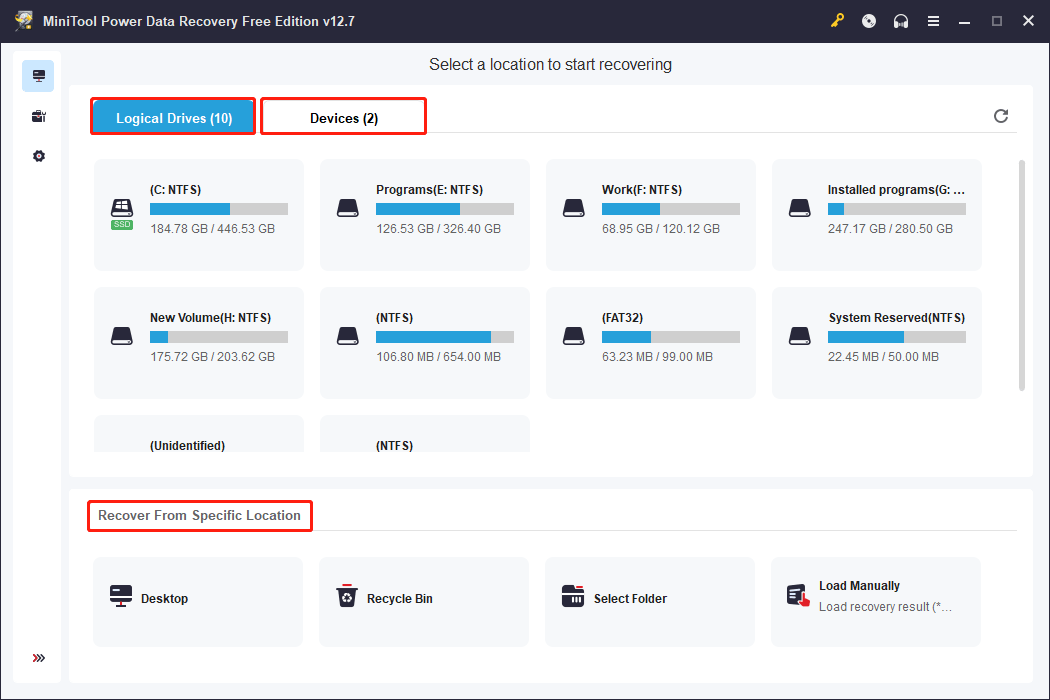
The main interface will display:
- Logical Drives: shows all detectable partitions, including those with or without drive letters, lost or deleted partitions, and partitions that Windows cannot recognize or unformatted partitions.
- Devices: lists entire drives and storage devices. This mode is useful when the partition layout is corrupted, missing, or not displaying correctly, allowing you to scan the whole disk directly for better recovery results.
- Recover From Specific Location: lets you scan specific locations such as Desktop, Recycle Bin, or Selected Folders to quickly find needed files. This section also includes a Load Manually option, which allows you to import previously saved scan results for faster recovery without performing a full rescan.
Step 2. Select the Drive or Location to Scan
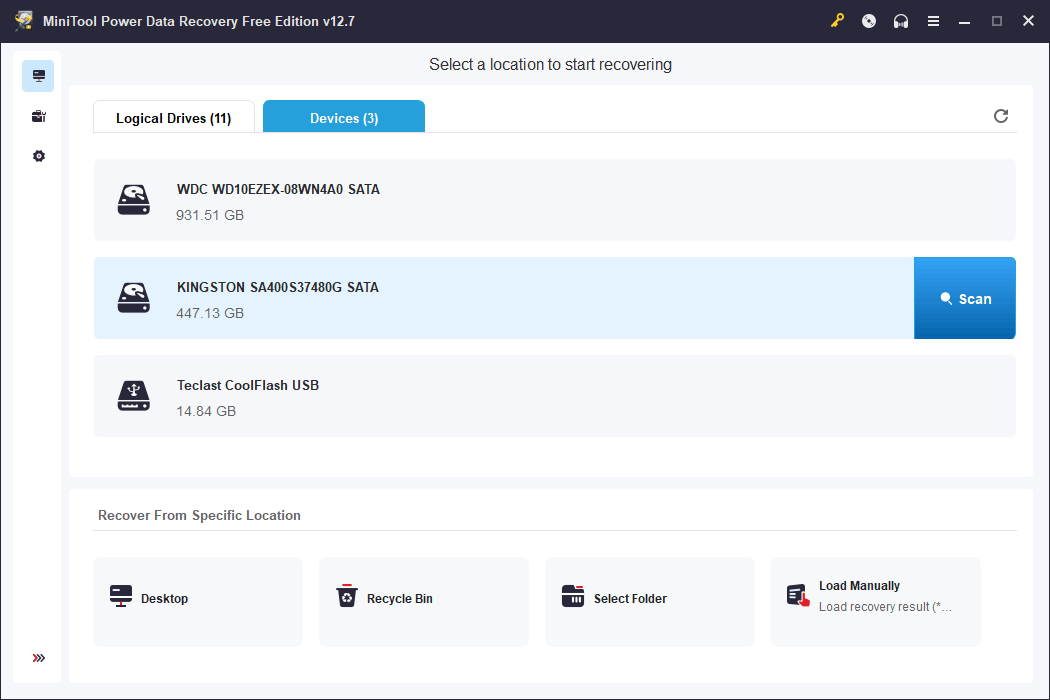
Choose the partition, device, or specific location where the lost data was originally stored. Selecting the correct source helps reduce scanning time and improve the accuracy of data detection.
To choose the right location, check the information such as the drive letter, partition size, and file system type to match the area where the files were previously saved. If a partition is missing or its file system becomes RAW, select the volume with the corresponding size or switch to the Devices mode to scan the entire disk.
Step 3. Wait for the Automatic Deep Scan to Complete
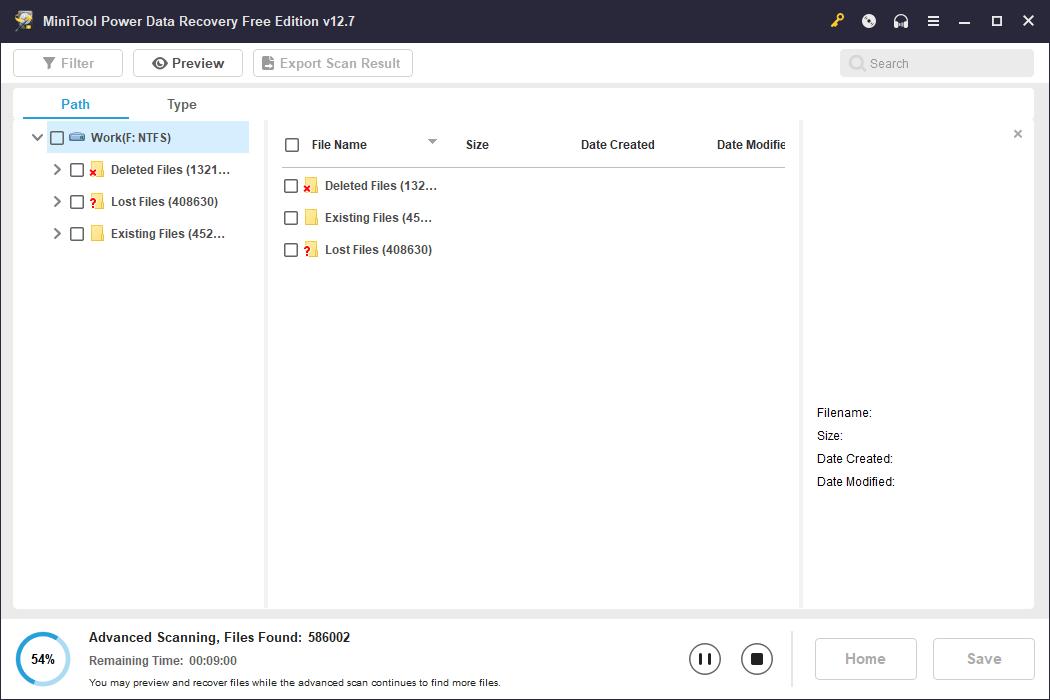
The software first performs a quick scan to quickly detect recoverable files. Afterward, it automatically proceeds to an advanced scan for a deeper analysis. This is helpful to locate more deleted or lost files for recovery.
Scanning can be stopped at any time once the needed files are found. However, for maximum file detection, it is recommended to let the scan finish completely.
Step 4. Find the Needed Files
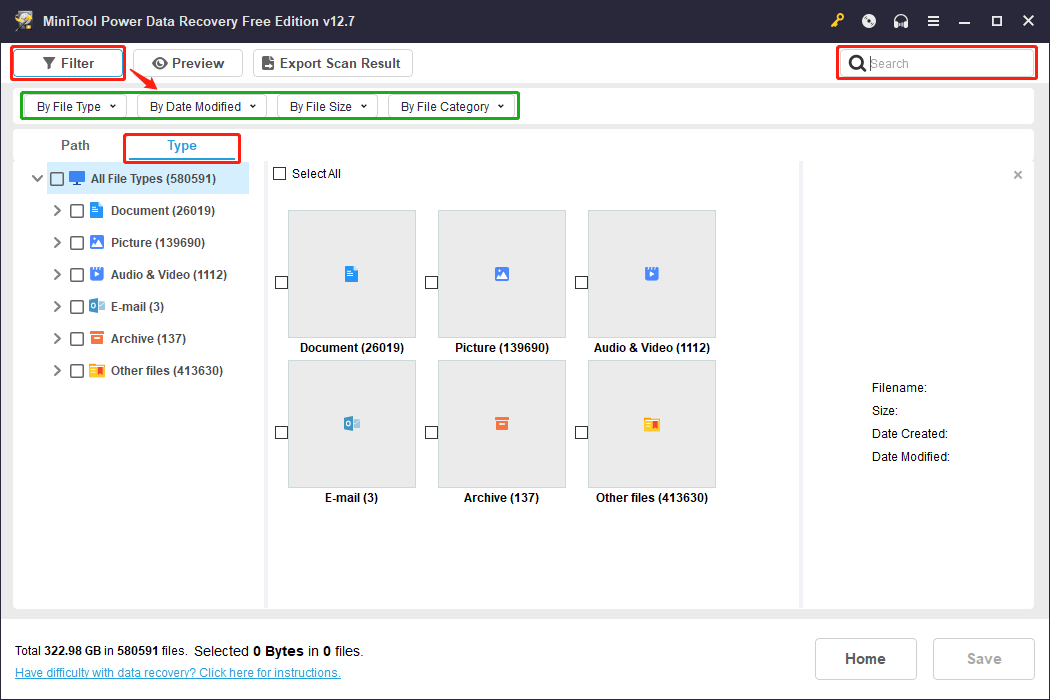
After scanning, the software displays the results in three folders under Path: Deleted Files, Lost Files, and Existing Files.
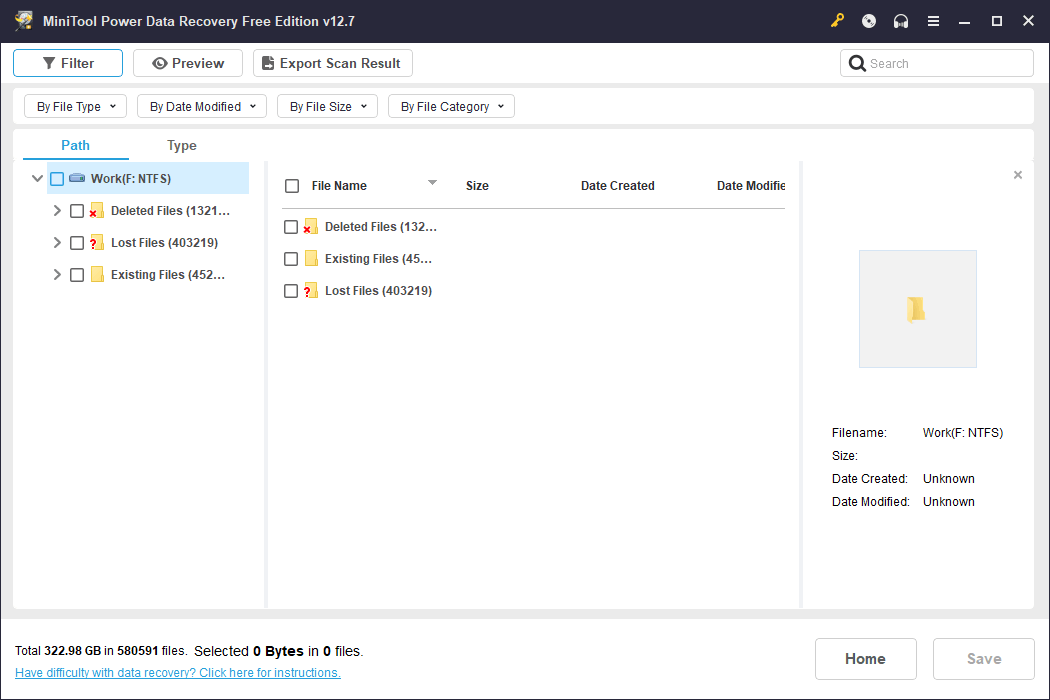
If there are too many files, use the Type view to check the scan results by file type or the Filter option to filter files by file type, size, date, or category. This can largely narrow down your search. You can also use the Search function to locate files by name directly.
Step 5. Preview Found Files
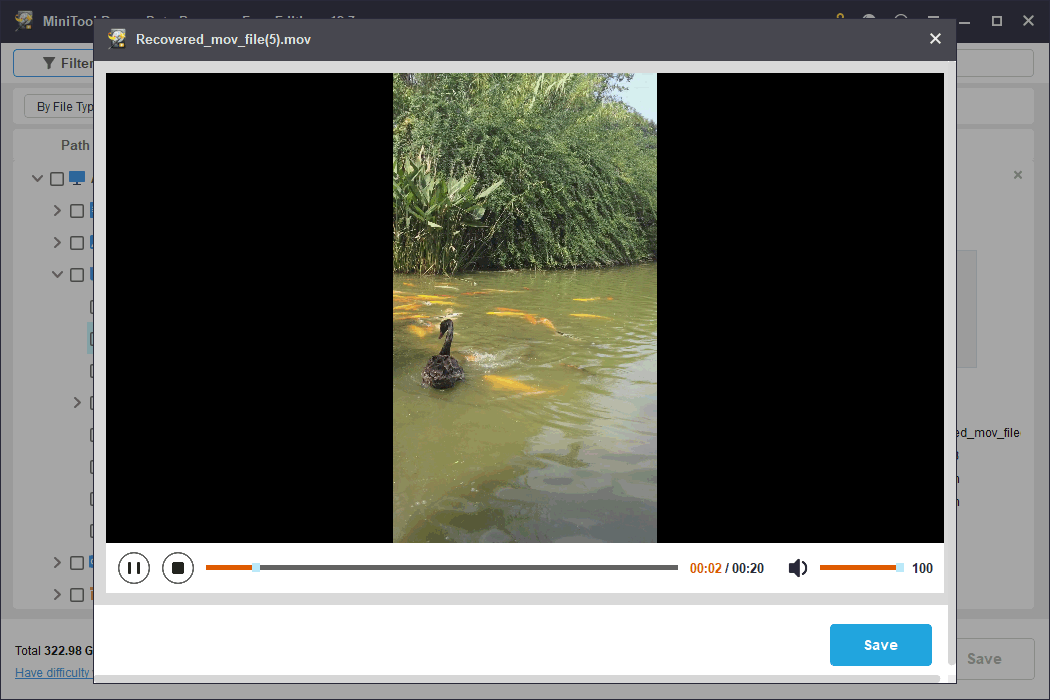
Click a file to preview. The preview function helps verify file integrity and avoid recovering unnecessary items, saving valuable time. If needed, directly click the Save button on the preview interface to restore it.
Step 6. Select the Needed Files to Recover
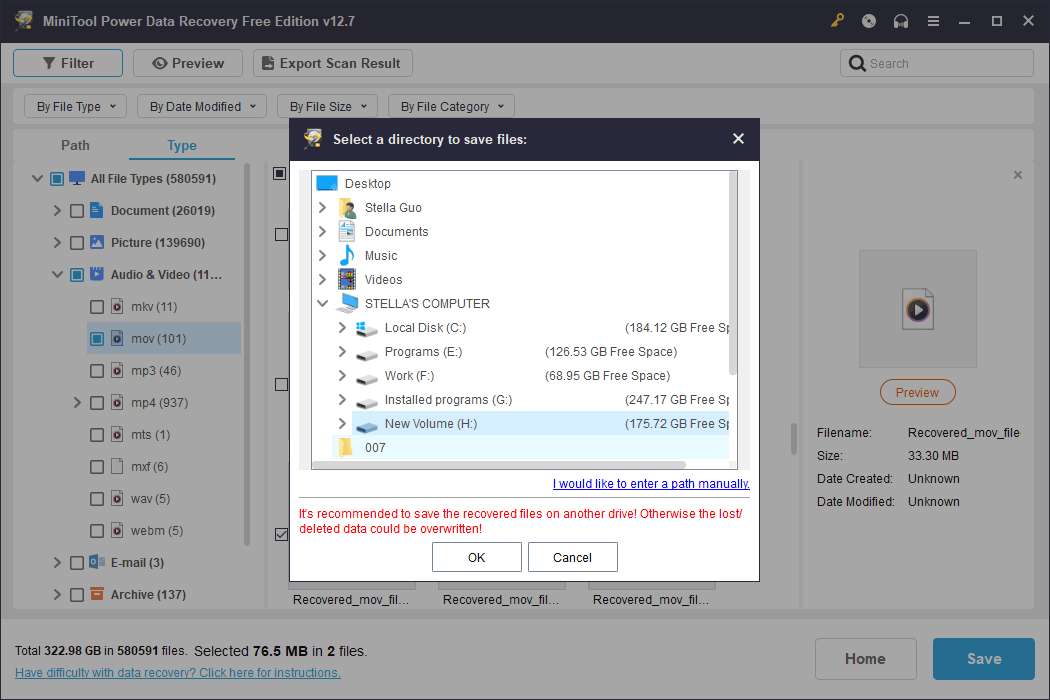
Check your needed files at once and click Save. Then, choose a destination path on another drive or external device and click OK to save them.
Step 7. Verify Recovered Data
After the recovery process completes, open the restored files to confirm integrity and ensure all required items have been successfully recovered.
Tips and Tricks: Data Protection & Prevention
Preventing data loss is just as important as recovering lost files. Here are some effective tips and tricks to help you protect files and minimize the risk of data loss:
Regular Data Backups
The most reliable method to protect your data is to back it up regularly. Back up data using cloud services (like OneDrive or Google Drive) or to an external hard drive, or using a combination of both. For important documents, photos, and videos, ensure that you have at least two backups in different locations.
The 3-2-1 rule is a widely recommended strategy: Keep 3 copies of your data, 2 of which are local but on different devices, and 1 offsite (e.g., cloud storage). This ensures that if one backup fails, others will be available.
Monitor the Health Status of Your Hard Drive
Keep an eye on the health of your storage devices, especially hard drives and SSDs. Use tools that provide SMART (Self-Monitoring, Analysis, and Reporting Technology) data to do this. Early warnings of disk failures give you time to back up your data before a disaster occurs.
Enable Hard Drive Encryption
For sensitive data, using encryption provides an added layer of protection. Even if your device is lost or stolen, encryption prevents unauthorized access to your files. Tools like BitLocker offer built-in encryption options.
Avoid Filling up Your Disk Storage
Storage devices, especially HDDs and SSDs, can slow down and become less reliable when their capacity is nearly full. Try to keep at least 20% of the storage space free to ensure optimal performance and prevent data corruption.
Protect Your Drives from Viruses and Malware
Viruses and malware are significant threats to data security. Use reputable antivirus software and ensure your system is regularly updated to protect against malicious attacks. Regularly scanning your device for viruses and malware is necessary.
Enable Documents Autosave
Document Autosave is a feature that automatically saves your content at regular intervals. This ensures that your documents are protected in case of a power outage, system crash, or unexpected shutdown. Enabling Autosave provides peace of mind, reducing the risk of losing your important data.
Physical Protection of Storage Devices
Physical damage can render storage devices unreadable and may result in irrecoverable data loss. So, handle your storage devices carefully, avoid dropping them, and store them in a safe location, away from excessive heat, moisture, or magnetic fields.
By implementing these proactive data protection strategies, you can significantly reduce the risk of file loss and ensure your data is secure and easily accessible.
Data Recovery Principle FAQ
Bottom Line
Data recovery is possible not because deleted files remain visible, but because the underlying data often stays on the storage device until it is overwritten or physically erased.
Understanding how storage devices save data, how deletion works, and how recovery software reconstructs files helps you choose the right recovery method and avoid actions that could permanently destroy recoverable data.
If you encounter issues when using MiniTool Power Data Recovery, contact the support team at [email protected] for assistance.
About The Author

Position: Columnist
Stella is an experienced English editor with eight years of expertise in storage device data recovery. Her articles can help users effectively recover lost and deleted data and rescue files from unbootable PCs, ensuring practical solutions and reliable guidance.
User Comments :