

This guide explains how to recover data from RAW drive on Windows 10/11 and restore access to the affected drive without unnecessarily risking your files. It covers data recovery, repair methods, common causes, and prevention tips.
Quick Answer: Use RAW drive recovery software to scan the affected drive and recover important files before formatting or repairing it. Once your data is safe, you can try CHKDSK if applicable or format the drive to restore normal access.
What Is a RAW Drive
A RAW drive is a storage device whose file system cannot be recognized by Windows. Instead of showing a normal file system such as NTFS, FAT32, or exFAT, Windows identifies the drive as RAW.
This does not necessarily mean that all data is lost, but the files may become inaccessible until the file system issue is resolved.
When Windows cannot recognize a drive’s file system, the drive may appear as RAW and become inaccessible. You may encounter one or more of the following symptoms:
- A prompt appears, stating: “You need to format the disk before you can use it.”
- Files stored on the drive cannot be accessed or transferred.
- The drive’s capacity and available space may display as zero bytes, even if it previously contained data.
Although formatting can restore access to a RAW drive, it erases the data stored on it. If the drive contains important files, recover the data first with RAW drive recovery software and format the drive only after your files are safe.
What Causes a Drive to Become RAW
Understanding why a drive becomes RAW helps you prevent future issues. The main causes include:
File System Corruption
Sudden power outages, improper shutdowns, or formatting errors can damage the file system, making the drive unreadable.
Partition Table Damage
The partition table holds information about the location and size of partitions. Damage to it may turn the entire drive RAW.
Virus and Malware Attacks
Malware can alter critical file system data, making the drive inaccessible.
Bad Sectors or Physical Disk Issues
Mechanical damage or bad sectors can make the disk unreadable, triggering a RAW status.
Connection or Cable Problems
A loose or damaged USB, SATA, or external hard drive cable can prevent Windows from reading the drive properly.
How to Recover Data from RAW Drive
If a RAW drive contains important files, recover the data before trying to repair or format the drive. The following steps show how to use RAW drive recovery software to scan the drive and recover files safely. In this guide, we use MiniTool Power Data Recovery Free as an example.
MiniTool Power Data Recovery is suitable for RAW drive recovery because it can scan inaccessible storage devices, preview recoverable files, and save recovered data to another location.
- Scan for recoverable files
- Preview files before recovery
- Recover up to 1 GB for free with the Free Edition
Step 1. Prepare for the Recovery Test
For this experiment, I created a 10 GB virtual disk on Windows 10 and made its file system RAW. Then I downloaded the free edition of MiniTool Power Data Recovery and launched it.
MiniTool Power Data Recovery FreeClick to Download100%Clean & Safe
Step 2. Scan the RAW Drive
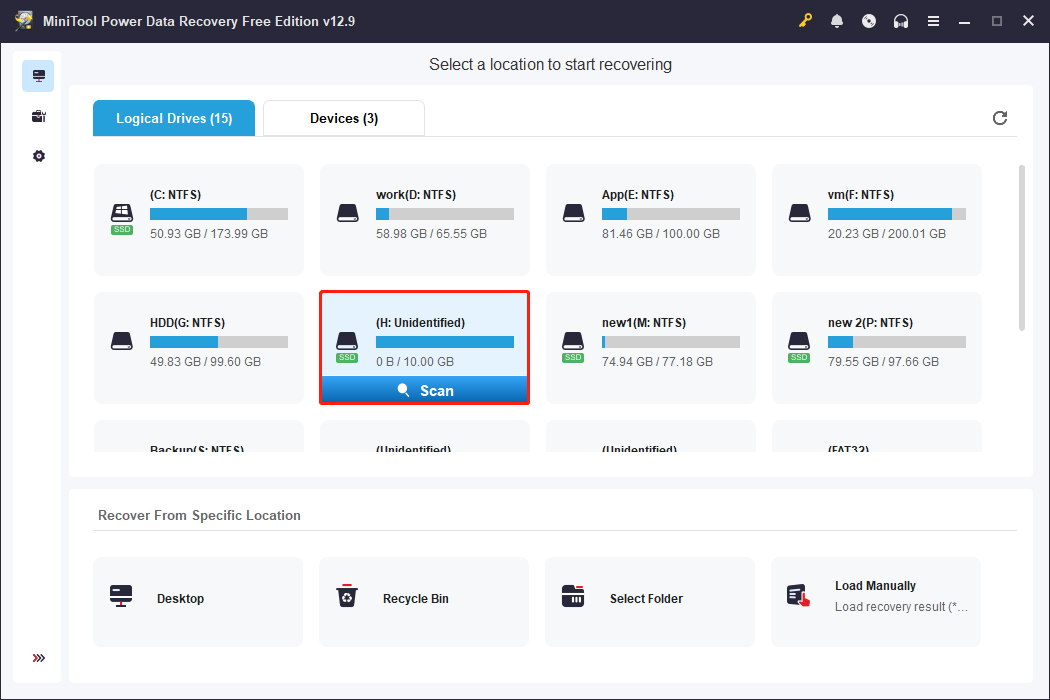
In this experiment, the RAW disk appeared as Unidentified on the main interface of MiniTool Power Data Recovery. I selected it and clicked Scan to start the scanning process.
Observations from the experiment:
- Scanning the 10 GB virtual RAW disk took approximately 8 minutes.
- The software identified the drive quickly and started listing recoverable files.
- During scanning, the Preview feature allowed me to check file content in real-time.
Step 3. Preview and Select Files
After scanning, I browsed through the detected files and found that:
- Most files from before the disk became RAW were fully recovered.
- Folder hierarchy and file names were mostly preserved.
However, note that this experiment represents a simulated RAW scenario, where the disk became RAW because the partition was deleted and no file system was assigned.
In real-world cases, a RAW drive often results from file system corruption or partition table damage. Under these conditions, some data may be partially overwritten, and original folder structures and file names may be lost.
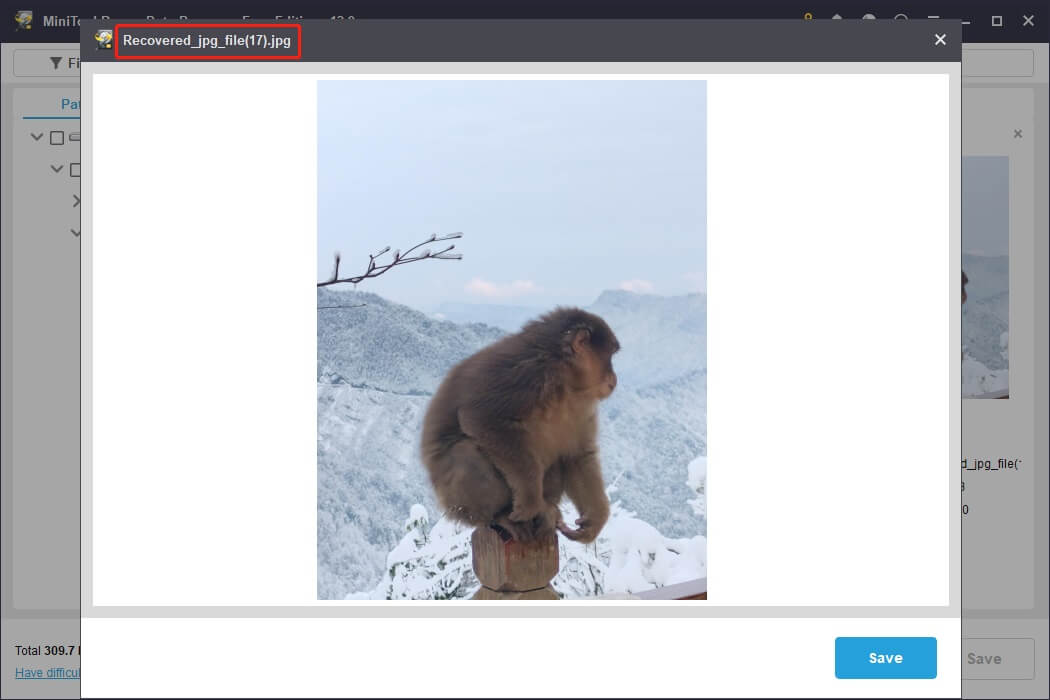
In such cases, the Preview function becomes critical, as it allows you to preview files even if their names or paths are missing.
Select the files you want to recover and prioritize the most important ones first, as this software only recovers 1 GB of data for free.
Step 4. Save Recovered Files
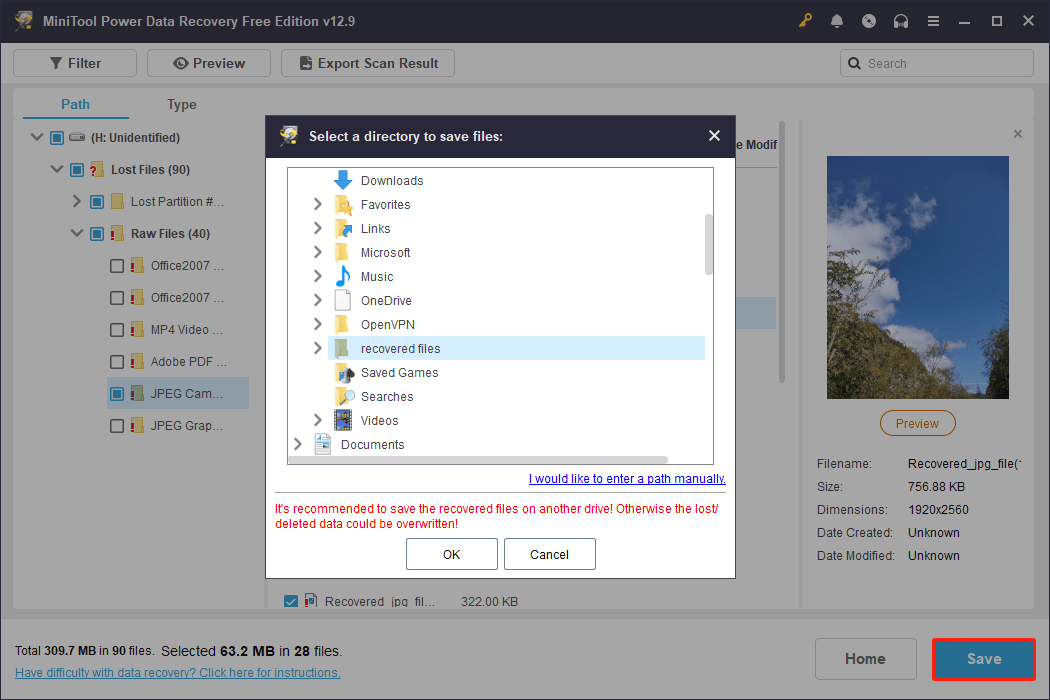
Finally, click Save and choose a different drive to store the selected files.
Experiment results:
- All data added just before the disk turned RAW was recovered successfully.
- For older files, even if their names were lost, the content was mostly intact.
If MiniTool Power Data Recovery fails to recover your files, try seeking help from professional data recovery services.
How to Fix a RAW Drive After Data Recovery
Once your important files are safe, you can try the following methods to restore access to the drive. The appropriate method depends on the cause of the RAW issue and whether Windows can recognize its file system.
Method 1. Try CHKDSK If the Drive Is Supported
CHKDSK can repair certain file system errors, but it may not work when Windows identifies the drive as RAW. Therefore, recover important files first and only try CHKDSK if the drive is recognized as a supported file system.
How to run CHKDSK:
Step 1. Type cmd in Windows search, right-click Command Prompt, then choose Run as administrator.
Step 2. Type the following command and press Enter:
chkdsk X: /f /r
Replace X: with the letter of your RAW drive.
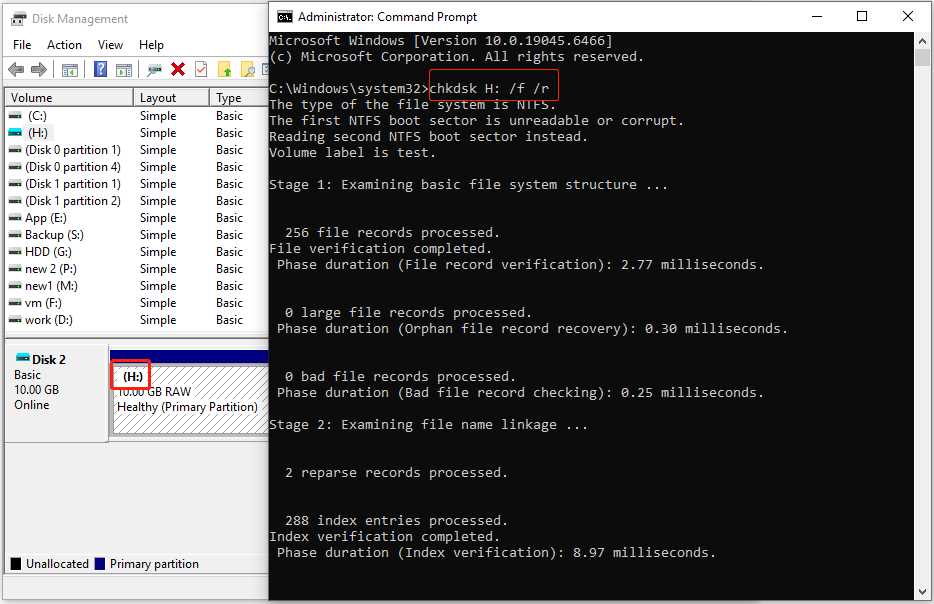
If CHKDSK successfully repairs the file system, Windows may be able to access the drive again. However, if important files are still missing, use data recovery software rather than assuming all data is intact.
Method 2. Format the RAW Drive in Disk Management
Formatting can restore a RAW drive to a usable state, but it erases the data on the drive. Only use this method after recovering any important files.
Windows Disk Management can format the RAW partition in a few steps:
Step 1. Right-click Start and open Disk Management in Windows.
Step 2. Right-click the RAW drive and click Format.
Step 3. Specify a volume label, select a compatible file system, and confirm.
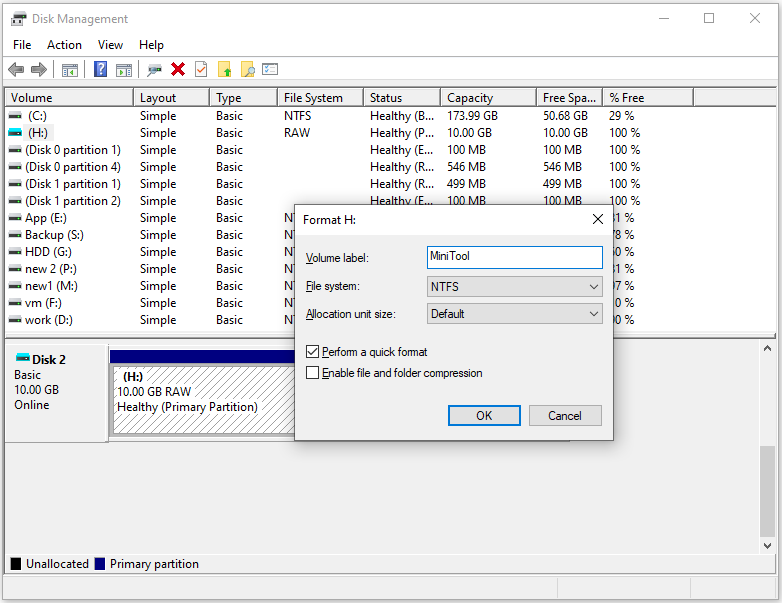
After formatting, the drive should have a new file system and become accessible in Windows again.
Method 3. Format RAW Drive Using Partition Management Software
If Disk Management cannot format the RAW partition, you can try a partition management tool such as MiniTool Partition Wizard. Its Format Partition feature may help restore the partition to a usable state, but formatting will erase the data stored on it.
MiniTool Partition Wizard FreeClick to Download100%Clean & Safe
Step 1. On the main interface of this partition manager, identify the target drive. Select it and click Format Partition.
Step 2. Select FAT32, exFAT, or NTFS depending on your needs and confirm the choice.
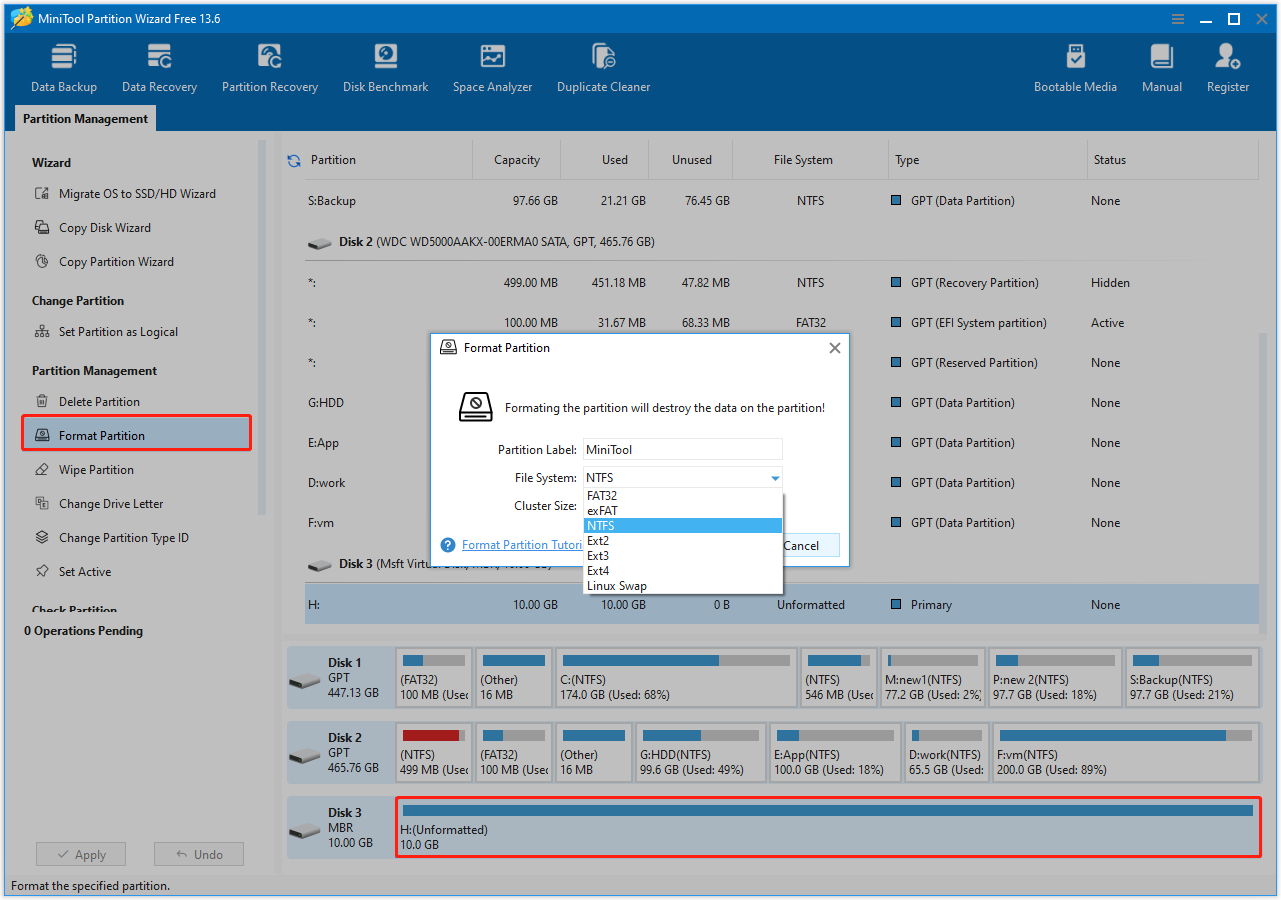
Step 3. Click Apply to apply the change. Then the RAW drive should become accessible.
How to Prevent a Drive from Becoming RAW
These practices can reduce the risk of file system corruption, RAW drive errors, and data loss:
- Safe Removal: Avoid unplugging external drives without safely ejecting.
- Complete Formatting: When formatting a drive, select a compatible file system. Avoid leaving the disk unformatted.
- Antivirus Protection: Keep antivirus software updated to prevent virus attacks.
- Monitor Disk Health: Tools like MiniTool Partition Wizard or CrystalDiskInfo can warn about bad sectors and file system errors.
- Regular Backups: Use cloud storage or external drives to back up critical data.

Bottom Line
RAW hard drive recovery may be possible if the data has not been overwritten. If a drive becomes RAW, recover important files first with RAW drive recovery software.
After your data is safe, you can try CHKDSK when applicable or format the drive to restore normal access. Regular backups can also help prevent permanent data loss.
If you encounter any issues while using MiniTool products, contact us via [email protected].
User Comments :