

Blink is Amazon’s home security brand, offering smart cameras and video doorbells.
These smart video devices record videos for home security and remote monitoring, allowing you to view and manage activity captured around your home.
Where Is the Blink Video Stored
The captured videos can be stored in the cloud (subscription required) or local storage devices (USB/MicroSD card).
Read the following contents to know about these two storage methods.
Cloud Storage:
By purchasing a Blink subscription plan from Blink.com (US only) or Amazon.com, you can get unlimited cloud storage space to store the video clips.
Videos are typically retained for 30 to 60 days across various countries. In CA/MX/AU/NZ, the retention period is 60 days, while in the EU/UK, it is 30 days. They will be automatically deleted after this period.
Local Storage:
The Blink camera also works with the Sync Module 2 and the Sync Module XR. They act as hubs to connect cameras and support local video storage when a USB drive or MicroSD card is connected.
- Sync Module 2: Supports connecting USB flash drives. Video clips will be saved directly to the USB drive.
- Sync Module XR: Supports MicroSD card storage. Video clips can be saved directly to the card.
Videos stored locally can be viewed and deleted via the Blink app or a computer. Local video backups can only be accessed via a computer.
In a word, if you want to access videos anytime, anywhere, choose cloud storage. If you want a more secure and controllable storage method, use Sync Module 2/XR for local storage.
If you accidentally lost Blink videos, there are many methods to recover them.
Can You Recover Deleted Blink Videos
I deleted a bunch of videos by mistake. I have the unlimited cloud storage subscription and local storage via the Blink USB stick (Sync Module 2). Can I recover deleted Blink videos? Thanks!
www.reddit.com
Whether deleted videos can be recovered, and how they can be recovered, depends on your storage method. The following is a detailed explanation.
Case 1: If videos are stored only in the cloud
If videos are stored only in the cloud, they cannot be recovered, whether manually deleted or automatically removed after the auto-delete period.
Case 2: If videos are stored locally
If you haven’t subscribed to a cloud plan, videos will only be stored locally; once deleted from a USB drive or microSD card, they can only be recovered using data recovery software.
Case 3: If videos are backed up from the cloud to a USB, or if both cloud service and local storage are enabled
When local storage is enabled, or cloud videos have been backed up to a USB drive, if the cloud video is deleted, it can be recovered from the USB drive.
Conversely, if the video has been stored in the cloud for less than 30/60 days, it can be recovered from the cloud even if it is deleted from the USB drive.
If both cloud and USB videos are deleted, refer to case 2.
The following sections will provide detailed solutions for these situations. Before recovering Blink videos, learn about the common reasons for video loss.
Common Causes of Blink Video Loss
Many factors can cause Blink video loss. The following are some common ones:
- Network issues: Weak or unstable Wi-Fi signal causes video upload failure or transmission interruption.
- Device issues: Low camera battery power, hardware malfunction, or lens damage can cause video loss.
- Application/Account issues: Blink app crashes, incorrect account login, or incorrect permission settings can lead to this problem.
- Storage issues: Insufficient USB/MicroSD card space, disk corruption, or expired cloud storage can result in video loss.
Now, continue reading the following sections to get the lost Blink videos back.
Recover Deleted Blink Videos via MiniTool Power Data Recovery
This data recovery software is applicable for recovering Blink videos stored locally on your USB drive or MicroSD card.
An Introduction to MiniTool Power Data Recovery
MiniTool Power Data Recovery is a professional and powerful data recovery tool. Here are some of its advantages.
- Supports multiple storage devices. It can perform external hard drive recovery, USB flash drive recovery, SD card recovery, and more. This makes it ideal for common storage media used for Blink videos.
- Supports extensive file types. It is capable of recovering almost all file types, such as videos, audios, pictures, documents, and so on.
- Addresses various file loss scenarios. Whether the files are lost due to accidental deletion, formatting, hard drive damage, system crash, or virus attack, it can recover them.
- Provides 1 GB free recovery quota. This free file recovery software allows you to recover 1 GB of files without paying a cent.
Its interface is simple and intuitive, and the operation steps are clear. Even if you don’t have a professional background, you can easily complete the data recovery process.
Now, download and install it on your computer to do a video recovery.
MiniTool Power Data Recovery FreeClick to Download100%Clean & Safe
Steps to Recover Deleted Blink Videos
Here are the steps to recover lost Blink videos.
Step 1: Open MiniTool Power Data Recovery and scan the device
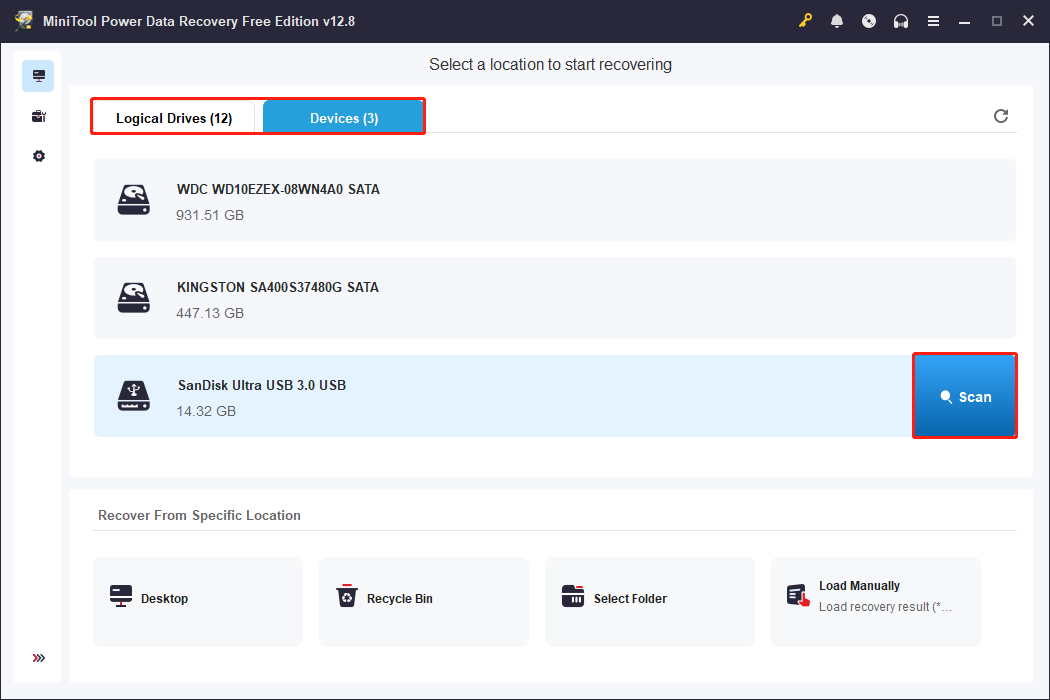
Connect the USB flash drive or SD card to your computer. Then, launch the software to enter the main interface. Here are two modules where you can choose scan locations.
- Logical Drives: It lists all partitions, including existing partitions, lost partitions, and unallocated space.
- Devices: It displays all the disks that are connected to your PC.
Select the partition under Logical Drives or select the whole disk under Devices, and then click Scan.
Step 2: Find the files using Path, Type, Filter, and Search
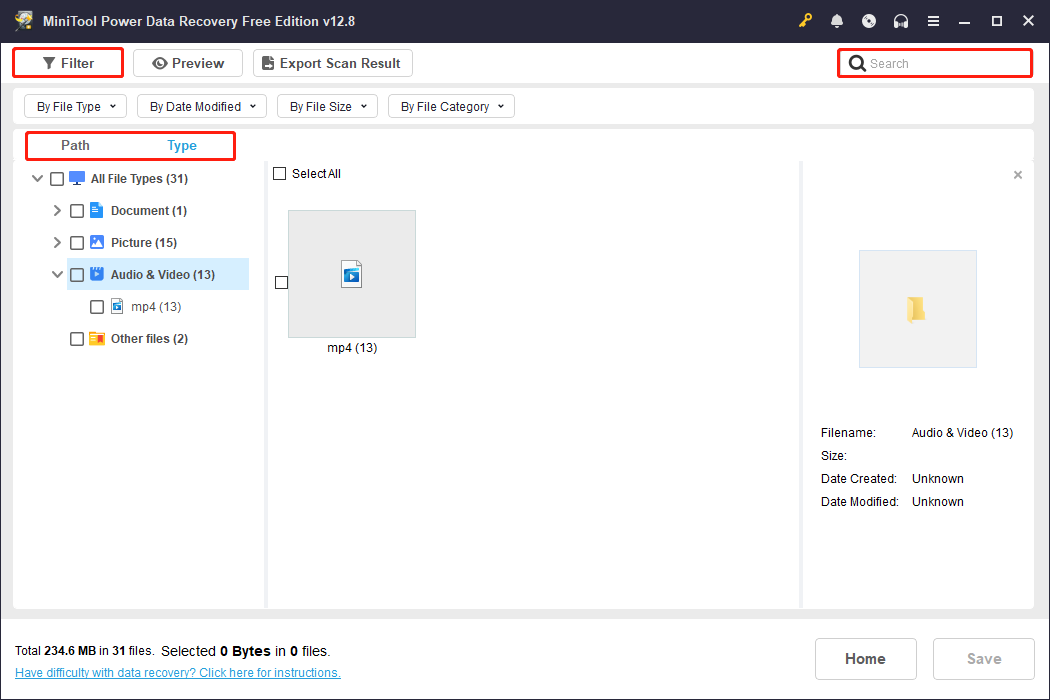
This scan process will take some time. Wait patiently for it to complete. When it ends, files are listed by their file structures under the Path tab. Expand the Lost Files, Existing Files, and Deleted Files to locate the target files.
Besides this, here are some other features to help you find the files.
- The Type feature categorizes scan results based on file type, such as documents, videos, and audios. Switch to the Type tab and expand All File Types > Audio & Video.
- The Filter feature provides conditional filtering to narrow the scope, including file type, modification date, file size, and file category. Click the Filter button to set criteria.
- The Search feature allows you to search for certain files. Type the partial or full filename in the Search box and press Enter. The specific file will be shown.
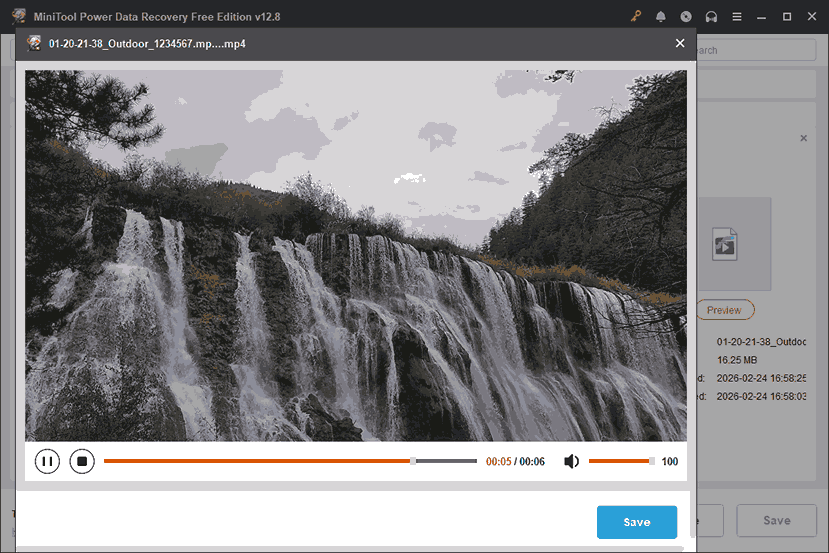
When the files are found, it is best to preview them before recovery. The Preview feature allows you to check file contents to confirm if it’s the file you need. This prevents incorrect recovery.
It supports previewing common document, picture, and video formats. Double-click the file you want to view, and the preview window will pop up.
Step 3: Select the files and save them to a safe place
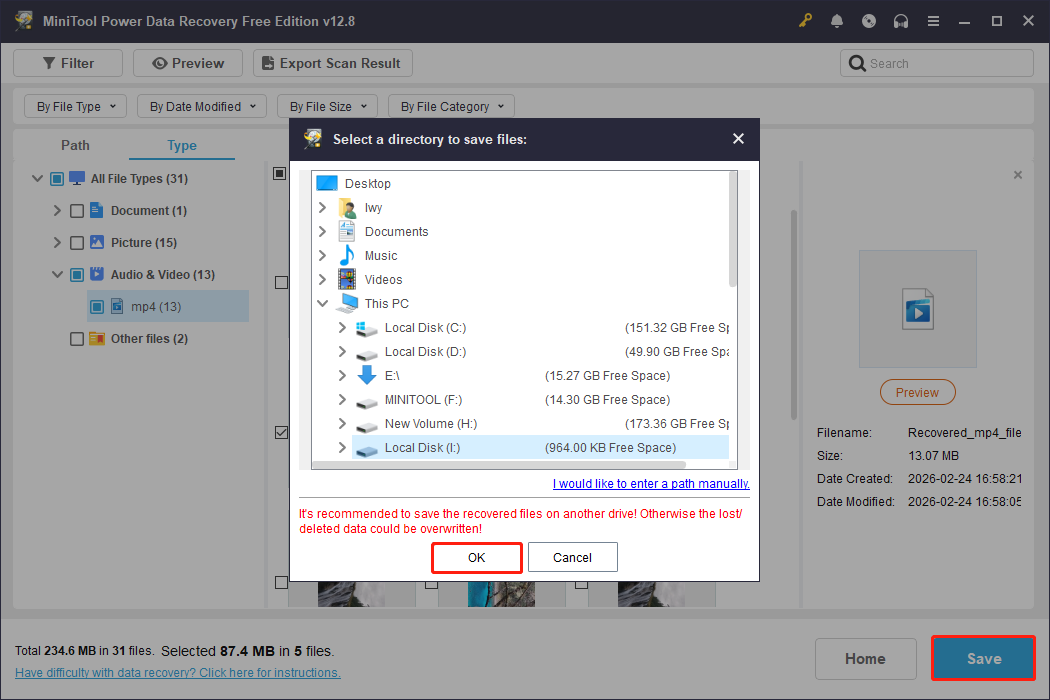
When all the required files are confirmed, check them and click the Save button. There will be a window prompting you to choose a path for the recovered files. Choose a safe one and click OK. The recovery will start.
When the Recovery Completed window shows, click the View Recovered button to check your videos.
If the lost videos were not stored on your USB drive or MicroSD card, read the next section for other recovery strategies.
Other Options to Recover Your Deleted Blink Videos
Data recovery software can help recover accidentally deleted Blink videos from local storage devices.
In addition, for deleted Blink videos stored elsewhere, try checking shared devices, cloud storage, or backup locations.
Option 1: Check Shared Devices
Blink supports adding multiple devices under one account, and the “Shared Access” feature allows multiple people to view the video.
If your videos are deleted, you can ask someone who has logged into your account to see if they downloaded the video to their local device. You can also check if you’ve shared the lost videos; if so, find the shared video.
Option 2: Recover from Cloud Storage
As mentioned above, when you store a video both in the cloud and locally, if the local videos are deleted, you can still access them through the cloud.
For the Blink cloud:
Open the Blink app, tap the Clips icon at the bottom of the app, and go to the Cloud section to see all stored videos.
For third-party cloud:
Most services (Google Drive, OneDrive, Dropbox) provide a recycling service. They retain deleted files for 30-90 days.
- Google Drive: Go to the Recycle Bin folder in the left sidebar, right-click the file, and select Restore. Files are retained for 30 days.
- Microsoft OneDrive: Access the Recycle Bin on the website to restore files; files are retained for up to 93 days.
- Dropbox: Check the Deleted Files section in the sidebar to restore items.
If you can’t find deleted videos, check your locally synced devices.
Option 3: Restore from USB Local Storage
If you are using Sync Module 2 with a USB flash drive (or Sync Module XR with a MicroSD card) as local storage, check if the videos may still be on that drive.
To locate the deleted videos, follow these steps:
Step 1: Safely eject the USB drive/MicroSD card from the Sync Module and insert it into your computer.
Step 2: Locate the blink folder. Within this folder, you will find subfolders organized by year and month.
How to Save/Share Clips
After the videos are recovered, proper storage and convenient sharing are equally important. This section introduces how to save and share videos.
How to save Blink videos:
Step 1: Launch the Blink app on your mobile device.
Step 2: Tap Clips in the bottom navigation bar. This opens the list of recorded videos.
Step 3: Tap the clip you want to save, and then it will start playing.
Step 4: Tap anywhere on the playing clip to show options like pause and share.
- On iOS: Tap Share (upper left corner), then choose Save. The clip will be stored in your Camera Roll. The first time you save a video clip, the system will prompt you to allow the Blink app to access your photos. Tab OK to grant permission.
- On Android: Tap Save to save the video.
Open your phone’s gallery or camera roll to confirm the video has been saved.
How to share Blink videos:
Step 1: Refer to steps 1-4 above for saving the video to display the share option.
Step 2: Tap Share, and then a menu will appear.
Step 3: From the share menu, you can send the clip via:
- Messaging apps (e.g., WhatsApp, Messenger, SMS)
- Other installed apps that support video sharing
Step 4: Select the recipient and send. The clip will be delivered as a video file.
Tips to Prevent Future Video Loss
To prevent future Blink video loss, consider the following:
- Enable cloud sync: Ensure Blink videos are automatically uploaded to Blink cloud storage or other cloud drives to avoid relying solely on local storage.
- Back up videos regularly: Regularly copy videos to an external hard drive to create multiple backups.
- Use high-quality storage media: Choose reliable microSD cards or USB storage devices, avoiding cheap or unbranded products.
- Properly power off/remove devices: Safely eject USB or SD cards before removing them to prevent data loss.
- Establish good file management habits. Save videos by date or event to reduce the possibility of accidental deletion. Regularly clean up unused videos to avoid accidentally deleting important content due to an excessive number of files.
Final Words
Blink video deletion doesn’t mean the data is completely lost. The clips can often be recovered by data recovery software like MiniTool Power Data Recovery, cloud and shared device checks, and system backups.
MiniTool Power Data Recovery FreeClick to Download100%Clean & Safe
More importantly, recovery is the first step, and the subsequent saving and sharing are equally crucial.
Establishing good backup habits, proper file management, and secure sharing methods will ensure that videos are not easily lost in the future.
Should you have any questions about the MiniTool product, our team, [email protected], is always ready to assist you.
User Comments :