

When Windows says “You need to format the disk in drive before you can use it”, do not format the USB flash drive if it contains important files. This guide explains how to recover files from a flash drive that needs to be formatted, why the error occurs, and what you can do to fix the USB drive after your data is safe.
When Windows displays “You need to format the disk in drive before you can use it”, it means Windows cannot properly read the USB flash drive’s file system. This can happen because of file system corruption, an unsupported file system, bad sectors, an interrupted file transfer, or other storage problems.
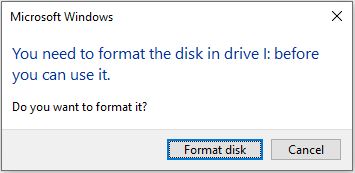
What to Do When a USB Drive Needs to Be Formatted
If you need the files on the USB drive, follow this order:
Action 1. Do Not Format the USB Drive Yet
If the USB drive contains important files, do not click Format. Formatting creates a new file system and can make data recovery more difficult.
The safest order is: stop using the USB > recover important files > verify the recovered files > repair or format the USB.
Action 2. Recover & Save Your Files
Is it possible to recover files from a USB flash drive that needs to be formatted?
Yes! You can utilize one of the best USB data recovery software to retrieve your files from the pen drive that prompts for formatting.
When a USB flash drive says it needs to be formatted, it may be due to a corrupted or unsupported file system in the current operating system.
Therefore, the best app to deal with such a data recovery situation should:
- Be capable of retrieving data from corrupted file systems.
- Recognize and recover files from storage devices that seem unformatted or in RAW format.
- Be user-friendly and have a fast recovery engine to ensure you can extract your files promptly.
Action 3. Find the Cause of the USB Formatting Problem
What causes your flash drive to suddenly indicate that it requires formatting?
There are several factors that may lead to the unformatted error, and it’s important to understand these causes so you can be cautious and avoid this issue with your USB flash drive in the future:
- Incompatible File System: If your USB drive is formatted with EXT3/4 or another file system that Windows doesn’t recognize, Windows will prompt you to format the drive.
- File System Damage: The file system (e.g., FAT32, NTFS, exFAT) on the USB drive may become damaged due to unsafe ejection, power interruptions, or crashes during file transfers.
- Viruses and Malware Infection: USB drives are particularly vulnerable to virus attacks when connected to unsecured devices or used for storing risky files. If a USB drive is infected by a virus, Windows may restrict access to protect your system.
- USB Hardware Malfunctions: Sometimes, hardware malfunctions with the USB drive can lead Windows to recommend formatting. This might be caused by a malfunctioning USB port, a broken USB cable, or issues with the drive itself.
- Bad Sectors: Bad sectors can lead to subpar performance of the USB flash drive and prevent Windows from reaching the data saved on these problematic sectors.
- Physical Damage: A USB drive that has sustained physical damage will cease to function, making repairs significantly more challenging.
- A Brand-new USB: If the USB drive is brand new, it may not have a file system yet. In such situations, Windows will prompt you to format the drive before it can be utilized.
Action 4. Fix the USB Formatting Problem
Once you have secured your data from your USB flash drive, you can move on to repairing it.
Ideally, you should be able to resolve any logical file system errors without needing to format.
Therefore, start by using the Windows Error Checking tool and CHKDSK in Command Prompt to correct file system issues. Additionally, changing the drive letter may potentially fix the hardware conflict.
If these methods fail, formatting the device may be necessary. We offer four ways for you to format your USB effectively and safely.
How to Recover Files from Flash Drive That Needs to Be Formatted
If Windows says the USB drive needs to be formatted, MiniTool Power Data Recovery can help you scan the drive and recover files without formatting it first.
This tool is particularly useful when the drive appears as RAW, becomes inaccessible, or can no longer be opened normally in File Explorer. You can use the software to recover documents, photos, videos, archives, and other common file types from your drive.
This free data recovery tool allows you to recover up to 1 GB of data for free.
MiniTool Power Data Recovery FreeClick to Download100%Clean & Safe
Here’s how to recover data from a USB drive that’s asking to be formatted using MiniTool Power Data Recovery for Windows:
Step 1. Scan the Target USB Drive
Make sure the USB drive is connected to your computer properly.
Open the free file recovery tool to access its primary interface. Here, your USB drive should appear in the Logical Drives tab.
Move your cursor to the target USB drive and click the Scan button to start the scanning process.
Your USB drive might not show a typical volume label because of file system problems. You can determine the target drive by looking at the partition size and drive letter.
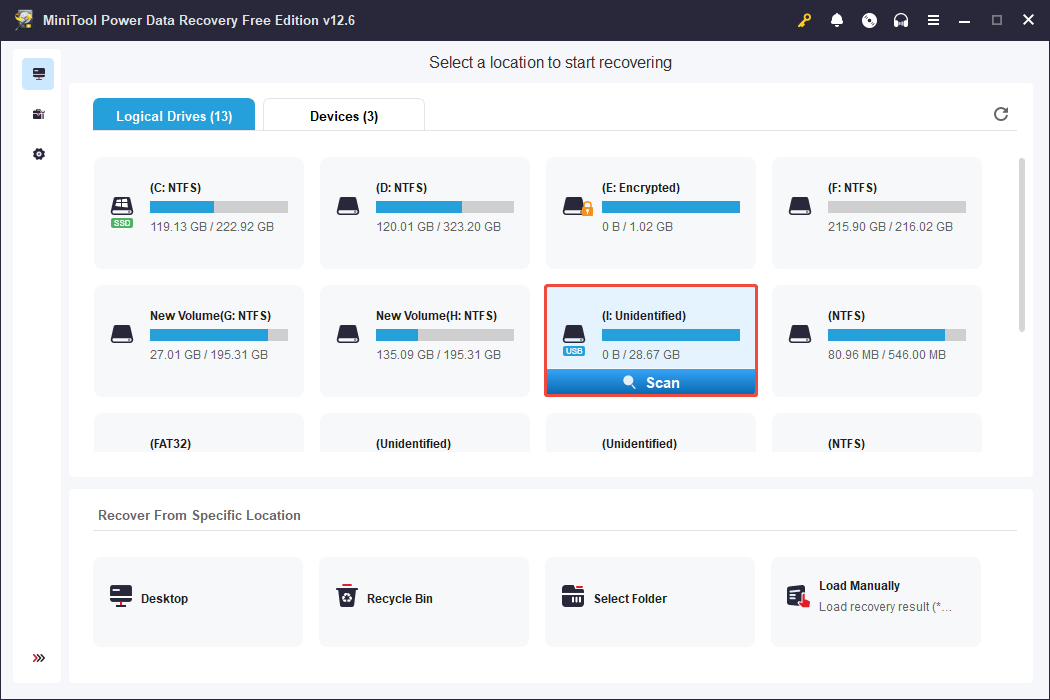
It’s recommended to wait patiently until the scan finishes to obtain the most exhaustive scan results.
Step 2. Filter and Preview the Found Files
Once the scanning process is complete, all found files are shown under the Path category by default. You can remain in this section and expand each folder to search for the files you need.
Alternatively, you can switch to the Type category, which allows you to view and locate files by their type.
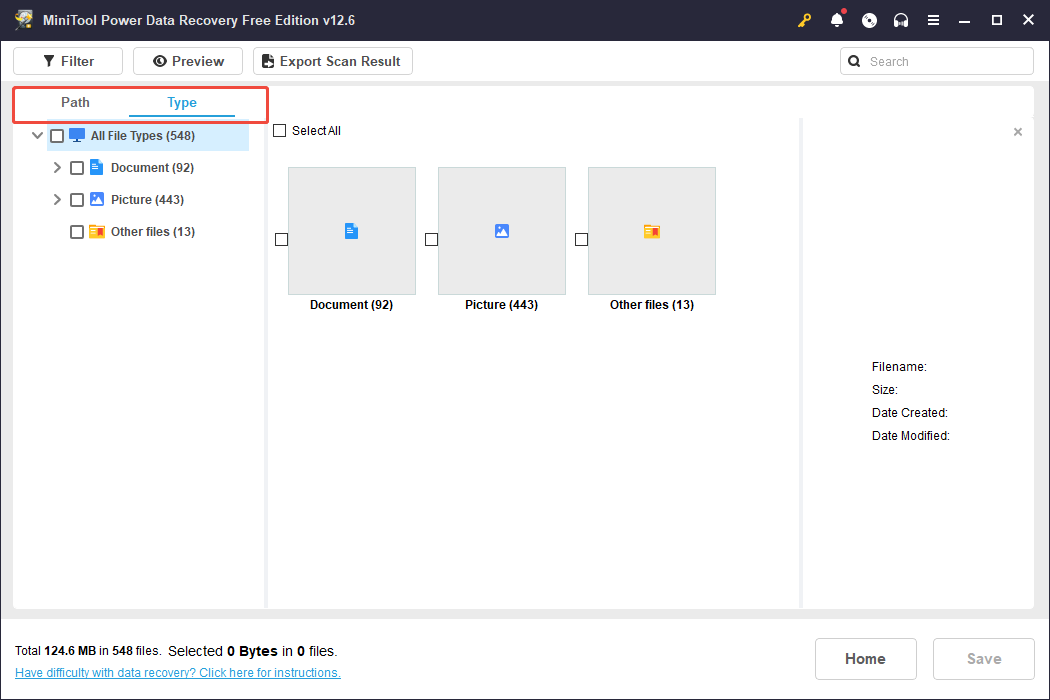
Additionally, this file recovery tool offers two more features to help you locate files more quickly.
- Filter: On the results page after the scan, clicking the Filter button will bring up useful options that allow you to refine the displayed files by file type, modification date, file size, and file category.
- Search: If you’re looking for a specific file, you can type the full or partial file name in the search box at the top right corner and press Enter. This will display folders or files that match the name you entered.
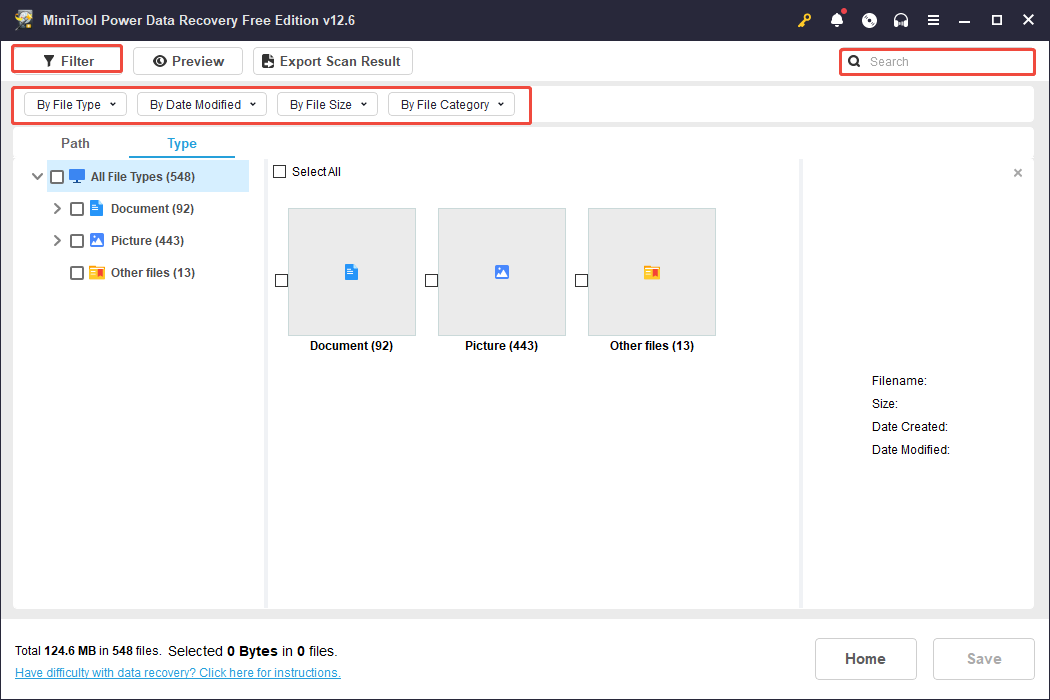
Step 3. Select and Save All Wanted Files
Lastly, check the box next to each necessary file and click the Save button.
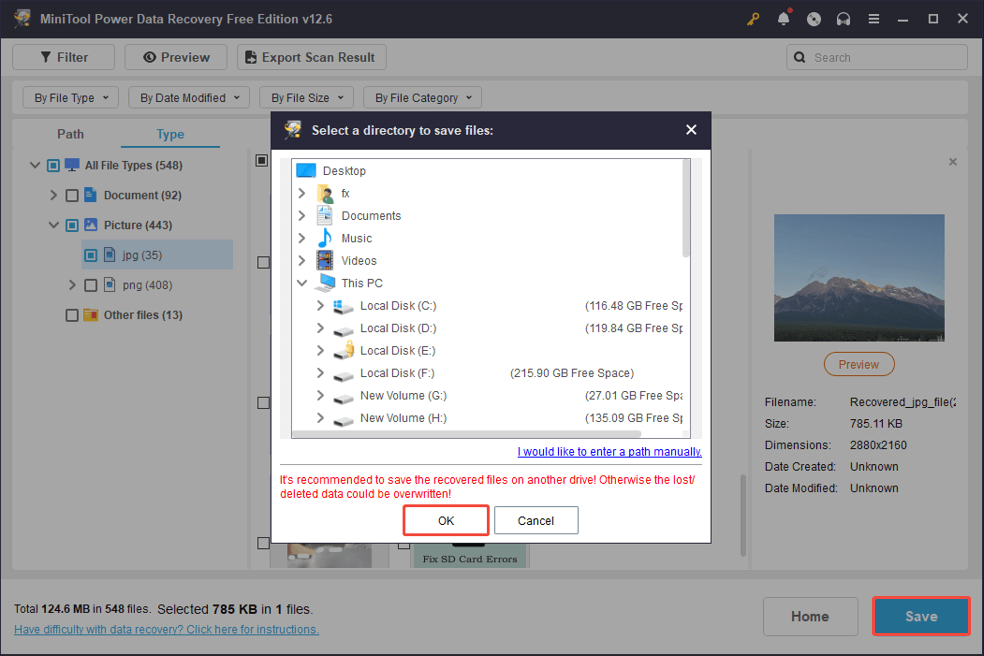
When the small pop-up window appears, select a secure location to save the restored files and click OK.
How to Fix a USB Drive That Needs Formatting
With your important files successfully retrieved, you can consider one of the options below to resolve the issue of a USB drive requesting formatting.
Solution 1. Use the Windows Error Checking Tool
Windows has a built-in tool for checking and repairing disk errors, which may occasionally fix a flash drive that requires formatting.
Step 1. Press Win + E to open File Explorer.
Step 2. Move on to the This PC section, then right-click the target problematic USB and select Properties from the context menu.
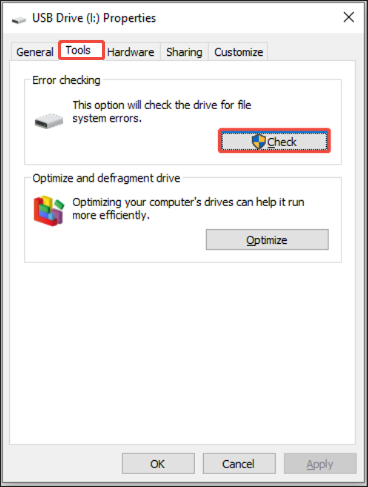
Step 3. Under the Tools tab, click the Check button to check the drive for file system errors.

Solution 2. Change a Drive Letter
In some cases, the problem may be due to a drive letter conflict or a temporary glitch. Some users reported that reassigning a new drive letter solved the problem.
Follow the instructions to do it:
Step 1. Right-click the Start button and select Disk Management.
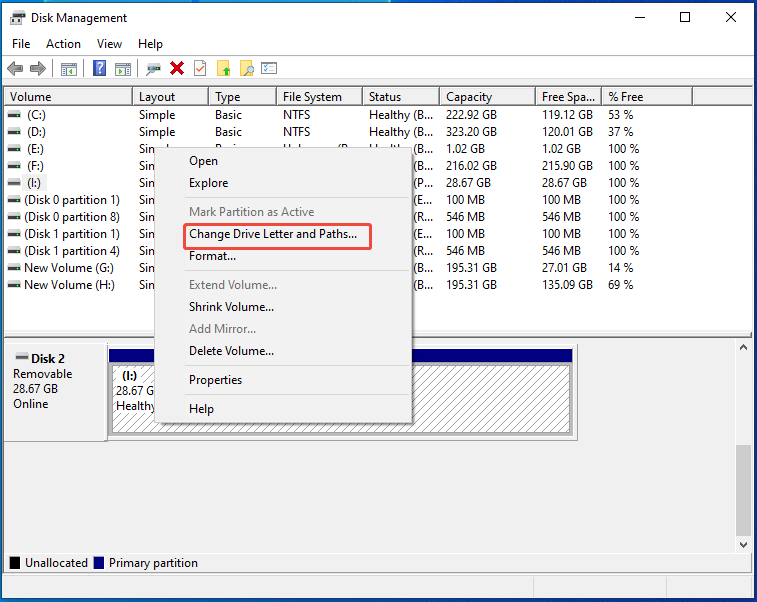
Step 2. In Disk Management, right-click the USB’s partition and then select the option Change Drive Letter and Paths.
Step 3. In the pop-up window, click the Change button. On the next page, select a drive letter and click OK to save the changes you have made.
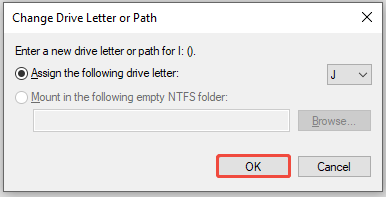
Step 4: Click Yes to confirm the action.
Solution 3. Repair Bad Sectors Using CHKDSK
CHKDSK is a command-line tool in Windows that is utilized to check a drive’s file system for any errors and try to correct them. It can detect and mend logical file system faults, bad sectors, and various other issues.
Here’s how:
Step 1. Run Command Prompt as an administrator.
Step 2. Type chkdsk X: /f (replace X with the drive letter of your USB drive) and press Enter.
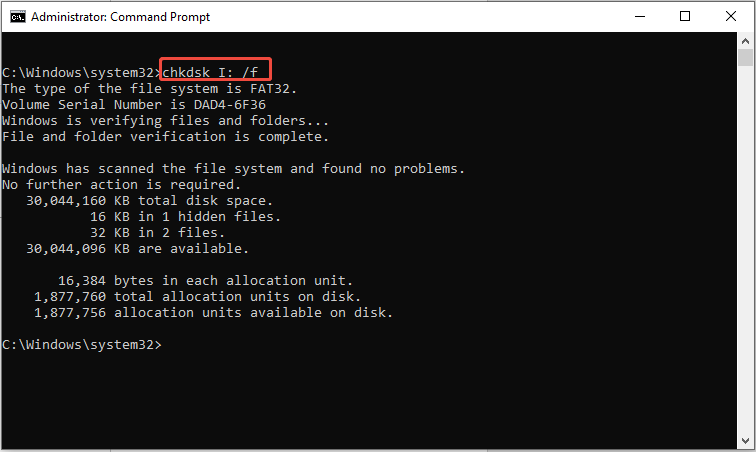
The command will scan your USB drive for errors, display detailed results, and attempt to repair any problems it finds. After it finishes, check if your USB drive is accessible.
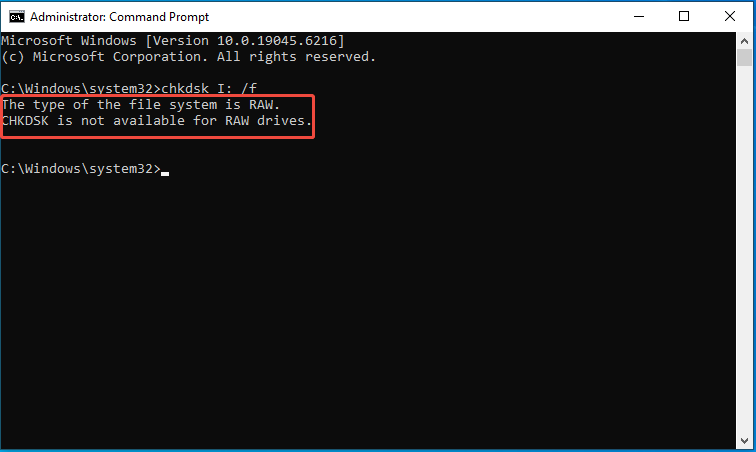
Sometimes, you may receive the error message saying “The type of the file system is RAW. CHKDSK is not available for RAW drives.”
In this situation, you need to format your USB by following the next solution.
Solution 4. Format the USB Drive
If none of the above methods work, the last method is formatting your USB.
Before doing so, make sure you have recovered all the required files. Once confirmed, follow what your OS suggests and format the device.
There are several methods to format a storage device like a USB flash drive on Windows.
Option A. In the File Explorer
File Explorer offers the simplest method for formatting a disk on Windows 11/10. Here’s what to do:
Step 1. Press Win + E to open the File Explorer.
Step 2. Click on This PC. You will view all the drive partitions.
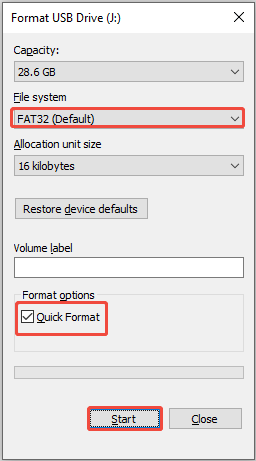
Step 3. Right-click on the USB drive and choose Format from the options presented.
Step 4. Select the file system. For external drives, it is recommended to choose FAT32 or exFAT.
Step 5. Check the Quick Format option.
Step 6. Press Start and then click OK to confirm the formatting operation on the partition.
Option B. In the Disk Management
You can utilize Disk Management to format a new hard drive on Windows or reformat an existing one.
Step 1. Press Win + R to open the Run command window.
Step 2. Type diskmgmt.msc and press Enter to access Disk Management.
Step 3. Right-click on the USB’s partition and choose Format.
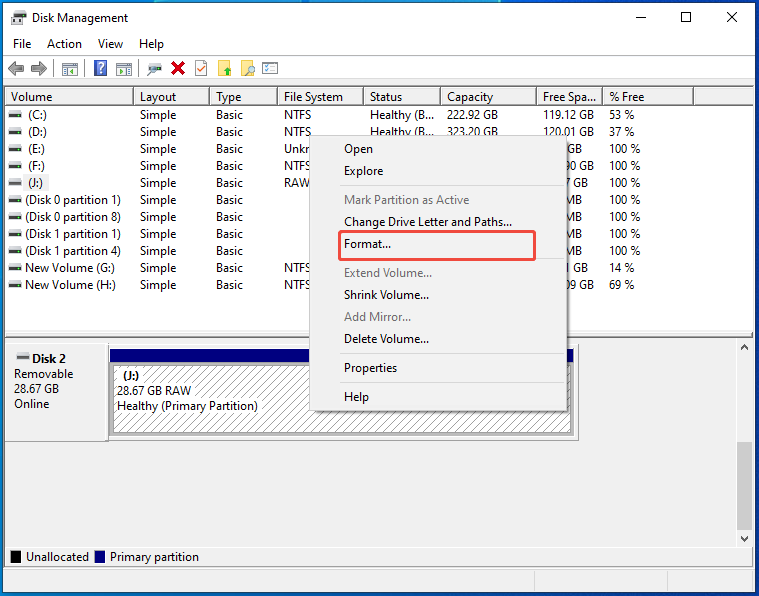
Step 4. Provide a name for the volume, select a file system, check the Perform a quick format option, and click OK.
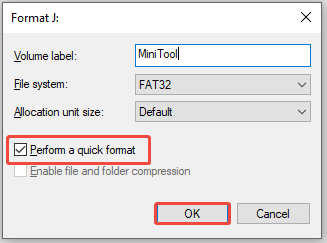
Step 5. Click OK in the pop-up window to finish the formatting operation.
Option C. Use a USB Formatter
Formatting a USB flash drive is quite easy using MiniTool Partition Wizard. This free partition management tool works with almost all of the USB stick brands and supports various file systems, including NTFS, FAT32, exFAT, EX2/3/4, etc.
MiniTool Partition Wizard FreeClick to Download100%Clean & Safe
Here’s how to format a USB using MiniTool Partition Wizard.
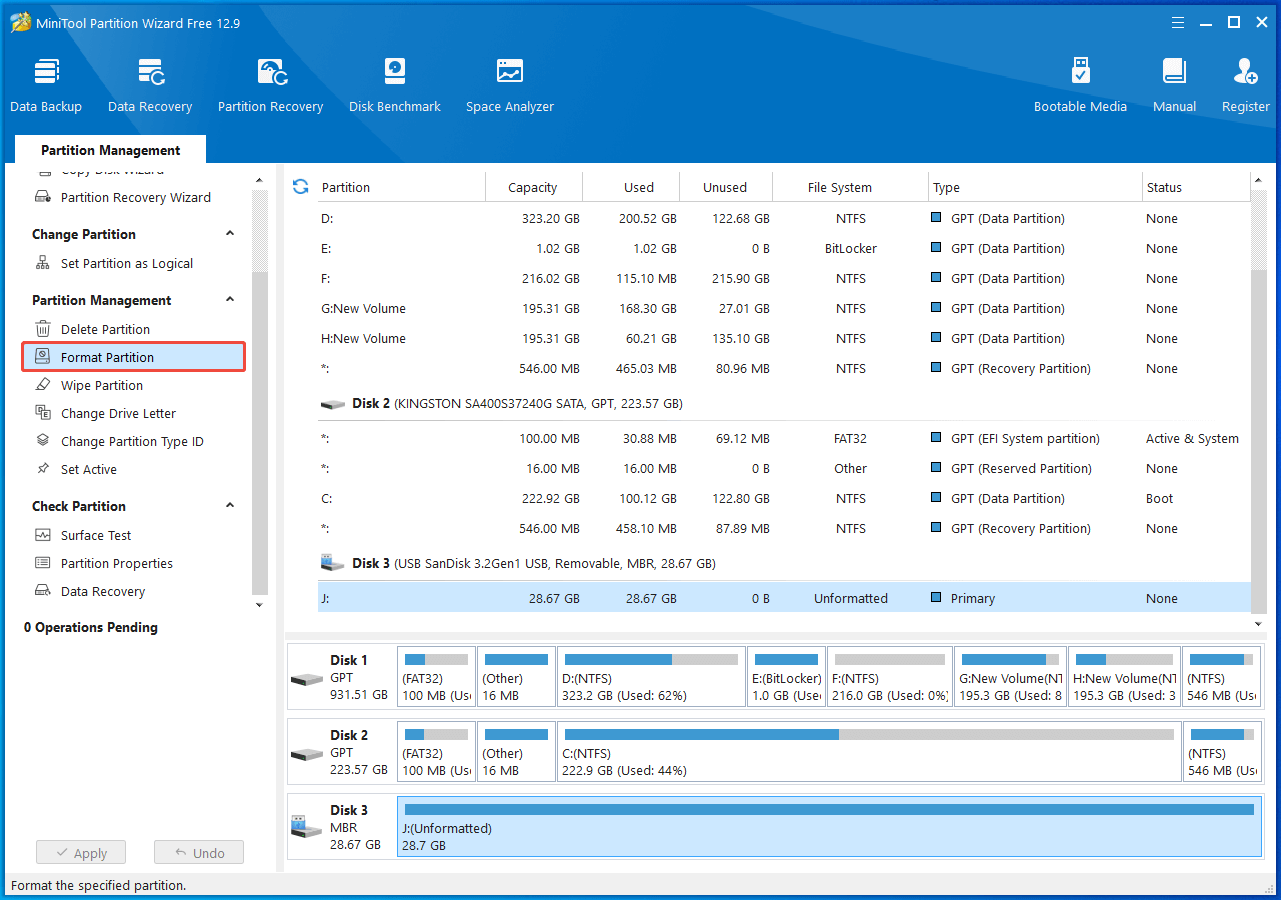
Step 1. Open MiniTool Partition Wizard. Select the USB and then click on the Format Partition option in the action panel.
Step 2. After specifying the partition label and the desired file system, click the OK button to proceed with the process.
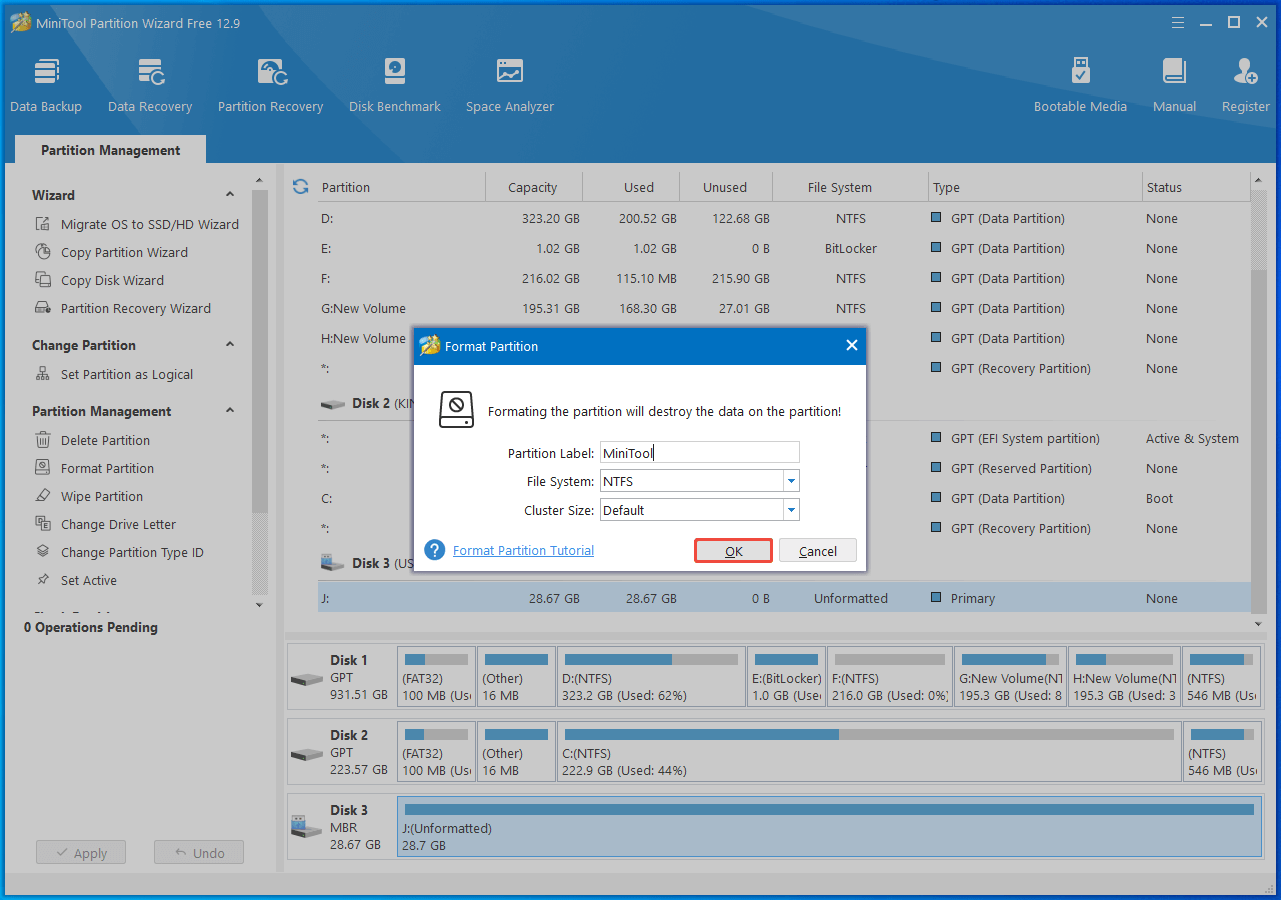
Step 3. Click Apply to carry out the pending operation.
Solution 5. Seek Professional Help
If the data recovery software cannot recover your files and the issue cannot be fixed, the drive may have a physical issue. In such cases, you can contact a professional data recovery service to rescue your data.
How to Avoid Future Occurrences of the USB Needs to Be Formatted Issue
Here are some suggestions to prevent the message that the USB drive needs to be formatted from appearing:
- Ensure that you safely eject your USB drive from your computer.
- Utilize trustworthy antivirus software and keep it updated to safeguard your USB drive against viruses and malware.
- Avoid dropping, bending, or subjecting your USB drive to extreme temperatures and other harmful conditions.
- Regularly back up crucial files from your USB drive to avoid losing data if the drive requires formatting. MiniTool ShadowMaker, a professional Windows backup tool, can help back up files.
MiniTool ShadowMaker TrialClick to Download100%Clean & Safe
Wrap Up
Now you should know how to recover files from flash drive that needs to be formatted on Windows. Additionally, you can try the practical methods mentioned above to repair the unformatted error.
First, consider using the Windows Error Checking tool and changing a drive letter. Then, try using CHKDSK to fix the issue.
If nothing happens, you can choose to format your USB drive from the File Explorer, Disk Management, use DiskPart, or a third-party formatter.
If you encounter any problems or have any questions about MiniTool software, please send an email to the support team via [email protected].
About The Author

Position: Columnist
Shirley holds a bachelor’s degree in English and has been an editor at the MiniTool Team for many years. She specializes in IT-related content, with a focus on data recovery, file backup, disk management, and other technical topics. She is committed to delivering clear, accurate, and practical solutions to help users resolve common computer issues.
User Comments :