

A CF (CompactFlash) card is a robust, high-speed flash memory card introduced by SanDisk, used for devices such as cameras, camcorders, and more.
It has progressed from earlier Type I/II formats to quicker CFast and CFexpress standards for demanding applications.
However, like other storage devices, CF card data can sometimes get lost. If you are facing a CF card data loss situation, read on to see if it is possible to recover it.
Is It Possible to Recover Deleted Files From a CF Card
The good news is that CF card recovery is often Possible, but it depends on several factors.
In the following content, we will explore the types of data loss, TRIM, and causes of CF card data loss, and share tips that can improve the recovery chances.
Continue reading to get detailed information.
#1. The Types of Data Loss
Whether the lost data on a CF card can be recovered depends on the type of data loss. There are two types of data loss:
- Physical data loss: It occurs due to hardware malfunctions, such as a damaged card from being dropped or affected by water, requiring specialized repairs.
- Logical data loss: It is caused by software issues or user mistakes, such as unintentional deletion or damage from viruses, which often be resolved using software solutions.
#2. TRIM and Its Impact on CF Card Recovery
TRIM definition: TRIM is a command that helps your operating system to inform the disk which data blocks are no longer in use and can be safely erased.
When you or the operating system issues a delete command, TRIM will wipe the pages or blocks containing the files.
How the TRIM command affects the CF card:
- Traditional CF cards do not support the TRIM command due to their IDE/ATA interfaces, meaning deleted files remain until overwritten, increasing recovery chances.
- CFexpress cards use PCIe and NVMe interfaces, which may support TRIM during file deletion or full formatting. If TRIM has been executed, CF card recovery is impossible.
#3. Common Scenarios for CF Card Data Loss
Here are some common situations that can lead to file loss on a CF card:
- Viruses or malware infection
- Accidental deletion
- Unintentional formatting
- Unexpected power loss or failure
- Physical damage
- Interruption during file transfer
- Corruption of the CF card
- Crash of the computer system
- Malfunction of the memory chip
#4. Tips to Perform CF Card Recovery
When you notice data loss on your CF card, remember these tips:
- Stop using the CF card immediately to prevent overwriting any data.
- Safely eject the CF card to avoid further damage. Do not connect it to your computer until you are prepared to start data recovery.
- Check the backup of the CF card files. You need to check the backup files if you have backed up your CF card.
- Use professional CF card recovery software as soon as possible for a better chance of recovery.
Now, keep reading to learn how to recover files from a CF card.
How to Perform CF Card Recovery on Windows
In this part, we provide a powerful and trusty data recovery tool to help you carry out a CF card recovery on Windows — MiniTool Power Data Recovery, which is 100% safe and robust.
MiniTool Power Data Recovery FreeClick to Download100%Clean & Safe
Why Choose MiniTool Power Data Recovery
There are some features for this free data recovery tool:
| Supported storage devices | CF cards, SD cards, USB drives, HDDs, SSDs, etc. |
| Supported file types | Photos, documents, audio, videos, archives, etc. |
| Supported data recovery scenarios | Accidental deletion, drive corruption, virus infection, disk formatting, and more. |
| Operating system compatibility | Windows 11/10/8/8.1 |
| Supported file systems | exFAT, FAT32, NTFS, Ext2, Ext3, Ext4, and more. |
| Free edition | Free file preview and 1 GB of file recovery for free |
| Ease of use | Simple recovery steps and an easy-to-use interface |
Now, follow the instructions to recover files from a CF card using MiniTool Power Data Recovery.
Steps for CF Card Recovery Using MiniTool Power Data Recovery
Step 1. Scan the CF Card
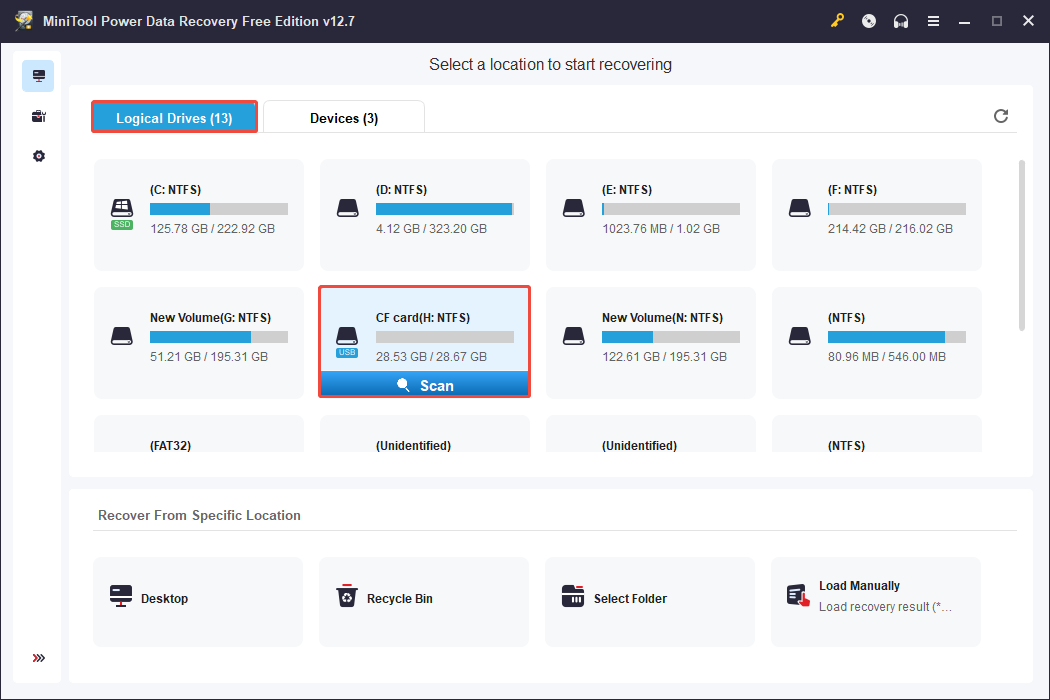
On the home page of this free recovery tool, you are in the Logical Drives recovery module by default.
Select your CF card with a USB icon and click Scan to start scanning files.
In addition, you can move on to the Devices module and scan the entire disk.
Step 2. Locate and Preview the Desired Files
After the scan is completed, all existing, lost, or deleted files are displayed. You can effectively find the wanted files by using various sorting and filtering options.
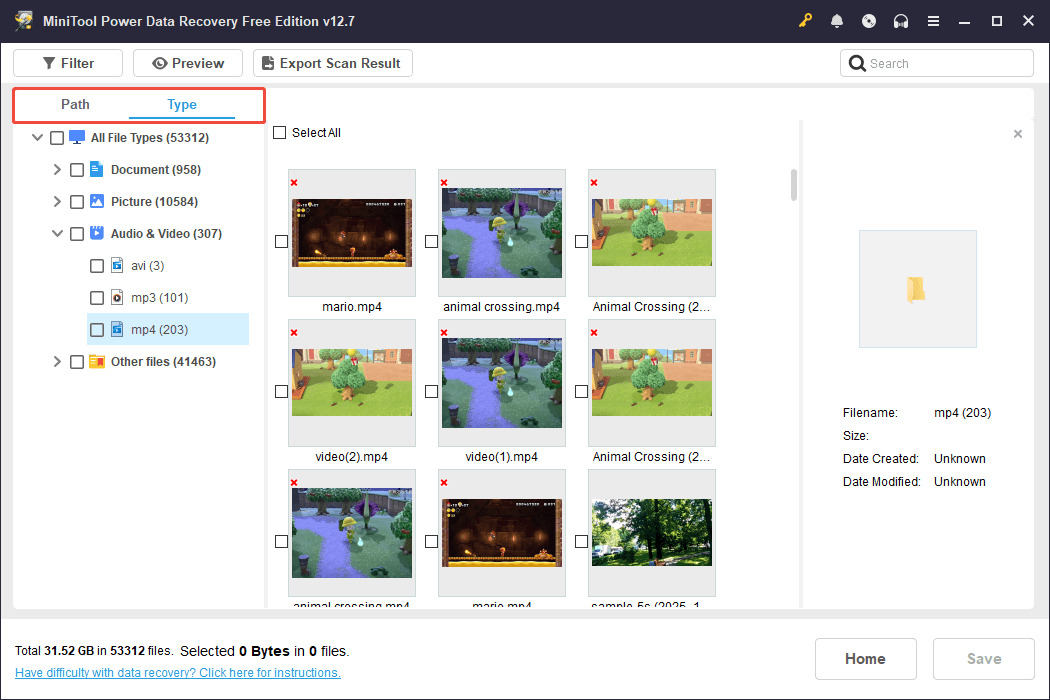
To change file views, toggle between the Path and Type tabs:
- The Path tab organizes files according to their original directory structure.
- The Type tab sorts files by format, including documents, pictures, videos, emails, and more.
For a more targeted file search, utilize the Filter and Search features:
- The Filter option allows you to refine results by file type, last modified date, file size, and file category.
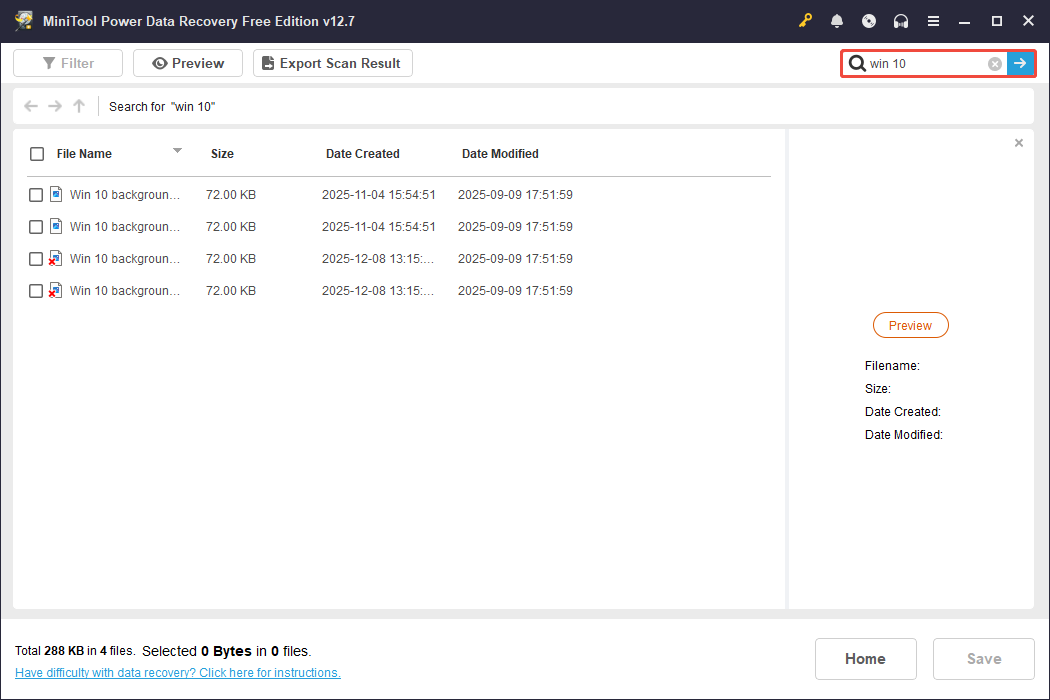
- The Search feature allows you to swiftly locate a specific file by typing its complete or partial name in the search box and pressing Enter.
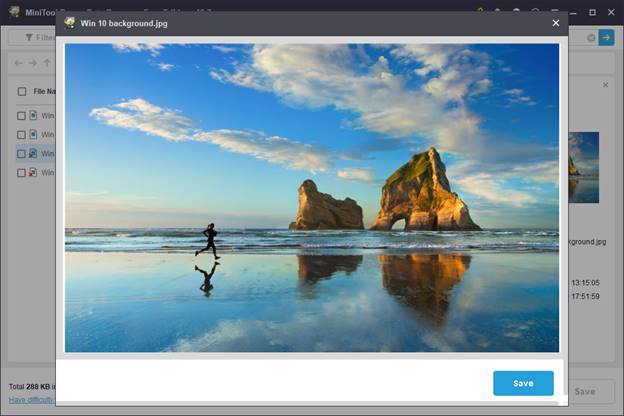
In addition, for data accuracy, you can double-click on each of the files to preview them.
Step 3. Save Needed Files
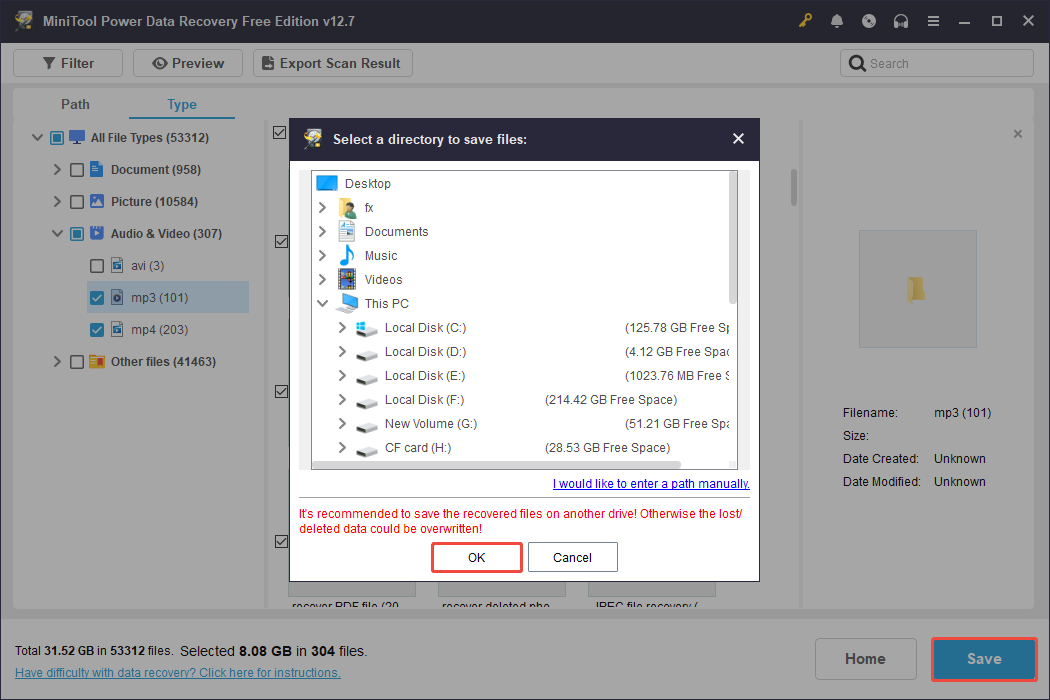
Check all the files you want to recover, and then click the Save button in the lower right corner. Choose a safe location in the new window and click OK to start the recovery.
How to Troubleshoot CF Card Issues on Windows
Sometimes, you may encounter some common issues with the CF card as listed below:
- The CF card is unreadable.
- The CF card is not showing up in File Explorer.
- The CF card displays as RAW.
- The CF card is not detected.
- The CF card is corrupted with an error message “corrupt memory card”.
- The CF card is not showing files on the PC.
- The CF card can’t write data.
To resolve these problems, consider using the solutions below.
Fix 1. Check CF Card Connection
First, to make sure the poor connection is not the major culprit for the card issue, there are basic steps you can take:
- Reinsert the CF Card: Remove the CF card and gently place it back into your phone, camera, or computer.
- Use Another Device or Card Reader: Try connecting the CF card to another device or using another card reader to rule out issues related to your current device.
- Reboot the PC: Restarting your computer can sometimes reset connections and help identify the card.
Fix 2. Unhide CF Card Files
If the CF card doesn’t show files and folders on the PC, but you are sure they are here, your files might be hidden.
Here’s how to make them visible:
Step 1. Connect your CF card to your PC.
Step 2. Search for Control Panel using the Windows search box and click Control Panel to open it.
Step 3. Select Large icons under View by, and then click File Explorer Options.
Step 4. Go to the View tab, and check Show hidden files, folders, and drives. Then click Apply > OK to save changes.

Fix 3. Remove Write Protection
If your files in the CF card can’t be modified, deleted, or copied on the PC, the card may be write-protected. Follow these steps to remove the write-protection from your CF card in DiskPart:
Step 1. Run Command Prompt as an administrator.
Step 2. In the pop-up window, type diskpart and press Enter.
Step 3. Type the following commands one by one and press Enter after each:
- list disk (It will list all disks on your computer)
- select disk 2 (replace 2 with the disk number of the CF card)
- attributes disk clear readonly

Fix 4. Use CHKDSK
If you have received an error message “corrupt memory card” or “memory card error”, it means the file system on your CF card may be corrupted.
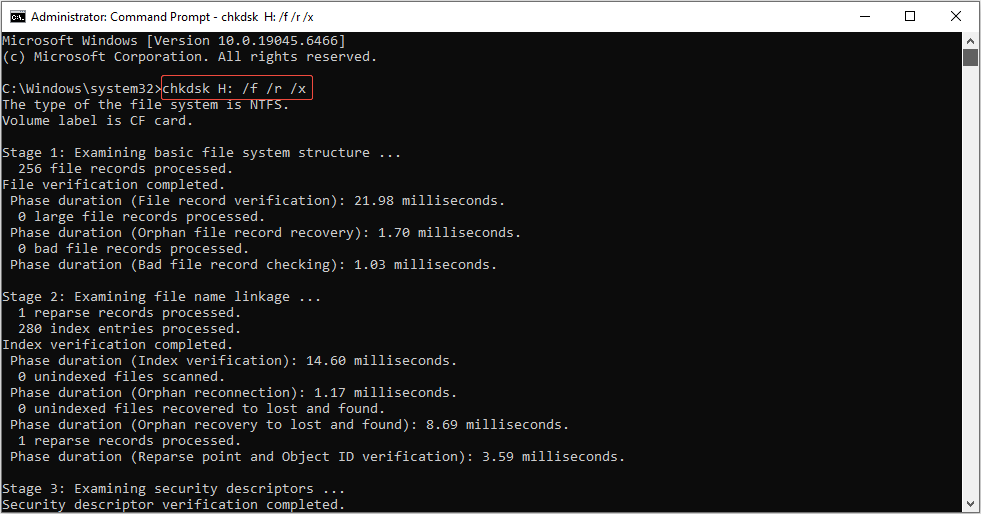
In this case, consider using CHKDSK to check and repair file system errors and isolate any bad sectors on the CF card.
Here’s the breakdown to run CHKDSK:
Step 1. Press Win + S to open the Windows search bar, type cmd, right-click Command Prompt, and select Run as administrator.
Step 2. Type chkdsk H: /f /r /x in the window and press Enter (Replace H with the drive letter of your CF card).
- H is the drive letter of the disk you want to check.
- /f repairs incorrect file index or a corrupted directory structure.
- /r contains all the functionalities of /f while also checking for bad sectors and trying to recover any readable data.
- /x forces the volume to unmount to ensure the drive is not being utilized, allowing CHKDSK to operate without issues.
Fix 5. Update or Reinstall Driver
Sometimes, an outdated driver will trigger your CF card to be unreadable or unrecognized. Therefore, ensure that your driver is up-to-date.
If there are no available updates, try reinstalling the driver to fix this issue.
>> Update the driver:
Step 1. Press Win + X to open the Power User menu and select Device Manager.
Step 2. Expand the Disk drives category, right-click your CF card, and choose Update driver.
Step 3. In the pop-up interface, select Search automatically for drivers.
>> Reinstall the driver:
Step 1. Open Device Manager.
Step 2. Expand Disk drives, right-click your CF card, and select Uninstall device.
Step 3. Click Uninstall.
Step 4. Restart your PC, and the system will automatically reinstall the driver.
Fix 6. Change the Drive Letter
If your CF card is detected by Windows and shows in Disk Management but not in File Explorer, it may fail to assign a drive letter.
In this situation, follow the steps to assign a drive letter to the card:
Step 1. Press Win + X and select Disk Management.
Step 2. Right-click the CF card from the disk map and select Change Drive Letter and Paths.
Step 3. In the pop-up window, click the Add button.
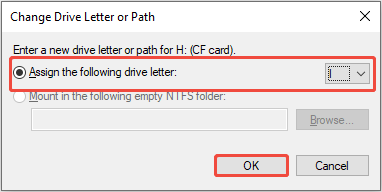
Step 4. Choose Assign the following drive letter and select a letter from the drop-down menu.
Step 5. Click OK to save the change.
Fix 7. Format the CF Card
Formatting your CF card should be the final method to restore the card to a usable state.
Formatting the card will create a fresh file system, resolving problems such as file system corruption, compatibility errors, virus attacks, and bad sectors.
Here’s how to do it:
Step 1. Open Disk Management, right-click your CF card, and select Format.
Step 2. In the pop-up window, select the file system, set the volume label, check the Perform a quick format option, and click OK.

Sometimes, the Windows tool may encounter issues and freeze while trying to format a drive. In such situations, you can utilize a free and professional card formatter – MiniTool Partition Wizard.
This tool not only supports formatting the CF card to NTFS/FAT32/exFAT/Ext4 but also allows for converting FAT32 to NTFS without any data loss.
MiniTool Partition Wizard FreeClick to Download100%Clean & Safe
Final Words
To perform CF card recovery on Windows, use MiniTool Power Data Recovery to scan the card and recover lost or deleted files.
If you encountered any CF card issues mentioned above, try the solutions according to your actual situation.
If you have any questions when using MiniTool’s products, please send an email to the support team via [email protected].
User Comments :