

CFast card data recovery can be achieved through several methods. Before starting the recovery process, verify that the missing files are not simply hidden due to system settings or file system errors. If the files are actually missing, use data recovery software or consult professional data recovery services.
Deleted or formatted files on a CFast card can often be recovered with MiniTool Power Data Recovery, as long as the lost data has not been overwritten by new files.
1. Stop using the CFast card immediately after data loss to avoid overwriting the deleted data. When recovering files, save the recovered data to a different storage device.
2. For accidental deletion, formatting, or other logical issues, MiniTool Power Data Recovery can scan the CFast card and recover photos, videos, and other files.
3. If the CFast card is physically damaged, software-based recovery may not work. In such cases, professional data recovery services may be required to extract data directly from the storage media.
CFast cards are commonly used in professional cameras to store high-resolution photos and videos. However, accidental deletion, formatting, corruption, or physical damage can make files inaccessible.
A common question that arises when file loss occurs is: Can I recover my videos and photos from a CFast card?
Continue reading to learn detailed information.
Is It Possible to Recover Files From CFast Cards
The possibility to recover photos or videos from a CFast card typically depends on whether the files have been overwritten or whether the card has been physically damaged.
In most cases of file loss, recovery is possible. However, there are certain situations where recovery may not succeed. Check the reasons for the CFast card file loss first of all.
Common Causes of CFast Card Data Loss
- Accidental deletion: Videos or photos may be deleted due to user factors while organizing or transferring them.
- Card formatting: An accidental format of the card can erase all files stored on it.
- Interrupted transfers: Power loss or sudden card removal during file transfer can result in data loss.
- File system errors: Files can become invisible or deleted due to errors in the file system of the card.
- Physical damage: The CFast card can encounter physical damage caused by bending, dropping, water exposure, or high temperatures.
In some cases, the files are not permanently deleted but are simply hidden. Therefore, the first step is to show hidden files rather than attempting data recovery software.
Before Recovery: Show Hidden Files & Repair File System Errors
Under certain circumstances, files on your CFast card may be hidden due to virus infections, file system errors, or incorrect system settings. Therefore, try showing hidden files or repairing the integrity of the file system.
1. Check for Hidden Files
Here is how to show hidden files on Windows:
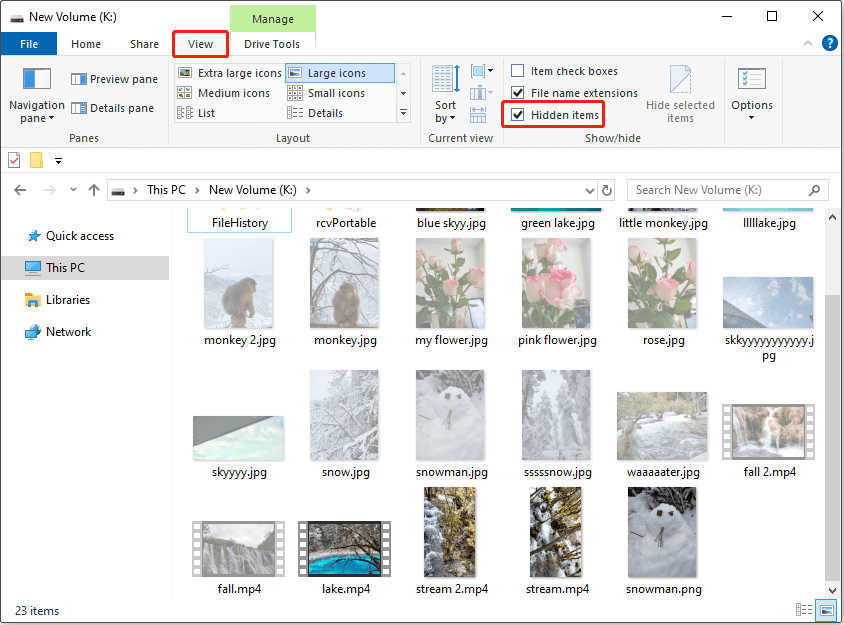
On Windows 10:
Step 1. Open File Explorer and go to the View tab.
Step 2. Select the box for Hidden items.
On Windows 11:
Step 1. In File Explorer, click the View menu.
Step 2. Select Show > Hidden items from the context menu.
If your files are still invisible, try the next solution.
2. Run CHKDSK
To repair issues with the file system, run the CHKDSK command.
Step 1. Type cmd in the Windows search box. When Command Prompt shows up, right-click it and choose Run as administrator.
Step 2. Input chkdsk X: /f /r /x and press Enter. Replace X with the drive letter of your CFast card.
For example, if the letter is K, input chkdsk K: /f /r /x and press Enter.
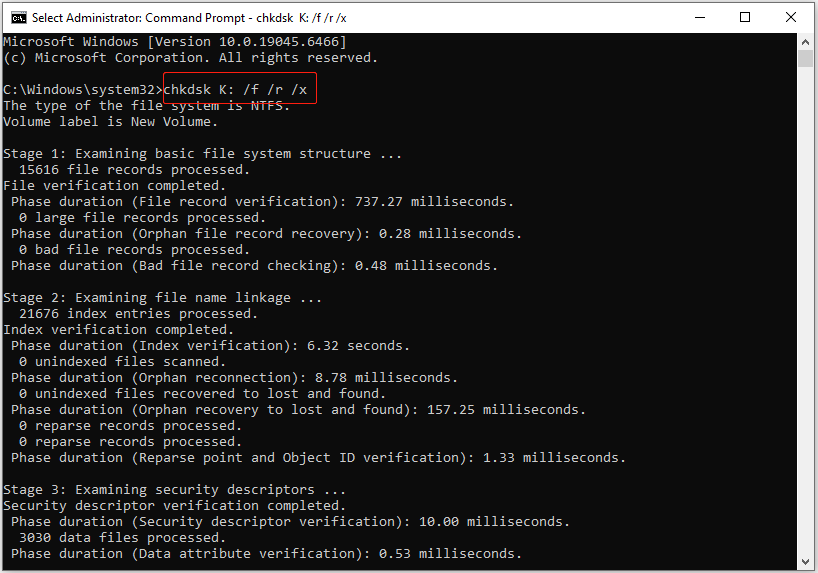
Wait for the CHKDSK command to complete, and then check if your files on the CFast card appear. If not, they are most likely deleted.
In this case, use the following methods to recover them.
How to Recover Files From CFast Cards
The next section outlines the process of recovering files from a CFast card using free data recovery software – MiniTool Power Data Recovery.
In addition, if you prefer not to perform the recovery process yourself, consider seeking assistance from an offline data recovery service.
Method 1. Use Data Recovery Software
MiniTool Power Data Recovery is a professional data recovery tool that is fully compatible with Windows 11/10/8.1/8.
This recovery tool stands out from other data recovery tools on the market for the following reasons:
- Comprehensive file type support: It supports recovering all types of files, including videos, photos, audio, and other types of data.
- Flexible data loss case support: It allows you to recover CFast card files lost due to accidental deletion, card formatting, partition loss, virus infection, and card corruption.
- Safe recovery: During the recovery process, it ensures that no new files are written to the disk or the original data is modified, guaranteeing a secure data recovery.
- User-friendly interface: It has an intuitive and easy-to-use interface that helps recover files without any difficulty.
- 1 GB of free recovery: The free edition of this tool supports recovering 1 GB of files in total for free.
Now, download, install, and run MiniTool Power Data Recovery to perform CFast card data recovery.
MiniTool Power Data Recovery FreeClick to Download100%Clean & Safe
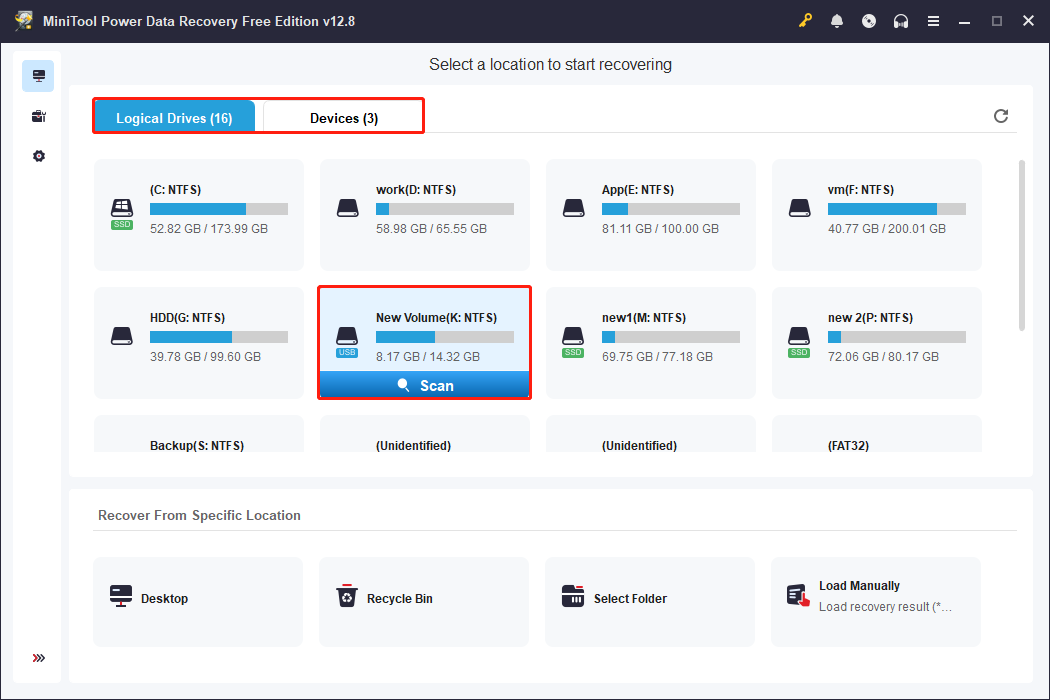
Step 1. Scan the CFast card.
On the main interface of this recovery tool, find the CFast card partition under Logical Drives, select it, and click Scan. Then the tool will start scanning it for recoverable files.
If you have difficulty finding the CFast card partition here, go to the Devices tab to scan the entire card.
Step 2. Find and preview the videos/photos.
After the scan is completed, it is time to find and select the files you want to recover.
The MiniTool recovery tool offers two file viewing options:
- Path: This option displays files based on their original folder structure. It is useful for recovering files that retain their original folder hierarchy.
- Type: This option organizes files according to their file type and specific data format. For example, if you want to recover videos individually, focus on the Audio & Video section under the Type view.
In addition, if there are many scan results, use the Filter or Search features to find the required files faster.
- Filter: It allows you to filter out unwanted files by file type, modification date, file size, and file category.
- Search: It enables you to search for a specific file or folder by using a partial or complete file/folder name.
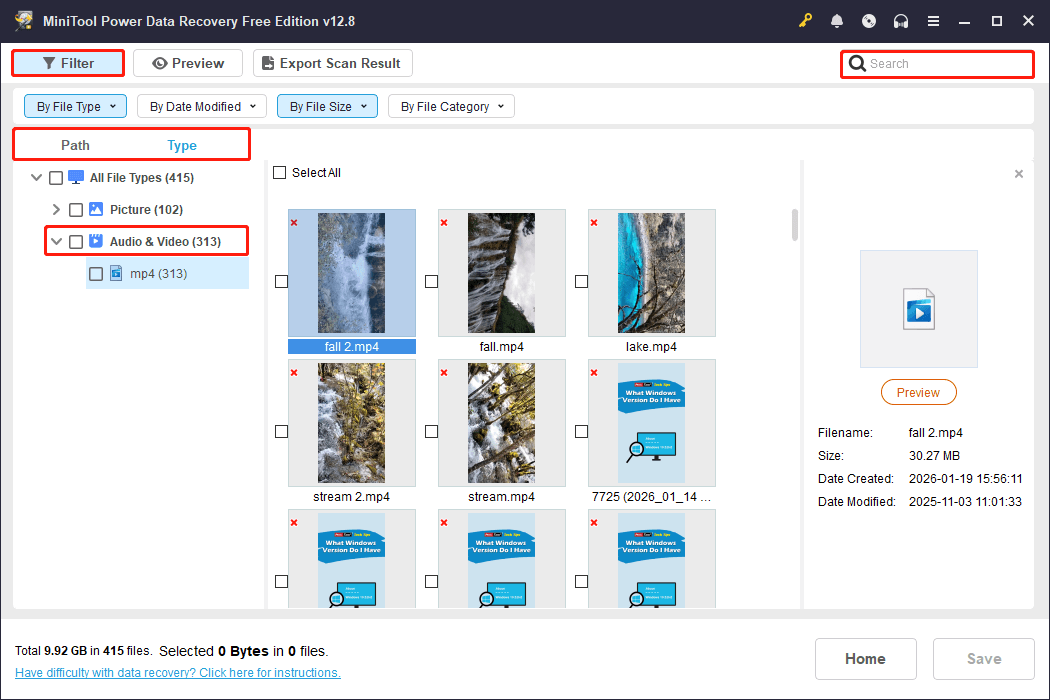
To preview a file before recovery, double-click it.
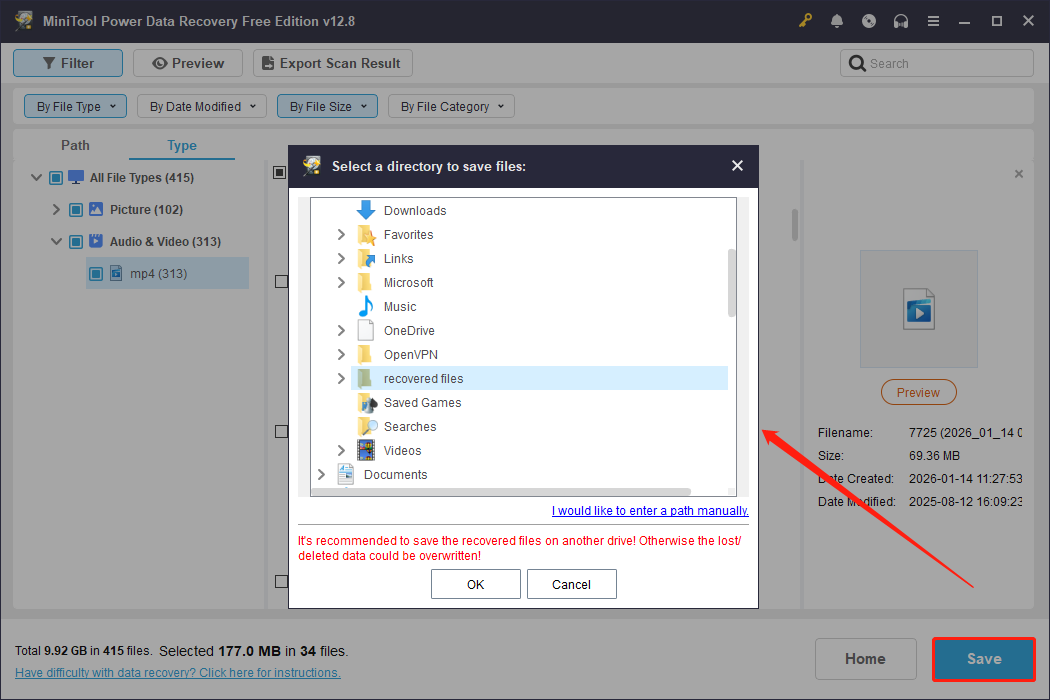
Step 3. Save the required files.
Finally, browse the detected files and ensure that all the items you want to recover are selected. Then, click the Save button and choose a safe location to store them.
Do not save the recovered files to the original CFast card so as to avoid data overwriting.
Method 2. Seek Help From Data Recovery Services
In rare cases, CFast card data recovery software may fail to detect your card. For example, there is severe file system corruption or hardware issues on the card. In these cases, you cannot recover files by yourself.
However, there is still a possibility that your files can be recovered by sending your card to a specialized disk repair or data recovery center.
Before proceeding, it is essential to search on Google to choose a reputable and secure agency to ensure the safety of your data.
After successfully recovering files from your CFast card, it is crucial to take protective measures to prevent future data loss.
Below are some effective preventative measures to ensure the safety of your CFast card and the data stored on it.

Useful CFast Card File Loss Preventive Measures
#1. Use Your Card Properly
CFast cards are prone to damage, which may cause files stored on them to become inaccessible or lost. To minimize these risks, consider the following actions:
- Eject the card safely: Do not remove the card from your device without using the safely eject option or a similar function.
- Do not eject the card while the camera is powered on: Before removing the card, make sure your camera is powered off.
- Avoid recording when the camera’s battery is low: Low battery power during shooting may cause file corruption or incomplete data saving.
- Do not continuously fill the card to its maximum capacity: Keeping filling up the card can lead to slower performance and potential data loss.
- Avoid using the card in extreme environments: Using the card in extremely hot or wet conditions can cause physical damage to the card.
- Do not connect the card to untrusted devices: Connecting the card to unknown devices may expose it to viruses or malware.
#2. Back up Important Files Regularly
Data backup is a great option to ensure that even if the card becomes damaged or files are lost, you can still recover your data.
Regularly save copies of important videos or photos stored on your CFast card to a more secure long-term storage device, such as an HDD. CFast cards are not designed for long-term storage.
Every time you prepare to delete files or format the card, ensure that backups of your important data exist.
FAQs About CFast Card Data Recovery
Final Thoughts
Overall, this article explains how to carry out CFast card data recovery.
First, try modifying system settings to show hidden files or running CHKDSK to repair file system errors.
If that does not help, use data recovery software or go to a file restore agency to restore your files.
If you encounter any issues while using MiniTool Power Data Recovery, please send an email to the support team at [email protected].
About The Author

Position: Columnist
Shirley holds a bachelor’s degree in English and has been an editor at the MiniTool Team for many years. She specializes in IT-related content, with a focus on data recovery, file backup, disk management, and other technical topics. She is committed to delivering clear, accurate, and practical solutions to help users resolve common computer issues.
User Comments :