

Whether you can recover deleted Ring videos depends on where they were stored. Deleted cloud videos are permanently removed, but a previously shared copy may still be accessible through its Share Link. For videos downloaded to local storage, check the Recycle Bin or backups first. If that does not help, MiniTool Power Data Recovery may help recover locally deleted videos.
Quick Answer
You may be able to recover deleted Ring videos, but it depends on where the video was stored:
- Deleted from Ring cloud: The original video cannot be restored after deletion. However, a previously shared video may still be accessible through its Share Link.
- Previously downloaded: Check your phone, computer, USB drive, or other storage for the downloaded copy.
- Deleted from local storage: Check the Recycle Bin and backups first. If no backup exists, data recovery software may recover the video if the deleted data has not been overwritten.
Can Deleted Ring Footage Be Recovered
The recovery of a deleted Ring video depends on its storage and deletion method. Manually deleted or expired cloud videos cannot be restored, but previously downloaded videos may still be recoverable from local storage devices like computers or USB drives.
>> When the recovery is impossible:
If a Ring video is deleted from the cloud and has not been shared with others, it cannot be recovered. Ring does not provide a Recycle Bin or previous versions for deleted videos, even with a subscription.
According to Ring customer support, once a video is deleted from the cloud, it is permanently removed from the server, and even Ring itself cannot restore it.
>> When the recovery is possible:
Case 1: Shared cloud videos
According to the official documentation, if a cloud video was shared with others via a Share Link, it may still be accessible through that link. This applies even after the video is deleted from the Ring app.
Case 2: Downloaded cloud videos
A Ring video downloaded to your computer or phone will not be deleted when it is removed from the cloud.
Case 3: Videos deleted from local storage
If a Ring video was deleted from a local device, check whether it was backed up automatically. If a backup exists, the videos can be restored from the backup.
If no backup is available, data recovery tools can help recover it as long as it has not been overwritten by new data.
The following sections explain the effective methods to recover deleted Ring videos.

How to Recover Ring Videos Deleted From Cloud
To recover Ring videos deleted from the cloud, check shared links or downloaded files on your computer or other local devices.
Approach 1. Recover Ring Videos From Shared Links
Ring provides a video sharing feature that allows you to share videos through the Ring app, email, text messages, or a Share Link.
A Share Link may remain effective after the video is deleted from the Ring app. Therefore, review the Share Link to determine whether the video is still accessible. If not, proceed to the next recovery option.
Approach 2. Check Downloaded Files
The length of time Ring videos are stored in the cloud varies depending on your settings.
In the US, the default storage time is 30 days for 4K devices and 60 days for 2K and 1080p devices. Depending on your settings, videos can be stored for up to 180 days in the cloud.
Downloading videos to a phone or computer is a good option to keep important videos beyond 180 days. Downloaded videos are not affected when the original files are deleted from the cloud.
Therefore, think carefully whether you have previously downloaded the videos. If not, the videos may have been permanently deleted and cannot be recovered.
To help prevent video loss in the future, refer to the tips provided later in this article to protect your recordings.
How to Recover Downloaded Ring Videos
In the next section, we will explain how to restore downloaded videos from internal hard drives or removable storage devices.
If the videos were deleted from an internal hard drive, they may still be available in the Recycle Bin, which temporarily stores deleted files on Windows. If the videos are not found there, a backup or free data recovery software is required.
Approach 1. Check the Recycle Bin
The Recycle Bin is a temporary storage location for files deleted from an internal hard drive using standard deletion methods. When performing deleted file recovery, it is always the first place to check.
Step 1. Double-click the Recycle Bin icon on your desktop to open it.
Step 2. Browse the files by file name or data type to locate the videos you want to recover. Select them, right-click, and choose Restore to return them to their original location.
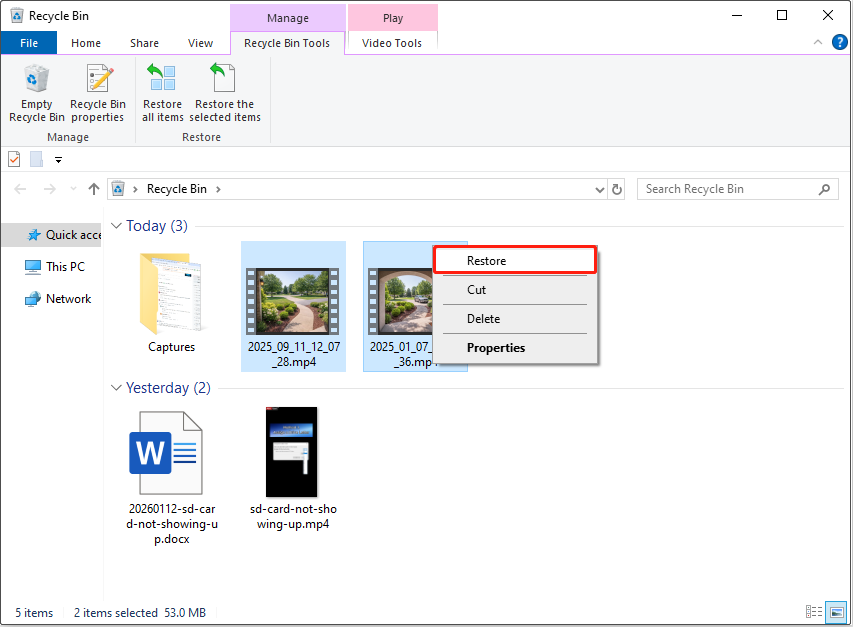
Alternatively, you can drag and drop the files to another location.
Note that files deleted using Shift + Delete or other methods that bypass the Recycle Bin are not stored there.
Approach 2. Check for Backups
Windows offers several data backup options, including the built-in File History feature and cloud storage services (for example, OneDrive).
If File History is enabled, your videos may have been backed up automatically. If the files were uploaded to a cloud service, copies may still exist there.
To recover files from the File History:
Step 1. Type Restore your files with File History in the Windows search box and press Enter.
Step 2. Find the videos you want to recover, select them, and click the green Restore button to restore them to their original location.
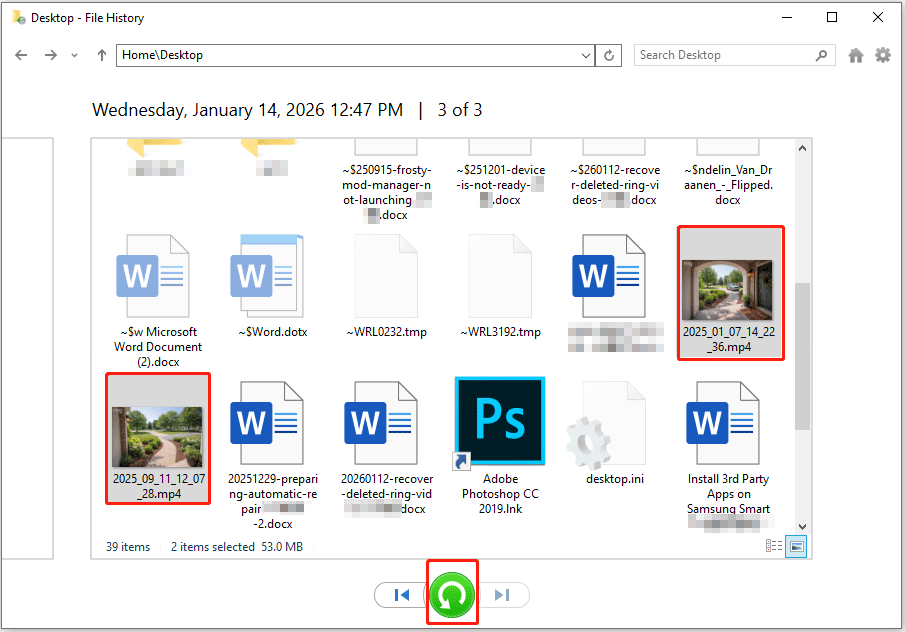

To recover files from the cloud:
Step 1. Open the cloud service app or visit its official website.
Step 2. Log in to your account and check if your files are there. If yes, download them.
If there is no backup available, use MiniTool data recovery software to retrieve your Ring videos.
Approach 3. Use MiniTool Power Data Recovery
If the Ring video was downloaded to a Windows PC, USB drive, SD card, or another local storage device and then deleted, MiniTool Power Data Recovery can scan the device for recoverable files.
Recovery is more likely to succeed when the deleted data has not been overwritten and the storage device is not physically damaged.
The free edition of this software allows you to recover up to 1 GB of files at no cost. Download, install, and run the software to recover your Ring videos.
MiniTool Power Data Recovery FreeClick to Download100%Clean & Safe
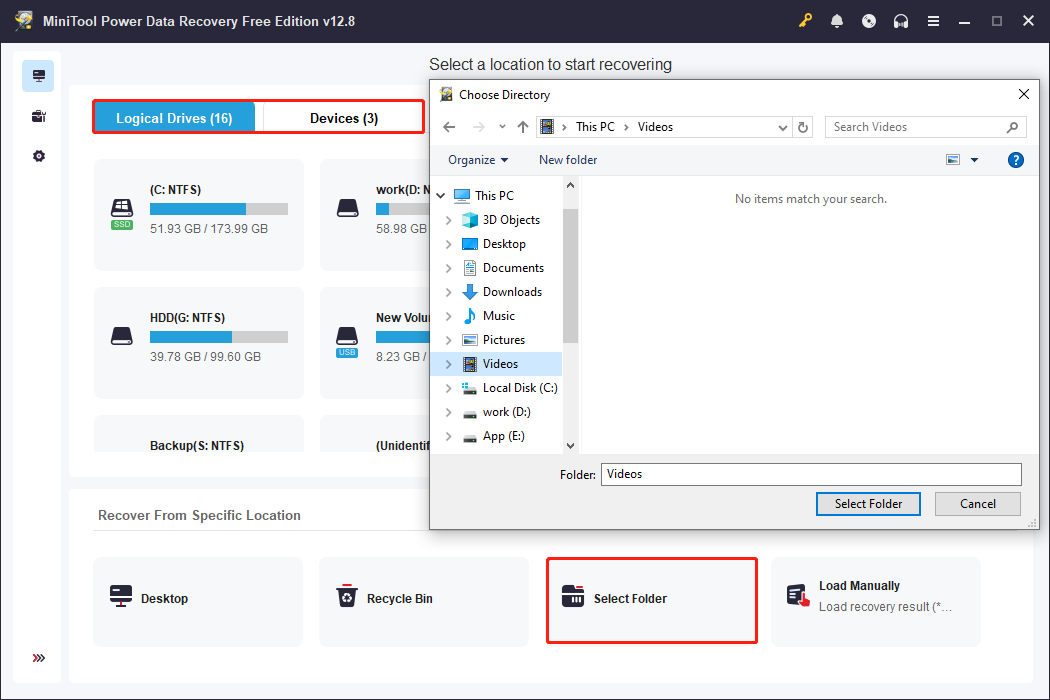
Step 1. On the main interface of this recovery tool, you have three scanning options:
- Logical Drives: This module displays all disk partitions on your computer, allowing you to scan the partition where the lost videos should exist.
- Devices: This tab lists all physical disks connected to your PC, allowing you to scan an entire disk rather than an individual partition.
- Recover From Specific Location: Under this section, you can scan the desktop, the Recycle Bin, or a specific folder individually. In most cases, this reduces the scanning duration.
We take scanning the Videos folder as an example.
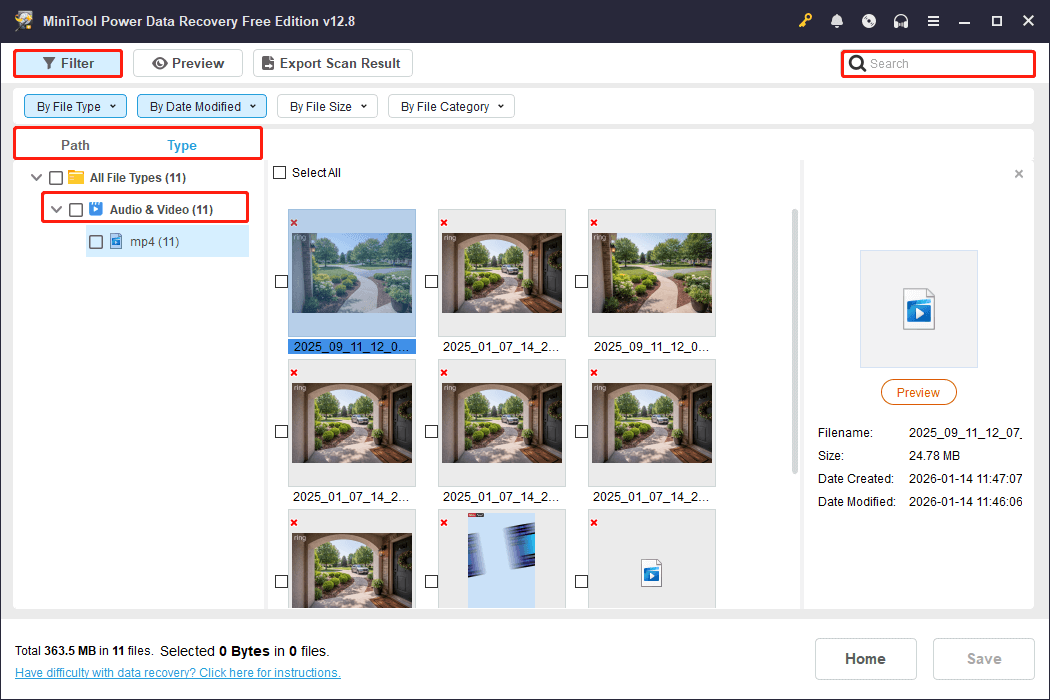
Step 2. After the scan is completed, expand folders under the Path tab to find and select the Ring videos you want to recover.
Alternatively, switch to Type and expand Audio & Video to locate video files faster.
In addition, MiniTool offers two more features to help you narrow down the scan results further.
- Filter: It allows you to filter files by file type, date modified, file size, and file category.
- Search: It enables you to search for a specific file using a partial or full file name. If the Ring video does not have a specific name, try searching by a year, such as 2025.
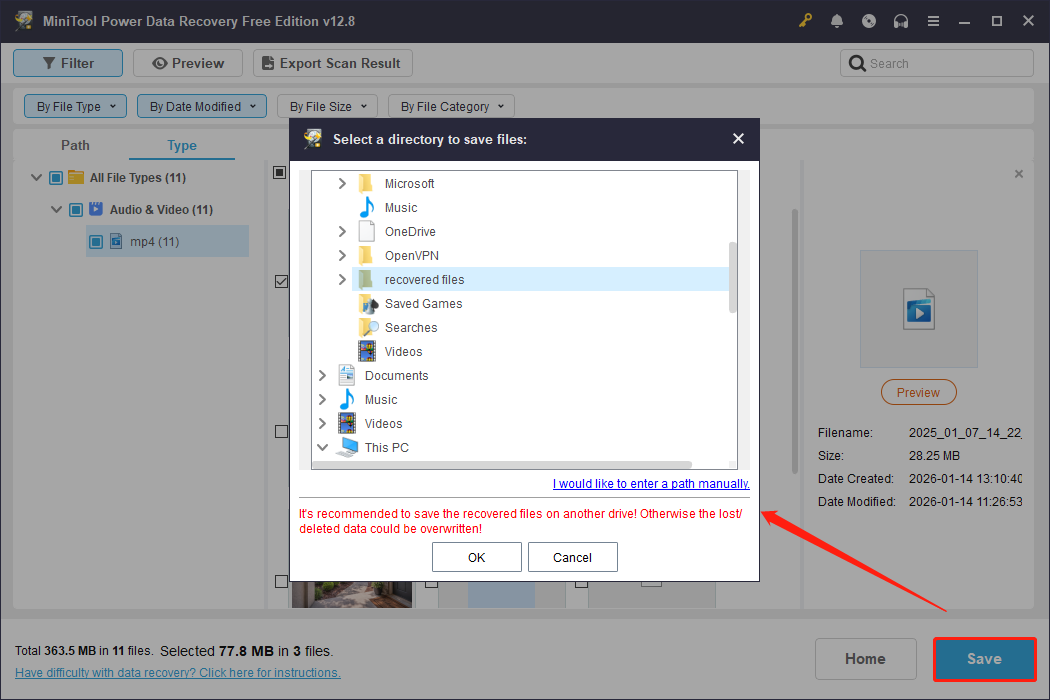
Step 3. Before recovery, double-click on each of the target videos to preview them.
Finally, make sure all required files are selected, and click Save. In the new window, choose a safe location separate from the original location to store the recovered files.
After the recovery process is completed, click View Recovered to check and use the recovered Ring videos.
In the next section, we will provide several useful tips to help prevent Ring videos from being permanently lost.

Tips for Safeguarding Ring Videos
Regardless of whether the lost videos are recovered, it is essential to take measures to protect your videos from being lost in the future.
For example, you can extend the video storage time, download important videos to your phone or PC, or prevent unauthorized devices from accessing your account.
Change the Video Storage Time
By default, for active subscriptions, the video storage period is 30 or 60 days, depending on the device. After this period, videos will be automatically deleted and cannot be recovered.
To have more time to download or view your videos, consider changing the storage time to a maximum of 180 days.
Change the time in the Ring app:
Step 1. Open the Ring app to the main dashboard.
Step 2. Tap on Control Center > Video and Snapshot Storage > Video and Snapshot Storage Time.
Step 3. Select Edit next to the target device, and then choose a storage time. The storage time for each device must be set individually.
Change the time from a web browser:
Step 1. Access Ring.com and log in to your account.
Step 2. Navigate to Account > Control Center > Video and Snapshot Storage > Video and Snapshot Storage Time.
Step 3. Tap Edit next to the target device, and set up the storage time.
Download Important Videos
To keep your recordings for more than 180 days, you should download them to your phone or computer.
Download videos from the Ring app:
Step 1. Launch the Ring app to the main dashboard.
Step 2. Tap History.
Step 3. Scroll to the video you want to download, then tap the three-dots icon.
Step 4. Select Download.
Download videos from a web browser:
Step 1. Log in to your account on Ring.com.
Step 2. Select History > Manage (the pencil icon).
Step 3. Choose the videos you want to download and select Download.
Additionally, if you store important videos on an internal hard drive, it is recommended to enable File History and include the videos in the backup source.
In this way, if the local videos are deleted, they can be easily restored from the backups.
Delete Unauthorized Devices on Your Account
Removing unauthorized devices from accessing your Ring account is essential to prevent unauthorized deletion of your videos.
Remove unauthorized devices from the Ring app:
Step 1. Open the Ring app to the main dashboard.
Step 2. Select Control Center > Authorized Client Devices. Then delete any devices that you do not recognize.
Remove unauthorized devices from a web browser:
Step 1. Open Ring.com and sign in to your account.
Step 2. Select Dashboard.
Step 3. Select Account > Control Center > Authorized Client Devices. Review the devices and delete the untrusted ones.
Bottom Line
If you deleted a Ring video from the cloud, the original recording cannot be restored. However, check any existing Share Links or previously downloaded copies before giving up.
For a Ring video deleted from a computer, USB drive, SD card, or other local storage, check the Recycle Bin and backups first. If neither works, MiniTool Power Data Recovery may help recover the deleted video if it has not been overwritten.
If you face any issues with MiniTool software, feel free to contact our support team at [email protected].
User Comments :