

Many users wonder how to recover dash cam videos when important footage goes missing. First, check for backups. If none are available, stop using the storage device and try data recovery software to recover the lost videos.
Quick Answer: How to Recover Dash Cam Videos?
To recover dash cam videos, stop using the SD card or USB drive immediately to avoid overwriting the lost footage. Check your backups first. If no backup is available, use data recovery software to scan the storage device and recover the deleted footage.
How Does a Dash Cam Store Video Footage
Dash cams usually save recordings to a microSD card, though some models also support USB or cloud storage. Because storage is limited, most use loop recording to continuously overwrite older footage.
Loop Recording
When the storage device is full, loop recording automatically replaces older videos with new ones instead of stopping the recording. The amount of footage retained depends on storage capacity, video quality, frame rate, and other settings.
If a recording is important, back it up as soon as possible to avoid losing it through automatic overwriting.
Protected or Locked Footage
Many dash cams use a G-sensor or event-detection feature to protect footage from impacts or other emergency events. Some models also allow you to manually lock important clips so they are not overwritten during normal loop recording.
However, protected files can still be lost if the SD card is formatted, corrupted, or damaged. Back up important footage to another location whenever possible.
Cloud Storage
Some dash cams can automatically upload recordings to cloud storage. If a video is missing, check the dash cam’s companion app or cloud account for a backup. Availability and retention periods vary by model and service plan.
Because dash cams continuously record and manage stored footage, videos can be lost for several reasons. The most common causes are described below.
What Causes Dash Cam Video Loss
Dash cam videos can disappear for several reasons, including automatic overwriting, accidental deletion, formatting, storage device corruption, and other technical problems.
- Overwriting: Most dash cams use a continuous loop recording method. When the memory card is full, the camera automatically starts deleting the oldest files to free up space for new ones.
- Accidental deletion: Mistakes when watching or managing videos can cause important clips to be deleted by accident.
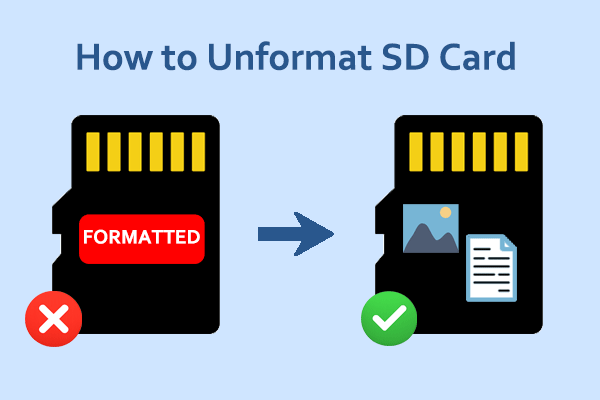
- Disk formatting: If the SD card or USB drive is mistakenly formatted, all videos stored on it will be completely deleted.
- Card corruption or damage: The card can be logically corrupted or physically damaged due to sudden power loss, improper ejection, or wear and tear. This can make the files deleted or inaccessible.
Whether you can recover dash cam videos depends largely on what happened to the storage device.
If new recordings have overwritten the lost footage, recovery may no longer be possible. However, accidentally deleted, formatted, or corrupted files may still be recoverable if the original data has not been overwritten.
For this reason, stop using the dash cam or its storage device as soon as you notice that important footage is missing.
Now, let’s see how to recover them.

How to Recover Dash Cam Videos
If important dash cam footage is missing, stop recording immediately and remove the SD card or USB drive if possible. Continued recording may overwrite the lost footage and reduce the chance of recovery.
Next, check your cloud storage, computer, external drive, or phone for a backup. If no backup is available, use data recovery software to scan the SD card or USB drive for recoverable footage.
If software cannot recover the footage, consider a professional data recovery service.
Way 1. Check Your Backups First
Before scanning the storage device, check whether the missing dash cam footage has already been backed up. Depending on your dash cam setup, look in your cloud storage, computer, external drive, or the companion app on your phone.
If you cannot find a backup, the next step is to scan the SD card or USB drive with professional data recovery software.
Way 2. Recover Dash Cam Videos with Data Recovery Software
If no backup is available, you can try MiniTool Power Data Recovery to scan the SD card or USB drive for deleted or lost dash cam videos. It supports common storage devices and file systems and allows you to preview recoverable files before saving them.
It is 100% safe and robust, with the following features:
| Supported storage devices | SD cards, USB drives, HDDs, SSDs, etc. |
| Supported file types | Videos, photos, documents, audio, archives, etc. |
| Supported file systems | FAT32, exFAT, NTFS, Ext2, Ext3, Ext4, etc. |
| Supported data recovery scenarios | Accidental deletion, partition loss, drive corruption, virus infection, disk formatting, etc. |
| OS compatibility | Windows 11/10/8/8.1 |
| Free edition | Free file preview and 1 GB of free data recovery |
| Ease of use | Simple recovery steps with intuitive interface |
Now, get the free edition of this recovery tool and launch it to recover your dash cam videos.
MiniTool Power Data Recovery FreeClick to Download100%Clean & Safe
Before recovering files, connect your SD card or USB drive to your computer.
Step 1. Scan the SD card or USB drive.
On the home page of the recovery software, select your SD card or USB drive partition, which is marked with a USB icon, and click the Scan button.
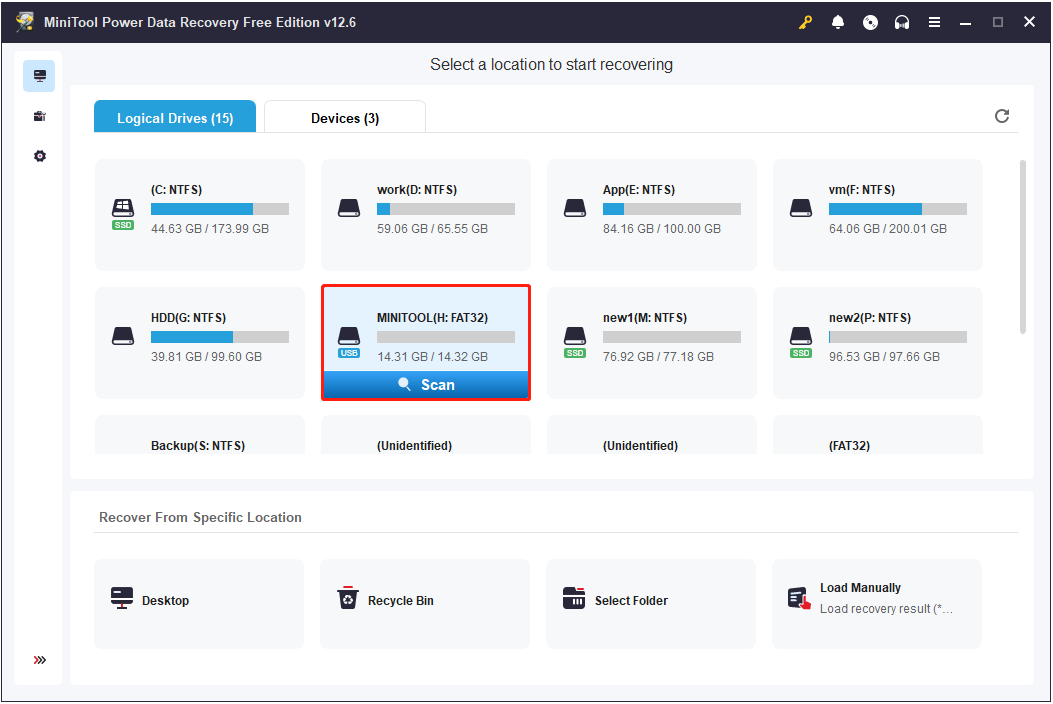
The software will start to scan the selected drive for lost, deleted, and existing files. To get complete results, wait for it to finish automatically.
Step 2. Find and preview desired videos.
Once the scan is finished, locate your videos under Path or Type.
- Path: Expand each folder to find your videos.
- Type: Go to the Audio & Video section and look for common dash cam video formats such as .mov or .mp4.
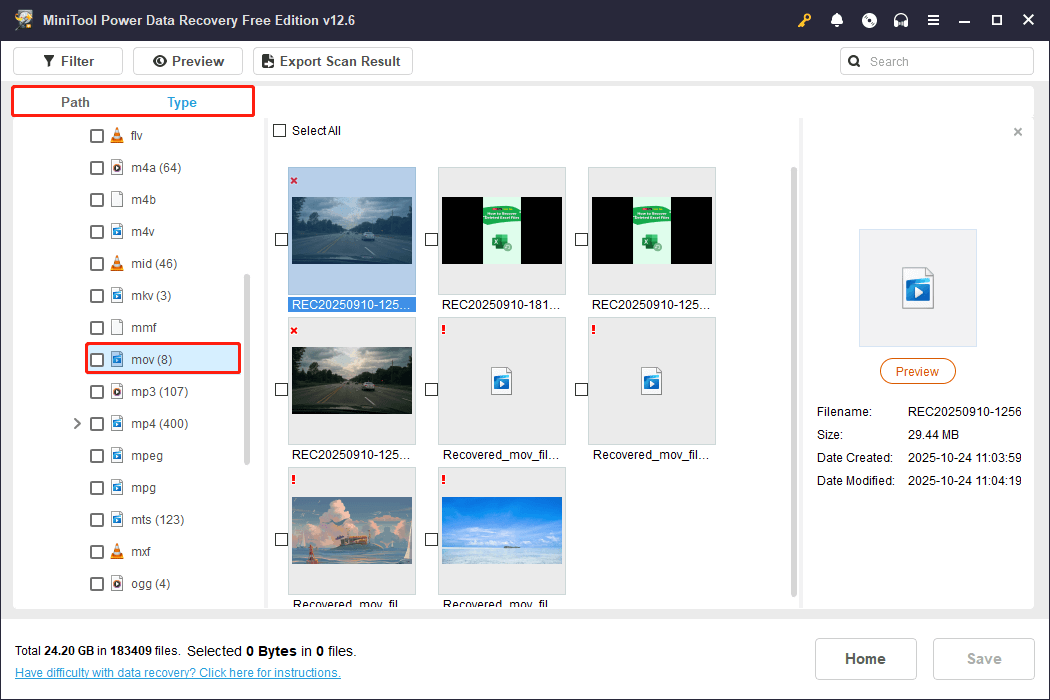
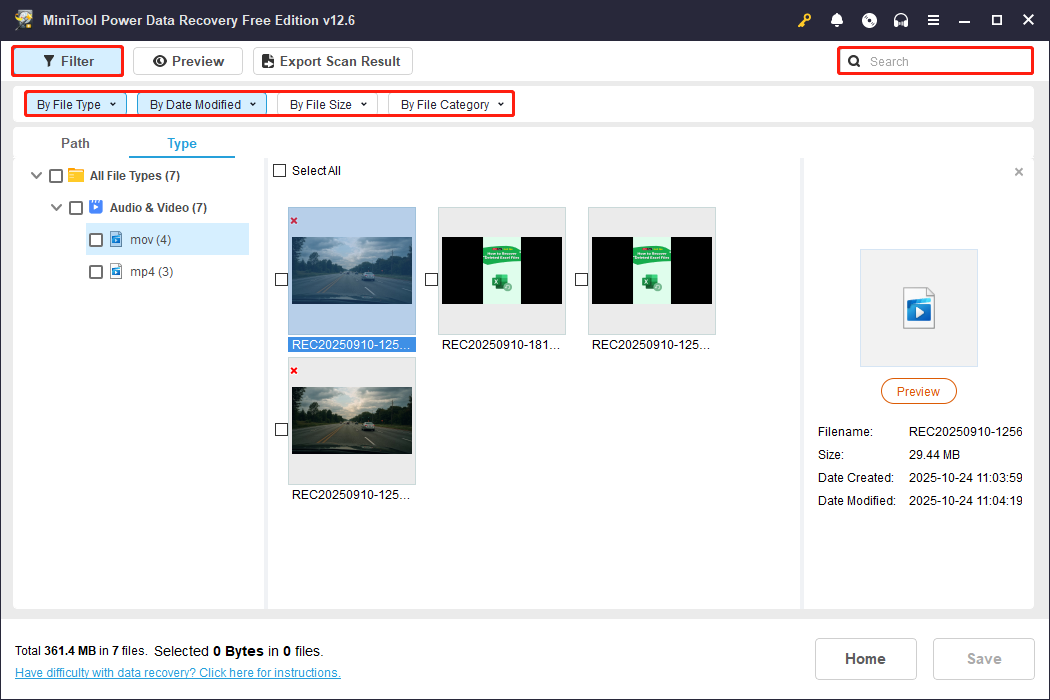
Additionally, you can use Filter or Search to locate your footage more quickly:
- Filter: Narrow down files by type, modification date, size, or category.
- Search: Find specific files using a full or partial file name. Dash cam videos often include the year and date in their file names, so you can try searching by year like 2025.
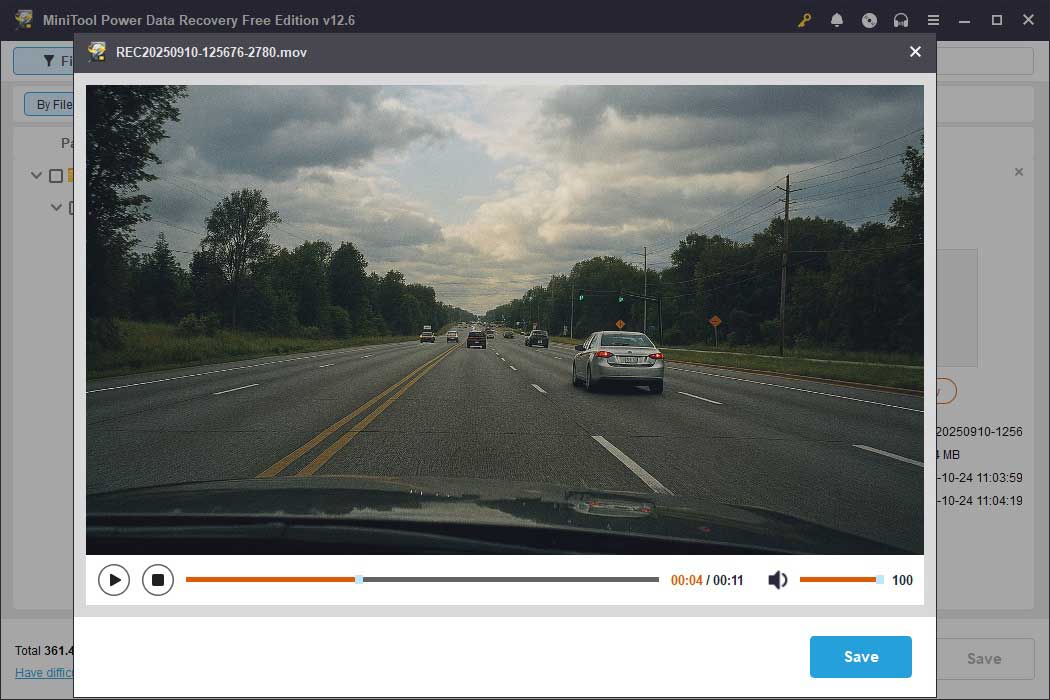
To avoid wasting the 1 GB of free data recovery capacity, double-click on each desired file to preview it.
Step 3. Save wanted videos.
Once you have confirmed that the video is the one you want to recover, click Save and choose a location to store it directly from the preview window.
Alternatively, you can exit the preview window, select all the files you want to recover, and then click the Save button in the scan results window to save all selected videos at once.
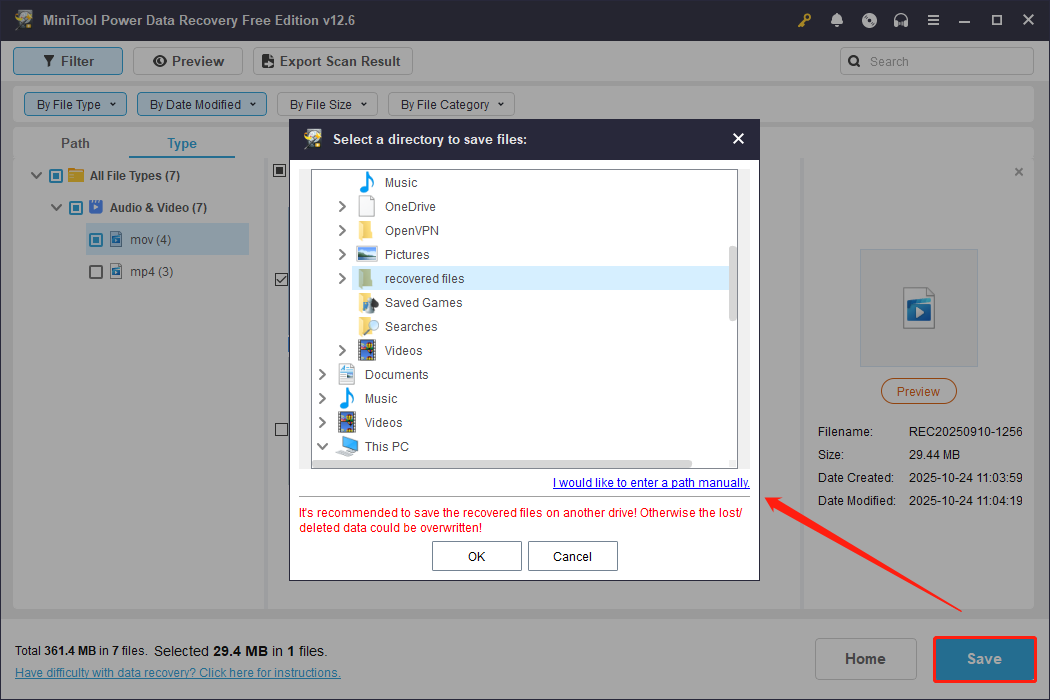
Once done, you can go to the selected location to view and use the recovered footage.
If you find MiniTool Power Data Recovery useful, please do not forget to share it with your friends.
Way 3. Consider Professional Data Recovery
If data recovery software cannot find the missing footage, or the SD card or USB drive is physically damaged or inaccessible, consider a professional data recovery service.
Professionals may be able to handle cases that cannot be resolved with ordinary recovery software. Before choosing a service, check its reputation, data security practices, and recovery policies.
Once you understand the recovery options, it is equally important to know when recovery may no longer be possible.
How to Protect Dash Cam Videos From Damage or Deletion
Once your dash cam footage has been successfully recovered, follow these steps to prevent future data loss.
Start by familiarizing yourself with the Protect or Lock button on your dash cam. Next, choose a high-quality SD card or USB drive and regularly format it to maintain disk health. Finally, do not forget to back up important videos to a secure location.
#1. Understand the Protect Button
As mentioned earlier, many dash cams automatically protect recordings using the G-sensor when your vehicle hits a bump or when parking mode is enabled.
However, some dash cams require you to press the Protect button manually during or after recording to lock the video. The Protect button is usually marked with an exclamation icon or a red triangle icon.
Protected files are stored in a separate folder and will not be overwritten until the allocated space for protected files is full.
Using the Protect function properly is a reliable way to ensure your important videos are safe.
#2. Use Reliable SD Cards
Low-quality SD cards are prone to data corruption and sudden failure, while high-quality cards are built with more durable components. This is especially important for continuous recording in dash cams.
How to choose a reliable SD card?
Stick to reputable brands such as SanDisk, Samsung, Kingston, Toshiba, and others.
If possible, choose a card with larger storage capacity. Larger cards can store more videos, allowing older recordings to be retained for a longer time.
#3. Format the SD Card as Recommended by the Manufacturer
Follow your dash cam manufacturer’s recommended formatting schedule. Formatting can help maintain a healthy file system, but it permanently removes files that have not been backed up. Always copy important footage to another location before formatting the SD card.
#4. Update Dash Cam Firmware
Dash cam manufacturers often release firmware updates to fix bugs or improve performance. These updates are important to maintain security and ensure the device functions well.
So, you should regularly access your dash cam’s setup menu and check whether a firmware update is available. If an update is found, install it via the SD card or the dedicated dash cam software.
Your dash cam manufacturer should offer an official tutorial explaining how to perform the update. If you are using a Nextbase dash cam, check out this guide: How to Update Dash Cam Firmware.
#5. Back Up Important Videos
Having a backup is always considered the most important step when dealing with digital data, and dash cam footage is no exception.
When you have a backup, you can easily restore lost footage without using any data recovery software or paying any recovery costs.
How to back up dash cam footage? Here are three common options:
1. Computer or External Hard Drive
Remove the SD card from your dash cam, insert it into a card reader, and connect it to your computer. Then, copy and paste important video files to your computer’s internal hard drive or an external storage device.
It is recommended to use a dedicated drive for backups to minimize the risk of data loss or disk corruption.
2. Cloud Storage
There are many cloud services available, such as Dropbox, Google Drive, or OneDrive. Most of them offer free storage limits and paid plans for larger capacities. You can choose the one you prefer to store your videos.
In addition to providing backup, cloud storage allows you to access your footage from any device simply by logging into the same account.
3. Mobile Phone
Some dash cams come with a companion app that allows you to save footage directly to your smartphone.
If your dash cam supports this feature, you can easily back up important videos to your phone.

Conclusion
If your dash cam videos are missing, stop recording to avoid overwriting the files. First, check your backups, then run data recovery software on the SD card or USB drive. If the files were overwritten or the device is physically damaged, professional recovery might be needed.
For any questions about MiniTool Power Data Recovery, contact us at [email protected].
How to Recover Dash Cam Videos FAQ
Therefore, how long your footage is stored depends on the size of your SD card, the video resolution, and the amount of footage being recorded.
According to Nextbase, you can typically store 1~20 hours of recordings.
Some dash cams have a parking mode feature that protects recordings when your car is parked. So, if you do not want to lose your videos, enable this feature or back up important files to another location manually.
Before the file is overwritten by new files, you can use data recovery software such as MiniTool Power Data Recovery to recover it.
User Comments :