

Quick Answer
How do I fix “A Required Drive Partition Is Missing”?
If you cannot reset your PC because a required drive partition is missing, first recover important files if necessary. Then repair Windows startup and system files, check the disk and recovery partition, and rebuild the boot configuration. If the error persists, try System Restore or reinstall Windows.
What Does “A Required Drive Partition Is Missing” Mean
The “A required drive partition is missing” error means Windows cannot find a system-related partition required for a specific operation, such as resetting, recovering, or booting. The partition may be missing, corrupted, or inaccessible.
Common affected partitions include the EFI System Partition, System Reserved partition, and Windows Recovery partition.
Why Does “A Required Drive Partition Is Missing” Happen
Common causes include:
- The system or recovery partition is missing or damaged.
- The required partition is inaccessible or incorrectly configured.
- Windows system files are corrupted.
- Disk errors affect the required partition.
- The BCD or other boot configuration is damaged.
- Problems with Windows Recovery Environment.
Recover Important Files Before Fixing the Partition Error
If you have important files on the affected PC, recover them before trying the fixes below. Some repair operations, especially partition changes or Windows reinstallation, may cause further data loss.
MiniTool Power Data Recovery can help recover files from a Windows PC that cannot boot normally. With the Bootable Media Builder, you can create a bootable USB drive, start the affected PC from it, and scan the drive for recoverable files.
MiniTool Power Data Recovery FreeClick to Download100%Clean & Safe
How to Recover Files When Your PC Cannot Boot
Step 1. Create a bootable USB drive.
1. Plug a blank USB flash drive (4 GB–64 GB) into a working PC.
2. Get MiniTool Power Data Recovery Bootable.
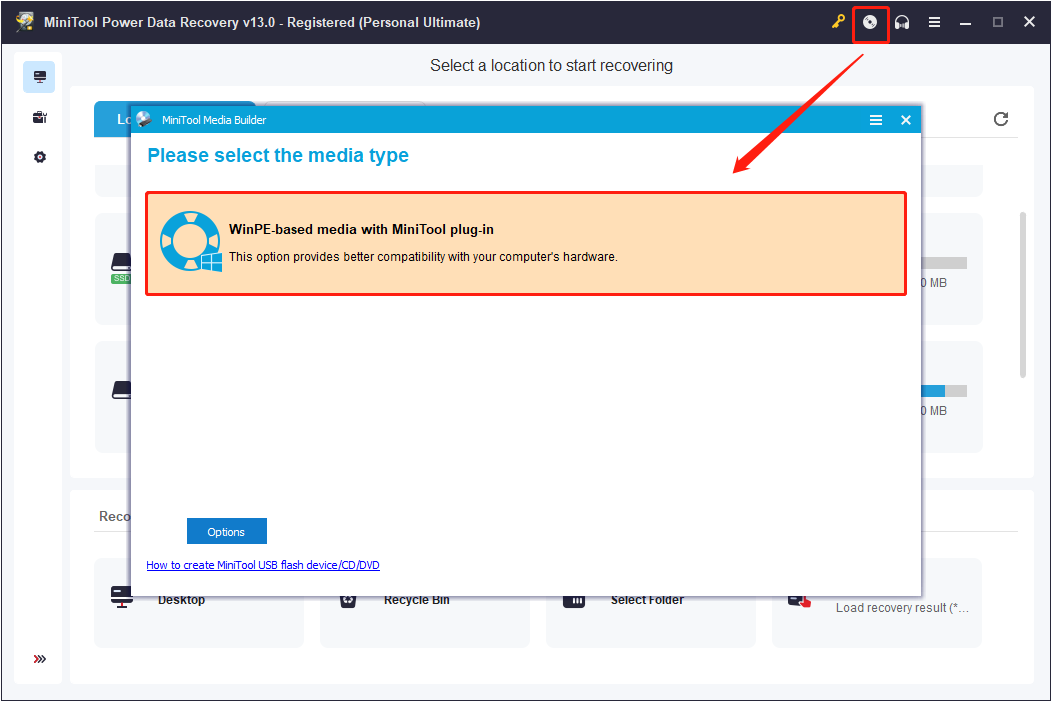
3. Launch this software and click the Bootable Media Builder icon. Then select WinPE-based media with MiniTool plug-in and follow the on-screen prompts to create the bootable USB drive.
Step 2. Boot the affected PC from the USB drive.
1. Connect the bootable USB to the computer that cannot boot normally.
2. Power on the PC and enter the BIOS setup, go to the Boot menu, and then change the boot order to set the USB drive as the first boot device.
3. Restart the computer from the USB drive.
Step 3. Scan the affected drive and recover needed files.
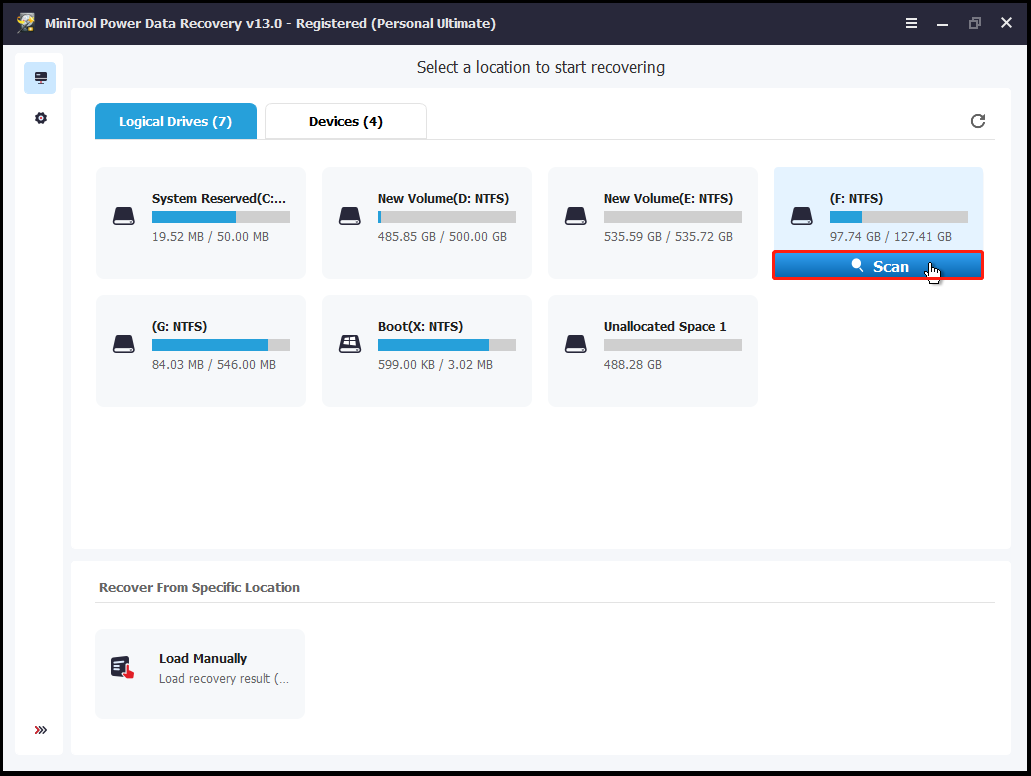
After entering the MiniTool recovery environment, select the drive or partition where your files were stored, and then click Scan.
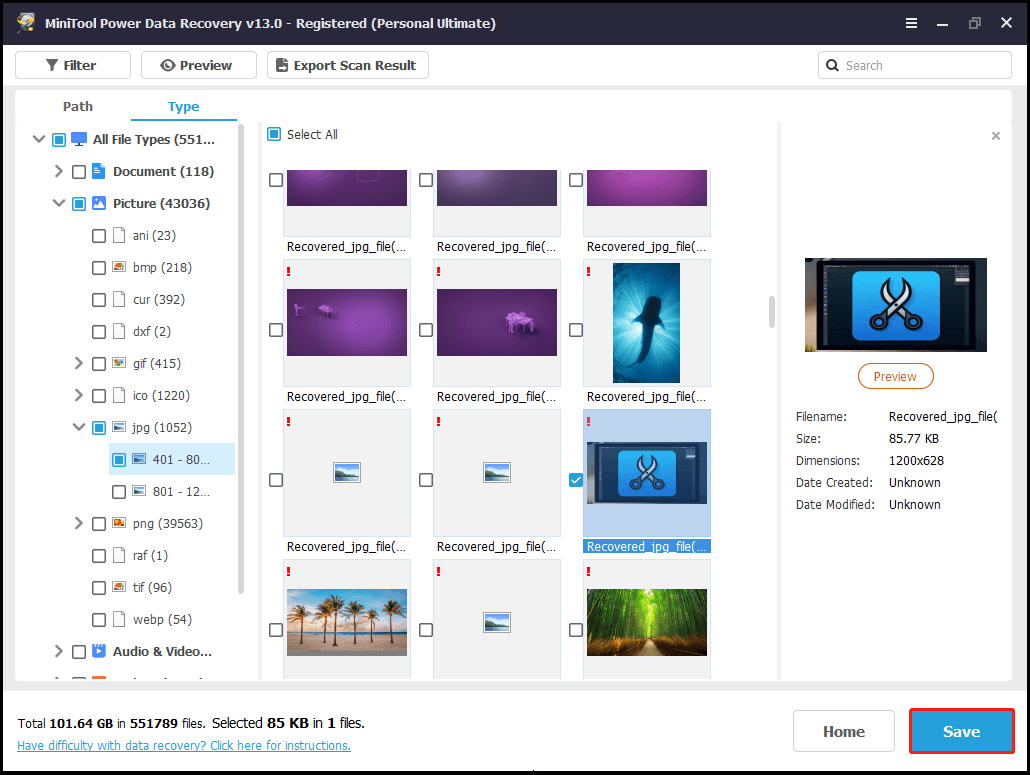
After the scan finishes, preview the results, select the files you need, and click Save to recover them to a safe location.
How to Fix Unable to Reset Your PC. A Required Drive Partition Is Missing
After recovering your important files, try the following fixes in order. Start with the less invasive methods and move to partition-related repairs or Windows reinstallation if the unable to reset PC drive partition missing error persists.
Fix 1. Run Startup Repair
Startup Repair can automatically detect and fix problems that prevent Windows from starting or accessing recovery features.
Step 1. Enter Windows Recovery Environment (WinRE).
Step 2. Go to Troubleshoot > Advanced options > Startup Repair.
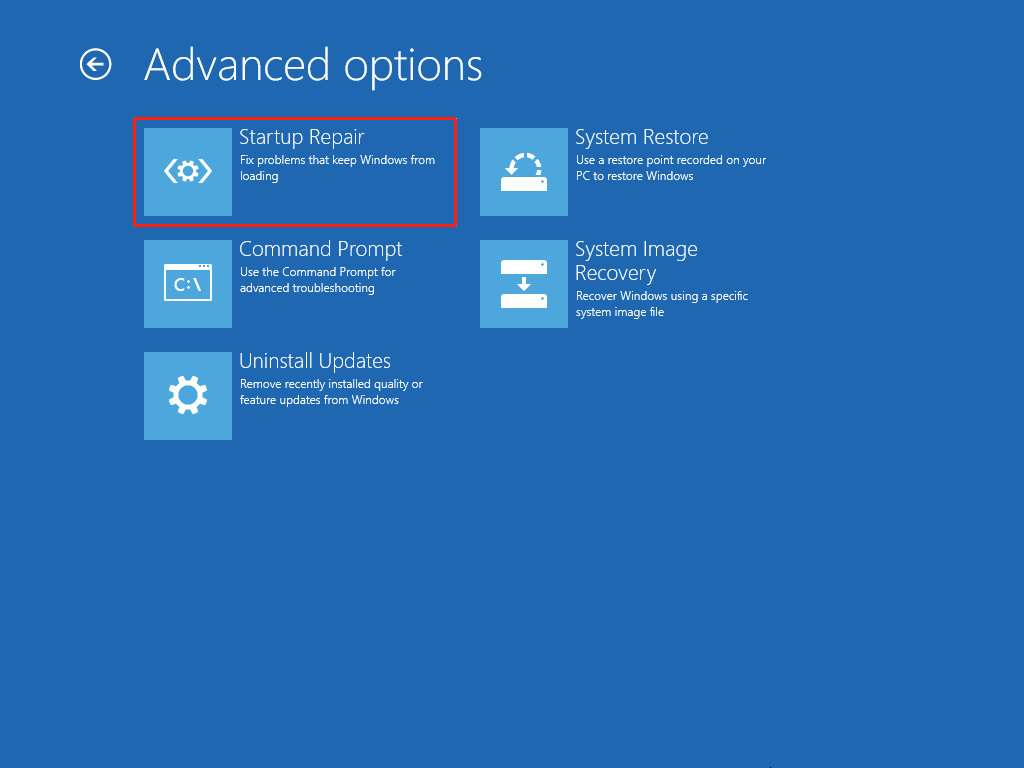
Step 3. Select your Windows account and enter the password if prompted.
Step 4. Wait for Windows to diagnose and repair startup problems.
Step 5. Restart your PC and check whether the drive partition missing Windows 10/11 error is fixed.
Fix 2. Run SFC to Repair Windows Files
Corrupted Windows system files can prevent Windows from accessing required recovery components. Run SFC from WinRE to repair them.
Step 1. Enter WinRE and select Troubleshoot > Advanced options > Command Prompt.
Step 2. Run the following command:
sfc /scannow
Step 3. Restart the PC and check whether the Windows required drive partition missing error appears again.
Fix 3. Check and Repair Disk Errors with CHKDSK
Disk errors can make a required system or recovery partition inaccessible. CHKDSK can check the file system and repair certain disk errors.
Step 1. Open Command Prompt from WinRE.
Step 2. Run:
chkdsk C: /f /r
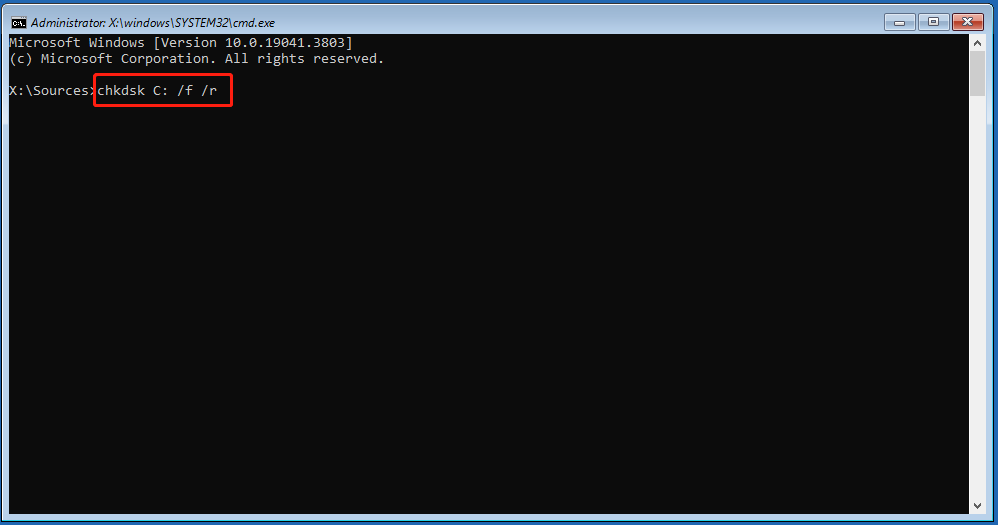
Step 3. Wait for the scan and repair process to finish.
Step 4. Restart the PC and check whether the Windows reset failed required partition missing error occurs again.
Fix 4. Rebuild BCD and MBR
A damaged Boot Configuration Data (BCD) or Master Boot Record (MBR) can cause Windows to fail to boot or access recovery components.
Step 1. Open Command Prompt in WinRE.
Step 2. Run these commands one at a time:
- bootrec /fixmbr
- bootrec /fixboot
- bootrec /scanos
- bootrec /rebuildbcd
Step 3. Restart your computer and check whether the problem is resolved.
Fix 5. Check the Windows Recovery Partition
If the Windows Recovery partition is missing, corrupted, or inaccessible, Windows may fail to reset the PC.
Step 1. Press Win + X to open the Quick Link menu and select Disk Management if Windows can still start.
Step 2. Find the small partition labeled Recovery Partition.
Step 3. Check whether the partition still exists and whether the Windows installation is on the expected disk.
Step 4. If the recovery partition is missing or damaged, use Windows installation media or other recovery options instead of deleting or modifying system partitions without a backup.
Fix 6. Mark System Partition as Active
An incorrectly configured system partition may prevent Windows from booting properly. Use Diskpart to check and configure the partition.
Step 1. Open Command Prompt from WinRE.
Step 2. Run:
- diskpart
- list disk
- select disk 0
- list partition
Step 3. Identify the system partition and select it:
select partition X
Step 4. Run:
active
Step 5. Enter exit, restart the PC, and try resetting Windows again.
Fix 7. Perform System Restore
If the error started after a system change, System Restore can return Windows to an earlier working state without reinstalling the operating system.
Step 1. Enter WinRE and select Troubleshoot > Advanced options > System Restore.
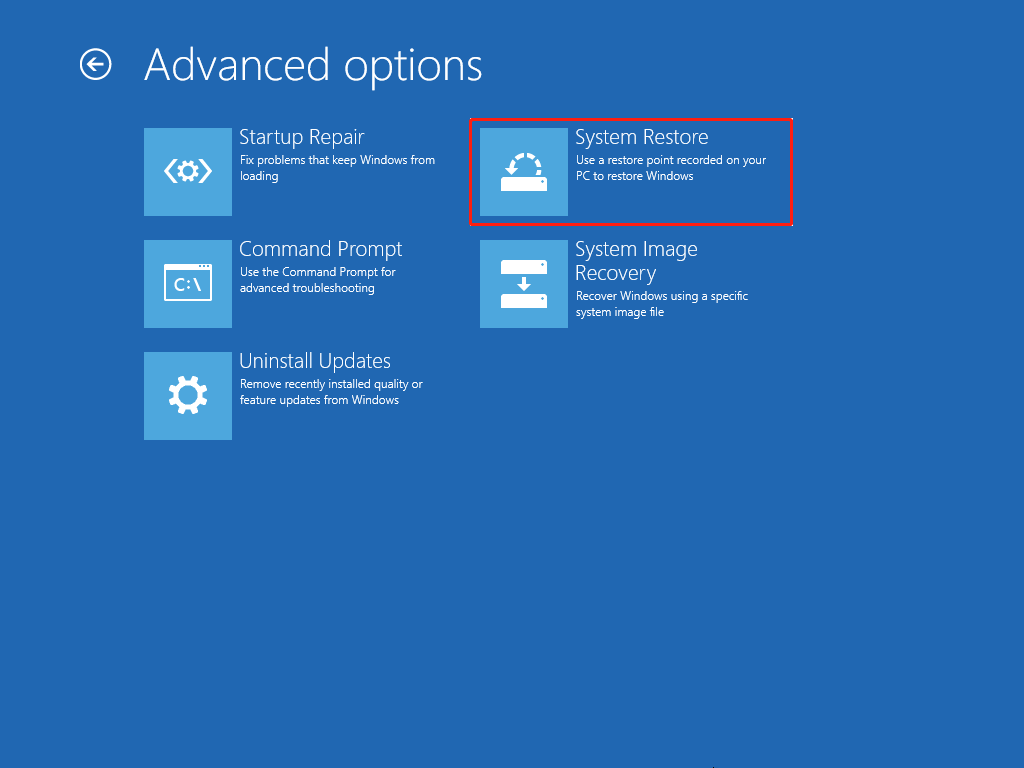
Step 2. Select a restore point created before the problem occurred.
Step 3. Follow the on-screen instructions to complete the restoration.
Step 4. Restart your PC and check whether the reset option works.
Fix 8. Reinstall Windows
If none of the above methods work, the required partition or Windows recovery environment may be too damaged to repair. In this case, reinstalling Windows may be the final option.
Before reinstalling Windows, make sure your important files have been recovered or backed up. Then create Windows installation media and perform a clean installation.
Step 1. Create a bootable Windows installation USB on another working PC.
Step 2. Connect the USB drive to the affected PC and boot from it.
Step 3. Select Install now and follow the Windows Setup instructions.
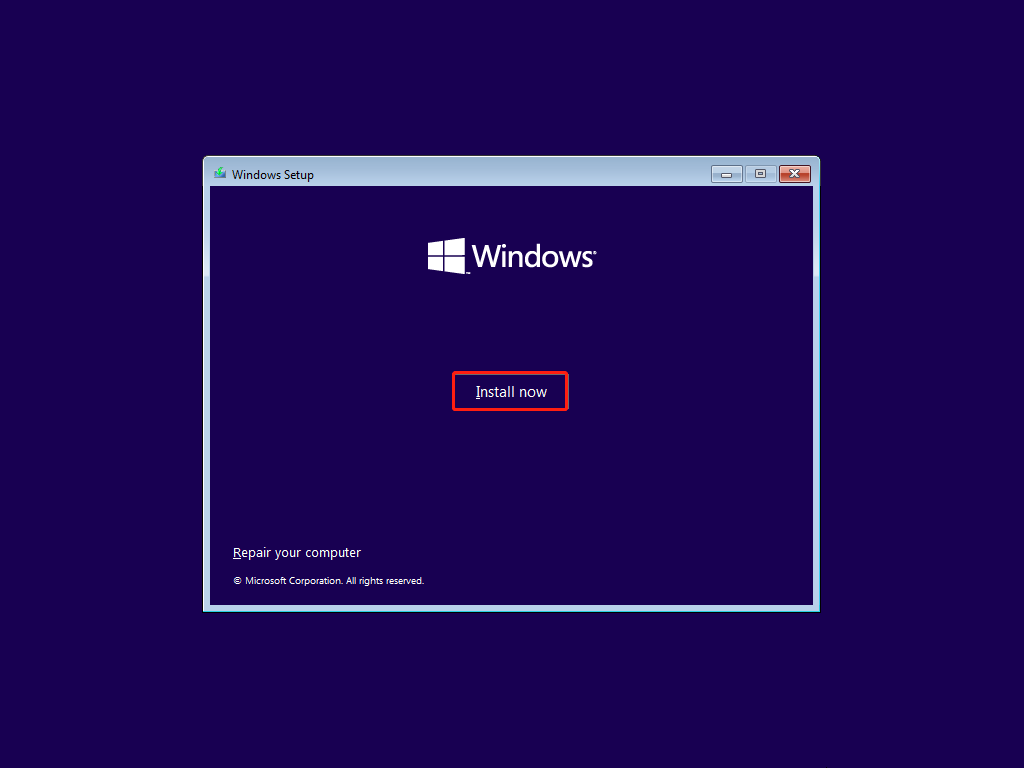
Step 4. Choose the appropriate installation option and complete the Windows installation.
Step 5. After installation, restore the backed-up personal files and reinstall the required applications.
How to Prevent “A Required Drive Partition Is Missing” Error
To reduce the risk of encountering this error again, keep your Windows system, disk, and recovery environment in good condition. The following practices can help prevent partition-related problems:
- Keep Windows updated.
- Avoid modifying or deleting system and recovery partitions unnecessarily.
- Check your disk for errors when you notice warning signs.
- Create a recovery drive before serious Windows problems occur.
- Back up important files and your Windows system regularly.
MiniTool ShadowMaker TrialClick to Download100%Clean & Safe
A Required Drive Partition Is Missing FAQ
However, changing partitions or reinstalling Windows can result in data loss. If your files are important, back them up or recover them before making partition changes or reinstalling Windows.
If WinRE files are available, the recovery environment can often be re-enabled or recreated. Alternatively, Windows installation media can repair or reinstall Windows. Always back up important files before modifying partitions.
Conclusion
If you encounter the “A Required Drive Partition Is Missing” error when trying to reset your Windows 10/11 PC, don’t rush to reinstall Windows.
First, recover important files if necessary, then try the fixes in this guide, starting with Startup Repair and Windows system file repairs. If a missing or damaged recovery partition causes the problem and cannot be repaired, reinstalling Windows may be the final option.
If you have any questions about MiniTool products, email us at [email protected].
User Comments :