

A black screen after a Windows update can occur when the desktop fails to load properly. Depending on the situation, the screen may remain completely black, display a cursor, or turn black after the Windows logo appears. These problems can affect both Windows 10 and Windows 11 computers.
What Causes a Black Screen After Windows Update
Understanding the possible cause can help you choose the right solution instead of trying every method at random. Here are the common reasons why your computer won’t boot after Windows update.
- Incompatible graphics card drivers: A Windows update may introduce a driver conflict or expose an existing graphics driver problem, preventing the display from working correctly.
- Incomplete Windows updates: An interrupted update can prevent Windows from starting normally.
- Corrupted system files: Damaged or missing Windows system files may cause startup failures.
- Conflicting applications or services: Third-party software, startup programs, or background services may interfere with the Windows loading process.
- Hardware or storage problems: A faulty cable, monitor, graphics card, or storage device can also lead to startup issues.
What to Check Before Fixing the Black Screen
Before changing Windows settings or removing updates, try these basic checks to determine whether the problem can be resolved.
Here are some basic troubleshooting methods.
- Disconnect and reconnect the HDMI or DisplayPort cable at both ends. If possible, try another cable, monitor, or display port.
- Disconnect external hard drives, USB flash drives, printers, and other nonessential hardware devices.
- Verify that the power cable is firmly connected and that the power supply is switched on.
If the display remains black after these checks, continue with the following fixes.

How to Fix a Black Screen After Windows Update
If your computer cannot access the login screen, you may need to access the Windows Recovery Environment (WinRE) to perform several operations.
To enter WinRE, interrupt the normal startup process:
- Turn on the computer.
- When Windows begins loading, hold the Power button to shut it down.
- Repeat this process three times, and then Windows should display the Automatic Repair message. Select Advanced options to enter WinRE.
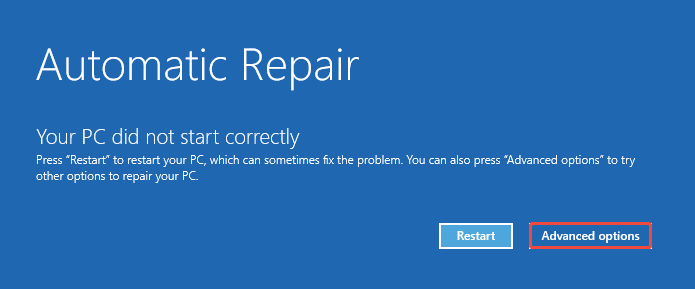
If the recovery environment does not appear, use Windows installation or recovery media to access the recovery environment.
Fix 1. Reset Graphics Driver
Applicable case: The screen suddenly turns black after the system update, but the computer can respond to keyboard shortcuts.
A graphics driver problem is one possible reason for a Windows 11 black screen after update. Resetting the driver is a quick method to check whether the display has stopped responding.
Step 1. Power on the computer.
Step 2. Press Windows + Ctrl + Shift + B simultaneously. The screen may blink and beep as Windows restarts the video driver.
Step 3. If the screen returns, sign in and check whether the problem occurs again. If this shortcut does not work, continue to the next method.
Fix 2. Perform a Force Shutdown
Applicable case: The computer becomes completely unresponsive on a black screen.
A forced shutdown can clear a frozen state and allow the computer to start again.
Step 1. Press and hold the Power button until the computer shuts down.
Step 2. Wait a few seconds.
Step 3. Disconnect unnecessary peripherals. Then turn the computer back on and check whether Windows starts normally.
Fix 3. Uninstall the Recent Windows Update
Applicable case: The black screen started immediately after a Windows update, with no other system or hardware changes.
Since the problem started after a Windows update, removing the most recent update may restore normal startup.
Step 1. Enter the Windows Recovery Environment.
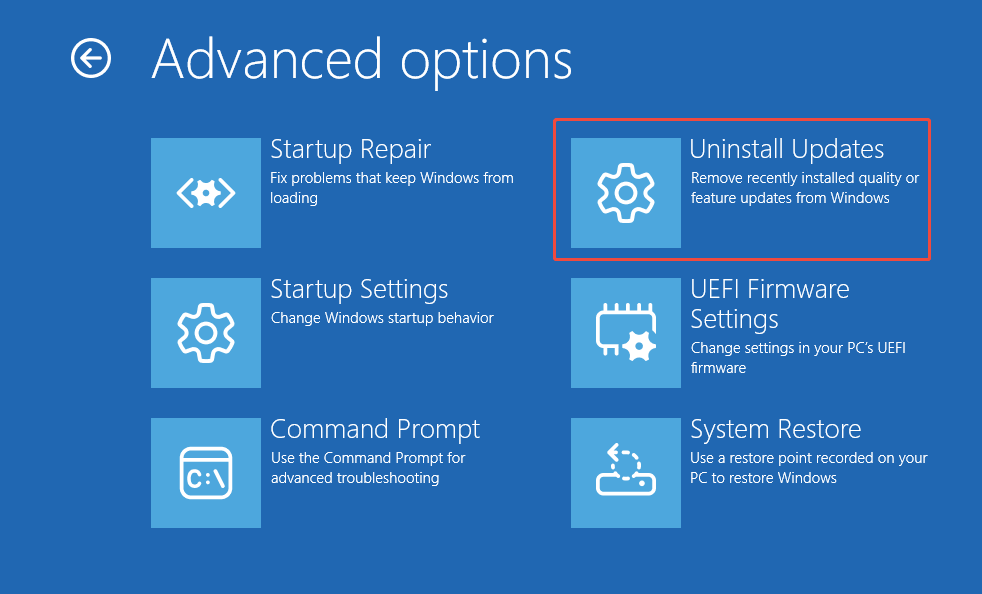
Step 2. Select Troubleshoot > Advanced options > Uninstall Updates.
Step 3. Choose Uninstall latest quality update and follow the instructions to complete the process.

Fix 4. Start Windows in Safe Mode
Applicable case: Windows fails to load the desktop normally due to graphics drivers, startup applications, or other software conflicts.
Safe Mode starts Windows with a limited set of drivers and services. If the computer works in Safe Mode but displays a black screen during normal startup, the problem may be with a graphics driver, recently installed application, or startup service.
Follow these troubleshooting steps:
Step 1. Enter Safe Mode.
- Open WinRE.
- Select Troubleshoot > Advanced options > Startup Settings > Restart.
- After the computer restarts, press 4 or F4 to enter Safe Mode. Choose 5 or F5 if you need Safe Mode with Networking.
Step 2. Troubleshoot the problem.
When Windows starts in Safe Mode, you can try some troubleshooting steps, such as:
- Go to Device Manager and roll back or reinstall the graphics card driver.
- Remove recently installed software that may be conflicting with the start process.
- Open Settings and uninstall the latest system update.
- Disable unnecessary Windows services.
- Disable nonessential startup programs.
- …
Fix 5. Run System File Checker
Applicable case: Corrupted or missing system files are affecting normal operation of Windows.
Damaged Windows system files can prevent the operating system from displaying the desktop correctly. System File Checker (SFC) can help scan protected system files and attempts to repair damaged files.
Step 1. Access WinRE.
Step 2. Select Troubleshoot > Advanced options > Command Prompt.
Step 3. Execute the command: sfc /scannow. Wait for the scan to finish. After that, restart the computer and check whether Windows loads normally.
Fix 6. Perform a System Restore
Applicable case: Windows won’t boot after an update or driver installation, and a suitable restore point is available.
When you encounter a black screen after updating Windows 11/10, performing a System Restore can help return system files, drivers, and settings to an earlier restore point.
Step 1. In WinRE, select Troubleshoot > Advanced options > System Restore.
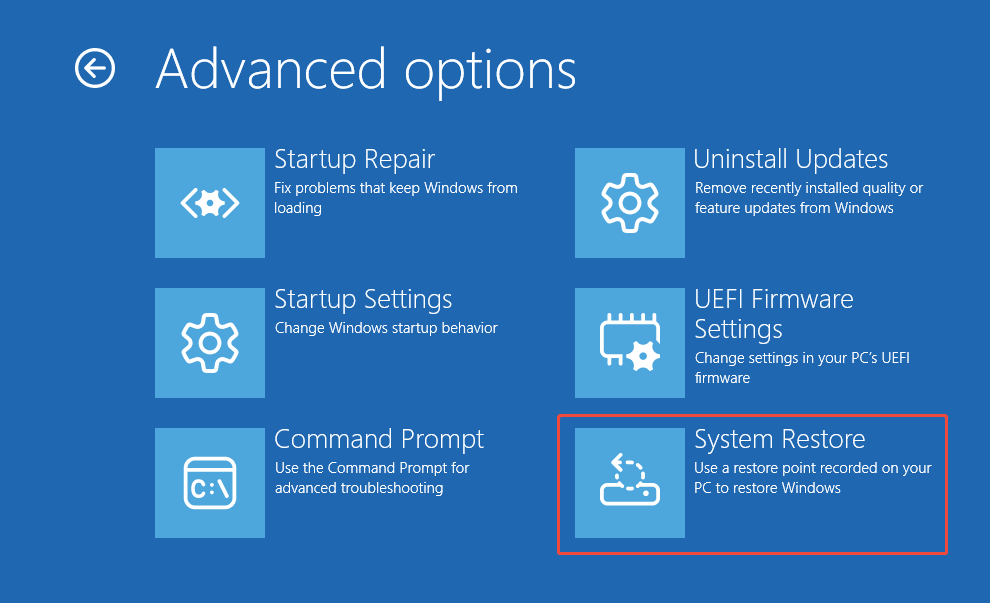
Step 2. Select a restore point created before the black screen appeared.
Step 3. Review the affected programs if that option is available. Then confirm the restore operation and wait for it to finish.
A restore point must exist for this method to work. If no suitable restore point is available, choose another recovery method.
Fix 7. Reset Windows
Applicable case: The previous troubleshooting methods have failed, and persistent Windows problems prevent the computer from starting normally.
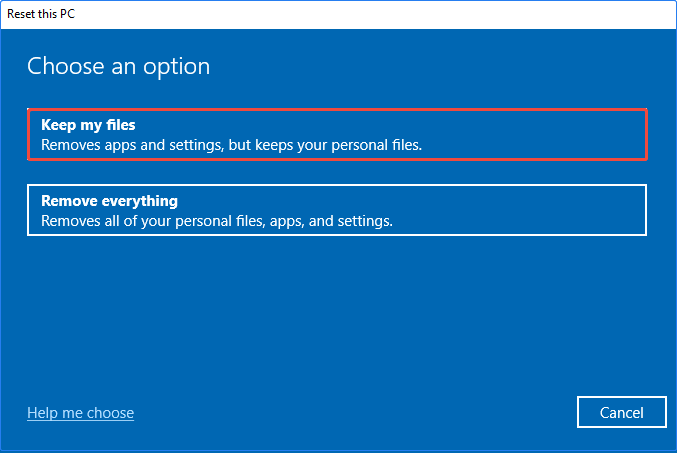
If the previous methods fail, resetting Windows may help repair the problem. The Keep my files option reinstalls Windows while retaining personal files, but it removes installed applications.
To reset a computer that experiences a black screen after a Windows update:
Step 1. Enter WinRE and choose Troubleshoot > Reset this PC.
Step 2. Choose Keep my files if you want to preserve personal files.
Step 3. Select Cloud download or Local reinstall, depending on your circumstances. Finally, follow the instructions on your screen to complete the reset.

Fix 8. Perform a Clean Installation
Applicable case: Windows remains unbootable after other recovery methods have failed.
A clean installation is a last resort when Windows remains unusable. It installs a fresh copy of Windows and removes personal files, applications, and settings from the system drive.
How to do a clean reinstallation:
Step 1. Use a working computer to create Windows USB installation media.
Step 2. Connect the media to the affected computer and start the PC. During boot, press the key specified by the computer manufacturer (usually F2, F8, F12, or Esc) to enter the boot menu or BIOS/UEFI settings.
Next, change the boot order to boot from the USB drive.
Step 3. Follow the on-screen instructions to configure the language and other preferences, then proceed with the system installation steps.
How to Recover Data if Windows Keeps Showing a Black Screen
If Windows continues to show a black screen and you cannot access your files, prioritize data recovery before reinstalling the operating system.
MiniTool Power Data Recovery offers a Bootable Edition that can help recover files from a computer that cannot boot into Windows. Most types of files are supported to be recovered, such as documents, images, videos, emails, and more.
The software is fully compatible with Windows 11/10/8.1/8.
MiniTool Power Data Recovery FreeClick to Download100%Clean & Safe
Step 1. Create a Bootable USB Drive
Download, install, and launch MiniTool Power Data Recovery Bootable on a working computer.
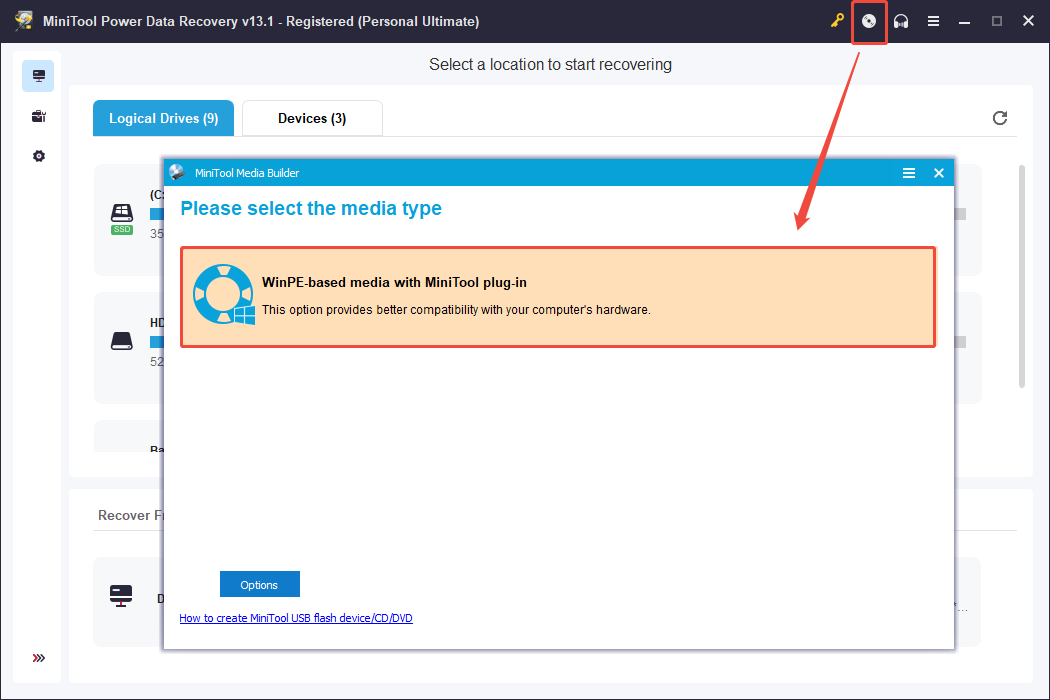
On the main interface of the software, click the Bootable Media Builder button. After that, choose WinPE-based media with MiniTool plug-in and follow the on-screen instructions to create a bootable USB drive.
Step 2. Boot the Affected Computer from the USB
Connect the bootable USB drive to the computer showing the black screen.
Next, turn on the computer and enter the boot menu to start the computer from the USB drive.
MiniTool Power Data Recovery will automatically start.
Step 3. Scan the Drive for Lost Files and Save Required Items
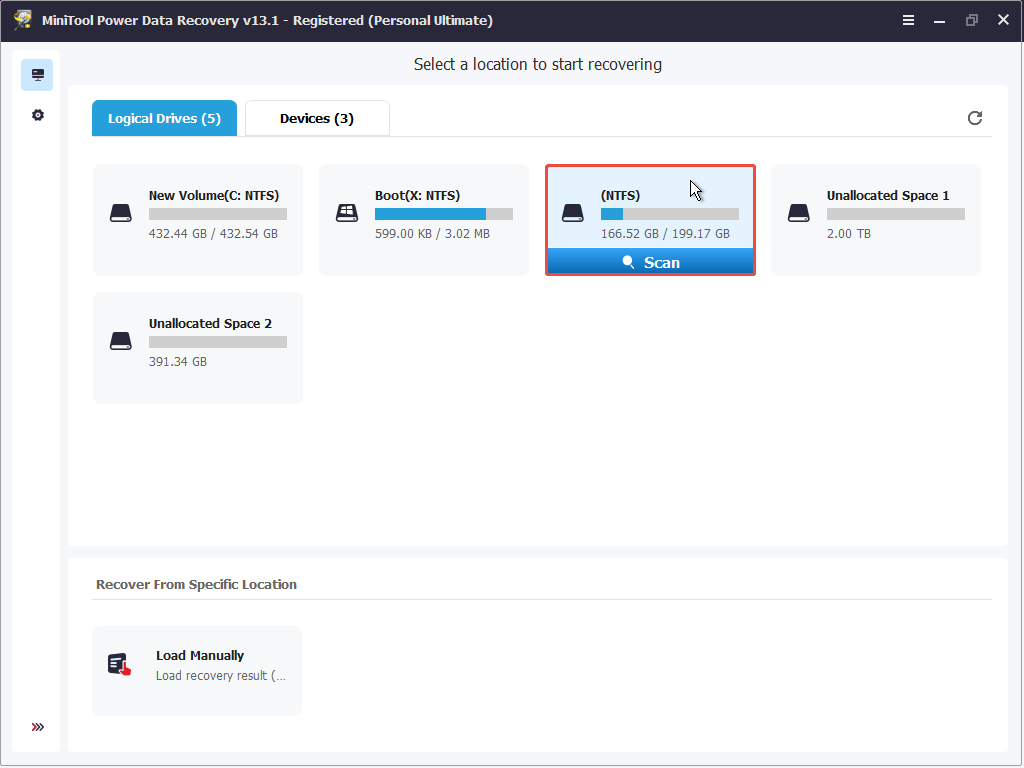
After MiniTool Power Data Recovery launches, locate the partition containing the files you want to recover. Select the drive and start a scan.
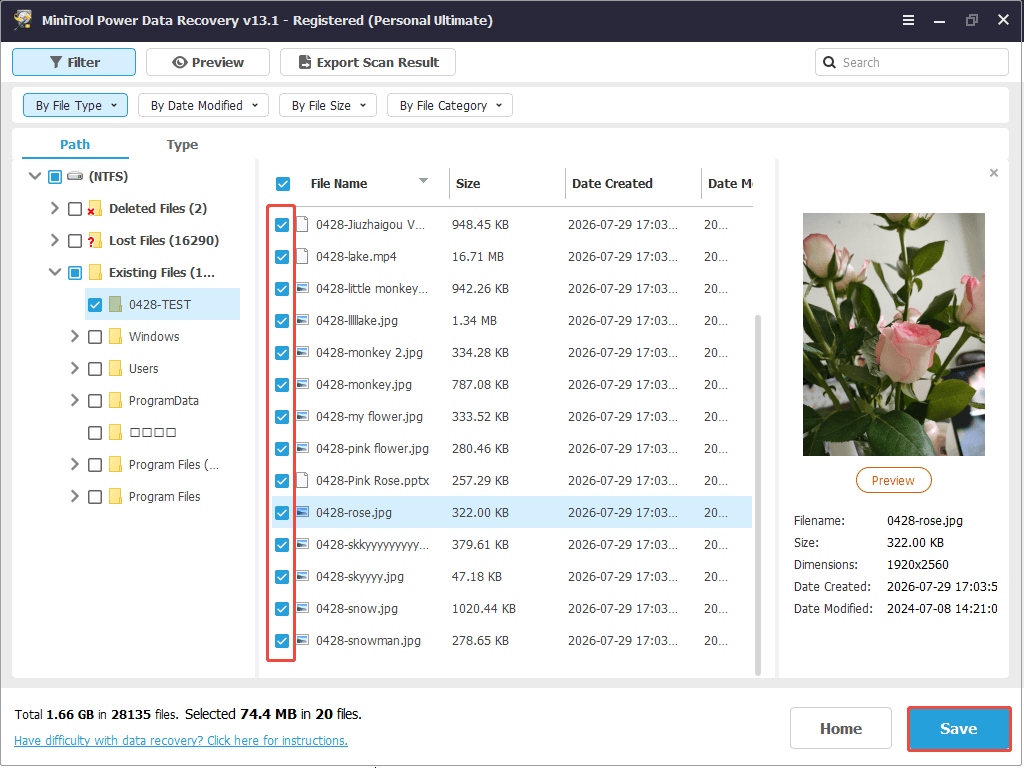
After the scan completes, find the files you want to recover under Path or Type. You can also use the available file filters or search options to locate specific files:
- Filter: Filter out unwanted files by file type, size, modification date, and category.
- Search: Search for certain files by using their file names.
Double-click the files to preview, select the files you want to recover, and click Save to store them to a removable drive.
After recovery, check the saved files to make sure they are accessible. To reduce the risk of future data loss, back up important files regularly to an external drive or cloud storage, especially before installing Windows updates or performing system repairs.
Conclusion
A black screen after Windows update does not always mean that the system needs to be reinstalled. Start with basic checks, such as reconnecting the display cable and resetting the graphics driver. If the problem persists, uninstall recent updates, run system repairs, or use System Restore.
When Windows remains unbootable, use MiniTool Power Data Recovery Bootable to rescue important files to another storage device. Finally, proceed with reinstalling Windows from installation media.
If you encounter any issues while using MiniTool software, please contact the support team at [email protected] for step-by-step guidance.
Windows 11 Black Screen After Update FAQ
If the desktop does not appear, press Windows + Ctrl + Shift + B to reset the graphics driver. If the problem persists, enter Safe Mode and check for graphics driver issues or conflicting startup applications.
If you can see the mouse cursor, press Ctrl + Shift + Esc to open Task Manager. Click File > Run new task, enter explorer.exe, and press Enter to restart Windows Explorer.
About The Author

Position: Columnist
Shirley holds a bachelor’s degree in English and has been an editor at the MiniTool Team for many years. She specializes in IT-related content, with a focus on data recovery, file backup, disk management, and other technical topics. She is committed to delivering clear, accurate, and practical solutions to help users resolve common computer issues.
User Comments :