

A deleted file not in Recycle Bin does not necessarily mean it has been permanently lost. Typically, the file can still be recovered using data recovery software. To prevent files from bypassing the Recycle Bin, you can adjust the Recycle Bin settings or disable automatic Recycle Bin cleanup features.
Quick Answer: Where Do Deleted Files Go if They Are Not in Recycle Bin?
Deleted files that are not found in the Windows Recycle Bin are usually either permanently deleted, bypassed the Recycle Bin, or moved to another recovery location.
In most cases, deleted files are not immediately erased from the storage device. The table below shows common deletion scenarios and the best method to recover your missing files.
| Situation | Where deleted files may go | Recommended recovery method |
| Shift + Delete | Bypassed Recycle Bin, but data remains recoverable until overwritten | Check backups or use data recovery software to scan the drive |
| Empty Recycle Bin | Removed from visible locations, but file data remains on the drive | Restore from backups or use Windows recovery programs |
| File deleted from USB/SD card | Bypasses Windows Recycle Bin | Scan the device with data recovery software |
| Large file deletion | May bypass Recycle Bin due to size limits | Check backups or use recovery software |
| Cloud file deletion | Stored in cloud service Recycle Bin | Restore from OneDrive/Google Drive/cloud Recycle Bin |
I just accidentally deleted 3TB of movies, it’s not in the Recycle Bin, how do I get it back? It probably warned me that this folder is too large for the RB and will be fully deleted, but I was deleting so many things that I instantly clicked yes. Is there any way to recover that?reddit.com
Accidentally deleting important files can be stressful, especially when they do not appear in the Recycle Bin.
Why Is My Deleted File Not in Recycle Bin
There are several reasons why deleted files bypass the Recycle Bin.
1. Shift + Delete Was Used
Using Shift + Delete permanently removes files instead of moving them to the Recycle Bin.
Windows usually displays a confirmation message asking whether you want to permanently delete the file.
2. Recycle Bin Was Automatically Emptied
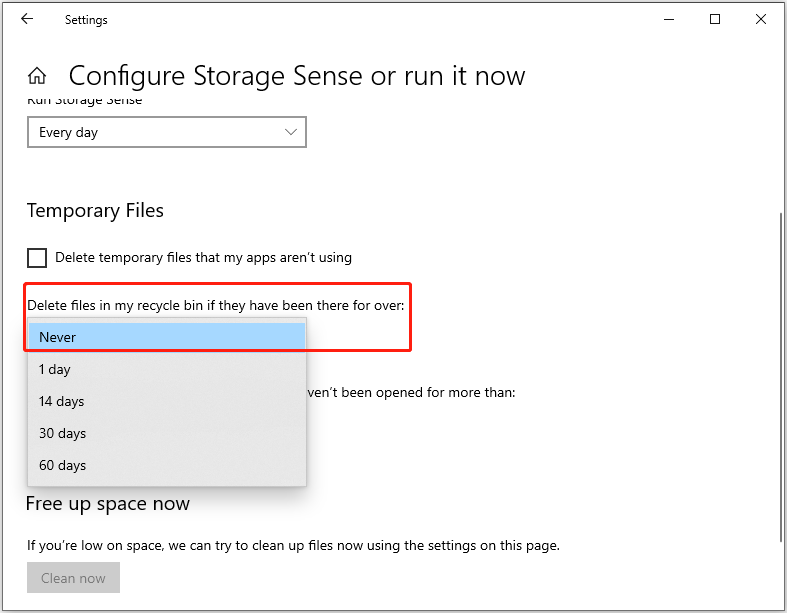
Windows can automatically clear the Recycle Bin through the Storage Sense feature.
3. The File Was Too Large for the Recycle Bin
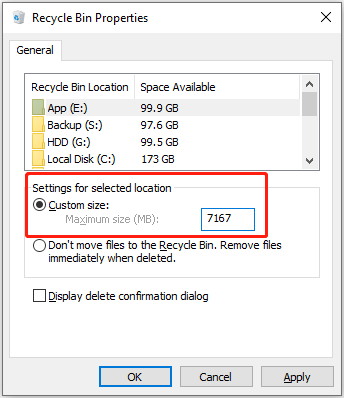
The Recycle Bin has a storage size limit.
If a file exceeds that limit, Windows deletes it permanently instead of sending it to the Recycle Bin. Windows typically shows a message stating that the file is too large for the Recycle Bin.
4. The Item Was Deleted From a Removable Drive
Files deleted from USB flash drives, SD cards, and external hard drives do not go to the local Recycle Bin on your computer.
For external hard drives, deleted files may be stored in a hidden Recycle Bin folder on that drive.
5. The File Was Deleted From a Shared Drive
Files deleted from shared folders, network drives, or Microsoft 365 shared storage typically do not appear in the local Recycle Bin.
How to Recover Deleted Files Not in Recycle Bin
To recover deleted files that are not in the local Recycle Bin, immediately stop using the affected drive to avoid overwriting the deleted data.
Then check the cloud Recycle Bin, restore a previous version of the file, or use free data recovery software such as MiniTool Power Data Recovery.
MiniTool Power Data Recovery FreeClick to Download100%Clean & Safe
Method 1. Check the OneDrive or Cloud Recycle Bin
Suitable case: Files that were synced with OneDrive or Microsoft 365.
If you cannot find the deleted files in the Windows Recycle Bin, they may still be available in the OneDrive Recycle Bin or the Microsoft 365 Recycle Bin.
Sign in to your account and check whether the deleted files are stored there.
For SharePoint files, administrators may also recover deleted content from the site collection Recycle Bin.
Method 2. Run Data Recovery Software
Suitable case: Files were deleted from local storage devices, including HDDs, SSDs, USB drives, SD cards, and external hard drives.
If the deleted files are not in the Recycle Bin, data recovery software may still be able to restore them by scanning the drive for recoverable data.
MiniTool Power Data Recovery is a reliable tool that supports recovering deleted documents, photos, videos, emails, and other file types in scenarios such as:
- Shift + Delete
- Files too large for the Recycle Bin
- Deleted files from USB drives, SD cards, and external hard drives
- Emptied Recycle Bin
The free edition supports recovering 1 GB of files for free. Do not install the software on the drive where deleted files should exist in case of data overwriting.
MiniTool Power Data Recovery FreeClick to Download100%Clean & Safe
How to Recover Deleted Files:
Step 1. Scan the drive or Recycle Bin.
Launch the software. On the main interface, select:
- The original partition where the files were deleted
- The Recycle Bin, if you want to recover files from the emptied Recycle Bin
Then click Scan to start scanning for deleted and lost files.
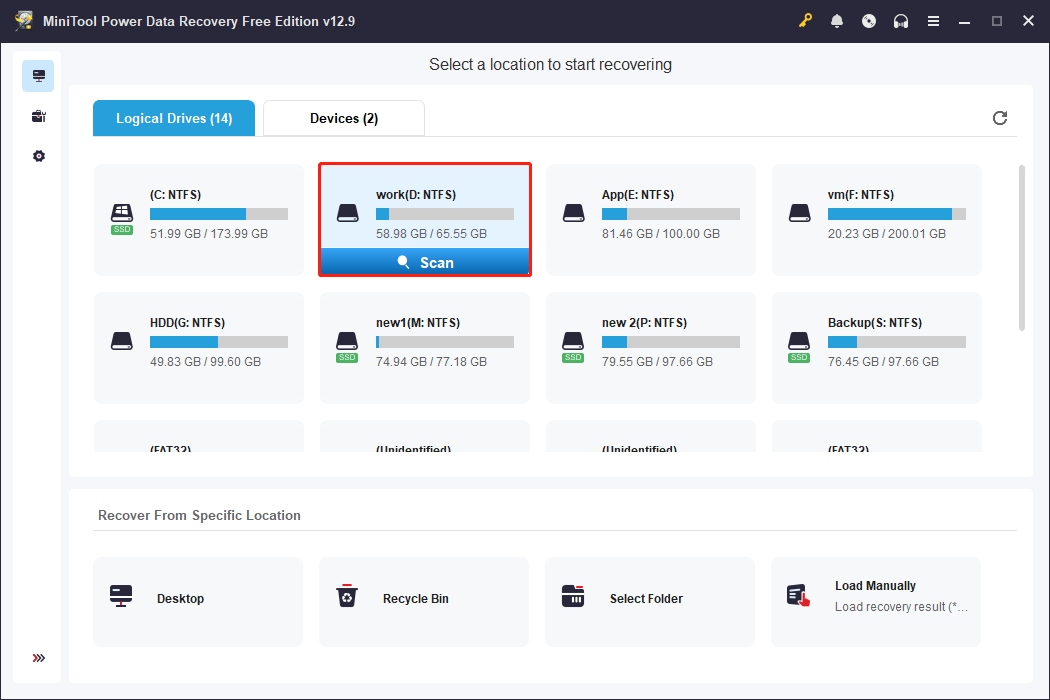
The scan duration mainly depends on the drive size and the amount of data. For example, a 70 GB hard drive may take 15 minutes.
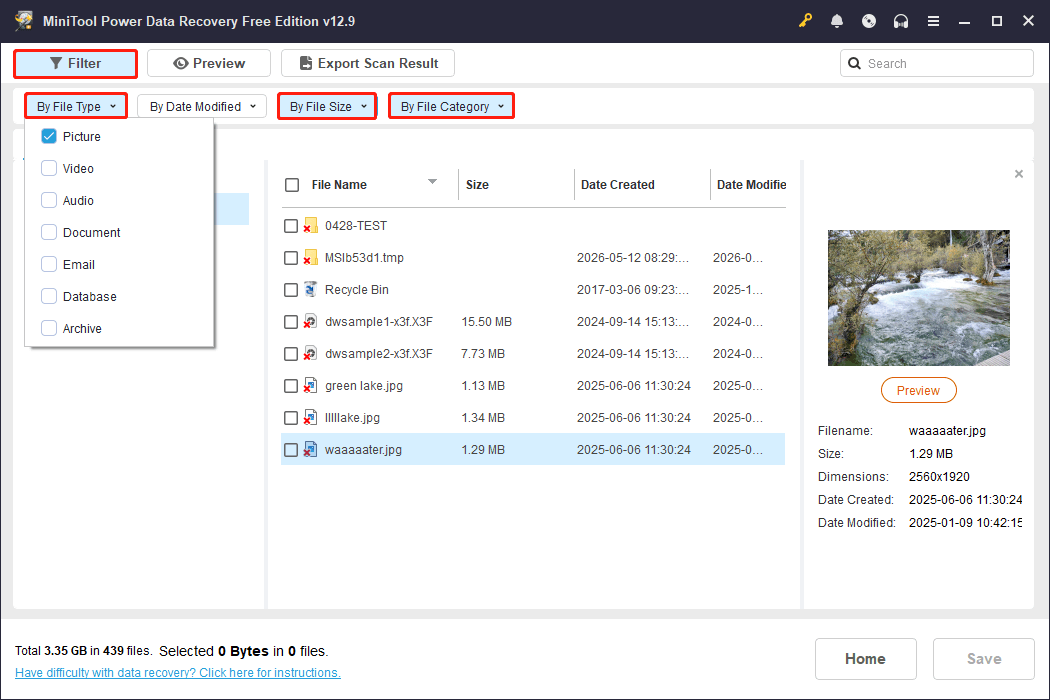
Step 2. Find and select the target files.
After scanning, browse the scan results and find the required files using features such as:
- Path: Displays recoverable files in their original folder structure.
- Type: Sorts files by category, such as documents, pictures, videos, and audio.
- Search: Searches for files by file name or extension.
- Filter: Filters files by file type, size, modification date, and category.
For example, to display only deleted pictures between 1 MB and 100 MB, use the Filter feature:
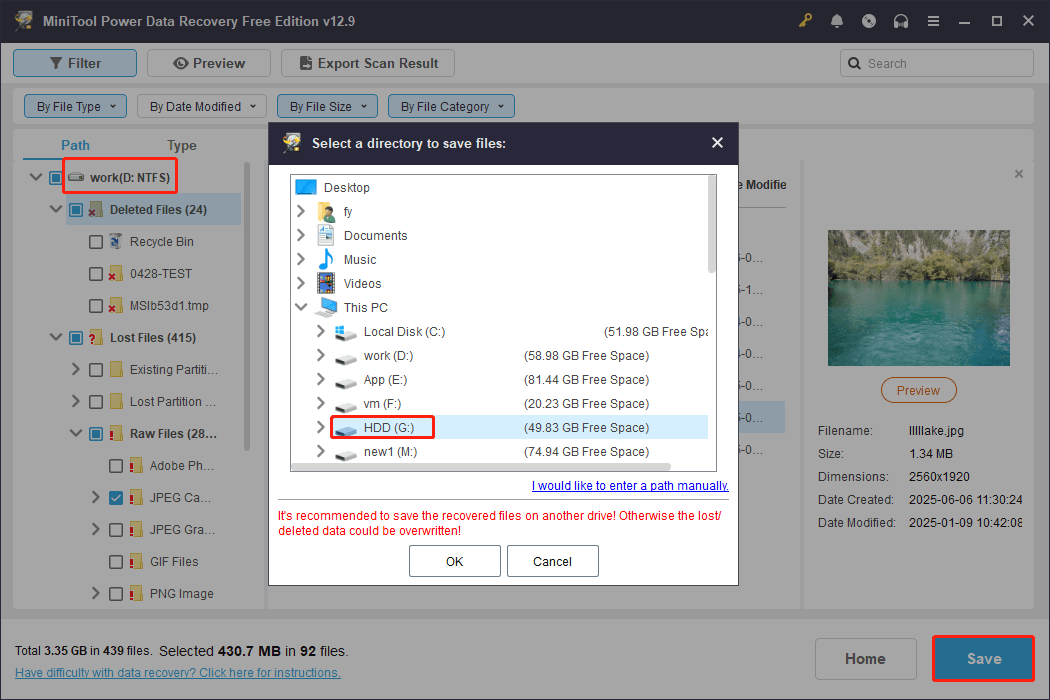
Step 3. Save the required files to another location.
Finally, click Save and choose a different location to store the recovered files.
For example, if recovering files from drive D:, save the recovered data to drive G: instead of the original drive.
Method 3. Restore Previous Versions
Suitable case: The files were backed up using File History.
If File History was enabled before the deletion occurred and the files were included in the backup, you will be able to recover them without third-party software.
Steps to recover a previous version of a file:
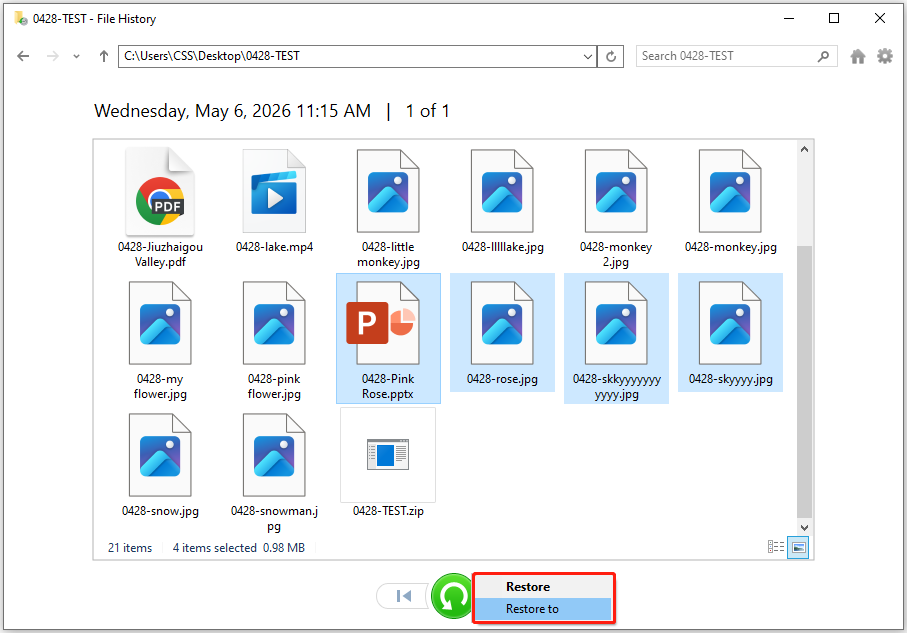
Step 1. Type Restore your files with File History in Windows search and press Enter.
Step 2. Select the target file, right-click the green button, and choose Restore or Restore to.
- Restore: Recovers the file to its original location.
- Restore to: Recovers the file to a location you choose.

Method 4. Check the $RECYCLE.BIN Folder on External Drives
Suitable case: The files were deleted from an external hard drive.
External drives contain a hidden system folder named $RECYCLE.BIN. Files removed from external hard drives are usually stored there.
Steps to recover files from the $RECYCLE.BIN folder:
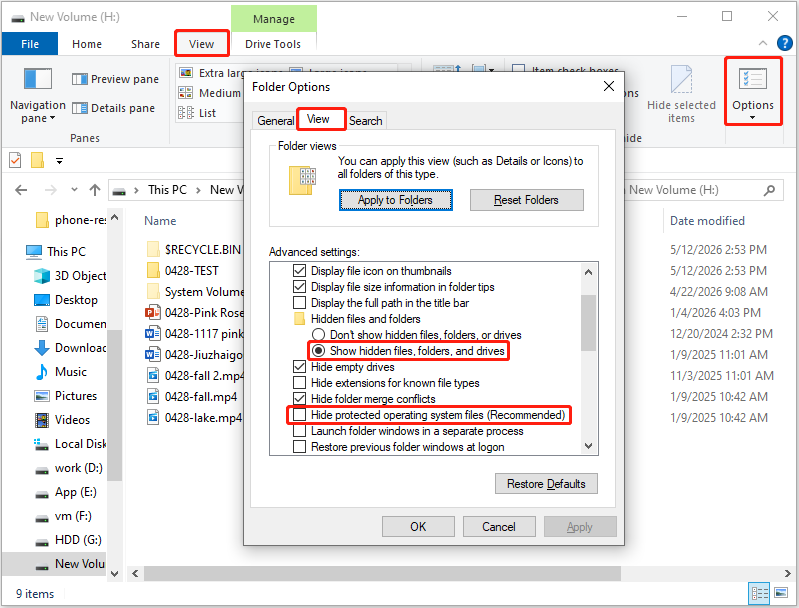
Step 1. Show the hidden $RECYCLE.BIN folder.
Go to the View tab in File Explorer, and click Options. Under the View tab:
- Check Show hidden files, folders, and drives
- Uncheck Hide protected operating system files (Recommended)
Step 2. Restore files from the $RECYCLE.BIN folder.
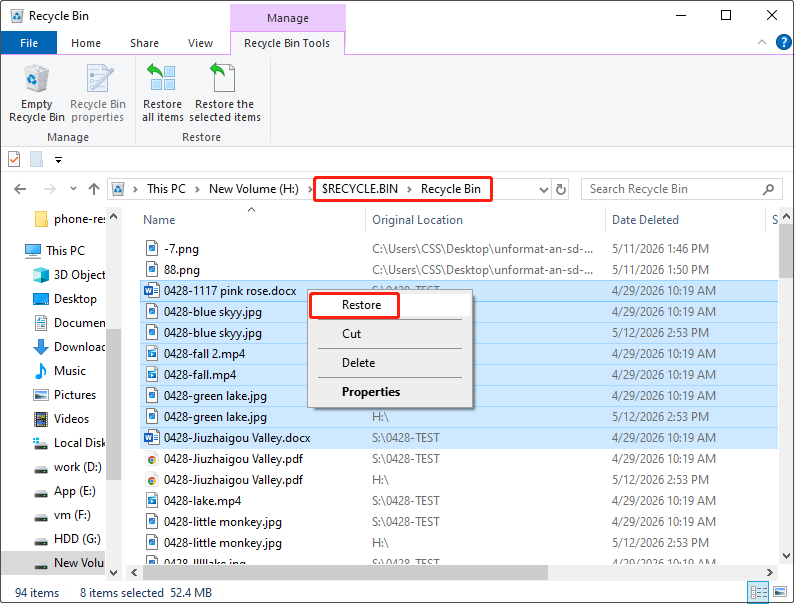
Open the external hard drive and navigate to $RECYCLE.BIN > Recycle Bin.
Find the files you want to recover, right-click, and choose Restore.
Tips to Prevent Permanent Data Loss
There are several tips to reduce the risk of losing files permanently after deletion.
1. Do Not Bypass Recycle Bin
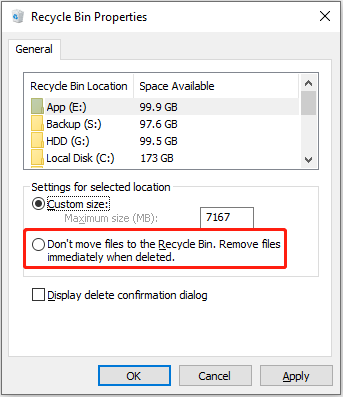
If the option “Don’t move files to the Recycle Bin. Remove files immediately when deleted” is enabled in Recycle Bin properties, deleted files will bypass the Recycle Bin.
Keeping this option disabled stores deleted files in the Recycle Bin for easier deleted file recovery.
Right-click the Recycle Bin on your desktop and choose Properties, then uncheck the option. This setting should be configured separately for each drive.

2. Configure Storage Sense
Change the Storage Sense settings to avoid automatically emptying the Recycle Bin.
Step 1. Go to Settings > System > Storage > Configure Storage Sense or run it now.
Step 2. Under the Delete files in my recycle bin if they have been there for over field, select Never.
3. Increase the Recycle Bin Storage Size
The Recycle Bin has a limited storage capacity. Large files may bypass the Recycle Bin if the allocated space is insufficient.
Increasing the Recycle Bin size from the properties window can help fix this.
4. Back Up Files
Backups provide the most reliable protection against permanent data loss. You can back up files using File History, Windows Backup and Restore, or MiniTool ShadowMaker.
MiniTool ShadowMaker TrialClick to Download100%Clean & Safe
Bottom Line
Deleted files that do not appear in the Windows Recycle Bin are not always permanently lost. In many situations, recovery is still possible through cloud Recycle Bins, previous versions, or professional data recovery software.
To improve the success rate, do not store new data to the drive to overwrite the deleted files.
If you have any questions when using MiniTool products, do not hesitate to contact the tech support team at [email protected].
Deleted File Not in Recycle Bin FAQ
1. OneDrive or Microsoft 365 Recycle Bin
2. Previous versions in File History
3. Data recovery software like MiniTool Power Data Recovery
However, the files can often still be recovered with data recovery software such as MiniTool Power Data Recovery before they are overwritten.
About The Author

Position: Columnist
Shirley holds a bachelor’s degree in English and has been an editor at the MiniTool Team for many years. She specializes in IT-related content, with a focus on data recovery, file backup, disk management, and other technical topics. She is committed to delivering clear, accurate, and practical solutions to help users resolve common computer issues.
User Comments :