

If your Documents folder shows empty but files are there, the issue is usually caused by hidden files, incorrect user profiles, OneDrive redirection, or file system errors. This guide explains how to make your missing documents visible again and how to recover permanently deleted files from the Documents folder using data recovery tools.
Quick Answer: Why Is My Documents Folder Empty
Your Documents folder may appear empty when files are hidden, moved to another location, linked to OneDrive, accessed from the wrong user profile, or affected by disk errors. Check the situation below to find the right fix.
| Situations | Solutions |
| Files are hidden | Enable Show hidden files or run a virus scan |
| Files are located in another location | Search for the file on your PC |
| Files are moved to OneDrive | Check OneDrive Documents |
| You are logged in to a wrong account | Switch user profile |
| Files are deleted | Restore from Recycle Bin, File History, or use data recovery software |
| Disk has file system errors | Run error checking to repair file system issues |
On Windows, the default location of the Documents folder is: C:\Users\username\Documents, located on the hard drive where the Windows OS is installed.
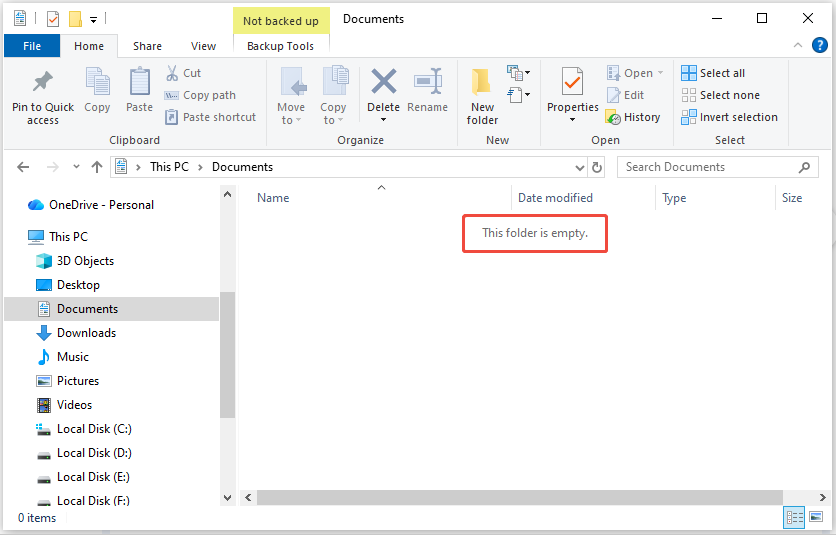
Sometimes, you may encounter the message saying “This folder is empty” as the picture below displays, but you are sure the files are there.
We are going to show you how to fix the following two issues:
- How to fix the Documents folder not showing files and folders that are stored in it?
- How to recover permanently deleted files in the Documents folder?
Before proceeding to the specific methods, read the next part to learn the possible causes for this issue first.
Why Are the Files Not Displaying in the Documents Folder
Here are some common reasons for files and folders disappearing from the Documents folder on Windows:
- Files are saved in a different location: You may store the files in an incorrect folder or move them from the Documents folder to another folder and forget them.
- Files may be hidden: Files within the Documents folder could be hidden due to user actions, virus infections, software conflicts, and more.
- Files may be in the OneDrive folder: Your files might have been relocated to the Documents folder within your OneDrive directory and are no longer in their original location.
- You are signed in to the incorrect user account: It’s possible that there are multiple user profiles on your computer, and the files you’re looking for are in the Documents folder of a different profile. Sometimes, you may log into a temporary profile after a Windows update.
- Files may be deleted by mistake: You might accidentally delete files from the Documents folder while organizing or transferring them.
- The hard drive may have errors: Hard disk issues or file system errors can lead to files in the Documents folder vanishing.
How to Fix Documents Folder Shows Empty but Files Are There
In this part, we will walk through detailed solutions to resolve the “files missing in the Documents folder but are there” issue.
Fix 1. Show the Hidden Files and Folders
The primary reason is that files and folders are hidden from view. To show hidden files and folders, use the File Explorer.
Follow these steps to show hidden files in File Explorer:
Step 1. Press Win + E to launch File Explorer.
Step 2. Click on File in the upper left corner, and then select Change folder and search options.
Step 3. Navigate to the View tab and enable the option for Show hidden files, folders, and drives.
Step 4. Click Apply > OK.
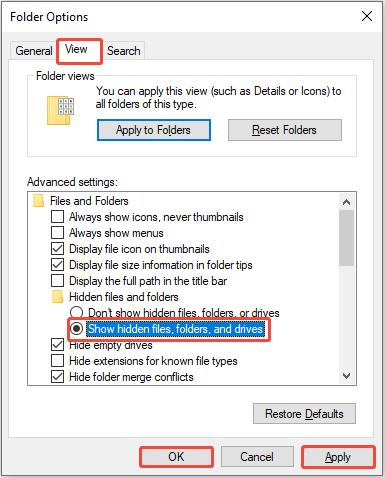
Afterwards, check whether your files and folders are visible in the Documents folder. If not, keep reading to try other practical methods.
Fix 2. Use the Search Bar
Your files may be invisible due to being saved in an incorrect storage location that you forgot.
Therefore, consider finding the missing files from the emptied Documents folder by searching in the File Explorer.
Step 1. Open File Explorer and go to This PC.
Step 2. Type the exact file name or specify the file type in the File Explorer search bar located at the top-right corner.
Fix 3. Check the OneDrive Folder
Your Documents folder may be redirected to another location, like OneDrive.
In this situation, navigate to C:\Users\username\OneDrive\Documents in the File Explorer to see if your files are present there.
If you’re unable to locate the files in File Explorer, check the OneDrive app or visit the OneDrive website to find your files.
Fix 4. Check the User Profile
After a Windows update, you might be logged into a temporary account and receive the “You’ve been signed in with a temporary profile” message.
In this case, when you open the Documents folder, you may see that the folder is empty.
To resolve this issue, simply restart your PC.
If you have multiple user profiles, click Start and look for your profile picture to ensure that you are logging in to the correct account.
If not, click the profile icon and then select the Sign out option.
After that, sign in to your correct account and check if the files are back in your Documents folder.
Fix 5. Run a Disk Check
File system errors in the disk may trigger some issues, such as files being inaccessible despite still existing on the disk, or data loss.
Performing an error check can help scan and repair possible disk problems:
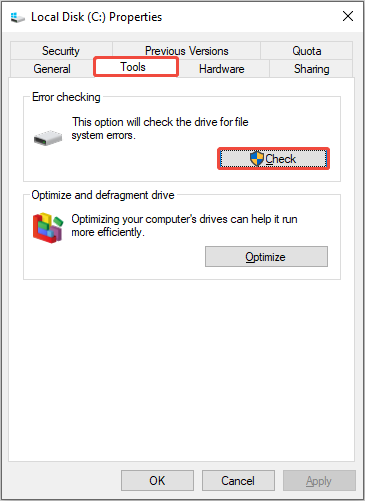
Step 1. Launch File Explorer and navigate to This PC.
Step 2. Right-click on the drive containing the Documents folder (Usually the C drive) and choose Properties.
Step 3. Switch to the Tools tab and click on Check under the Error checking section.
Windows will scan the drive for errors and ask you to repair any issues it finds.
Fix 6. Scan for Malware
Malware and viruses can hide or corrupt your files on your PC, leading the Documents folder to seem empty.
Therefore, try performing a complete system scan using Windows Defender to check for any malicious programs.
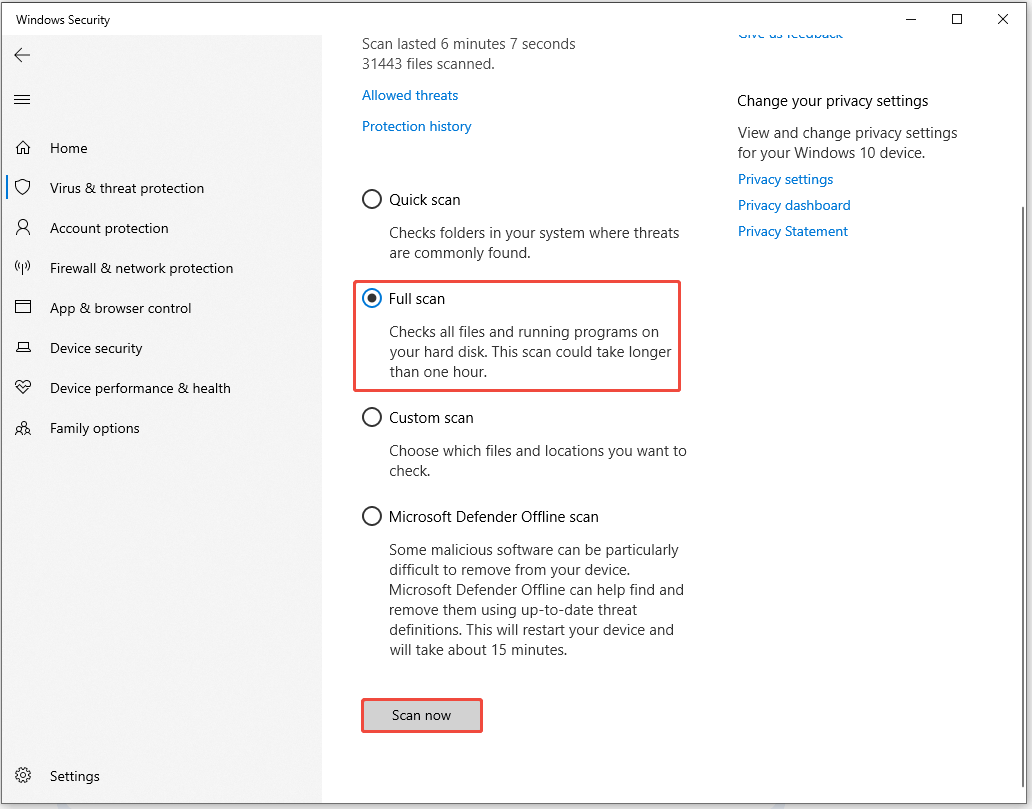
Step 1. Press Win + I to access Settings.
Step 2. Navigate to Update & Security > Windows Security > Virus & threat protection.
Step 3. Select Scan options > Full Scan, and then click the Scan now button.
If your files and folders are not restored after trying the above solutions, they may be deleted or lost.
Keep reading to learn how to recover deleted files in the Windows Documents folder.
How to Recover Deleted/Lost Files or Folders in the Documents Folder
In this section, we will introduce four effective methods to recover files from the Documents folder by using the Recycle Bin, File History, and data recovery software.
Method 1. Check the Recycle Bin
Sometimes, you may inadvertently delete your files and folders while organizing them or freeing up space.
Before using the built-in Windows backup tool or a data recovery tool, the Recycle Bin must be your first place to restore files.
Here’s how to restore files and folders in the Recycle Bin:
Step 1. Double-click the Recycle Bin icon to open it.
Step 2. Locate the desired files and folders. To select multiple files, press Ctrl or Shift. Then, right-click them and choose Restore.

If you don’t find your files or folders in the Recycle Bin, proceed to the next solution.
Method 2. Restore the Previous Version
If you have enabled the File History on Windows and backed up your Documents folder, try restoring the previous version of this folder to recover data.
Here’s how to restore the previous version of the Documents folder:
Step 1. Press Win + E to open File Explorer and go to This PC.
Step 2. Locate and right-click your Documents folder, and then select Restore previous versions.
Step 3. In the pop-up window, select a version that contains the lost files and click Restore.

Method 3. Restore From the File History
In addition to restoring previous versions, you can also use the Control Panel to recover files backed up with File History.
To recover files in the Documents folder, follow these steps:
Step 1. Press Win + S to open the Windows Search bar. Type Control Panel and press Enter. Next, select System and Security.
Step 2. Click File History and select the Restore personal files option in the left panel.
Step 3. In the new window, select the whole Documents folder or files in it, and then click the green Restore button to recover them.

Method 4. Use MiniTool Power Data Recovery
If you don’t find your Documents folder’s files either in the Recycle Bin or the Windows backup, consider using professional data recovery software.
One effective tool for secure file recovery is MiniTool Power Data Recovery.
Below are some key features of this free data recovery software that you can trust 100%:
- Supports a variety of file formats: This comprehensive data recovery tool can help you recover documents, photos, videos, audio files, emails, and more.
- Compatible with multiple storage media types: This tool is compatible with Windows 11/10/8/8.1 and various storage devices, including HDDs, SD cards, USB flash drives, and more.
- Provides a clear interface and simple steps: This recovery application features a tidy and easy-to-use interface, making it accessible for beginners.
- Provides 1 GB of free data recovery capacity: You can restore up to 1 GB of files for free.
Now, download MiniTool Power Data Recovery Free and use it to recover deleted or lost files from the Documents folder.
MiniTool Power Data Recovery FreeClick to Download100%Clean & Safe
Here is a step-by-step guide to recovering lost data from the Documents folder.
Step 1. Launch MiniTool Power Data Recovery to get its main interface.
Under the Logical Drives tab, select the target partition where the Documents folder is located (Usually, the C drive) and click Scan to scan for files.
Alternatively, go to the Recover From Specific Location section to scan the Documents folder.
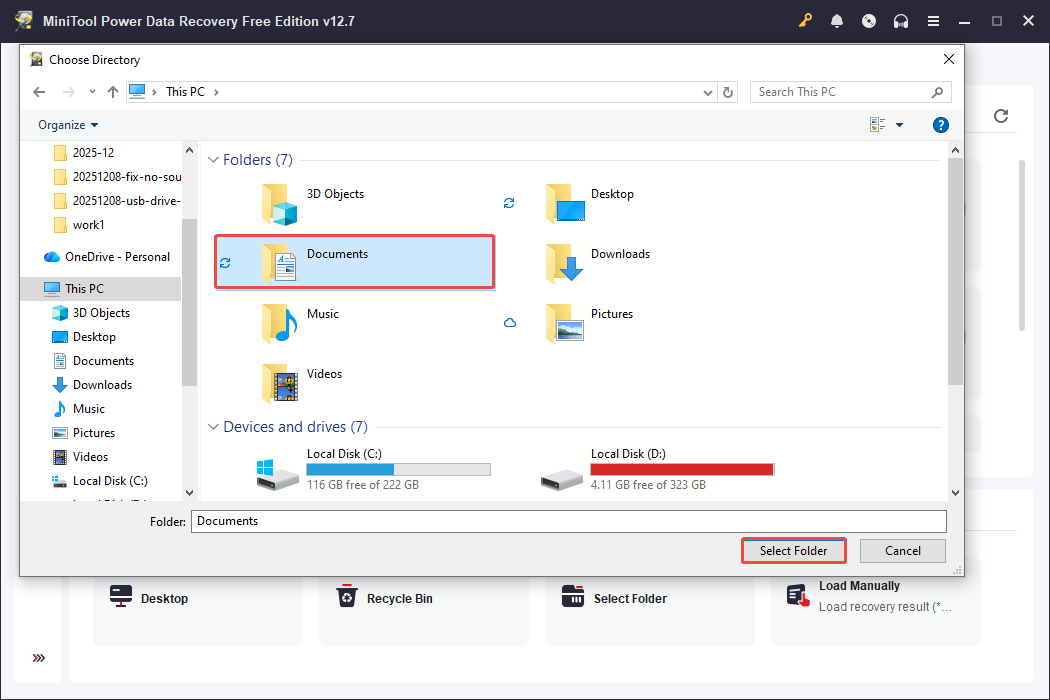
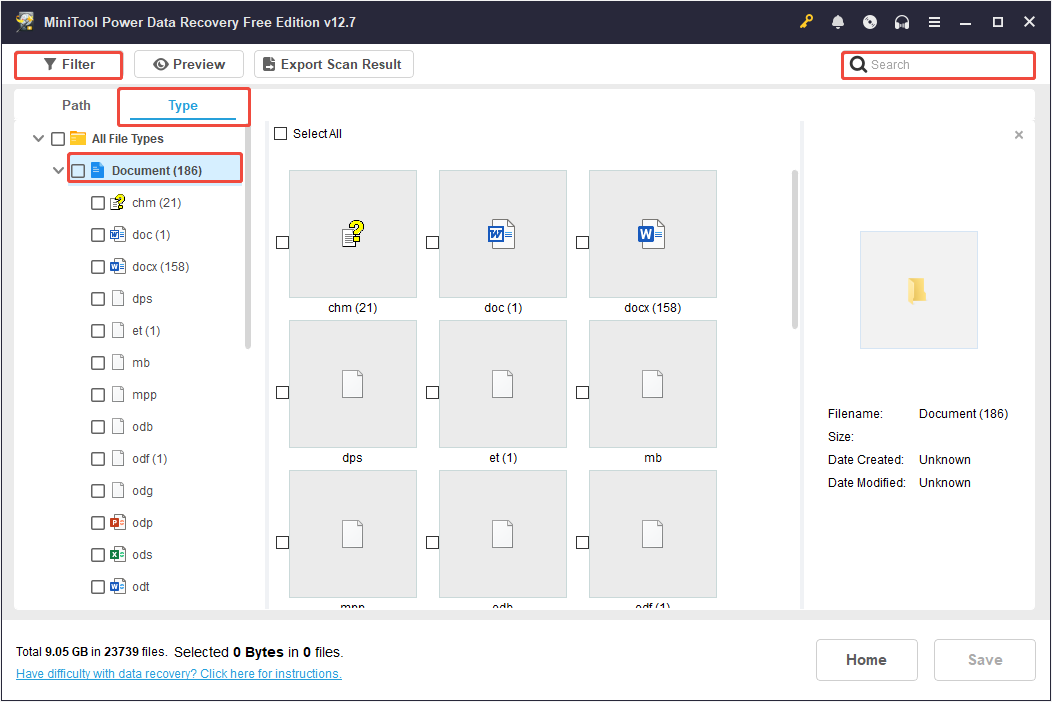
Step 2. Once the scanning process is complete, find the documents you want to recover.
In the Path section, expand the Deleted Files and Lost Files directories to find your files or folders.
Three additional features can help you locate your files more effectively:
- Type: This classifies files according to their type and data format. To recover documents, focus on the Document section.
- Filter: This option allows you to narrow down the scan results by file type, file size, date modified, and file category.
- Search: Type the file name or part of it in the search box and press Enter to locate your documents without needing to manually browse through all the folders.
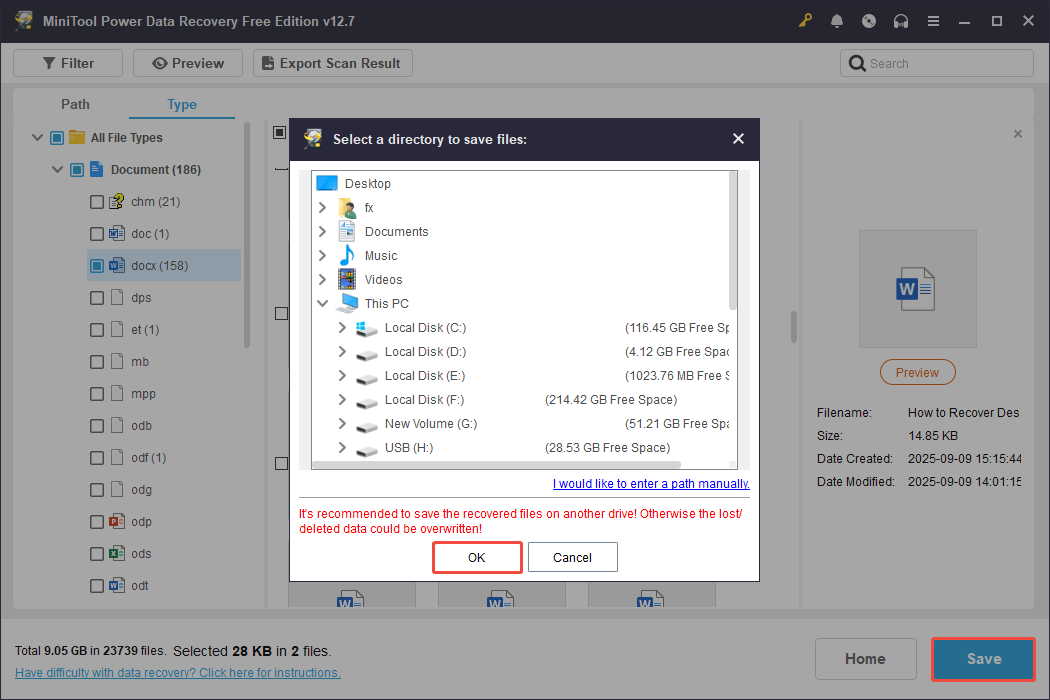
Step 3. Select the files you want to recover and click Save.
In the pop-up window, select a location different from the original one to prevent data overwriting, and then click OK to start the recovery process.
Once the recovery is completed, you can view and use the recovered files from the saved location.
Bottom Line
Now, you should be able to fix the issue that the Documents folder shows empty on Windows 10/11.
Try the six methods mentioned above one by one to determine whether the files are simply hidden or actually lost.
If the files and folders are lost from the Documents folder, you need to check the Recycle Bin and Windows backups.
Additionally, the last resort for document recovery is to use a reliable Windows data recovery tool.
If you have any questions about recovering files with MiniTool Power Data Recovery, please feel free to contact us via [email protected].
Documents Folder Empty FAQ
Check the folder permissions by right-clicking the Documents folder and selecting Properties > Security. If the problem started after a Windows update or account change, repairing the user profile or restoring the default folder location may help.
Try searching for the folder in File Explorer. If it does not appear, recreate it.
Windows will redirect the Documents folder to the new location after you apply the change. Before moving the folder, make sure the target drive is connected and has enough storage space to avoid file access issues.
About The Author

Position: Columnist
Shirley holds a bachelor’s degree in English and has been an editor at the MiniTool Team for many years. She specializes in IT-related content, with a focus on data recovery, file backup, disk management, and other technical topics. She is committed to delivering clear, accurate, and practical solutions to help users resolve common computer issues.
User Comments :