

Quick Answer for Gmail Email Recovery:
| Scenario | Recovery possibility | Recovery method |
| Emails deleted within 30 days and still in Trash | Fully recoverable | Restore from the Trash |
| Emails deleted due to account compromise within 30 days | High | Use the Gmail Message Recovery Tool |
| Emails downloaded to local disks | High | Use free data recovery software |
| Emails not in Trash and not downloaded locally | Nearly impossible | No recovery path available |
After accidentally deleting emails in Gmail, you may assume that once an email is removed from the Trash, it is permanently lost. However, depending on how and when the email was deleted, recovery may still be possible.
This guide outlines practical methods to recover deleted Gmail emails, including those that appear to be permanently deleted.
How to Recover Deleted Emails from Gmail
Before trying any data recovery method, use Gmail’s search box to look for keywords related to the missing email. The email may simply be buried among hundreds of messages rather than deleted.
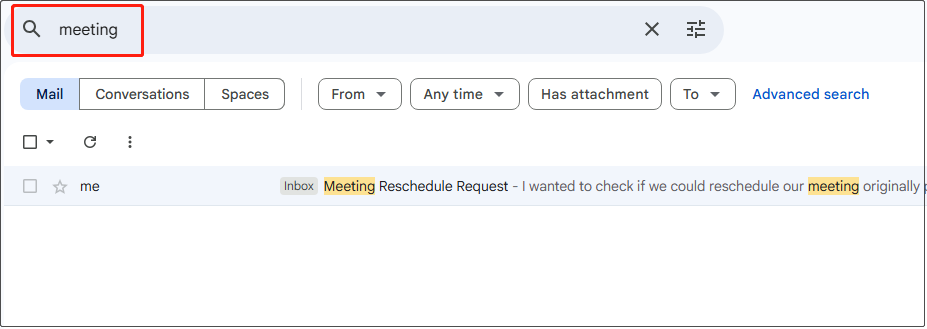
If you confirm that the email has been deleted, check the Trash folder first. If it is no longer there, try submitting a request through the Gmail Message Recovery Tool.
The two recovery methods are explained in detail below.
Quick video guide to email recovery:
Method 1. Restore Deleted Emails from Trash
To recover deleted emails from Gmail, the most direct method is to check the Trash folder.
When to use:
- Emails were deleted within the last 30 days
- No manual emptying of Trash has occurred
How to recover emails from Trash:
Step 1. Open Gmail and log in to your account.
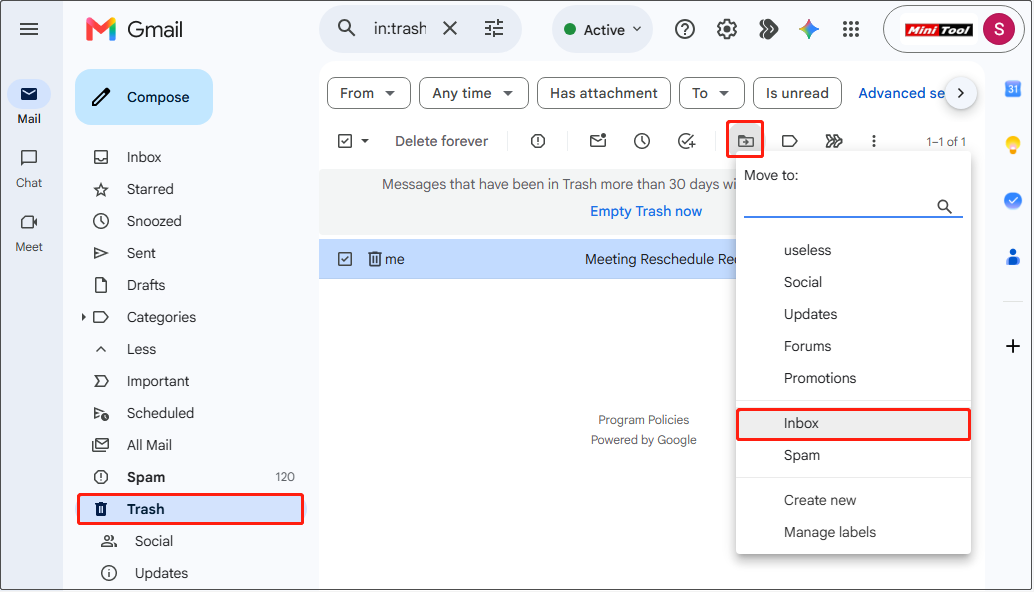
Step 2. Navigate to the Trash folder from the left sidebar.
Step 3. Locate the deleted email, select it, and click Move to > Inbox. The target email should appear in Inbox again.
Method 2. Use the Gmail Message Recovery Tool
If the email is not in Trash, Google provides a limited recovery option through its official Gmail Message Recovery Tool.
This tool helps recover emails that have been deleted due to someone accessing your Gmail account without permission.
When you can use it:
- Emails were lost due to unauthorized account access
- Emails were permanently deleted within 30 days
How to use the Gmail Message Recovery Tool:
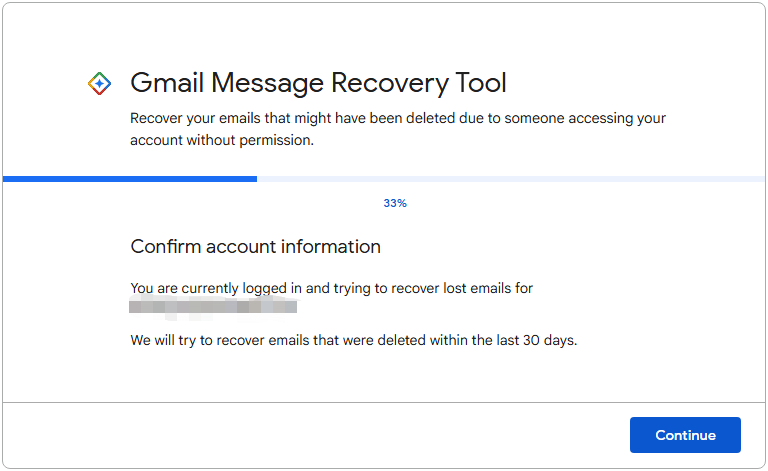
Step 1. Visit the Gmail Message Recovery Tool site and confirm your Gmail account information.
Step 2. Follow the on-screen instructions to submit the request for email recovery.
Can You Recover Permanently Deleted Emails from Gmail
In general, once emails are permanently deleted from the Trash, you won’t be able to recover them. Even if you contact the Google support team, recovery is nearly impossible.
Why Google Does Not Allow Recovery of Permanently Deleted Emails
The main reason Google cannot recover emails deleted long ago is to protect user security and privacy.
- After permanent deletion, Gmail no longer provides user access to the email data.
- Privacy and storage policies prevent long-term restoration for deleted emails.
- In addition, promptly deleting files reduces redundant backups and helps optimize storage efficiency.
As a result, Gmail does not provide a method to recover permanently deleted emails.
When You Can Recover Permanently Deleted Emails
Fortunately, Gmail emails may still be recoverable if they have been previously downloaded to your local device and later deleted by mistake.
Unlike recovering emails from Google servers, recovering deleted .eml files from a local device is often much easier, as long as the data has not been overwritten.
However, it is difficult to determine whether deleted data has been overwritten visually. For this reason, many data recovery tools provide a free edition that allows you to scan drives, preview recoverable files, and restore a limited amount of data at no cost.
For example, MiniTool Power Data Recovery is one such tool that supports recovering .eml email files and provides up to 1 GB of free recovery capacity.
This software is fully compatible with Windows 11/10/8/8.1 and supports HDDs, SSDs (with TRIM disabled), and removable drives.
MiniTool Power Data Recovery FreeClick to Download100%Clean & Safe
How to Recover Downloaded Emails
The following steps show you how to recover .eml files using MiniTool Power Data Recovery on Windows 10/11.
Step 1. Scan the location.
Launch MiniTool Power Data Recovery and scan the location where the deleted emails were stored.
You can scan an entire partition, like the C: drive, or a specific location such as the Desktop or Recycle Bin. Scanning a specific location is faster and more efficient.
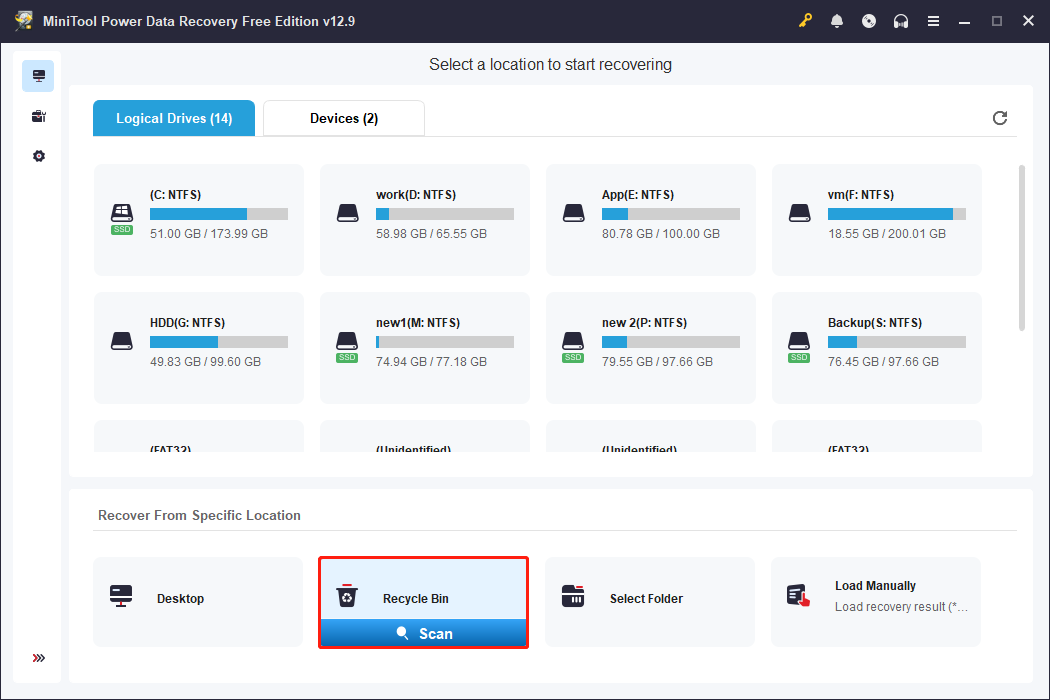
In my test, I downloaded three Gmail emails to the Desktop, deleted them, and emptied the Recycle Bin. Scanning the Desktop took about 25 minutes, while scanning the Recycle Bin took only 2 minutes.
Step 2. Preview the .eml files.
After scanning, go to the Type tab and locate the deleted .eml files under E-mail.
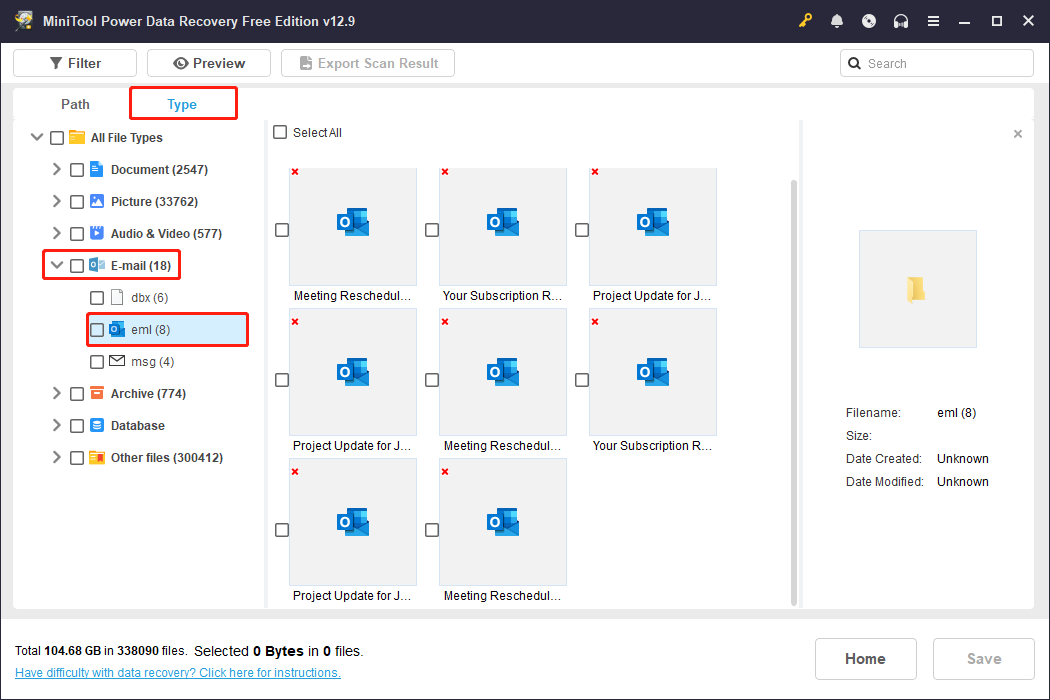
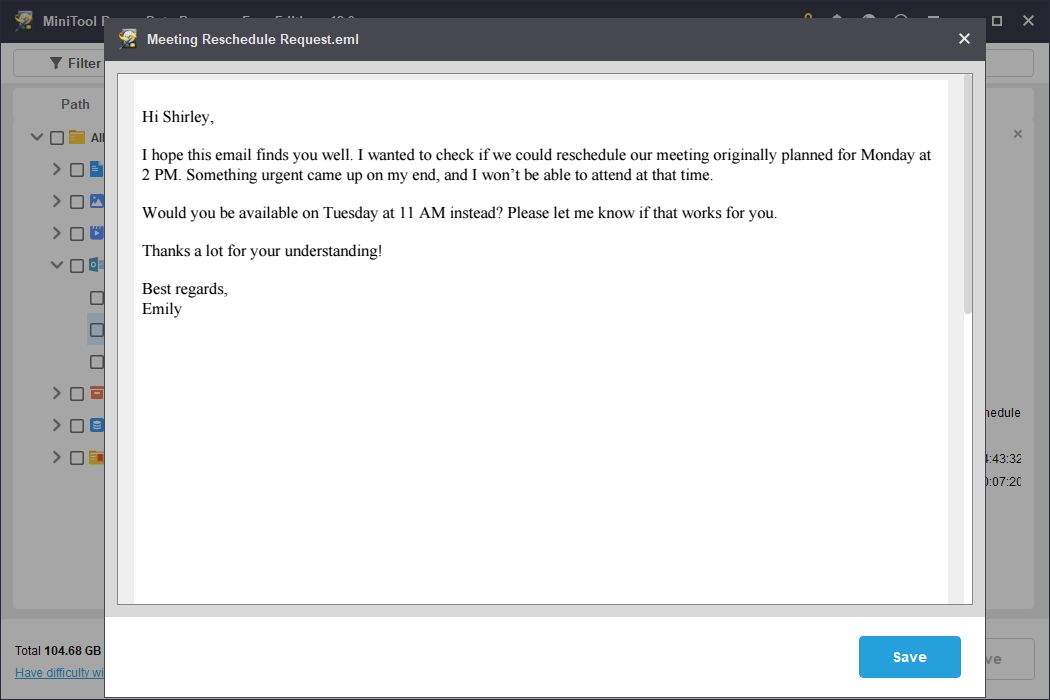
In my test, the software found all three deleted emails regardless of whether I scanned the Desktop or the Recycle Bin. I previewed each file and confirmed that the message content was fully intact.
To preview a file, simply double-click on it.
Step 3. Save the emails.
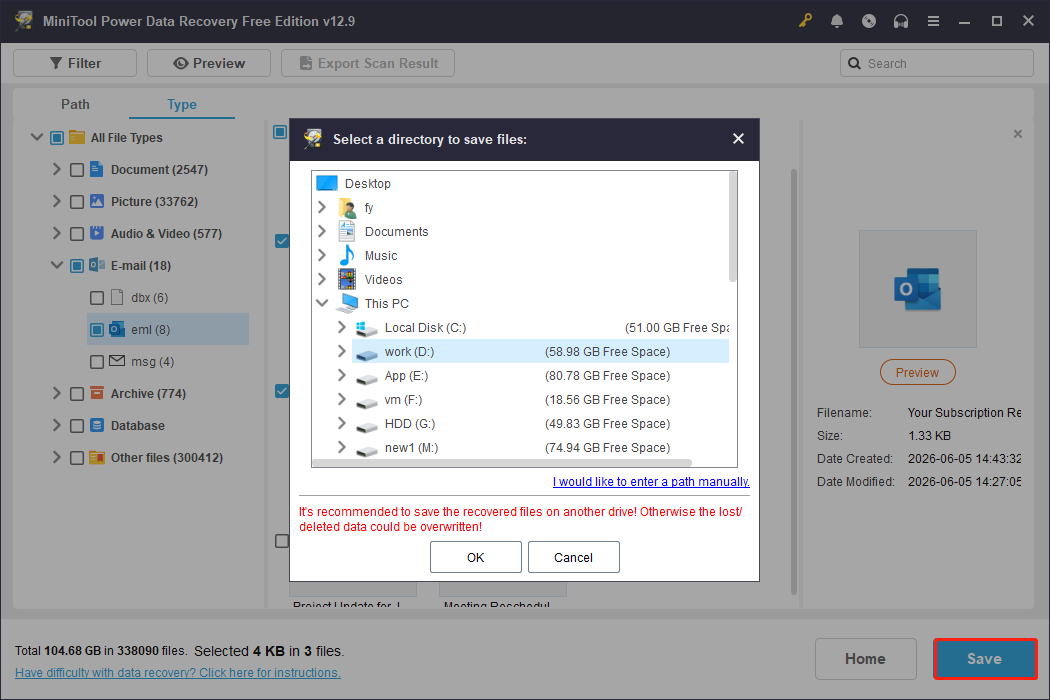
Select the email files you want to recover and click Save.
It is recommended to save them to a different drive. This helps prevent deleted data from being overwritten. Overwritten files can usually not be recovered by data recovery software.
In my test, all the recovered .eml files opened normally after recovery, and the email content remained intact.
Why Gmail Emails Are Missing Automatically
Sometimes emails disappear automatically without being manually deleted. Below are the common reasons why Gmail emails disappear without being deleted:
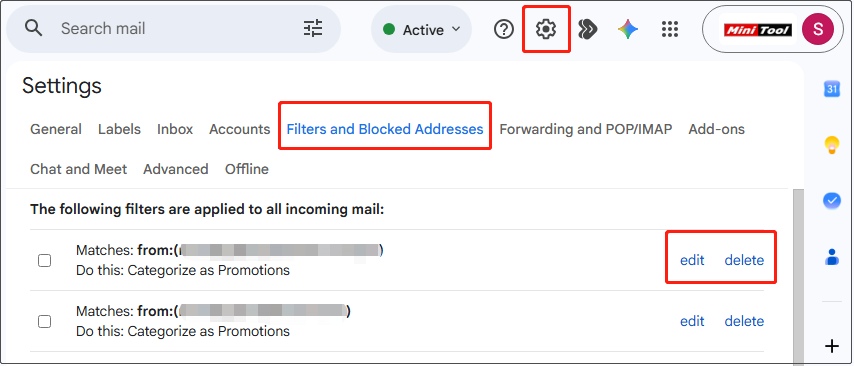
- Filters or rules that automatically archive or delete your emails
- Emails that have been in the Trash folder for more than 30 days
- Account compromise, where emails are intentionally deleted
For emails automatically deleted due to unnecessary filters, you can fix the issue by reviewing and adjusting your filter rules.
Fix: Review Filters
Follow the steps below to check whether filters are causing email loss and disable them:
Step 1. Open Gmail Settings by clicking the gear icon, then click See all settings.
Step 2. Go to the Filters and Blocked Addresses tab.
Step 3. Review your filters and remove or edit any rules that automatically delete or archive emails.
How to Prevent Emails from Being Permanently Missing in Gmail
To reduce the risk of losing important emails permanently, take the following precautions. These tips range from protecting individual emails to securing your entire Gmail account.
1. Back up important emails
You can back up important emails by downloading them individually as .eml files or by using Google Takeout to export all emails and attachments in MBOX format.
For official instructions on exporting emails, refer to Google’s data export documentation.
2. Regularly check the Trash folder
Important emails may be accidentally moved to the Trash folder. Emails in Trash are automatically deleted after 30 days, so it is recommended to review these folders regularly to avoid missing messages.
3. Avoid aggressive filters
Gmail filters may automatically archive or delete emails. Go to Gmail Settings and review all rules to ensure important emails are not being processed incorrectly.
4. Secure your account with 2-step verification
Email loss can occur due to unauthorized account access. Enabling 2-Step Verification helps protect your account and prevents emails from being deleted without your permission.
Bottom Line
To sum up, email recovery in Gmail depends on how long the emails have been deleted. Emails in the Trash folder can usually be restored within 30 days, while permanently deleted emails are only recoverable if they were previously downloaded.
If you have any questions when using MiniTool Power Data Recovery, please do not hesitate to contact the support team at [email protected].
Recover Deleted Emails Gmail FAQ
However, if the emails were previously downloaded to your computer, recovery may still be possible by using data recovery software like MiniTool Power Data Recovery.
If the email is not found, it may have been permanently deleted. If it was not downloaded or backed up beforehand, recovery is usually not possible.
About The Author

Position: Columnist
Shirley holds a bachelor’s degree in English and has been an editor at the MiniTool Team for many years. She specializes in IT-related content, with a focus on data recovery, file backup, disk management, and other technical topics. She is committed to delivering clear, accurate, and practical solutions to help users resolve common computer issues.
User Comments :