

To recover PowerPoint file, the method depends on how the file was lost. Unsaved files can be recovered using the AutoRecover feature after a crash. Deleted files can be restored from the Recycle Bin or recovered with data recovery software. Overwritten files can be restored from previous versions.
Quick Answer:
1. When Can a PowerPoint File Be Recovered?
| Situation | Recoverable? |
| Deleted but not overwritten | Usually yes |
| Deleted from SSD | Yes if TRIM is disabled; most likely not if TRIM is enabled |
| Unsaved after software or PC crash | Usually yes |
| Unsaved by clicking “Do Not Save” | Usually no |
| Overwritten | Only if backed up with File History |
2. How to Recover a PowerPoint File?
You can recover a PowerPoint file depending on how it was lost:
- Deleted PowerPoint file can be recovered from the Recycle Bin or by using free data recovery software if permanently deleted.
- Unsaved PowerPoint file can often be recovered by reopening PowerPoint to view AutoRecover files or restored from the temporary files.
- Overwritten PowerPoint file can be restored from a previous version using Windows File History.
The following sections provide detailed methods to recover PowerPoint files under different conditions.
How to Recover a Deleted PowerPoint File
When a PowerPoint file is deleted, it is usually not permanently removed from your disk. As long as the Recycle Bin has not been emptied and no new data has been written to the original storage location, the file typically remains recoverable.
Method 1. Restore From the Recycle Bin
Applicable case: The PowerPoint file was deleted from an internal hard drive using standard deletion (not Shift + Delete)
When you delete a PowerPoint file normally, it is moved to the Recycle Bin and can be restored before the Recycle Bin is emptied.
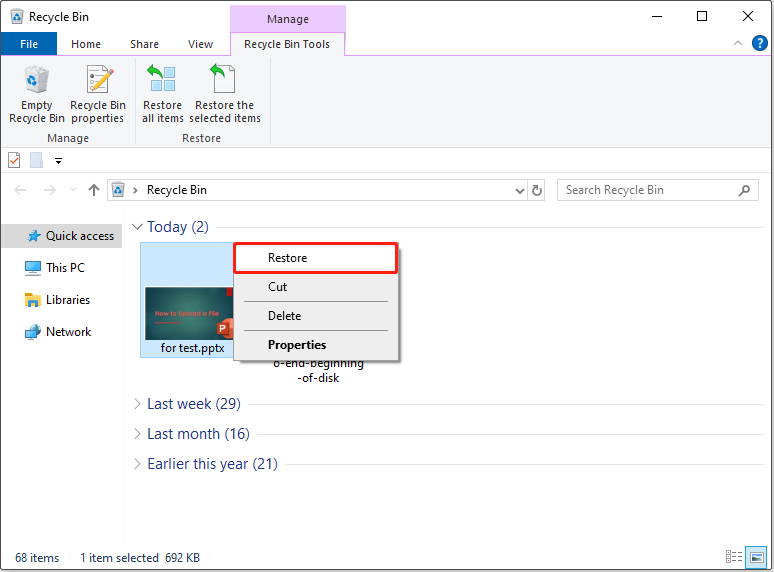
To recover a PowerPoint file, open the Recycle Bin, locate the target PPT or PPTX file, right-click it, and select Restore. The file will be returned to its original location.
You can also drag and drop the file to another location you prefer.

Method 2. Search for the File on Your PC
Applicable case: The PowerPoint file is not really deleted, but saved in another location
Not all “lost” PowerPoint files are actually deleted. In some cases, the file may have been saved to a different folder or drive that was not noticed.
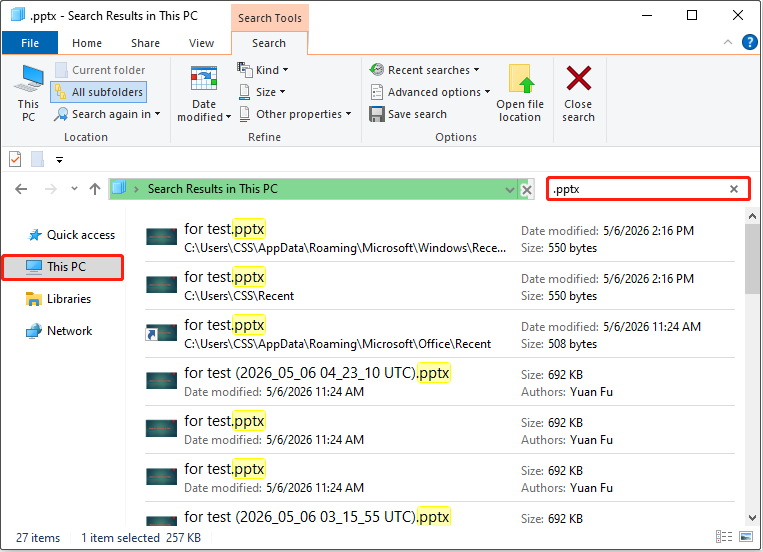
In this situation, you can use the Search feature in This PC to locate files across folders and drives. Enter the file name or file extension, such as .ppt or .pptx, to locate the missing presentation.
Method 3. Use Data Recovery Software
Applicable case: The PowerPoint file has been permanently deleted but has not been overwritten
If a PowerPoint presentation has been permanently removed, recovery is only possible if the data has not been overwritten by new data.
Professional tools such as MiniTool Power Data Recovery can scan local storage devices to detect recoverable files.
MiniTool Power Data Recovery FreeClick to Download100%Clean & Safe
Recovery Steps:
Step 1. Scan the storage device
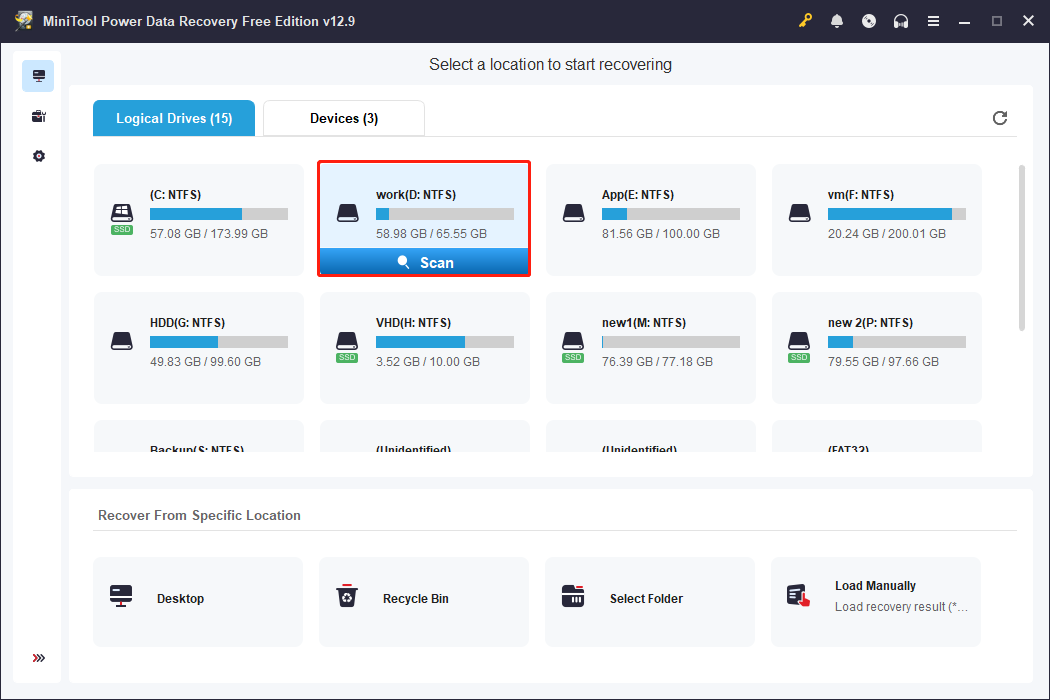
Launch the data recovery software and select the drive/location where the PowerPoint file was originally stored to scan.
The scan duration can range from a few minutes to tens of minutes, depending mainly on the amount of data on the disk.
Step 2. Find and preview the PowerPoint file
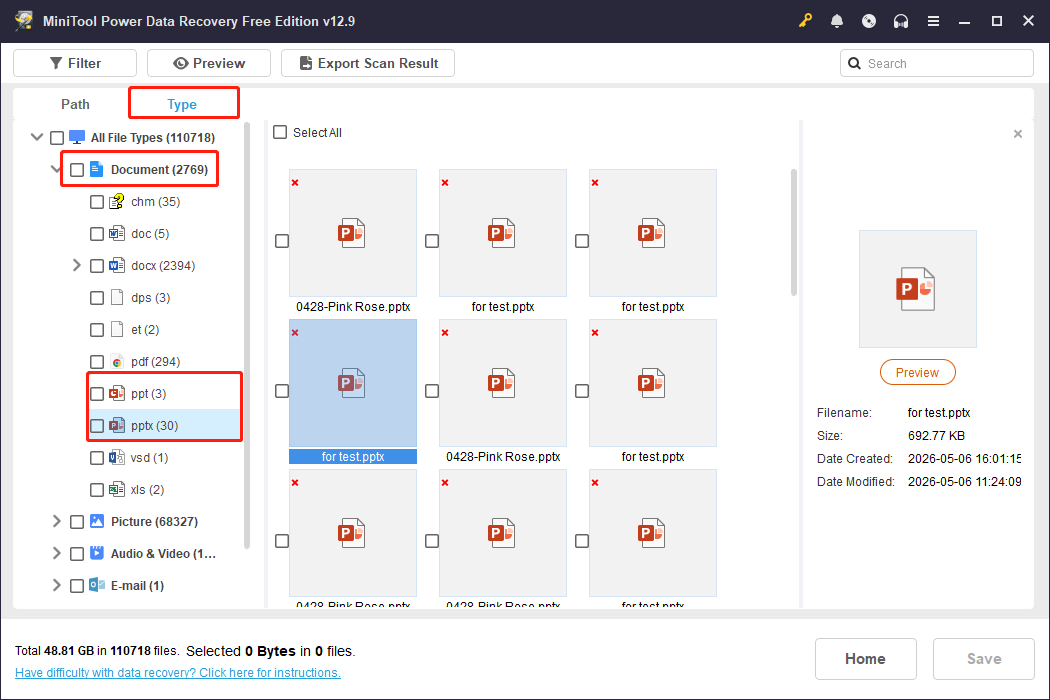
After the scan is completed, go to Type > Document > ppt/pptx to locate the target PowerPoint file.
Step 3. Save the PowerPoint file
Finally, select the target PowerPoint file, click Save, and choose a secure location to store it. Avoid saving the recovered file back to the original location to prevent data overwriting.
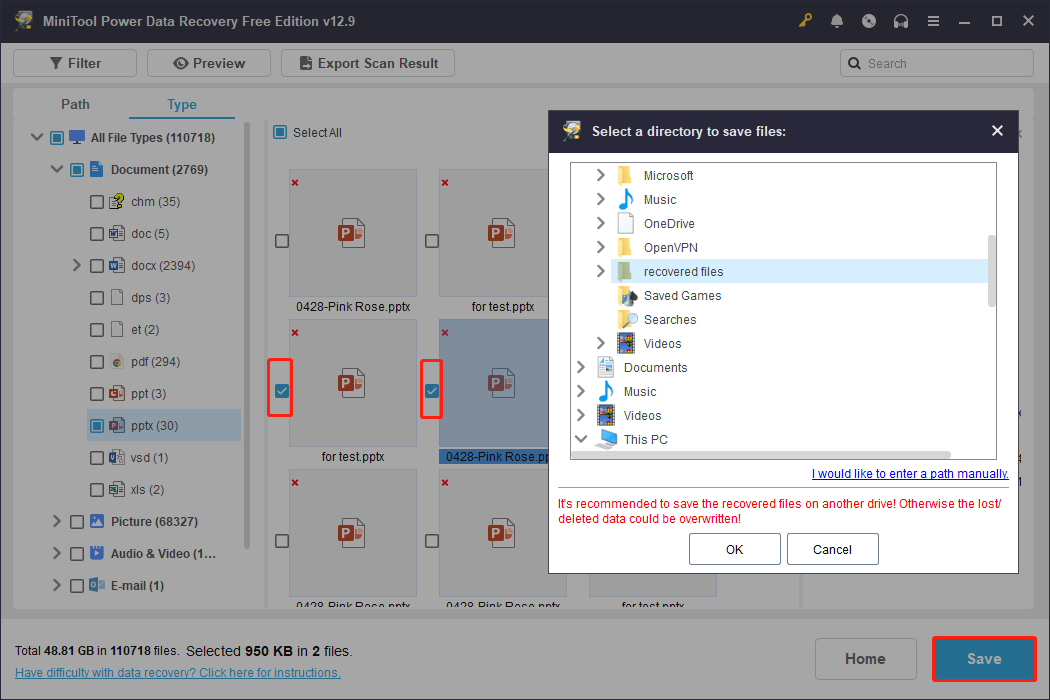
MiniTool Power Data Recovery has stable performance in recovering PowerPoint files from HDDs, SSDs (with TRIM disabled), and removable drives.
However, the free edition only supports recovering 1 GB of files for free. Therefore, it is more suitable for restoring a small number of files at no cost.
How to Recover PowerPoint File Not Saved
During PowerPoint file editing, unexpected interruptions such as software crashes or system shutdowns may result in unsaved PowerPoint files.
PowerPoint provides an AutoRecover feature that helps restore unsaved presentations easily.
Method 1. Restart PowerPoint to Trigger Auto Recovery
Applicable case: The PowerPoint file is unsaved due to an unexpected software crash or computer shutdown.
When PowerPoint or the computer closes without warning, the unsaved presentation will be restored automatically the next time PowerPoint is launched.
This is because PowerPoint uses the AutoRecover feature to store temporary versions of the open file that is being edited.
After reopening PowerPoint, you can click Save and choose a secure location to store the recovered file.


Method 2. Use the Temp File
Applicable case: The AutoRecover file does not appear after restarting PowerPoint.
If the unsaved PowerPoint file is not automatically recovered, it may still exist. By default, you can recover it from this location:
C:\Users\Username\AppData\Roaming\Microsoft\PowerPoint
Operation steps:
Step 1. In PowerPoint, go to File > Open > Recover Unsaved Presentations to access unsaved files.
Step 2. Change the file type filter to All Files to display all items.
Step 3. Select the temporary file that matches the editing time of the lost presentation and open it. The unsaved PowerPoint file should then show up.
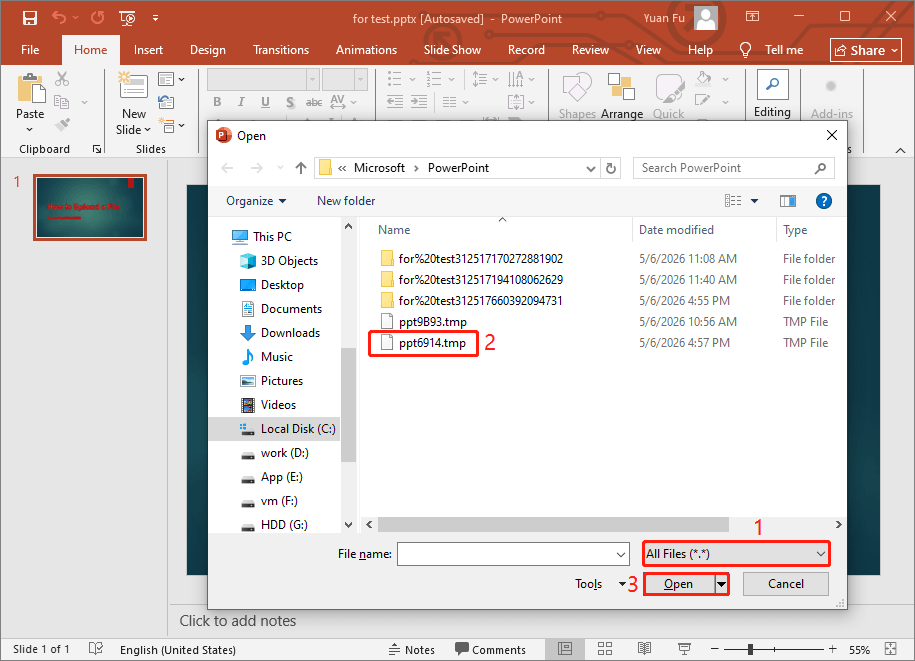
This is all about how to recover unsaved PowerPoint files.
How to Recover Overwritten PowerPoint File
Overwriting means saving a file with the same name, replacing the original content.
Unlike deleted files, overwritten files usually cannot be recovered with data recovery software. PowerPoint also does not provide a built-in option to restore overwritten files.
However, recovery may still be possible if the previous version history is available on the computer.
Restore Previous Versions of a PowerPoint File
Applicable case: The PowerPoint file was edited, and the original content was overwritten by newer changes.
Unlike deleted files, overwritten files usually cannot be recovered because the original content has been replaced.
Overwritten PowerPoint files can usually be restored using File History. It is a Windows backup feature that automatically saves previous versions of files stored in library folders and other selected backup locations.
If backup copies were created before the file was overwritten, you can recover the earlier version.
Steps to restore the file:
Step 1. Check previous versions
Locate the PowerPoint file, right-click it, and select Restore previous versions.
Step 2. Open File History versions
Review the available backup versions saved by File History. Select a version created before the file was overwritten, click the drop-down arrow next to Open, and choose Open in File History.
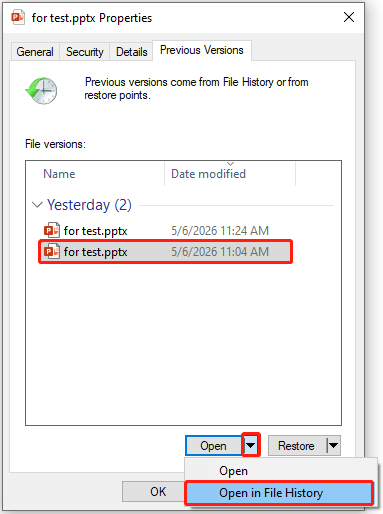
Step 3. Restore the original file
Verify that the file is the version you want. If it is, click the green Restore button to restore it to its original location. Alternatively, right-click the button, choose Restore to, and select a new location.


How to Avoid Losing a PowerPoint File
After restoring deleted, unsaved, or overwritten PowerPoint files, it is important to take steps to prevent future data loss.
Here are some practical recommendations:
1. Enable AutoRecover
AutoRecover is enabled by default in PowerPoint and automatically saves temporary versions of presentations during editing.
Keep this feature enabled to improve the chances of recovering unsaved changes.
2. Set a Shorter AutoRecover Interval
By default, PowerPoint saves AutoRecover information every 10 minutes. If you edit presentations frequently, consider reducing the interval to create automatic backups more often.
To change the AutoRecover interval:
In PowerPoint, click File > Options > Save. Then modify the value for Save AutoRecover information every X minutes.
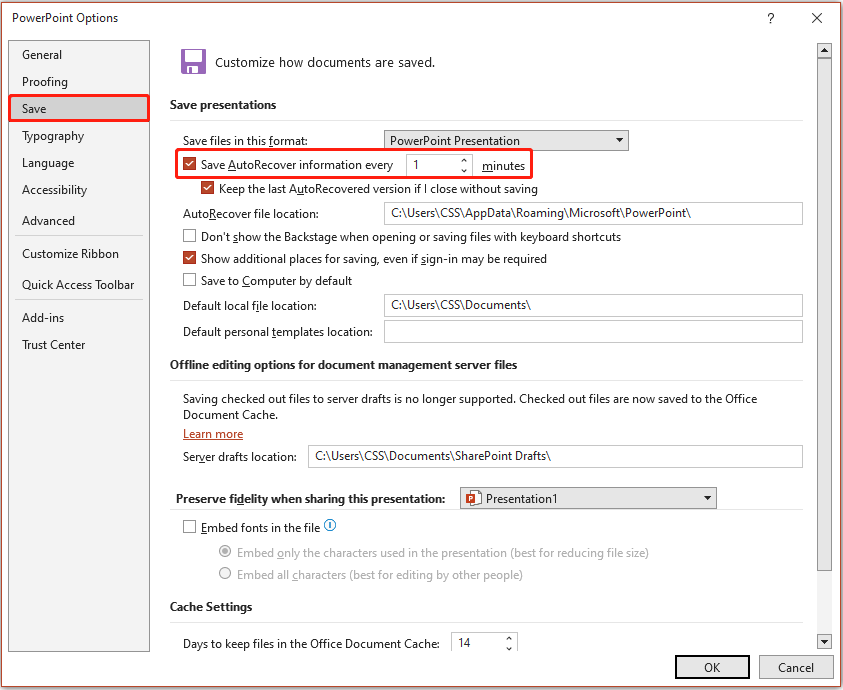
3. Back Up Local PowerPoint Files
Regularly back up important PowerPoint files to an external hard drive or cloud storage service.
For large-scale file backup, you can use built-in Windows backup features such as File History or third-party backup software like MiniTool ShadowMaker.
MiniTool ShadowMaker TrialClick to Download100%Clean & Safe
4. Save as a New File
When making major edits, save the presentation as a new file instead of overwriting the original file.
This keeps both the previous version and the updated version available.
Bottom Line
How to recover a PowerPoint file depends on whether the file was deleted, unsaved, or overwritten.
Unsaved files can usually be restored through AutoRecover, while permanently deleted files may require professional data recovery software. Overwritten PowerPoint files can only be recovered if File History backups are available.
To reduce the risk of permanent data loss, keep AutoRecover enabled, shorten the AutoRecover interval, and back up important PowerPoint files regularly.
If you encounter any issues while using MiniTool products, please contact the support team at [email protected].
Recover PowerPoint File FAQ
C:\Users\Username\AppData\Roaming\Microsoft\PowerPoint
The temporary files usually use the .tmp extension. Typically, you can change the file extension to .pptx to open the file in PowerPoint.
Use the Windows Search feature to search for it, or use data recovery software to recover it.
C:\Users\Username\AppData\Roaming\Microsoft\PowerPoint
About The Author

Position: Columnist
Shirley holds a bachelor’s degree in English and has been an editor at the MiniTool Team for many years. She specializes in IT-related content, with a focus on data recovery, file backup, disk management, and other technical topics. She is committed to delivering clear, accurate, and practical solutions to help users resolve common computer issues.
User Comments :