

Visio is a vector diagramming application developed by Microsoft that is commonly used to create flowcharts, network diagrams, and floor plans.
Visio files are typically saved in the .vsdx format and can also be exported as PDF, PNG, JPG, and other common file formats.
This software helps simplify the creation of project plans, study schedules, and travel itineraries. However, Visio files may sometimes be deleted or lost due to human error or hard drive issues.
In some cases, sudden application or system crashes may occur, leaving an open Visio drawing unsaved.
This guide provides step-by-step instructions on how to perform Microsoft Visio file recovery on Windows.
How to Recover Deleted Visio Files on Windows
For Visio files deleted from your Windows internal hard drive, you should first check the Recycle Bin.
If the files are not found there, consider using free data recovery software or checking available backup versions.
Continue reading to find step-by-step instructions for each method below.
Method 1. Check the Recycle Bin
The Recycle Bin is a Windows folder that serves as a temporary location for storing files and folders deleted from internal hard drives.
Files removed using the Delete key usually remain there until the Recycle Bin is emptied manually or automatically by Windows Storage Sense.
Follow the steps below to recover deleted Visio files from the Recycle Bin.
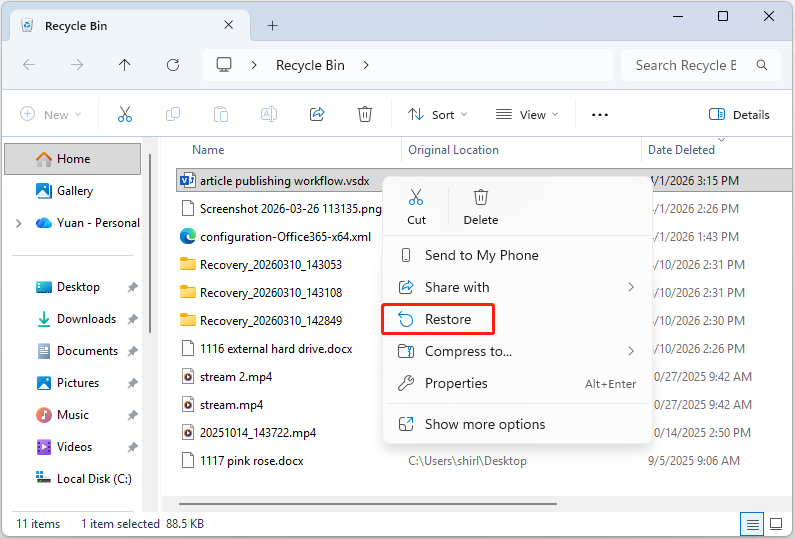
Step 1. Double-click the Recycle Bin icon on your desktop to open it.
Step 2. Right-click the Visio file you want to recover and click Restore.
The file will be restored to its original location. You can also drag and drop it to any folder you prefer.

Method 2. Use MiniTool Power Data Recovery
If deleted Visio files are not found in the Recycle Bin, Visio file recovery software can help restore them.
As long as the deleted files have not been overwritten by new data, data recovery software can find them by scanning the disk where they were stored.
MiniTool Power Data Recovery is a recommended option for recovering deleted Visio files due to the following features:
- Comprehensive recovery capability: It supports recovering common Visio file formats, such as .vsdx, .vstx, and .vsdm, from accidental deletion, disk formatting, or virus attacks.
- Wide compatibility: It is fully compatible with internal hard drives, external hard drives, and removable storage devices on Windows 11/10/8.1/8.
- Flexible scanning options: It allows you to scan the Desktop, Recycle Bin, or a specific folder individually, which helps reduce scan time significantly.
- Free file preview: Common Visio file types can be previewed without restrictions, ensuring that you recover the correct files.
- Free recovery capacity: Up to 1 GB of data can be recovered for free. To recover more than 1 GB of data, multiple full editions are available to meet different needs.
Download and install MiniTool Power Data Recovery, and launch it to recover Visio files.
MiniTool Power Data Recovery FreeClick to Download100%Clean & Safe
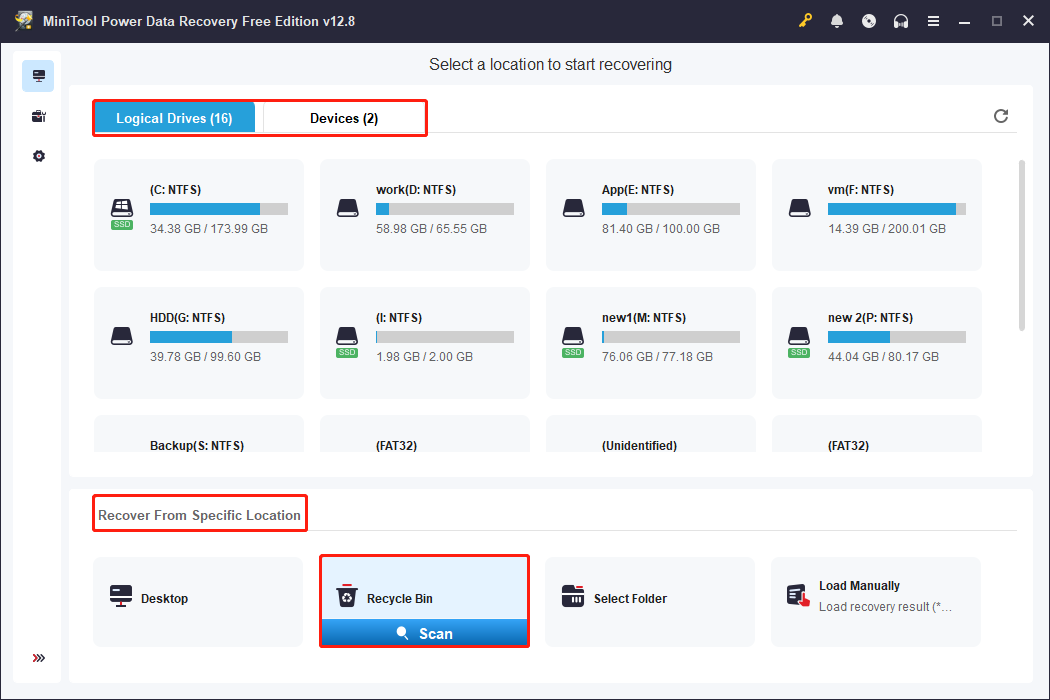
Step 1. Scan the drive, location, or disk.
On the main interface of this professional file recovery tool, you will see three scanning modules:
- Logical Drives: Lists all detected disk partitions on your computer.
- Devices: Shows all physical disks connected to your PC.
- Recover From Specific Location: Allows you to scan the Desktop, Recycle Bin, or a certain folder.
Select the target location from which you need to recover Visio files and click Scan. Here, we take scanning the Recycle Bin as an example.
Step 2. Find and preview the Visio diagrams.
Once the scan is completed, start locating the Visio drawings you want to recover from the scan results.
Under Path, expand each folder to locate the files. Alternatively, use the Search function to find files by their names or extensions.
Enter a file name keyword or file extension (.vsdx) in the search box and press Enter to view the matching results.
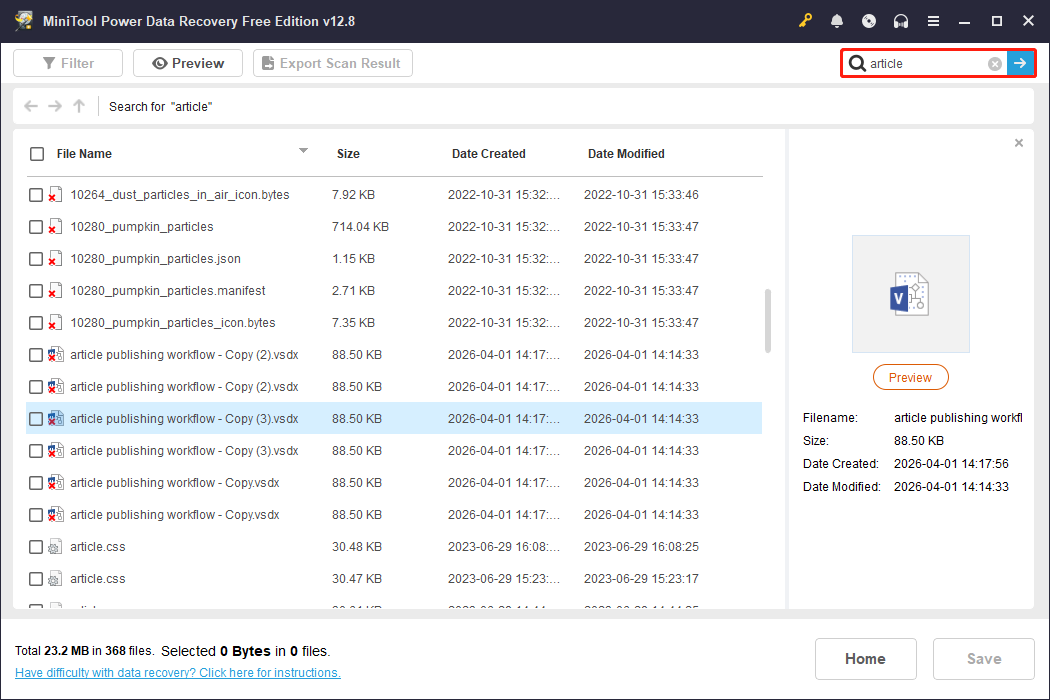
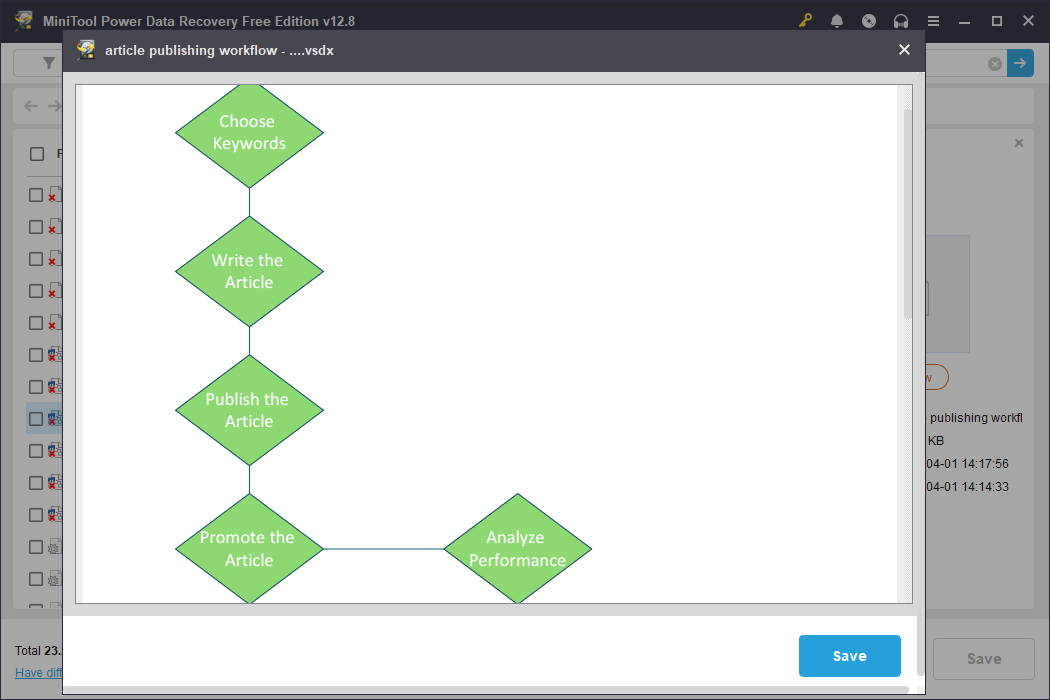
To preview your Visio files, simply double-click them.
Step 3. Save the Visio files.
Make sure all required Visio files are selected, and then click Save. In the new window, choose a safe location and click OK to recover them.
Avoid storing recovered files to their original location to prevent data overwriting.
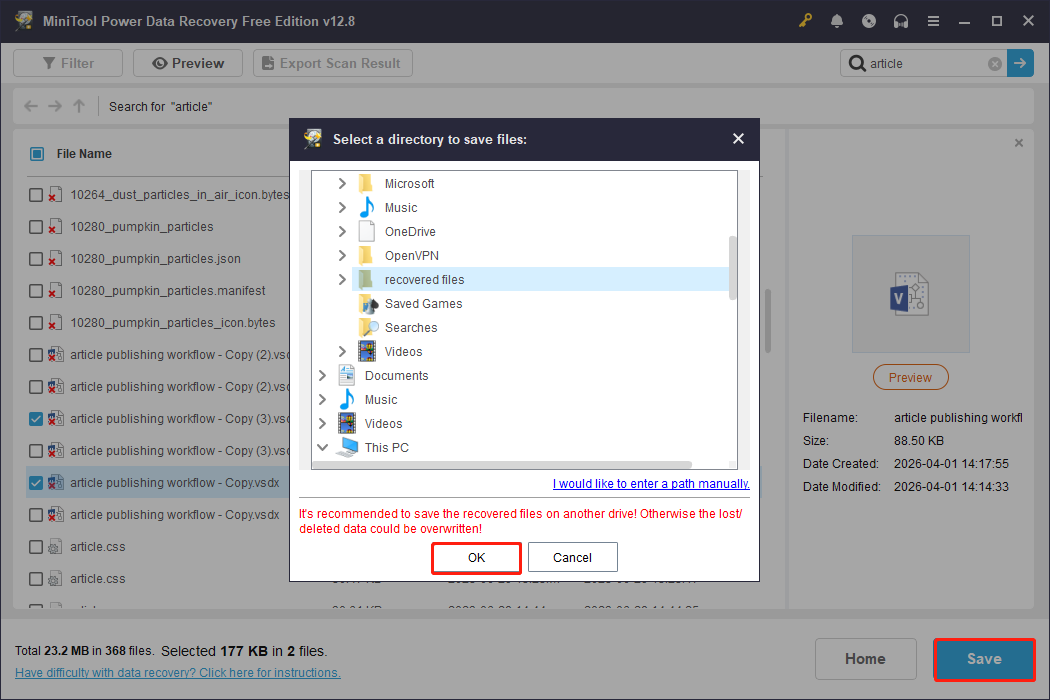
Once the files are recovered, go to the selected location to view them.
Method 3. Restore From Previous Versions
File History is a built-in backup feature in Windows that automatically saves previous versions of files in Windows library folders when enabled.
If your Visio files are located in these libraries or have been manually added to File History, you may restore them from earlier versions.
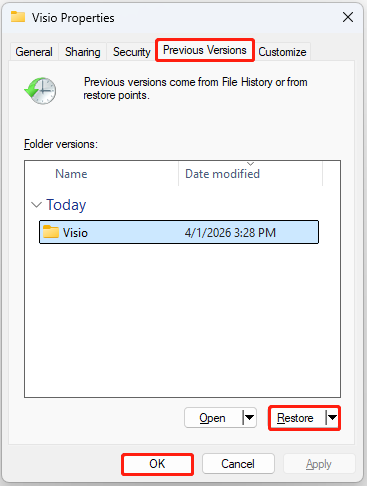
Step 1. Right-click the folder or drive where the Visio files were stored, then select Properties.
Step 2. Go to the Previous Versions tab, select a version in which the deleted Visio files still exist, and then click Restore > OK.

How to Recover Unsaved Visio Files
In some cases, Visio or your computer may crash unexpectedly, causing an open Visio diagram to remain unsaved.
Fortunately, Visio provides an AutoRecover feature that automatically saves temporary versions of your files, allowing you to restore them.
In addition, unsaved Visio files may sometimes be found in temporary folders. Check the following methods to recover unsaved Visio files.
Method 1. Restart Visio
Visio’s AutoRecover feature backs up unsaved content every 10 minutes by default.
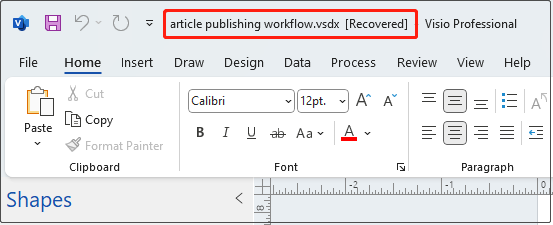
If Microsoft Visio shuts down without saving the drawing, restart the application. If a backup is available, the file will be automatically recovered and marked with [Recovered] after the file name. You can then save the file manually.
Method 2. Use Visio AutoRecover
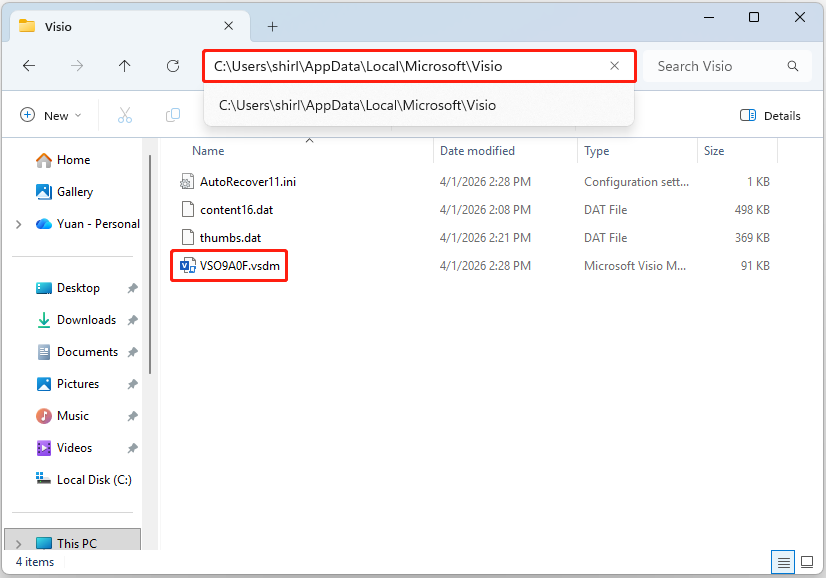
If Visio does not automatically restore the unsaved file when you open the software, try going to the Visio AutoRecover file location to find a backup.
By default, the location is:
C:\Users\Username\AppData\Local\Microsoft\Visio
Check whether there are any files with the .vsdm extension, as these may be AutoRecovered files. If yes, double-click the file to open it in Visio, and then save it to a preferred location.
Recommended: Change Visio AutoRecover Time Settings
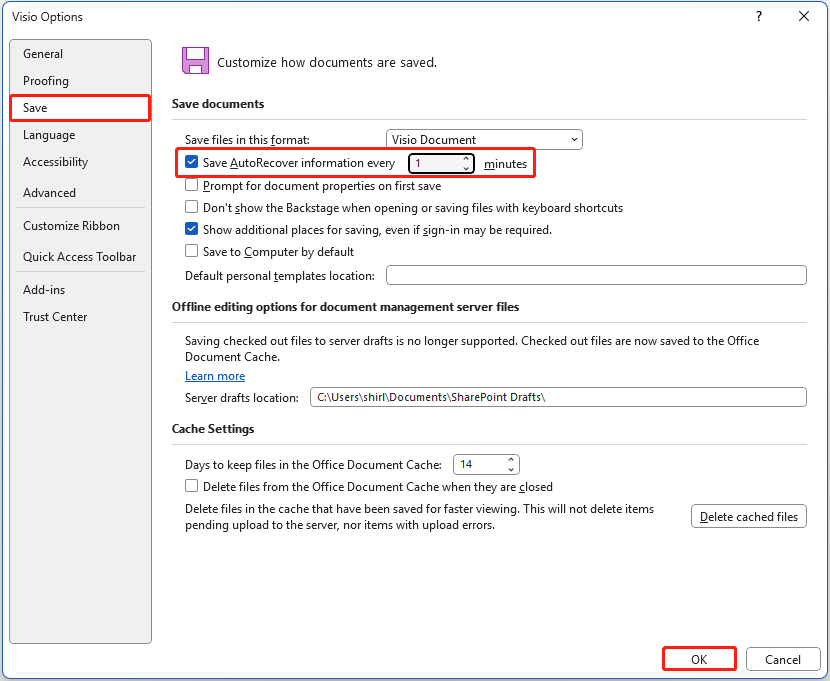
If you modify your diagrams frequently and find the default 10-minute interval too long, you can change it in Visio settings. Follow the instructions below.
Step 1. In Visio, go to File > Options > Save.
Step 2. Ensure that the Save AutoRecover information every X minutes option is selected, then adjust the interval as needed.
Step 3. Click OK to apply the changes.
Method 3. Check Temporary Files
If your Visio files are not found in the AutoRecover file location, they may still be present in temporary folders.
Open File Explorer and navigate to the following path, then check whether your files are there:
C:\Users\Username\AppData\Local\Temp

How to Repair Corrupted Visio Files That Cannot Open
According to user reports, Visio diagrams may sometimes become corrupted and cannot be opened. To fix it, try opening these files in Safe Mode, dragging them into the Visio application, or opening them on another computer.
Start with these effective troubleshooting methods.
Solution 1. Start Windows in Safe Mode
When a Visio file fails to open due to conflicts with add-ins, templates, fonts, or third-party applications, opening it in Safe Mode may help resolve the issue.
Safe Mode is a troubleshooting startup mode that loads only essential drivers and apps. It allows Microsoft Visio to open files in a minimal environment with add-ins and non-essential features disabled. As a result, it helps isolate issues that prevent the file from opening.
Follow these steps to boot into Safe Mode.
Step 1. Hold the Shift key on your keyboard and click Start > Power > Restart.
Step 2. In the Choose an option window, choose Troubleshoot. Then click Advanced options > Startup Settings > Restart.
Step 3. In the Startup Settings screen, press 5 or F5 on your keyboard to enter Safe Mode with networking.
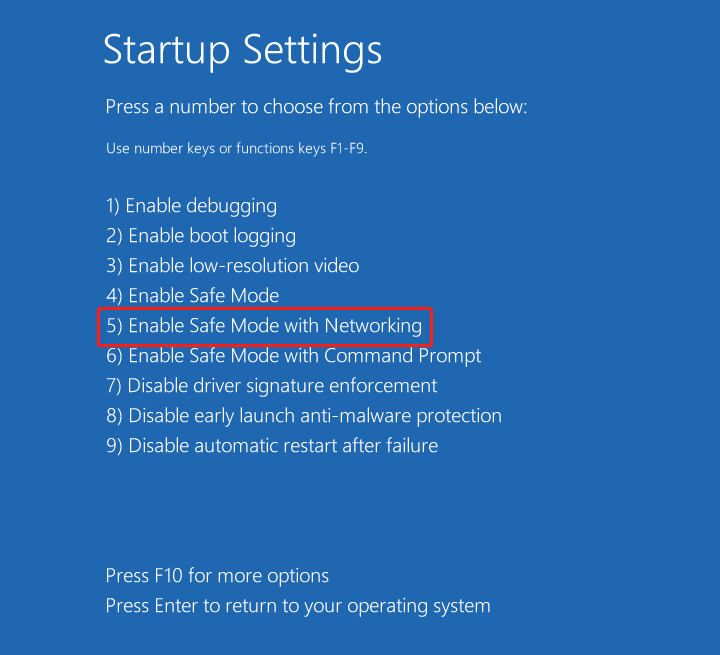
Step 4. Start Visio, then try to open the diagram and check if it can be opened.

Solution 2. Drag the File to the Visio.exe File Icon
When you try to open a Visio file by double-clicking it, the process may be interrupted by configuration errors or software issues, causing the file association to fail.
In this case, try dragging the file directly to the application icon to bypass these interferences.
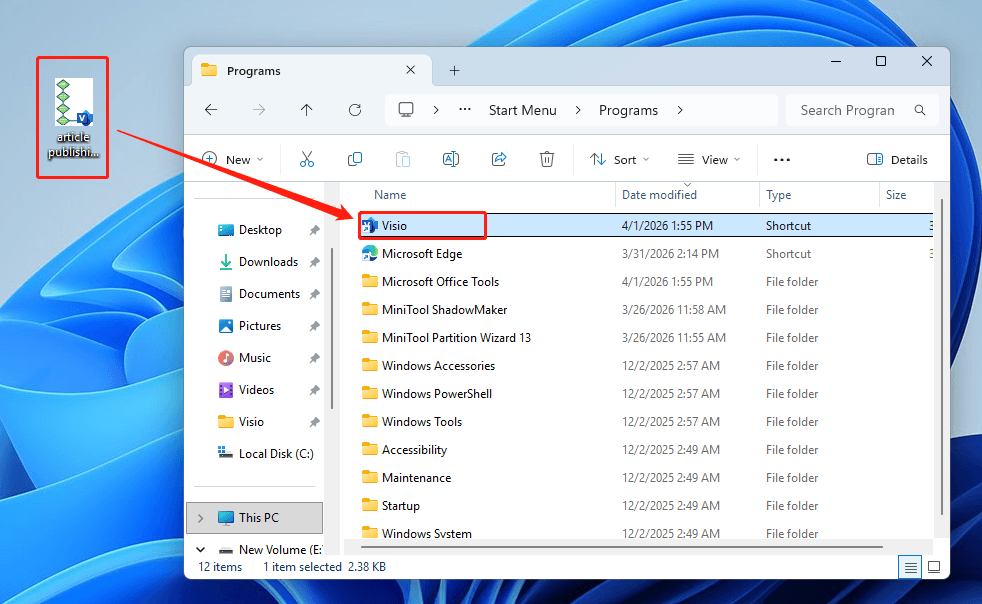
Step 1. Locate the Visio executable file.
Navigate to the Visio installation directory, which is typically located in one of the following paths:
- C:\ProgramData\Microsoft\Windows\Start Menu\Programs
- C:\Program Files\Microsoft Office\Office15
- C:\Program Files\Microsoft Office\Office14
Alternatively, type Visio in the Windows search bar. When Visio appears, click Open file location.
Step 2. Drag the Visio file to the Visio.exe icon.
Drag the file that cannot be opened onto the Visio icon to open it directly.
If this method does not resolve the issue, proceed to the next solution.
Solution 3. Copy the Visio File to Another Disk or Computer
In some cases, the Visio file may fail to open due to issues with its original storage location. Copying the file to another disk or computer may help resolve the problem. This allows the file to be accessed in a different environment.
Change the disk:
Copy and paste the Visio file to another disk on your computer, and then try opening it from the new location.
Change the computer:
Copy and paste the file to another computer with Microsoft Visio installed, and then attempt to open it.
If the file opens successfully, save it as a new file in a different folder, and then copy it back to the original computer.
If none of the methods above work, the Visio file may be corrupted at the structural level and may not be repairable.
How to Protect Visio Files on Windows
To prevent permanent loss or corruption of Visio files, it is important to take proper measures during daily use and file management.
The following tips may help protect your Visio files from being lost or corrupted:
- Enable the AutoRecover feature in Microsoft Visio and set an appropriate save interval.
- Ensure a stable power supply, especially when editing or transferring Visio files, to prevent sudden system shutdown.
- Develop the habit of pressing Ctrl + S regularly to save your work.
- Check the health of the disk where Visio files are stored to prevent file damage caused by disk failures.
- Avoid computer overheating, as this may lead to unexpected system shutdowns and unsaved drawings.
- Back up Visio files to multiple locations so that they can be easily restored if the originals are corrupted or deleted. You can enable File History or use data backup software such as MiniTool ShadowMaker.
MiniTool ShadowMaker TrialClick to Download100%Clean & Safe
Bottom Line
In conclusion, you can easily recover Visio files by using the methods outlined above. For deleted Visio files, check the Recycle Bin or available backups, or use data recovery software. For unsaved Visio files, the AutoRecover feature or temporary files can help.
If a Visio file seems corrupted and cannot be opened, try opening it in Safe Mode or on another computer. This usually works if the file’s internal structure is not damaged.
If you encounter any issues while using MiniTool products, please contact the tech support team at [email protected].
About The Author

Position: Columnist
Shirley holds a bachelor’s degree in English and has been an editor at the MiniTool Team for many years. She specializes in IT-related content, with a focus on data recovery, file backup, disk management, and other technical topics. She is committed to delivering clear, accurate, and practical solutions to help users resolve common computer issues.
User Comments :