

Accidentally deleting a folder can mean losing not only its files but also the original folder structure that keeps them organized. Losing this structure can make it difficult to locate and manage recovered files.
Can You Recover Deleted Files with Folder Structure
You can often recover deleted files with their original folder structure as long as the necessary directory information is still available.
When you delete a folder, Windows removes its directory entries but does not immediately erase the underlying file data. Until that space is overwritten by new files, data recovery software may be able to retrieve the files and reconstruct their original paths.
However, if the folder metadata is damaged or overwritten, the recovered files may appear without their original names or folder hierarchy.
Tips to Improve the Chances of Recovering Files with Folder Structure
Follow these precautions to improve the chances of successful folder recovery:
- Stop saving new files to the affected drive. New data may overwrite deleted files or directory metadata.
- Check backups first. A backup is the most reliable approach to restore both files and their original structure.
- Choose a recovery method that supports folder recovery. Some data recovery programs reconstruct directory paths, while others primarily recover individual files.

How to Recover Deleted Files with Original Folder Structure
Method 1. Recover Deleted Folders from the Recycle Bin
The Recycle Bin is the easiest place to start when files were deleted from a Windows internal drive. It allows you to restore files to their original locations without altering their names and structure.
Follow these steps.
Step 1. Open the Recycle Bin from your desktop.
Step 2. Find the deleted folder, right-click it, and choose Restore.
Windows normally restores the selected folder to its original location, preserving its hierarchy.
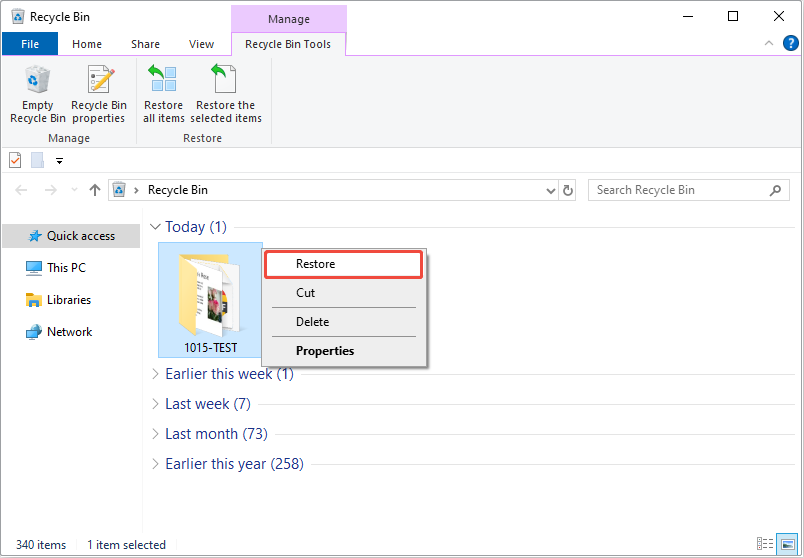
If the folder is not showing up, it may have been removed after the Recycle Bin was emptied or deleted from a location that bypasses the Recycle Bin.
Method 2. Recover Backup Folders from File History
If File History was enabled and had backed up the target files and folders before deletion, you can use it to restore an earlier version of a folder.
Step 1. Open the search box and search for Restore your files with File History.
Step 2. Browse the available backup versions to locate the deleted folders.
Step 3. Select the folders you want to restore, right-click the green button, and choose Restore to return the selected items to their original location. Alternatively, use the Restore to option to choose another destination.
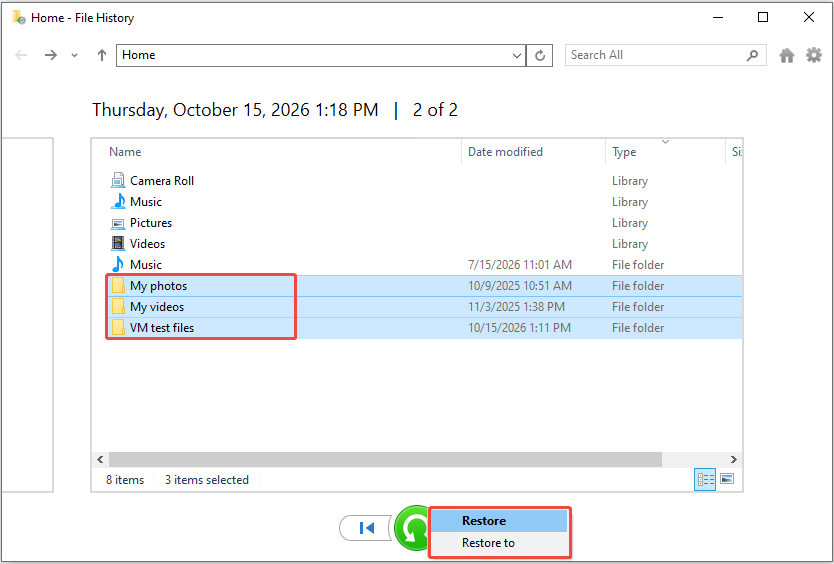
File History only works when a suitable backup exists. If it was never enabled or the deleted folder was not included in the backup, proceed to the next method.
Method 3. Use Data Recovery Software
When the Recycle Bin and backups cannot help, data recovery software can recover permanently deleted folders and reconstruct their original directory structure.
For example, a recovery tool such as MiniTool Power Data Recovery can scan internal/external hard drives, USB drives, SD cards, and CD/DVDs for deleted files and folders.
This software has a free edition that allows you to recover 1 GB of files for free.
MiniTool Power Data Recovery FreeClick to Download100%Clean & Safe
Real-World Test: Recovering Files with Original Folder Structure in Different Scenarios
The data recovery results vary depending on how the data was lost and whether the original file system metadata remains intact.
To evaluate whether MiniTool can preserve the original folder structure, we tested it under five common data loss scenarios. The results are summarized below.
| Data loss scenario | Original folder structure | Recovery results |
| Normal deletion | Preserved | Files were recovered with their original names and folder paths. |
| Shift + Delete | Preserved | Files were recovered with their original structure. |
| Deleted partition | Preserved | Files were restored without losing original names and paths. |
| RAW drive | Not preserved | Files were grouped under the RAW Files directory without their original names or paths. |
| Quick format | Not preserved | The original files were found, but their names and paths were lost. |
Regardless of the data loss scenario, the basic recovery process is similar:
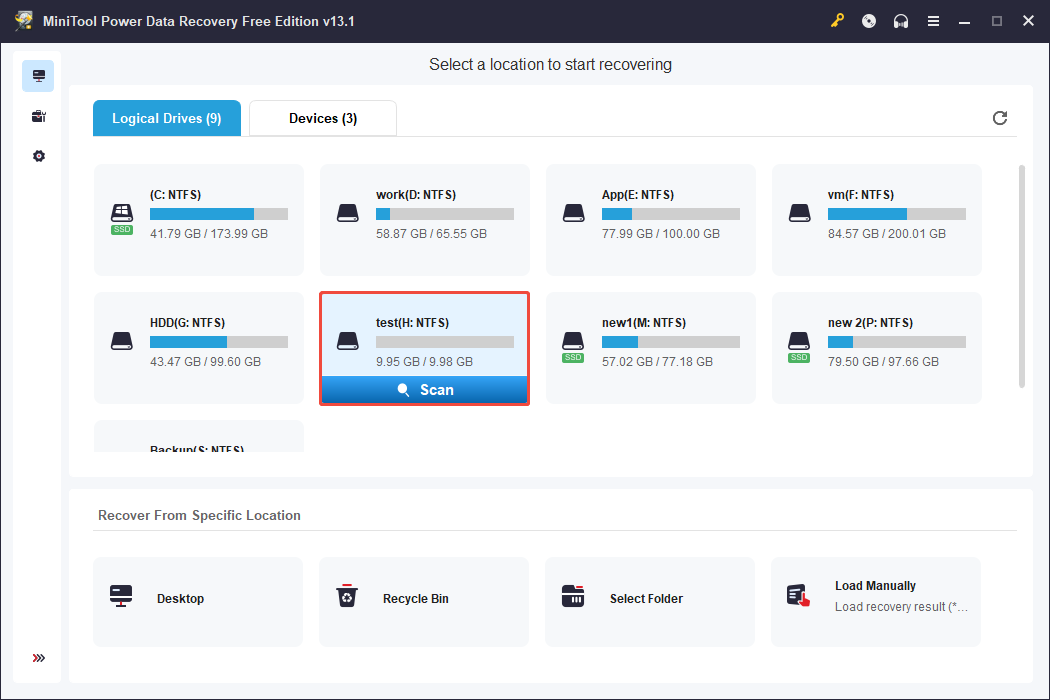
Step 1. Scan the target drive
Launch MiniTool Power Data Recovery and select the drive from which you need to recover files to scan.
Step 2. Find the required files and folders
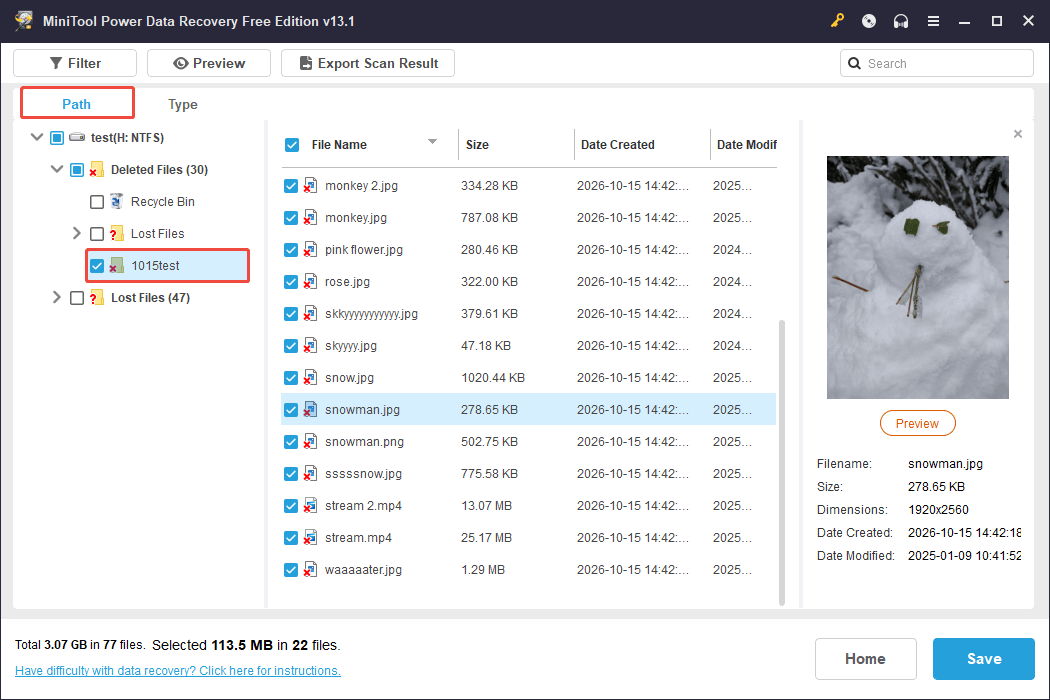
After scanning, browse the results and check whether the original file names and folder hierarchy are available under Path.
Step 3. Save the required folders
When the original folder structure is available in the scan results, select the folders you want to recover rather than individual files to retain the directory hierarchy.
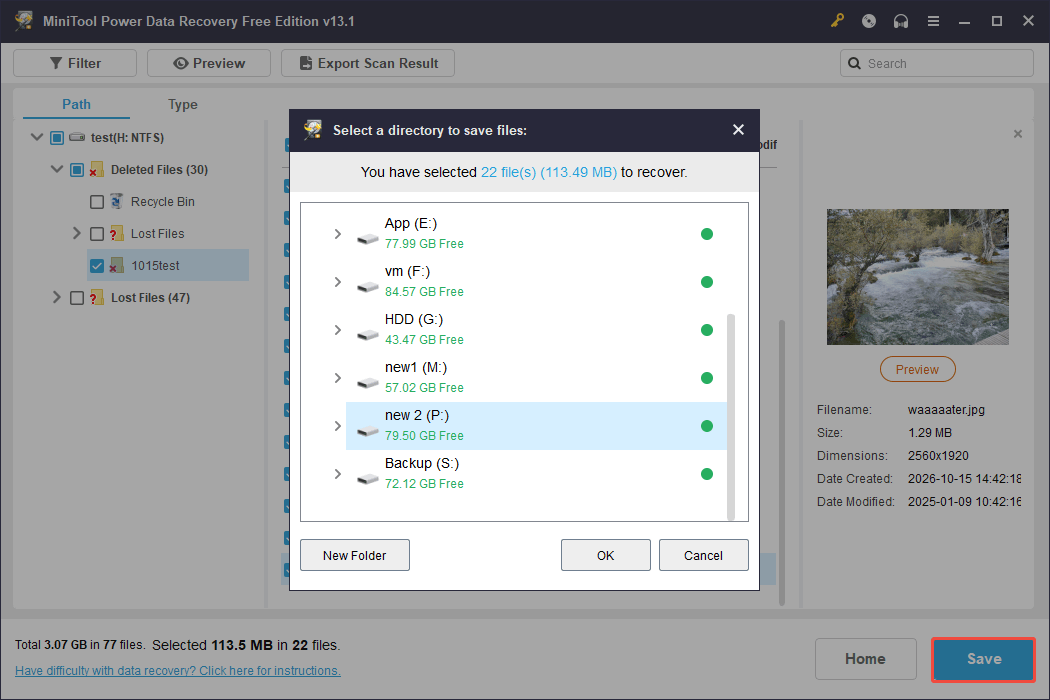
Finally, click Save and choose a different drive to store the recovered files. This helps prevent recovered data from overwriting other files that may still be recoverable on the source drive.

Method 4. Seek Help from Data Recovery Services
If the storage device is physically damaged, makes unusual clicking noises, or cannot be detected by the recovery software, a professional data recovery service may be the safer option.
A qualified provider can assess the drive and determine whether the original directory metadata can be recovered.
Why Are Recovered Files Missing Their Original Folder Structure
As the test above suggests, recovering file contents does not always mean recovering the original folder structure. This is because file systems store file data and directory information separately.
Directory metadata records details such as file names, parent folders, and file locations. If this information is damaged or overwritten, recovery software can only retrieve files without reconstructing their original paths.
Several factors can cause this problem:
- File system corruption: When a drive becomes RAW or encounters read errors, the directory information may become inaccessible.
- Formatting: A quick format removes file system information. Although some file contents may remain recoverable, their original file names and folder paths are often not preserved.
- Overwritten metadata: New data written to the affected drive may overwrite information needed to reconstruct the original directory structure. The original files may even become irrecoverable.
- Recovery method limitations: Some recovery tools, such as Windows File Recovery, save recovered files to generic folders without preserving their original folder structure. In this case, consider using another tool.
Back up Files to Keep Your Folder Structure Safe
Backing up important files and folders is the most reliable method to protect your files and preserve their original folder structure.
Here are two useful methods to protect your folder hierarchy.
Method 1. Enable File History
File History is a built-in Windows feature that backs up library folders to an external drive or network location. If a folder is deleted or its contents are changed, you can restore an available backup version along with its folder structure.
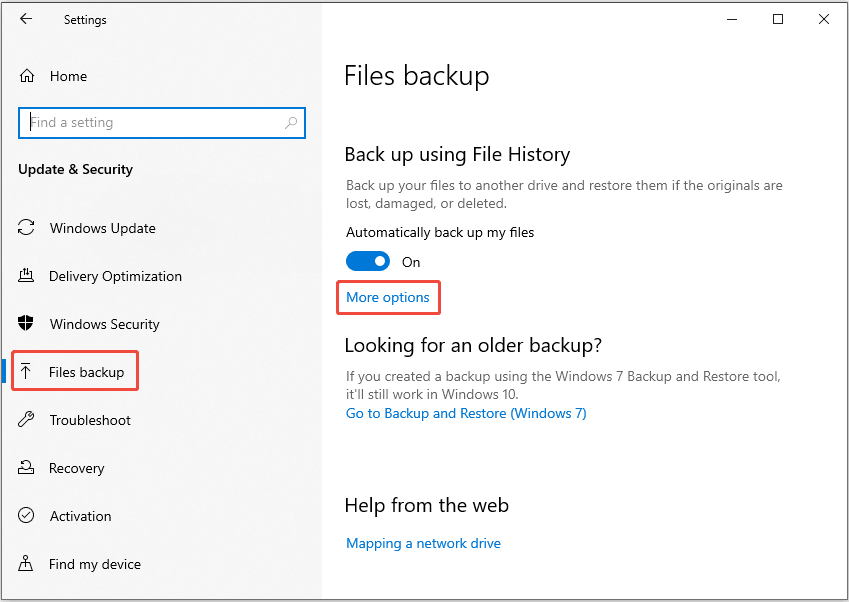
Open Settings and navigate to Update & Security > Files backup. Then click More options under Back up using File History to configure File History settings.
Method 2. Use MiniTool ShadowMaker
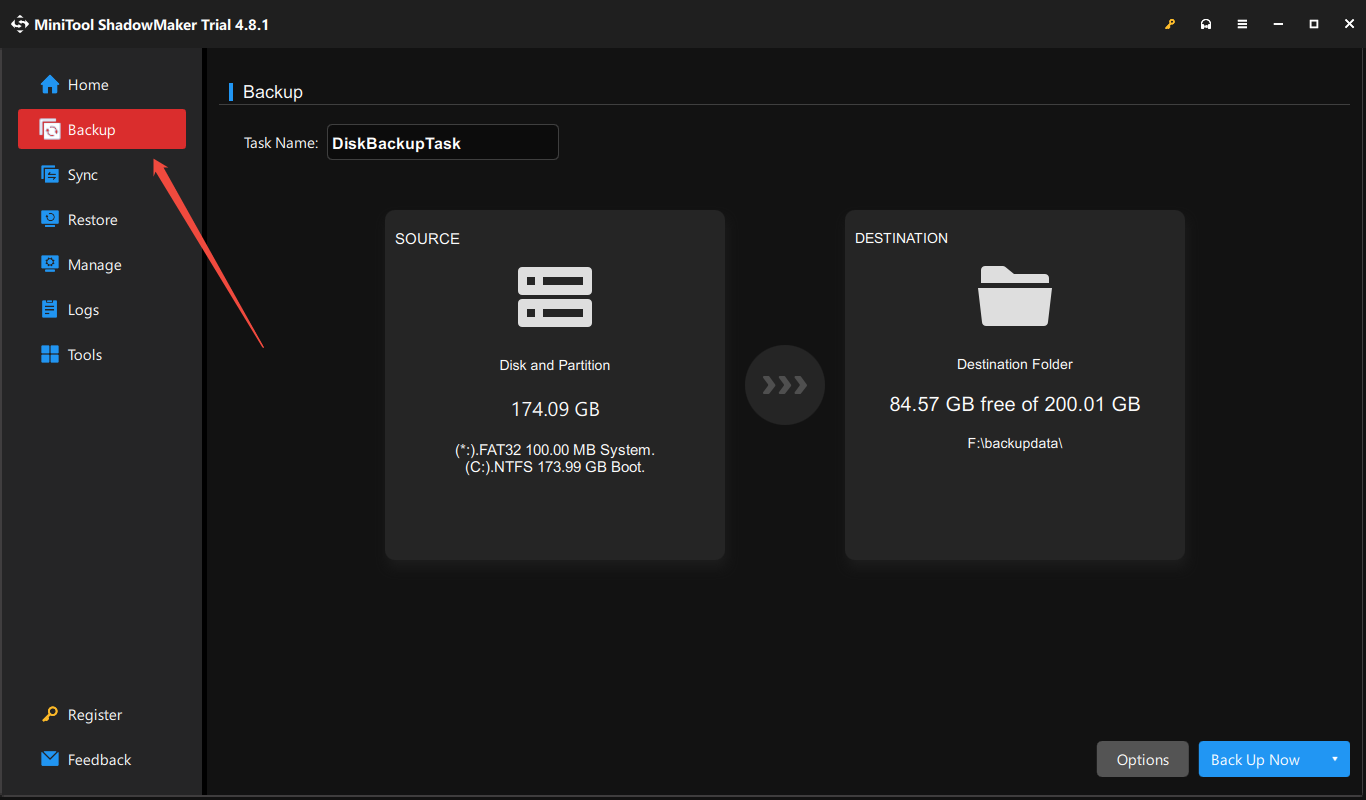
MiniTool ShadowMaker is a backup tool that can back up files, folders, partitions, and disks on Windows. It offers you another method to restore important data while retaining its original folder organization.
Get the trial edition of the software and use its Backup feature to back up your data for free within 30 days.
MiniTool ShadowMaker TrialClick to Download100%Clean & Safe

Data Recovery with Folder Structure FAQ
To improve the success rate, stop using the drive as soon as you notice file loss.
For permanently deleted files, data recovery software may help retrieve them.
Wrapping Things Up
To recover deleted files with their original folder structure, start by checking the Recycle Bin and available backups. If these options are unavailable, use MiniTool data recovery software to scan the drive for files.
Additionally, regular backups can help protect your files and folder hierarchy from future data loss.
If you have any questions about MiniTool products, send an email to the support team at [email protected].
About The Author

Position: Columnist
Shirley holds a bachelor’s degree in English and has been an editor at the MiniTool Team for many years. She specializes in IT-related content, with a focus on data recovery, file backup, disk management, and other technical topics. She is committed to delivering clear, accurate, and practical solutions to help users resolve common computer issues.
User Comments :