

Restoring a previous version of a file or folder can help you recover earlier content after accidental edits, unwanted changes, or file replacement.
Windows 11 and Windows 10 provide several built-in options to revert a file to an older version. Cloud storage platforms and Microsoft Office applications also offer their own version history features.
How to Restore Previous Version of a File/Folder
Quick Answer: How Do I Restore a Previous Version of a File or Folder?
To restore a previous version of a file or folder in Windows 11/10:
- Right-click the file or folder and select Restore previous versions.
- Select an available older version based on the date and time.
- Click Restore to replace the current file, or click Restore To to save the previous version to another location.
If the file was deleted instead of overwritten, use data recovery tools to recover the lost file. The method you should choose depends on whether you lost the latest changes or the entire file.
_______________________________________________________________________________
Method 1. Restore an Older Version of a File/Folder Using Previous Versions
Windows includes a feature called Previous Versions, which allows you to restore earlier copies of files and folders. These versions come from system restore points or File History backups.
This method is useful when you accidentally modify a file and want to return to an earlier state. Follow the steps below.
Step 1. Open the Previous Versions Tab
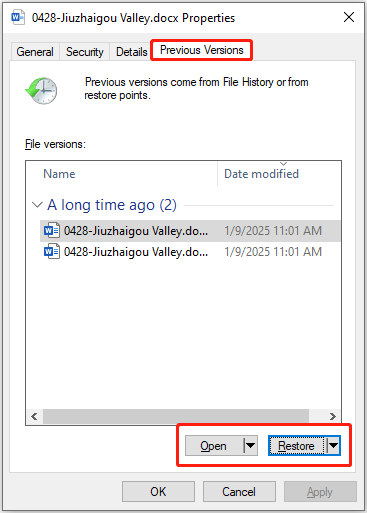
Right-click the file or folder and choose Restore previous versions. If it is not available, click Properties, and then go to the Previous Versions tab.
Step 2. Preview the Previous Version
Windows will display all available older versions created at different dates and times. Select a version and click Open to view the file content. Previewing helps you confirm whether it contains the correct content and avoids replacing the current file unnecessarily.
Step 3. Restore the Previous Version
If the older version contains the information you need, save it as a new file or click Restore to replace the current file with the selected older version.
Windows does not automatically store every previous version of every file. If no backup mechanism created a copy, there may be nothing available to restore.

Method 2. Restore Previous Version of a File/Folder Using File History
File History is a Windows backup feature that automatically saves copies of files stored in library folders, such as Documents, Pictures, or Desktop.
If File History was enabled before the file was changed or deleted, you can restore an older version from File History. The steps are as follows.
Step 1. Open File History
Press Windows + S to open the Search box. Search for Restore your files with File History and open the best result.
Step 2. Browse Available Versions
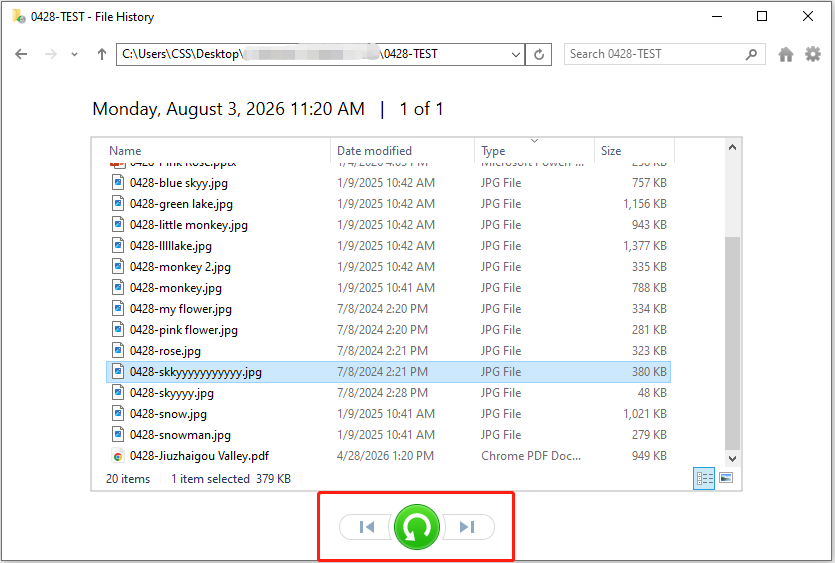
The File History window will show different versions of your files. Use the arrows at the bottom to move between backup dates and find the version you want to restore.
Step 3. Restore the File
Select the target file or folder and click the green Restore button. File History will restore the selected version to its original location.
If you want to restore a File History version without overwriting the current file, right-click the Restore button and choose Restore to, then select another folder to save the older version.
Method 3. Recover Files/Folders When Previous Versions Are Not Available
Sometimes, Previous Versions and File History cannot help because no restore points were created, backups were unavailable, or the original file has been completely overwritten.
In these cases, the original files usually cannot be restored.
However, if the file itself disappeared instead of being overwritten, the situation is different. Data recovery tools like MiniTool Power Data Recovery can help scan the storage device and recover 1 GB of lost files for free.
Restore vs Recover: What Is the Difference?
A previous version is usually created through Windows backup features, including System Protection and File History. A data recovery tool does not restore previous versions of overwritten files but attempts to recover deleted or lost data.
| Situation | Example | Recommended Solution |
| File was overwritten by new content | You edited a Word document and saved the wrong content | Restore previous version, File History, cloud version history |
| File was replaced by another file | A new file replaced an older file with the same name | Restore from backup or version history |
| File was deleted accidentally | You accidentally deleted a file | Use data recovery software free |
For better recovery results, stop using the drive immediately after data loss to prevent new data from overwriting recoverable files.
Next, download MiniTool Power Data Recovery Free and start the data recovery process.
MiniTool Power Data Recovery FreeClick to Download100%Clean & Safe
Step 1. Select the Location to Scan
On the main interface of the file restore software, select the drive or location where the lost files were originally stored and click Scan.
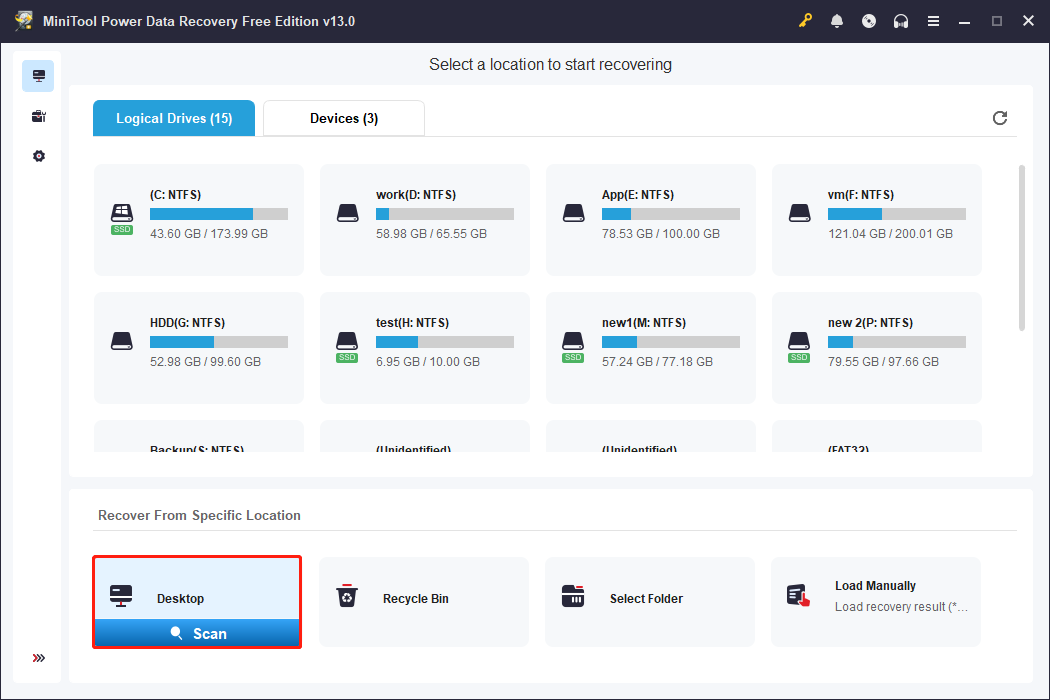
The software will scan the selected location and search for deleted or lost files. The scan duration mainly depends on the volume size, amount of data, and disk condition.
Step 2. Find the Needed Files
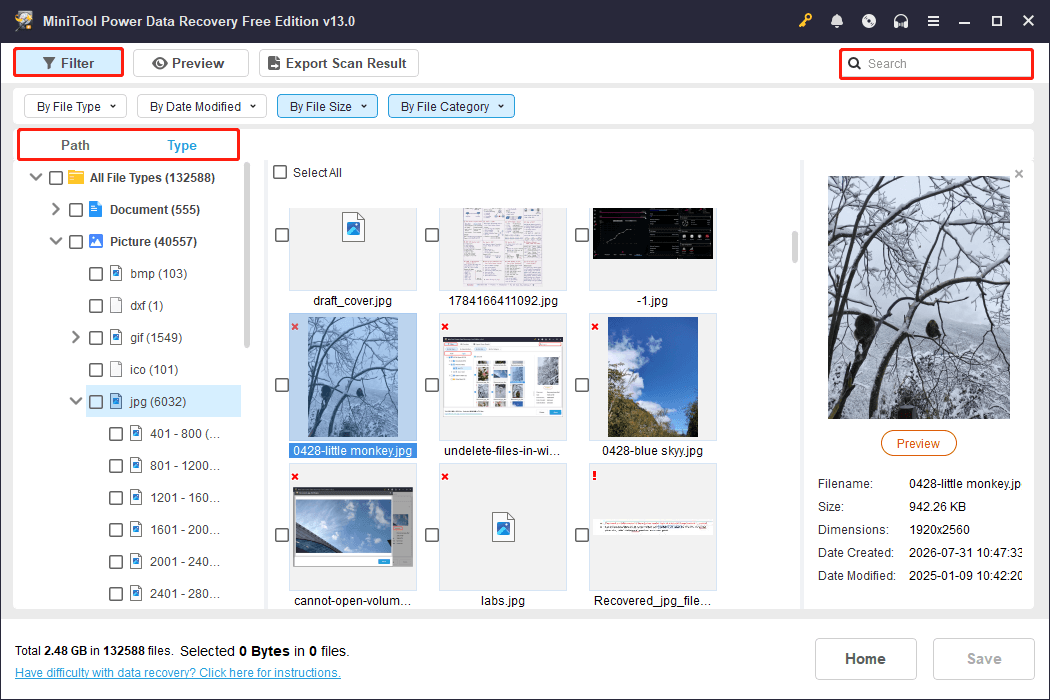
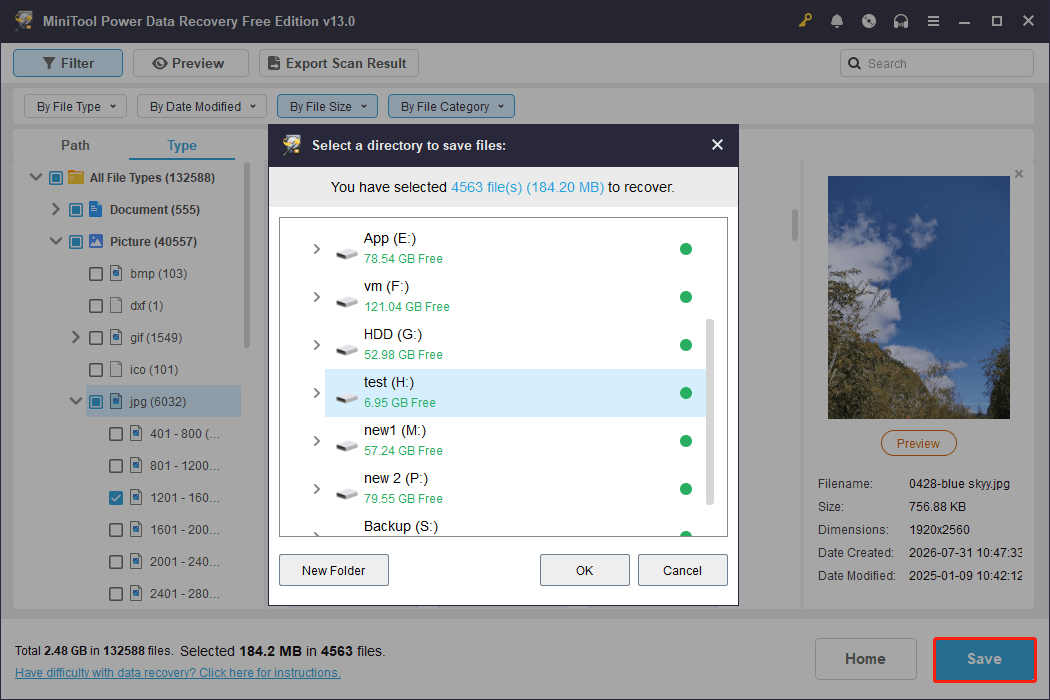
After scanning, browse the scan results by path or type to locate and select the files you want to recover.
You can use Filter to narrow results by file type, size, modification date, or category, or use Search to find files by file name.
Step 3. Recover the Files
Select the files you want to recover and click Save. Choose a different location to store the recovered files, as saving them back to the original drive may overwrite other recoverable data.
Method 4. Restore Previous Versions of Files/Folders in Cloud Storage
If you store files in cloud services such as Google Drive or OneDrive, you may be able to restore an older version directly from the cloud platform.
Unlike Windows Previous Versions, cloud storage services usually keep their own file version history. These versions are created automatically when files are edited, allowing you to restore earlier copies.
Restore a Previous Version of a File Stored in Google Drive:
Step 1. Open Google Drive and sign in with the account that contains the file.
Step 2. Click My Drive from the left sidebar.
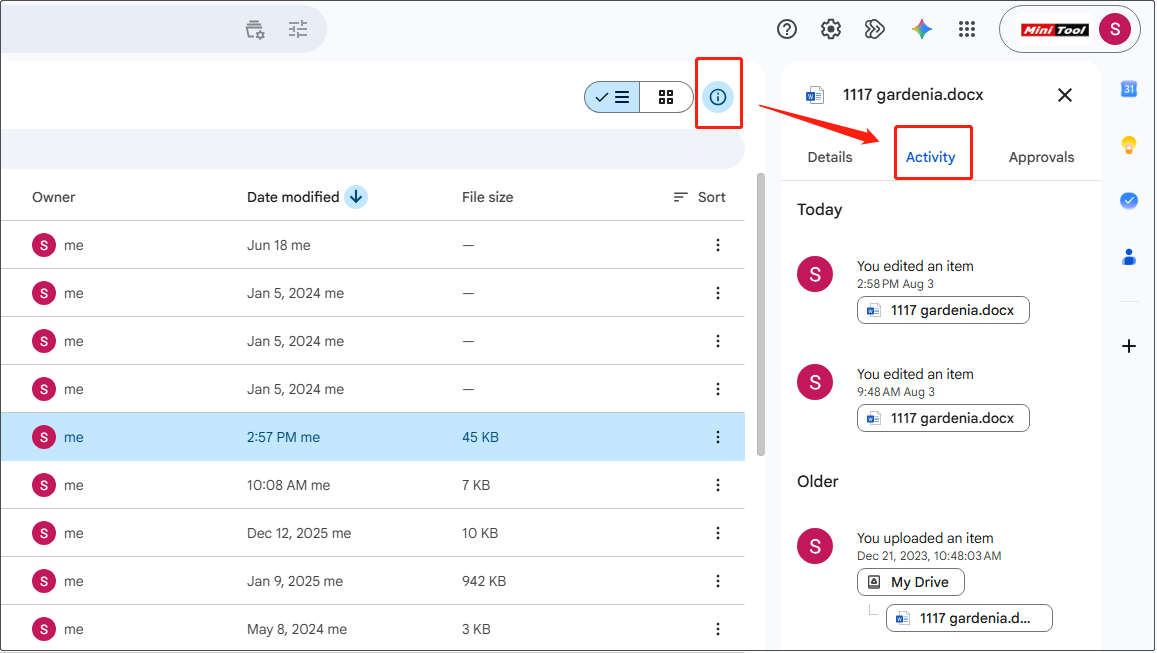
Step 3. Select the target file and click View details > Activity. Google Drive will display available versions of the file. You can now view and download them.
Restore a Previous Version of a File Stored in OneDrive:
Step 1. Sign in to OneDrive with your personal or work account.
Step 2. Select the file that you want to restore to an earlier version, right-click it, and select Version history.
Step 3. In the Version History pane, click the three-dot icon next to the version of the document that you want to restore, and click Restore.
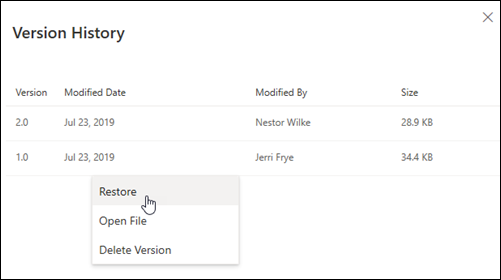
Image source: support.microsoft.com
Method 5. Restore Older Versions of Office Documents
Microsoft Office applications, including Word, Excel, and PowerPoint, provide built-in features that can help restore earlier versions of documents.
The steps to restore Office files to a previous version are similar across different applications. Here, we use Excel as an example.
Restore Previous Version of Excel Files:
Step 1. Open the Excel file you want to restore to a previous version.
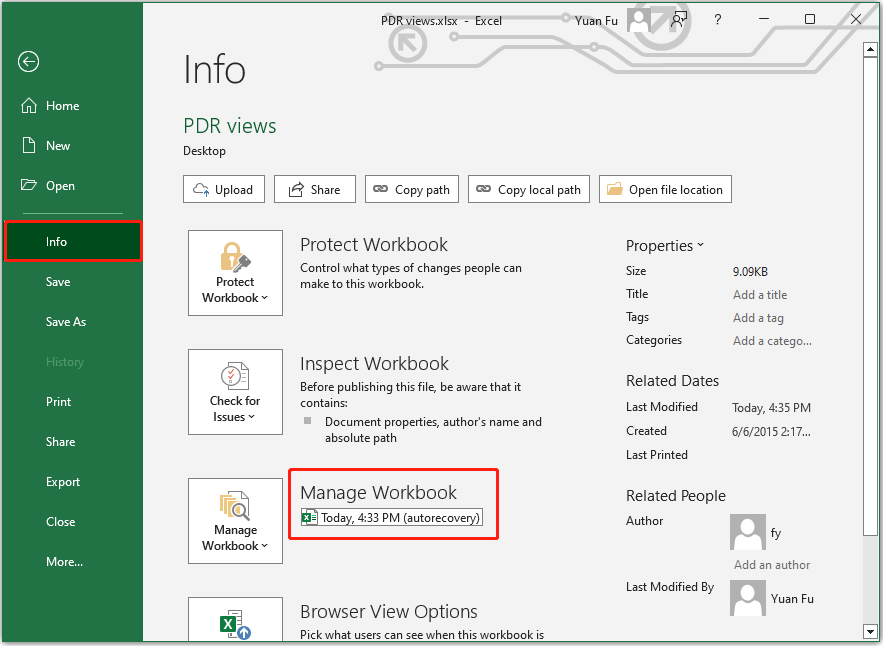
Step 2. Click File > Info. A list of available previous versions will appear under the Manage Workbook section.
Open the previous version to review changes and compare it with the current version. If it contains the correct information, save it as a new file.
How to Prevent Losing File Versions in the Future
Although Windows and other applications provide approaches to restore previous versions of files, these features only work if a version history was created beforehand.
To avoid losing important file versions, take the following steps:
Tip 1. Enable File History
File History automatically saves copies of files stored in your default and custom libraries based on the backup frequency you set. This allows you to restore an older version of a file after it has been overwritten or modified.
To enable and configure File History:
Step 1. Connect an external drive or a network location to save your backups.
Step 2. Open the Control Panel, and click System and Security > Save backup copies of your files with File History.
Step 3. Click Turn on to enable File History.
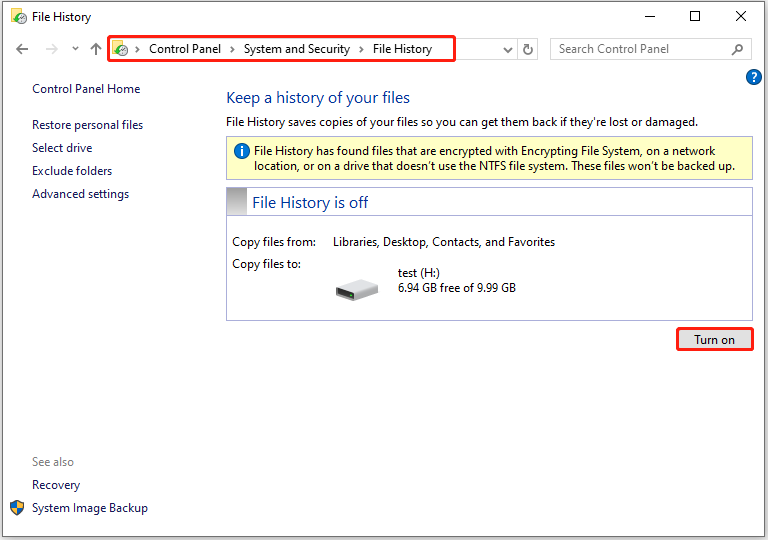
To change how often you want to save copies of your files and how long to keep saved versions, click Advanced settings.
Tip 2. Create System Restore Points Regularly
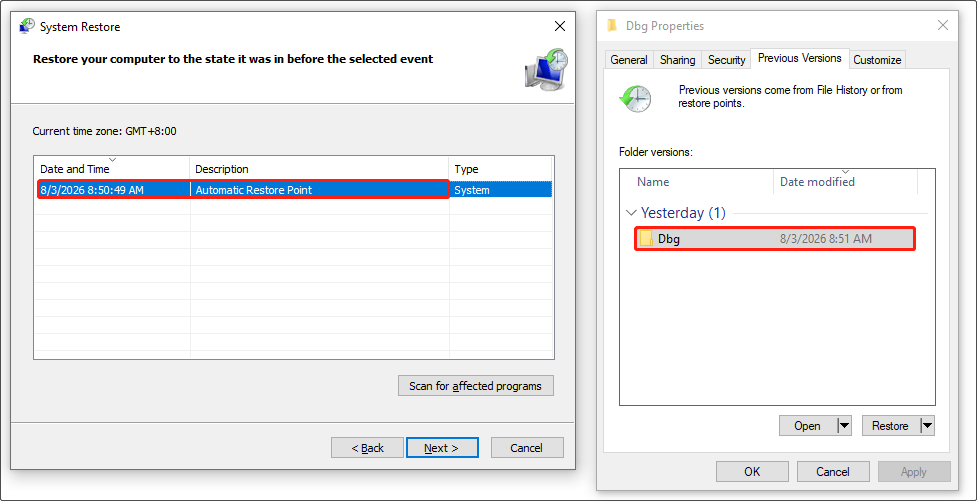
System Restore creates snapshots of system files, drivers, and settings, allowing you to revert your system files to an older version after unwanted changes.
Create a restore point manually before major system changes.
Tip 3. Use Cloud Storage with Version History
Cloud services such as OneDrive and Google Drive keep multiple versions of files when changes are made. Storing important documents in cloud storage allows you to restore earlier versions even if the local file is modified or replaced.

Tip 4. Avoid Overwriting Important Files Directly
When editing important documents, consider saving a copy with a different name or creating a backup before making major changes. This helps prevent accidental overwrites that may be difficult to reverse.
Conclusion
To sum up, this post explains how to restore a file through version history on Windows 11/10. Restoring a previous version of a file depends on how the file was changed or lost.
If an older version exists, you can restore it using:
- Previous Versions.
- File History backups.
- Cloud storage version history.
- Office document version history.
If a file or folder has been deleted and no previous version is available, use data recovery software to scan the storage device and find recoverable data.
To avoid losing important files in the future, consider enabling automatic File History backups or storing important documents in cloud services.
If you have any questions when using MiniTool products, please send an email to the support team at [email protected].
File Version History FAQ
Therefore, keeping enough storage space available is important to prevent older file versions from being removed too soon.
About The Author

Position: Columnist
Shirley holds a bachelor’s degree in English and has been an editor at the MiniTool Team for many years. She specializes in IT-related content, with a focus on data recovery, file backup, disk management, and other technical topics. She is committed to delivering clear, accurate, and practical solutions to help users resolve common computer issues.
User Comments :