

Windows may stop saving screenshots to the Screenshots folder because of changed save locations, OneDrive settings, folder permissions, or incorrect screenshot shortcuts. This guide explains where Windows screenshots are saved and how to fix the problem. You will also learn how to recover screenshots if they have been accidentally deleted.
Quick Answer: Screenshots Not Saving to Screenshots Folder
By default, screenshots captured with Win + Print Screen are saved in:
C:\Users\YourUsername\Pictures\Screenshots
If Windows is not saving screenshots to this folder, the most common causes are:
| Causes | Solutions |
| OneDrive is saving screenshots instead | Disable “Save screenshots I capture to OneDrive” in OneDrive settings |
| The Screenshots folder location was changed | Restore the default Screenshots folder location |
| You do not have permission to write to the folder | Grant your account full control permission |
| The wrong screenshot shortcut was used | Press Win + Print Screen to automatically save screenshots |
| Screenshots were deleted or lost | Use reliable data recovery software to scan and recover missing screenshots |
Where Do Windows Screenshots Go
Windows enables people to capture screenshots by pressing the corresponding hotkeys. It is quite convenient but also brings trouble to some people, such as Windows not saving screenshots to Screenshots folder.
Check the Save Location of Screenshots
Possibly, this problem arises because of the changed save location of those screenshots. Windows uses different screenshot methods:
- Snipping Tool: saves according to its configured settings
- Win + Print Screen: automatically saves to Pictures\Screenshots
- Print Screen: copies image to clipboard
- Alt + Print Screen: copies screenshot to clipboard
You can try to find those screenshots via the following locations:
- The Clipboard history: If you screenshot a screen with the Snipping Tool, you can go to the Clipboard to find your screenshot by pressing Win + V.
- Quick Access: You can find the recently opened or created files in Quick Access in File Explorer. Press Win + E to open File Explorer and scroll down on the right pane to locate the wanted screenshots. If the default save location has changed, you can right-click on the image and choose Properties to check its specific location.
Should you be unable to locate a screenshot that you have recently taken, it is likely that it has been deleted from your device. Then, the next section is where you are supposed to go.

How to Recover Lost Screenshots on Windows
If screenshots were deleted accidentally, data recovery software like MiniTool Power Data Recovery Free can scan the drive for recoverable image files.
As for photo recovery, this software supports a wide range of file formats for photos, including JPEG, PNG, GIF, DNG, ARW, TIFF, and more.
Even if your screenshots are permanently deleted, as long as they are not overwritten, MiniTool Power Data Recovery provides an opportunity to recover them. Get the free edition of the software and recover 1 GB of photos for free.
MiniTool Power Data Recovery FreeClick to Download100%Clean & Safe
Step 1. Scan the Save Location of the Screenshots
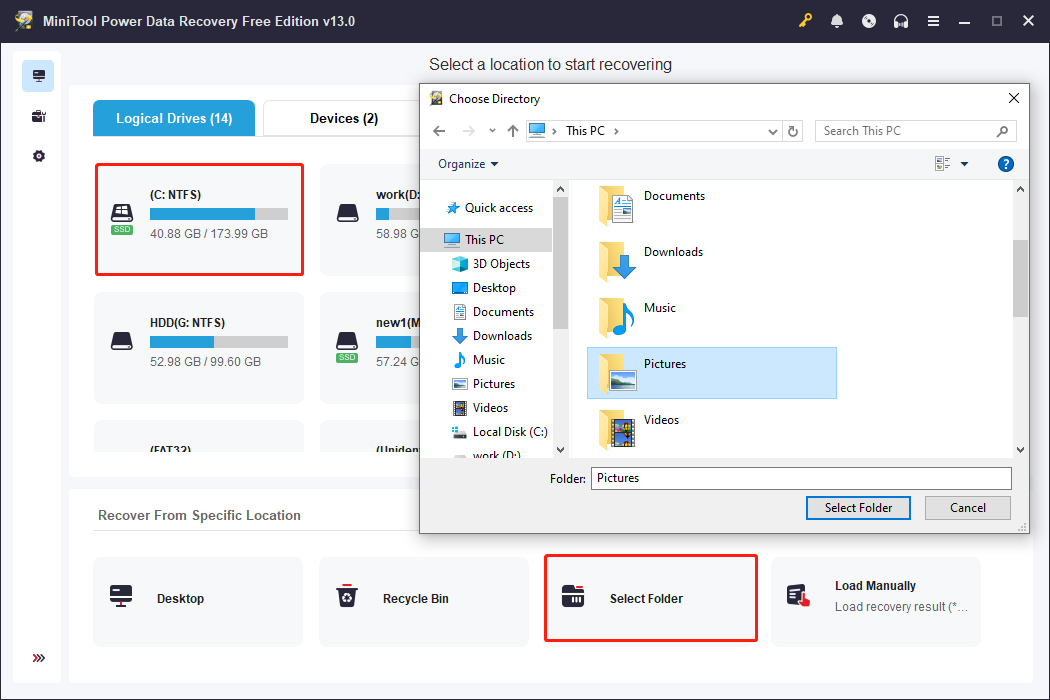
Launch MiniTool Power Data Recovery. On the main interface, you can see all available drives and locations.
If you know where the screenshots were saved, select the target folder and click Scan. If you are unsure about the location, scan the drive under Logical Drives.
Step 2. Locate the Target Pictures Using Multiple Features
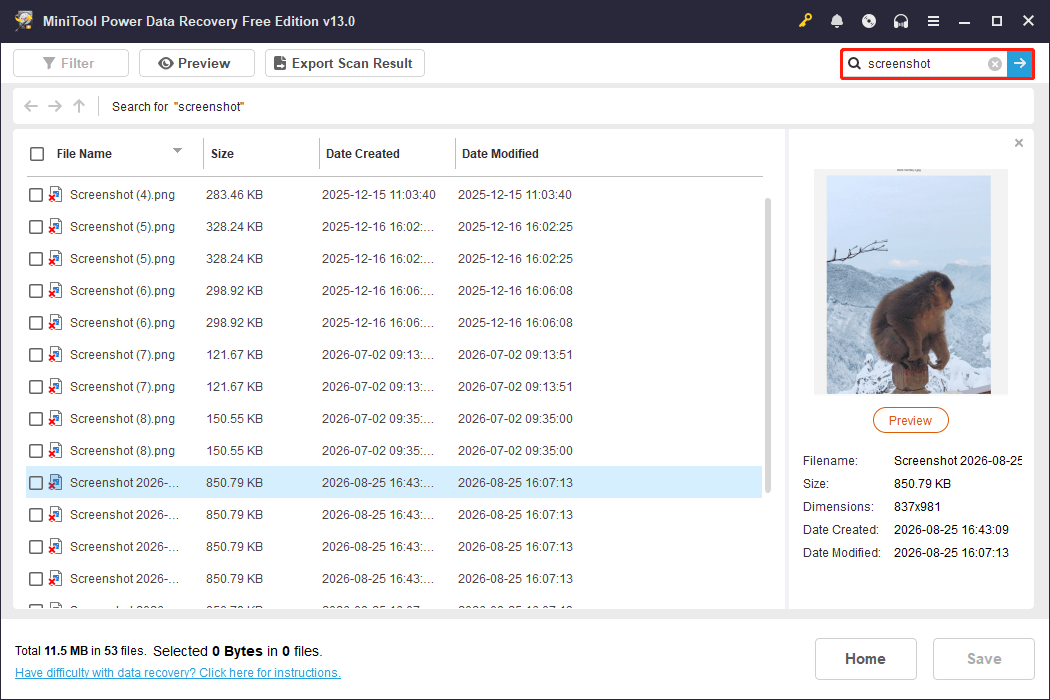
The scan duration lasts for a few minutes depending on the number of files and file size. In order to get the most files, do not stop the scan process midway. On the result page, utilize the specific features to locate the screenshots.
- Path: Browse folders under Existing Files, Deleted Files, or Lost Files to find screenshots in their original locations.
- Type: Go to Picture > PNG, as most Windows screenshots are saved in PNG format.
- Filter: Narrow results by file type, size, modification date, or category.
- Search: Search for “screenshot” or the original file name to locate specific images.
Step 3. Recover the Required Pictures
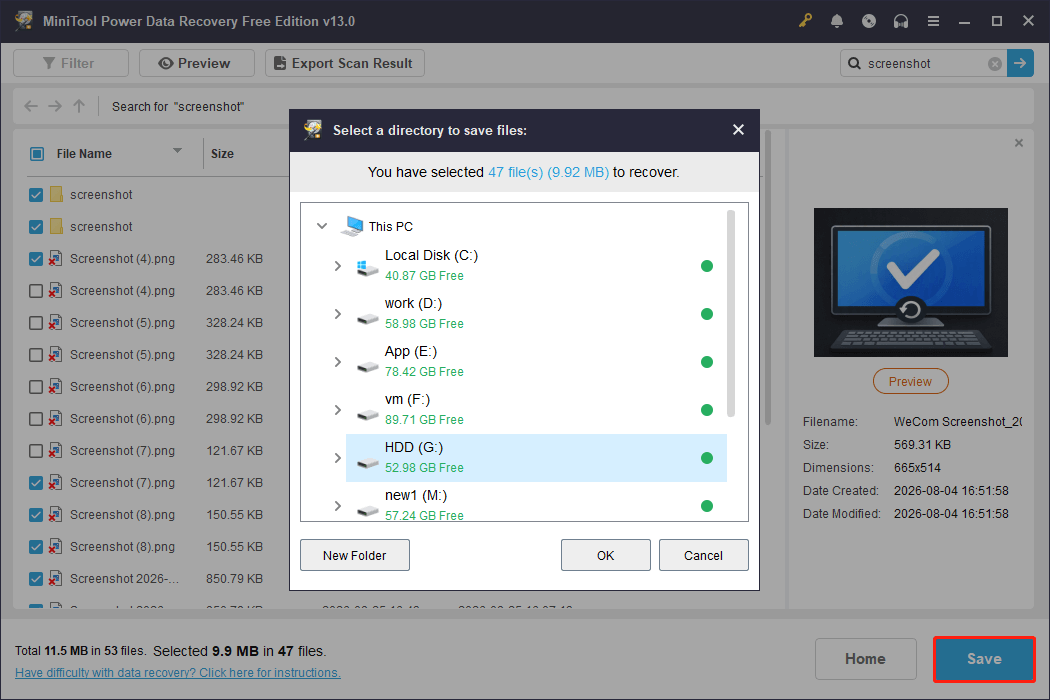
Select the required pictures and click Save. Choose a different location to save the recovered files to avoid overwriting existing data.
The free edition supports up to 1 GB of recovery. If you need to recover more files, you can check the available Personal editions.
How to Fix Screenshots Not Saving in Pictures Folder
The above content shows you how to find or recover screenshots when encountering Windows not saving screenshots to Screenshots folder. In fact, this problem happens owing to the insufficient permission of the Screenshots folder or the corrupted registry file. The following methods aim to help you fix or prevent this issue. Keep reading and give them a try.
Way 1. Press Win + Print Screen to Capture Screenshots
Some people encounter the screenshots not saving to the proper file path because of the improper capture key combinations. If you only press the Print Screen key, the screenshots might be saved to OneDrive instead of the Screenshots folder. In this case, you can try to press the Win + Print Screen key combination to capture screenshots.
If you have enabled to save screenshots to OneDrive by accident, follow the next steps to stop it.
Step 1. Click on the OneDrive icon in the system tray and choose the gear icon at the top right corner.
Step 2. Select Settings from the dropdown menu. Under the Sync and backup tab, toggle the switch of Save screenshots I capture to OneDrive to Off.

Way 2. Grant Full Permission to the Screenshots Folder
Another reason for screenshots not saving in Pictures folder is the insufficient folder permission. When you have no right to write new data into the folder, the screenshots will not save to it absolutely. Now, let’s check and grant the full permission of the Screenshots folder on your device.
Step 1. Press Win + E to open File Explorer and navigate to the Screenshots folder under the Pictures folder.
Step 2. Right-click on it and choose Properties from the context menu.
Step 3. Change to the Security tab and click Edit.
Step 4. In the following window, you should choose the current account under the Group and user names section to ensure you have full control of the current folder.

Please note that if you have no right to tick the Full control option, you can try to take ownership of the folder, which also allows you to get full access.
Way 3. Modify the Windows Registry Editor
If the broken registry file is the culprit of Windows not saving screenshots to Screenshots folder, you should change the configuration of the registry file via Windows Registry Editor to try to fix this problem.
Before starting the following steps, you are heartily recommended to back up the registry keys or your whole computer. Improper configuration may cause severe problems, including device failure. MiniTool ShadowMaker assists you in backing up files and disks within a few clicks. You can get this tool to have a try!
MiniTool ShadowMaker TrialClick to Download100%Clean & Safe
Now, follow us to dive into the specific steps of repairing the corrupted registry file.
Step 1. Press Win + R to launch the Run window.
Step 2. Type regedit into the dialog and press Enter to launch the Windows Registry Editor.
Step 3. Copy and paste the following path to the address bar and hit Enter to locate the Explorer key quickly.
Computer\HKEY_CURRENT_USER\SOFTWARE\Microsoft\Windows\CurrentVersion\Explorer
Step 4. On the right pane, find and double-click on the ScreenshotIndex registry. You need to change the Value data to 695 and choose Decimal in the Base section.

Step 5. Click OK to save changes.
In order to fully apply the modification, you can restart your computer and take a screenshot to check if it appears in the Screenshots folder.
Way 4. Run the CHKDSK
The last method is for repairing the file system issues that may hinder the saving process of your screenshots. The CHKDSK command line utility is a Windows built-in tool to help check file system integrity and repair problematic system file issues. Utilize this tool with the steps below.
Step 1. Press Win + R to open the Run window.
Step 2. Type cmd into the dialog and press Shift + Ctrl + Enter to run Command Prompt as administrator.
Step 3. Type CHKDSK X: /f /r and hit Enter to execute it. You should replace the X parameter with the actual drive letter, in this case, the letter C.
Then, you will be asked whether to check the volume the next time the system restarts because the volume is in use. Type Y and press Enter.

Restart your computer and wait for the computer to complete the check and enter the operating system automatically. Afterward, check if your problem is resolved.
How to Change the Save Location of Screenshots
By default, Windows will save the screenshots to the Screenshots folder under the Pictures one. Some people want to change the save location to save the screenshots to a preferred or more convenient location. Here is how to change the location.
Step 1. Press Win + E to open File Explorer on your computer.
Step 2. Choose Pictures at the left sidebar and find the Screenshots folder on the right pane.
Step 3. Right-click on it and choose Properties.
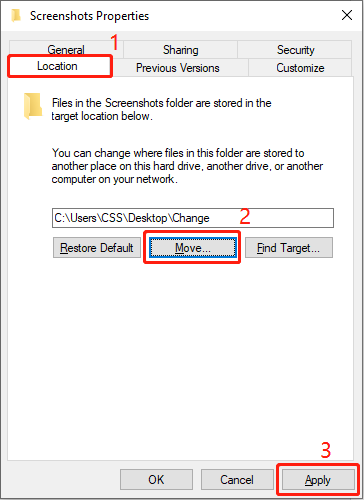
Step 4. Change to the Location tab in the following window and click Move. You can now navigate to your preferred location and click Select Folder to confirm your option.
Step 5. Click Apply to change the save location.
Conclusion
To sum up, this post shows you how to fix Windows not saving screenshots to Screenshots folder and introduces powerful tools to recover lost screenshots and back up crucial ones to avoid data loss.
If you have any puzzles using MiniTool software, please contact us at once via [email protected]. We are zealous in helping you.
About The Author

Position: Columnist
Shirley holds a bachelor’s degree in English and has been an editor at the MiniTool Team for many years. She specializes in IT-related content, with a focus on data recovery, file backup, disk management, and other technical topics. She is committed to delivering clear, accurate, and practical solutions to help users resolve common computer issues.
User Comments :