

USB Thinks It’s a CD Drive on Windows – Overview
Sometimes, the system will treat an inserted USB drive as a CD drive instead of a regular removable storage disk.
This usually happens because some USB drives have a pre-defined read-only partition in their firmware to simulate a CD.
Besides this, what other reasons could cause this problem?
Why Is the USB Drive Showing up as a CD Drive
The common reasons are as follows:
- Firmware corruption or malfunction. If the USB controller firmware is corrupted, the system may incorrectly mount the device as an optical drive.
- Partition table or format error. Windows may misidentify a USB drive as a CD drive if the USB partition table is corrupted or written with a special format.
- PowerISO’s virtual CD-ROM drive driver conflicts. Sometimes, the conflicts between PowerISO’s virtual CD-ROM and USB storage devices may cause that the USB thinks it’s a CD drive.
Immediate USB repair is not advisable. This is because data may be affected during the process of restoring the USB drive to normal. Therefore, it’s recommended to ensure data security first.

Can You Access the USB Drive
The method to ensure data security depends on whether your USB drive can be accessed. Whether it can be accessed when recognized as a CD drive depends on the specific circumstances.
Case 1: If the USB is emulated as a CD-ROM (optical disc drive), it can usually only read the contents, not write or delete them.
Case 2: If the USB is recognized as a CD-ROM due to corrupted firmware or abnormal drivers, it may be read-only or even completely inaccessible.
Overall, if the USB is accessible, copy the data to a safe location before repairs. If it’s inaccessible, try data recovery software to recover data.
Recover Data from USB That Shows up as CD Drive
This section explains how to recover data from an inaccessible USB drive using USB data recovery software.
MiniTool Power Data Recovery is powerful data recovery software that is well-suited for recovering inaccessible USB data. Here are its advantages.
This tool is capable of recovering almost all file types, including documents, pictures, videos, audio files, and more.
It can handle not only USB inaccessibility but also accidental file deletion, USB drive formatting, partition loss, system crashes, and other situations.
In addition, this software has a user-friendly interface and is fully compatible with Windows 11/10/8/8.1. Even if you have no experience, you can complete data recovery in just a few steps.
Furthermore, this free data recovery software allows you to recover 1 GB of files for free. Now, download and install it to recover data from your inaccessible USB drive.
MiniTool Power Data Recovery FreeClick to Download100%Clean & Safe
Step 1: Scan the inaccessible USB drive
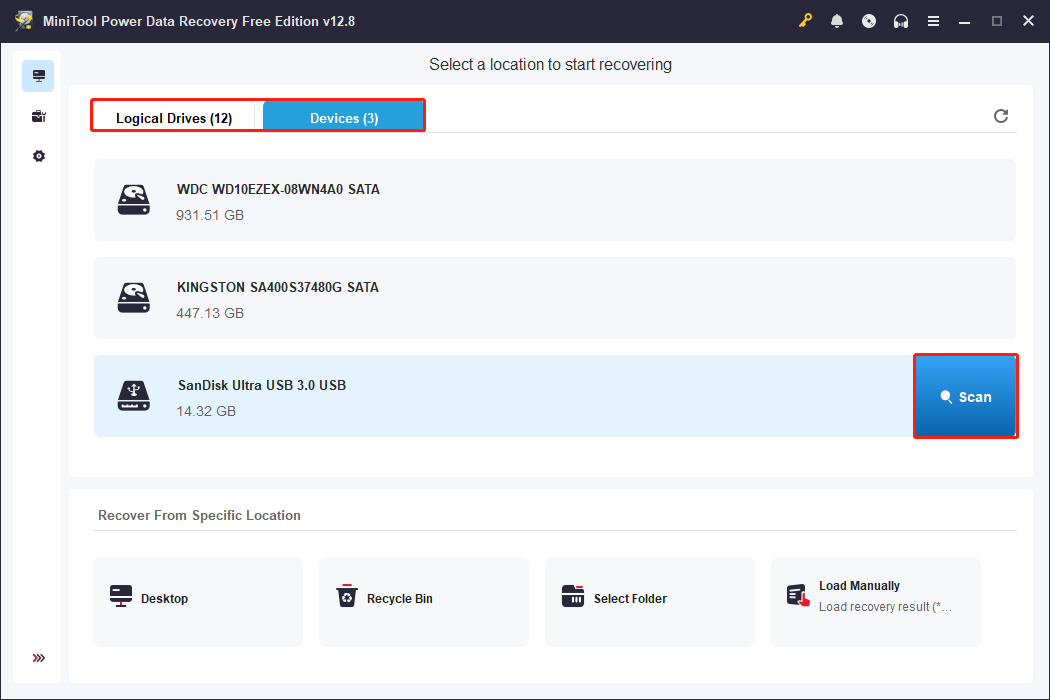
Launch the software and enter the main interface. Under Logical Drives, all partitions, including existing partitions, lost partitions, and unallocated space, are listed. Under Devices, all the disks connected to your computer are displayed.
Find the USB partition or the whole disk, select it, and click Scan.
Step 2: Locate the required files using Path, Type, Filter, and Search
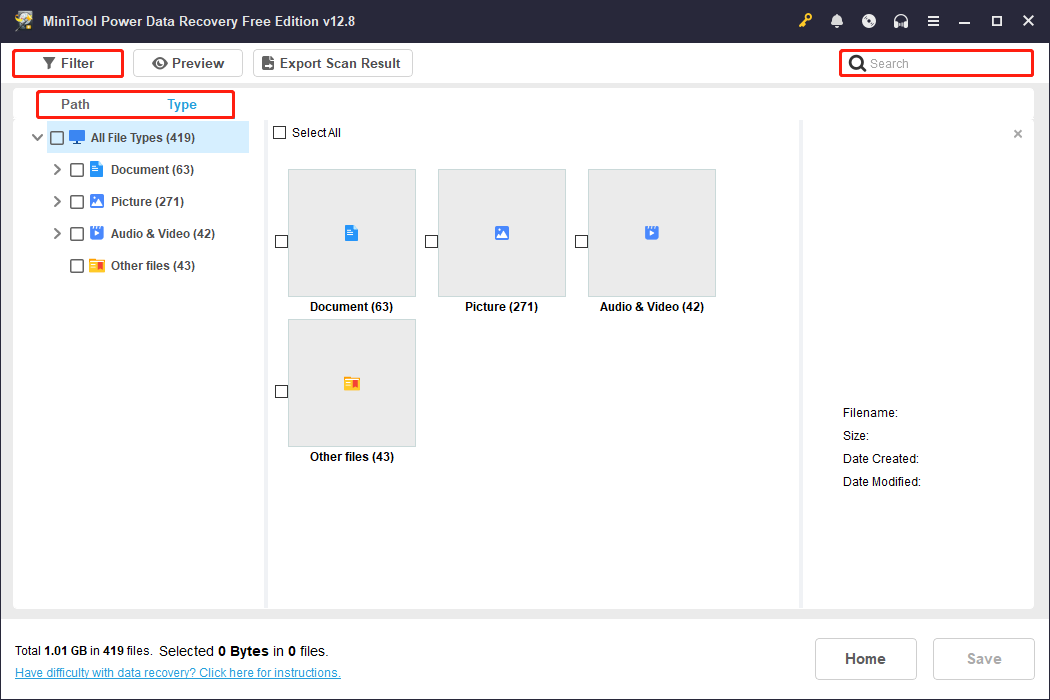
The scan process may take some time. Wait patiently for it to complete. After it ends, find the target files using Path, Type, Filter,and Search.
- Path: Displays scan results by the original folder path, making it easy to locate lost files layer by layer.
- Type: Categorizes files by type, such as picture, video, and audio, facilitating quick searching for files of a specific type.
- Filter: Filters results by file type, modification date, file size, and file category, further narrowing down the search.
- Search: Enter the entire or part of the filename to directly search for the target file, quickly and accurately locating it.
Step 3: Preview the files before recovery
After finding the files, it’s best to preview them before recovery. MiniTool’s Preview feature allows you to open and view the contents of most types of files.
Double-click the needed file, and a preview window will pop up.
Step 4: Recover the selected files to a new destination
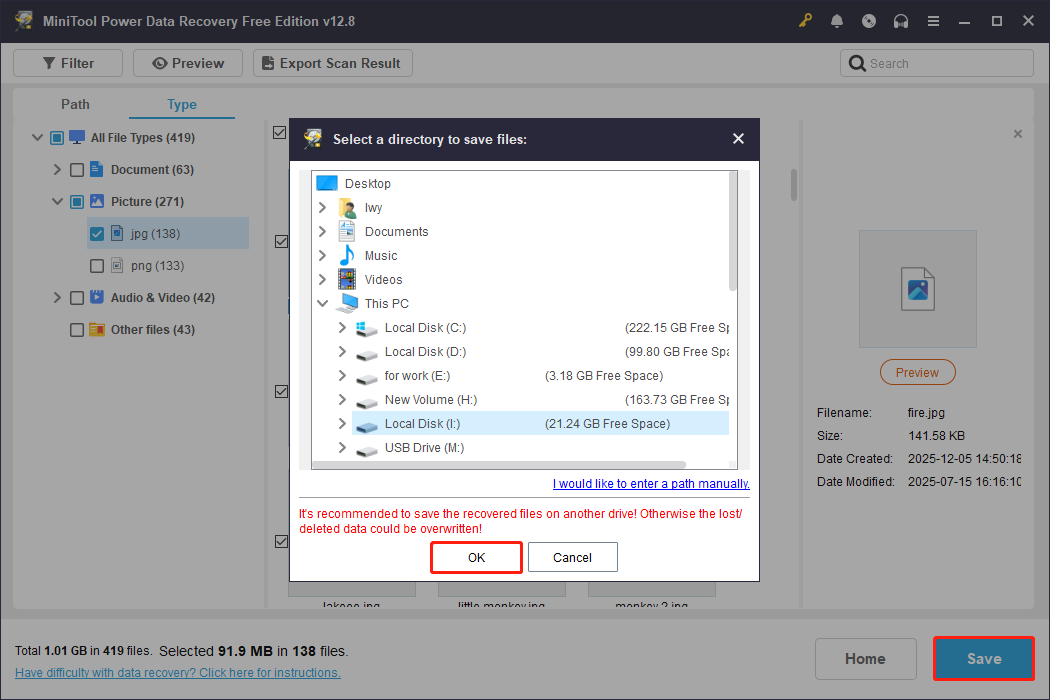
Select all the required files and click Save. There will be a window prompting you to choose a suitable path for the recovered files. Choose one and click OK to start recovery.
When the files are secure, try the following methods to repair your USB drive.
Fix 1: Unlock the USB Drive Using SanDisk Security
SanDisk Security is software that provides password protection and data encryption for SanDisk storage devices.
If you’ve ever used it to lock your USB drive, it could lead to recognition issues. In such a case, run SanDisk Security and enter the password to unlock the actual storage space.
Fix 2: Uninstall PowerISO
PowerISO is a tool that integrates the creation, editing, mounting, and burning of optical disc image files. However, PowerISO’s virtual CD-ROM driver may conflict with the USB storage device, causing that the USB thinks it’s a CD drive.
Uninstalling PowerISO can remove the related driver and restore the USB drive to its normal function.
Step 1: Search for Control Panel in the Windows search and press Enter.
Step 2: Go to Programs > Programs and Features.
Step 3: Find PowerISO in the list, right-click it, and select Uninstall.
After it is removed, check if your USB can display correctly.
Fix 3: Change the Drive Letter
A virtual optical disc partition or an abnormal device description in the USB firmware may cause Windows to mount the disk as a read-only optical drive. This causes the USB drive to mistakenly identify as a CD drive.
In this case, changing the drive letter will modify the access path, allowing the system to point to the partition with a different drive letter.
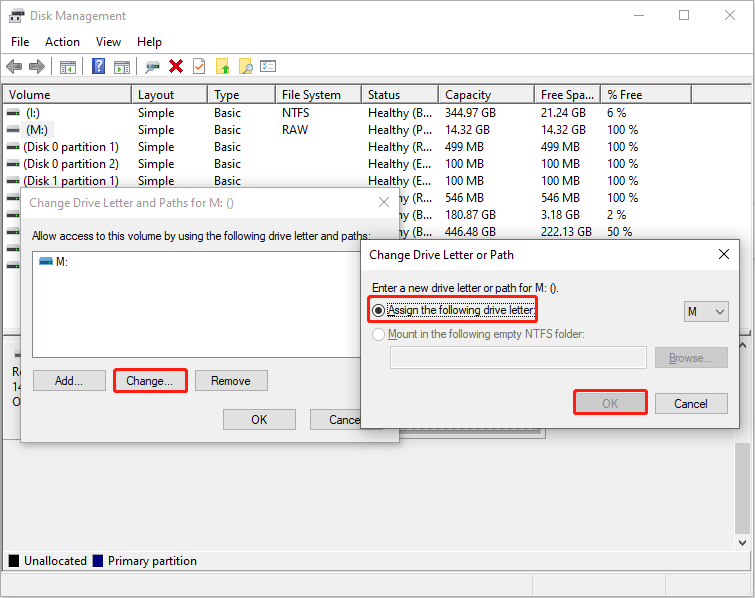
Step 1: Press Win + X and choose Disk Management.
Step 2: Right-click the target disk and choose Change Drive Letter and Paths.
Step 3: Click the Change button, choose another letter, and click OK.
If this method fails, proceed with the next one.
Fix 4: Format the Disk via MiniTool Partition Wizard
Formatting can clear the original partition structure and rebuild a standard file system. This prevents the system from recognizing it as a CD-ROM drive.
MiniTool Partition Wizard is a comprehensive Windows disk partitioning management tool. This software supports formatting partitions to exFAT, NTFS, and FAT32 for free.
Now, download it and start formatting the USB drive.
MiniTool Partition Wizard FreeClick to Download100%Clean & Safe
Step 1: Open the software and select the target disk.
Step 2: In the left pane, click Format Partition under Partition Management.
Step 3: Type a partition label, choose a file system, and click OK.
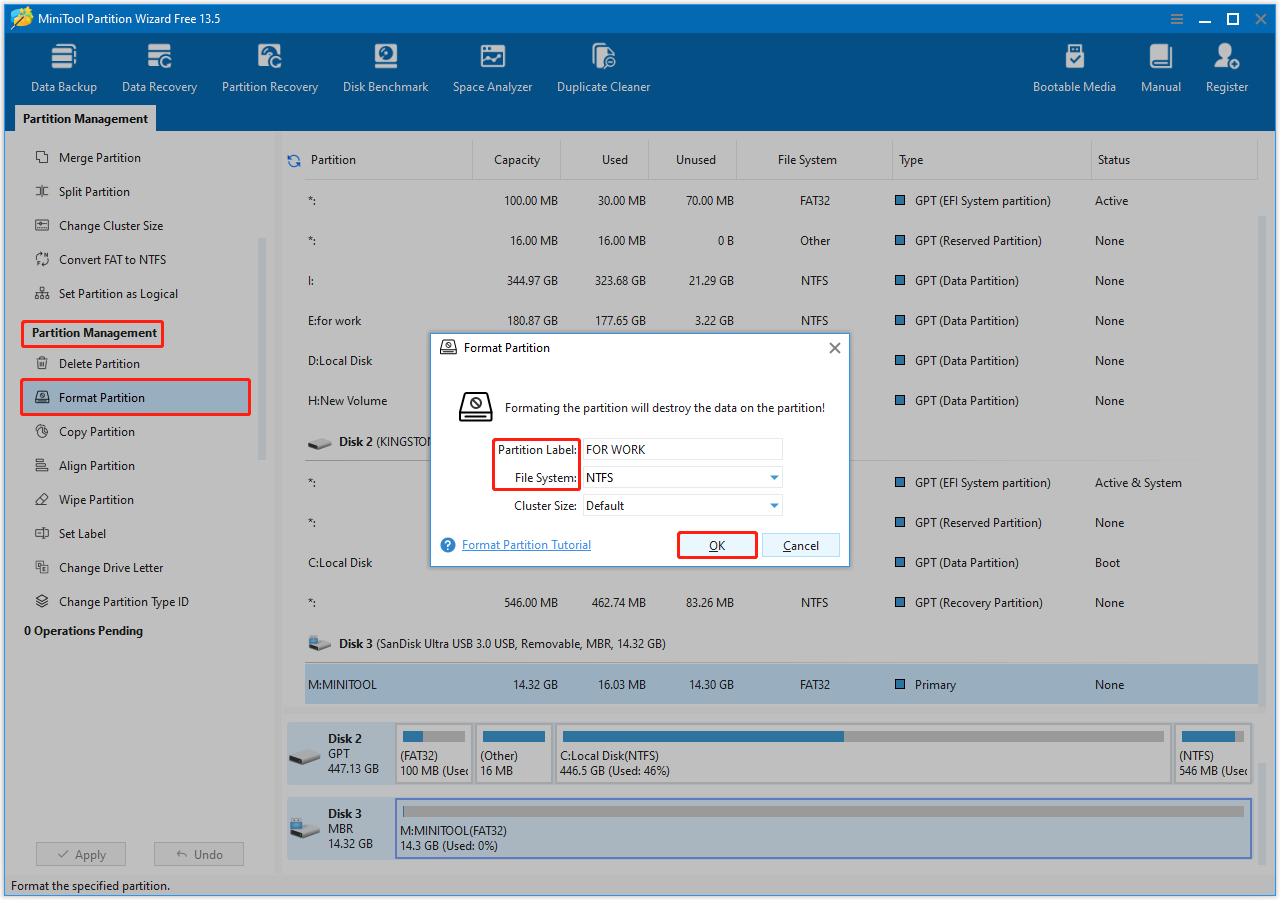
Step 4: In the bottom left corner, click Apply to confirm the change.
Fix 5: Clean the Disk
Cleaning the disk can restore the device to an unformatted state. This prevents the system from recognizing it as a CD-ROM drive based on its original erroneous partition structure.
Here is how to run the DiskPart command to clean the disk and repartition the drive.
Step 1: Type cmd in the Windows search bar, right-click Command Prompt, and choose Run as administrator.
Step 2: Input diskpart and press Enter to launch this tool.
Step 3: Type the following commands one by one and press Enter after each:
- list disk
- select disk # (Replace # with the disk number of your USB drive.)
- clean
- create partition primary
- list partition
- select partition # (Replace # with the partition number of your USB drive.)
- format fs=fat32 quick (The fat32 can be changed to exfat, ntfs, or other file systems.)
- exit
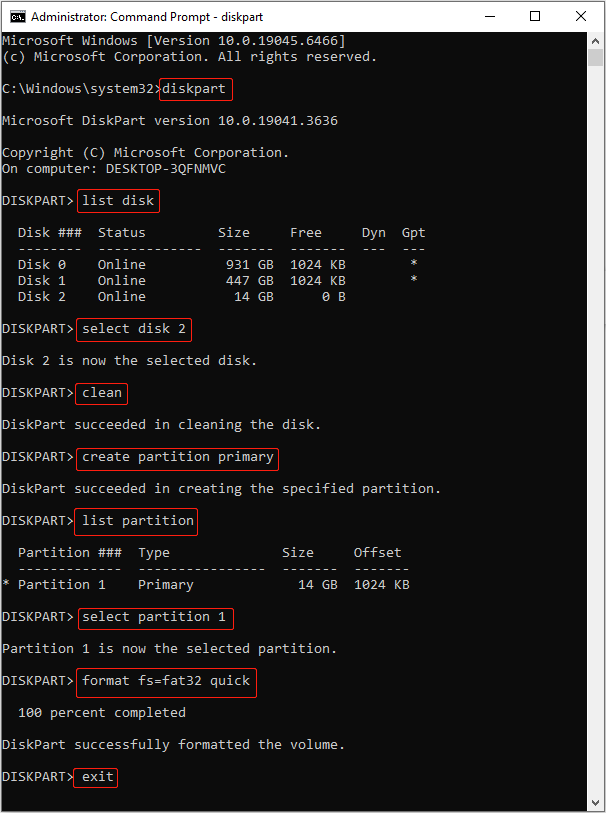
Once the entire process is complete, verify the state of your USB drive.
Fix 6: Wipe the USB Drive
ImageUSB.exe is a tool specifically designed for batch writing and cloning of USB images. It can completely erase the data on a USB drive, restoring it to a clean state.
Step 1: Download and install imageUSB. Then, launch the application.
Step 2: Select the USB drive you want to operate on from the list.
Step 3: Check the box for Zero USB drive to completely erase the USB drive.
Step 4: Click the Zero button, and the tool will begin processing.
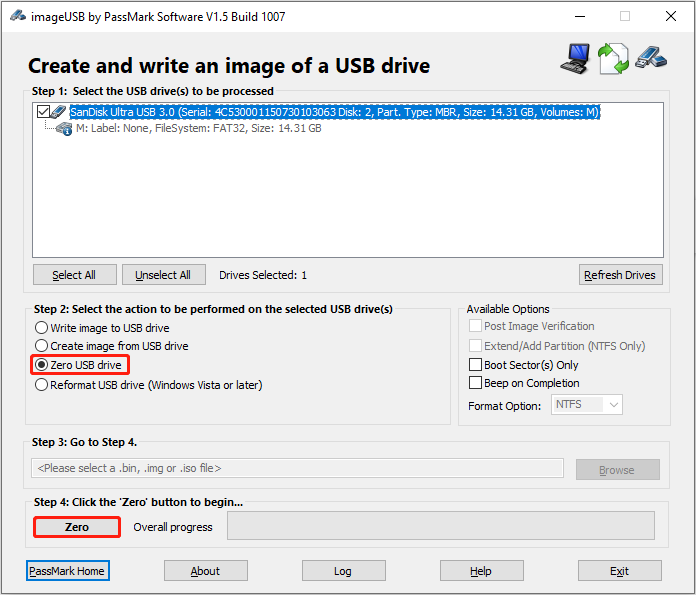
When it is completed, the USB drive will be erased.
MiniTool Partition Wizard FreeClick to Download100%Clean & Safe
Bottom Line
To sum up, when the USB thinks it’s a CD drive, here are two steps you need to do:
- Recover data from the inaccessible USB drive using MiniTool Power Data Recovery.
- Fix the USB drive by unlocking it, uninstalling PowerISO, changing the drive letter, wiping the disk.
For further assistance with MiniTool products, contact us at [email protected].
User Comments :