

This guide provides step-by-step instructions to recover data from RAW drive safely using professional software such as MiniTool Power Data Recovery. In some cases, you can also restore disk functionality by running CHKDSK to repair file system errors.
Short Answer: You can recover data from RAW drive using data recovery software before formatting, or repair it using CHKDSK in limited cases.
When a drive becomes RAW, Windows cannot access it normally. When attempting to open the drive, you may encounter the following symptoms:
- A prompt appears, stating: “You need to format the disk before you can use it”.
- Files stored on the drive cannot be accessed or transferred.
- The drive’s capacity and available space may display as zero bytes, even if it previously contained data.
Although formatting can restore RAW drive accessibility, it will permanently erase all files. To prevent data loss, you should use RAW drive recovery software to recover files before formatting.
Step-by-Step Guide to Recover Data from RAW Drive
Recovering data from a RAW drive requires data recovery software. Based on my own experiment, this section illustrates a safe and effective recovery process using MiniTool Power Data Recovery Free.
MiniTool Power Data Recovery was selected as the recovery tool due to its comprehensive features:
- Scanning for all file types and is compatible with all file storage media.
- Previewing files before recovery.
- Saving 1 GB of files for free, suitable for testing before purchasing a license.
Step 1. Prepare for the Recovery Test
For this experiment, I created a 10 GB virtual disk on Windows 10 and made its file system RAW. Then I downloaded the free edition of MiniTool Power Data Recovery and launched it.
MiniTool Power Data Recovery FreeClick to Download100%Clean & Safe
Step 2. Scan the RAW Drive
In this experiment, the RAW disk appeared as Unidentified on the main interface of MiniTool Power Data Recovery. I selected it and clicked Scan to start the scanning process.
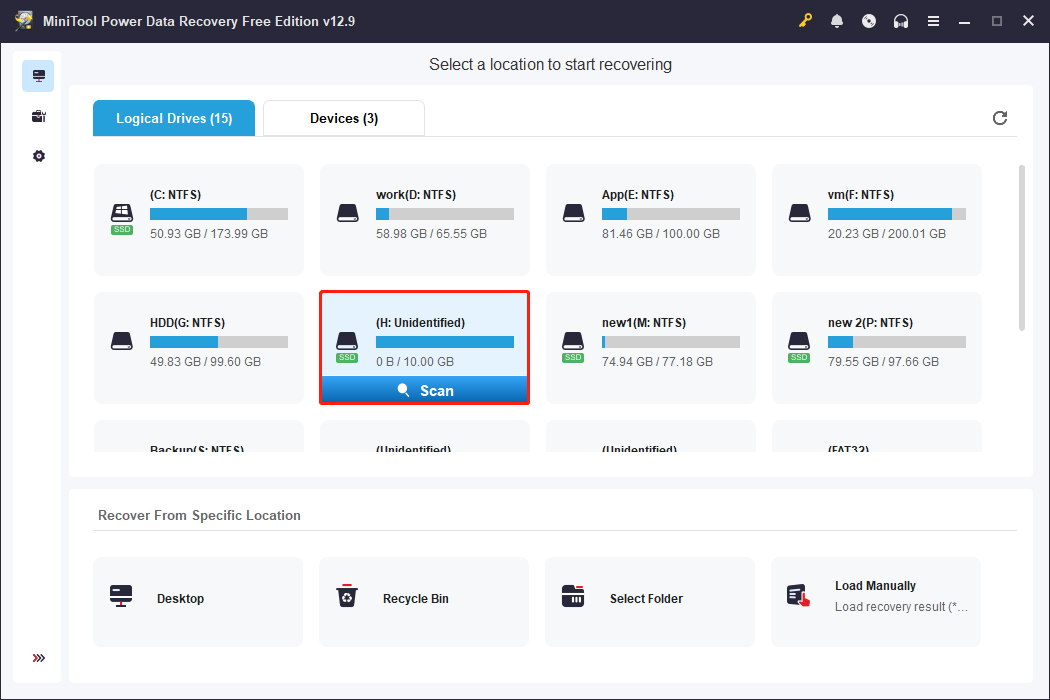
Observations from the experiment:
- Scanning the 10 GB virtual RAW disk took approximately 8 minutes.
- The software identified the drive quickly and started listing recoverable files.
- During scanning, the Preview feature allowed me to check file content in real-time.
Step 3. Preview and Select Files
After scanning, I browsed through the detected files and found that:
- Most files from before the disk became RAW were fully recovered.
- Folder hierarchy and file names were mostly preserved.
However, note that this experiment represents a simulated RAW scenario, where the disk became RAW because the partition was deleted and no file system was assigned.
In real-world cases, a RAW drive often results from file system corruption or partition table damage. Under these conditions, some data may be partially overwritten, and original folder structures and file names may be lost.
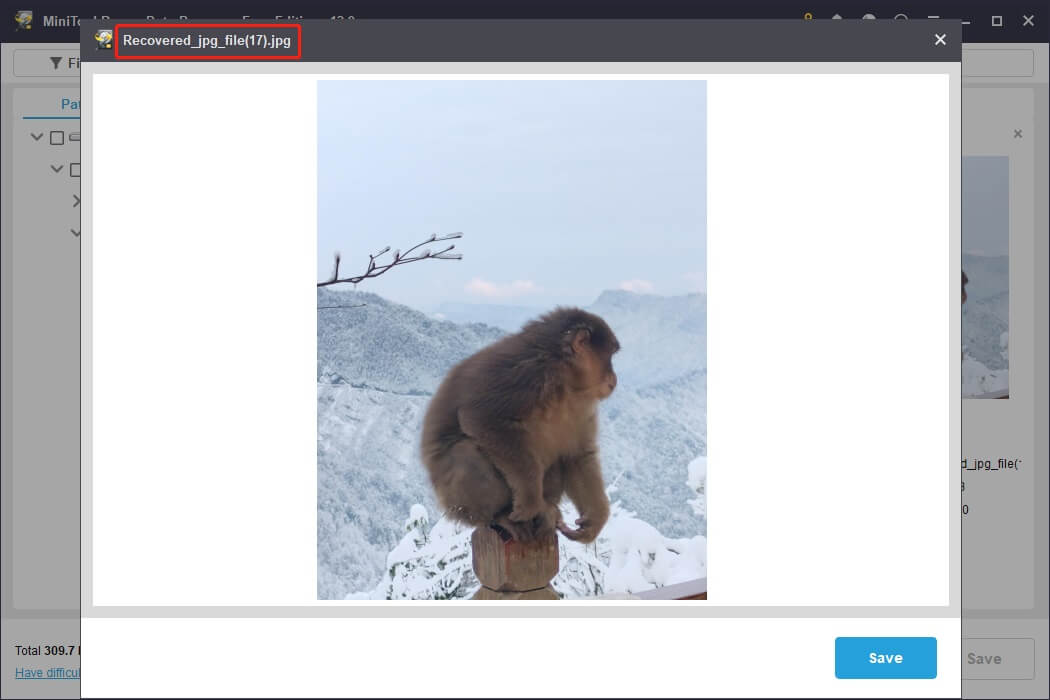
In such cases, the Preview function becomes critical, as it allows you to preview files even if their names or paths are missing.
Select the files you want to recover and prioritize the most important ones first, as this software only recovers 1 GB of data for free.
Step 4. Save Recovered Files
Finally, click Save and choose a different drive to store the selected files.
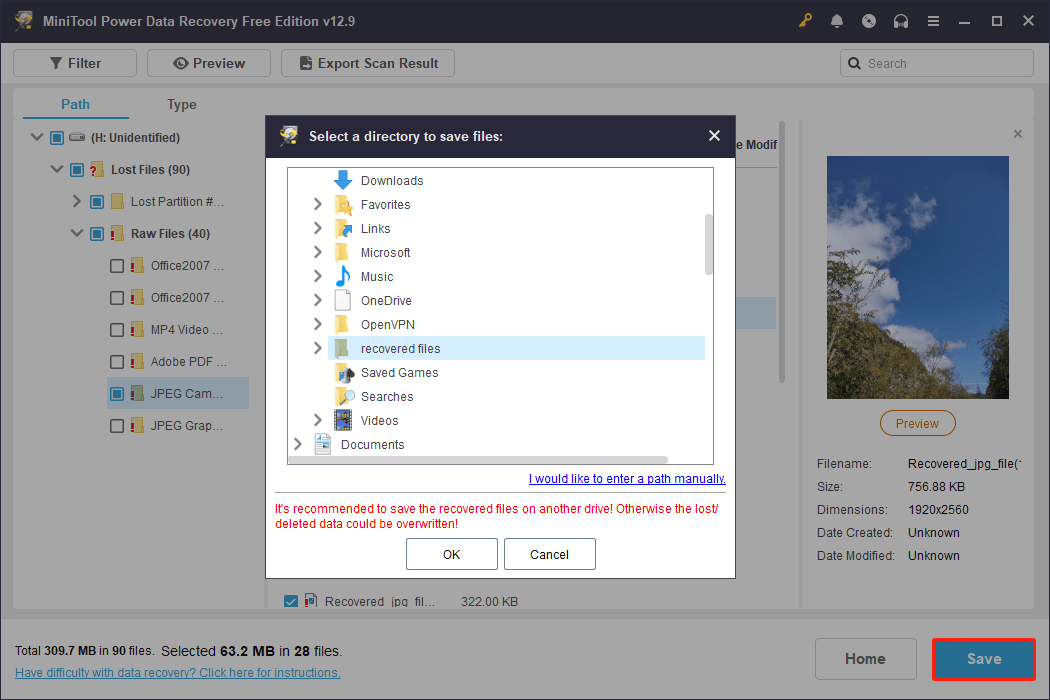
Experiment results:
- All data added just before the disk turned RAW was recovered successfully.
- For older files, even if their names were lost, the content was mostly intact.
If MiniTool Power Data Recovery fails to recover your files, try seeking help from professional data recovery services.
Fixing the Drive After RAW Data Recovery
Method 1. Use CHKDSK to Repair a RAW Drive
In some cases, a drive may become RAW after accidental partition deletion and incomplete disk formatting. CHKDSK can sometimes fix an unformatted RAW drive without data loss.
How to fix RAW drive without formatting:
Step 1. Type cmd in Windows search, right-click Command Prompt, then choose Run as administrator.
Step 2. Type the following command and press Enter:
chkdsk X: /f /r
Replace X: with the letter of your RAW drive.
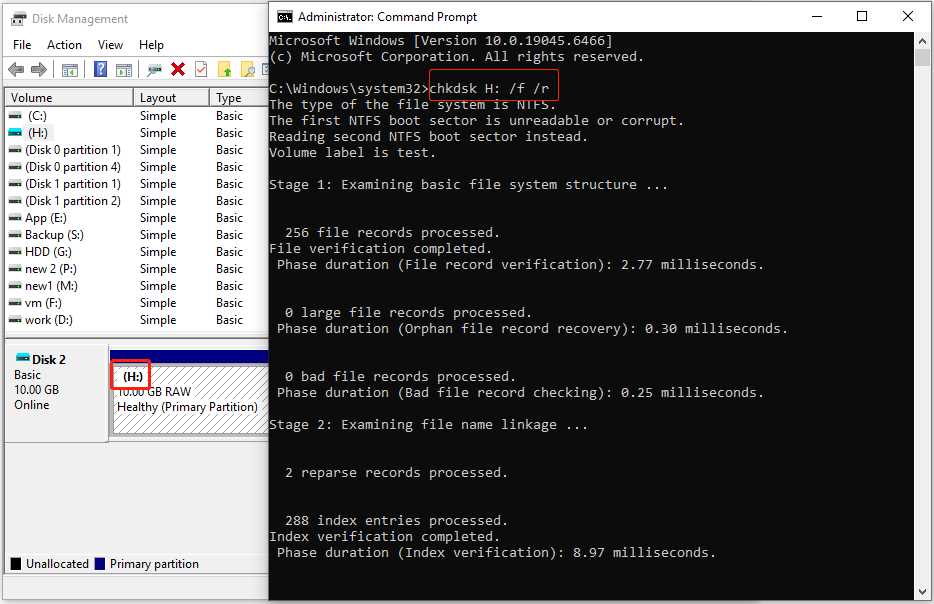
If CHKDSK successfully repairs the drive, your files will become accessible without needing additional recovery software.
Method 2. Format the RAW Drive in Disk Management
Formatting is the most effective method to repair a RAW drive. Windows built-in Disk Management can usually format a RAW drive in only three steps.
Step 1. Right-click Start and open Disk Management in Windows.
Step 2. Right-click the RAW drive and click Format.
Step 3. Specify a volume label, select a compatible file system, and confirm.
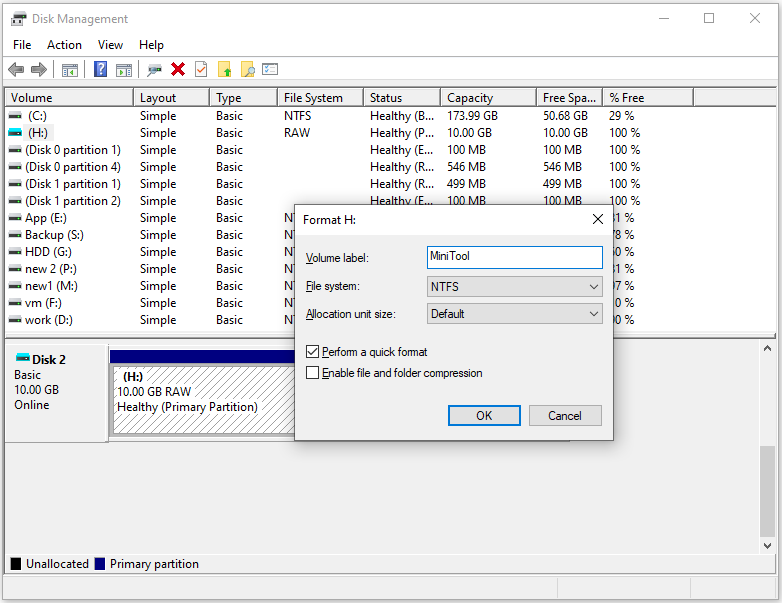
After formatting, the RAW drive should be back to normal.
Method 3. Format RAW Drive Using Partition Management Software
Disk tools like MiniTool Partition Wizard support formatting disks that fail to be formatted in Disk Management. Its Format Partition feature is free to use.
MiniTool Partition Wizard FreeClick to Download100%Clean & Safe
Step 1. On the main interface of this partition manager, identify the target drive. Select it and click Format Partition.
Step 2. Select FAT32, exFAT, or NTFS depending on your needs and confirm the choice.
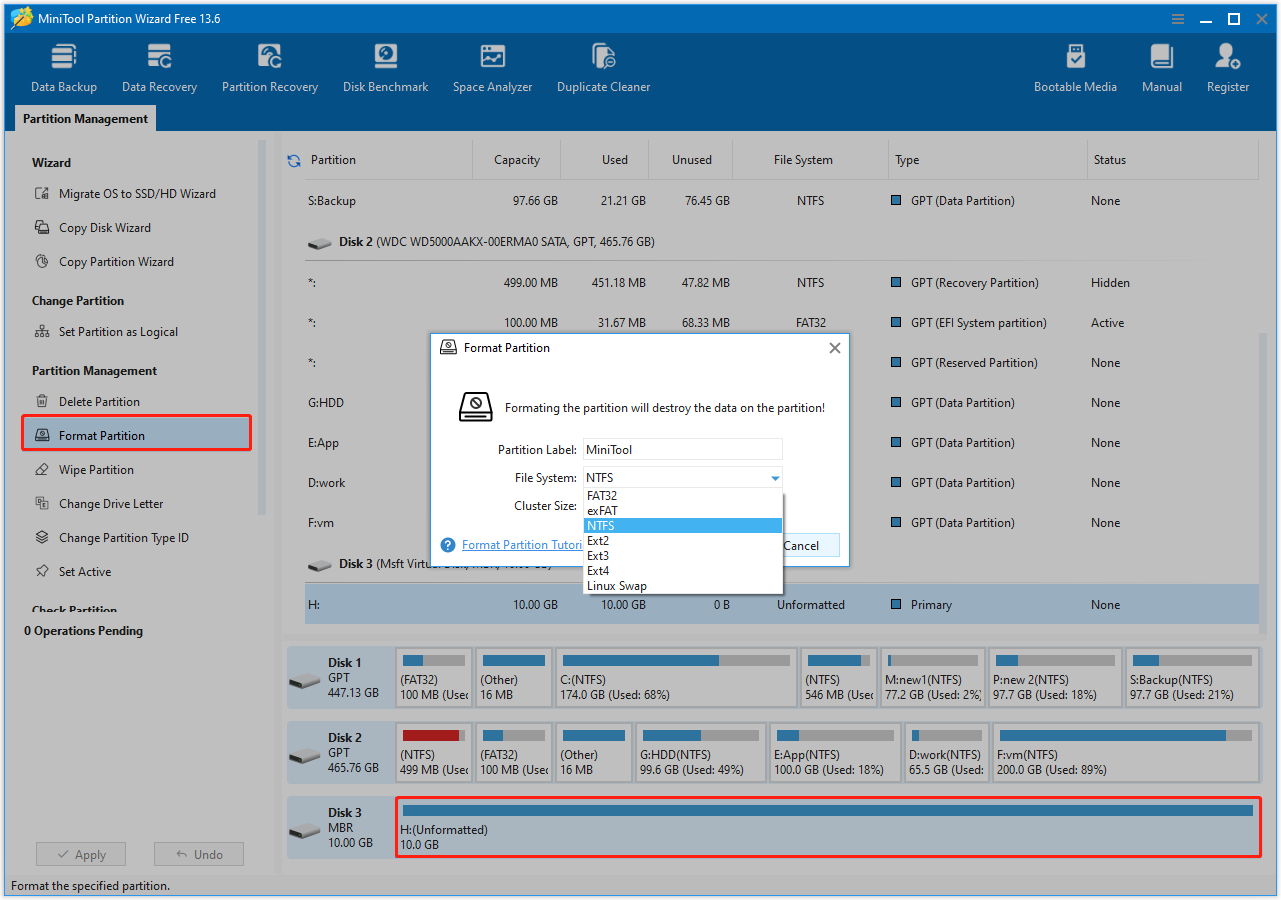
Step 3. Click Apply to apply the change. Then the RAW drive should become accessible.
Common Causes of a RAW Drive
Understanding why a drive becomes RAW helps you prevent future issues. The main causes include:
File System Corruption
Sudden power outages, improper shutdowns, or formatting errors can damage the file system, making the drive unreadable.
Partition Table Damage
The partition table holds information about the location and size of partitions. Damage to it may turn the entire drive RAW.
Virus and Malware Attacks
Malware can alter critical file system data, making the drive inaccessible.
Bad Sectors or Physical Disk Issues
Mechanical damage or bad sectors can make the disk unreadable, triggering a RAW status.
Connection or Cable Problems
A loose or damaged USB, SATA, or external hard drive cable can prevent Windows from reading the drive properly.
Tips to Prevent RAW Drive Issues
Taking proactive measures can significantly reduce the risk of the RAW state and data loss. Here are some useful tips.
- Safe Removal: Avoid unplugging external drives without safely ejecting.
- Complete Formatting: When formatting a drive, select a compatible file system. Avoid leaving the disk unformatted.
- Antivirus Protection: Keep antivirus software updated to prevent virus attacks.
- Monitor Disk Health: Tools like MiniTool Partition Wizard or CrystalDiskInfo can warn about bad sectors and file system errors.
- Regular Backups: Use cloud storage or external drives to back up critical data.

Bottom Line
To sum up, RAW hard drive recovery is possible with professional data recovery tools. When a disk shows RAW due to incomplete formatting, run CHKDSK to repair it.
For data security, format the drive only after RAW data recovery.
Regular backups and disk health status monitoring will reduce the risk of RAW drive data loss in the future.
If you have any questions when using MiniTool products, please send an email to the support team at [email protected].
Recover Data from RAW Drive FAQ
About The Author

Position: Columnist
Shirley holds a bachelor’s degree in English and has been an editor at the MiniTool Team for many years. She specializes in IT-related content, with a focus on data recovery, file backup, disk management, and other technical topics. She is committed to delivering clear, accurate, and practical solutions to help users resolve common computer issues.
User Comments :