

Quick Answer:
Nikon photo recovery depends on the cause of data loss. In most cases, lost photos are not immediately erased and can often be recovered using professional data recovery tools.
The table below summarizes common photo loss scenarios, where the photos go, and the best recovery approach.
| Photo loss scenario | What happens to photos | Recovery possibility | Recommended recovery method |
| Accidental deletion | Files marked as deleted but remain on the card | High | Ctrl + Z (Windows undo function) or data recovery software |
| Quick formatting | Original data not erased | High | Data recovery software |
| Full formatting | Data may have been overwritten | Low | Professional data recovery service |
| SD card corruption | Files inaccessible or unreadable | Medium | Repair the corrupted SD card or use Nikon SD card recovery software |
| File transfer | Files missing or incomplete | High | Data recovery software |
| Virus infection | Files hidden or deleted | Medium | Remove malware, unhide files, or use Nikon photo recovery software |
| Physical damage | Files inaccessible | Low | Professional data recovery service |
_____________________________________________________________________________________
Nikon photo recovery is possible in most data loss situations, especially when photos are not overwritten by new files.
This guide outlines practical methods to recover deleted or lost photos from Nikon camera SD cards safely and effectively.
Tips to Improve Nikon Photo Recovery Success
If photos are missing from your Nikon camera SD card, follow these tips to prevent data overwriting and increase the chances of successful recovery.
- Avoid new photo or video capture immediately after data loss
- Choose reliable Nikon recovery software as early as possible
- Avoid installing recovery software on the SD card
- Store recovered files to another disk instead of the original card
How to Recover Deleted Photos from Nikon Camera SD Card
Depending on the situation, you can recover the photos yourself using recovery software or seek professional assistance.
Method 1. MiniTool Power Data Recovery
MiniTool Power Data Recovery Free is a reliable recovery tool used for Nikon photo recovery from SD cards.
It helps recover deleted, formatted, or lost photos from Nikon cameras and supports common image formats such as RAW (NEF), JPG, and PNG files.
Whether photos are accidentally deleted, lost due to card formatting, or become inaccessible due to disk corruption, this tool can scan the card sector by sector and restore files.
MiniTool Power Data Recovery FreeClick to Download100%Clean & Safe
When to use:
- Accidental deletion
- Quick-formatted SD card
- File missing during transfer
- SD card logically corrupted
Advantages:
- Easy-to-use interface
- High recovery rate for deleted photos, including NEF photos
- Supports deep scan for SD cards
- Free preview for JPG, PNG, and many other file formats
Disadvantages:
- 1 GB of free recovery limitation
- Scan time may be long for large cards
Nikon deleted photo recovery steps:
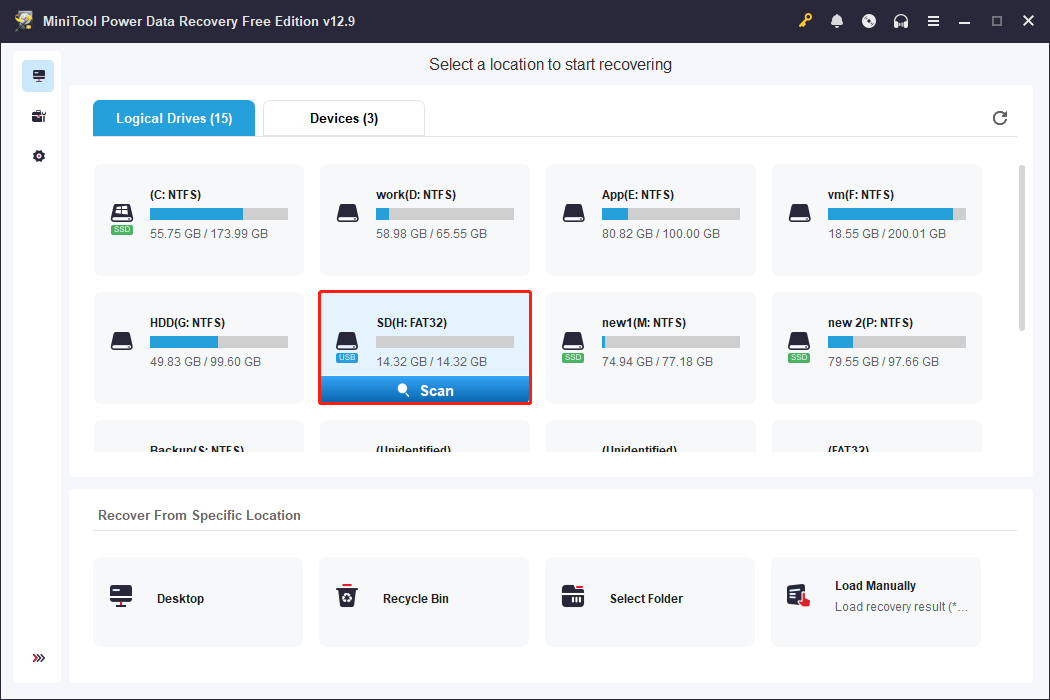
Step 1. Connect and scan the SD card
Connect the SD card to your computer using a reliable card reader. Then launch the data recovery software and select the SD card to start a full scan.
Scanning my 14 GB SD card took approximately 5 minutes.
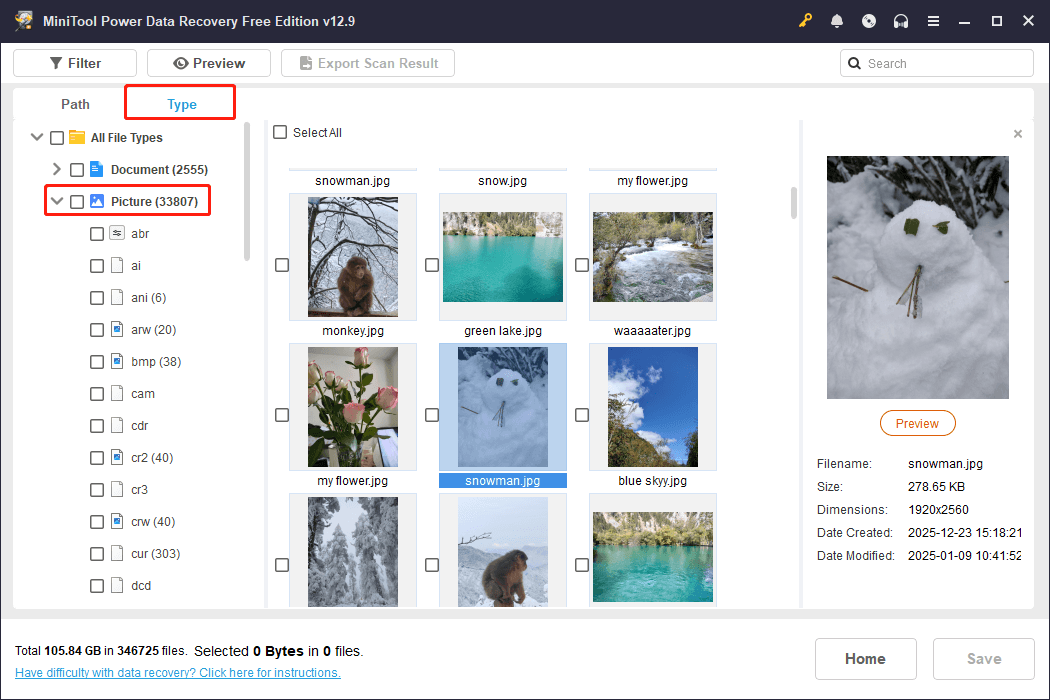
Step 2. Find and preview the desired photos
After scanning, go to Type and expand the Picture category to view all photos. The MiniTool photo recovery software supports previewing JPG and PNG files.
In my test, the software was able to detect most deleted JPG and NEF RAW files on the SD card.
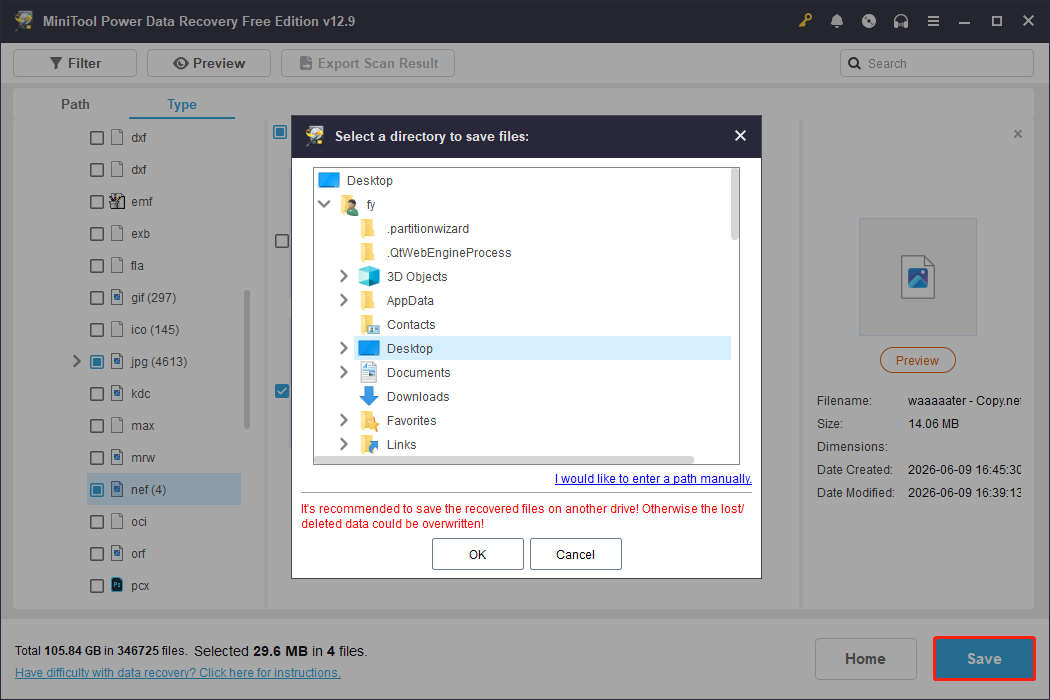
Step 3. Select and save required photos
Select the photos you want to recover and save them to a different storage location (not the original SD card).
Method 2. Windows File Recovery
Windows File Recovery is a free data recovery tool developed by Microsoft. It is designed for Windows 10 (version 2004 and later) and Windows 11 to recover deleted photos, documents, videos, and other types from local storage devices.
It scans the SD card for lost files using this command syntax:
winfr source-drive: destination-drive: [/mode] [/switches]
When to use:
- You do not want to install third-party data recovery software
- You are comfortable using command-line tools
Advantages:
- Completely free and officially supported by Microsoft
- No installation of third-party applications required
Disadvantages:
- Command-line interface only
- Requires correct syntax and manual input
- No file preview before recovery
- No selective recovery features
Nikon photo recovery steps:
Step 1. Download and launch Windows File Recovery
Open the Microsoft Store and download Windows File Recovery. Next, search for the application in the Windows Search box and launch it.
Step 2. Specify the recovery mode and location
Recovery syntax: winfr source-drive: destination-drive: [/mode] [/switches]
- Source and destination drives: Specify the drive where the files were deleted (source) and a different drive to save recovered files (destination).
- Recovery mode: Regular mode is suitable for NTFS file systems, while Extensive mode is recommended for FAT32 or heavily corrupted drives.
- Switches: Specify the file type or name to narrow the recovery. For example, you can recover only JPG photos.
Step 3. Recover Nikon photos
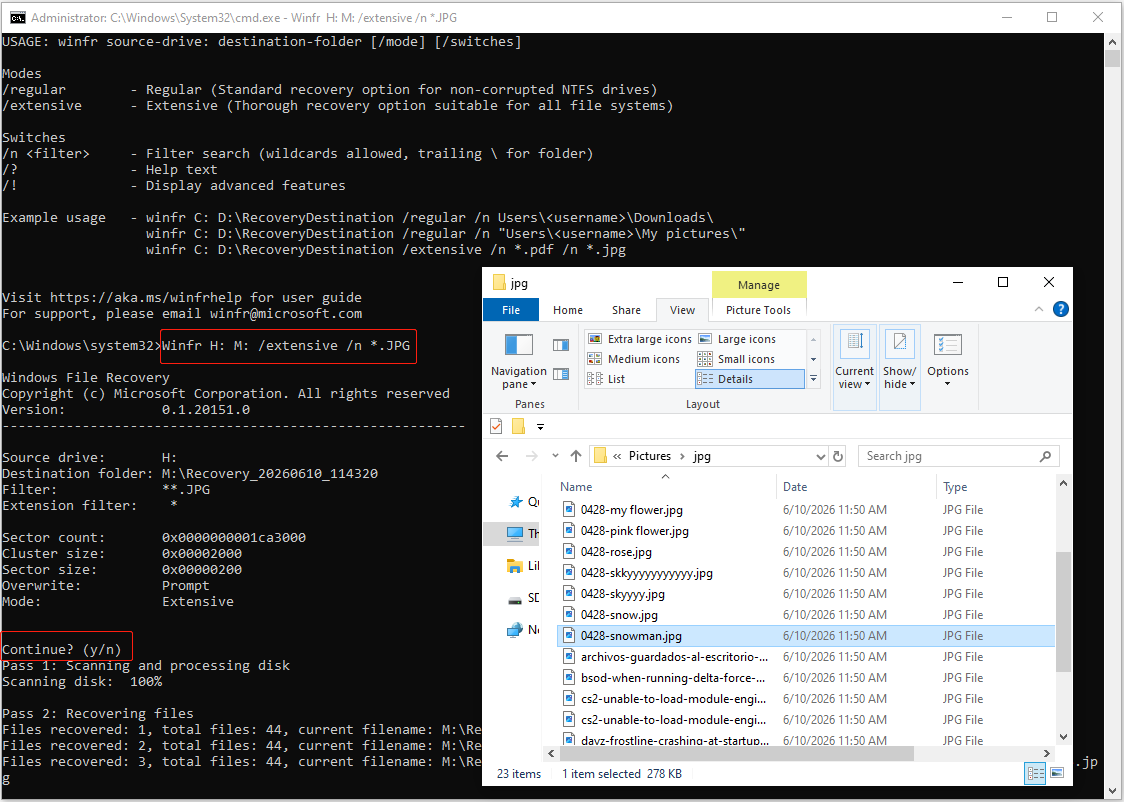
Enter the recovery command and press Enter. Example: recover JPG files from drive H: to drive M: using Extensive mode:
Winfr H: M: /extensive /n *.JPG
Press Y when prompted to continue.
The scan may take several minutes depending on the SD card size and the amount of data.
Once completed, the tool will display messages indicating whether files were found. Then you can navigate to the destination drive to view recovered Nikon photos.
In my test, a 14 GB SD card scan took 7 minutes and successfully recovered 23 JPG files.

Method 3. Professional Data Recovery Service
If data recovery software cannot find your photos, or if the SD card is not detected by your computer, a professional data recovery service may be required.
These services use specialized hardware and advanced techniques to recover data that standard recovery tools cannot access.
You can search on Google for professional data recovery services near you with a strong reputation.
When to use:
- Physically damaged SD card
- Severe corruption or unreadable device
Advantages:
- Higher recovery success rate
- May be able to recover data from damaged hardware
Disadvantages:
- Expensive service cost
- Time-consuming recovery process
How to Avoid Nikon Photo Loss
Preventing Nikon photo loss is important both after recovering files and during the daily use of your Nikon camera. Follow these practices to reduce the risk of accidental deletion, corruption, or hardware damage.
1. Regularly back up your photos
Before each new shooting session, transfer your existing photos from the SD card to a computer, external hard drive, or cloud storage for backup. Regular backups ensure your files are safe even if the SD card is damaged.
2. Avoid shooting with low battery
Sudden camera shutdowns during shooting can corrupt files on the SD card or prevent newly captured photos from being saved properly.
3. Avoid removing the SD card during writing
Do not remove the card while the camera is saving or transferring photos. Interrupting the writing process can cause file corruption or missing photos.
4. Handle photos carefully during editing
During file management, think twice before deleting files and make sure you have a backup. If you accidentally delete a file, immediately press Ctrl + Z to undo the deletion.
5. Use high-quality SD cards and card readers
Low-quality SD cards are more prone to errors, corruption, or slow performance. Choose a reliable SD card and compatible readers.

Nikon Photo Recovery Frequently Asked Questions
If the SD card has not been used since the photos were deleted, data recovery software may still be able to find and restore them.
However, the recovery success rate decreases significantly as new files are written to the card over time.
Before the deleted files are overwritten, recovery software may be able to restore them.
In most cases, the NEF file itself is intact, but the software used to open it does not fully support the Nikon NEF format.
To fix it, try opening the file with Nikon NX Studio or another RAW-compatible photo viewer.
Wrapping Things Up
Recovering deleted Nikon photos is often possible as long as the original data has not been overwritten. For most photo loss scenarios, such as accidental deletion, quick formatting, and logical corruption, data recovery software is the most practical solution.
If the SD card is physically damaged or cannot be detected, a professional data recovery service is required.
To avoid future photo loss, regularly back up your photos and handle file deletion carefully.
If you have any questions when using MiniTool products, please contact the tech support team at [email protected].
About The Author

Position: Columnist
Shirley holds a bachelor’s degree in English and has been an editor at the MiniTool Team for many years. She specializes in IT-related content, with a focus on data recovery, file backup, disk management, and other technical topics. She is committed to delivering clear, accurate, and practical solutions to help users resolve common computer issues.
User Comments :