

Check this post to learn how to recover deleted photos from Sony camera. It provides several methods, including using the built-in undo function, checking your backups, and using MiniTool Power Data Recovery or Sony Memory Card File Rescue.
Losing precious photos from your Sony camera, whether they are travel memories or creative work you’ve carefully taken, can be frustrating.
Deleted photos may still be recoverable if their storage space has not been overwritten by new data. To improve the chances of recovery, stop taking photos, recording videos, or otherwise writing new data to the memory card as soon as you notice the deletion.
This article will introduce practical and reliable recovery methods and help you avoid similar problems in the future.
Common Scenarios of Photo Loss on Sony Cameras
Sony camera photos can become inaccessible or disappear for several reasons. Identifying what happened can help you choose the appropriate recovery method.
- Memory card damage: Bad blocks or physical damage to the SD card or memory stick render photos unreadable.
- File system errors: Incomplete formatting, corrupted partition tables, or failed CRC checks result in lost photo directories.
- Accidental deletion: You accidentally deleted the photos.
- Device malfunction: Sony cameras/camcorders suddenly lose power or freeze during shooting or photo transfer.
- Data transfer interruption: Unstable USB connection or being unplugged midway during copying to the computer leads to file loss or corruption.
- Virus or malware infection: The virus infection causes photo files to be corrupted or hidden.
- Software issues: Improper use of third-party repair or management tools can cause data loss.
After knowing about its causes, learn how to recover deleted photos from a Sony Cybershot camera.

Perform Some Quick Checks Before You Start
When the Sony photos are lost, try the built-in undo function or check your backups first.
Option 1: Check the Built-in Undo Function
When photos are lost on a Sony device, try the built-in undo function. It can quickly undo the most recent edit, restoring the image to its previous state.
While not a dedicated data recovery tool, it can serve as a temporary fix in certain situations.
Here is how to undo the last operation in Sony:
Step 1: Open the Playback menu in the camera.
Step 2: Look for options: Undo Delete, Protect, or Recover Image (with a trash can icon).
Step 3: If these options are available, select them and follow the on-screen prompts.
This feature can help you recover photos immediately if they have just been lost and the device hasn’t updated its catalog.
However, if there has been a power outage, this function cannot work. In this case, you will need to check for backups or rely on professional data recovery software.
Option 2: Check for Backups
If photos are lost from your camera or memory card, check if you have a backup on your computer or other devices. If there is a backup, simply copy the photos from it.
Below are the steps to check for backups on different:
- Check the camera’s internal memory (available in some models) to confirm whether the photos are really lost.
- Check the photos on your computer or portable hard drive to verify if there are historical backups.
- Open the official Sony software (Imaging Edge) to check for automatically imported backups.
- Check your phone’s photo album to confirm whether the photos have been transferred wirelessly.
- Check upload records on cloud drives or social platforms to retrieve shared photo files.
If there is no backup available, then data recovery software is a feasible choice.
Recover Deleted Photos from Sony Camera Using MiniTool Power Data Recovery
This section explains how to recover deleted Sony photos using MiniTool Power Data Recovery.
What Is MiniTool Power Data Recovery
MiniTool Power Data Recovery Free is powerful Windows data recovery software, compatible with Windows 11/10/8/8.1.
It offers both a free edition (recovering up to 1 GB of data) and several full editions with more comprehensive features.
This software can handle various data loss scenarios, including accidental deletion, formatting, hard drive damage, and virus attacks.
The recovery process uses read-only mode and will not damage your SD card data.
Now, prepare the following:
- Download and install the tool on your computer.
- Remove the SD card from the Sony camera and connect it to the computer by using a card reader.
MiniTool Power Data Recovery FreeClick to Download100%Clean & Safe
Steps to Recover Deleted Sony Photos on Windows
Once the preparations are complete, start to recover deleted photos.
Step 1: Open the software and scan the SD card
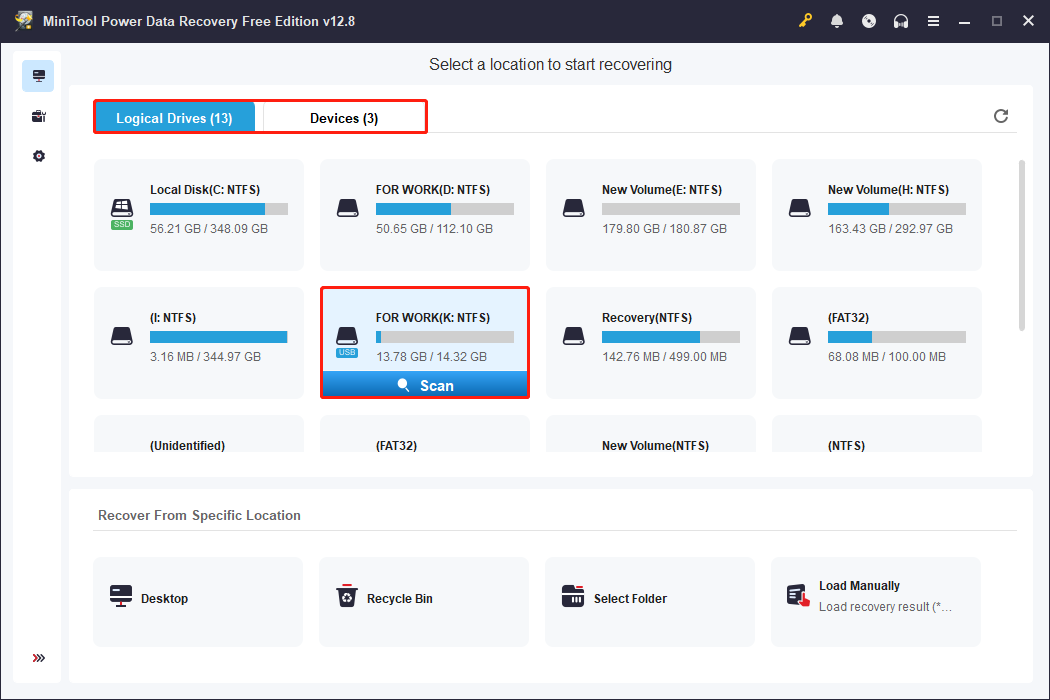
Open MiniTool Power Data Recovery. In the main interface, there are two modules where you can find your SD card.
- Logical Drives: It lists all disk partitions, including existing partitions, lost partitions, and unallocated space.
- Devices: It shows all the disks that are connected to your PC.
Select the target SD card and click Scan.
Step 2: Find the required files and preview them
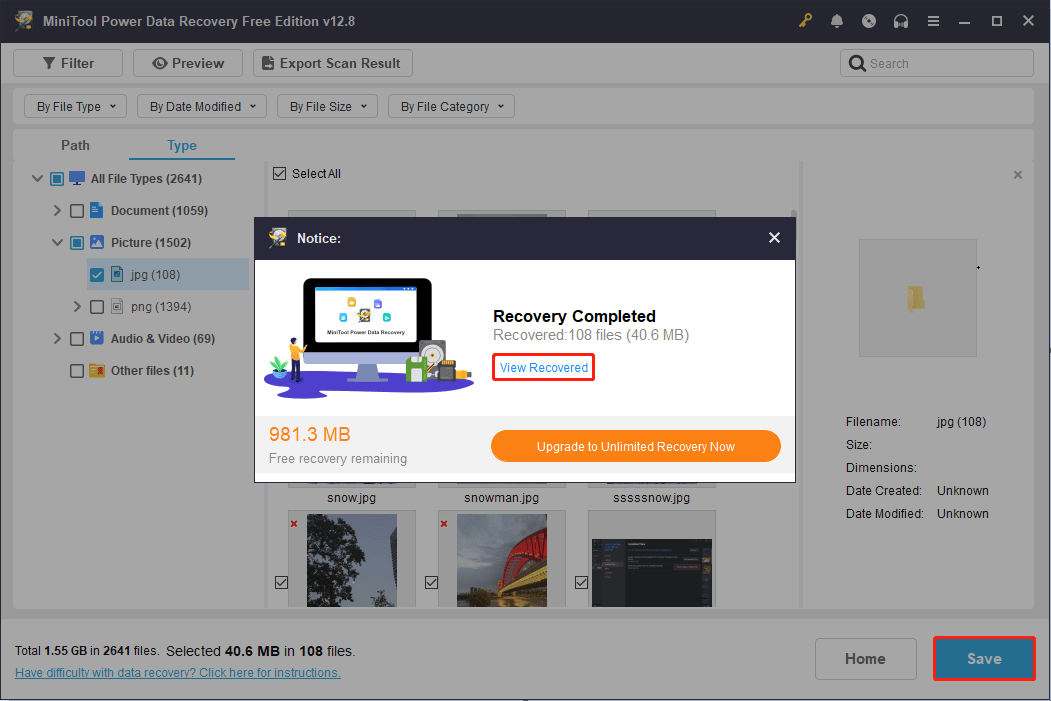
Wait for the scan process to complete. When it ends, the next step is to search for the target files. Here are some features to help you locate them quickly.
- Path: Presents scan results as a disk directory tree, allowing you to browse for data by folder.
- Type: Categorizes files by file type, making it easy to locate the target photos or videos.
- Filter: Provides options to filter listed items by file type, modification date, file size, and file category to narrow the search.
- Search: Directly matches results by entering a partial or full file name, enabling quick location of the specific file.

Step 3: Check the files and recover them to a safe location
When the files are confirmed, check the boxes for them and click the Save button. There will be a window prompting you to choose a path for the recovered files. Select a safe one and click OK to start recovery.
When the Recovery Completed window shows up, click the View Recovered button to check the recovered files.
In addition to MiniTool Power Data Recovery, Sony provides an official file recovery tool. Continue reading to get your photos back by it.

Restore Deleted Photos Using Sony Memory Card File Rescue
This section explains how to restore deleted photos using Sony Memory Card File Rescue.
Memory Card File Rescue is a free data recovery tool provided by Sony. It is specifically designed to recover accidentally deleted or lost photos, videos, and audio files from Sony memory cards or other compatible devices.
This software runs on both Windows and macOS systems, helping you recover deleted data as much as possible.
Follow the steps below to download Sony Memory Card File Rescue and then use it to recover your pictures:
Step 1: Open the Memory Card File Rescue download page on Sony’s official website.
Step 2: Scroll down the page and click the Next button.
Step 3: Type the model name and identification number of your memory card.
Step 4: Then, click the Download button and follow the instructions to complete it.

After downloading, open the program and follow the instructions to complete the photo recovery.
After recovering your pictures, take some preventive measures to prevent them from being lost again.
How to Prevent Sony Photo Loss in the Future
This section provides useful measures you can take to prevent Sony photos from being lost.
- Create regular backups: Copy photos to your computer, external hard drive, or cloud storage promptly to avoid the risks of relying on a single source of storage.
- Use reliable memory cards: Choose reputable brands and avoid cheap, low-quality cards to reduce the risk of bad blocks and data corruption.
- Properly insert and remove devices: Do not forcibly remove your memory card during data transfers; ensure data is written completely.
- Avoid frequent formatting: Minimize unnecessary formatting operations to protect file system stability.
- Keep devices fully charged: Avoid sudden power outages during shooting or transfer to prevent file loss or corruption.
- Protect against viruses and malware: Regularly check your computer and devices for viruses to prevent photos from being corrupted or hidden.
- Regularly check storage health: Use tools to check the health status of your SD card to detect potential problems early.

To Sum Up
Recovering deleted photos from a Sony camera doesn’t have to be a headache. With the right recovery tools and timely action, most lost photos can be successfully recovered.
Both the built-in undo function and professional data recovery software can help recover deleted photos from SD cards easily.
After recovering files, it is suggested to take measures to prevent the files from being lost again.
If you have any questions about the MiniTool product, feel free to contact us at [email protected].
Sony Camera Photo Recovery FAQ
Stop using the card, connect it to a computer with a card reader, and use data recovery software like MiniTool Power Data Recovery to scan the card for files.
Use data recovery software to scan the storage space where the photos were stored to check whether they can be found.
About The Author

Position: Columnist
Shirley holds a bachelor’s degree in English and has been an editor at the MiniTool Team for many years. She specializes in IT-related content, with a focus on data recovery, file backup, disk management, and other technical topics. She is committed to delivering clear, accurate, and practical solutions to help users resolve common computer issues.
User Comments :