

The files missing after a Windows reboot issue is commonly reported on forums like Microsoft Learn and Reddit. Step-by-step recovery methods include using data recovery software, restarting Windows 11/10, checking the user profile, and showing hidden files.
Quick Fixes for Files Missing After a Windows Reboot
| Possible Causes | Quick Solutions |
| Deleted files | Recover them with data recovery software, such as MiniTool Power Data Recovery |
| Temporary/corrupted user profile | 1. Restart the PC and sign in to the correct account 2. Verify folder location 3. Check C:\Windows.old |
| Hidden files | Enable Hidden items in File Explorer |
| Update error or profile reset | 1. Restore previous versions 2. Use File History |
| File system corruption & bad sectors | Run CHKDSK to repair disk errors |
| OneDrive sync errors | Check OneDrive |
Why Files Disappear After Restart Windows 11/10
Desktop files, folders, documents, and other files may be deleted after the computer restarts. This is a common issue, often caused by:
- Temporary profile login (most common): When Windows 11/10 fails to load the correct user profile properly, it may create a temporary profile instead. Files in the Desktop or Documents folders may appear to be missing, but they are often still stored on the device.
- Windows updates: Sometimes Windows updates can reset user settings or create a new user profile, making desktop files and documents appear empty. In many cases, the files are still stored under C:\Users\Username.
- Hidden files: In File Explorer, files may be marked as hidden after reboot, making them invisible even though they are still stored on the drive.
- OneDrive sync issues: When OneDrive sync is enabled again, files may be transferred from the local desktop to the OneDrive folder.
- File system corruption: An unexpected shutdown may corrupt the file system or file index, causing files and folders to appear missing after a reboot.
- Bad sectors: The HDD or SSD may have bad blocks, resulting in files missing after a Windows reboot.
How to Recover Deleted Files After Reboot
Method 1: Quick Recover Missing Files Before Trying Other Fixes
If your important files disappeared after a restart, using a data recovery tool is often the fastest and most effective way to recover them.
Starting the recovery process as early as possible can prevent permanent overwriting and improve the chance of successful file recovery.
MiniTool Power Data Recovery, dedicated data recovery software designed for Windows, helps recover desktop files, documents, photos, videos, and other types of data.
It supports various data loss scenarios, including reboot issues, Windows updates, dead drives, formatting, and accidental deletion.
Now, you can follow the steps below to begin file recovery quickly and safely.
Recover deleted files after reboot in 3 steps:
Step 1: Launch MiniTool Power Data Recovery
Download, install, and open this software on your PC.
MiniTool Power Data Recovery FreeClick to Download100%Clean & Safe
Tested Environment:
The recovery process in this guide was tested on:
- Windows 10 22H2
- NTFS HDDs and SSDs
- The Desktop folder
The test scenario is desktop files missing after a reboot.
Step 2: Choose the Affected Drive to Scan
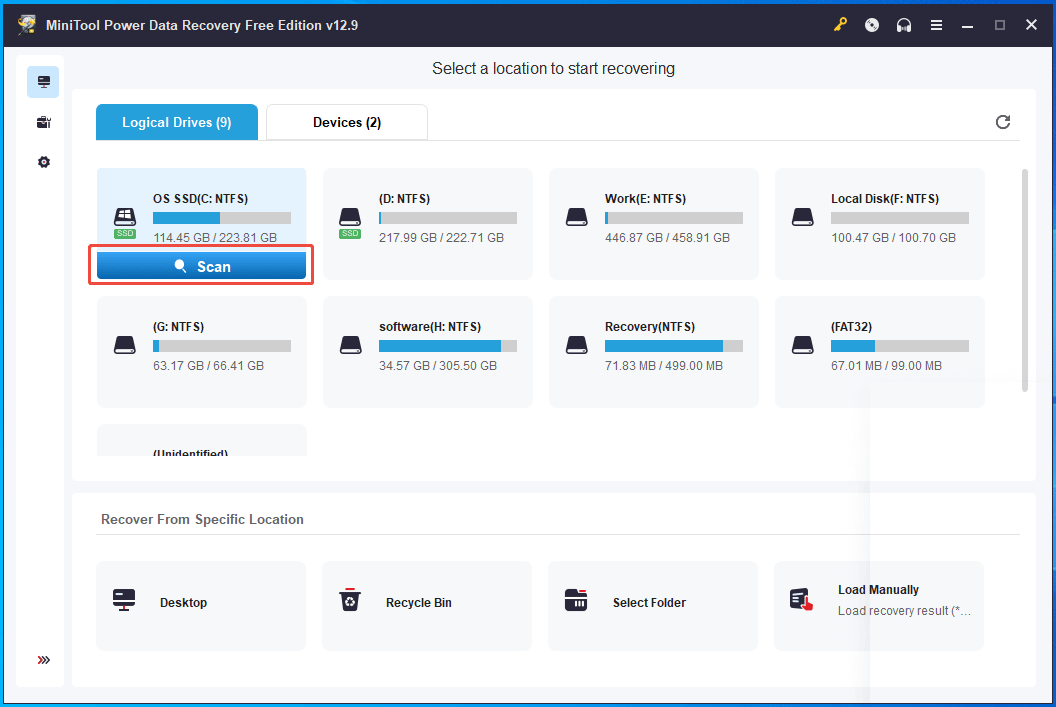
Select the drive in which files were originally stored and click the Scan button to begin.
In our case, the missing files were stored on the desktop, so the C drive is selected for scanning. Or, it is OK to choose Desktop directly to narrow the scan range and speed up the recovery process.
Step 3: Scan the Drive and Preview Disappeared Files
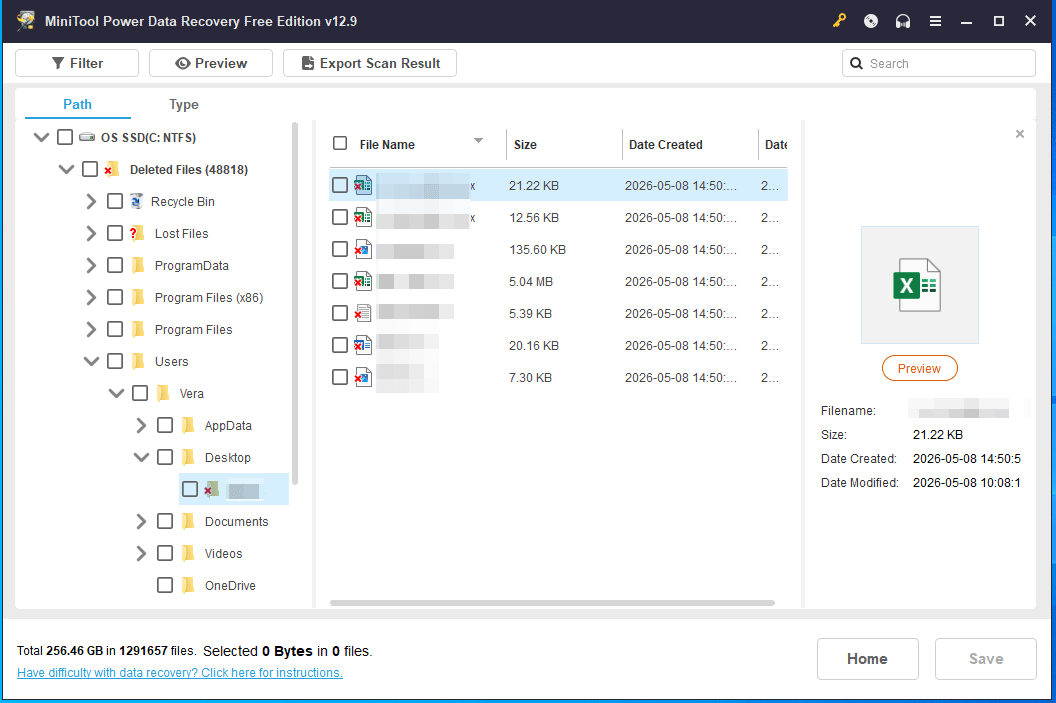
During the scan, MiniTool Power Data Recovery searches for deleted, lost, and existing files.
The scan results are displayed in real time, allowing you to preview found files before the scan completes. Once the needed files are detected, you can stop the scan early instead of waiting for the full scan to finish.
In our test, the software successfully finds missing desktop files after several minutes of scanning. We can preview those files.
Step 4: Recover Files After Computer Restart
Select the found files and save them to another location to avoid overwriting.
During our test, the disappeared desktop files were successfully restored without damage.
This method is particularly useful for files gone after a reboot or Windows update issues.
Method 2: Restart Windows 11/10 Several Times
If the startup process is interrupted, Windows may load a temporary user profile used for login, causing desktop files and documents to appear missing.
Restarting the computer can re-initialize the user profile properly and restore access to the original files.
Based on user reports and real-world experience, restarting the computer 3-4 times does a trick. It is worth trying before attempting more advanced recovery methods.
Method 3: Search for Files
After rebooting Windows 11/10, the disappeared files may not actually be deleted, but instead moved to another folder.
Try to search for specific file types.
Step 1: Press Win + E to open File Explorer.
Step 2: Search for *.doc, *.jpg, or specific file names to locate missing files.
Method 4: Verify Folder Location
Windows may change the default location of folders after an update or reboot, such as Desktop, Downloads, Documents, or Pictures.
As a result, the original personal files seem to be missing even though they still exist on the drive.
Verifying the folder location is useful to confirm whether Windows is redirecting the folder to another location.
Follow these steps to restore folders disappeared after a restart:
Step 1: Open File Explorer and navigate to the user folder: C:\Users\Username.
Step 2: Right-click on the missing folder, like Documents, and choose Properties.
Step 3: In the Location tab, check the path. It should generally be like C:\Users\Vera\Documents (Vera is my username).
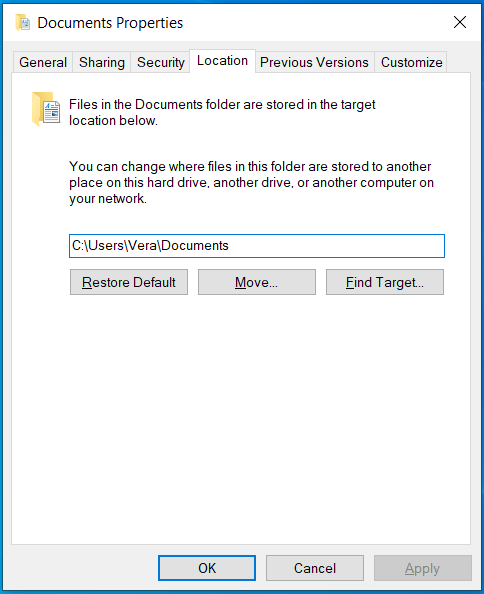
Step 4: If it looks wrong, click Restore Default > Apply to restore the correct path and locate files.
Method 5: Check Windows.old
Files are likely missing after a system restart, as a major update may create a new user profile and move files to C:\Windows.old.
You should check this folder right away and see if there are desktop files, documents, or other user files. If yes, move these files to the current user folders, such as Desktop or Documents.
Method 6: Check OneDrive
The issue of documents missing after a restart can result from OneDrive sync conflicts. The Desktop, Documents, and Pictures folders may be redirected to the OneDrive folder, making local files invisible.
This often occurs after a OneDrive update, a temporary profile login, or Files On-Demand changes.
Follow these steps:
Step 1: In File Explorer, open the OneDrive directory to check for files.
Step 2: If they are not found, visit the OneDrive website and log in with your account. Then, check if files are available online.
Method 7: Check the Recycle Bin
Sometimes, files may be moved to the Recycle Bin during a system restart. It is worth checking it to locate disappeared files.
Step 1: Open the Recycle Bin on your computer.
Step 2: Use the search box to look for the missing files.
Step 3: If the files are found, right-click them and select Restore.
They will return to the original locations.
Method 8: Show Hidden Files in File Explorer
Documents and desktop files missing after a restart can be caused by hidden file settings.
To make these files visible in File Explorer, enable the hidden items option in Windows.
Step 1: Open File Explorer using Win + E.
Step 2: In Windows 10, click View and select Hidden items. In Windows 11, choose Show > Hidden items under View.
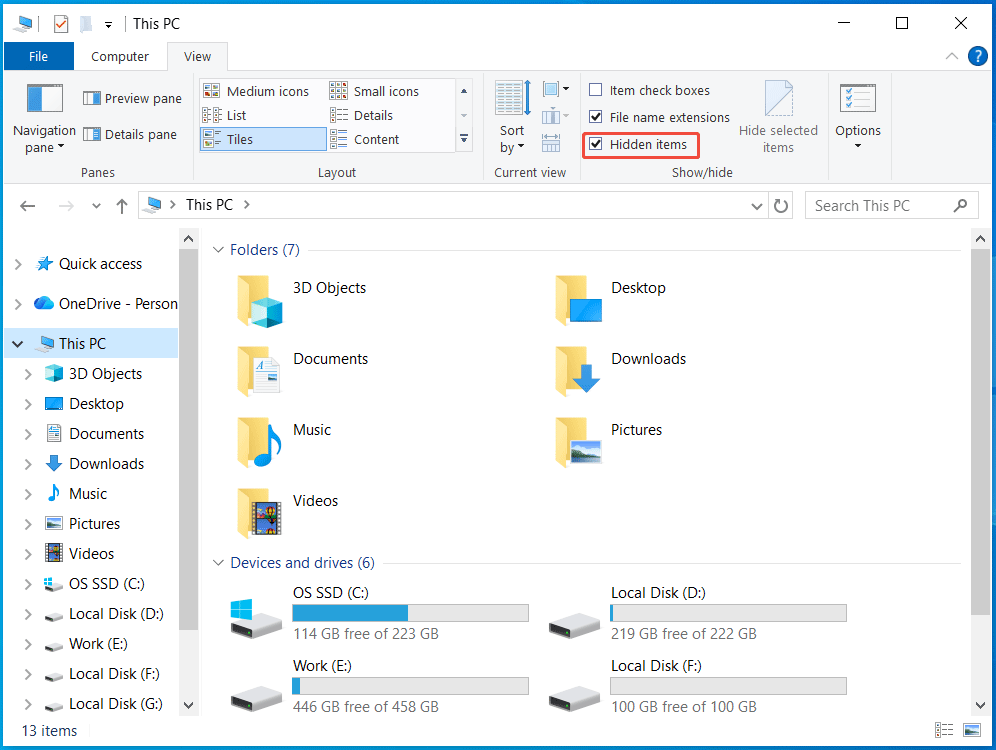
Step 3: Click Options to open the Folder Options window.
Step 4: In the View tab, select Show hidden files, folders, and drives.
Step 5: Click Apply, then OK to save the changes.
After showing hidden items, check whether the missing folders reappear.
Method 9: Restore Previous Versions
Previous versions are snapshots or shadow copies created by Windows (File History or Restore Points).
They allow you to restore older versions of files or folders, which is useful when files disappear after a reboot, update, or unexpected system changes.
Follow these steps to recover files missing after a Windows reboot:
Step 1: Locate the folder where your files used to be, right-click on it, and choose Properties.
Step 2: Navigate to the Previous Versions tab and check the folder versions.
Step 3: Select an available one and click Restore.
Method 10: Use File History
Windows 11 and 10 have a built-in backup feature, namely File History. It can automatically create copies of files stored in Desktop, Documents, Downloads, Pictures, and other personal folders.
If this feature is enabled before reboot, it is possible to restore missing files from a previous backup version.
Step 1: Connect your external backup drive to the computer.
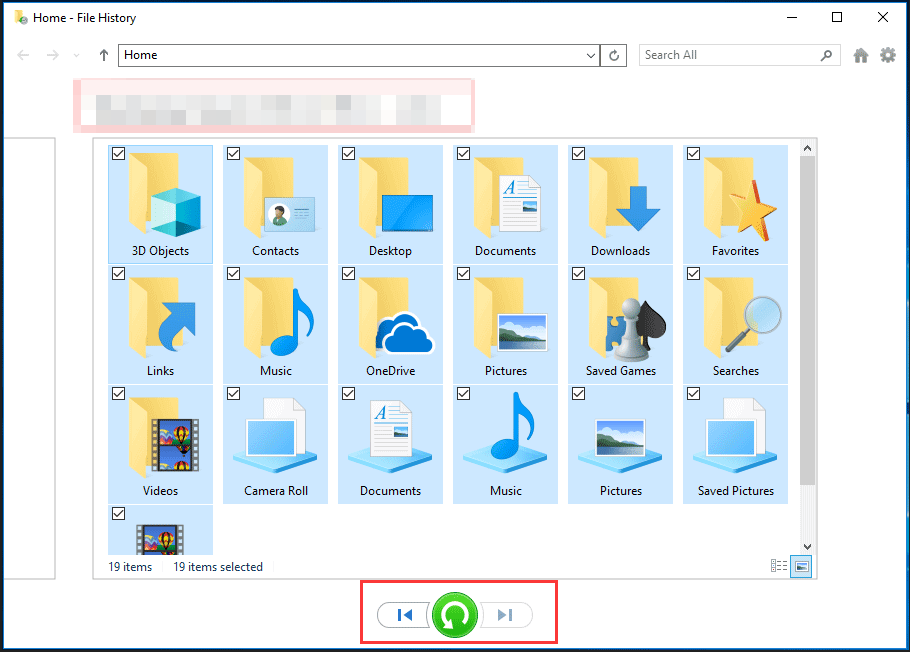
Step 2: Access Control Panel, set View by to Large icons, and choose File History to open.
Step 3: Click Restore personal files to open the home window.
Step 4: Select the folders you need and click the green restore button.
Method 11: Run CHKDSK
Files may be gone after reboot due to file system corruption or bad sectors on the hard drive. Running CHKDSK can help scan the drive for logical errors, fix damaged file system structures, and recover readable information from bad sectors.
Follow these steps:
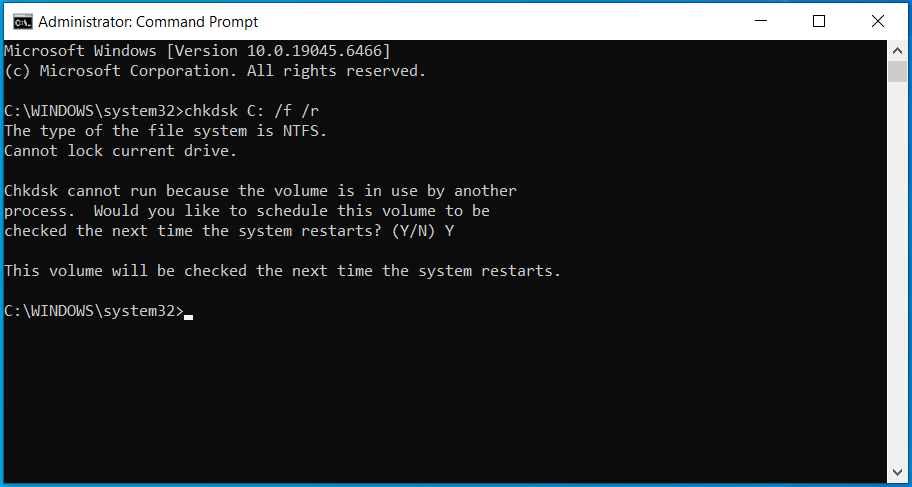
Step 1: Type cmd to Search, right-click on Command Prompt, and choose Run as administrator.
Step 2: Run the chkdsk C: /f /r command.
- /f: Detects and repairs file system errors.
- /r: Includes the functionality of /f; locates bad sectors and recovers readable data.
Step 3: Type Y if prompted to execute a check next time the computer restarts.
Then, check if the disappeared files are visible.
Comparison Table: Best Methods to Recover Files After System Restart
| Method | Best for | Difficulty | Recovery Chance |
| Data recovery software | Permanently missing files | Easy | High |
| Restart Windows | Temporary user profile issues | Very easy | Medium |
| Search for files | Files moved to another folder | Easy | Medium |
| Verify folder location | Incorrect Desktop or Documents path | Easy | Medium |
| Check Windows.old | Files missing after Windows update | Easy | High |
| Check OneDrive | OneDrive sync issues | Easy | Medium |
| Check the Recycle Bin | Accidentally deleted files | Very easy | High |
| Show hidden files | Hidden file attribute issues | Easy | Medium |
| Restore previous versions | Restore points and snapshots | Medium | Medium |
| Use File History | Previously backed-up personal files | Medium | High |
| Run CHKDSK | Disk errors and bad sectors | Medium | Medium |
How to Prevent Files from Disappearing Again
To avoid missing files after a reboot in the future, follow these practical tips:
- Back up important files regularly using professional backup software, such as MiniTool ShadowMaker.
- Avoid forcing shutdowns during Windows updates.
- Enable File History to protect files.
- Run CHKDSK to detect file system errors early.
- Check OneDrive sync settings to prevent unexpected folder redirection.
- Run antivirus software to scan for malware.
- Creates system restore points before major changes to the system, such as Windows updates.
Files Missing After Reboot FAQ
- Original locations
- Temporary folders
- Hidden directories
- Recycle Bin
- Previous versions backups
1. Enabled Storage Sense
2. Cloud sync issues
3. Antivirus false positives
4. Temporary user profile
5. Malware or virus
6. Hidden file settings
Conclusion
Files missing after a Windows reboot is caused by temporary profiles, hidden file settings, update issues, and disk errors.
Fortunately, most deleted files after a system restart can be restored using data recovery software like MiniTool Power Data Recovery. Additionally, several effective methods can be found in this post.
Just follow the instructions. Avoid writing new data and start recovery early.
Regarding issues with MiniTool software, contact us at [email protected].
User Comments :