

Short Answer: How to Fix Overheating Laptop
To fix an overheating laptop, first improve airflow by cleaning dust from the vents and fans, lifting the laptop, or using a cooling pad.
If the problem continues, reduce CPU workload by closing unnecessary processes, adjusting power settings, updating drivers, or limiting processor performance.
For advanced users, replacing thermal paste or updating BIOS can also help improve heat transfer.
————————————————————————————————————————
Why Is My Laptop So Hot
It is normal for laptops to get warm during use. This is because the CPU, GPU, storage drives, and other internal components generate heat during operation.
Normally, the cooling system, including fans and vents, dissipates heat and helps maintain a stable temperature.
However, laptops can overheat due to the following reasons:
- Dust buildup in vents and fans: Dust can block airflow and reduce cooling efficiency.
- Poor ventilation: Using a laptop on a bed or other soft surface can obstruct airflow.
- Aged or damaged thermal paste: Thermal paste that has dried out over time may reduce heat transfer and affect cooling performance.
- High CPU or GPU usage: Gaming, video editing, 3D rendering, and other high-load tasks can generate excessive heat.
- Too many background processes: Programs running in the background can consume system resources and increase CPU workload.
- Incorrect power management or hardware settings: Improper power settings can increase heat generation.
An overheating laptop may cause the following issues:
- Excessive fan noise or continuous fan operation
- Slow or unresponsive computer performance
- Frequent system crashes
- Automatic system restarts
What to Do if Your Laptop Overheats and Loses Data
Severe overheating can sometimes cause your laptop to shut down unexpectedly. During this process, your files may be lost or deleted. Hardware damage caused by excessive heat can also make your disk inaccessible.
If you lose important files after a laptop overheating issue, you can use MiniTool Power Data Recovery to recover lost data.
This data recovery software can help recover deleted, lost, or inaccessible files from hard drives, SSDs, USB drives, memory cards, and other storage devices.
It supports common file types, including documents, photos, videos, audio files, and more.
Which Edition Should You Get for Data Recovery?
The right edition depends on whether your laptop can still start normally.
Case 1. If your laptop can boot into Windows normally, use MiniTool Power Data Recovery Free. It allows you to scan your device and recover up to 1 GB of data for free.
MiniTool Power Data Recovery FreeClick to Download100%Clean & Safe
Case 2. If your laptop cannot boot because of overheating, use MiniTool Power Data Recovery Bootable. It allows you to start the computer from a bootable environment and recover files without loading Windows.
I will show you how to recover files by using the free edition:
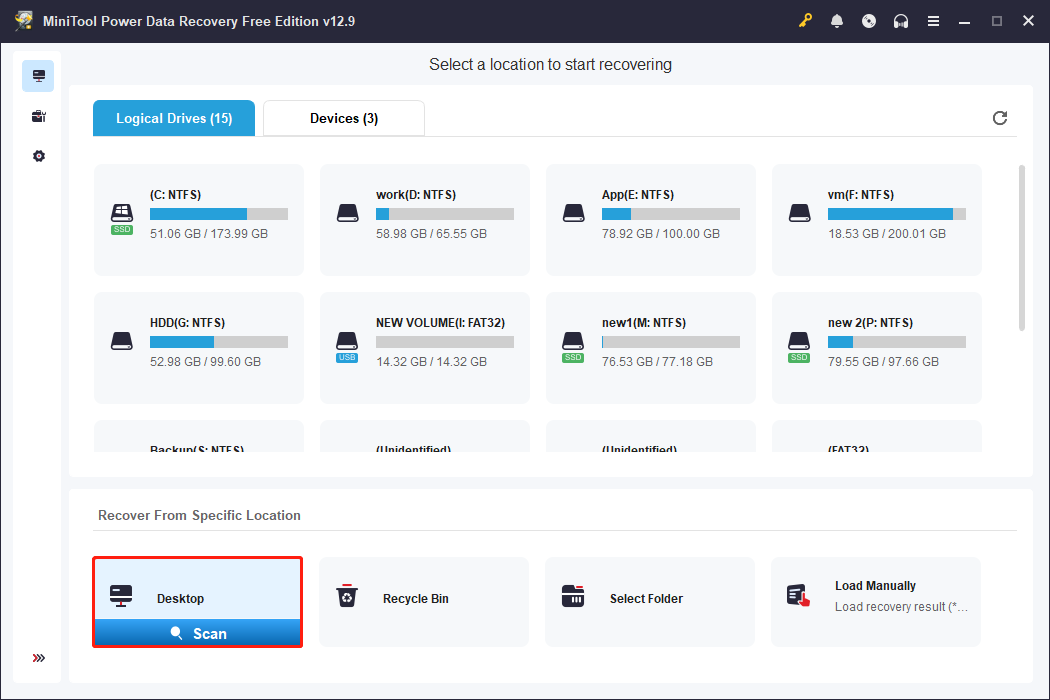
Step 1. Scan the Drive or Location
Select the target drive or location from which you need to recover files and click Scan. The software will automatically start scanning and display recoverable files.
Step 2. Locate and Preview Files
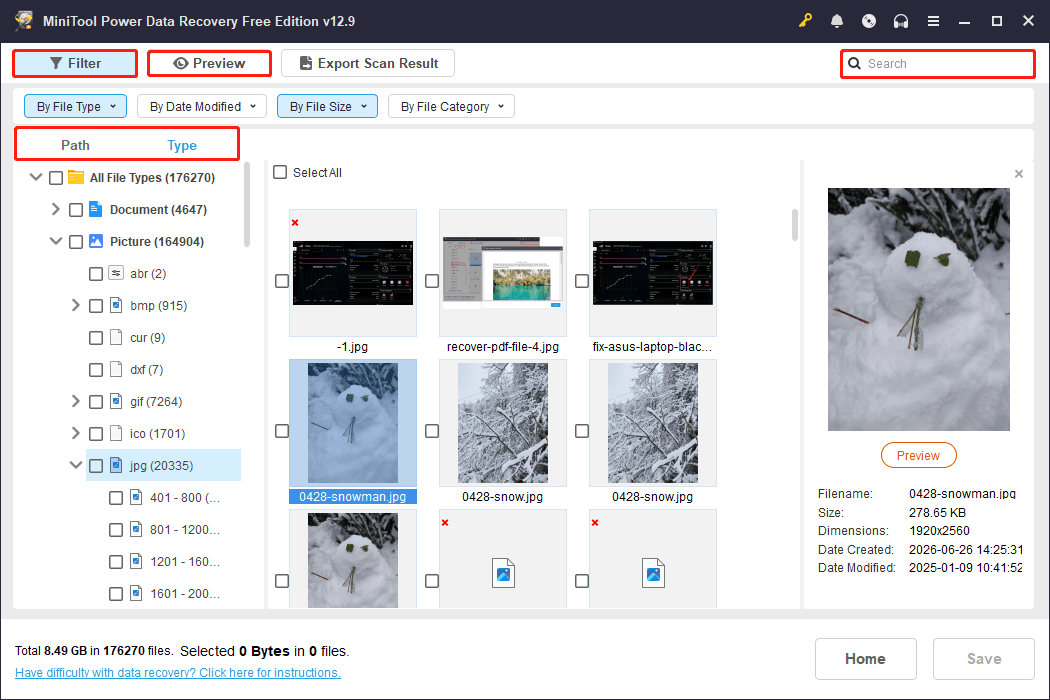
Once the scan is complete, find and select the files you want to recover. The following features can help.
- Path: Displays files by file path.
- Type: Lists files by type and format.
- Filter: Narrows search results by file type, size, modification date, and category.
- Search: Locates a lost file quickly using its full or partial file name.
- Preview: Previews documents, pictures, videos, audio, and emails.
Step 3. Save Files
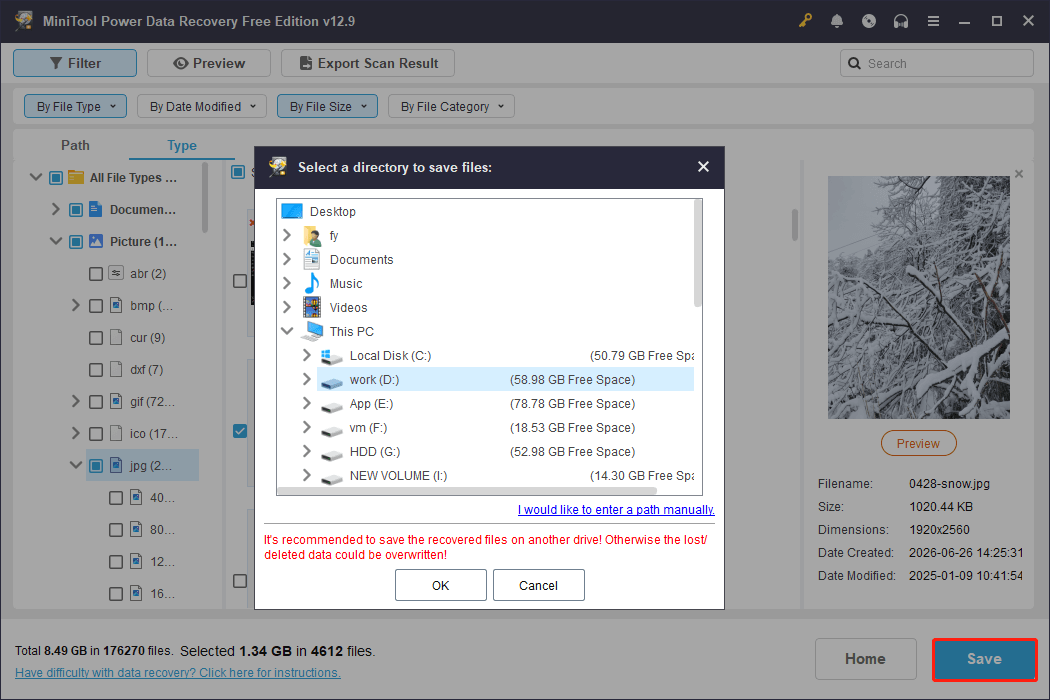
Click the Save button and select a new destination folder to store the selected files.
Avoid saving the recovered data back to the original location or drive, as this may overwrite existing data and affect secondary recovery results.
After recovering important files, you can continue troubleshooting the overheating issue without worrying about permanent data loss.
How to Fix Laptop Overheating: Physical Solutions
When a laptop becomes too hot, the first step is to check whether the problem is caused by poor heat dissipation.
Physical solutions focus on improving airflow, removing heat buildup, and helping the cooling system work more efficiently.
Method 1. Clean the Vents and Fans
Applicable case: Your laptop has been used for a long time without cleaning.
Cleaning the vents and fans is the most effective method to fix computer overheating because accumulated dust and debris inside the cooling system can block heat dissipation.
How to clean laptop vents and fans:
Step 1. Turn off the laptop completely, unplug the power adapter, and remove any connected devices.
Step 2. Hold the compressed air can at an angle and spray short bursts into the vents. Next, clean the external areas around the vents.
Step 3. If you are familiar with laptop hardware, open the back cover and carefully clean the internal fan. After that, restart your laptop and check if the temperature decreases.
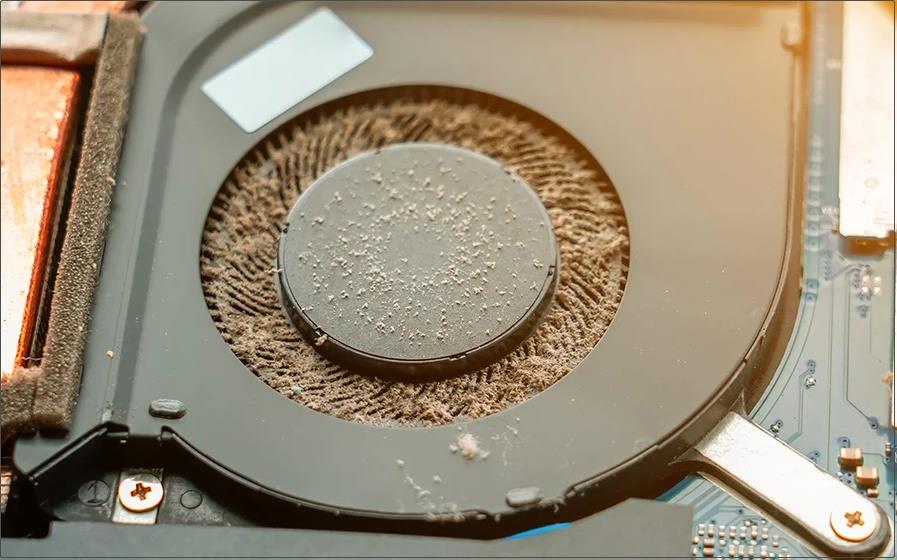
Image source: blog.acer.com
Method 2. Lift the Laptop for Better Airflow
Applicable case: Your laptop becomes hot when placed on a desk, bed, or other flat surface.
Many laptops draw cool air through vents located underneath the device. When these vents are blocked, the cooling system cannot work properly.
To improve laptop airflow, place the laptop on a hard and flat surface and raise the back of the laptop slightly (about 1 to 2 inches).
Method 3. Use a Cooling Pad
Applicable case: Your laptop overheats while gaming, video editing, or streaming.
If you frequently play games or edit videos, your CPU and GPU usually run at high loads and generate additional heat.
Using a cooling pad that matches your laptop’s size can improve airflow around the device, reducing the risk of laptop overheating.
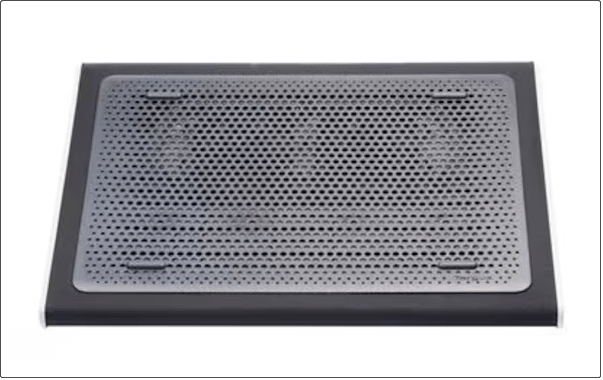
Image source: lenovo.com
Method 4. Reapply Thermal Paste
Applicable case: The laptop is several years old, and the CPU temperature remains high after cleaning the fans.
Over time, thermal paste can dry out, crack, or lose effectiveness, causing poor heat dissipation.
If you have advanced hardware knowledge, consider reapplying the thermal paste.
How to reapply thermal paste:
Step 1. Shut down the laptop and disconnect all power sources.
Step 2. Remove the back cover carefully and locate the CPU heatsink assembly.
Step 3. Clean the old paste using cotton swabs or paper towels with rubbing alcohol. Let the surface dry for 5 to 10 minutes.
Step 4. Apply a small amount of new thermal paste. A pea-sized amount or slightly less is usually enough.

How to Fix Laptop Overheating: Software Solutions
If cleaning the hardware does not solve the problem, the overheating may be caused by excessive system workload or issues related to power settings, drivers, or firmware.
Software-based solutions reduce unnecessary resource usage and help your laptop manage performance and temperature more effectively.
Method 1. Close Unnecessary Background Processes
Applicable case: CPU usage remains high in Task Manager.
Background programs consume CPU resources and increase power consumption, which can generate additional heat.
How to close unnecessary processes:
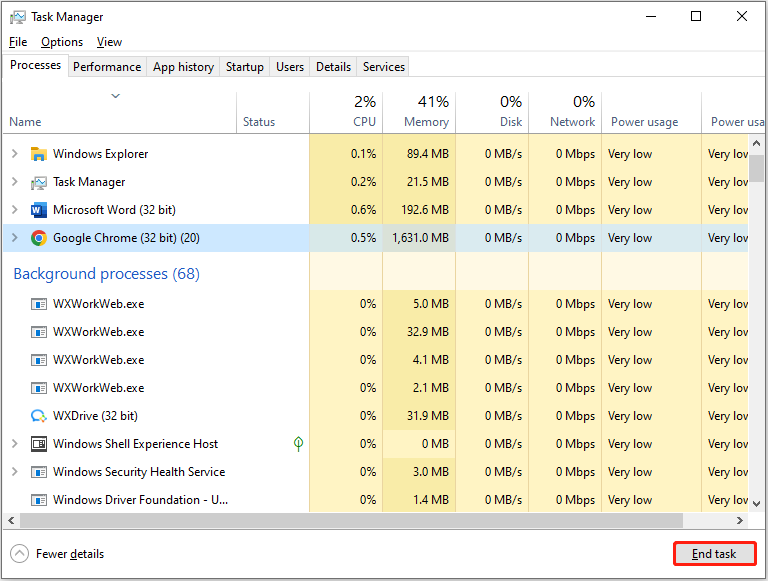
Step 1. Right-click Start and choose Task Manager.
Step 2. Select the target process and click End task.
How to disable unnecessary startup programs:
Step 1. In Task Manager, go to the Startup tab.
Step 2. Select the program you do not want to run on startup and click Disable.
Method 2. Change a Power Plan
Applicable case: Your laptop frequently runs at maximum performance.
Windows power settings control how aggressively your processor uses power. A high-performance mode improves speed but may generate more heat.
How to change the power plan:
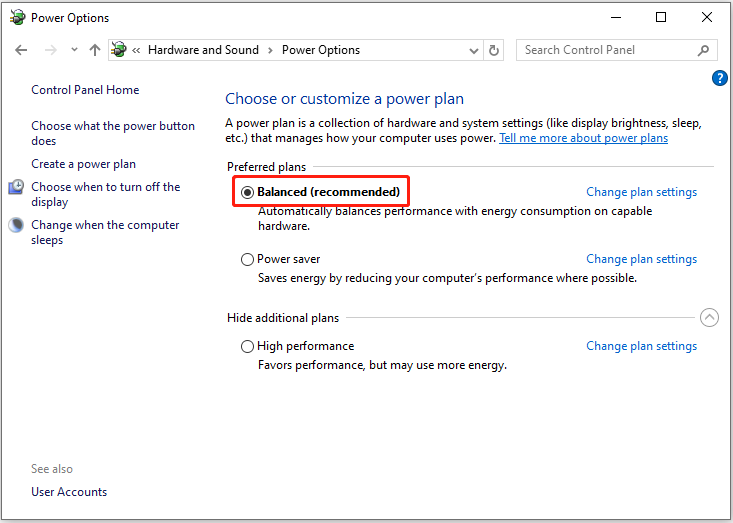
Step 1. Open the Control Panel and navigate to Hardware and Sound > Power Options.
Step 2. Choose a more balanced power plan. After that, restart your laptop and check the temperature.
Method 3. Lower Maximum Processor State
Applicable case: You mainly use your laptop for web browsing or Office work.
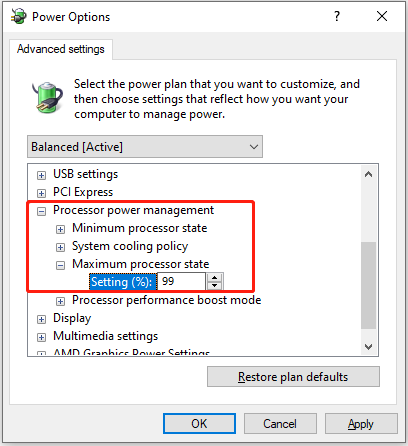
The processor state controls how much processing power your CPU can use. By lowering the maximum CPU performance level, you can reduce power consumption and heat generation.
How to lower the maximum processor state:
Step 1. Type Edit power plan in the Windows search box and press Enter.
Step 2. Select Change advanced power settings.
Step 3. Expand Processor power management > Maximum processor state.
Step 4. Adjust the percentage to 99% and save the change. Lower it further if your laptop still overheats.

Method 4. Disable CPU Turbo Boost
Applicable case: You prefer lower temperatures over maximum performance.
CPU Turbo Boost technology improves CPU performance by increasing clock speeds when needed, but it also generates more heat. Disabling it can help cool down the laptop.
How to disable CPU Turbo Boost:
Step 1. Open the Control Panel.
Step 2. Navigate to Hardware and Sound > Power Options > Change plan settings > Change advanced power settings > Processor power management.
Step 3. Expand Processor performance boost mode and select Disabled.
Short video guide:
Method 5. Update Drivers and BIOS
Applicable case: Your laptop has not received Windows updates or driver updates for a long time.
Outdated drivers or BIOS firmware can sometimes cause improper power management that increases system temperature.
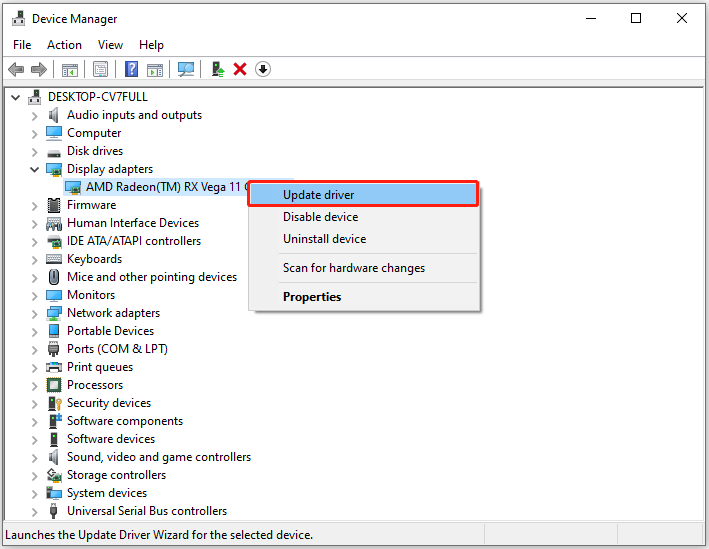
How to update device drivers:
Step 1. Right-click Start and choose Device Manager.
Step 2. Expand categories such as Display adapters, Processors, or System devices. Then right-click a device and choose Update driver.
Step 3. Choose Search automatically for drivers and complete the installation.
How to update BIOS:
Step 1. Visit your laptop manufacturer’s website and download the corresponding BIOS file that matches your model.
Step 2. Run the file to begin the BIOS update process.
How to Prevent Laptop from Overheating
Preventing overheating is easier and more important than fixing it. Follow these simple tips to keep your laptop running cooler:
- Keep the vents clean to avoid blocked airflow.
- Use your laptop on a hard surface for better heat dissipation.
- Use a cooling pad during gaming or other heavy workloads.
- Close unnecessary background processes to reduce CPU usage.
- Keep Windows, device drivers, and BIOS updated.
- Avoid using your laptop in hot environments.
- Clean the internal fans regularly to maintain cooling performance.
Additionally, back up your important files regularly to prevent data loss caused by unexpected shutdowns or hardware failures due to laptop overheating.
To back up files or systems on Windows, use MiniTool ShadowMaker, a professional data backup tool.
MiniTool ShadowMaker TrialClick to Download100%Clean & Safe
Wrapping Things Up
Laptop overheating is a common problem that can be caused by blocked airflow, high system workload, outdated software, or aging hardware components.
To fix laptop overheating, start with simple physical solutions. If the problem continues, try software solutions.
Regular maintenance is the best approach to prevent your laptop from overheating. If overheating has already caused your laptop to shut down and important files are missing, use MiniTool Power Data Recovery to rescue your files.
Should you have any questions about MiniTool products, please contact the support team at [email protected].
Laptop Overheating FAQ
About The Author

Position: Columnist
Shirley holds a bachelor’s degree in English and has been an editor at the MiniTool Team for many years. She specializes in IT-related content, with a focus on data recovery, file backup, disk management, and other technical topics. She is committed to delivering clear, accurate, and practical solutions to help users resolve common computer issues.
User Comments :