

If your HP laptop won’t turn on, check the power adapter, perform a hard reset, and disconnect external devices. If it shows no signs of power, check the battery or charger. If it cannot boot into Windows, try repairing system files or the boot configuration data. Data recovery software can help prevent file loss during troubleshooting.
“My HP laptop won’t turn on at all: the screen stays completely black, and there’s no sign of activity. The only thing I notice is that the white battery indicator light is on. Any help or suggestions would be greatly appreciated.”h30434.www3.hp.com
HP laptop startup issues can happen for several reasons, ranging from power-related faults to hardware or system failures.
Why Won’t My HP Laptop Turn On
An HP laptop may fail to turn on due to the following reasons.
- Power supply issues, such as a dead battery or faulty AC adapter.
- Hardware failures, including problems with RAM, hard drive, display, or motherboard.
- System issues, such as corrupted system files, incompatible drivers, registry errors, or damaged boot configuration data.
Understanding these potential causes helps in troubleshooting startup failures effectively.
How to Identify HP Laptop Black Screen Symptoms
A black screen on an HP laptop can appear in different scenarios:
- No lights, no fan, no sound: Indicates complete power failures, motherboard issues, or problems with the display or memory modules.
- Power light on, fan spinning, but screen remains black: Suggests display or RAM issues.
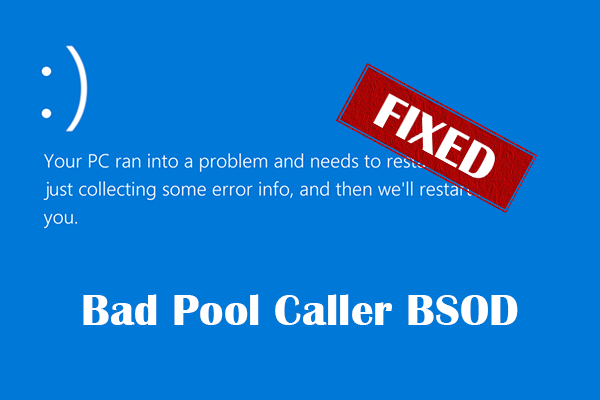
- HP logo appears briefly then disappears: Often caused by driver, software, or Windows boot problems.
Recognizing the specific symptom will guide the correct solution.
How to Fix an HP Laptop That Won’t Turn On
After identifying the exact symptom, check the table below to find your situation and the corresponding troubleshooting approach.
| Symptom | Possible Cause | What to Try |
| No lights, no fan, no sound | Battery, charger, RAM, motherboard failure | Check adapter, perform hard reset |
| Power light on but black screen | Display, RAM, BIOS issue | Connect external monitor, reset BIOS |
| HP logo appears then disappears | Windows boot problem | Startup Repair or Safe Mode |
| Turns on only when plugged in | Battery failure | Test or replace battery |
| Blue screen before startup | Driver/system corruption | Repair system files, run Startup Repair |
Important:
If your HP laptop contains important files and you are concerned about data loss, consider recovering your data using MiniTool Power Data Recovery before performing advanced troubleshooting steps such as BIOS reset or Windows reinstallation.
Fix 1. Perform a Hard Reset
When your HP laptop fails to boot properly, performing a power reset can clear residual electrical charge that may prevent startup.
Steps to do a hard reset:
Step 1. Turn off the laptop and disconnect the power adapter and other unnecessary external devices. Remove the battery if possible.
Step 2. Press and hold the Power button for 15 to 30 seconds.
Step 3. Reconnect the AC adapter and attempt to start the laptop.
If holding the Power button for 30 seconds does not resolve the issue, try holding it for 1.5 to 2 minutes instead.
Fix 2. Check for Hardware Issues
The HP startup issue may come from power delivery or internal components. Each component should be tested separately to isolate the source of the failure.
Power Supply:
What to check:
- AC power adapter condition, including damaged cable or loose connector
- Battery charging indicator light behavior
- Wall outlet functionality
How to check:
- Plug the adapter into a different power outlet
- Observe whether the power LED turns on
- Remove the battery (if removable) and try powering on the laptop
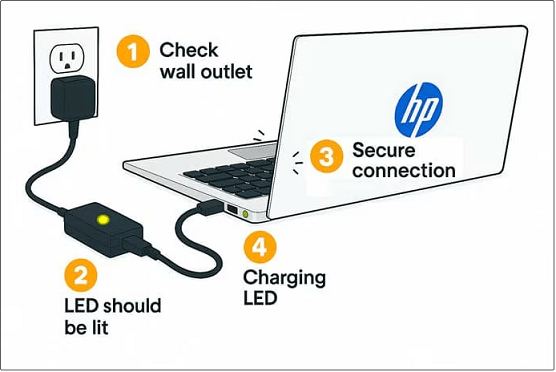
image source: www.hp.com
Peripheral Devices:
What to check:
- Removable device conflicts
How to check:
- Disconnect all USB devices, SD cards, printers, and external hard drives
Memory Modules:
What to check:
- Faulty RAM module
- Improper seating in DIMM slot
How to check:
- Power off the computer and disconnect all power sources
- Remove the RAM modules and reseat them firmly
- If multiple RAM modules are installed, test one at a time
Hard Drive:
What to check:
- Loose connection of the hard disk
- Drive corruption
How to check:
- Remove and reseat all the hard disks (if possible)
- Listen for abnormal clicking sounds of the HDD
In addition, you can run a storage test in HP PC Hardware Diagnostics:
- Turn off the computer.
- Turn on the HP laptop and immediately press Esc repeatedly. When the menu appears, press F2.
- Click Component Tests > Storage > Quick Test.
- Click Run, and the quick test begins.
- If the hard drive passes the Quick Test, run the Extensive Test. If the hard drive fails the test, click Troubleshoot and follow the instructions to solve the problem.
Monitor:
What to check:
- Laptop screen functionality
How to check:
- Observe whether the screen is completely black or has low brightness
- Connect the laptop to an external monitor and check if Windows loads
CMOS Battery:
What to check:
- CMOS battery depleted
- CMOS battery improperly placed
How to check:
- Disconnect main power and battery (if possible)
- Remove CMOS battery for a few minutes
- Reinsert the CMOS battery
- Replace the CMOS battery
Fix 3. Reset BIOS
A corrupted BIOS can stop an HP laptop from booting normally. To reset BIOS, follow the steps below:
Step 1. Turn off the laptop.
Step 2. Press and hold Windows + B. While holding the key combination, press the Power button for 1 second (The HP BIOS reset key combination may vary by model. Windows + B or Windows + V are commonly used).
Step 3. Continue holding Windows + B for 15 seconds.
Step 4. When the BIOS recovery options appear, select Reset BIOS to default or a similar option and restart your computer.
Fix 4. Run Startup Repair
Startup Repair can help fix damaged system files, corrupted boot configuration data, and other startup issues.
It works when the HP logo appears, but the laptop gets stuck on a black screen or fails to boot into Windows afterward. However, Startup Repair cannot fix a completely black screen caused by hardware-related problems.
Steps to perform a Startup Repair:
Step 1. Start your computer. When the Windows logo or HP logo appears, press and hold the Power button until the laptop shuts down.
Step 2. Turn on the laptop and repeat Step 1. On the third time, Windows should display the Automatic Repair screen. Select Advanced options.
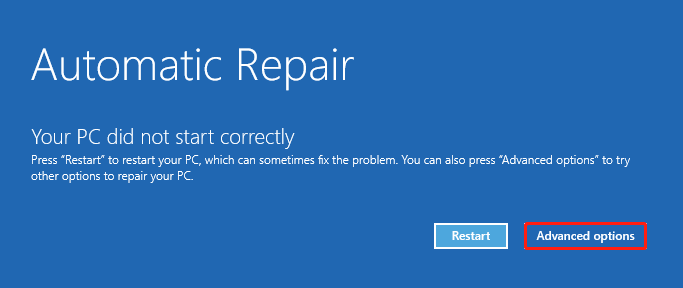
Step 3. In Windows RE, select Troubleshoot > Advanced options > Startup Repair > Restart. Then Startup Repair will scan your computer for issues and try to resolve them.

Fix 5. Boot HP Laptop Into Safe Mode
Safe Mode allows Windows to start with minimal drivers and is useful for troubleshooting software issues. It works if your HP laptop turns on but fails to boot into Windows normally.
Steps to enter Safe Mode:
Step 1. Access the Windows Recovery Environment.
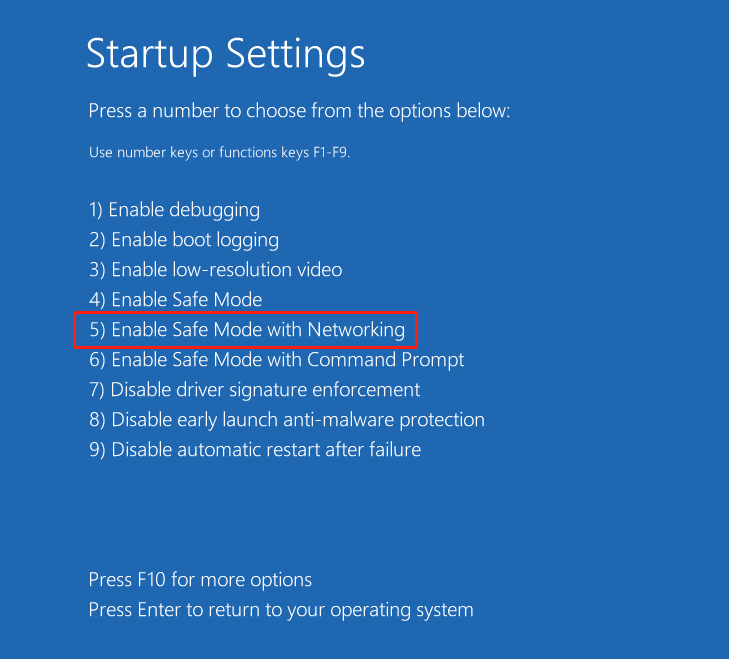
Step 2. Select Troubleshoot > Advanced options > Startup Settings > Restart.
Step 3. Press F5 on your keyboard to enter Safe Mode with networking.
Once your HP laptop starts in Safe Mode, you can troubleshoot potential software issues that may prevent Windows from booting:
- Roll back any recently updated device drivers
- Update outdated drivers or reinstall corrupted drivers
- Update Windows to the latest version
- Uninstall applications that were installed shortly before the issue occurred
Fix 6. Rescue Files and Reinstall Windows
If all other methods fail, data rescue and Windows reinstallation may be necessary.
Since Windows cannot boot, you need to use a bootable USB drive to access the hard drive data.
- Access and recover important files to an external drive.
- Perform a clean Windows installation to restore full functionality.
Process 1. Recover Files Using a Bootable USB Drive
>> Overview of MiniTool Power Data Recovery
MiniTool Power Data Recovery is capable of retrieving inaccessible files. Its Bootable Media Builder feature enables the creation of a bootable USB drive, allowing access to your internal HDD or SSD without loading Windows.
MiniTool Power Data Recovery FreeClick to Download100%Clean & Safe
>> Data Recovery Steps
Step 1. Prepare the bootable USB drive.
- Connect the blank USB drive to the functioning computer.
- Launch MiniTool Power Data Recovery, click the Bootable Media Builder icon in the top right corner, and follow the instructions to create a bootable drive.
Step 2. Boot the HP laptop from the USB drive.
- Insert the bootable USB drive into the HP laptop.
- Restart the laptop and access the BIOS.
- In the boot settings window, set the USB drive as the first boot device and save the change.
- Start the computer from the bootable drive and launch MiniTool Power Data Recovery.
Step 3. Rescue your files.
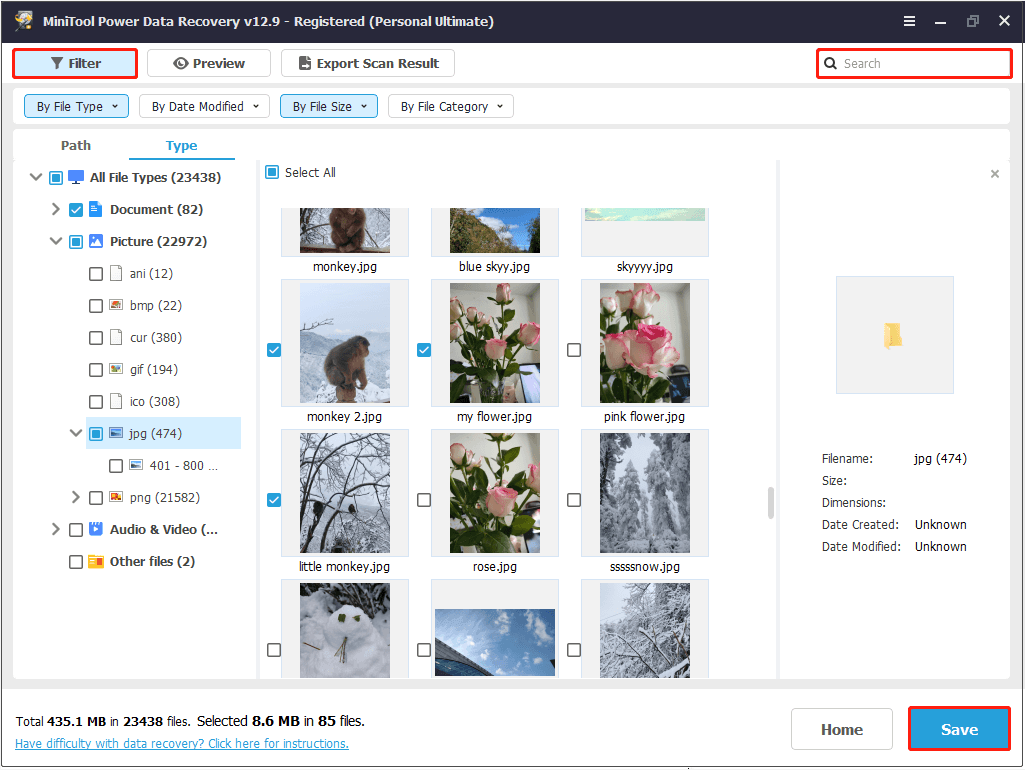
- Scan the target partition or disk. Partitions appear under Logical Drives, and entire disks are displayed under Devices. Drive letters in the bootable environment may differ from Windows.
- Find, preview, and select the files you want to rescue.
- Click Save and store the selected files to the USB drive or another external disk.
Alternative Method: Use Command Prompt in WinRE
If your system can access WinRE, you can rescue files using Command Prompt. By using the notepad command, you can gain direct access to your drives and copy important files to an external drive.
For detailed instructions, refer to Microsoft’s official guide on rescuing data when a Windows computer won’t turn on.
This method is particularly useful when you prefer not to use third-party recovery software.
Process 2. Reinstall Windows
After recovering files, reinstalling Windows from a USB drive is a reliable solution when your HP laptop won’t turn on.
Step 1. Create the Windows installation media.
Step 2. Start the HP laptop using the installation media.
Step 3. Follow the Windows setup wizards to complete the reinstallation process.
Prevention Tips for HP Laptop Startup Issues
Experiencing startup failures can lead to data loss. To reduce the risk of future issues and protect your important files, follow these best practices:
1. Regularly Back Up System/Data
Purpose: Backing up your system and data reduces the risk of data loss and protects against an unbootable system.
- Windows backup and restore: Use Windows’ built-in backup tools to create system images and File History backups.
- Cloud backup: Store critical files securely on OneDrive, Google Drive, or Dropbox.
- Backup software: Use professional tools like MiniTool ShadowMaker to create automatic backups to external drives or network locations.
MiniTool ShadowMaker TrialClick to Download100%Clean & Safe
2. Maintain Hardware Health
Purpose: Proper hardware maintenance extends your laptop’s lifespan and prevents unexpected failures.
- Battery and power supply: Avoid using damaged AC adapters or worn-out batteries.
- RAM maintenance: Periodically reseat RAM modules in the correct DIMM slots.
- Hard drive protection: Check hard disk health regularly using tools such as CHKDSK or other professional utilities.
3. Keep System/Software Updated
Purpose: Staying up to date minimizes software errors and startup issues.
- Windows updates: Update Windows promptly to prevent system corruption and maintain compatibility.
- Driver updates: Ensure all drivers, especially graphics and storage controllers, are up-to-date.
- Software updates: Keep applications updated and only install software from trusted sources.
Conclusion
In most cases, an HP laptop not turning on can be resolved by checking hardware components, resetting BIOS settings, or using Windows recovery tools.
If the computer still cannot boot, file recovery and a clean Windows reinstallation provide a reliable option to restore functionality while protecting important data.
If you encounter any issues while using MiniTool products, please send an email to the tech support team at [email protected].
HP Laptop Won’t Turn On FAQ
Disconnect all power sources, remove the battery if possible, then press and hold the Power button for 15 to 20 seconds. Finally, reconnect power and turn on the laptop.
Performing a hard reset, replacing the screen, or reseating the memory modules may resolve the issue.
If the system remains frozen, press and hold the Power button to force a shutdown.
To help prevent this issue, maintain system resources by freeing disk space, repairing system files, and running Windows Memory Diagnostic to check for memory issues.
About The Author

Position: Columnist
Shirley holds a bachelor’s degree in English and has been an editor at the MiniTool Team for many years. She specializes in IT-related content, with a focus on data recovery, file backup, disk management, and other technical topics. She is committed to delivering clear, accurate, and practical solutions to help users resolve common computer issues.
User Comments :