

Videos stored in various devices can be lost for several unintentional reasons. The key factor for recovering deleted/lost videos is using trustworthy and free video recovery software. This post evaluates the most popular data recovery software available and highlights the top choices for your consideration.
Videos often capture important memories, work projects, and other valuable content. However, in your daily life and work, accidental deletion, drive formatting, virus attacks, file system corruption, and drive failures can unexpectedly cause video loss.
Fortunately, professional video recovery software can help recover deleted videos from various storage drives, such as hard drives, SSDs, SD cards, USB flash drives, cameras, drones, and other storage devices.
This article reviews the 7 best video recovery software for Windows, comparing their features, advantages, limitations, and ideal use cases.
Video Recovery Software Quick Comparison Table
Here is a quick comparison to help you find the best match for your needs:
| Tool | Free Recovery | Supported Devices | Video Preview | Best for |
| MiniTool Power Data Recovery | Yes | All devices | Yes | Overall video |
| MiniTool Photo Recovery | Yes | Cameras/SD cards/Internal drive | No | Photos & videos |
| Windows File Recovery | Yes | Internal drives | No | Advanced users |
| Disk Drill | Yes | Most devices | Yes | General recovery |
| Recuva | Yes | Basic devices | Limited | Beginners |
| EaseUS Data Recovery Wizard | Yes | Most devices | Yes (limited) | Easy recovery |
| Wondershare Recoverit | Yes | Most devices | Yes (limited) | Multimedia recovery |
Now let’s learn about these software programs.
#1. MiniTool Power Data Recovery: The Best Overall Video Recovery Software
MiniTool Power Data Recovery is professional video recovery software for Windows that can recover deleted, formatted, or lost videos from almost all types of storage devices, including HDDs, SSDs, USB drives, SD cards, memory cards, digital cameras, and more.
It supports a wide range of video formats, such as MP4, MOV, AVI, MKV, WMV, MTS, and many others. Whether your videos were accidentally deleted, lost after formatting, located on a drive that became RAW, or located on an inaccessible partition, this software is capable of recovering them.
My Testing: Recover Deleted Videos from a Specific Folder
To evaluate its video recovery performance, I tested MiniTool Power Data Recovery by recovering deleted MP4 videos from a specific folder on my computer.
MiniTool Power Data Recovery FreeClick to Download100%Clean & Safe
After launching the software, I selected Select Folder to scan only the folder where the videos had originally been stored. This saved time compared with scanning the entire drive.
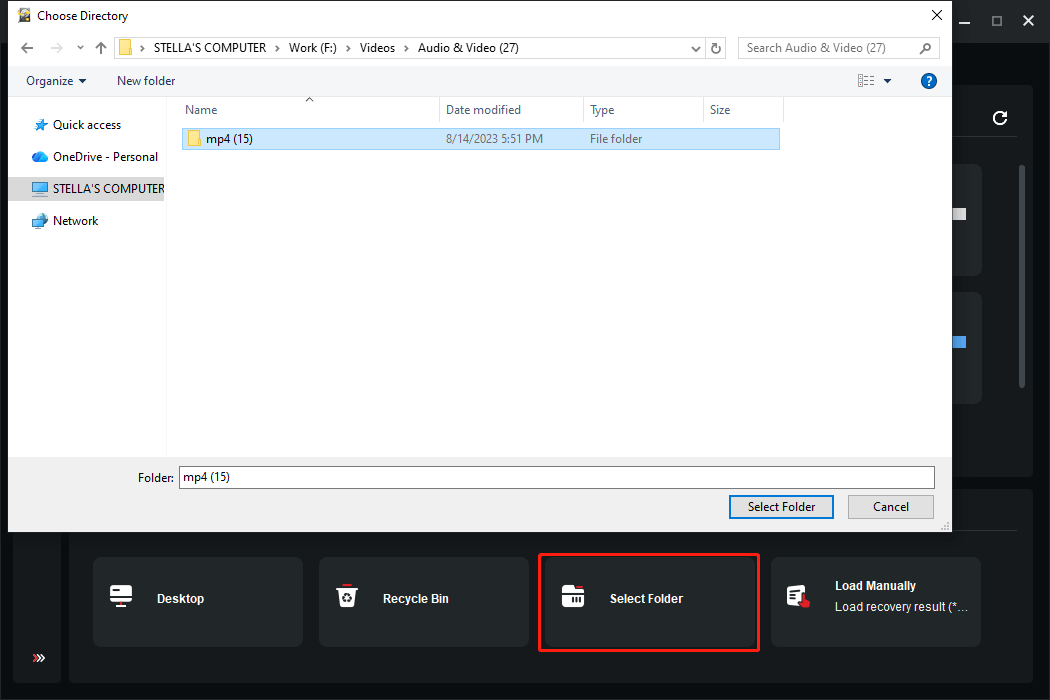
The scan detected all deleted files in the selected folder. Since hundreds of files were found, I used the Type and Filter features to quickly narrow the results to video files.
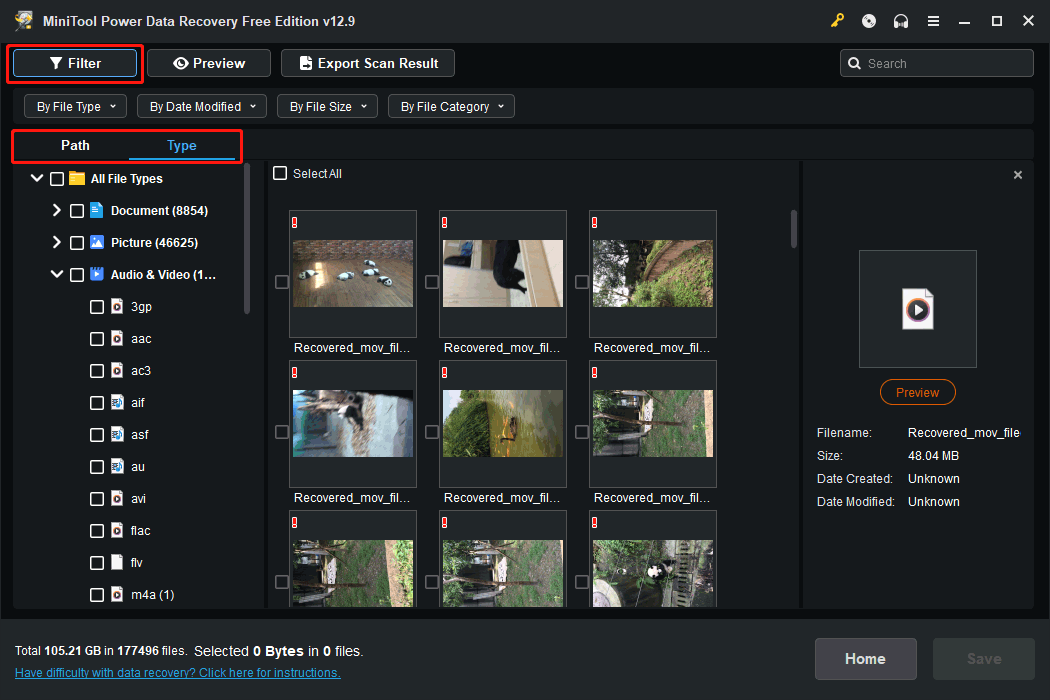
I then previewed videos to verify they were the desired ones before saving them to another drive.

During testing, the software successfully recovered the deleted videos while keeping the recovered videos playable. The preview feature also helped confirm that the files were recoverable before starting the recovery process.
MiniTool Power Data Recovery: Video Recovery Software Review
| Pros | 1. Easy-to-use interfaceHigh recovery success rate in our test scenario 2. Supports a wide range of video formats 3. Works with HDDs, SSDs, USB drives, SD cards, memory cards, and more 4. Supports scan results filtering 5. Preview videos before recovery 6. Recovers up to 1GB of data for free |
| Cons | Unlimited recovery requires the paid edition |
| Best For | Users looking for a reliable all-around video recovery solution for Windows. |
#2. MiniTool Photo Recovery: Best for Camera and SD Card Video Recovery
Despite its name, MiniTool Photo Recovery can recover both photos and videos from digital cameras, SD cards, CF cards, USB flash drives, and other removable storage devices.
The software supports recovering deleted, formatted, and lost videos from camera storage media while keeping the recovery process read-only to avoid further data damage.
My Testing: Recover Deleted MP4 Files from an SD Card
To evaluate its video recovery capability, I tested MiniTool Photo Recovery using an SD card containing deleted video files.
After connecting the SD card to my computer, I launched the software, selected the target device, and started scanning.
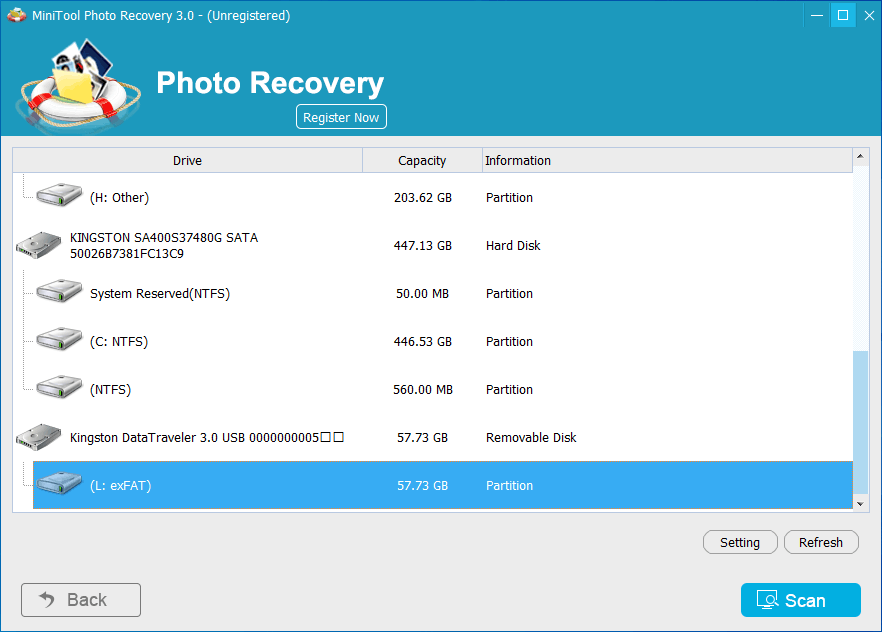
When the scan finished, the software displayed all recoverable photos and videos. I selected the deleted videos and saved them to another drive for verification.
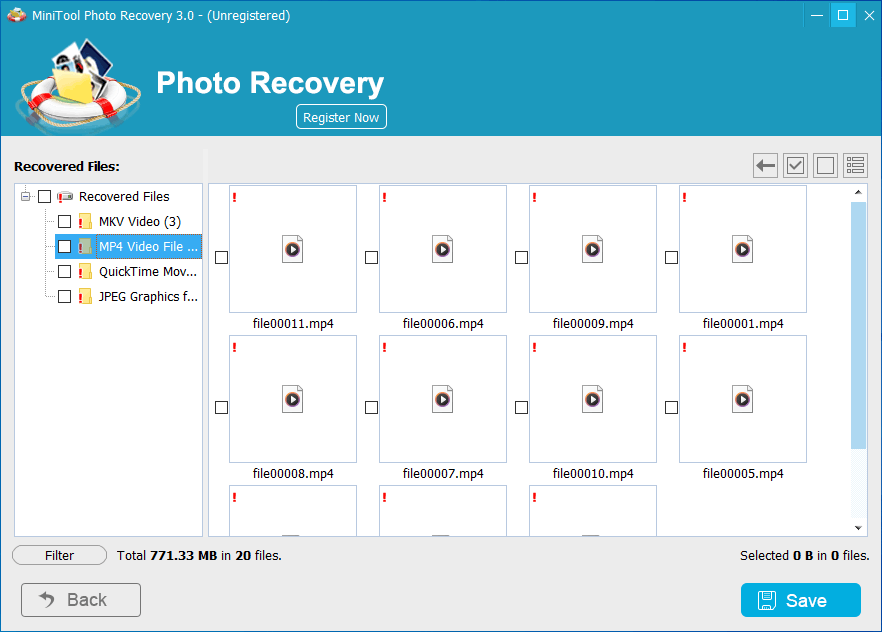
My test showed that MiniTool Photo Recovery handled video recovery from the SD card smoothly and recovered the target videos successfully. Its dedicated design for photo and video recovery, combined with a clean interface, makes it an excellent option for photographers, drone users, and anyone recovering files from removable storage devices.
MiniTool Photo Recovery: Video Recovery Software Review
| Pros | 1. Optimized for removable storage 2. Lightweight and easy to use 3. Excellent for camera users |
| Cons | Fewer advanced recovery options than full recovery suites. |
| Best For | Photographers, videographers, and drone users. |
#3. Windows File Recovery: Best Free Command-Line Video Recovery Tool
Developed by Microsoft, Windows File Recovery is a free command-line utility that helps recover deleted files from local storage devices, including HDDs, SSDs, USB flash drives, and memory cards. Although it lacks a graphical user interface, it supports recovering many common video formats, such as MP4, MOV, AVI, and WMV.
The tool is suitable for users who are comfortable using Command Prompt and want a completely free solution for video recovery.
My Testing: Recover Deleted MP4 Videos from a USB Flash Drive
To evaluate its video recovery function, I used Windows File Recovery to recover deleted MP4 videos from a USB flash drive.
This video recovery command tool is not preinstalled on Windows. I installed it from the Microsoft Store. Then, I opened Windows File Recovery as an administrator from the search and ran the following command:
winfr G: D:\RecoveryDestination /extensive /n *.mp4
This command scanned drive G: for deleted MP4 files and recovered the found videos to the RecoveryDestination folder on drive D:.
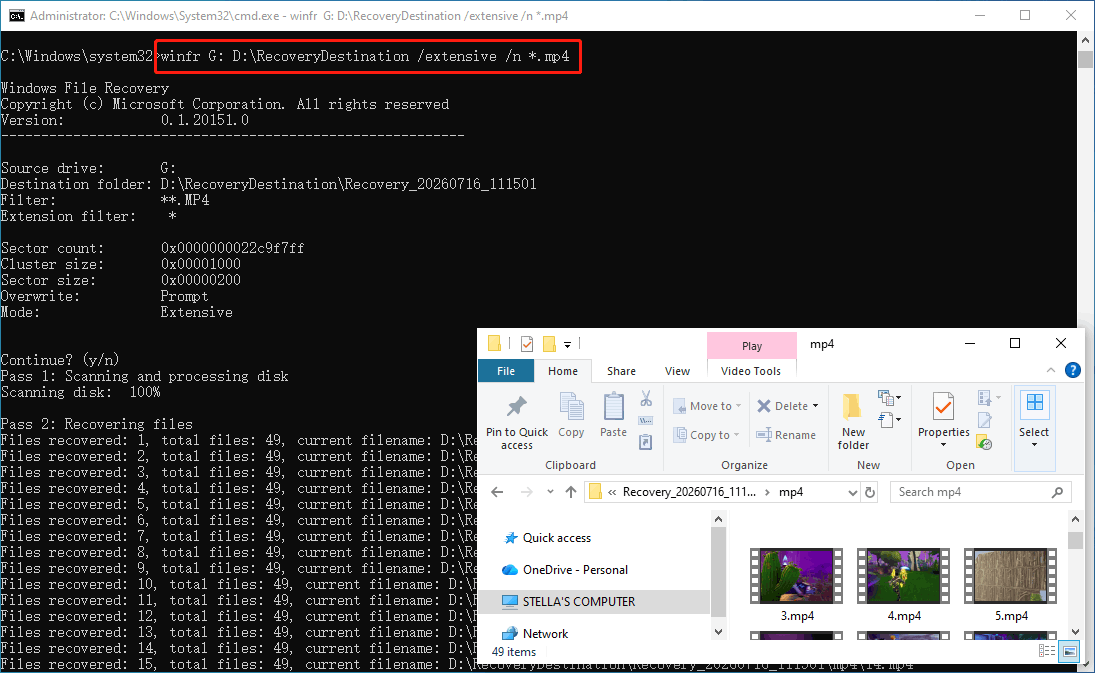
During the scan, the tool displayed the recovery progress in the Command Prompt window. Once the recovery was completed, the recovered videos were saved to the destination folder for verification.
In my testing, Windows File Recovery successfully recovered my desired MP4 videos. However, because it relies entirely on command-line operations and does not provide video previews or filtering features, the recovery process was less convenient than GUI-based video recovery software.
Windows File Recovery: Video Recovery Software Review
| Pros | 1. Completely free 2. Official Microsoft utility 3. Supports recovering videos from HDDs, SSDs, USB drives, and memory cards 4. No recovery size limits |
| Cons | 1. Command-line interface only 2. No preview feature 3. No filtering or file browsing during recovery |
| Best For | Advanced Windows users who prefer a free command-line video recovery solution. |
#4. Disk Drill: Best for User-Friendly Recovery
Disk Drill is a popular data recovery software known for its modern interface and simple recovery workflow. It supports recovering various file types, including videos, photos, documents, and other data from HDDs, SSDs, USB drives, memory cards, and other storage devices.
With multiple scanning modes and a built-in preview feature, Disk Drill is designed for users who want an easy way to recover lost videos without complicated settings.
My Testing: Recover Deleted Videos from D Drive on My PC
To test Disk Drill’s video recovery capability, I used it to recover deleted videos from a local partition.
After launching the software, I selected the target partition and started scanning. Once the scan was completed, I filtered the results by selecting Videos to quickly locate recoverable video files.
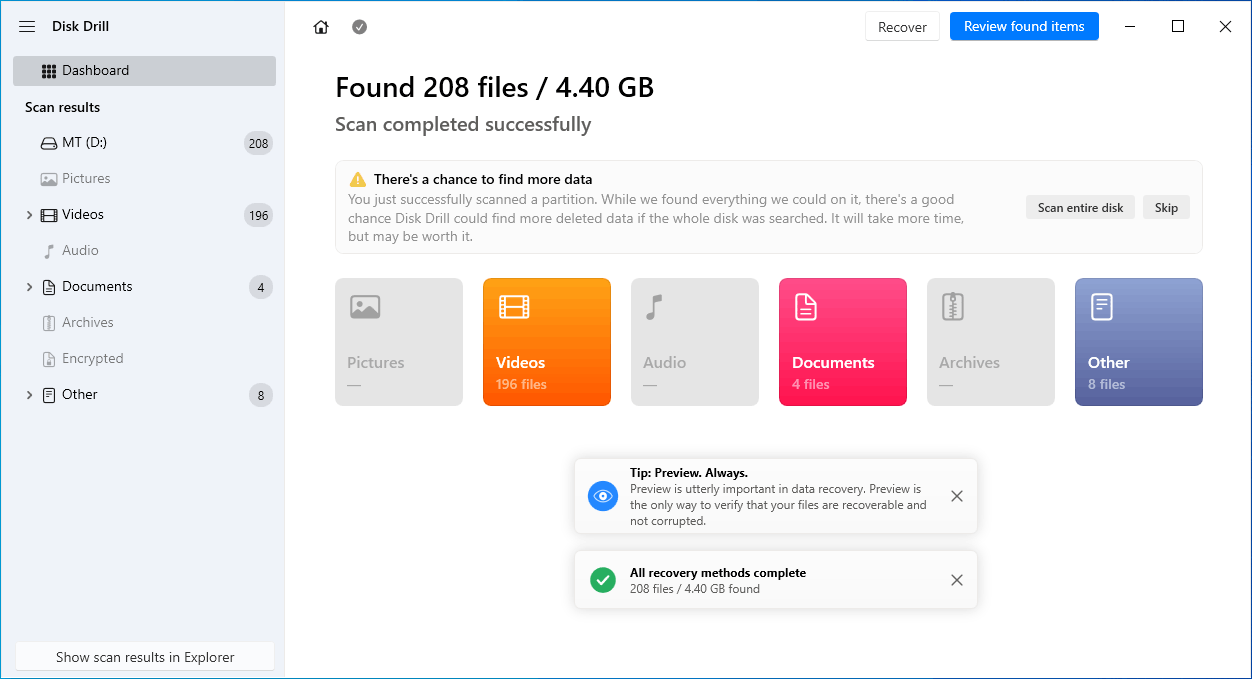
After selecting the videos I wanted to recover, I clicked Recover and chose a destination location to save the recovered files.
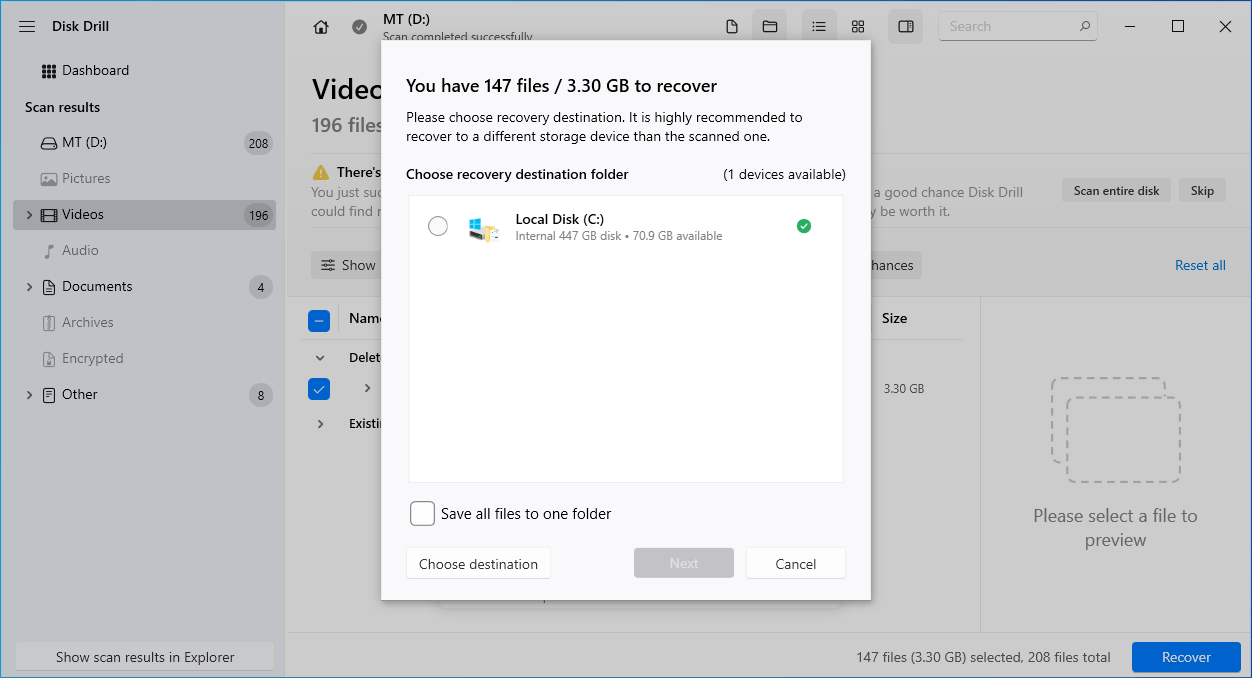
During testing, Disk Drill successfully found the deleted videos and provided a straightforward recovery experience. However, I encountered an unexpected write-protection issue when selecting a recovery location. Only the C: drive was available, although other partitions on my data disk had free space. After checking the drive status, I found that the partitions on the data disk had temporarily become write-protected. The issue was resolved after closing Disk Drill and waiting for a while.
After further research, I found reports from other users describing similar write-protection issues. Some suggested using the Make Writable option in Disk Drill’s Previous Sessions feature as a possible workaround, while others reported that this method did not work in their cases.
Disk Drill: Video Recovery Software Review
| Pros | 1. Attractive and modern interface 2. Multiple scanning modes 3. Shows the recovery chances of found files 4. Supports video preview before recovery 5. Easy recovery workflow 6. Includes additional disk management tools |
| Cons | 1. Limited free recovery on Windows 2. Some users may encounter temporary write-protection issues 3. Some advanced features require the paid version |
| Best for | Users looking for a balance between simplicity and recovery functionality. |
#5. Recuva: Best Lightweight Video Recovery Software
Recuva is a lightweight data recovery tool developed by Piriform. It is designed to help users recover deleted files from hard drives, USB drives, memory cards, and other storage devices.
Unlike full-featured video recovery software, Recuva focuses on simple deleted file recovery. It provides a guided recovery wizard, fast scanning speed, and an easy way to restore accidentally deleted videos.
My Testing: Recover Deleted Videos from My Work Drive
To test Recuva’s video recovery capability, I used it to recover deleted videos from a local drive.
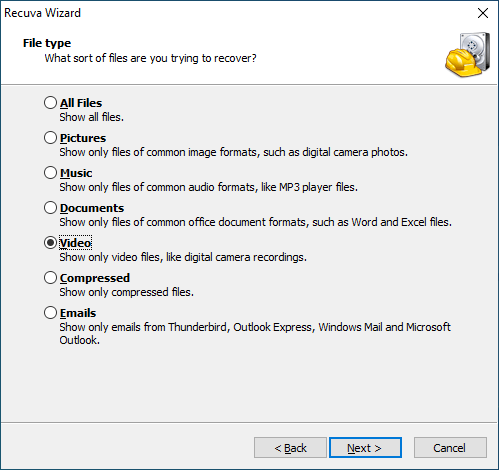
After launching the software, Recuva opened a recovery wizard that guided me through several setup steps before scanning. Users can select the file type they want to recover, choose a scanning location, and decide whether to enable Deep Scan.
For video recovery, I selected Video as the target file type and chose the drive containing the deleted videos.
After starting the scan, Recuva completed the initial scan and displayed the files it found. The scan results showed the recoverability status of each file, helping identify which videos had a higher chance of successful recovery.
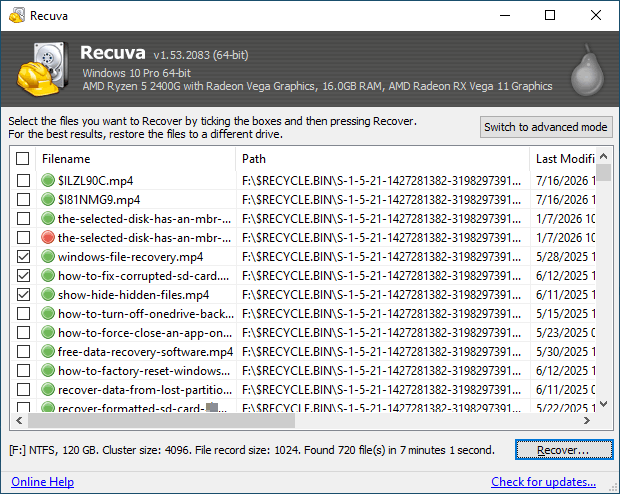
I selected the videos I wanted to recover, clicked Recover, and chose a destination folder to save them.
During testing, Recuva’s Quick Scan was fast and suitable for finding recently deleted videos. However, when Quick Scan could not locate the desired files, Deep Scan needed to be enabled manually, and the process could take much longer on larger drives.
Recuva: Video Recovery Software Review
| Pros | 1. Lightweight and easy to use 2. Free recovery available 3. Shows the recoverability status of found files 4. Quick Scan is fast 5. Supports scanning specific file types, including videos |
| Cons | 1. Requires several setup steps before scanning 2. Deep Scan needs to be enabled manually when Quick Scan fails 3. Deep Scan can be time-consuming on large drives 4. Mainly designed for deleted file recovery rather than complex recovery scenarios |
| Best for | Users who need a lightweight and simple solution to recover accidentally deleted videos. |
#6. EaseUS Data Recovery Wizard: Best for Beginners
EaseUS Data Recovery Wizard is a popular data recovery software designed for users who want a simple way to recover lost files. It supports recovering various file types, including videos, photos, documents, and more, from HDDs, SSDs, USB drives, memory cards, and other storage devices.
With a clean interface and guided recovery process, EaseUS Data Recovery Wizard is especially suitable for beginners who have little experience with data recovery software.
My Testing: Recover Deleted Videos from My Work Drive
To test its video recovery capability, I used EaseUS Data Recovery Wizard Free to recover deleted videos from a local partition.
After installation, the software provided a clear step-by-step guide to help new users start the recovery process. The onboarding experience made it easy to understand where to begin, even for users using recovery software for the first time.
I selected the target partition and started scanning for lost files.
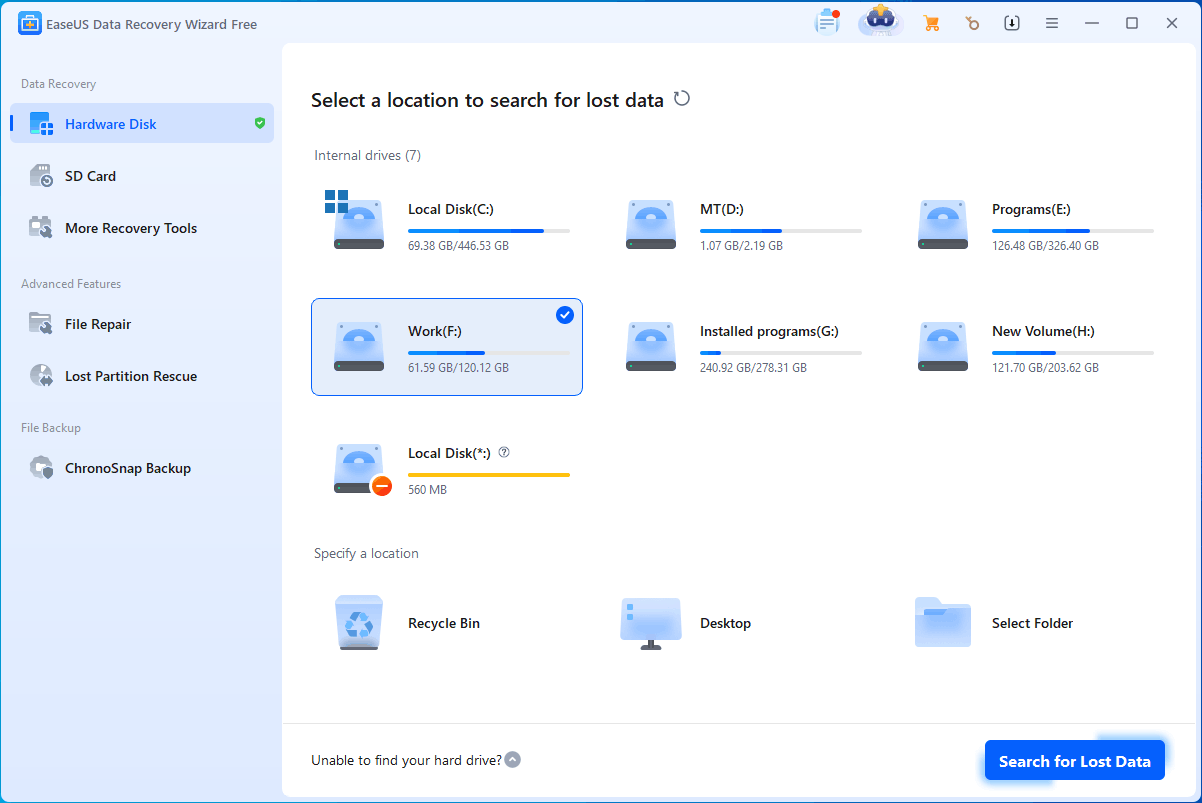
After scanning, the software displayed the found files. I selected the deleted videos I wanted to recover, clicked Recover, and chose a suitable location to save them.
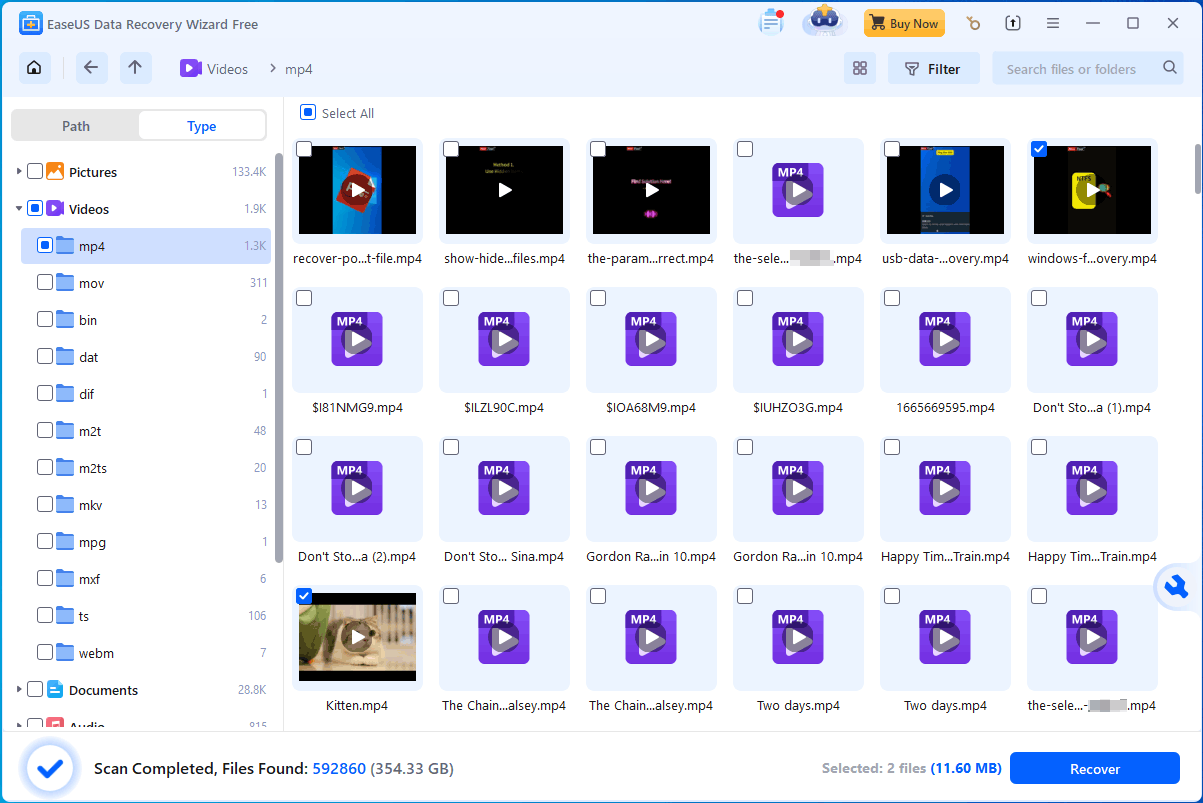
During testing, EaseUS Data Recovery Wizard provided one of the most beginner-friendly recovery experiences among the tested tools. The guided interface reduced the learning curve and helped users complete the recovery process with minimal effort.
EaseUS Data Recovery Wizard: Video Recovery Software Review
| Pros | 1. Excellent onboarding experience for beginners 2. Clean and intuitive interface 3. Supports various storage devices and file types 4. Simple recovery workflow |
| Cons | 1. Limited free recovery capacity 2. Advanced features require the paid version |
| Best for | Beginners who want an easy-to-use video recovery solution with a guided recovery experience. |
#7. Wondershare Recoverit: Best for Multimedia Recovery
Wondershare Recoverit is a data recovery software that focuses strongly on multimedia recovery, especially photos and videos. It supports recovering lost media files from various storage devices, including internal drives, external hard drives, USB drives, memory cards, and cameras.
With support for many video formats and multimedia-focused recovery features, Recoverit is a suitable choice for users who mainly need to recover lost or deleted multimedia files.
My Testing: Recover Deleted Videos from My Work Drive
To test Wondershare Recoverit’s video recovery capability, I used it to recover deleted videos from a local partition.
After launching the software, I selected the target partition and started scanning for lost files.
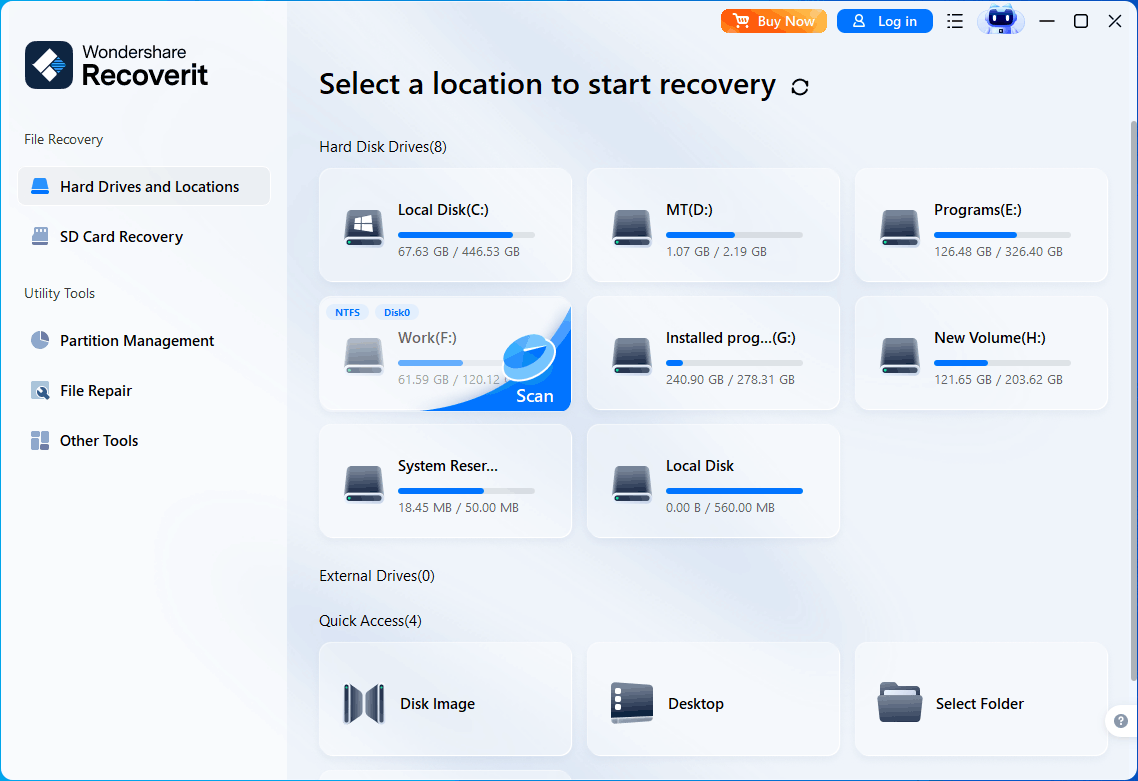
After scanning, I switched to the File Type category and selected Video to narrow down the results. I then selected the videos I wanted to recover before starting the recovery process.
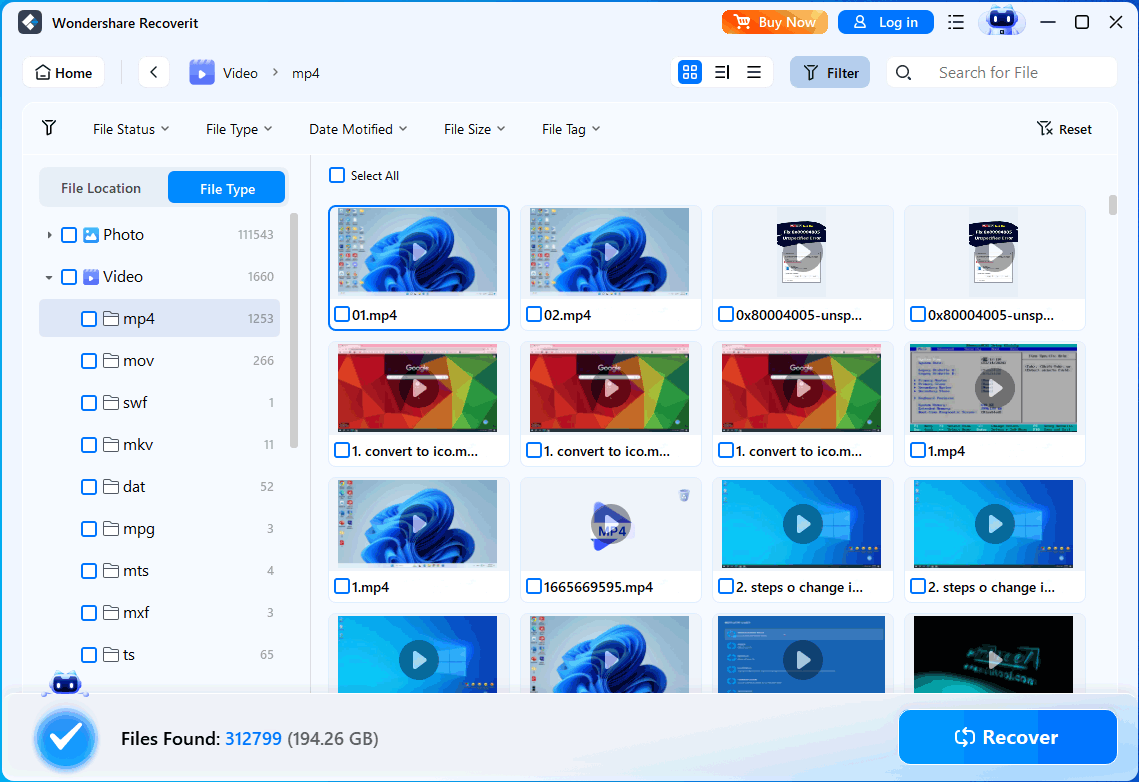
After clicking Recover, I chose a suitable location to save the recovered videos.
During testing, Wondershare Recoverit provided a smooth recovery workflow and made it easy to locate video files by filtering by file type. Its multimedia-focused features make it a strong option for users who primarily handle video and photo recovery.
Wondershare Recoverit: Video Recovery Software Review
| Pros | 1. Strong multimedia support 2. Supports many video formats 3. Simple recovery workflow 4. Easy-to-use interface |
| Cons | 1. Higher pricing than some competitors 2. Free version has limited recovery capacity |
| Best for | Users who mainly need to recover lost photos, videos, and other multimedia files. |
How to Choose the Best Video Recovery Software
Many video recovery software options are available, and when selecting the most appropriate one, you might need to consider the following factors:
1. Recovery Capability
| File Types and Formats | For video recovery, data recovery tools need to not only support recovering videos but also various video formats. |
| Scanning Speed | Video recovery software should have a high scanning speed. Spending too much time scanning is frustrating. |
| File Preview | The option to preview recoverable video files before performing a full recovery helps save time and ensures data integrity. |
2. Compatibility and Usability
| Device and OS Compatibility | Ensure the video recovery software is compatible with your operating system (Windows, macOS, or Linux) and the type of storage media (internal/external hard drives, SSDs, USB drives, or SD cards). |
| File System Support | The software should support the file system of the affected drive, like NTFS, FAT32, exFAT, and so on. |
| User-Friendly Interface | Choose software with a simple interface to ease data recovery, especially if you’re not tech-savvy. |
| No Overwriting | A reliable tool should ensure original files remain intact during recovery and recommend saving recovered files to a different drive to prevent data overwrite. |
3. Security and Support
| Technical Support | Having access to specialized technical support can be extremely helpful if you face difficulties during the recovery process. |
| Free or Trial Version | Most data recovery products aren’t fully free. Therefore, consider if the tool offers a free or trial mode and if the upgraded version fits your budget. |
Video Recovery Software FAQ
To improve the chances of recovery, stop using the affected device immediately and use reliable video recovery software, such as MiniTool Power Data Recovery, to scan and restore the lost videos.
1. Video recovery: finds missing or deleted video files.
2. Video repair: fixes damaged or corrupted video files.
If your videos are missing, use recovery software first. If recovered videos cannot play,
1. The deleted videos have already been overwritten by new data.
2. The storage device has physical damage.
3. The wrong drive or scan mode was selected.
4. A quick scan was not enough, and a deep scan is required.
Conclusion
Losing videos can be stressful, but using the right video recovery software can greatly improve the chances of getting them back. Among the tools tested in this post, MiniTool Power Data Recovery stands out as an excellent overall choice for Windows users with its wide device support, video filter among scan results, and easy recovery process.
Before starting a recovery task, stop using the affected drive to avoid overwriting the deleted videos. Then choose a suitable recovery tool based on your needs.
About The Author

Position: Columnist
Stella is an experienced English editor with eight years of expertise in storage device data recovery. Her articles can help users effectively recover lost and deleted data and rescue files from unbootable PCs, ensuring practical solutions and reliable guidance.
User Comments :