

If your PC keeps shutting down randomly, the problem may be caused by overheating, power supply issues, hardware failures, corrupted system files, or incorrect Windows settings. This guide provides practical solutions to fix the issue.
A PC that keeps shutting down usually indicates a hardware, power, or system stability problem. The most common causes are overheating, a failing power supply, faulty RAM, damaged system files, outdated drivers, or BIOS issues.
To identify the cause, check hardware temperatures, review Windows Event Viewer errors, test memory, and repair corrupted system files before replacing hardware.
Issue: My PC Shuts Down with No Warning
Have you ever experienced that the PC keeps shutting down without warning? This not only disrupts your workflow but can also lead to data loss and system corruption.
To understand and resolve this issue, learn about its causes and effective repair methods.
Possible Causes for Computer Shutdown
Why does my PC keep turning off? Here are some common causes.
- Overheat protection
- Power supply issues
- Hardware failures
- System settings or scheduled tasks
- Fast startup conflicts
- Driver or system update issues
- …
Immediate Troubleshooting Steps
When this problem happens, do some basic checks to troubleshoot at first.
1. Check temperatures
Overheating is one of the most common causes of unexpected computer shutdowns. It triggers the hardware’s automatic protection mechanism.
Checking the temperature helps determine if dust cleaning or cooling device replacement is necessary.
2. Check cables
Ensure all power and data cables are securely plugged into the correct ports and are not loose. Inspect the cables for damage, creases, or wear.
3. Check PSU
Frequent automatic shutdowns, especially during high-load tasks such as gaming or rendering, may indicate a faulty or unstable power supply. Replacing the PSU can help determine whether the issue is power-related.
4. Check UPS
Aging UPS batteries can cause a computer to suddenly shut down.
- First, check the UPS indicator lights or beeps for overload/battery failure warnings.
- Then, unplug the power cord and test if it can maintain power for a few minutes.
If the computer shuts down immediately, the battery may be faulty.
5. Check Event Viewer
Checking the Event Viewer is another troubleshooting method. Reviewing warnings recorded before the system shutdown can help determine whether the issue is caused by a power issue, hardware failure, or system error.
If basic checks don’t work, try some advanced methods to resolve this problem. Before that, data recovery may be performed.
Recover Lost Files After Sudden Shutdowns (if Necessary)
An unexpected power outage can lead to file loss. Performing other operations may cause further damage and increase the difficulty of recovery. Therefore, recovering data first is essential.
MiniTool Power Data Recovery is a good choice for data recovery. Here are some of its advantages.
- Powerful scanning capabilities: This tool is capable of recovering files lost due to accidental deletion, system crashes, or unexpected shutdowns.
- Support for diverse file types: It can recover various common file formats such as documents, pictures, videos, and audios.
- Support for multiple devices: Not only can it recover data from local hard drives, but it also supports external hard drives, USB flash drives, SD cards, and other storage media.
This free file recovery software allows you to recover 1 GB of files for free. Download and install it to get started.
MiniTool Power Data Recovery FreeClick to Download100%Clean & Safe
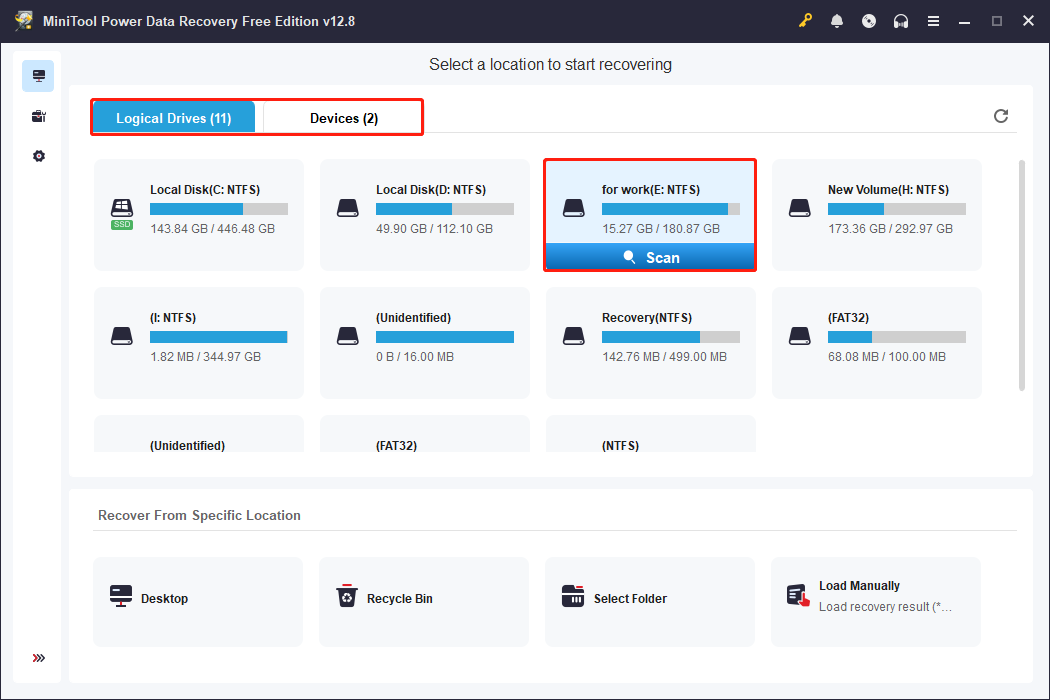
Step 1: Launch the software and scan the location
Open MiniTool Power Data Recovery to enter the main interface. Select the partition under Logical Drives or the disk under Devices where the lost files are located, then click Scan.
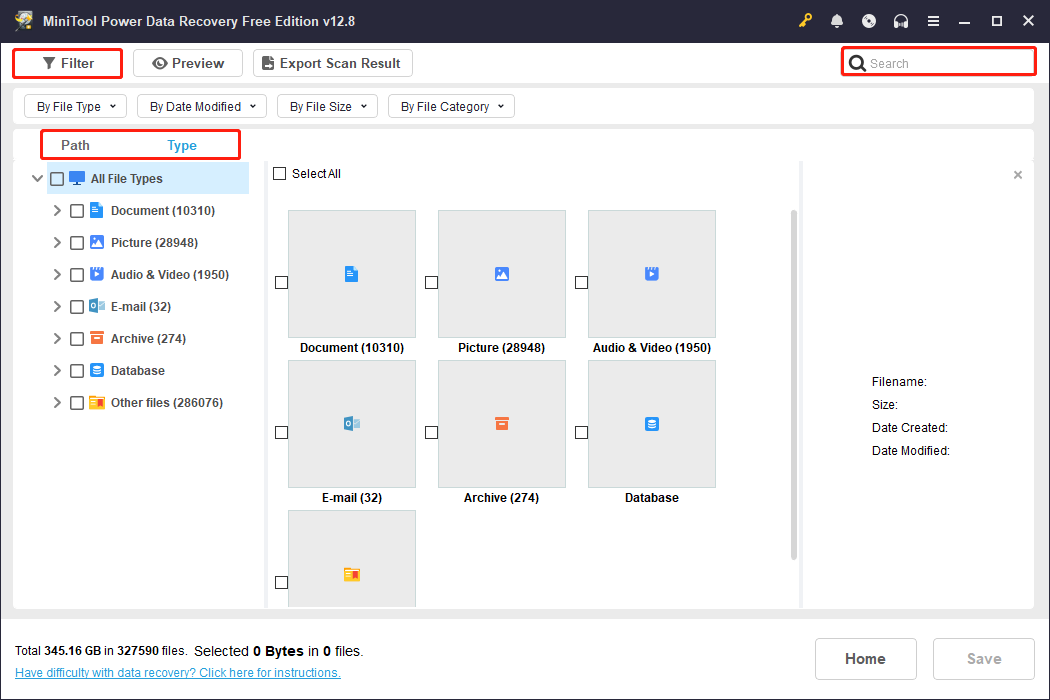
Step 2: Find the desired files and preview them
After the scan is complete, use the following features to find the target files.
- Path: lists files according to file structures.
- Type: categorizes files based on file types.
- Filter: filters files by file type, modification date, file size, and file category.
- Search: searches for the specific file by filename.
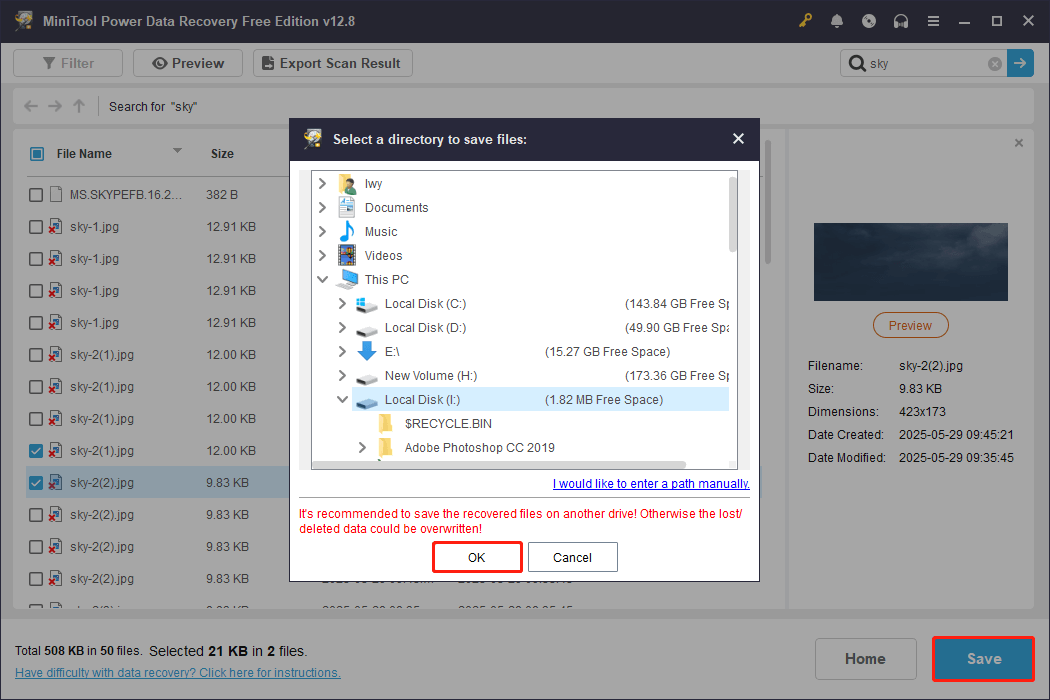
Step 3: Save files to a safe location
Check all needed files and click Save. Choose a safe path (do not save to the original location to avoid overwriting data). Finally, click OK to begin recovery.
Files are safe now. The next step is to fix “PC keeps shutting down without warning”.
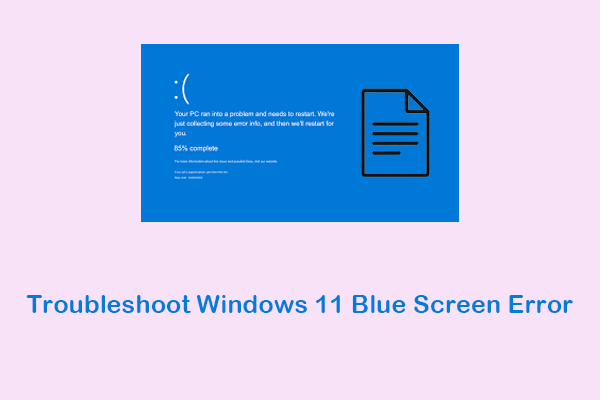
How to Fix if PC Keeps Shutting Down Without Warning
This section provides some advanced methods to fix the shutdown problem. Try them one by one until your computer gets back to normal.
Method 1: Troubleshoot in Safe Mode
Safe Mode is a simplified startup state for Windows systems that makes it easier to troubleshoot and resolve system problems. Here is how to troubleshoot in Safe Mode.
Step 1: Right-click the Start button, choose Settings,then click Update & Security.
Step 2: Go to the Recovery tab and click the Restart now button.
Step 3: When entering WinRE, select Troubleshoot > Advanced options > Startup Settings > Restart.
Step 4: Finally, press F4 or F5 to enter Safe Mode.
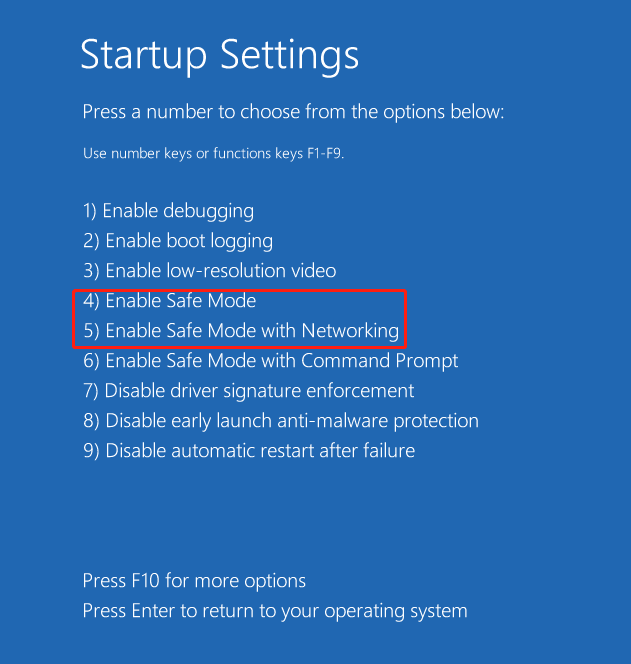
When in Safe Mode, do the following:
- Update device drivers
- Uninstall suspicious software
- Update Windows
Method 2: Scan for Malware
Suspicious malware tasks can cause your computer to shut down without any warning. Ending these tasks and removing viruses can prevent malicious programs from forcibly shutting down your computer.
End tasks:
Step 1: Press Win + X and choose Task Manager.
Step 2: Select the suspicious program and click End task
Scan for viruses:
Step 1: Press Win + I to open Settings and click Update & Security.
Step 2: Switch to the Windows Security tab and click Virus & threat protection.
Step 3: Click Scan options, choose a scan type, and click Scan now.
Method 3: Change Power Plan Settings
When your PC keeps shutting down, try modifying the advanced power plan settings. This can prevent overly aggressive power-management policies from inadvertently triggering shutdowns.
Step 1: Type Control Panel in the Windows search bar and press Enter.
Step 2: Change the view to Large icons and select Power Options.
Step 3: Click Change plan settings next to the selected plan.
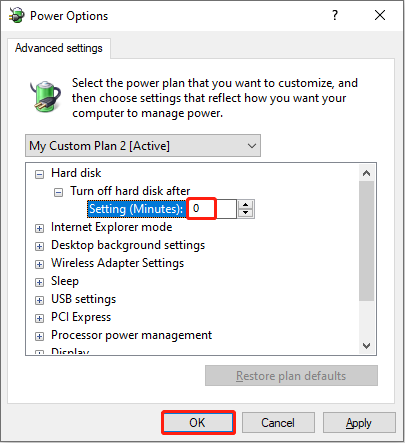
Step 4: Click Change advanced power settings.
Step 5: Expand Hard disk > Turn off hard disk after and change the Setting valueto 0 minutes, thenclick OK.
Method 4: Disable Sleep Mode
If sleep mode is enabled, the system may shut down directly upon waking from sleep due to power management conflicts. Therefore, disabling sleep mode is feasible.
Step 1: Open Settings and select System.
Step 2: Go to the Power & sleep tab from the left sidebar.
Step 3: In the Sleep section, change the state for plugged-in power to Never.
Method 5: Disable Fast Startup
If the fast startup feature is enabled, the shutdown process may be incomplete. In some cases, this can lead to power management or driver conflicts, which may cause startup issues.
Here is how to disable this feature:
Step 1: Open Control Panel and click Hardware and Sound > Power Options.
Step 2: Click Choose what the power buttons do from the left sidebar.
Step 3: Click Change settings that are currently unavailable.
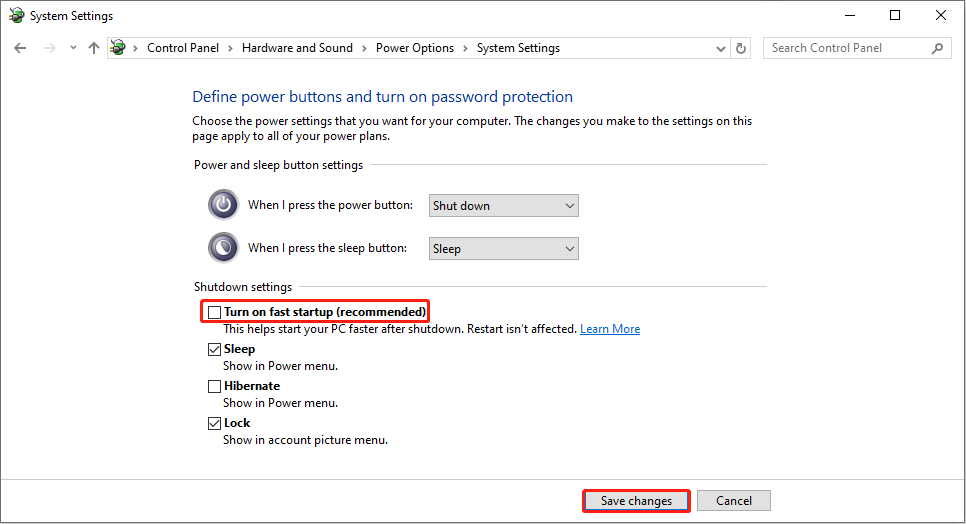
Step 4: In the Shutdown settings section, uncheck the box for Turn on fast startup (recommended).
Step 5: Finally, click Save changes to take effect.
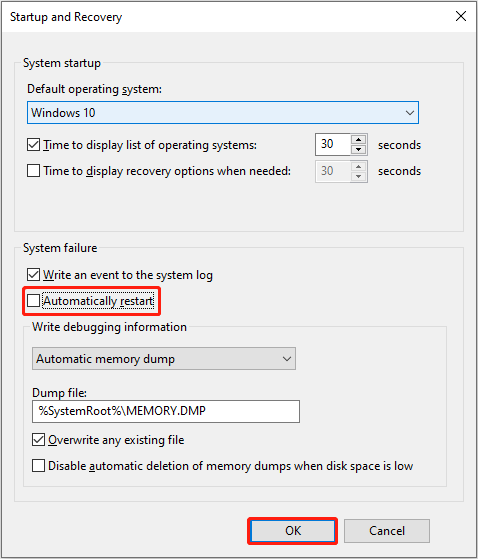
Method 6: Turn off Automatic Restart
Enabling the automatic restart feature will cause the system to restart automatically when an error occurs.
If the underlying problem is not resolved, the system will continuously trigger restarts, resulting in frequent computer shutdowns.
Here is how to turn off this feature:
Step 1: Press Win + R, type sysdm.cpl, and press Enter.
Step 2: Go to the Advanced tab and click Settings under Startup and Recovery.
Step 3: In the System failure section, uncheck the box for Automatically restart.
Step 4: Finally, click OK to apply the change.
Method 7: Run Windows Memory Diagnostic Tool
Faulty RAM can cause shutdown problems. In this case, try running the memory diagnostic tool to check for errors.
Step 1: Type Windows Memory Diagnostic in the Windows search box and press Enter.
Step 2: Click Restart now and check for problems (recommended) to immediately reboot into the diagnostic tool.
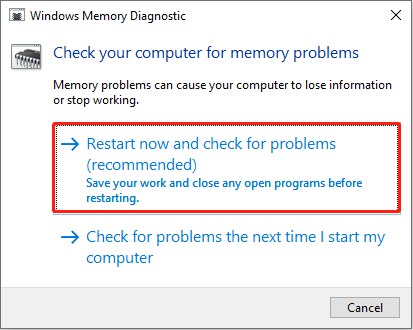
Your computer will restart and display a blue screen showing the test progress. It takes approximately 10-30 minutes.
After the test is complete, your PC will automatically restart and boot into Windows.
Method 8: Run DISM and SFC
SFC and DISM scan and repair corrupted system files, ensuring the integrity of core Windows components. Here is how to run it.
Step 1: Type Command Prompt in the Windows search bar, right-click the best match, and choose Run as administrator.
Step 2: Type DISM /Online /Cleanup-Image /RestoreHealth and press Enter.
Step 3: After DISM ends, type SFC /scannow and press Enter.
Method 9: Perform a System Restore
Performing a System Restore to restore the system to its previous normal state is a feasible method. This can undo updates or configuration changes that might have caused an abnormal shutdown.
Step 1: Type System Restore in the Windows search bar and press Enter.
Step 2: In the System Restore window, click Next.
Step 3: Select a restore point from the list, click Next, then Finish.
Your PC will restart to complete the process.
Method 10: Update BIOS
Updating the BIOS can improve system and hardware compatibility and fix potential firmware defects.
Warning: Ensure the file matches your motherboard model to avoid interrupting the process, and take a note for your settings and back up files before BIOS update. A failed update may result in boot failure or new stability issues.
Step 1: Type msinfo32 in the Windows search box and press Enter to open System Information and check the BIOS version.
Step 2: Visit your motherboard manufacturer’s website and download the latest BIOS file compatible with your model to a USB drive.
Step 3: Restart your computer and press the prompt key (F2, F12, Esc, or Delete) to enter the BIOS setup interface.
Step 4: In the BIOS menu, select an update tool (BIOS Update or EZ Flash), load the update file from the USB drive, and follow the prompts to complete the update.
Your computer will automatically restart after the update is complete.
Method 11: Reset Your Computer
Resetting your computer can restore the system to its initial state. It eliminates configuration or software problems that may be causing abnormal shutdowns.
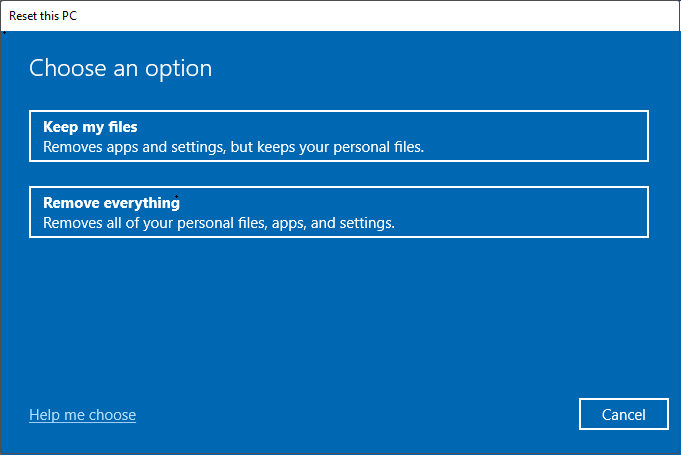
Step 1: Open Settings and go to Update & Security > Recovery.
Step 2: In the Reset this PC section, click the Get started button.
Step 3: In the Choose an option page, choose Keep my files or Remove everything.
- Keep my files: Removes apps and settings but preserves your personal files.
- Remove everything: Deletes all personal files, apps, and settings.
Step 4: In the next page, select a reinstallation method:
- Cloud download: Downloads a fresh version of Windows from Microsoft.
- Local reinstall: Uses the system files already on your device.
Step 5: Click Reset when prompted. Your computer will restart and begin the process.
When the problem is fixed, back up your system to avoid damage in the future.
Prevent PC Shutdown Problems in the Future
To reduce the chance of your PC shutting down again, follow the tips below:
- Keep Windows updated
- Clean dust regularly
- Monitor hardware temperature
- Use a reliable power supply
- Avoid forced shutdowns
- Back up important files regularly
MiniTool ShadowMaker can create system images and automatic backups to protect your files and Windows installation.
Wrapping Things Up
If your computer shuts down unexpectedly and data loss occurs, immediately use MiniTool Power Data Recovery to restore files.
If no files are missing, try effective methods to fix the issue, such as scanning for malware, running the memory diagnostic tool, or executing DISM and SFC, to fix the issue.
When your PC works normally, back up important files and the system in case it keeps shutting down without warning again.
If you have any questions about the MiniTool products, contact us at [email protected].
PC Randomly Turns off FAQ
About The Author

Position: Columnist
Shirley holds a bachelor’s degree in English and has been an editor at the MiniTool Team for many years. She specializes in IT-related content, with a focus on data recovery, file backup, disk management, and other technical topics. She is committed to delivering clear, accurate, and practical solutions to help users resolve common computer issues.
User Comments :