

You can troubleshoot Windows 11 blue screen error by uninstalling conflicting software, removing recent updates, or rebuilding the MBR. If the BSOD persists, recover your data with data recovery software first, and then proceed to reinstall Windows.
Windows 11 blue screen of death (BSOD) usually occurs when the system detects a critical error that it cannot recover from safely. The blue screen is not a problem itself but a protection mechanism that prevents further damage to the operating system or hardware.
Understanding the possible causes can help you identify the right troubleshooting method.
What Causes Blue Screen of Death in Windows 11
Now let’s take a look at the common causes of the Windows 11 blue screen error.
- Driver problems: outdated, conflicting, or incompatible drivers
- Hardware failures: memory damage, hard disk bad sectors, overheating, etc.
- System file damage: update failure or accidental deletion of key system files
- Viruses or malware: interference with normal operation or modification of system files
- Power and BIOS issues: overclocking failures and voltage instability
Common Windows 11 Blue Screen Stop Codes
Windows usually displays a stop code on the blue screen to help identify the possible cause. Although a stop code does not always provide the exact solution, it can provide important clues for troubleshooting.
Below are some common Windows 11 BSOD stop codes and their possible causes.
| Stop Code | Possible Causes | Common Solutions |
| CRITICAL_PROCESS_DIED | A critical Windows process has stopped due to corrupted system files, faulty drivers, or malware. | Run SFC and DISM scans, update drivers, perform a system restore, or check for malware. |
| MEMORY_MANAGEMENT | Problems with RAM, incompatible drivers, or corrupted system files. | Run Windows Memory Diagnostic, update drivers, and repair system files. |
| SYSTEM_SERVICE_EXCEPTION | Incompatible drivers, corrupted system files, or software conflicts. | Update or roll back drivers, uninstall recently installed software, and run system file checks. |
| INACCESSIBLE_BOOT_DEVICE | Windows cannot access the system drive due to driver issues, disk errors, or corrupted boot files. | Check disk health, repair boot files, update disk drivers, or rebuild BCD. |
| DPC_WATCHDOG_VIOLATION | Driver conflicts, outdated firmware, or compatibility issues with disks. | Update drivers, check SSD firmware, and remove recently installed software. |
| PAGE_FAULT_IN_NONPAGED_AREA | Faulty RAM, corrupted drivers, or hardware problems causing invalid memory access. | Test memory, update drivers, and check hardware health. |
| KERNEL_SECURITY_CHECK_FAILURE | Corrupted system files, incompatible drivers, or memory-related problems. | Update Windows and drivers, run SFC/DISM, and check RAM for errors. |
| IRQL_NOT_LESS_OR_EQUAL | Faulty drivers or hardware conflicts. | Update, reinstall, or roll back drivers, or check recently added hardware. |
Quick Fixes for Windows 11 Blue Screen Error
Before trying advanced troubleshooting methods, you can start with some basic fixes that may resolve temporary system conflicts.
Fix 1: Restart Your Computer
A blue screen (BSOD) indicates that a fatal error has occurred in the core of the system and that it cannot continue to run stably. Restarting is a straightforward method to reinitialize the system.
Fix 2: Disconnect Unnecessary Devices
The external device may be conflicting with the system or driver, causing a blue screen. Disconnecting unnecessary devices is a quick method to diagnose and troubleshoot a Windows 11 blue screen error.
Fix 3: Check Recent Hardware or Software Changes
If the BSOD started after installing a new program, adding new hardware, or changing system settings, reversing those changes may help identify and resolve the problem.
You can try the following:
- Remove recently installed software or applications.
- Uninstall recently updated drivers or roll back to a previous driver version.
- Disconnect newly added hardware devices, such as external drives, printers, or USB devices.
- Undo recent system configuration changes if the blue screen started after modifying Windows settings.

Fix 4: Boot Windows 11 into Safe Mode
If Windows 11 keeps showing a blue screen and you cannot access the desktop normally, try booting into Safe Mode. Safe Mode starts Windows with only basic drivers and services. So, you can access your system and troubleshoot the Windows 11 blue screen error.
Step 1: Restart the computer 2 or 3 times
Turn on your computer, and then long-press the Power button to shut down. Repeat this process 2 to 3 times, and the system will automatically enter Windows Recovery Environment (WinRE).
Step 2: Enter Safe Mode
On the Choose an option screen, click Troubleshoot > Advanced options > Startup Settings, and then click Restart. Press F5 to enter Safe Mode with networking.
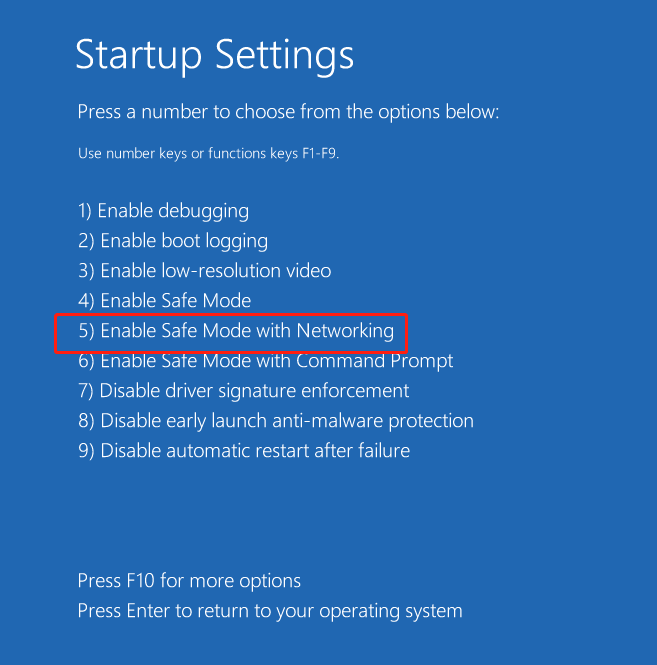
After successfully entering Safe Mode, you can back up your files and carry out some advanced fixes.
Fix 5: Run Windows Memory Diagnostic Tool
Running the Windows Memory Diagnostic tool can detect whether there are problems with your computer’s memory (RAM).
Step 1: Open Windows Memory Diagnostics
Press the Win + R keys to open the Run dialog box, enter mdsched.exe, and press Enter.
Step 2: Select the restart option
You will see a prompt window. If you want to check immediately, select Restart now and check for problems (recommended). If you want to check later, select Check for problems at the next time I start my computer.
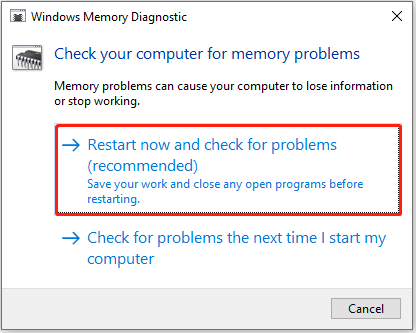
Step 3: The system will restart and automatically detect memory
The diagnosis process may take several minutes. After the detection is completed, the system will automatically restart and return to Windows.
Step 4: View the test results
After logging into the system, press the Win + X keys and select Event Viewer. Select Windows Log > System, click Filter Current Log on the right, and then select MemoryDiagnostics-Results. The log will show whether memory errors are found.
If errors are found, consider replacing the RAM to prevent system instability.
How to Recover Data When Windows 11 Cannot Boot Due to BSOD
A continuous BSOD loop may prevent you from accessing important files stored on the computer. Before performing major repairs or reinstalling Windows, it is recommended to recover your important data to avoid potential data loss.
MiniTool Power Data Recovery is a data recovery tool that supports extracting data from damaged or inaccessible Windows systems.
When Windows cannot boot, this software allows you to create a bootable disk (usually a USB drive). You can then boot the computer from this disk and access the drives in the original system for data recovery.
It is compatible with multiple file systems, including NTFS, FAT32, exFAT, and Ext2/3/4. And, it supports recovering documents, pictures, videos, and so on.
Note that the free edition does not support this.
MiniTool Power Data Recovery FreeClick to Download100%Clean & Safe
Process 1: Create a bootable disk
Step 1: Get MiniTool Power Data Recovery Bootable on a working computer and launch the software.
Step 2: Connect a blank USB flash drive to the computer. Click the disc icon in the upper-right corner to open MiniTool Bootable Media Builder. Then follow the on-screen instructions to create a bootable disk.

Process 2: Boot your computer from the bootable disk
Step 1: Connect the disk to your unbootable Windows 11 computer.
Step 2: Restart your Windows 11 computer and press F2 or F8 during startup to enter the BIOS.
Step 3: Switch to the Boot tab and change the boot order to boot from the bootable USB disk. Then wait for the MiniTool data restore tool to launch.
Process 3: Scan the partition and save files
Step 1: When MiniTool Power Data Recovery is launched, choose the partition from which you need to recover files and click Scan.
Since a clean installation of Windows usually affects the files in the system drive, I choose the system drive to scan.

Step 2: When the scan process ends, use Type, Filter, and Search to locate your target files.

Step 3: Check all required files and click Save. Then select an external drive to store the recovered files.

Advanced Fixes for Windows 11 Blue Screen of Death
If basic troubleshooting methods cannot resolve the BSOD, the issue may be related to corrupted system files, problematic drivers, or boot configuration problems.
The following advanced solutions can help diagnose and repair deeper system issues causing Windows 11 blue screen errors.
Fix 1. Repair Corrupted System Files with SFC
Corrupted or missing Windows system files may prevent the operating system from working properly and cause blue screen errors. SFC and DISM are built-in Windows tools that can scan and repair damaged system components.
Step 1: Open Command Prompt
Access WinRE and click Troubleshoot > Advanced options > Command Prompt.
Step 2: Run the command
Type sfc /scannow and press Enter. The system will automatically scan and repair tampered or lost system files.
Fix 2. Check Hard Drive Health and Repair Disk Errors
Disk errors, bad sectors, or file system corruption can affect Windows stability and lead to BSOD problems. Checking the drive health and repairing disk errors can help identify and fix storage-related issues.
Step 1: Open Command Prompt
In the Windows Recovery Environment, open the Command Prompt tool.
Step 2: Run the command
Enter the following command and press Enter:
chkdsk C: /f /r
To help you better understand this command, here is the meaning explanation:
- C: is the drive letter of the disk partition you want to check
- /f means automatically repair errors
- /r means find bad sectors and try to recover readable information
Fix 3. Restore Windows Using System Restore
If the blue screen started after a recent software installation, driver update, or system change, System Restore can help return Windows to a previous working state without affecting personal files.
Step 1: Open System Restore
In the Choose an option screen, select Troubleshoot > Advanced options > System Restore.
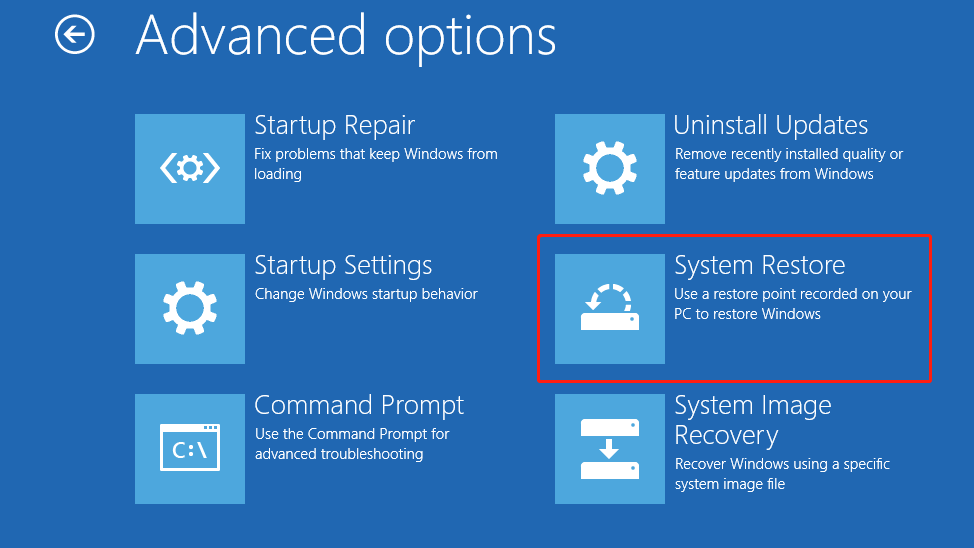
Step 2: Select a restore point
Choose a restore point created before the blue screen error started. Click Scan for affected programs to check which apps, drivers, or updates will be removed after the restoration.
Step 3: Start the restore process
Confirm the selected restore point and click Finish. Windows will restart and begin restoring the system.
Wait until the process is complete. Do not turn off the computer during the restoration.
Fix 4. Perform a Clean Installation
If Windows 11 continues to display blue screen errors, a clean installation can help remove severe system problems and restore the computer to a fresh state. Before reinstalling Windows, make sure to recover important files.
Step 1: Create installation media on a working PC
On the Download Windows 11 site, under Create Windows 11 Installation Media, select Download Now. After that, run MediaCreationTool.exe and create installation media.
Step 2: Boot from the Windows installation media
Connect the installation media to your non-bootable computer. When booting, press the startup shortcut key continuously to enter the BIOS, set the USB drive as the first startup item, and press F10.
Step 3: Enter the installation interface
Select the language, time format, and keyboard layout, and click Next. In the Choose installation options window, select Install Windows 11 > I agree that everything will be removed, including files, apps, and settings, and then choose Next.
Step 4: Delete partitions and install Windows 11
In the Select location to install Windows 11 window, delete all partitions on Disk 0 that are not listed as Unallocated Space. Select Disk 0 Unallocated Space, and then select Next.
In the Ready to Install window, select Install. The Windows reinstallation begins. The device restarts several times during the reinstallation.
How to Prevent Windows 11 Blue Screen Errors
Keeping your system updated, monitoring hardware health, and creating backups can help improve system stability and protect your PC from unexpected crashes.
Keep Windows and Drivers Updated
Outdated Windows components and incompatible drivers are common causes of BSOD errors. Regularly installing Windows updates and keeping hardware drivers up to date can help prevent compatibility issues and system crashes.
Monitor Hardware Health
Failing hardware, such as damaged RAM, overheating components, or storage problems, can lead to frequent blue screen errors. Regularly check hardware status and address issues such as overheating, unusual disk activity, or memory errors.
Check Disk and System Files Regularly
File system errors and corrupted Windows files can accumulate over time and cause system instability. Running tools such as CHKDSK, SFC, and DISM when needed can help detect and repair potential problems.
Create Regular Backups
The BSOD often occurs without warning and may cause data loss or system failure to boot. Backing up the system and files can effectively reduce the risk of this error.
MiniTool ShadowMaker is recommended for you to back up files. It can create an entire system image and quickly restore the system to its original state after a crash or virus infection.
MiniTool ShadowMaker TrialClick to Download100%Clean & Safe
Final Words
In short, to troubleshoot a Windows 11 blue screen error, enter safe mode first and try the above methods. After successfully solving it, do some operations to prevent the blue screen problem in the future.
If you have any confusion while using MiniTool products, you can contact us via [email protected].
About The Author

Position: Columnist
Shirley holds a bachelor’s degree in English and has been an editor at the MiniTool Team for many years. She specializes in IT-related content, with a focus on data recovery, file backup, disk management, and other technical topics. She is committed to delivering clear, accurate, and practical solutions to help users resolve common computer issues.
User Comments :