

VOB files are commonly found in the VIDEO_TS folder of DVDs. They contain video, audio, subtitles, and other DVD playback data.
However, a VOB file may be accidentally deleted, a DVD may become unreadable, or a VOB video may stop playing halfway through. The appropriate solution depends on whether the lost file is overwritten, the disc cannot be read, or the VOB file itself is corrupted.
Is It Possible to Recover Files from CD/DVD
It is sometimes possible to recover VOB video files from a CD/DVD, even if the disc is old, scratched, or partially unreadable. However, the recovery results depend on the condition of the disc and how much data is still accessible.
Here are several situations to consider:
- The files were deleted: If the files were deleted from a rewritable DVD, DVD recovery software may be able to retrieve them.
- The DVD is partially readable: If only certain areas of the disc are damaged, you may still be able to retrieve stored files from readable sectors.
- The DVD is physically or chemically deteriorated: Scratches, damage to the recording layer, and deterioration of the disc material can make some data inaccessible. If the underlying data is no longer readable, recovery may be impossible.
Note that VOB video recovery and file repair are different. Recovery focuses on retrieving the data that remains available on the disc. It cannot recreate video information that has been permanently lost.
How to Recover Deleted VOB Video Files from a CD/DVD
MiniTool Power Data Recovery is a Windows data recovery tool that supports CDs, DVDs, and various file formats, including VOB. It supports ISO 9660, Joliet, and UDF file systems commonly associated with optical discs.
The software uses a read-only scanning process, meaning it does not modify the original DVD or its existing files during scanning. This allows you to search for missing VOB videos without writing new data to the source disc.
The free edition of the software allows you to recover up to 1 GB of data at no cost. Download it and follow the steps below to recover VOB video files.
MiniTool Power Data Recovery FreeClick to Download100%Clean & Safe
Step 1. Connect the CD/DVD to Your Computer
Insert the CD/DVD containing the missing VOB files into an optical drive. If your computer does not have a built-in drive, connect an external CD/DVD drive.
Make sure the disc is recognized by your computer.
Step 2. Scan the Disc
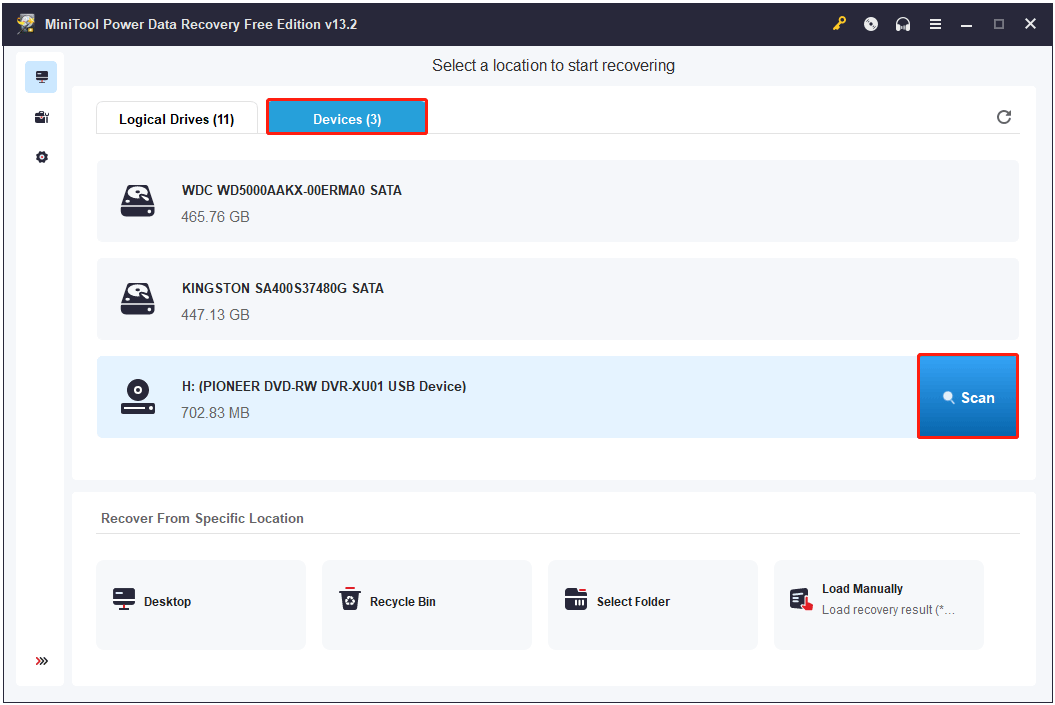
Launch MiniTool Power Data Recovery to enter its main interface. Locate the target CD/DVD under the Devices tab and click Scan to start scanning.
Wait for the scan to complete so the software can search for more recoverable files.
Step 3. Find and Recover VOB Videos
After scanning, go to the Type tab and focus on the Audio & Video section to locate the missing VOB files.
You can also use the Filter feature to narrow down the results according to file type, modification date, file size, and file category. If you remember a file name, search for it to make the process easier.
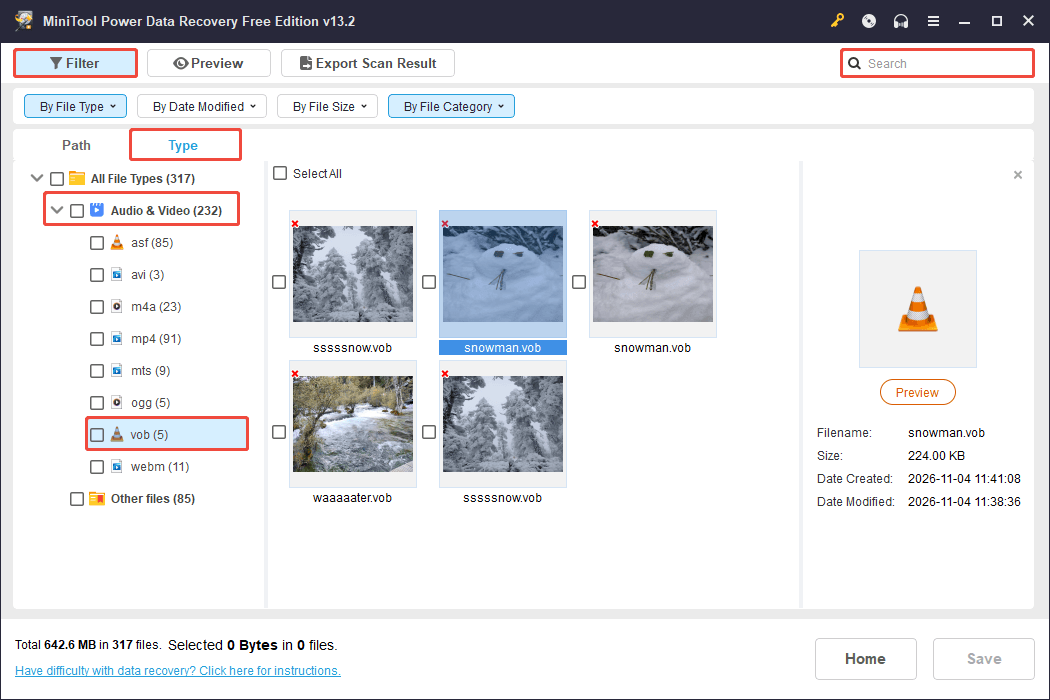
Finally, select the VOB files you want to recover and click Save. Next, choose a destination on a different storage device to store the recovered VOB videos. Do not save recovered files back to the affected disc, as doing so may overwrite other recoverable data.
Once recovery is complete, open several recovered VOB files in a compatible media player and check whether they play normally.
How to Fix Corrupted or Unplayable VOB Files
If your VOB files cannot be played correctly, first determine whether the problem originates from the disc or the video file itself.
The following VOB file repair methods apply to different situations. Start with the method that best matches your problem rather than trying every method.
Method 1. Clean the CD/DVD
Applicable when: The disc has fingerprints, dust, or light surface smudges that may interfere with reading.
If the disc where the VOB files are stored has visible dirt, cleaning it may help the optical drive read the data more reliably.
Step 1. Remove the disc from the drive and hold it by the edges.
Step 2. Use a clean and soft cloth to wipe the disc gently from the center toward the outer edge. If necessary, gently dampen the cloth with water.
Step 3. Allow the disc to dry completely before reinserting it. Then try opening the VOB files and check whether they play correctly.
If the disc or VOB file still cannot be read, try the following methods.
Method 2. Use an Older Computer or DVD Drive
Applicable when: Your DVD is not recognized by your current computer or the VOB reading attempts repeatedly fail.
Different optical drives may behave differently when reading aging or scratched discs. A disc that fails in one drive may still be readable in another.
Follow the steps below to verify this method:
Step 1. Eject the CD/DVD from the current optical drive, and then insert it into another computer with a compatible optical drive, or connect a different external DVD drive.
Step 2. Open the disc and check whether the VOB files are playable. If not, try using another computer, especially an older one.

Method 3. Create an ISO Image of the CD/DVD
Applicable when: The video file plays normally at first but freezes or stops at a certain point, or copying VOB files from the DVD to your computer results in read errors.
An ISO image is a complete disc image that preserves the file system and directory structure of a CD/DVD, including the VOB files.
When you copy individual VOB files directly from a DVD, you may miss other files needed to understand the original DVD structure. Creating an ISO image allows you to preserve the disc’s readable contents together in one file.
Step 1. Use a suitable disc-imaging tool, such as MakeMKV, to create an ISO image of the disc.
Step 2. After the imaging process completes, mount the ISO image in Windows or open it with compatible disc-image software.
Now you can locate and play the VOB files and check whether they are intact.
Creating an ISO image does not repair damaged video data. If the disc contains unreadable sectors, those portions may remain missing or corrupted in the image.
Method 4. Convert the VOB File
Applicable when: The VOB file does not play properly due to compatibility issues, incorrect timing information, or problems with its DVD structure.
Some media players or video editing programs may have difficulty processing the DVD’s structure, causing stuttering, missing sections, or other playback problems.
In this case, converting the VOB file to a more conventional MPEG file may help.
Step 1. Use a VOB-to-MPEG converter to convert the VOB files to MPEG.
Step 2. Open an MEPG file and check whether it plays without issues.
How to Prevent VOB Video File Loss/Corruption
Once you have recovered or repaired your VOB files, it is recommended to take steps to reduce the risk of losing the footage again. Here are some useful tips.
- Keep multiple backups. Copy important files to at least two separate storage locations, such as an external hard drive.
- Verify backup files. After copying a VOB file, play it from beginning to end and make sure it is intact.
- Avoid using damaged discs. If a disc repeatedly reports read errors, transfer stored files to another device, then replace the CD/DVD.
- Store optical discs properly. Keep them in protective cases away from direct sunlight, excessive heat, moisture, and dust. Handle discs by their edges to reduce fingerprints and scratches.
- Handle files carefully. Check carefully and think twice before deleting multiple videos, especially when you do not have a backup.
Conclusion
To sum up, recovering VOB video files requires identifying the cause of the problem first. If the files are deleted or missing, try a suitable data recovery tool like MiniTool Power Data Recovery. If the CD/DVD or VOB files cannot be read, cleaning the disc, testing another optical drive, or creating an ISO image may help.
For any assistance with MiniTool products, please contact the support team at [email protected].
VOB Video Recovery FAQ
Upload the target VOB file, select MP4 as the output format, configure the video settings, and start the conversion.
Therefore, stop saving new files to the affected device and use a data recovery tool, such as MiniTool Power Data Recovery, to scan the drive.
About The Author

Position: Columnist
Shirley holds a bachelor’s degree in English and has been an editor at the MiniTool Team for many years. She specializes in IT-related content, with a focus on data recovery, file backup, disk management, and other technical topics. She is committed to delivering clear, accurate, and practical solutions to help users resolve common computer issues.
User Comments :