

In many cases, you can still recover data from a formatted USB drive if the lost files have not been overwritten. This guide explains why formatted USB data can be recovered and how to restore your files step by step using reliable data recovery software.
Formatting a USB drive removes all the files stored on the drive. However, formatting does not always mean that your data is permanently deleted.
When a USB flash drive is formatted, the file system information used to access your files is removed, but the actual data may still remain on the drive until it is overwritten.
In this guide, you will learn when data can still be recovered after formatting, what factors affect recovery success, and how to recover files from a formatted USB drive step by step.
Can You Recover Data From a Formatted USB Drive
Yes, data can often be recovered from a formatted USB flash drive if the lost files have not been overwritten and the drive is still physically healthy.
Recovery is possible when:
- The USB drive is not fully formatted.
- The lost data has not been overwritten by new files.
- The USB drive is physically healthy.
Recovery is unlikely when:
- The USB drive has been fully formatted.
- The lost data has been overwritten by new files.
- The USB drive is physically damaged.
Understanding USB Drive Formatting
Unlike simply deleting individual files, formatting a USB drive resets the entire file system and removes all file references. There are typically two types of disk formatting: quick format and full format. Though both of them remove all the files on the disk, what happens inside the drive is quite different, and this affects the possibility of data recovery.
Quick Format vs Full Format
A quick format only removes the file system table but leaves the actual data intact on the disk, even though the files are not visible to you. In most cases, the files are still recoverable after a quick format.
On the other hand, a full format not only removes the file system table but also scans the drive for bad sectors. During this process, parts of the disk and the lost files may be overwritten, which can make data recovery much more difficult or even impossible.
Things to avoid after formatting:
- Stop using the formatted USB drive immediately to prevent data overwriting.
- Avoid inserting or ejecting the drive frequently.
- Do not format the drive many times.
- Use professional and free data recovery software to recover files as soon as possible.
How to Recover Data From Formatted USB Drives
When a USB drive is formatted, the original files may still remain on the storage device until they are overwritten. Data recovery software can scan the drive, locate recoverable files, and restore them to another location.
MiniTool Power Data Recovery supports recovering various file types from formatted USB drives while keeping the original data unchanged during the scanning and recovery process.
The free edition allows you to recover up to 1 GB of data at no cost. Follow the steps below to recover files from a formatted USB drive.
MiniTool Power Data Recovery FreeClick to Download100%Clean & Safe
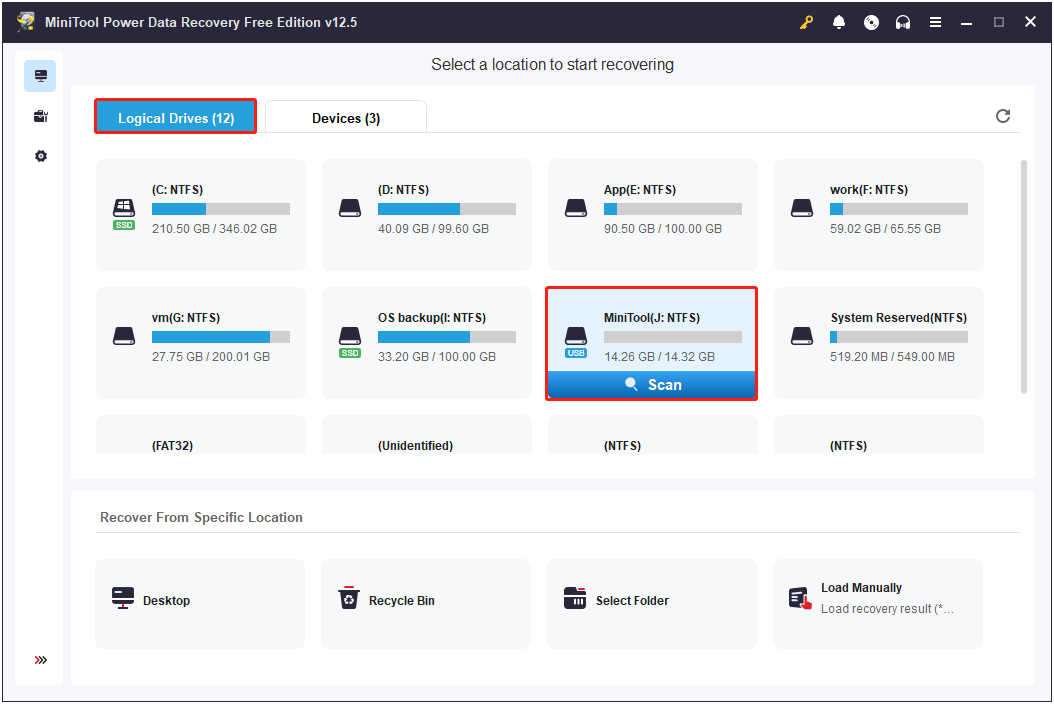
Step 1. Launch the recovery software to enter the main interface. Your USB drive should appear under the Logical Drives section with a USB icon. Locate the target drive and click the Scan button to start scanning for lost files.
Step 2. To get the best and most complete scan results, it is important to let the scan finish automatically rather than interrupting it halfway.
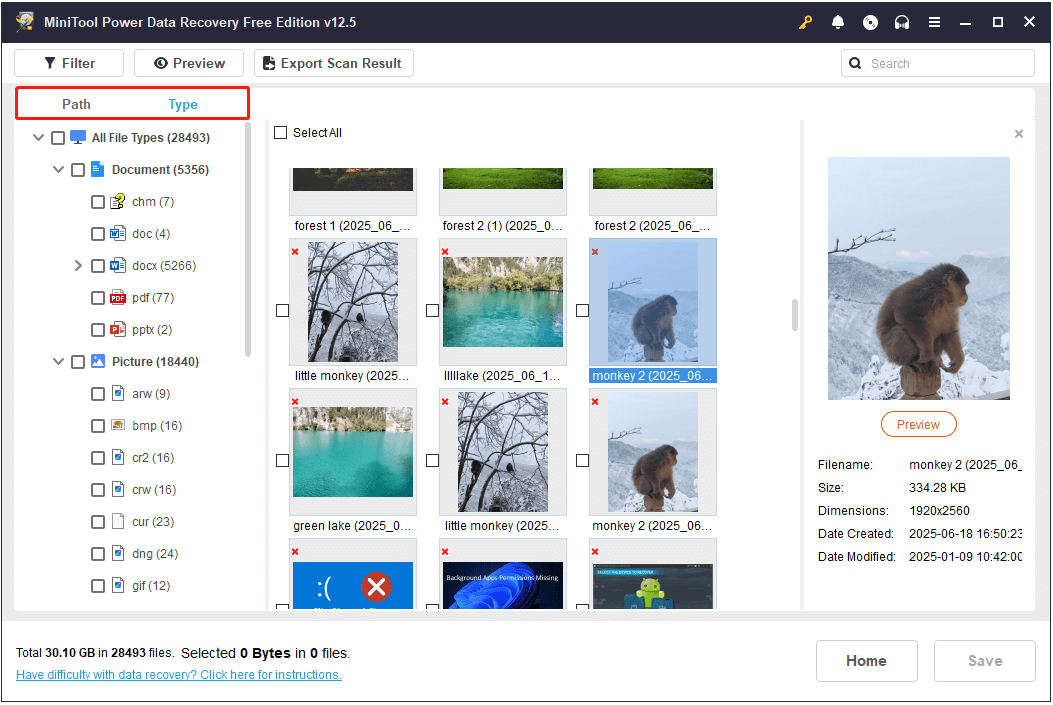
Once the scan is complete, all found files will be displayed under the Path and Type tabs.
- If you want to locate your files according to the original folder structure, stay on the Path tab and expand each folder to browse your files.
- If you prefer to view files by file type and format, switch to the Type tab and focus on the target file type.
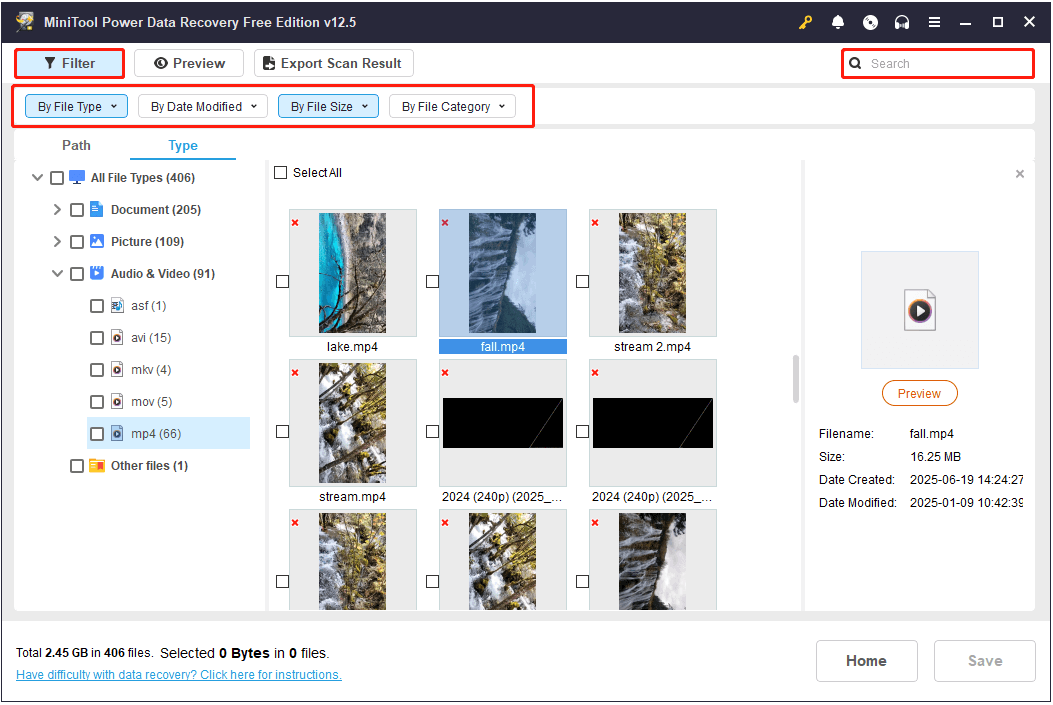
In addition, this easy-to-use recovery tool provides you with two other features to help you locate your files more easily.
- Filter: Click Filter, and then you will be able to exclude unwanted files by file type, file modification date, file size, and file category.
- Search: Type a partial or complete file name into the search box and press Enter to view matching results.
Step 3. Select the files you want to recover and click Save. You will be prompted to select a location to store the recovered files. Choose another disk and click OK to start the recovery.
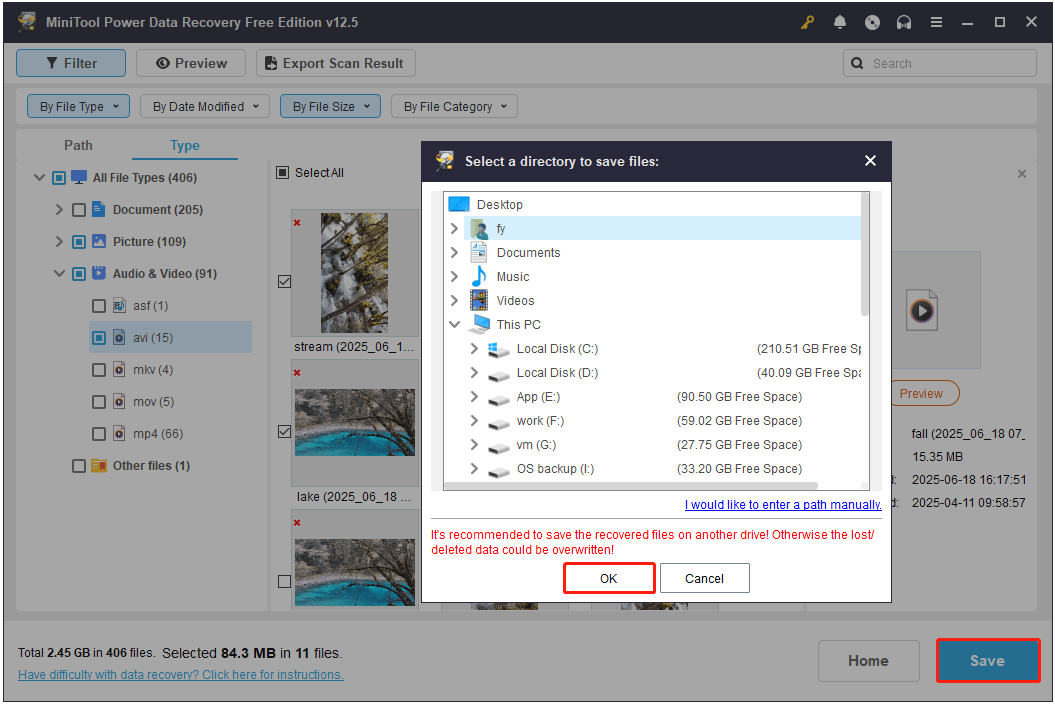
Once the recovery is completed, you can access the target location to view and use your files. If you need to recover more than 1 GB of data, upgrade to a Personal or Business edition. Check MiniTool Power Data Recovery License Comparison.
More Information About MiniTool Power Data Recovery
Apart from the features introduced above, the MiniTool file restore tool also performs excellently in the following scenarios:
- It works great on a wide range of file storage devices, including SSD data recovery, SD card recovery, hard drive data recovery, CD/DVD recovery, and more.
- It can recover data lost due to accidental formatting, mistaken deletion, lost or deleted partitions, file system corruption, virus attacks, and so on.
- The full editions of this recovery tool support creating a bootable recovery media and restoring files from an unbootable computer.
This is all about how to recover formatted flash drives by using MiniTool Power Data Recovery.
Turn to Data Recovery Services
If MiniTool Power Data Recovery fails to retrieve your files after formatting, your disk or data may be in a more complex state. In this case, it is recommended to consult a professional data recovery service. These services often have advanced equipment and techniques beyond software capabilities, which can significantly improve the chances of recovery.
Recover Formatted USB Drive on Mac
If you are using a Mac computer, is there any data recovery software that can help you restore files from a formatted USB drive by yourself? Absolutely yes.
Stellar Data Recovery for Mac is a powerful tool designed for macOS users. It can deeply scan formatted partitions or volumes to recover lost data. The Premium edition also supports video repair and photo repair.
You can download the software and scan your USB drive for free to see what files are recoverable. However, a license is required to save the recovered files.
Data Recovery for MacClick to Download100%Clean & Safe

How to Prevent Future Data Loss on a USB Drive
Though there are many data recovery tools and services for Windows and macOS, none can guarantee 100% successful file restoration. So, instead of spending a lot of effort trying to recover lost files, it is better to take some simple steps to prevent data loss or the need to format your USB drive. Here are some tips to help protect your files and avoid disk failure.
Back up USB Drive Regularly
Prevention is better than cure. No matter how data is lost or how the disk is corrupted or damaged, as long as you have a complete and recent backup, data recovery is easy and 100% successful. Therefore, it is crucial to develop a good habit of storing important files in multiple locations instead of relying solely on a USB drive.
You can upload files manually to cloud drives or use professional backup software to create backups. Recommended cloud services include Google Drive, Dropbox, and others. A recommended backup tool is MiniTool ShadowMaker.
MiniTool ShadowMaker TrialClick to Download100%Clean & Safe
Keep an Eye on USB Health
Monitoring the health of your USB flash drive helps you detect potential problems early and avoid situations where you have to format the disk. Here are some practical steps you can take:
- Use diagnostic software like CrystalDiskInfo to check detailed information about your drive’s condition.
- Use Windows’ built-in Error Checking tool to scan the drive for file system errors (In File Explorer, right-click the drive and choose Properties. Under Tools, click Check).
- Inspect the USB drive regularly for physical damage, such as wear, cracks, etc. If you notice any damage, transfer your files immediately and replace the drive.
Avoid Formatting the USB Drive Immediately When Problems Occur
When your USB drive shows as corrupted, not recognized, or asks to be formatted, do not format it right away because formatting will delete all your files. Sometimes, the file system or other problems can be fixed quickly without formatting.
You can try easy steps first: unplug and plug the drive back in, use a different USB port, update the disk driver, or run the Error-Checking tool to fix the file system issues.
If none of these methods work to fix your USB drive, then you can think about formatting it. But before formatting, always try to recover your files with MiniTool Power Data Recovery, unless you want to erase everything on the disk.

Conclusion
To sum up, whether a formatted USB drive can be recovered depends on several factors, such as the formatting method, the physical condition of the drive, and more. You can try using MiniTool Power Data Recovery to scan the USB drive. If it does not find your files, consider turning to a professional data recovery service for further help.
For any questions or suggestions regarding the use of MiniTool products, you can feel free to contact us via [email protected]. We are ready to help.
Recover Data From Formatted USB Drive FAQ
If that does not work, you can use a professional data restore tool like MiniTool Power Data Recovery to check whether the USB drive can be detected.
About The Author

Position: Columnist
Shirley holds a bachelor’s degree in English and has been an editor at the MiniTool Team for many years. She specializes in IT-related content, with a focus on data recovery, file backup, disk management, and other technical topics. She is committed to delivering clear, accurate, and practical solutions to help users resolve common computer issues.
User Comments :