

exFAT is a file system commonly used in cross-platform scenarios due to its broad compatibility. It is typically adopted for USB drives, SD cards, or external hard drives for file transfer or data storage.
However, file loss on exFAT drives can occur in many situations.
Common exFAT Drive Data Loss Scenarios
Here are some common reasons why files stored on an exFAT drive may be lost:
- Accidental deletion. During data management, important files may be accidentally deleted.
- Mistaken formatting. Formatting the drive mistakenly clears the original file system and removes all files contained.
- Improper ejection. Removing the exFAT drive while data is being written or without safely ejecting it may lead to file loss.
- Power failures. Sudden power loss can cause the exFAT removable drive to dismount from the computer, triggering file system corruption or data loss.
- Cross-platform issues. Problems during file transfer on Windows, macOS, and Linux can sometimes result in missing files.
- Malware attacks. Viruses can corrupt the file system of the exFAT drive or directly delete or hide files.
- Physical damage. Incidents, such as dropping or extreme environmental exposure, can make files on the exFAT drive inaccessible.
Severe physical damage typically requires professional data recovery services to restore files. For logical errors, continue reading to improve the chances of recovery.
Critical Immediate Actions After Data Loss
Once you realize that files are missing from your exFAT drive, take action to prevent data overwriting and avoid a more complicated recovery process:
1. Stop using the drive.
Avoid writing new files to the exFAT drive immediately to prevent overwriting lost files. Once files are overwritten, they cannot be recovered by any data recovery software.
2. Disconnect the drive.
Disconnect the disk to prevent certain programs from automatically writing files, which may cause data overwriting. Additionally, potential virus activities can lead to further disk damage or data loss.
3. Do not format the drive.
If the disk becomes inaccessible and Windows prompts you to format it, do not proceed with the format process until data recovery is completed. Formatting will remove all files stored.
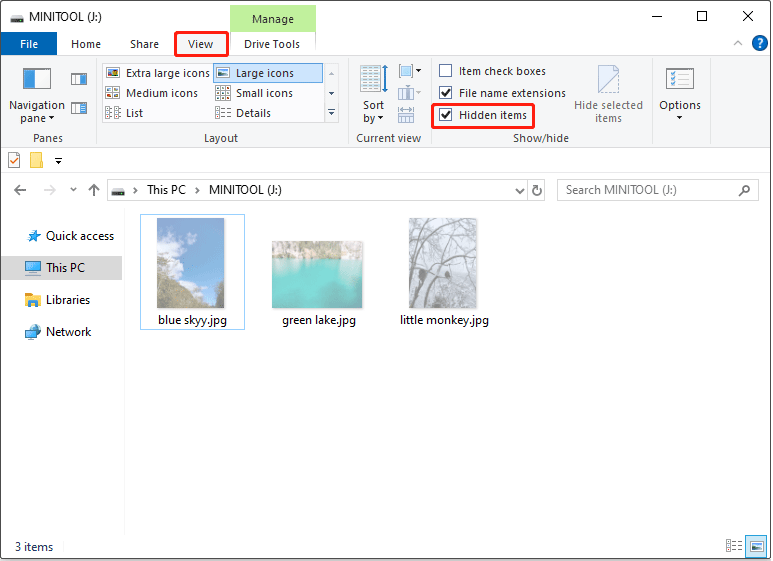
4. Show hidden files.
Sometimes, files are not actually deleted but hidden due to human factors or virus infections. To check for hidden files, open File Explorer, go to View, and check the Hidden items box.
5. Check for backups.
Before turning to data recovery software or professional file recovery organizations, check if you have any backups of lost files on the cloud, phone, or other devices.
6. Use reliable data recovery software.
If your files are permanently inaccessible or lost, use free exFAT data recovery software to restore files as soon as possible.
How to Recover Files From an exFAT USB Drive, SD Card, or Hard Drive
To recover files from a drive with the exFAT file system, use MiniTool Power Data Recovery. This free file restore tool is fully compatible with common file systems, including exFAT, FAT32, NTFS, Ext2/3/4, and more.
It supports the recovery of various file types that have not been overwritten, including documents, images, videos, audio files, emails, and more.
It works effectively in many data loss scenarios, including accidental deletion, disk formatting, virus infection, exFAT becoming RAW, and more.
Compatible storage devices include USB flash drives, SD cards, external hard drives, and internal hard disks.
On your Windows 11/10/8.1/8 PC, install MiniTool Power Data Recovery and use it to recover up to 1 GB of files for free.
MiniTool Power Data Recovery FreeClick to Download100%Clean & Safe
Follow the steps below to perform exFAT data recovery.
Step 1. Scan the exFAT Drive
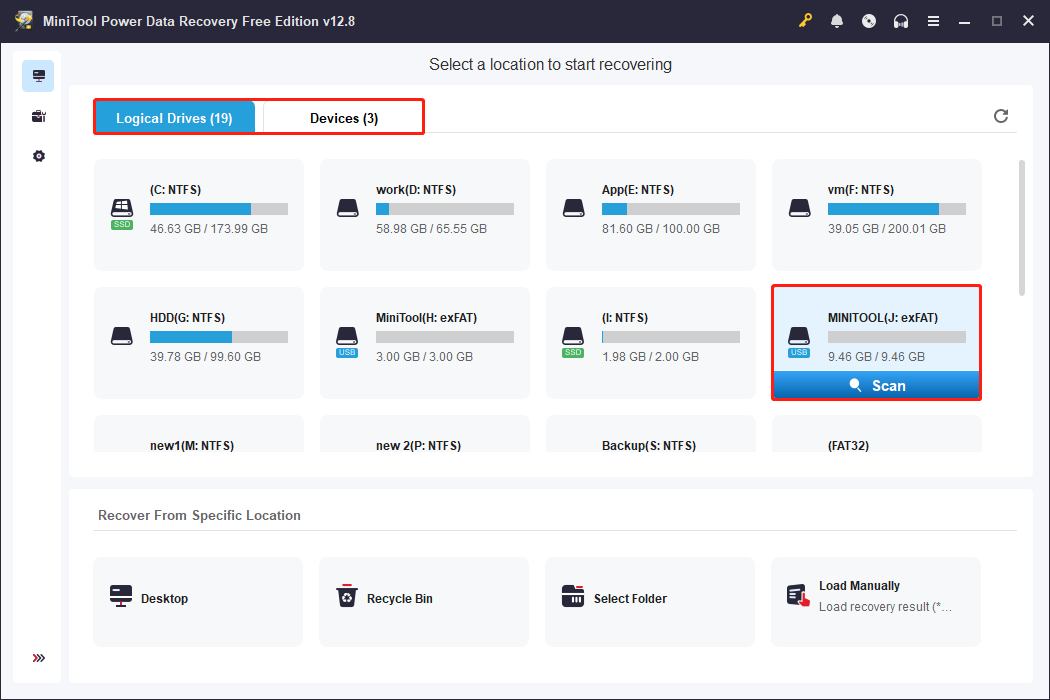
Make sure the exFAT drive is properly connected to your PC, and then launch MiniTool Power Data Recovery.
On its main interface, select the exFAT drive and click Scan to start scanning for files. You can scan a single exFAT partition under the Logical Drives module or scan the entire exFAT disk under Devices.
Step 2. Locate and Preview Files
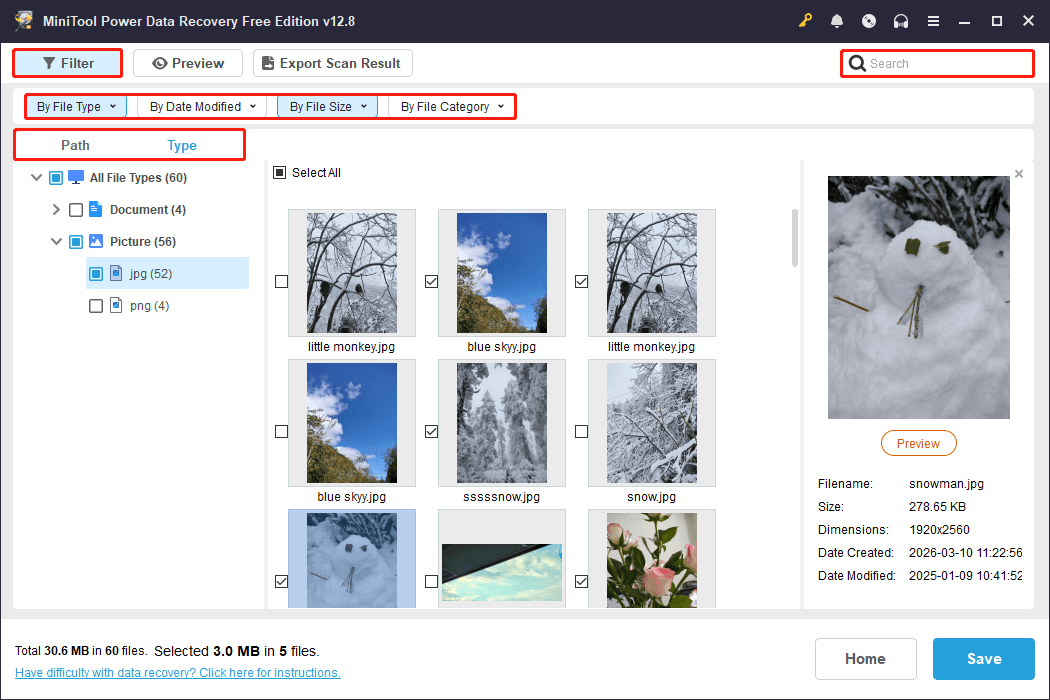
After the scan is completed, use the following features to find and view the files you want to recover.
- Path: Lists found items by original folder structure. Some files may have lost their structure and will be listed under RAW Files.
- Type: Organizes files by file type and data format. Some less common file types are classified in Other Files.
- Filter: Filters files further by file type, date modified, file size, and file category. It allows you to set up several filtering criteria at a time.
- Search: Searches for certain files by using partial or full file names. It cannot be used together with other features.
- Preview: View file contents before recovery. Common file types are all supported for preview, such as videos, documents, pictures, and emails. Double-click a file to preview.
Step 3. Save Required Files
Check all the items you need to recover and click Save. In the new window, select a safe location separate from the original exFAT drive and click OK.
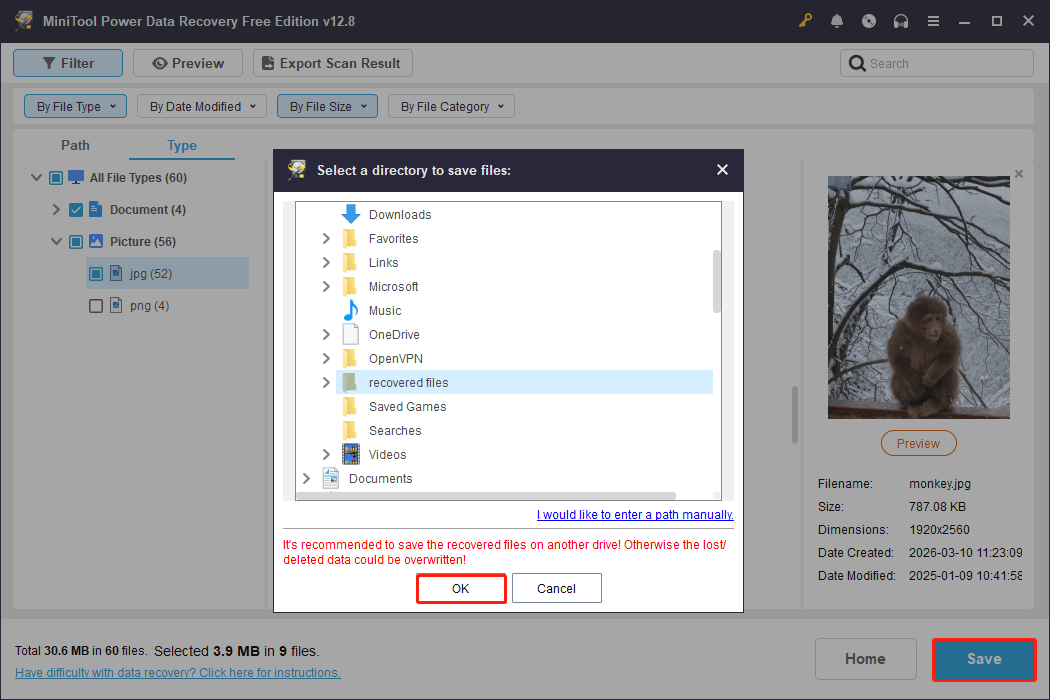
If you need to recover more than 1 GB of files, upgrade to MiniTool Power Data Recovery Personal.
Once the recovery is completed, you can access the selected path to view the recovered files.
How to Repair a Corrupted exFAT Drive
After explaining how to recover files from an exFAT drive, this section offers two effective methods for fixing a corrupted exFAT disk to restore its functionality.
These methods range from simple file system repairs to complete file system rebuilds.
Solution 1. Run CHKDSK to Repair File System Errors
CHKDSK is a built-in Windows command-line utility designed to scan and repair file system integrity on hard disks and removable drives. It supports various file systems, including exFAT, NTFS, and FAT32.
Follow the instructions below to execute the CHKDSK command.
Step 1. In the Windows search box, type cmd. When the Command Prompt option appears, right-click it and choose Run as administrator.
Step 2. Type CHKDSK J: /f /r /x and press Enter.
- J: Represents the drive letter that you want to scan and repair. Replace it with the actual drive letter.
- /f: Fixes any detected file system errors on the partition.
- /r: Locates bad sectors and attempts to recover readable information.
- /x: Forces the specified drive to dismount before scanning for errors.
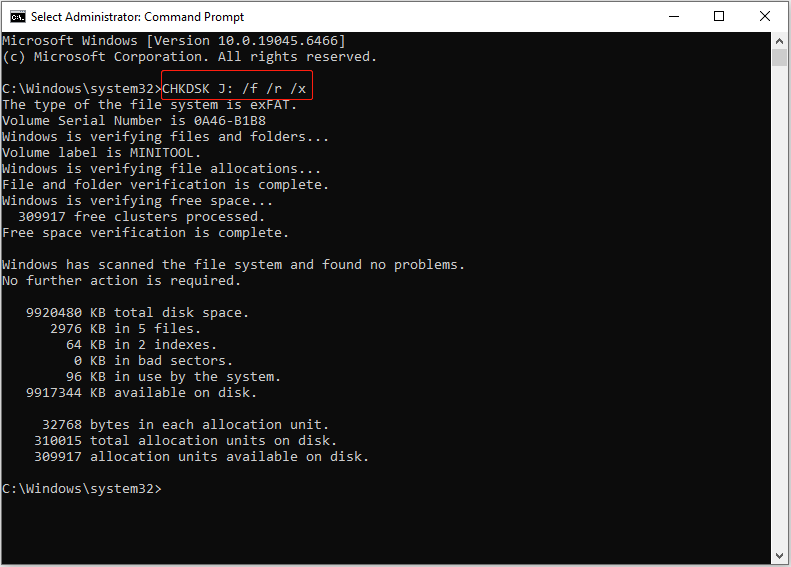
If CHKDSK encounters errors or fails to fix the disk, consider formatting the drive to rebuild the file system.
Solution 2. Format the exFAT Drive
Formatting a drive removes all files and recreates the file system, which typically resolves logical errors on the disk. Furthermore, a full format also scans for bad sectors and overwrites existing data.
Follow the steps below to format an exFAT drive.
Step 1. In File Explorer, right-click the disk and choose Format.
Step 2. Set up the file system and volume label. Keep the Quick Format box checked, and click Start.
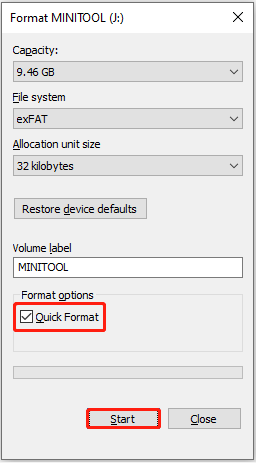
Step 3. Click OK to confirm.
Read More:
In some cases, formatting a drive in Disk Management may get stuck or encounter errors. When this happens, try using the professional partition manager, MiniTool Partition Wizard, to format the drive.
This partition manager supports formatting USB drives, SD cards, and hard drives to NTFS, FAT32, and other file systems for free.
Download MiniTool Partition Wizard and follow the steps below to format your exFAT drive.
MiniTool Partition Wizard FreeClick to Download100%Clean & Safe
Step 1. On the main interface of the formatter, select the exFAT partition and choose Format Partition from the left sidebar.
Step 2. Set up the partition label, file system, and cluster size. After that, click OK.
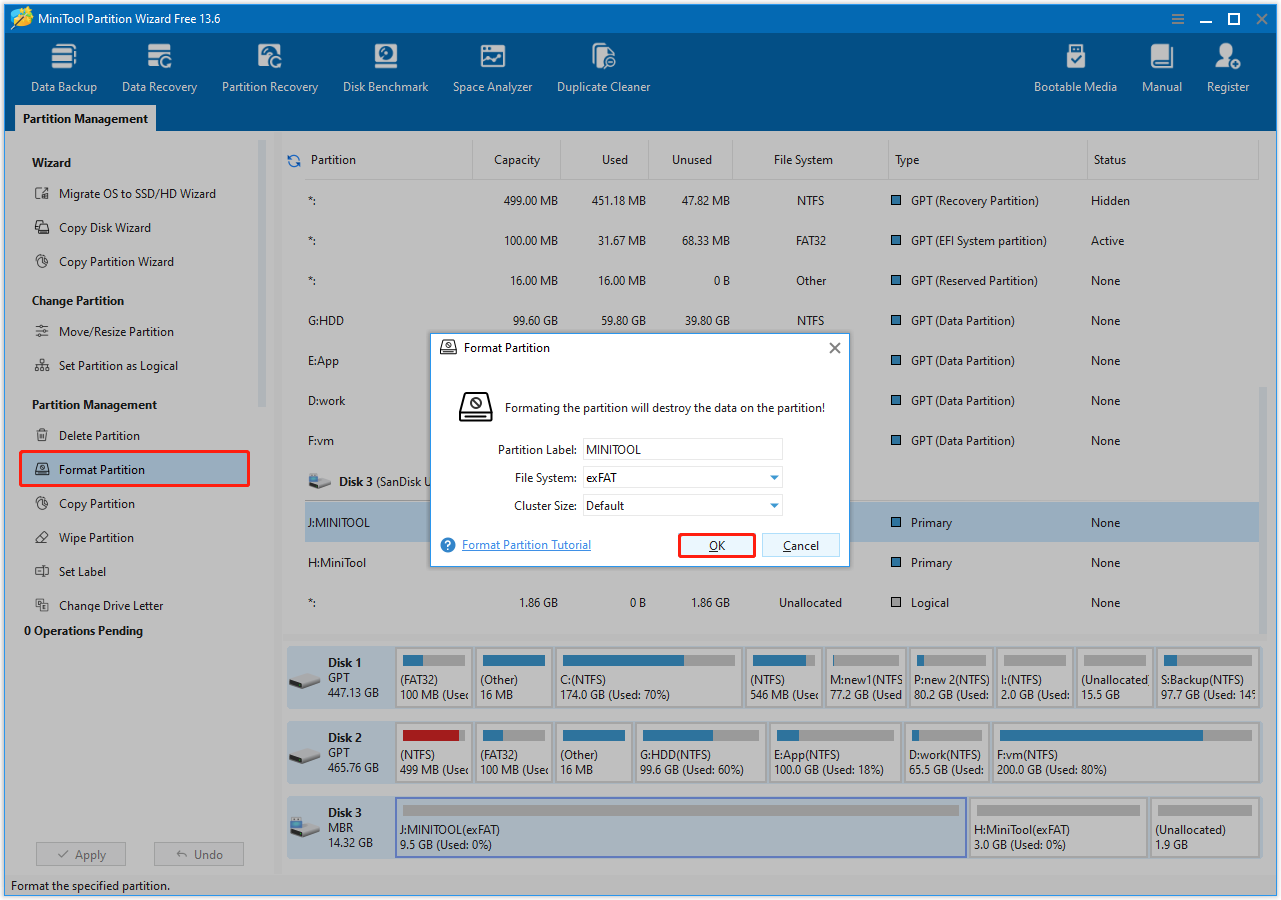
Step 3. Click Apply to confirm.
After formatting, the exFAT drive should work normally.

When exFAT is Not the Best Choice for Your File System
Admittedly, exFAT is a good file system with wide compatibility across Windows, macOS, and Linux. It also supports individual files larger than 4 GB, overcoming the partition size limitation of FAT32.
However, it has several disadvantages, making it not an ideal choice in many situations.
Limitations of the exFAT File System
1. No Journaling
A journal is a data structure used to record metadata operations performed by the file system before changes are made to disk data.
When a system crash or power outage occurs, the journal helps prevent corruption of the original data structure, thereby improving the reliability of the file system.
File systems such as Windows’ NTFS and Linux’s Ext3 implement the journaling mechanism to protect the disk file system and your files.
However, exFAT is not a journaling file system and does not maintain a journal to track file system changes. Therefore, it is more susceptible to data loss or file system corruption in the following situations:
- Disconnecting the exFAT removable drive from your computer without safely ejecting it.
- Sudden power outages or system crashes during file write or modification operations.
- Removing the exFAT storage device while files are still being transferred.
2. Default Large Cluster Size in exFAT
exFAT uses a larger cluster size by default (32 KB for disks under 32 GB, 128 KB for larger disks), while NTFS uses 4 KB (4096 bytes) and FAT32 uses 8 KB (8192 bytes). This makes exFAT less efficient for storing small files.
A cluster is the smallest unit of data storage in a file system. When storing files on a drive, the file system allocates a full cluster to each file. As a result, even a small file occupies a complete 32 KB cluster on an exFAT drive, leading to wasted disk space.
This reduces the total number of files that can be stored on an exFAT drive compared to other file systems. For example, NTFS can store significantly more small files than exFAT in the same disk space.
When to Avoid Using exFAT for Your Drive
Based on the limitations of the exFAT file system, it is recommended to avoid using exFAT in the following circumstances.
1. When Data Security Is the Top Priority
The lack of journaling in exFAT makes it not an optimal choice for long-term storage of critical information. Interrupted data writes, file editing, or drive disconnections can easily lead to file corruption or data loss.
Therefore, for stronger file security requirements, NTFS and FAT32 are more reliable file systems.
2. If the Drive Primarily Stores Small Files
Due to the large default cluster size of 32 KB, exFAT is inefficient for storing numerous small files, which can cause wasted storage space.
If you prefer to use exFAT, it is recommended to reduce the cluster size to a smaller value during disk formatting to optimize disk space usage.
3. When Using the Drive for Data Backup
As mentioned above, exFAT lacks the journaling mechanism. As a result, it is not a reliable option for storing backup files. For a secure data backup, NTFS and FAT32 are recommended.
MiniTool ShadowMaker TrialClick to Download100%Clean & Safe
How to Convert exFAT to NTFS
Unlike converting FAT32 to NTFS, which can be completed without data loss, converting from exFAT to NTFS requires a quick format.
To convert an exFAT drive to NTFS, back up all existing files, and then format the drive to NTFS from File Explorer or Disk Management.
Bottom Line
In conclusion, as long as the lost data has not been overwritten by new files and the disk is not physically damaged, exFAT data recovery is generally possible.
Even if the disk has logical corruption, MiniTool Power Data Recovery can serve as an effective solution for file recovery.
However, for daily use, exFAT is typically not recommended due to its limited file system security and lack of data protection features.
Should you encounter any issues while using MiniTool products, please do not hesitate to contact the support team at [email protected].
About The Author

Position: Columnist
Shirley holds a bachelor’s degree in English and has been an editor at the MiniTool Team for many years. She specializes in IT-related content, with a focus on data recovery, file backup, disk management, and other technical topics. She is committed to delivering clear, accurate, and practical solutions to help users resolve common computer issues.
User Comments :