

If an external hard drive shows unallocated space, use data recovery software to recover important files first. Check Disk Management for “Unknown” or “Not Initialized” status. If only unallocated space is present and you don't need the data, you can create a new partition.
Quick Answer
If your external hard drive shows unallocated in Windows Disk Management, the first step is to recover data because creating partitions or initializing the disk may overwrite existing information. After securing your files, you can fix the issue by initializing the disk, creating a new partition, or checking possible disk errors.
What Does External Hard Drive Shows Unallocated Mean
When an external hard drive shows Unallocated in Windows Disk Management, it means Windows detects the physical drive but cannot find a valid partition that can be accessed. As a result, the drive space appears as unallocated instead of showing your files.
This problem usually indicates an issue with the partition table, file system, or disk structure. Windows cannot recognize the original partition, so it marks the space as unallocated.
Before trying any repair operation, it is important to determine whether the drive contains important files. Some operations, such as initializing the disk or creating new partitions, may change the disk structure and affect data recovery.
There are many reasons for this problem. Understanding the cause is the first step in subsequent troubleshooting and recovery.
Why Does an External Hard Drive Show Unallocated
An external hard drive may become unallocated because Windows cannot recognize its existing partition information. Common causes include:
- Partition table corruption or loss: The drive’s partition information is corrupted, and the system cannot recognize the partitions, causing unallocated space.
- Hard drive uninitialized or abnormal initialization: A new hard drive or a drive with a failed initialization may lack valid partition information, resulting in unallocated space.
- File system corruption: The hard drive originally had partitions, but the file system is corrupted seriously, preventing the system from mounting the partitions.
- Physical damage or bad sectors: The hard drive has severe bad sectors or physical damage, making partition information unreadable.
- Abnormal insertion/removal or power supply: Unstable power supply or a faulty interface during the insertion/removal of the device may lead to partition information loss.
After identifying the possible causes, the next and most important step is to recover data from the unallocated external hard drive before repairing the disk. This helps avoid potential data loss caused by further disk operations.
Before Repair: Recover Data from the Unallocated Disk
When an external hard drive is unallocated, your files may still remain on the disk, but Windows cannot access them because the partition information is missing or damaged. If you repair the drive directly, new disk structures may overwrite recoverable data.
Recovering the data first ensures that the original files are not affected during the repair process. This is best practice for data security.
Here are two options to recover data from the unallocated external hard drive.
Option 1: Recover Files Using MiniTool Power Data Recovery
MiniTool Power Data Recovery is a professional and powerful tool for data recovery.
This software can scan the entire disk, not just existing partitions. Even when the partition table is corrupted or the disk shows as unallocated, it can still scan and recover files.
Besides unallocated space, it can also handle formatted partitions, RAW partitions, and more.
This tool supports recovering various files, including documents, pictures, videos, and audios. The Preview function is provided for easy confirmation of file content.
It uses read-only mode to avoid further damage to your data. Most importantly, this free file recovery software allows you to restore 1 GB of files for free. Download and install it to recover files.
MiniTool Power Data Recovery FreeClick to Download100%Clean & Safe
Step 1: Select and scan the target drive
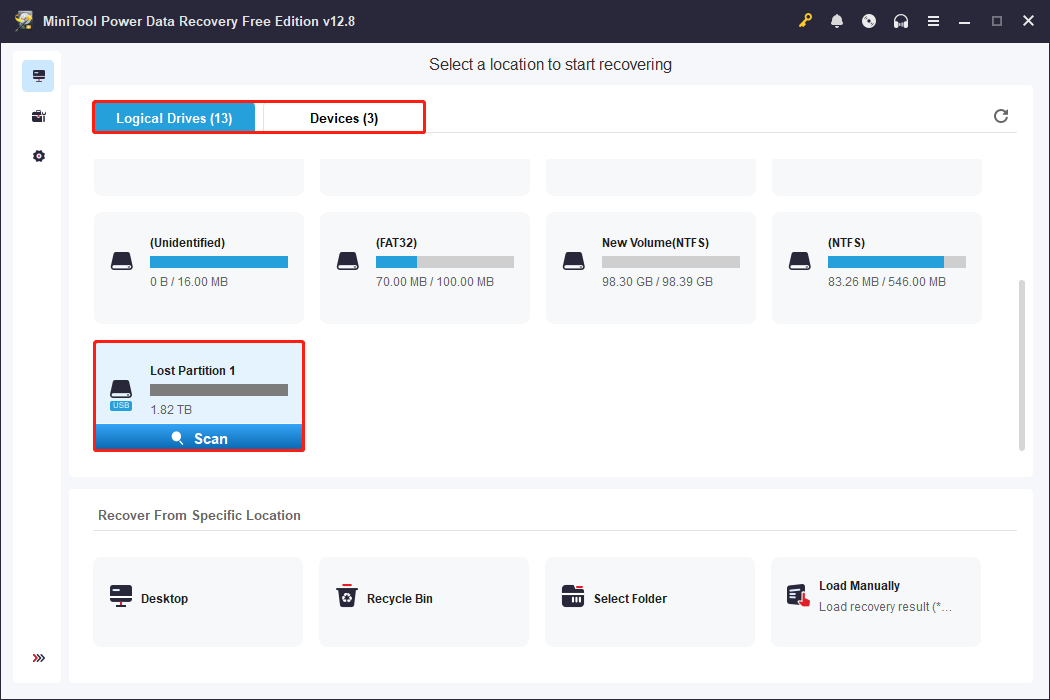
Launch the software to enter the main interface. Under Logical Drives, all the existing or deleted partitions are displayed. Select the lost partition or unallocated space and click Scan.
Alternatively, go to Devices and scan the whole disk. Then, wait for the scan process to complete.
Step 2: Find the target files using Path, Type, Filter, and Search
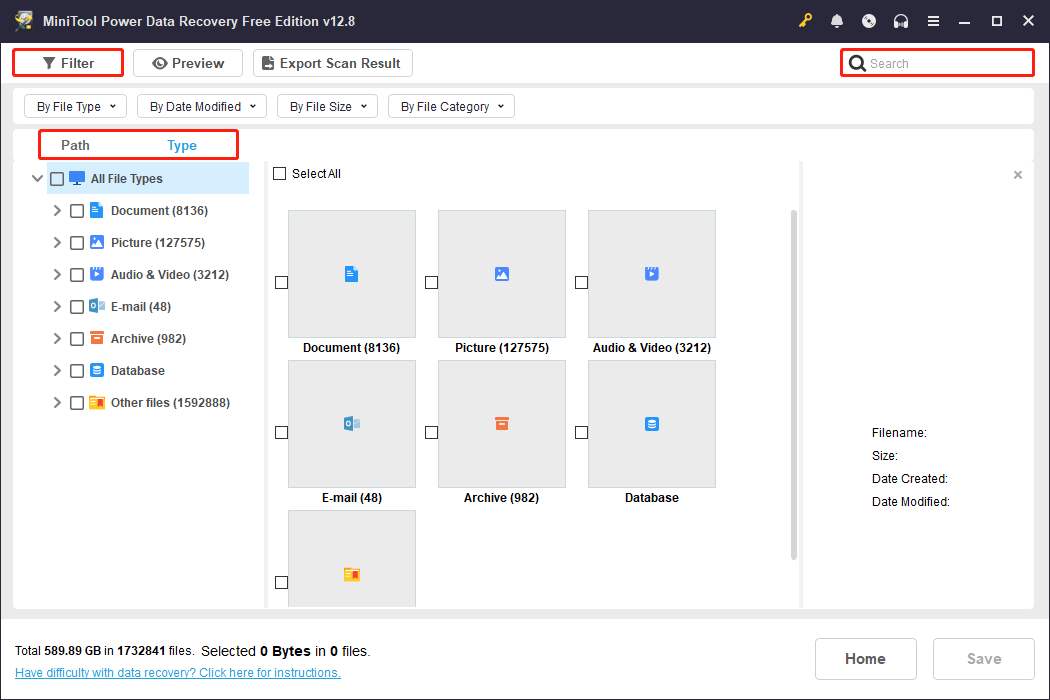
When the scan ends, use Path, Type, Filter, and Search to locate the files.
- Path: Lists scan results by the original folder path, allowing you to quickly locate files just like in File Explorer.
- Type: Categorizes files by file type, making it easy to quickly find pictures, videos, audios, and more.
- Filter: Filters results by file type, modification date, file size, and file category to further narrow down the search.
- Search: Directly enters a full or partial filename in the search box and press Enter to search for the specific file.
After finding the files, double-click them to preview. This helps check if the file is complete and correct.
Step 3: Recover files to a safe location
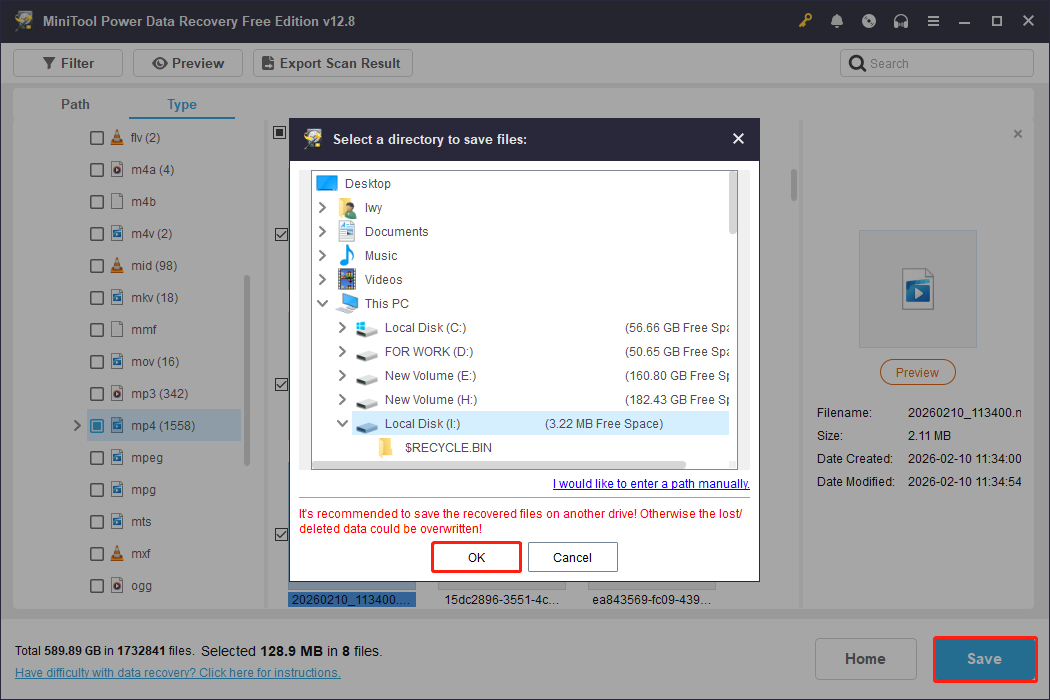
When the files are confirmed, select them and click the Save button. In the new window, choose a path for the recovered files and click OK. Wait for the recovery to complete.
When the Recovery Completed window shows, click the View Recovered button to check your files.
Option 2: Recover Partitions Using MiniTool Partition Wizard
In addition to recovering files, you can also recover the entire partition. This section explains how to recover lost or deleted partitions in detail. For this purpose, a professional partition tool is recommended.
MiniTool Partition Wizard is a tool that integrates partition management and recovery. The interface is intuitive, and partition recovery can be completed in just a few steps.
This tool can not only recover partitions but also recover files within them, preventing data loss. The built-in partition recovery function can recover partitions lost due to accidental deletion, virus attacks, partition table corruption, system updates, and so on.
This software is compatible with Windows 7/8/8.1/10/11, as well as various devices, including external hard drives, USB flash drives, SD cards, and more.
Now, download the software and follow the steps below to do a partition recovery.
MiniTool Partition Wizard FreeClick to Download100%Clean & Safe
Step 1: Open the software and switch to the Partition Recovery module.
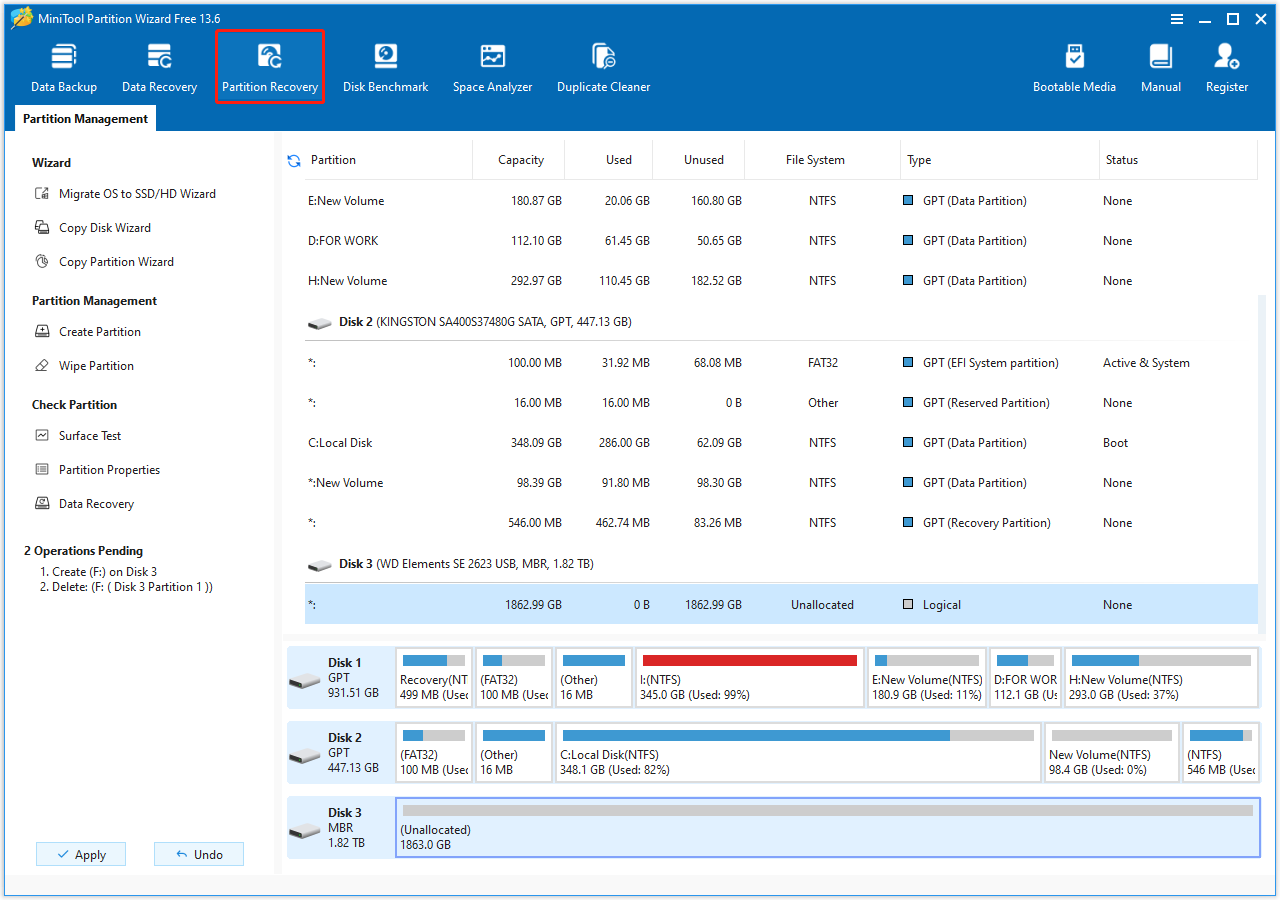
Step 2: Click Next, choose the target disk, then click Next to continue.
Step 3: Choose a scanning range from Full Disk, Unallocated Space, or Specified Range, then click Next.
Step 4: Choose a scanning method from Quick Scan or Full Scan, then click Next.
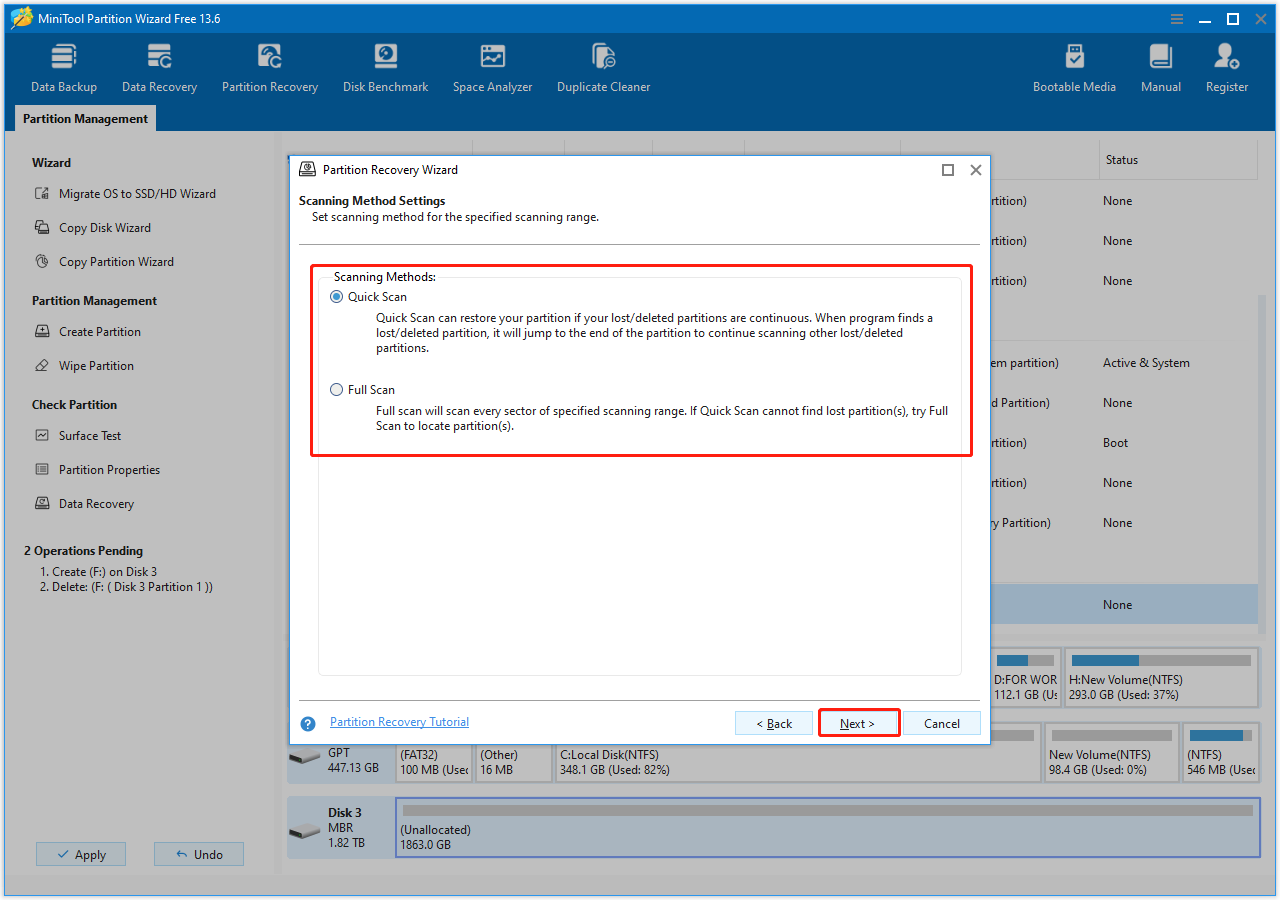
Step 5: Finally, select all needed partitions and click Finish to save them.
After recovering important files or partitions, you can repair the external hard drive based on its current status in Disk Management. The following sections explain two common situations and their solutions.
Case 1: Initialize the Disk When It Shows Unknown or Not Initialized
If your disk is accompanied by “Unknown” or “Not Initialized”, initializing it can restore it to normal. Without initialization, the disk cannot be partitioned or formatted, nor can it store data.
Initialization creates a basic partition structure and a Master Boot Record (MBR) or GUID Partition Table (GPT) for the disk. This allows the operating system to recognize and use it.
Here is how to initialize the disk in Disk Management and Command Prompt.
Option 1: In Disk Management
Disk Management is a secure and reliable tool that comes with Windows systems. It provides the function of initializing a disk, which can quickly create a partition table for the disk.
Step 1: Press Win + X and choose Disk Management.
Step 2: Right-click the target disk and choose Initialize Disk.
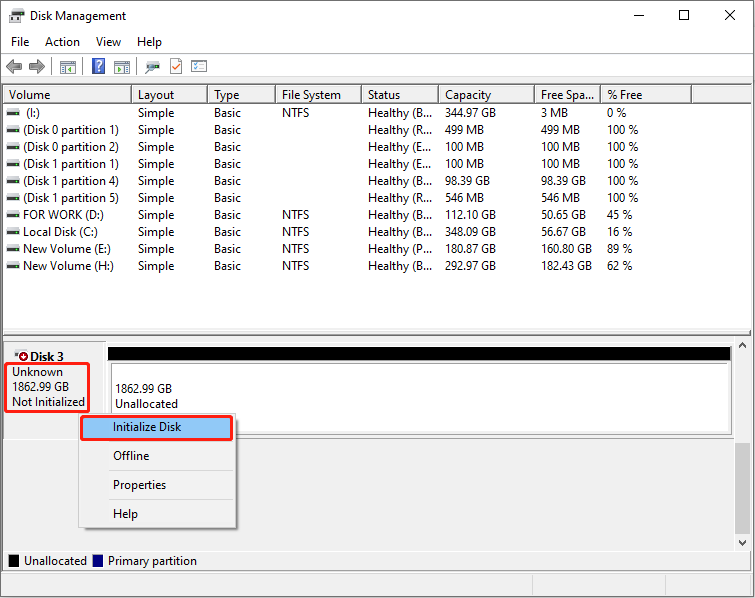
Step 3: Choose the preferred partition table type:
- GPT: Suitable for modern systems, supports disks larger than 2TB.
- MBR: Better compatibility, but limited to a maximum disk capacity of 2TB, with additional capacity remaining unusable.
After making your selection, click OK to complete initialization. After initialization, the disk will be in an unallocated state. Then, create and format partitions.
Step 1: Right-click the unallocated space and choose New Simple Volume.
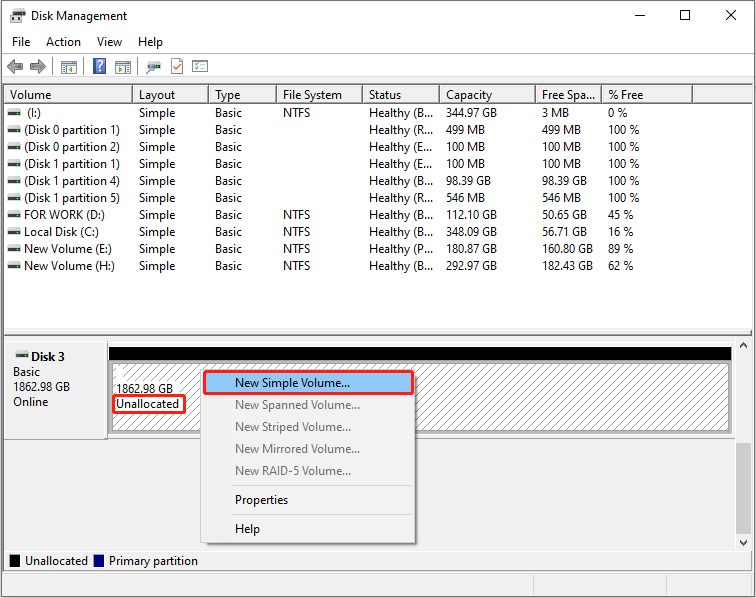
Step 2: In the New Simple Volume Wizard window, click Next.
Step 3: Keep the default settings (use all space) or enter your desired size and click Next.
Step 4: Select an available drive letter and click Next.
Step 5: Choose the file system, customize the volume label, then click Next.
Step 6: Finally, click Finish to complete the creation.
Option 2: In Command Prompt
Command Prompt offers more flexible command-line control. And the DiskPart command allows you to select the partition table type, create partitions, and format the disk.
This avoids the limitations or compatibility issues that may arise with graphical interfaces. Here is how to initialize the disk using DiskPart:
Step 1: Type Command Prompt in the Windows search box, right-click the best match, and choose Run as administrator.
Step 2: Do the following in the prompt window:
- Type diskpart and press Enter to launch the tool.
- Type list disk and press Enter to display all drives.
- Type select disk # (replace # with your actual disk number) and press Enter.
- Type clean and press Enter to remove all partitions and signature, essentially initializing/wiping the disk.
- Type convert gpt or convert mbr and press Enter to set the partition table type.
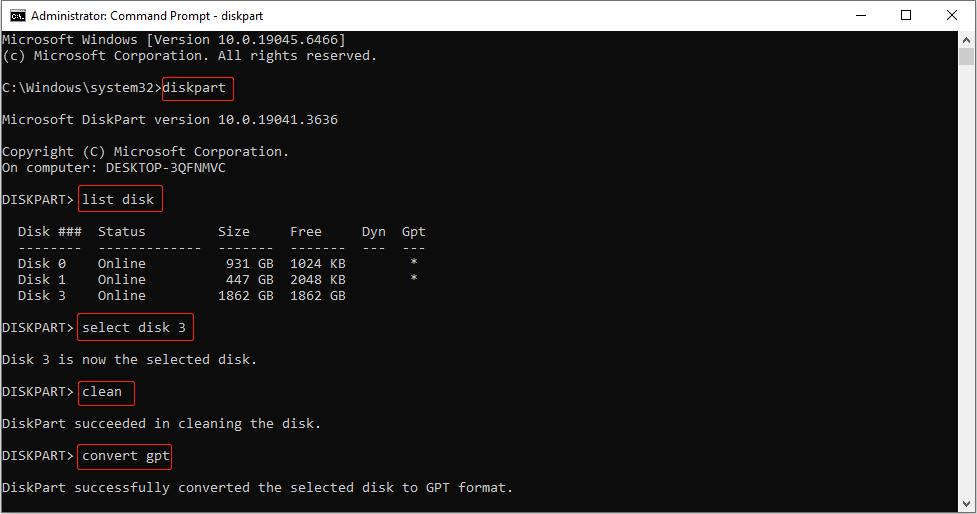
Step 3: Then, input the following commands and press Enter after each to create and format partitions.
- create partition primary (make the disk usable)
- format fs=ntfs quick (format the drive to ntfs. ntfs can be replaced with fat32 or exfat)
- exit (close DiskPart)
Next, check another scenario when the external hard drive only shows unallocated.
Case 2: Create New Partitions When It Shows Unallocated
When an external hard drive shows unallocated space, creating new partitions is the solution.
Unallocated space cannot be used to store any data. By creating new partitions, you can establish a file system and logical structure for the disk.
This allows the operating system to access and manage this space. Here are two options to create new partitions.
Option 1: Use Disk Management
Disk Management is a built-in Windows tool that requires no third-party installation. It is suitable for quickly and systematically creating new partitions.
Step 1: Right-click the unallocated space and choose New Simple Volume.
Step 2: Specify the volume size, assign a drive letter, select the file system, and customize the volume name.
Step 3: After setting everything up, click Next, and finally click Finish to create a new partition.
Option 2: Use MiniTool Partition Wizard
We recommend using MiniTool Partition Wizard to create new partitions on unallocated space. It offers a more intuitive interface and more flexible operation than Windows’ built-in tool.
This software not only clearly displays the disk structure but also supports more advanced partitioning features. Furthermore, its wizard-driven process and user-friendly prompts reduce the risk of accidental operations.
Follow the steps to create new partitions using this partition tool.
Step 1: Download and then launch the software.
MiniTool Partition Wizard FreeClick to Download100%Clean & Safe
Step 2: In MiniTool Partition Wizard, select the unallocated space.
Step 3: Under Partition Management, click the Create Partition option.
Step 4: In the pop-up window, complete the following operations and click OK:
- set a partition name
- choose a drive letter
- select the desired file system
- fill in any other required configuration options
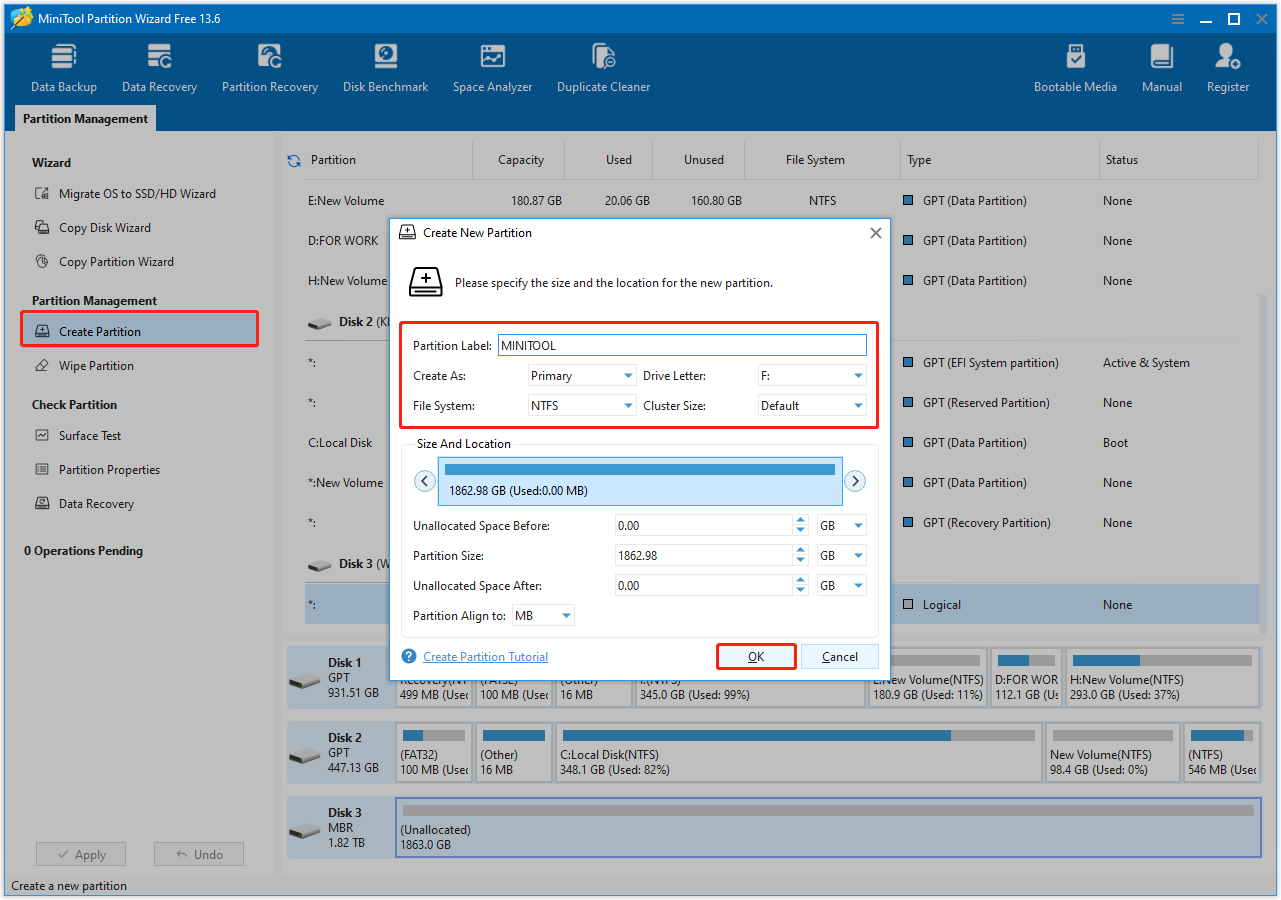
Step 5: Finally, click the Apply button in the bottom left corner of the main interface to make the change take effect.
After the external hard drive returns to normal operation, take some measures to prevent it from becoming unallocated again.
Best Practices to Avoid Unallocated Disk Errors
The following tips can help prevent your external hard drive from showing unallocated space again.
- Perform proper partitioning: Use reliable disk management tools and avoid frequently deleting or merging partitions.
- Avoid forced shutdowns/power outages: Sudden power outages can damage partition tables or file systems.
- Check disk health: Regularly run disk diagnostic tools (such as CHKDSK or SMART) to detect bad sectors or anomalies promptly.
- Use third-party tools with caution: Unsafe partitioning or recovery software may cause partition information loss.
- Maintain system stability: Update drivers and the operating system to reduce partition errors caused by compatibility issues.
In addition to preventing unallocated disk errors, data backup is also important. Ensure you have backed up your external hard drive so you can quickly recover data even if disk problems occur.
External Hard Drive Shows Unallocated FAQ
Final Words
When your external hard drive shows unallocated, the safest approach is to recover important data first and then fix the drive according to its status.
- When it is accompanied by “Unknown” or “Not Initialized”, initialize the disk after data recovery.
- When it only shows “Unallocated”, create a new partition to reuse the drive after confirming that no needed data remains.
For any questions about our MiniTool products, contact us at [email protected].
User Comments :