

If your Toshiba hard drive not working issue occurs, use data recovery software first. Check connections, run CHKDSK, or update drivers. If it's not visible, check the USB connection and Disk Management. Avoid formatting until your data is safe.
Quick Answer: Why Is My Toshiba Hard Drive Not Working?
A Toshiba hard drive may stop working because of connection problems, outdated drivers, file system or partition errors, bad sectors, or physical damage.
- If the drive is detected, back up or recover important files first, then try CHKDSK, driver updates, or other repairs.
- If a Toshiba external hard drive is not showing up, check the cable, USB port, enclosure, Disk Management, and drive letter before initializing or formatting it.
Why Is My Toshiba Hard Drive Not Working
Toshiba hard drive problems can result from connection issues, file system errors, bad sectors, physical damage, or partition problems. Identifying the cause can help you choose the right solution.
- Connection issues. A common cause is a loose or damaged USB cable or connector, preventing the computer from reliably recognizing the hard drive.
- Corrupted file system or partition table. After a power outage, removal from the hard drive, or a system crash, the partition table may become corrupted, or the file system may become RAW.
- Bad sectors. Prolonged use or improper operation can lead to bad sectors, manifesting as slow reading, stuttering, or the inability to open files.
- Physical damage. Drops, vibrations, or aging of the hard drive can cause head damage, motor failure, or scratches on the platters. This typically leads to issues with the drive.
- New disk not initialized. If a newly purchased Toshiba hard drive is not initialized or formatted, the system will not assign a drive letter. Therefore, it will not be visible in File Explorer.
Unignorable Step: Recover Data from Failed Toshiba Hard Drive
When a Toshiba hard drive malfunctions, attempting repair directly may result in the loss of existing data, and in severe cases, it may become unrecoverable. Therefore, data recovery should be performed first.
MiniTool Power Data Recovery can help you recover data when your hard drive malfunctions. Here are some of its characteristics.
It can handle various complex data loss situations such as RAW partitions, unallocated space, system crashes, and corrupted partition tables.
This tool boasts a high recovery rate and good compatibility. It supports scanning multiple storage devices, such as HDDs, SSDs, USB drives, SD cards, and more.
In addition, it supports the recovery of various file types, such as documents, pictures, audios, and videos.
The recovery process uses read-only scanning, which avoids secondary damage or data overwriting.
This free file recovery software allows you to restore 1 GB of files for free. Download and install it to do a recovery.
MiniTool Power Data Recovery FreeClick to Download100%Clean & Safe
Step 1: Open the software and scan the Toshiba hard drive
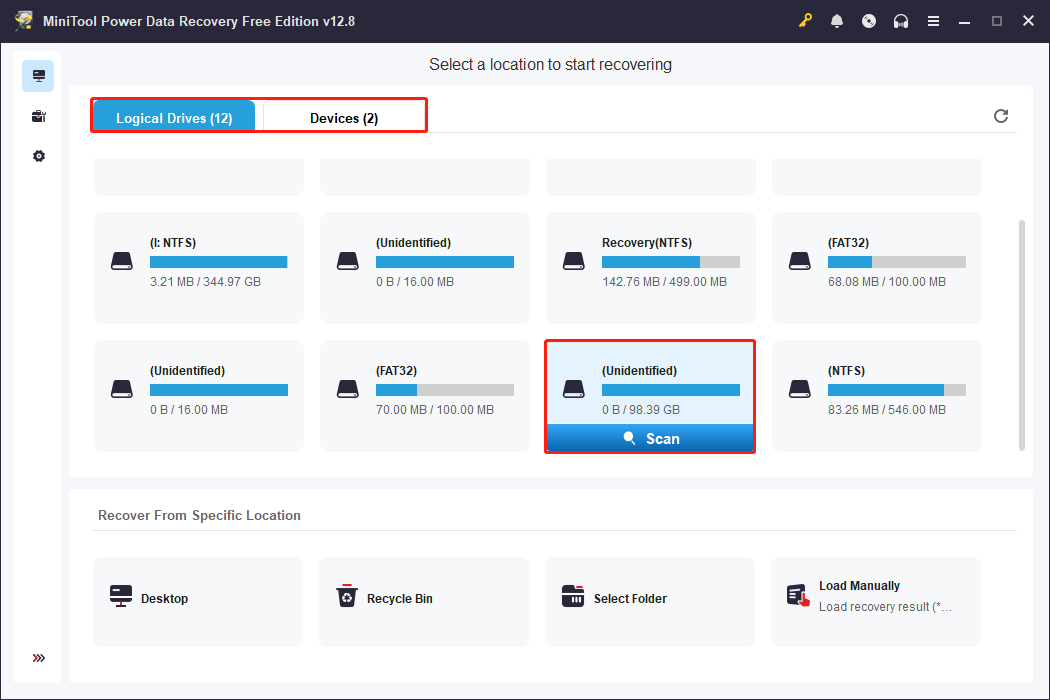
Launch MiniTool Power Data Recovery. Under the Logical Drives tab, all the partitions (existing/lost/unallocated) are listed. Switch to the Devices tab, and you can see all the disks that are connected to your computer.
Select the Toshiba hard drive and click Scan.
Step 2: Find the target files and preview them
This scan process may take some time. When it ends, try the following features to locate the required files quickly.
- Path: The scan results will be displayed according to the original folder hierarchy. You can expand layer by layer to find the folder where the desired files are located.
- Type: The software automatically categorizes found files by type, such as documents, pictures, videos, audios, and more. This allows you to find and recover a certain type of file quickly.
- Filter: It provides conditional filtering capabilities, allowing you to filter files by file type, modification date, file size, and file category. This can significantly narrow down the search results.
- Search: Enter the complete file name or keywords in the search box and press Enter, and the software will quickly locate matching files. This is ideal when you know the file name.
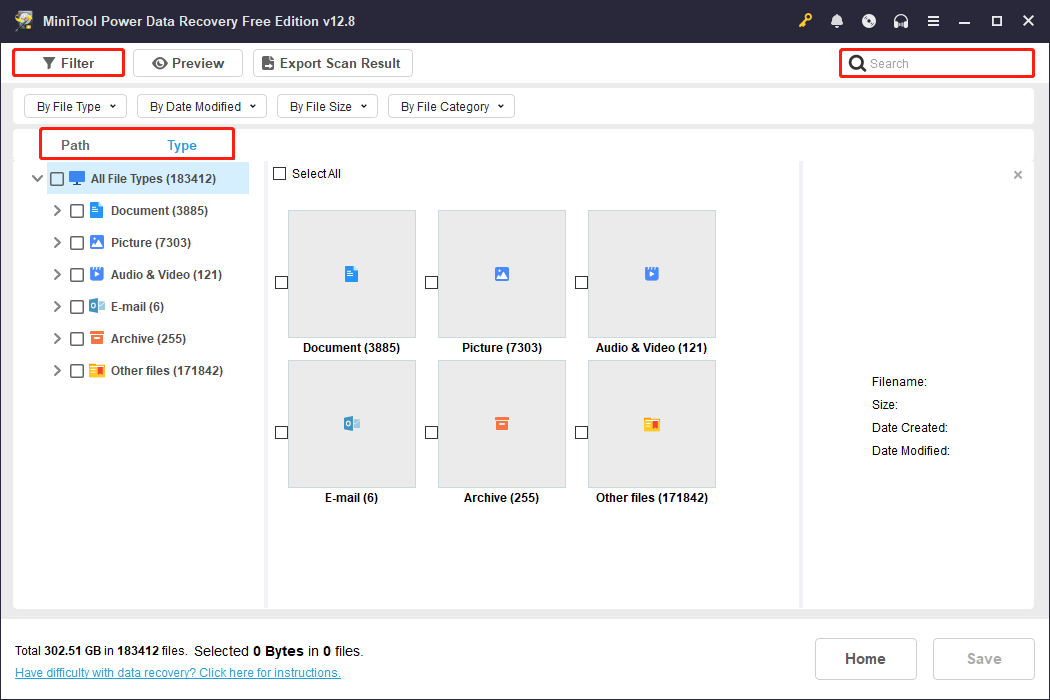
The Preview feature allows you to preview file contents before recovery to ensure their accuracy. This avoids recovering large amounts of useless or erroneous files, saving time and storage space.
Double-click the file you want to check, and the preview window will pop up.
Step 3: Recover files to a safe location
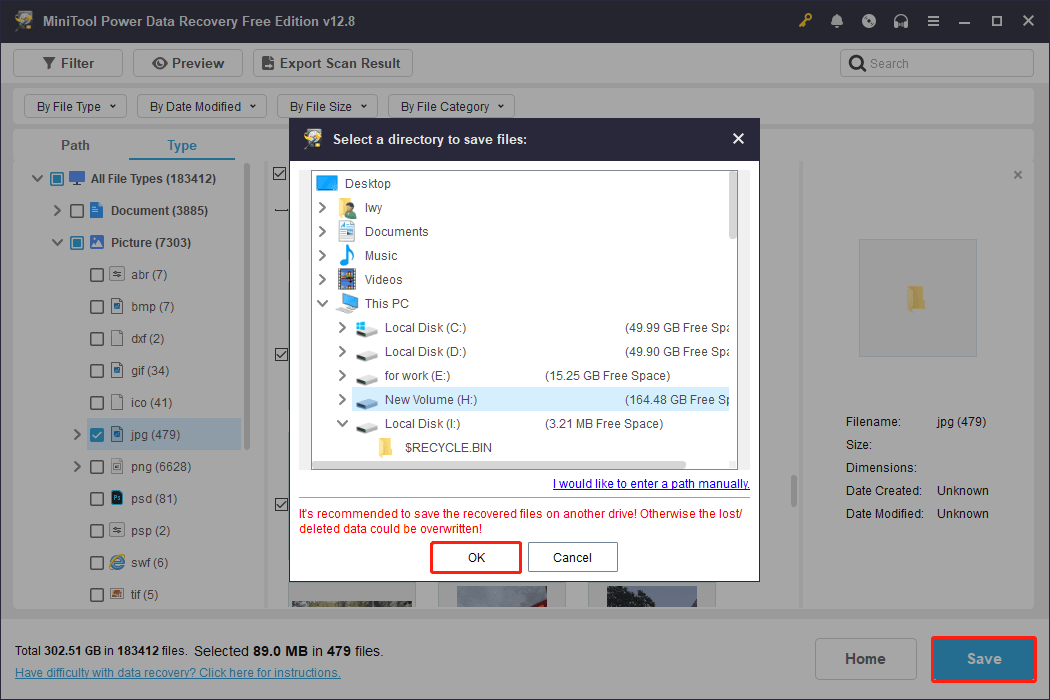
When the files are confirmed, select them and click the Save button. In the prompt window, select a path for the recovered files and click OK to start recovery.
When the Recovery Completed window shows, check your files. After the files are safe, the next step is to fix your Toshiba hard drive.
How to Fix Toshiba Hard Drive Not Working
This section explains how to fix the problem of a Toshiba hard drive not working. Keep trying these approaches until the drive is functioning normally.
Basic Troubleshooting Actions
Before performing advanced methods, do some basic checks:
- Check the connection cables and interfaces: Confirm that the USB or SATA data cable is not damaged and try replacing the interface or cable.
- Check the power supply: External hard drives require sufficient power; ensure the power adapter or dual USB power supplies are working properly.
- Try different computers or operating systems: Test on another computer to rule out problems with the current system environment.
If these checks are ineffective, attempt the following troubleshooting.
Fix 1: Run CHKDSK
Logical errors and bad sectors can cause a hard drive to malfunction. CHKDSK can help check the Toshiba hard drive’s file system and disk surface for errors and repair them.
Step 1: Type cmd in the Windows search box, right-click Command Prompt, and choose Run as administrator.
Step 2: Type chkdsk E: /f /r in the window and press Enter. (Replace E with the drive letter of your disk.)
- /f: Repairs disk errors.
- /r: Locates bad sectors and recovers readable information. (/r includes all the functions of /f, plus additional analysis of physical disk errors.)
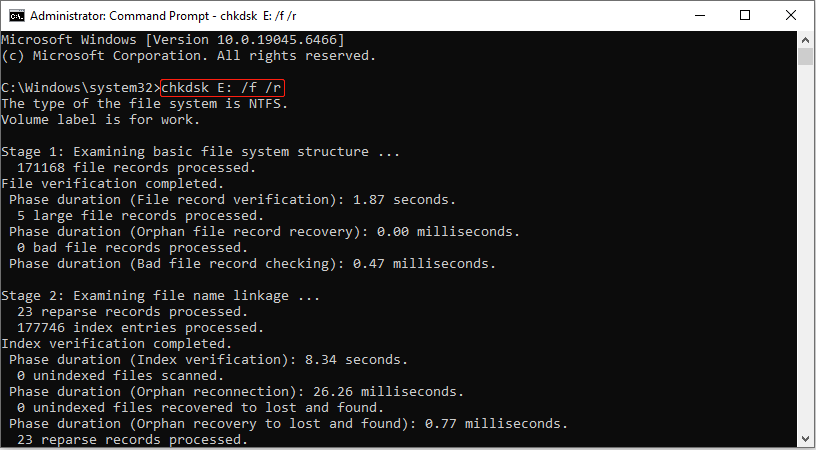
Wait for the process to complete. Then, check if your hard drive is working normally.
Fix 2: Update or Reinstall the Disk Driver
Corrupted or outdated drivers can affect the hard drive’s normal operation. Updating or reinstalling the Toshiba hard drive driver can restore its functionality.
Step 1: Right-click the Start button and choose Device Manager.
Step 2: Expand Disk drives, right-click the drive, and choose Update driver.
Step 3: In the new window, select Search automatically for drivers.
When the new driver is detected, follow the instructions to complete the process.
If there are no available drivers, try reinstalling the device.
Right-click the drive in Device Manager and choose Uninstall device. When the uninstallation ends, restart your PC. Windows will install the driver automatically.
Fix 3: Scan for Viruses
Malware or viruses can impair the normal functioning of a hard drive. Running a virus scan can eliminate potential threats and ensure the security and stability of your system and hard drive data.
Step 1: Press Win + I to open the Settings app.
Step 2: Click Update & Security, and then switch to Windows Security.
Step 3: Under Protection areas, click Virus & threat protection.
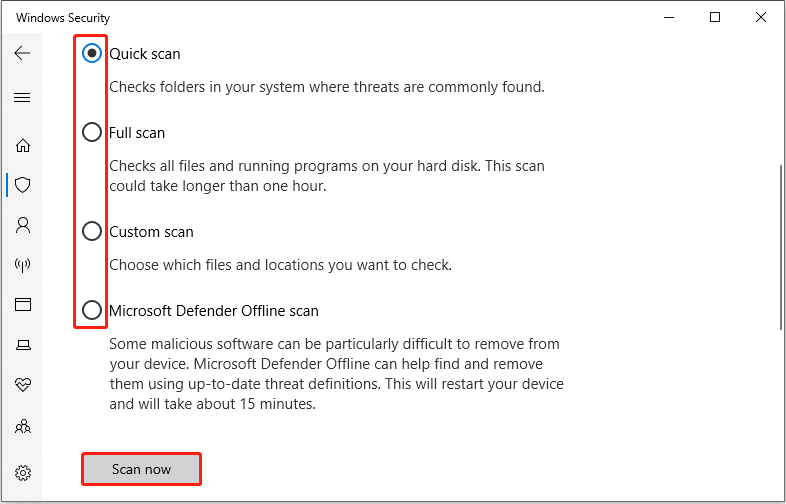
Step 4: Click Scan options, choose a scan method, and click Scan now.
Fix 4: Format the Disk
Formatting will remove all existing data and rebuild the file system. This can resolve problems caused by severely corrupted file systems or partition errors.
Step 1: Press Win + X and choose Disk Management.
Step 2: Right-click the drive and choose Format.
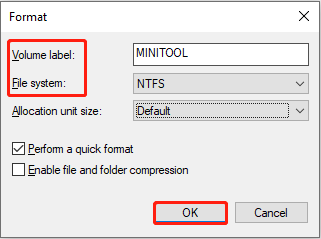
Step 3: Type a volume label, select a file system, and click OK.
Fix 5: Clean the Disk Using DiskPart
When a Toshiba hard drive is not working, try using DiskPart to clean it. This completely removes partition information and partition tables from the disk, eliminating logical errors.
This allows the system to reinitialize the disk structure, preparing it for subsequent repartitioning. Here is how to clean the disk.
Step 1: Type Command Prompt in the Windows search box, right-click the best match, and choose Run as administrator.
Step 2: Type diskpart and press Enter.
Step 3: Then, type the following commands one by one and press Enter after each:
- list disk
- select disk # (# should be replaced with the actual number of your disk.)
- clean
- exit
After executing the clean command, all partition information on the disk will be completely erased. Therefore, the next step is to repartition and format the disk.
Step 1: Reopen Command Prompt as an administrator.
Step 2: Type the following commands one by one and press Enter after each.
- diskpart
- list disk
- select disk # (Replace # with your disk number.)
- create partition primary
- format fs=ntfs quick (ntfs can be replaced by fat32 or exfat.)
- assign letter=# (Replace # with an unused drive letter.)
- exit
After trying these methods, check if your Toshiba drive can work normally.
How to Fix Toshiba External Hard Drive Not Showing Up
If you don’t see the Toshiba hard drive in File Explorer or Disk Management, try the methods outlined in this section.
Fix 1: Test on Another Computer
Connect the hard drive to another computer.
- If the disk is recognized on the new computer, the hard drive itself is fine; the problem lies with the original computer’s environment.
- If the disk is not recognized, then the problem is with the hard drive.
Fix 2: Check External Enclosure
If you are using an enclosure to connect your Toshiba hard drive to your computer, it is essential to check the enclosure.
Damage to the enclosure connectors, chip malfunctions, or poor contact can prevent the computer from recognizing the hard drive.
If the enclosure is not the cause of the Toshiba external hard drive not showing up issue, continue with the following steps.
Fix 3: Update USB Controller Driver
Damaged or incompatible drivers can cause Toshiba hard drives to be unrecognized. Updating or reinstalling the USB controller driver can re-manage the USB interface, restoring drive display and connection.
Step 1: Right-click the Start button and choose Device Manager.
Step 2: Expand Universal Serial Bus controllers.
Step 3: Right-click the USB controller and select Update driver.
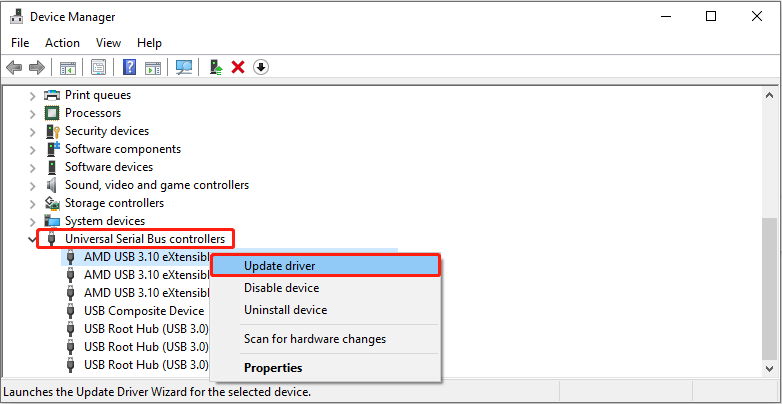
Step 4: In the pop-up window, select Search automatically for drivers. The system will search online for the latest driver.
Fix 4: Check Disk Management
Open Disk Management and check if the Toshiba hard drive is displayed in it. If it is, continue with the following methods. If not, enter BIOS and check if the hard drive is showing. If it is not recognized either, send it for professional repair.
Fix 5: Assign a Drive Letter
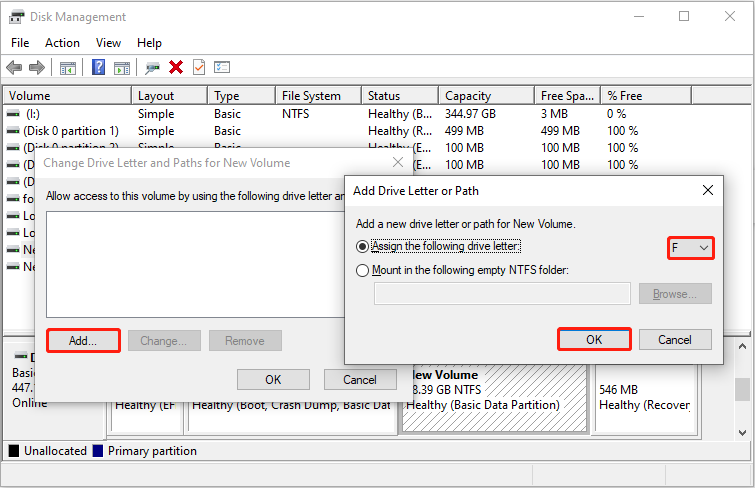
Without a drive letter, the disk may physically exist, but it cannot be used directly in File Explorer or other applications. Here is how to assign a drive letter.
Step 1: Press Win + X and choose Disk Management.
Step 2: Right-click the target drive and choose Change Drive Letter and Paths.
Step 3: Click the Add button, choose an unused letter, and choose OK.
Fix 6: Initialize the Disk
Your Toshiba hard drive may not show up due to a missing partition table. Without a partition table, the system cannot recognize the drive, making it invisible in File Explorer.
Initializing the disk creates a new partition table (MBR or GPT), allowing the operating system to identify the drive properly.
Step 1: Press Win + X and select Disk Management.
Step 2: Right-click the disk marked Unknown or Not Initialized and select Initialize Disk.
Step 3: In the pop-up window, select the partition table:
- MBR (Master Boot Record): Good compatibility, suitable for disks under 2 TB.
- GPT (GUID Partition Table): Supports large-capacity disks and offers more features.
Step 4: Finally, click OK.
Step 5: Create new partitions on the disk to make it function properly.
What to Do Based on the Drive Status
Check the drive status in File Explorer or Disk Management and choose the appropriate solution:
| Drive Status | Recommended Action |
| No drive letter | Assign a drive letter in Disk Management. |
| RAW | Recover important data first, then repair or format the drive. |
| Unallocated | Recover data before creating a new partition. |
| Unknown/Not Initialized | Recover data before initializing the disk. |
| Not shown in Disk Management | Check the cable, USB port, enclosure, and another computer. |
| Not detected or making unusual noises | Stop using the drive and consider professional data recovery. |
When to Seek Professional Toshiba Hard Drive Recovery
Consider professional data recovery if your Toshiba hard drive:
- Makes clicking, grinding, or other unusual noises.
- Is not detected in Disk Management or BIOS.
- Keeps disconnecting or causes the computer to freeze.
- Has been dropped or physically damaged.
- Contains important data that cannot be recovered normally.
If physical failure is suspected, stop using the drive and avoid formatting, initializing, or running DiskPart.
Toshiba Hard Drive Not Working FAQ
If your Toshiba external hard drive is not working or keeps disconnecting, trying a compatible USB cable can help determine whether the original cable is the problem.
Final Words
A Toshiba hard drive not working does not always mean the drive has failed completely. Start with basic checks such as the cable, USB port, power supply, and drivers, then use Disk Management to check the drive status.
If the drive contains important files, recover the data before formatting, initializing, or using DiskPart. When the drive is not detected anywhere or shows signs of physical damage, stop using it and consider professional data recovery.
If you encounter issues or have any suggestions while using MiniTool software, contact us via [email protected].
User Comments :