

When Windows shows “The parameter is incorrect”, first recover important files using MiniTool Power Data Recovery. Then try reconnecting the drive, running CHKDSK, updating or reinstalling disk drivers, running SFC, scanning for malware, or formatting the drive as a last resort.
Quick Answer: How to Fix “The Parameter Is Incorrect”
If Windows says “The parameter is incorrect” when you access a hard drive, external hard drive, USB drive, or SD card, recover important files first. Then check the USB connection, run CHKDSK, update or reinstall disk drivers, run SFC, scan for malware, and format the drive only if the other methods fail.
- Recover important data from the affected drive.
- Check the USB port, cable, or adapter.
- Run chkdsk G: /f /r /x.
- Update or reinstall the disk driver.
- Run sfc /scannow.
- Scan the drive for malware.
- Format the drive as a last resort.
What Does “The Parameter Is Incorrect” Mean
The “The parameter is incorrect” error usually appears when Windows cannot properly access an internal or external storage device.
It may affect hard drives, external hard drives, USB drives, or SD cards and can be caused by file system corruption, bad sectors, connection problems, outdated drivers, or malware.
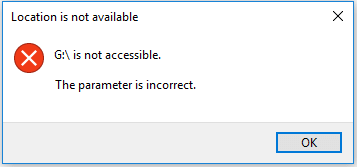
If the affected drive contains important files, recover your data before attempting repair methods. Some repair operations can modify the file system or otherwise affect damaged data, so securing your files first is the safest approach.
Once your important files are safe, you can move on to troubleshooting the underlying cause of the error.
Recover Data Before Fixing “The Parameter Is Incorrect”
When the affected drive contains important files, recovering the data should be your priority. MiniTool Power Data Recovery can scan inaccessible or damaged storage devices and help recover files before you attempt potentially risky repairs.
MiniTool Power Data Recovery supports hard drives, external hard drives, USB flash drives, SD cards, optical discs, and other storage devices. It can recover many common file types without writing recovered data back to the source drive.
The Free Edition allows you to recover up to 1 GB of data. It supports Windows 11, 10, 8.1, and 8. Download and install it now!
MiniTool Power Data Recovery FreeClick to Download100%Clean & Safe
Step 1: Scan the inaccessible disk
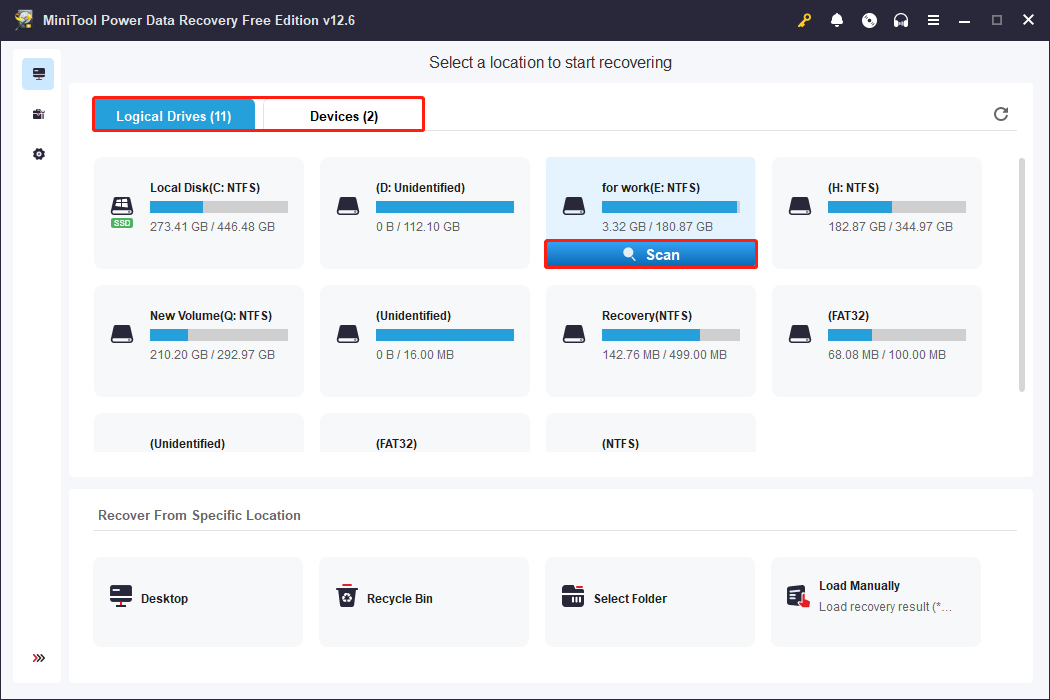
Open MiniTool Power Data Recovery. After loading all the disk information, you will enter the main interface. Under Logical Drives, find the target drive, move your cursor to it, and click Scan.
Alternatively, you can switch to the Devices tab, which includes all the disks connected to your computer, to scan the entire physical disk.
Step 2: Find the target files using Path, Type, Filter, and Search
When the scan process ends, all the files will be listed under Path based on their file structure. To restore multiple files at once while keeping their original organization, select the desired folders for batch recovery.
Besides this, MiniTool provides three file locating features: Type, Filter, and Search. They can help you quickly find target files within massive scan results.
- The Type feature automatically categorizes scanned files by type, such as documents, images, audio, videos, and compressed files. Switch to Type and you can quickly browse a certain type of file.
- The Filter feature allows you to filter files by file type, modification date, file size, and file category, further narrowing your search. Click the Filter button and set the criteria.
- The Search feature is the most direct way to locate files. Enter a file name or keyword and press Enter. The specific file will be filtered.

Step 3: Preview the files you want before recovery
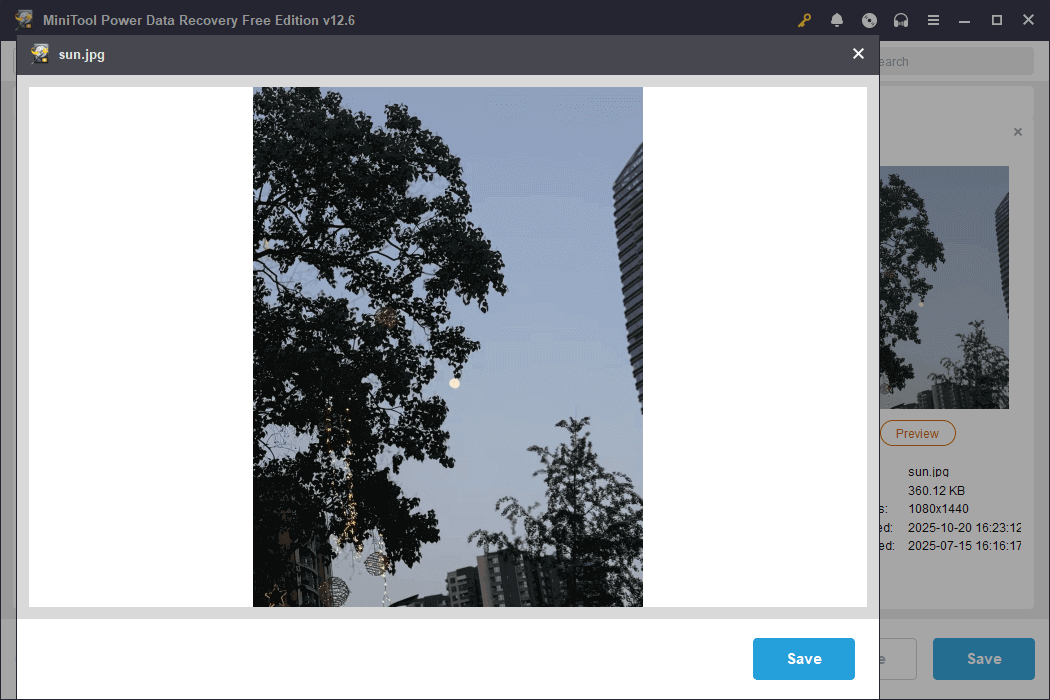
After locating the target file, use the Preview feature to view the file contents. This confirms whether it is the file you want to recover, avoiding recovering useless data.
Double-click the files one by one. If the format supports preview, the software will pop up a preview window to display the specific contents.
Step 4: Recover the files you ticked to a safe location
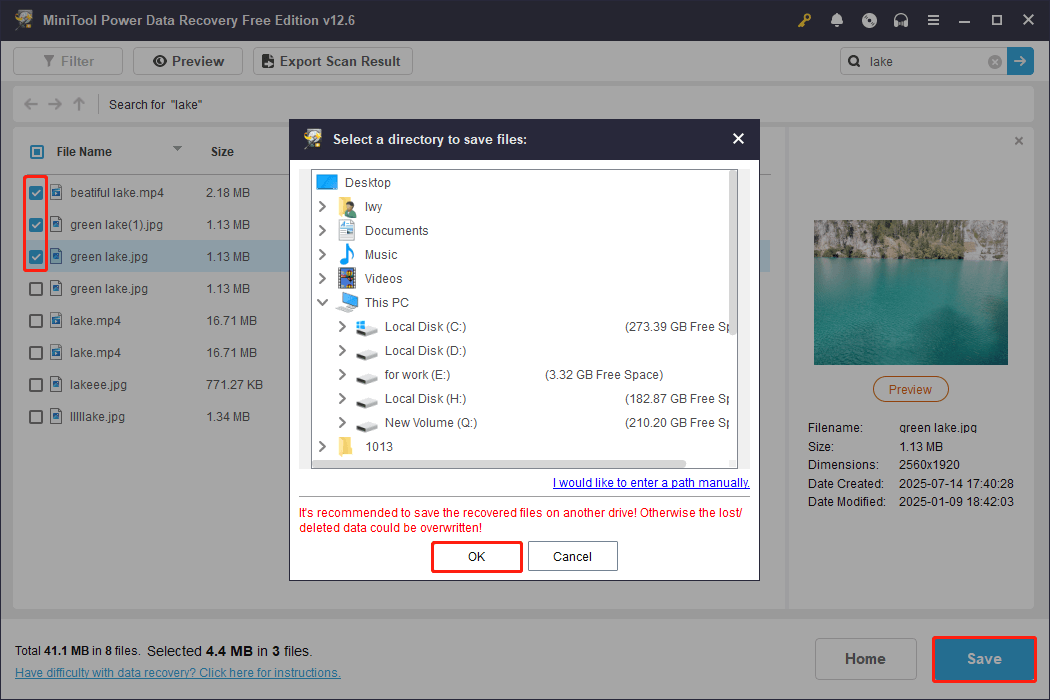
After confirming all the needed files, tick them all and click the Save button. There will be a pop-up window prompting you to choose a path for the recovered files. Choose a safe location and click OK. The recovery will start.
If you find that your free recovery capacity has been used up, consider upgrading to a full edition.
How to Fix “The Parameter Is Incorrect” on Windows
Once your important files are safely recovered, you can troubleshoot the drive. Start with simple connection checks and then move on to Windows repair tools and other advanced methods.
The following methods are arranged from lower-risk troubleshooting steps to more destructive options.
Fix 1: Check the Interface and Data Cable
When a disk is inaccessible and displays a “parameter error” message, first connect the disk to a USB port on the back of the computer to rule out power supply or signal instability.
Next, try replacing the data cable or adapter to avoid transmission abnormalities caused by aging or poor-quality cables.
Finally, test the disk on other devices to confirm whether the problem is with the interface or hardware.
If the problem isn’t solved, check the advanced ways.
Fix 2: Run CHKDSK
CHKDSK (Check Disk) is a built-in disk inspection and repair tool on Windows. It scans and attempts to repair file system errors and other disk-related issues. Here is how to run CHKDSK.
Step 1: Open Command Prompt as an administrator
Type cmd in the Windows search bar, right-click Command Prompt, and choose Run as administrator.
Step 2: Execute the command
Input chkdsk /f /r /x G: in the window and press Enter. Replace G with the drive letter of your drive.
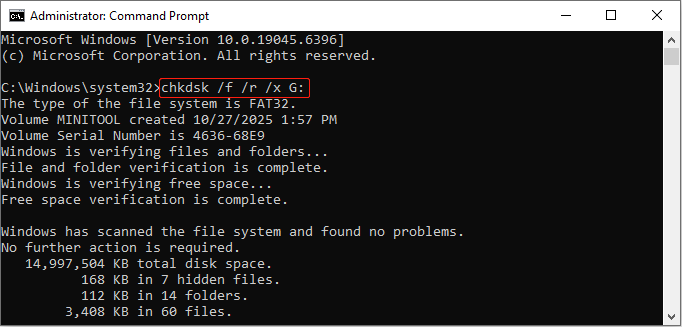
This scan and repair process will take some time. Wait patiently for it to complete. When it ends, check your disk. If the error persists, try the following methods.
Fix 3: Update or Reinstall Disk Drivers
Outdated or incompatible disk drivers may also lead to the parameter error. At this time, it is best to update or reinstall the disk driver.
Step 1: Access Device Manager
Right-click the Windows button and choose Device Manager.
Step 2: Update the disk driver
Expand Disk drives, right-click your disk, and choose Update driver. In the new window, select Search automatically for drivers.
This process will automatically detect new drivers. After finding an available one, follow the on-screen instructions to complete the installation.
What if the problem is not solved after updating the driver? Try reinstalling it according to the following steps.
Step 1: Open Device Manager and expand Disk drives.
Step 2: Right-click the disk and choose Uninstall device.
Step 3: Hit Uninstall again to confirm the change.
When the uninstallation is finished, restart your computer, and Windows will automatically install the new driver.
What to do if the error still exists? Don’t panic. Keep trying the methods below.
Fix 4: Run an SFC Scan
Abnormal system files may cause parameters to not be correctly recognized or processed, resulting in a parameter error. Running SFC can check and repair damaged or missing system files.
Step 1: Open an administrative Command Prompt
Press Win + S and enter cmd. Right-click Command Prompt and select Run as administrator.
Step 2: Run the SFC scan command
In the Command Prompt window that opens, enter sfc /scannow and press Enter. It will begin scanning all protected system files and automatically repair corrupted files.
Wait for the scan to complete. After it is complete, check your hard drive. If this method doesn’t work, there are other options.
Fix 5: Scan for Viruses
In rare cases, the parameter error may also be triggered by malware infection, so performing a quick virus scan is advisable for safety.
Here is how to run a virus scan by using Windows Defender:
Step 1: Open Settings and Windows Security
Press Win + I to open the Settings app. Click Update & Security > Windows Security.
Step 2: Access the scan option page
Click Virus & threat protection under Protection areas. Then, hit Scan options under Current threats.
Step 3: Start a virus scan
Choose a scan type between Quick scan, Full scan, Custom scan, and Microsoft Defender Offline scan according to your needs. After confirming that, click Scan now and wait for the process to complete.
If you still receive this error message, try uninstalling antivirus software.
Fix 6: Uninstall Antivirus Software
Some antivirus programs may block disk access or interfere with parameter passing. This can prevent the system from correctly interpreting the required parameters, resulting in a parameter error.
Uninstalling the antivirus software can eliminate interference and verify whether it is the cause of the error. Here is how to uninstall antivirus software.
Step 1: Press Win + S, type the software name, right-click the best match, and choose Uninstall.
Step 2: In the Programs and Features page, right-click the software and choose Uninstall.
Step 3: In the pop-up window, click Yes. Wait for the process to complete.
If all the above methods fail, the last one definitely won’t let you down.
Fix 7: Format Your Problematic Drive
Formatting can be your last resort. This operation can rebuild the file system and clear potential faults, restoring normal use of the disk. Here are two options you can refer to.
Option 1: Format the disk in Disk Management
Disk Management is a built-in Windows utility for managing disks. It can format a disk to clear damaged structures and re-establish a new file system. This restores the disk to normal use.
Here is how to format your disk in Disk Management:
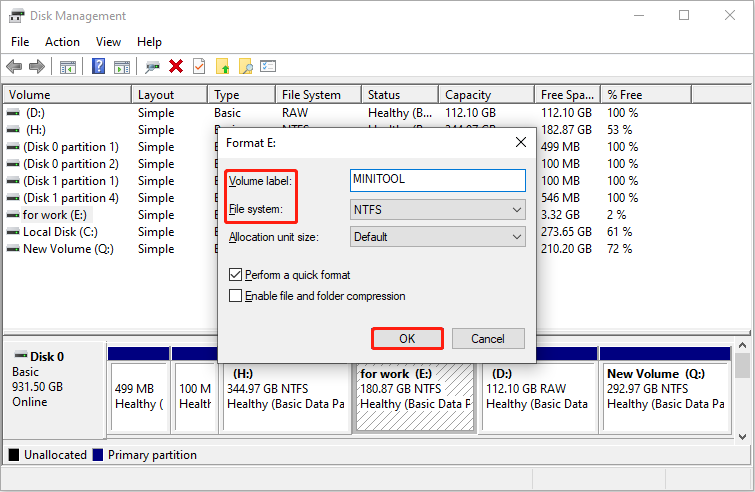
Step 1: Press Win + X and choose Disk Management.
Step 2: Right-click the disk and choose Format.
Step 3: Set the volume label and file system, and make sure the box for Perform a quick format is checked.
Step 4: Click OK and OK again to apply the change.
Option 2: Format the drive with MiniTool Partition Wizard
MiniTool Partition Wizard boasts enhanced partition repair and formatting capabilities. It can rebuild damaged file system structures to restore disk usability.
Compared to Windows’ Disk Management, this tool offers a more intuitive interface and more powerful disk management capabilities, making it suitable for users who require advanced disk operations.
Here is how to format the disk using MiniTool Partition Wizard:
Step 1: Download and install MiniTool Partition Wizard by clicking the following button.
MiniTool Partition Wizard FreeClick to Download100%Clean & Safe
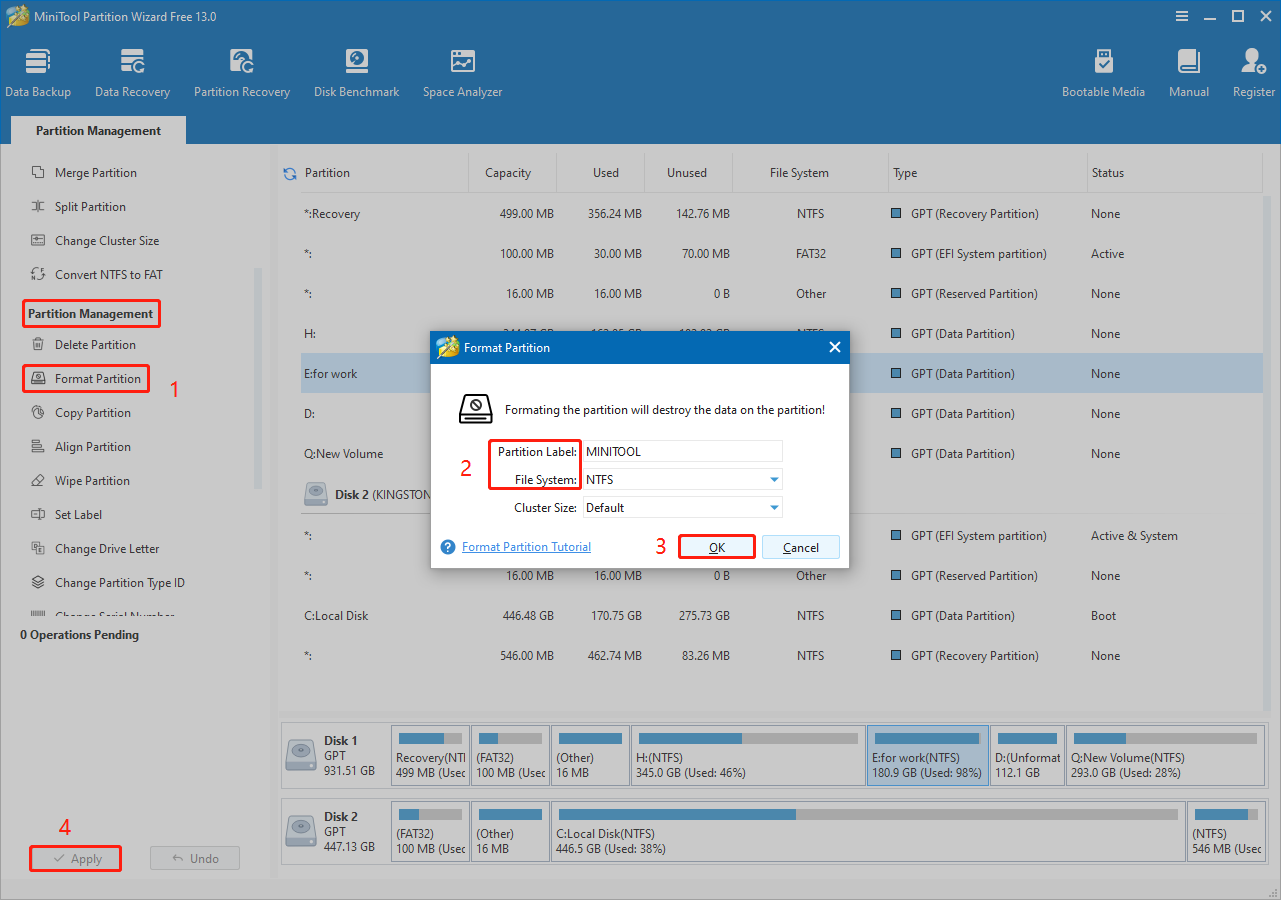
Step 2: Launch the software and select the target drive in the right pane.
Step 3: Click Format Partition under Partition Management.
Step 4: Set the partition label and file system, and click OK.
Step 5: In the lower left corner of the main interface, click Apply.
Step 6: Hit Yes in the pop-up window to perform the operation.
Why Does Windows Say “The Parameter Is Incorrect”
After fixing this error, here are some causes of the “The parameter is incorrect” error and tips on how to protect your disk.
1. Poor USB port contact or a damaged data cable.
Aging or poor-quality data cables or loose USB connectors can cause unstable signal transmission. This prevents the system from properly identifying the drive and potentially triggering the parameter error.
Prevention: Use a high-quality data cable, prioritize connecting to the USB port on the back of the motherboard, and regularly clean the connector to maintain good contact.
2. Incompatible or outdated drivers.
When drivers are incompatible or outdated, errors can occur in the communication between the system and the hardware, leading to an incorrect parameter error.
Prevention: Regularly check and update disk-related drivers to ensure they are compatible with the current operating system version, and avoid using unverified third-party drivers.
3. File system corruption.
When Windows accesses a storage device, it relies on the device’s file system to read and write data. If the file system is abnormal, the “The parameter is incorrect” error may occur.
Prevention: To prevent file system corruption, avoid disconnecting drives abruptly, do not interrupt ongoing read/write operations, and ensure the disk is not running out of free space.
4. Virus infection.
Malicious software or viruses can sometimes cause damage to the file system, triggering the “parameter incorrect” error.
Prevention: Install reliable antivirus software and keep the virus definitions updated, and perform regular full system scans. Preventing malicious programs from damaging the file system is especially important when connecting external devices to the computer.
The Parameter Is Incorrect FAQ
Final Thoughts
The “The parameter is incorrect” error can result from connection problems, corrupted file systems, driver issues, or malware.
Recover important files first, then troubleshoot the drive by checking the connection, running CHKDSK, updating drivers, running SFC, and scanning for malware.
If none of these methods work, format the drive as a last resort. If you have questions about MiniTool products, please contact us at [email protected].
User Comments :