

Deleted folders can often be recovered on Windows using methods such as the Recycle Bin, backups, File History, Backup and Restore, or data recovery software. This guide explains where deleted folders go, how to recover them, and how to prevent future data loss with proper backup practices.
Can You Recover Deleted Folders
Yes, deleted folders can often be recovered on Windows. The recovery method depends on how the folder was deleted and whether the deleted data has been overwritten.
- If the folder was deleted normally, you can usually restore it from the Recycle Bin.
- If the folder was permanently deleted using Shift + Delete or after emptying the Recycle Bin, free data recovery software may help recover it.
- If you have a backup containing the deleted folder, you can restore it using backup solutions such as File History, Backup and Restore, or cloud backups.
Where Do Permanently Deleted Folders Go
When you delete a folder using Shift + Delete or empty the Recycle Bin, Windows removes it from normal access. However, the actual data may remain on the storage device until new data overwrites it.
In this situation, stop using the drive where the folder was stored and avoid saving new files. This helps reduce the chance of the deleted data being overwritten.
Data recovery software can scan the storage device and attempt to recover permanently deleted folders that are not overwritten.
Why Do Folders Get Lost
Below is a detailed explanation of common causes for folder loss.
- Accidental deletion: You may accidentally delete folders when managing files, causing them to be missing from your computer.
- File system errors: Bad sectors or file system corruption may cause folders to be unreadable.
- System updates or cleanup: System updates or disk cleanup tools automatically remove temporary folders or caches.
- Viruses or malware: Malicious programs may delete or hide folders.
- Physical damage to the storage device. Damaged physical components on the disk may result in permanent data loss. In such cases, the folder is usually unrecoverable.
How to Recover Deleted Folders with Software
If a folder has been permanently deleted, try using data recovery software. These tools scan the storage device for deleted data and help recover folders that have not been overwritten by new files.
Recover Deleted Folders with MiniTool Power Data Recovery
MiniTool Power Data Recovery is designed to recover deleted files and folders from Windows computers and various storage devices.
It has the following features:
- Provides 1 GB of free recovery capacity.
- Recovers folders lost due to accidental deletion, hard drive formatting, disk damage, virus infection, and system crashes.
- Supports Windows 11/10/8.1/8 and can recover files from HDDs, SSDs, USB drives, and SD cards.
- Recovers almost all file types, such as documents, pictures, videos, and more.
MiniTool Power Data Recovery FreeClick to Download100%Clean & Safe
Steps to Recover Deleted Folders
Step 1: Scan the location where the lost folders are stored
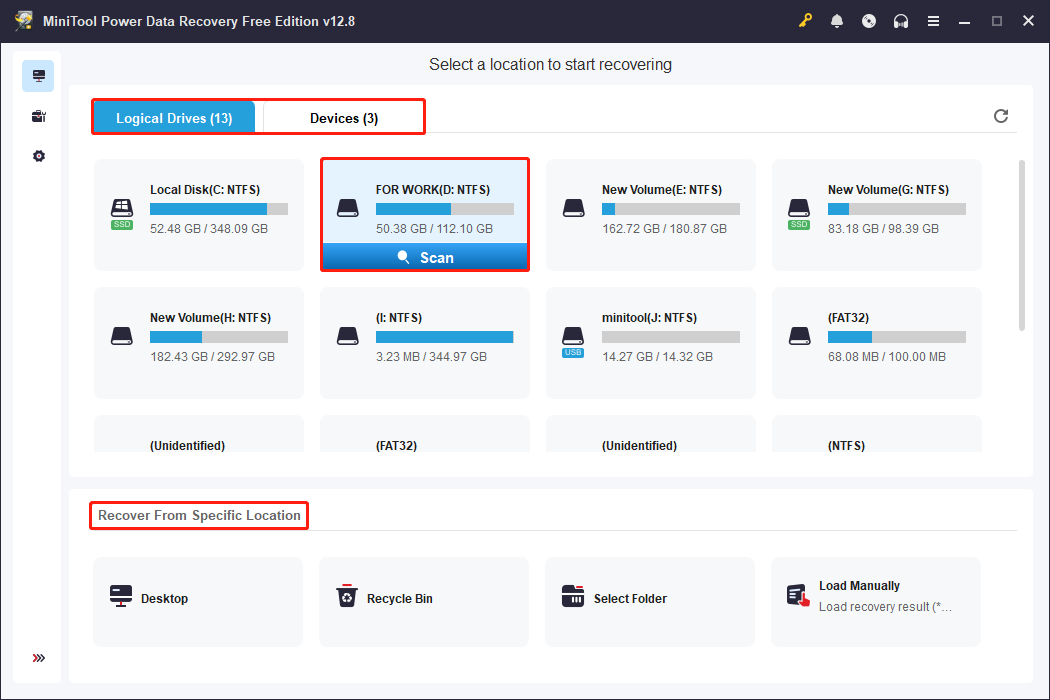
Open MiniTool Power Data Recovery. In the main interface, locate the scan location. Here are three scan methods.
- Logical Drives lists all partitions, including the lost partitions, existing partitions, and unallocated space.
- Devices displays all disks connected to your computer.
- Recover From Specific Location provides smaller scan areas, including the desktop, Recycle Bin, and a specified folder.
Select the partition, disk, or a specified location where your lost folder is located, then click the Scan button to scan for data.
Step 2: Find the target files using Path, Type, Filter, and Search
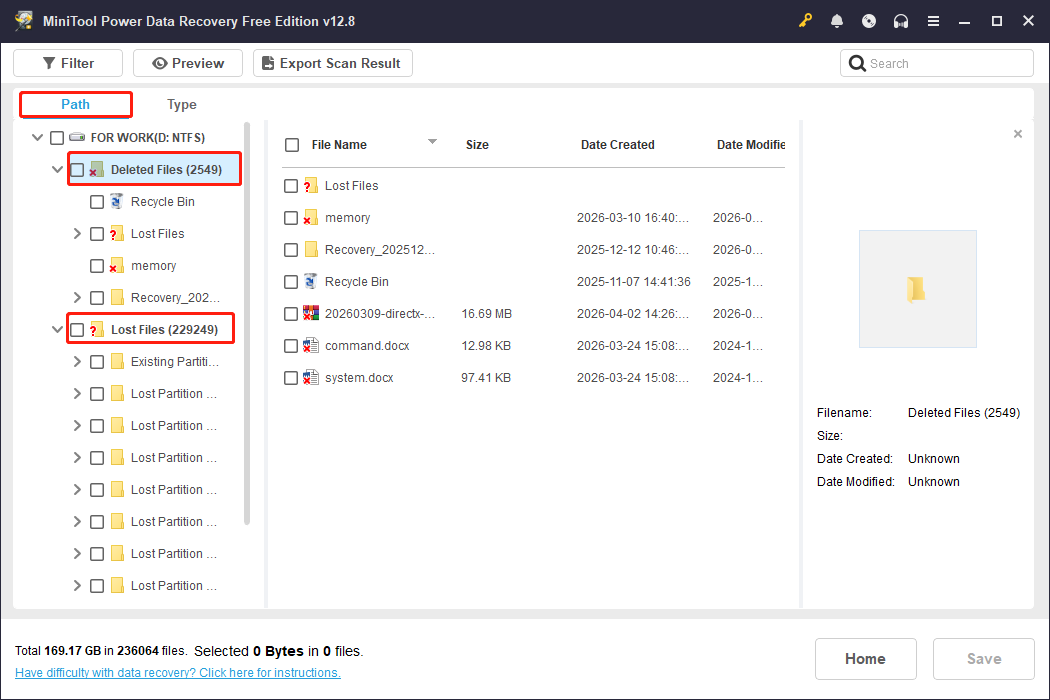
Wait for the scan process to complete. When it ends, use the Path view to locate the folder. It displays files and folders according to the disk’s directory hierarchy, allowing you to quickly locate the target folder. Expand Deleted Files and Lost Files to locate the required folder.
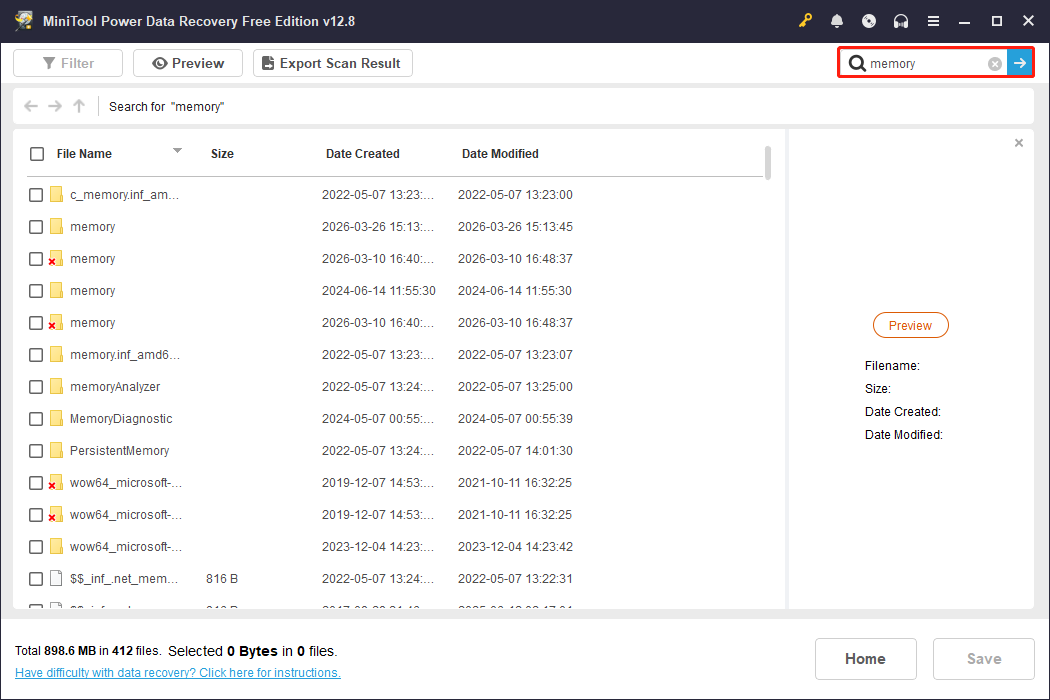
Besides this, the Search feature allows you to enter a full or partial folder name and press Enter to search for the specific folder.
Step 3: Recover the folder to a safe location
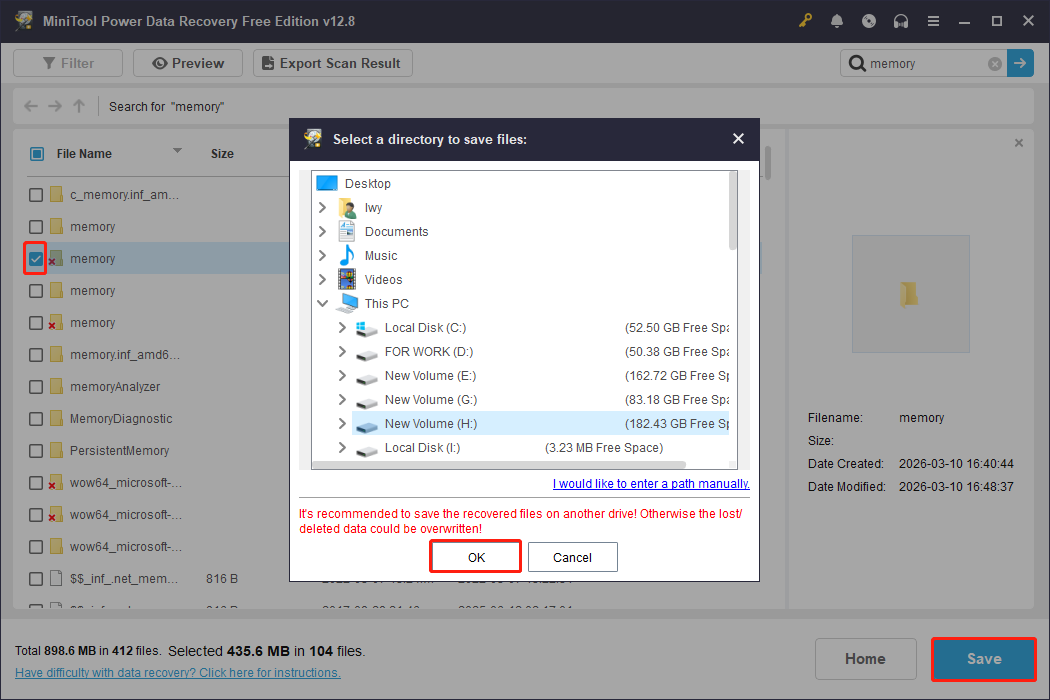
Check all the required folders and click the Save button. There will be a window prompting you to choose a path for the recovered folders. Select a safe one and click OK to start recovery.
If you don’t want to use third-party software, Windows also has built-in folder recovery functions.
How to Recover Deleted Folders Without Software
This section explains how to recover deleted folders using Windows built-in recovery functionality and cloud backup features.
Method 1: Undo the Deletion
If you have just deleted a folder and want to recover it, use the Undo function. Open the folder or partition where the folder was deleted and press Ctrl + Z to undo the deletion.
This shortcut allows you to quickly restore the content you just removed. However, this method may not work if other actions have been performed after the deletion or if the PC has been restarted.
Method 2: Check the Recycle Bin
When you delete folders on Windows, they are moved to the Recycle Bin. This location serves as a temporary storage area.
The folders still exist, but are marked as “to be cleaned up.” You can easily find and restore them to their original location.
Follow the steps below to restore deleted folders from the Recycle Bin.
Step 1: Locate the Recycle Bin icon on your computer and double-click to open it.
Step 2: Scroll down the list to browse and locate the folder you want to restore.
Step 3: Right-click the folder and select Restore from the drop-down menu.
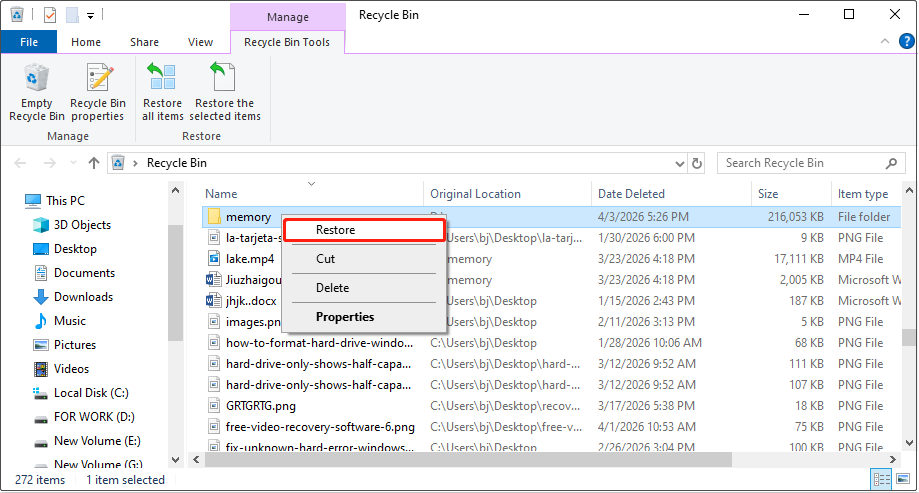
The folder will be automatically restored to its original location. Open the original path to confirm that the folder has been restored.
Alternatively, you can drag and drop the folder to another location you prefer.
Method 3: Check Your Cloud Backups
If you have backed up your folders to the cloud, you can easily recover lost folders from the cloud without needing complicated recovery tools.
Services like OneDrive, Google Drive, or Dropbox typically save copies of files and retain version history.
This means that even if your local device malfunctions, crashes, or you accidentally delete data, the cloud can still provide recovery options.
Step 1: Open your cloud platform.
Step 2: Find the target folders and download them to your local computer.
If you don’t have the habit of backing up your data to the cloud, proceed with the next method.
Method 4: Restore with File History
If you enabled File History before the folder was lost and it was included in the backup source, you can use this feature to recover the deleted folder.
File History provides Windows users with a built-in, automated file protection mechanism. When enabled, it periodically records snapshots of specified files and folders.
This allows you to easily revert folders to previous versions if you accidentally delete or modify them.
Step 1: Open File History
Type Control Panel in the Windows search bar and press Enter. Switch to Large icons view, and select File History.
Step 2: Locate the target folder
Click Restore personal files on the left to enter the backup file interface. Use the arrows to browse folder versions at different points in time. Then, select the folder you want to restore.
Step 3: Restore the folder
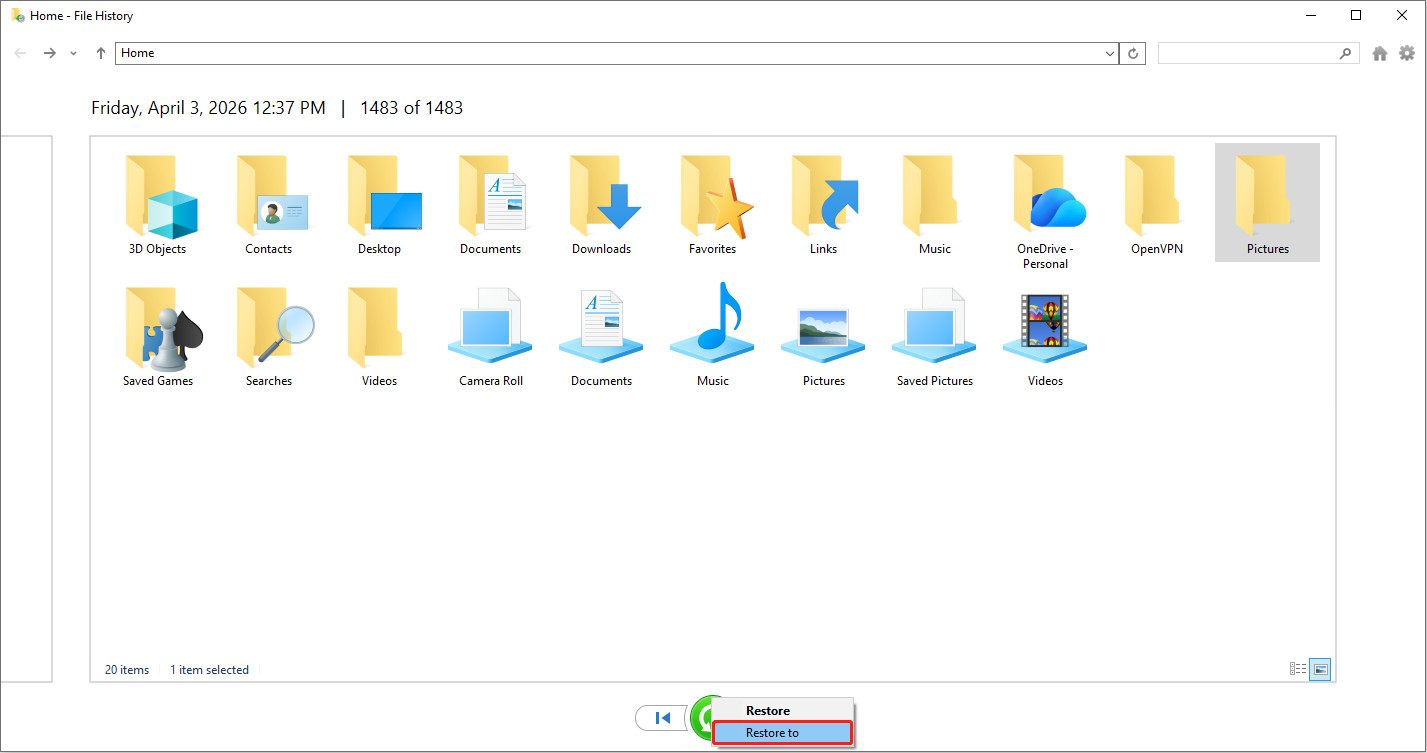
Click the green Restore button to restore the folder to its original location by default. Alternatively, you can right-click the green button, select Restore to, and choose a different location.
If File History is not enabled or lost files are not included, try the next solution.
Method 5: Retrieve with Backup and Restore
Windows also provides another built-in data security mechanism: Backup and Restore. It helps create copies of files and system images and restores them in case of data loss or system failure.
If you have previously created a valid backup, and the target folder is included in the backup, follow the steps to restore the folder.
Step 1: Open Backup and Restore
Open Control Panel, and click Backup and Restore (Windows 7) under System and Security. In the Backup and Restore interface, click Restore my files.
Step 2: Browse for the folder backup
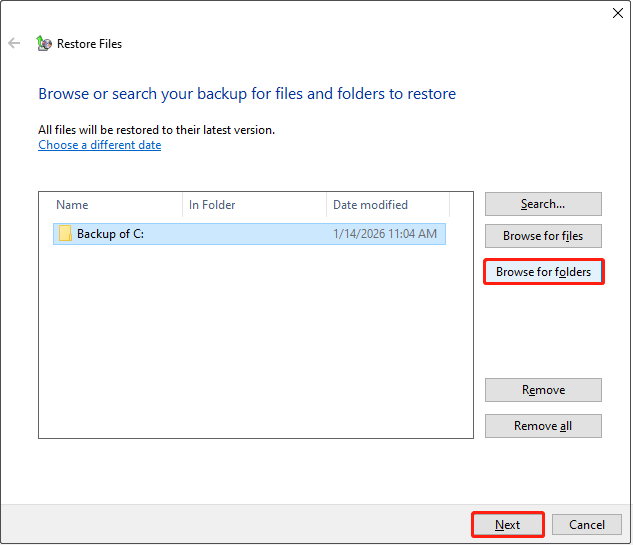
Click Browse for folders, select the target folder in the pop-up window and click Add folder. After that, check the folder you want to restore and click Next to proceed with the restore options.
Step 3: Restore the selected folder
There are two options: restoring to the original location or to a different location. By default, the folder will be restored to its original location, but you can choose to recover it to another path if needed.
Recovering the folder only solves the immediate problem. To prevent data loss from happening again, a data protection mechanism needs to be established.
How to Protect Your Folders from Being Lost
Data loss often happens unexpectedly due to various reasons. Here are some preventative measures to protect your folders and files.
- Back up folders regularly. Back up your important folders to the cloud or an external hard drive periodically. Even if they are mistakenly deleted, you can easily recover them from backups.
- Enable delete confirmation. Enable delete confirmation to prevent accidental file deletion.
- Adjust folder permissions. Set permissions to prevent unauthorized modification or deletion.
- Use password protection. Encrypt or lock important folders.
- Encrypt drives. Protect your entire disk using tools like BitLocker.
- Install antivirus software. Protect your folders from viruses or malware.
Wrapping Things Up
Now, you should know how to recover deleted folders on Windows.
- With software: Use MiniTool Power Data Recovery to scan the disk and recover deleted folders.
- Without software: Use the Undo feature, check for cloud backups, File History, and Backup and Restore to get folders back.
If you encounter any issues with MiniTool products, please contact the support team at [email protected].
About The Author

Position: Columnist
Shirley holds a bachelor’s degree in English and has been an editor at the MiniTool Team for many years. She specializes in IT-related content, with a focus on data recovery, file backup, disk management, and other technical topics. She is committed to delivering clear, accurate, and practical solutions to help users resolve common computer issues.
User Comments :