

JPEG recovery is possible if the lost photos have not been overwritten by new data or if you have a backup. This guide explains how to recover deleted JPEG photos on Windows using built-in recovery solutions and professional data recovery tools.
JPEG Photo Loss: Is JPEG Recovery Possible
Yes. JPEG recovery is possible in many data loss situations, including accidental deletion, formatting, lost partitions, and storage device errors.
When you delete a JPEG photo from a computer or removable drive, the file is not immediately erased. Instead, the system removes the information that points to the file and marks the storage space as available for new data.
As long as new data does not overwrite the original photo content, the deleted JPEG file may still be recovered.
However, the chance of successful JPEG recovery depends on several factors:
- How long ago the photos were deleted
- Whether new files have been saved to the disk
- The condition of the storage device
To improve the possibility of recovering deleted JPEG photos:
- Stop using the affected device immediately.
- Do not write new files to the drive where the photo loss happened.
- Do not install recovery software on the drive containing lost photos.
How to Recover Deleted JPEG Photos on Windows
To recover deleted JPEG photos, first check Windows built-in recovery options like the Recycle Bin and File History. If the photos are permanently deleted or no backup is available, use free data recovery software to recover lost JPEG files.
Method 1. Restore JPEG Photos from the Recycle Bin
If you deleted JPEG photos from your computer but have not emptied the Recycle Bin, recovery is simple.
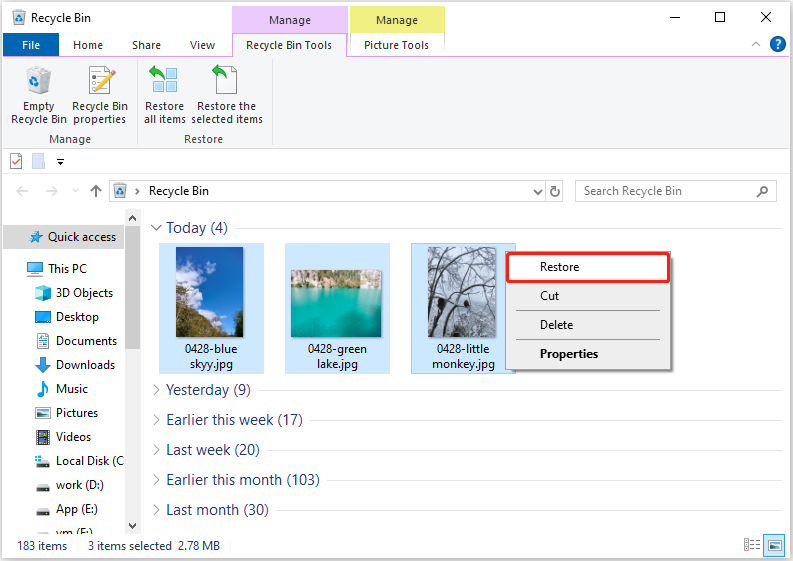
Follow these steps to recover photos from the Recycle Bin:
- Open the Recycle Bin on your Windows desktop.
- Find the deleted JPEG photos, right-click them, and choose Restore.
The photos will be returned to their original location.
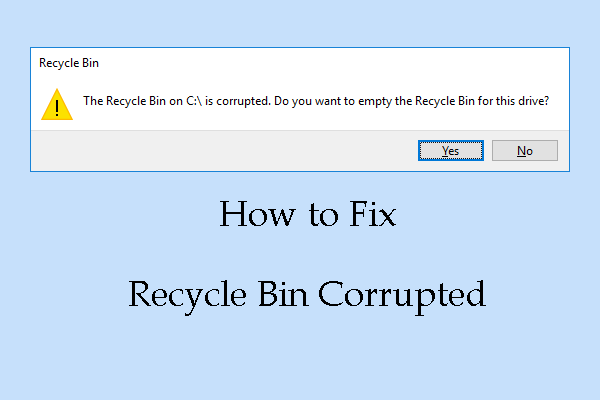
However, this method only works when:
- The photos were deleted from the internal hard drive.
- The Recycle Bin has not been emptied.
- The files were not permanently deleted using Shift + Delete.
Method 2. Use Photo Recovery Software
If the JPEG photos are no longer in the Recycle Bin, professional photo recovery software is usually the most effective solution.
MiniTool Power Data Recovery is a read-only data recovery tool that can help recover deleted JPEG photos and other lost files from various storage devices.
| Supported storage devices | Windows computers, SD cards, USB drives, external hard drives, CDs/DVDs |
| Compatible systems | Windows 11, 10, 8.1, 8 |
| Supported file types | Photos, videos, documents, audio, emails, archives |
| Supported photo loss cases | Accidental deletion, formatting, partition loss, virus attacks, disk errors |
| Free recovery | 1 GB of free recovery |
Steps to Recover Deleted JPEG Photos with MiniTool Power Data Recovery:
Step 1. Select the Location Where JPEG Photos Were Lost
Download and install the free edition of MiniTool Power Data Recovery.
MiniTool Power Data Recovery FreeClick to Download100%Clean & Safe
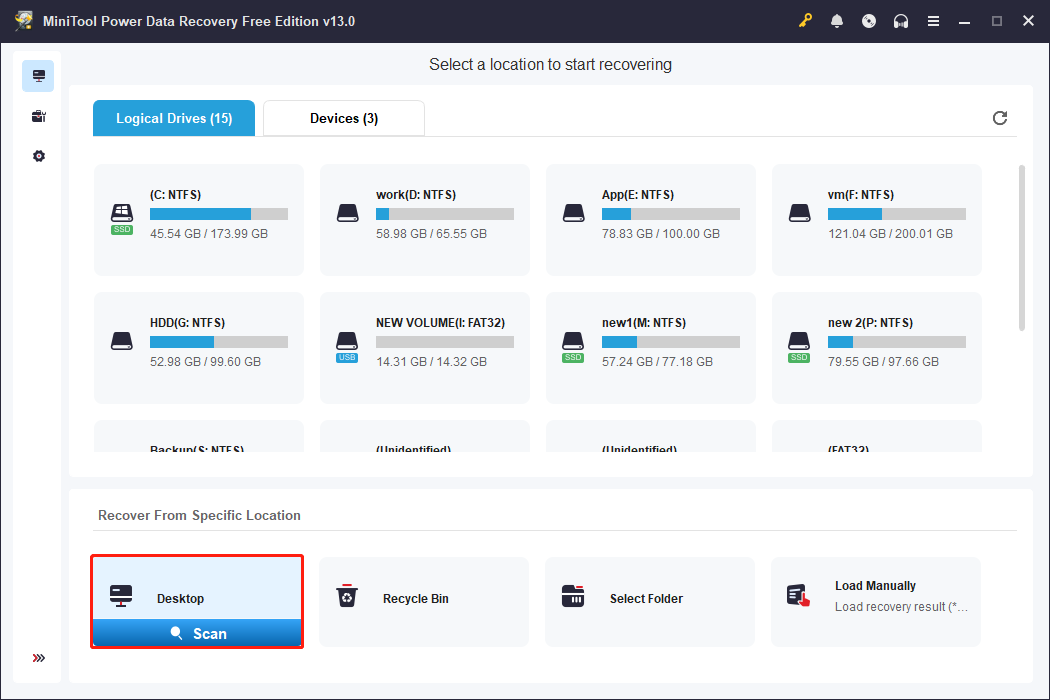
Launch the software and select the partition or location where your deleted JPEG photos were saved and click Scan.
Step 2. Find JPEG Photos from Scan Results
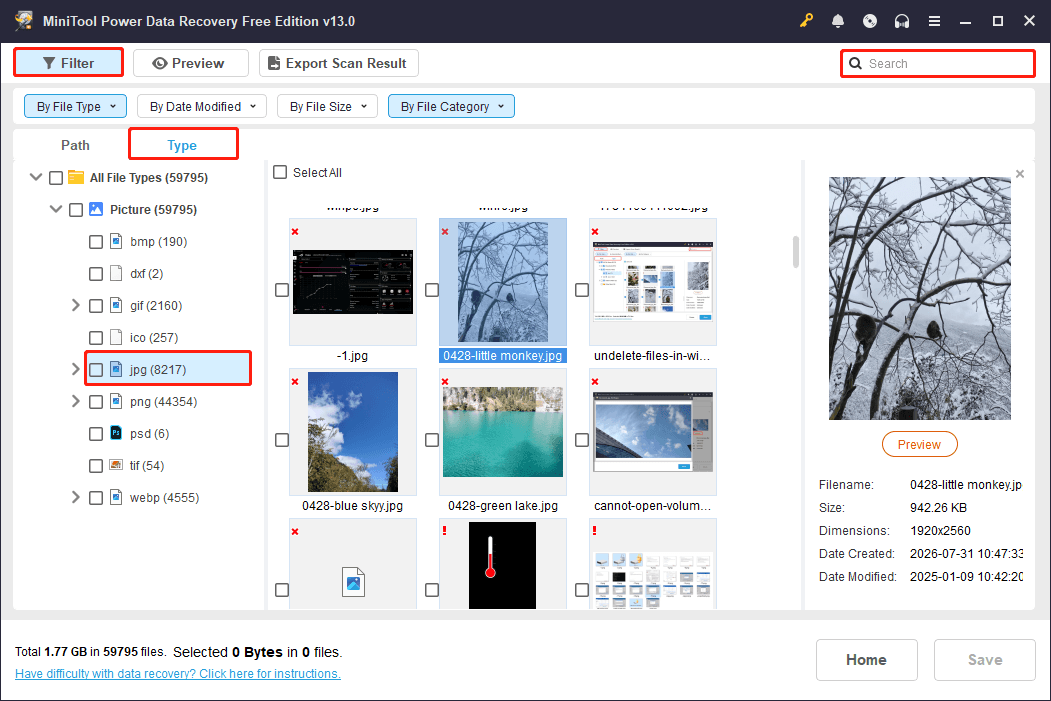
After scanning, the software will display recoverable files. To quickly locate JPEG photos:
Open the Type category, select Picture, and find the JPG/JPEG files.
You can also use Filter to narrow results by file size, category, or modification date, or use Search to find photos by file name.
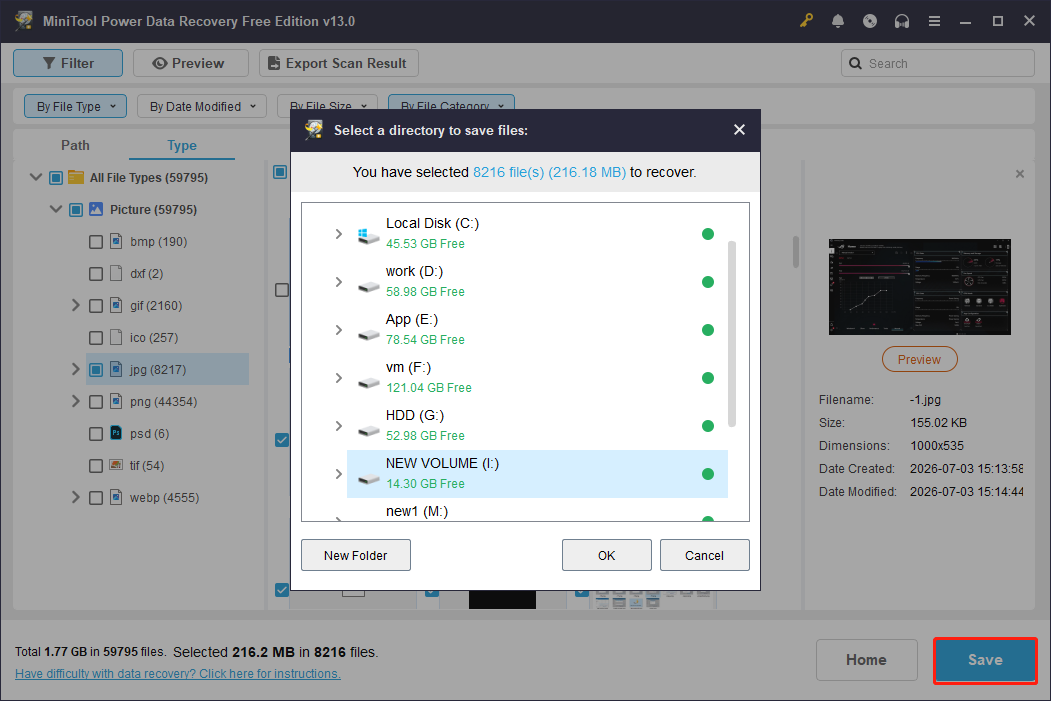
Step 3. Recover JPEG Files
Finally, select the JPEG files you want to recover and click Save. Do not save recovered JPEG photos to the original storage location. Saving files back to the same device may overwrite other lost photos.
Method 3. Restore from a Previous Version
Windows provides another recovery option through the Restore Previous Versions feature.
If File History or System Protection was enabled before photo loss, you may be able to restore an earlier version of the folder containing lost JPEG photos.
- Right-click the folder where the lost photos were stored and choose Restore previous versions.
- Choose an available version and click Open to view the files in it, then you can restore the selected version.
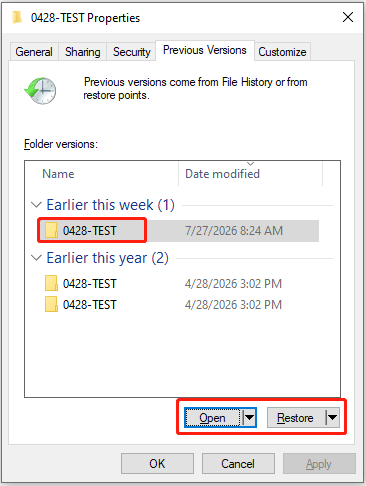
The Restore Previous Versions feature only works if Windows created a previous copy of the files. If no previous versions are available, use JPEG recovery software.

How to Repair Corrupted Photos
Sometimes, JPEG photos are not deleted but become inaccessible or damaged. For example, you may encounter problems such as:
- JPEG photos cannot be opened.
- Images appear blurry or partially gray.
- The photo viewer shows an error message.
In these cases, the problem is not traditional data loss but JPEG file corruption. Follow the steps below to repair corrupted photos.
Before attempting repair, make a copy of the corrupted JPEG files. Working on a copy prevents further damage to the original files.
Method 1. Open the JPEG File with Another Photo Viewer
Sometimes, a JPEG photo is not actually damaged. The problem may come from an incompatible or malfunctioning image viewer.
Try opening the file with another image viewer and check if the photo opens successfully.
Method 2. Use JPEG Repair Software
If the JPEG file structure is damaged, specialized photo repair tools may help fix corrupted images.
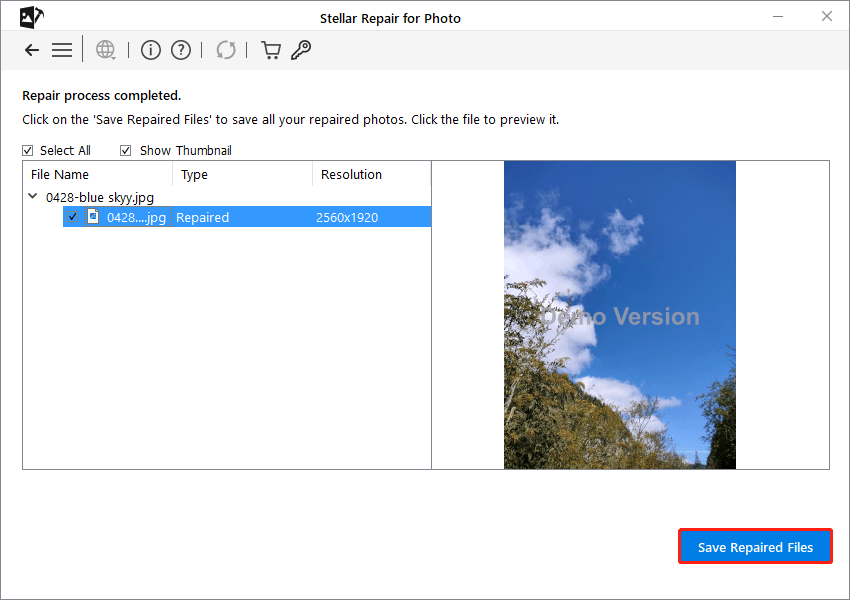
Stellar Repair for Photo can help repair corrupted JPG photos in situations of a corrupt header, corrupt data, or invalid image file structure.
- Add the corrupted JPG photos.
- Click Repair.
- Preview the repaired photos and click Save Repaired Files.
How to Prevent JPEG Photo Loss in the Future
Although JPEG recovery can help restore lost photos, prevention is always better than recovery.
Follow these practices to protect your JPEG files:
- Back up important JPEG photos regularly to external drives, cloud storage, or other locations.
- Keep multiple copies of valuable photos instead of storing them on only one device.
- Safely eject SD cards and USB drives before removing them from your computer.
- Avoid formatting storage devices before checking whether important photos are still needed.
- Stop using a device immediately after photo loss to prevent deleted JPEG files from being overwritten.
- Replace damaged or unreliable storage devices before they cause permanent data loss.

Frequently Asked Questions About JPEG Recovery
MiniTool Power Data Recovery is a reliable option for recovering deleted or lost JPEG photos from Windows computers, SD cards, USB drives, and other storage devices. It supports recovering 1 GB of files for free.
If you cannot find JPEG files in these locations, they may have been deleted or hidden. Try showing hidden files or using JPEG recovery software.
Bottom Line
JPEG photo loss can happen unexpectedly, but losing photos does not always mean they are gone forever. With the right JPEG recovery method, you may be able to restore deleted or lost JPEG files and get back your valuable memories.
If you have any questions about JPEG recovery with MiniTool Power Data Recovery, please leave us comments or contact [email protected]. We read every thread!
About The Author

Position: Columnist
Shirley holds a bachelor’s degree in English and has been an editor at the MiniTool Team for many years. She specializes in IT-related content, with a focus on data recovery, file backup, disk management, and other technical topics. She is committed to delivering clear, accurate, and practical solutions to help users resolve common computer issues.
User Comments :