

Missing DLL errors usually happen because of accidental deletion, corrupted system files, incomplete software installation, or malware. You can fix them by reinstalling the affected program, running SFC and DISM, or recovering missing DLL files by using data recovery software.
When I started a certain program, it always prompted that the DLL file was missing. I checked and found that many people have this problem. I would like to ask everyone: is there any simple way to fix missing DLL files on Windows 11? I tried a few methods myself, but it was still not stable.techcommunity.microsoft.com
A DLL file is a Dynamic Link Library used by Windows programs to share code. DLL files allow multiple programs to share the same functions, reducing duplicated code and improving system efficiency.
Windows uses DLL files to provide system functions that applications rely on. Many programs also include their own DLL files for specific features.
Common Causes of Missing DLL Files
“Missing DLL files” is one of the most common system errors on Windows, but it doesn’t just happen. Here are some of the most common reasons.
- Virus or malware infection: Malicious programs may delete or replace DLL files, interfering with system operation.
- User’s inadvertent file deletion: Manual cleanup or misuse can lead to accidental deletion of DLL files.
- Incomplete software installation or uninstallation: Critical DLL files may be omitted or removed when a program is improperly installed or uninstalled.
- Failed or conflicting system updates: Older versions of DLL files may be overwritten or lost during Windows updates.
- Hard drive or file system corruption: Disk failure can cause DLL files to become corrupted or unreadable.
- Incompatible drivers or plug-ins: Some hardware drivers or plug-ins rely on specific DLL files. Failed driver installation or incompatible versions can also cause DLL errors.

How to Fix Missing DLL Files
Missing DLL files can come from different sources, and the best fix depends on where the DLL file belongs. Some DLLs are part of Windows, while others are installed with specific programs. If a DLL file is deleted accidentally, recovery methods may help restore it.
| DLL Type | Example | Fix |
| Windows system DLL | kernel32.dll | Run SFC/DISM or System Restore |
| Program DLL | Game DLL files | Reinstall the affected program |
| Deleted DLL | Accidentally removed files | Restore from Recycle Bin or use data recovery software |
Method 1: Restart Your PC
Restarting your computer clears the system cache, releases file locks, and reloads system services. This can sometimes resolve DLL errors caused by temporary errors or load failures.
Step 1: Click the Windows and Power buttons successively.
Step 2: Hit the Restart optionfrom the menu.
The system will automatically shut down and restart.
No change after restart? Continue with the next solution.
Method 2: Reinstall the Affected Program
Some programs’ installation packages contain DLL files. If these programs are damaged, the DLL files may become corrupted or disappear. Reinstalling the affected program will ensure that these dependent files are fully copied to the system.
Step 1: Identify the program causing the DLL error.
Step 2: Right-click the Start button and select Settings. Then, choose Apps.
Step 3: Under Apps & features, find the problematic program, click it, and hit the Uninstall button.
When the uninstallation is complete, restart your computer. After that, install the program from the official website and check to see if the DLL file is restored.
Method 3: Run DISM and SFC Scan
Running DISM and SFC scans is an important step in fixing missing DLL files because they can detect and repair corrupted or missing core files on your system.
DISM first repairs the system image to ensure that SFC can run properly. SFC scans protected system files and automatically replaces corrupted or missing DLLs. It can restore system stability and program functionality.
Step 1: Open an administrative Command Prompt
Type Command Prompt in the Windows search bar, right-click the best match, and choose Run as administrator.
Step 2: Run DISM
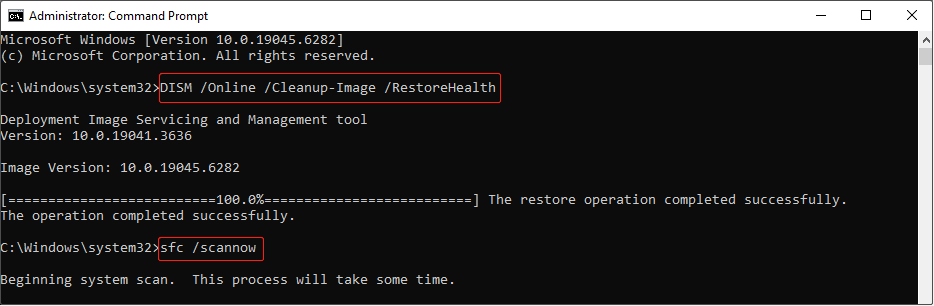
Input the command: DISM /Online /Cleanup-Image /RestoreHealth, and press Enter. This process will take some time. Wait patiently for it to complete.
Step 3: Execute SFC
Once done, type sfc /scannow and press Enter. The system will begin scanning all protected system files. If any corrupted files are found, it will attempt to repair them automatically.
What if the DLL files are still not restored? Check the following methods.
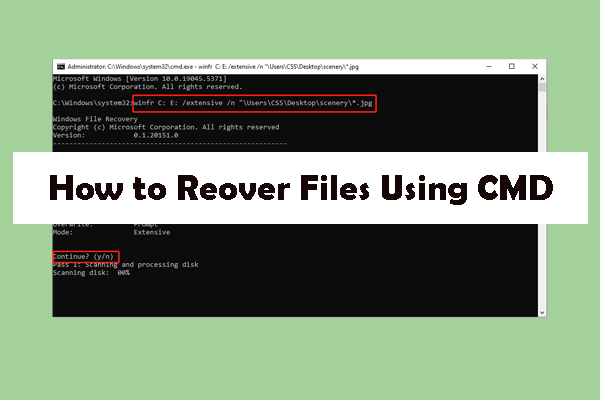
Method 4: Restore Missing DLL Files from the Recycle Bin
If the DLL files are deleted by mistake on Windows, they will remain in the Recycle Bin instead of being permanently deleted. You can restore the DLL files using this built-in tool without having to download or reinstall them.
Step 1: Find and open the Recycle Bin. Then, browse the list to locate the target DLL files.
Step 2: After finding them, select them, right-click the area, and choose Restore.
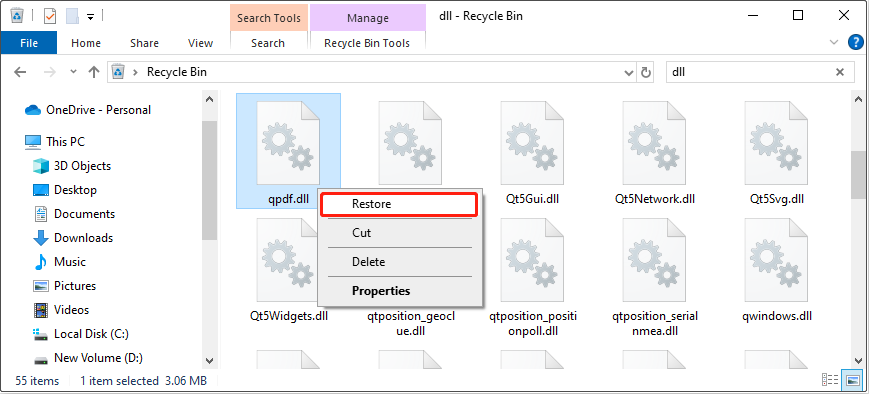
The DLL files will be restored to the original location. Go and check them.

Method 5: Restore Using MiniTool Power Data Recovery
Using data recovery software to recover missing DLL files is also an effective and safe solution. Here, I recommend MiniTool Power Data Recovery to you.
This robust tool can recover deleted files from various complex scenarios, including accidental deletion, disk failure, system crashes, etc.
What’s more, it supports recovering various files from multiple storage devices, including USB flash drives, SD cards, external hard drives, and so on.
This recovery tool is compatible with Windows 11/10/8/8.1. As free file recovery software, it allows you to restore 1 GB of files without paying a cent. Download and install it to do a DLL recovery now.
MiniTool Power Data Recovery FreeClick to Download100%Clean & Safe
Step 1: Launch the software and choose a scan location
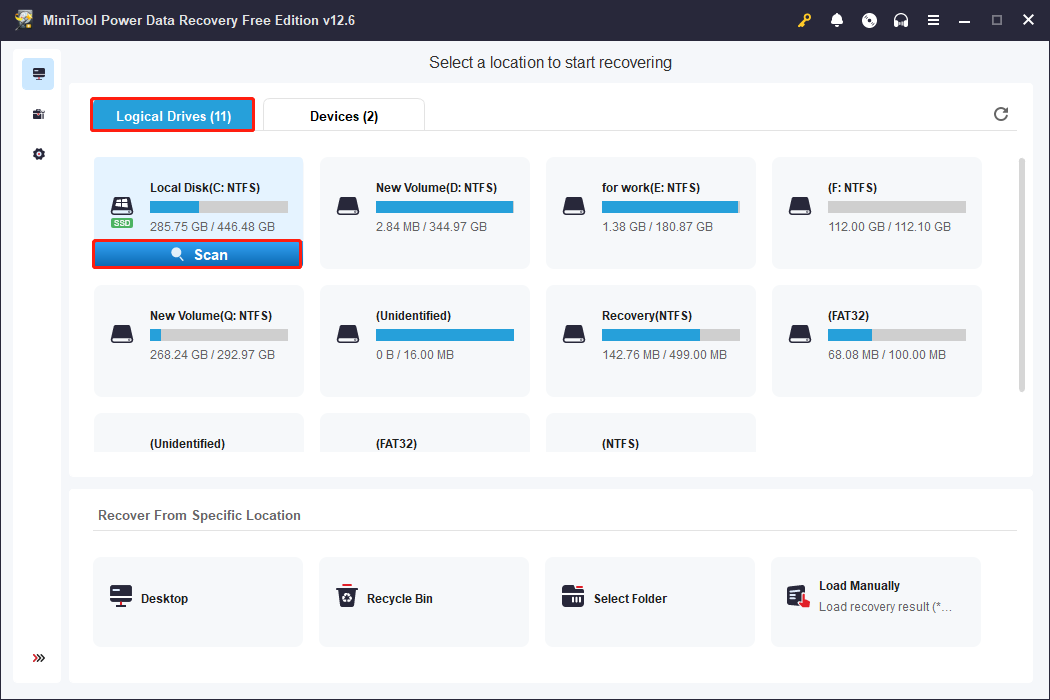
Open MiniTool Power Data Recovery. Under the Logical Drives tab, find the partition where your missing DLL files are stored. Move the cursor to it and click Scan.
Step 2: Find the target DLL files using Search
The scanning process will take some time. You need to be patient and wait for it to complete. Once done, find the target DLL files by searching for them.
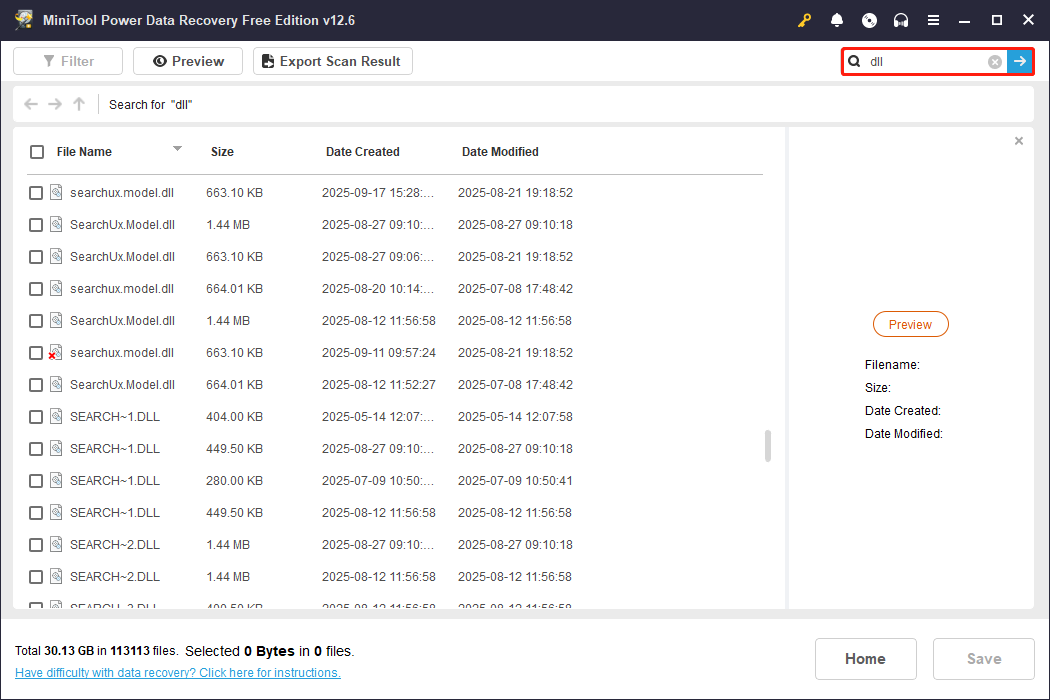
Type the full or partial file name or just DLL in the Search box in the upper right corner and press Enter. All the matching DLL files will be filtered here. Scroll down the list to find the needed ones.
Step 3: Recover DLL files to a new location
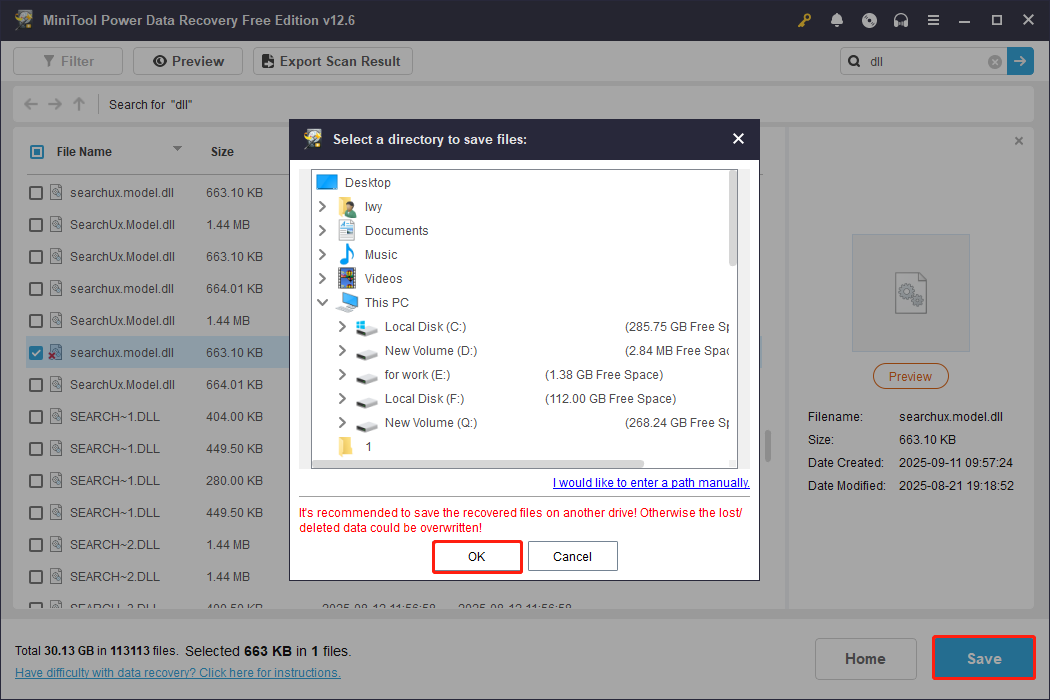
After confirming all the files, tick them and click the Save button. In the destination window, choose a new and safe location to store the recovered DLL files. Finally, hit OK to start the recovery process.
When the Recovery Completed window pops up, it means your DLL files have been successfully recovered.
Here, you can view the size of the recovered data and the remaining free recovery capacity. If the free capacity is used up, upgrade to a full edition to enjoy unlimited file recovery.
Method 6: Scan for Viruses and Malware
Certain viruses can delete, replace, or infect DLL files, causing system malfunctions or preventing programs from starting. Comprehensive security scans can identify and remove potentially malicious viruses, preventing further DLL file loss or modification.
Step 1: Press Win + I to open the Settings app.
Step 2: Click Update & Security > Windows Security.
Step 3: Choose Virus & threat protection under Protection areas.
Step 4: Hit Scan options, select a scan method, and hit Scan now.
The scan will begin. After that, the system will prompt whether any threats are found and provide treatment suggestions. If the lost DLL files are not fully restored, try the methods below.
Method 7: Perform a System Restore
Performing a System Restore can return your computer to a point in time before the DLL file was lost. This can automatically recover system files that have been accidentally deleted, replaced, or damaged.
Step 1: Open Control Panel
Type Control Panel in the Windows search bar and press Enter.
Step 2: Open System Restore
Change the view to Large icons or Small icons and click Recovery > Open System Restore.
Step 3: Go back to the restore point
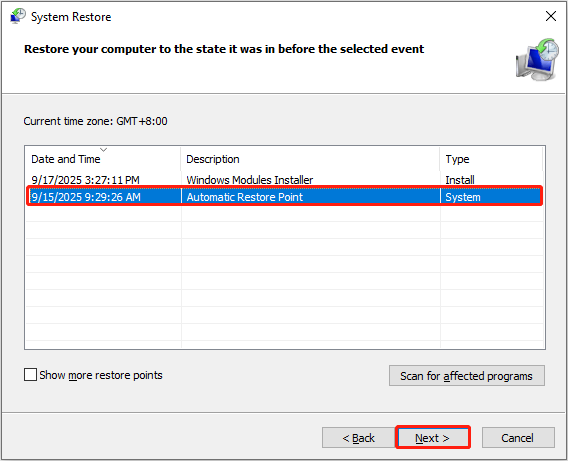
Click Next in the pop-up window to continue. Then, select a restore point where the file still exists and hit Next > Finish.
In Summary
This post tells you the definition of a DLL file, including its core functions and uses, possible causes of missing DLL files, and methods to restore them.
To fix missing DLL files, try the following: restart your computer, reinstall the problematic program, run DISM and SFC commands, scan for viruses, use MiniTool Power Data Recovery, perform a System Restore, or reinstall Windows.
For assistance with any MiniTool product, please contact us at [email protected]. We will respond promptly.
Missing DLL Files FAQ
About The Author

Position: Columnist
Shirley holds a bachelor’s degree in English and has been an editor at the MiniTool Team for many years. She specializes in IT-related content, with a focus on data recovery, file backup, disk management, and other technical topics. She is committed to delivering clear, accurate, and practical solutions to help users resolve common computer issues.
User Comments :